

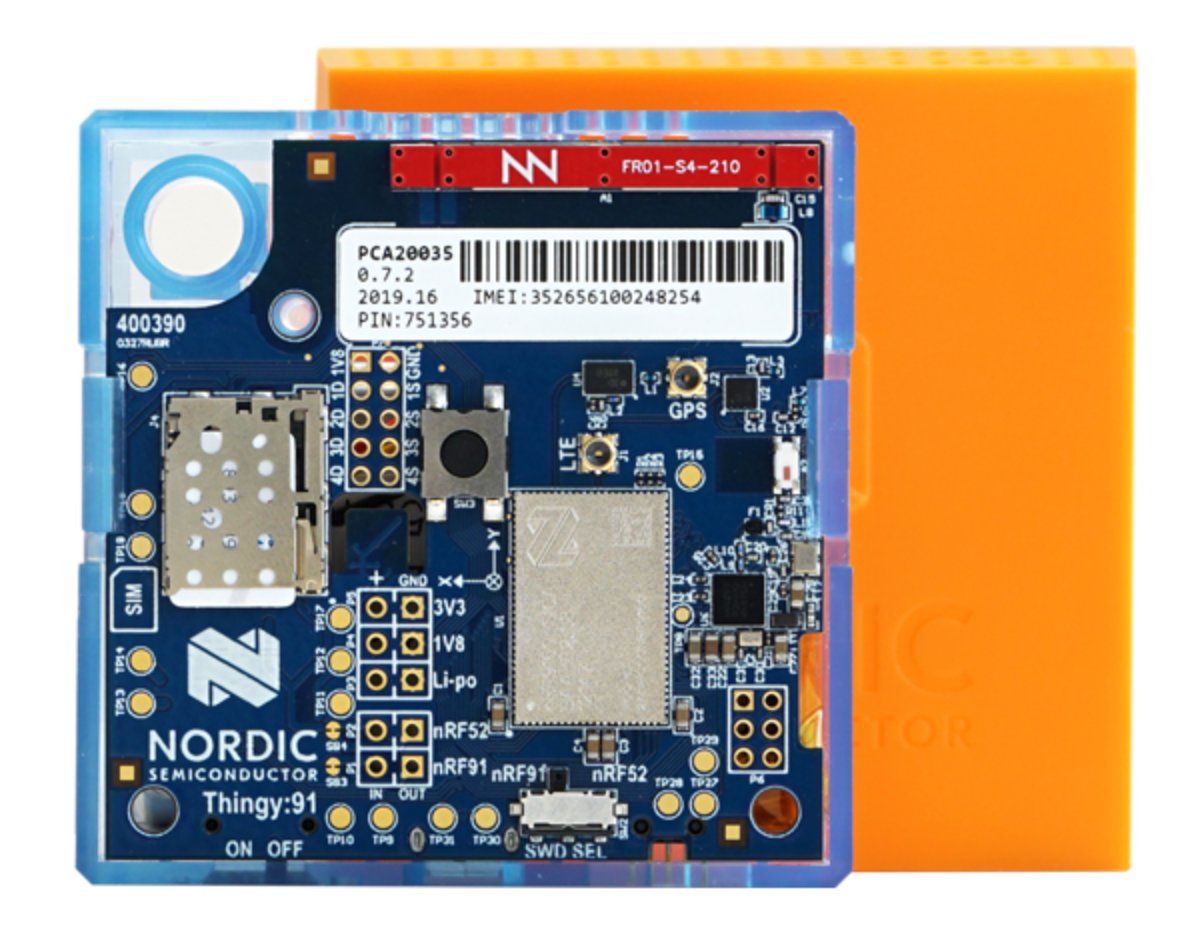
Thingy:91
Installing dependencies
To set this device up in Edge Impulse, you will need to install the following software:- nRF Connect for Desktop.
- Edge Impulse CLI.
- On Linux:
- GNU Screen: install for example via
sudo apt install screen.
- GNU Screen: install for example via
Updating the firmware
Before you start a new project, you need to update the Thingy:91 firmware to our latest build.1. Connect the development board to your computer
Use a micro-USB cable to connect the development board to your computer. Then, set the power switch to ‘on’.2. Download the firmware
Download the latest Edge Impulse firmware. The extracted archive contains the following files:firmware.hex: the Edge Impulse firmware image for the nRF9160 SoC, andconnectivity-bridge.hex: a connectivity application for the nRF52840 that you only need on older boards (hardware version < 1.4)
3. Update the firmware
- Open nRF Connect for Desktop and launch the Programmer application.
- Scroll down in the menu on the right and make sure Enable MCUboot is selected.
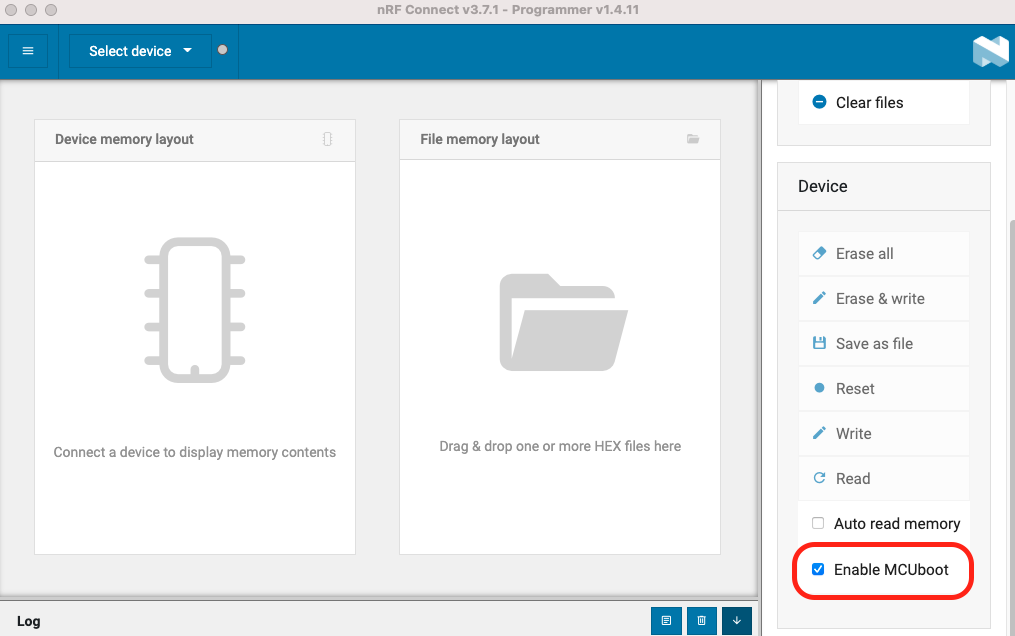
Enable MCUboot
- Switch off the Nordic Thingy:91.
- Press the multi-function button (SW3) while switching SW1 to the ON position.
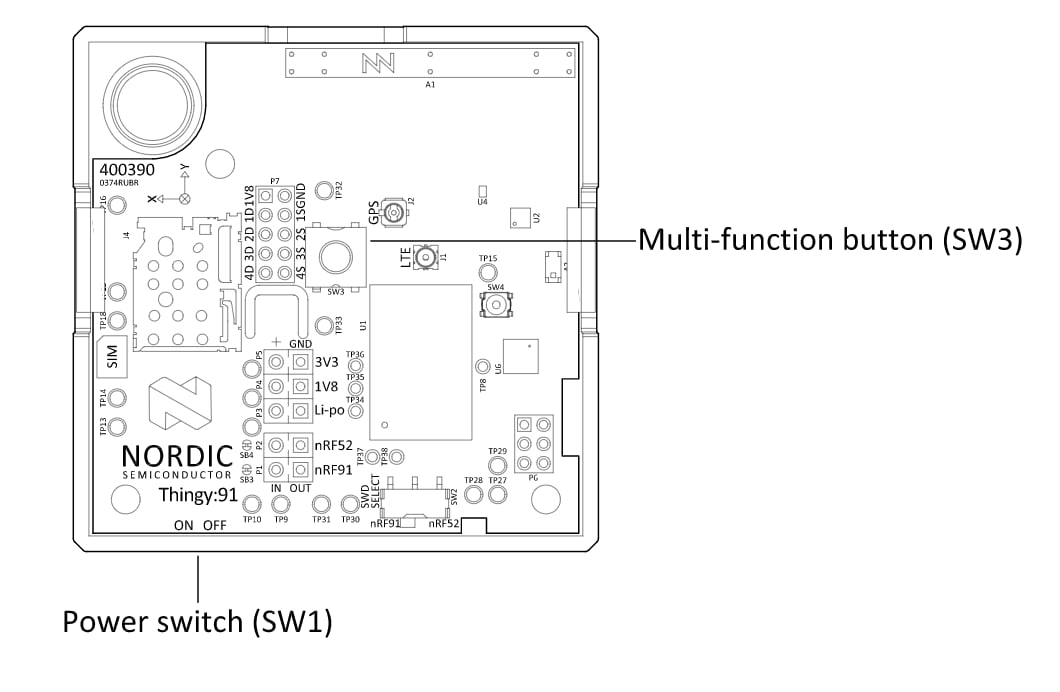
Switches
- In the Programmer navigation bar, click Select device.
- In the menu on the right, click Add HEX file > Browse, and select the firmware.hex file from the firmware previously downloaded.
- Scroll down in the menu on the right to Device and click Write:
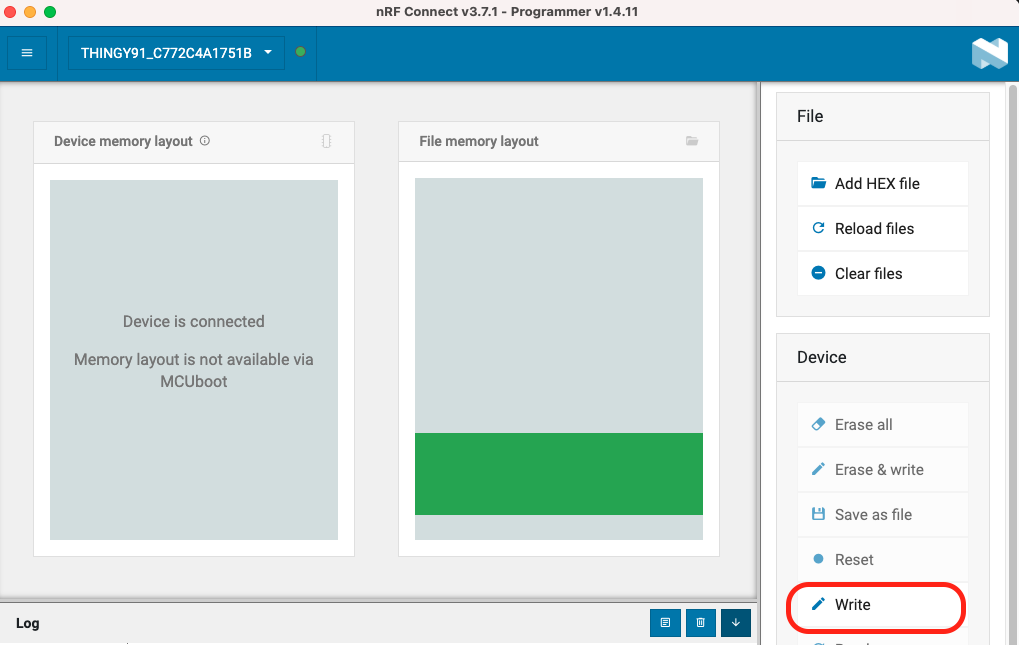
Flash the firmware
- In the MCUboot DFU window, click Write. When the update is complete, a Completed successfully message appears.
- You can now disconnect the board.
Connecting to Edge Impulse
With all the software in place it’s time to connect the development board to Edge Impulse. From a command prompt or terminal, run:--clean.
The Thingy:91 exposes multiple UARTs. If prompted, choose the first one:
Verifying that the device is connected
That’s all! Your device is now connected to Edge Impulse. To verify this, go to your Edge Impulse project, and click Devices. The device will be listed here.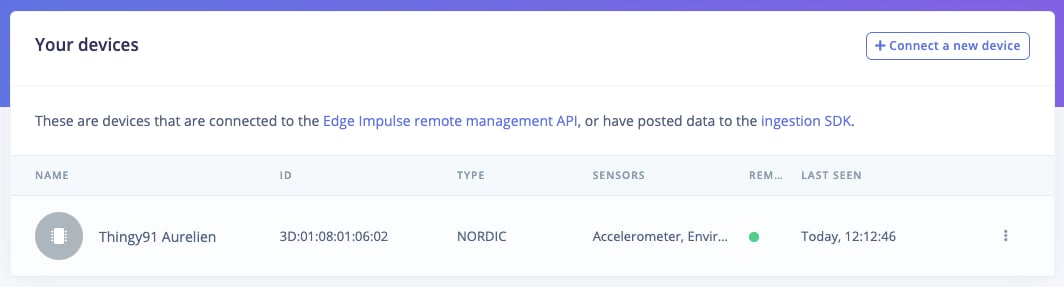
Thingy:91 in Devices tab