

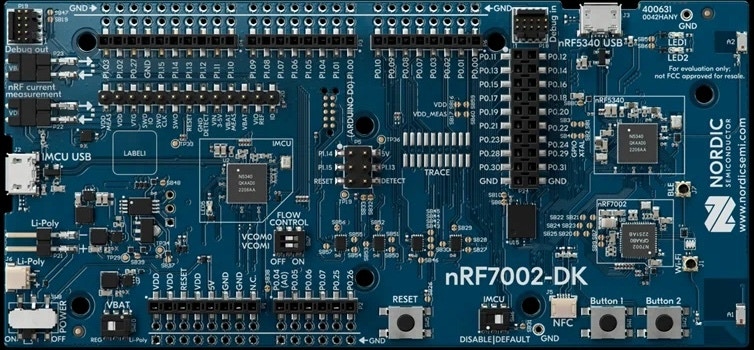
Nordic Semiconductors nRF7002 DK development board
Installing dependencies
To set this device up in Edge Impulse, you will need to install the following software:- Edge Impulse CLI.
- On Linux:
- GNU Screen: install for example via
sudo apt install screen.
- GNU Screen: install for example via
- Install J-Link for your device.
- Note that for the nRF7002 DK, the required J-Link version is V7.94e
Connecting to Edge Impulse
With all the software in place it’s time to connect the development board to Edge Impulse.1. Plugging in the X-NUCLEO-IKS02A1 MEMS expansion shield
Remove the pin header protectors on the nRF7002 DK and plug the X-NUCLEO-IKS02A1 shield into the development board.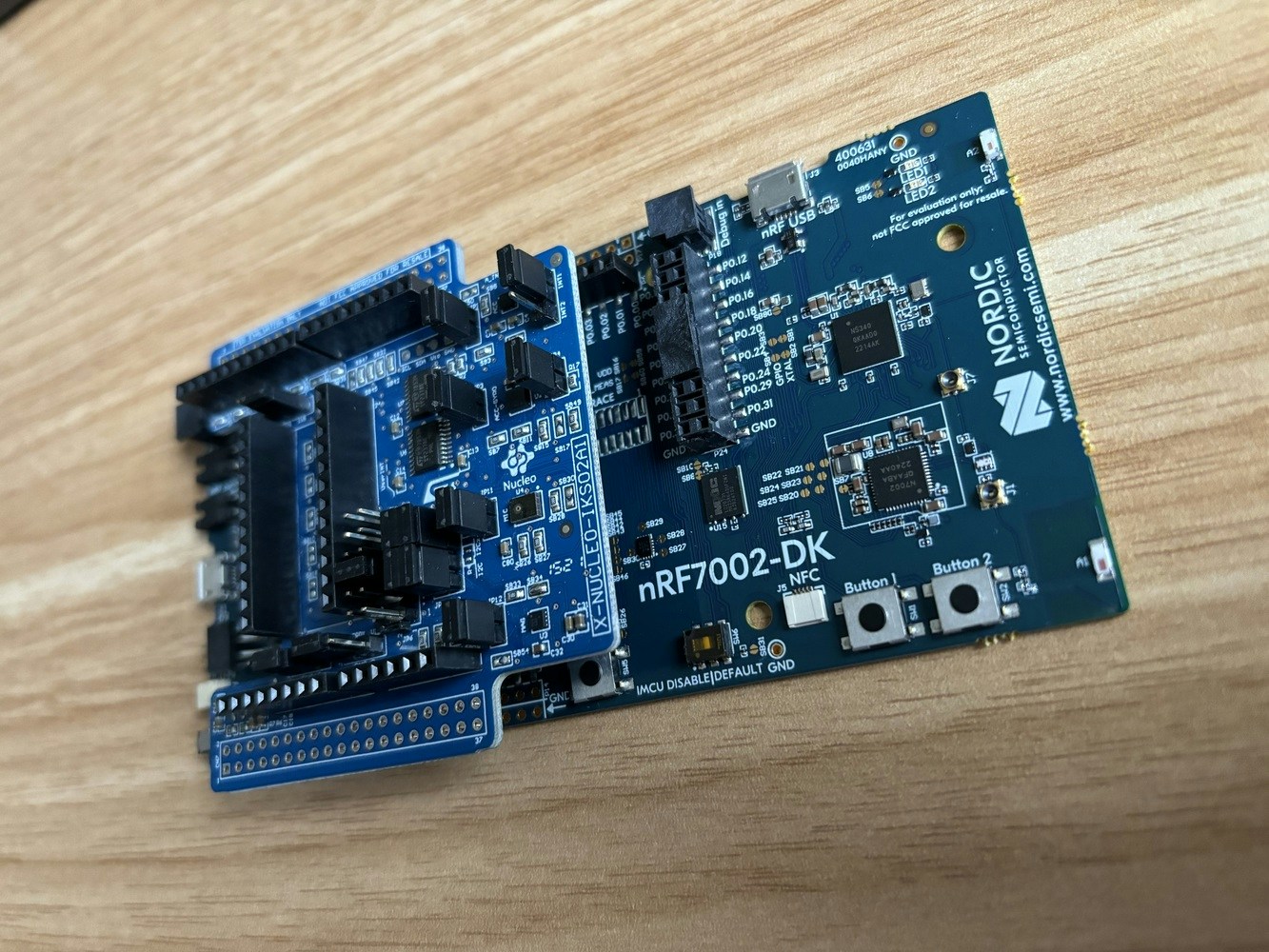
X-NUCLEO-IKS02A1 shield plugged in to the nRF7002 DK
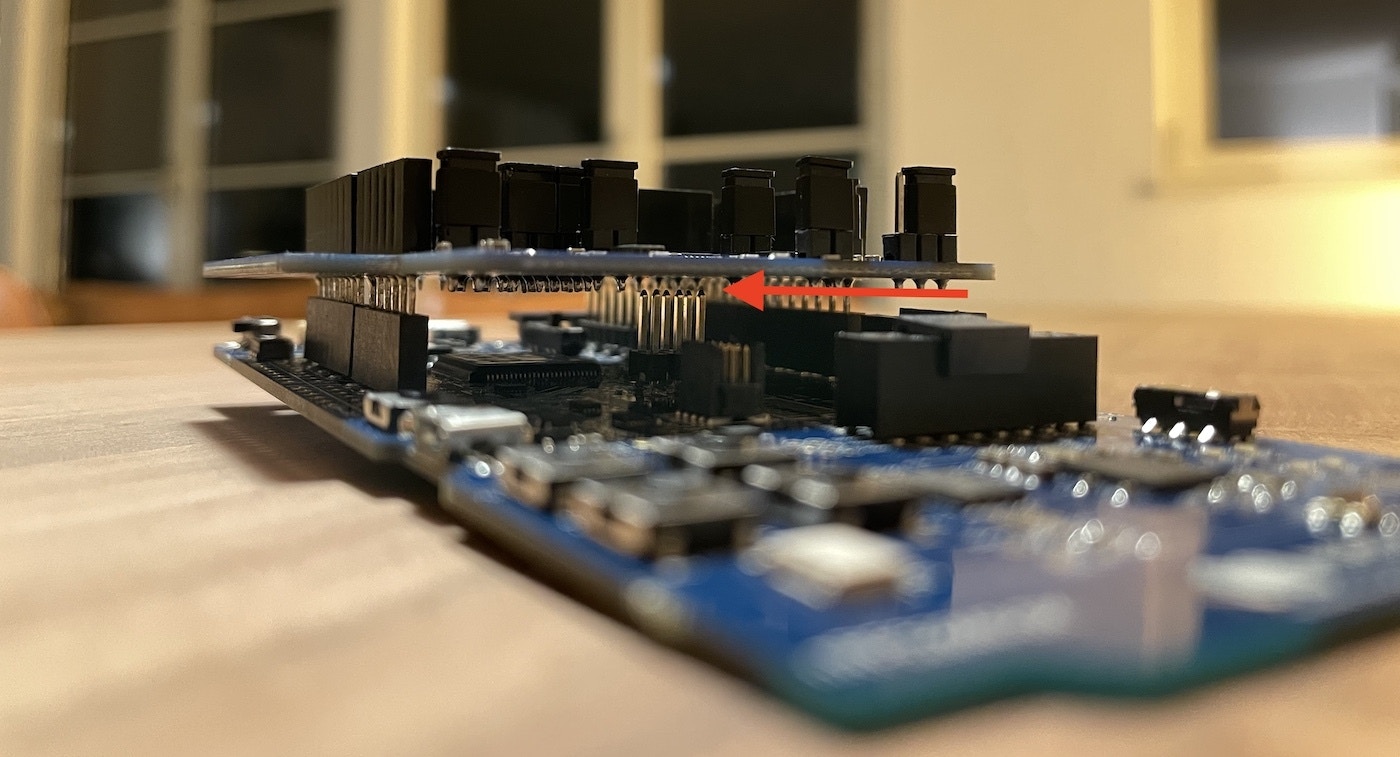
Make sure the shield does not touch any of the pins in the middle of the development board.
2. Connect the development board to your computer
Use a micro-USB cable to connect the development board to your computer. There are two USB ports on the development board, use the one on the short side of the board. Then, set the power switch on the bottom left to ‘on’.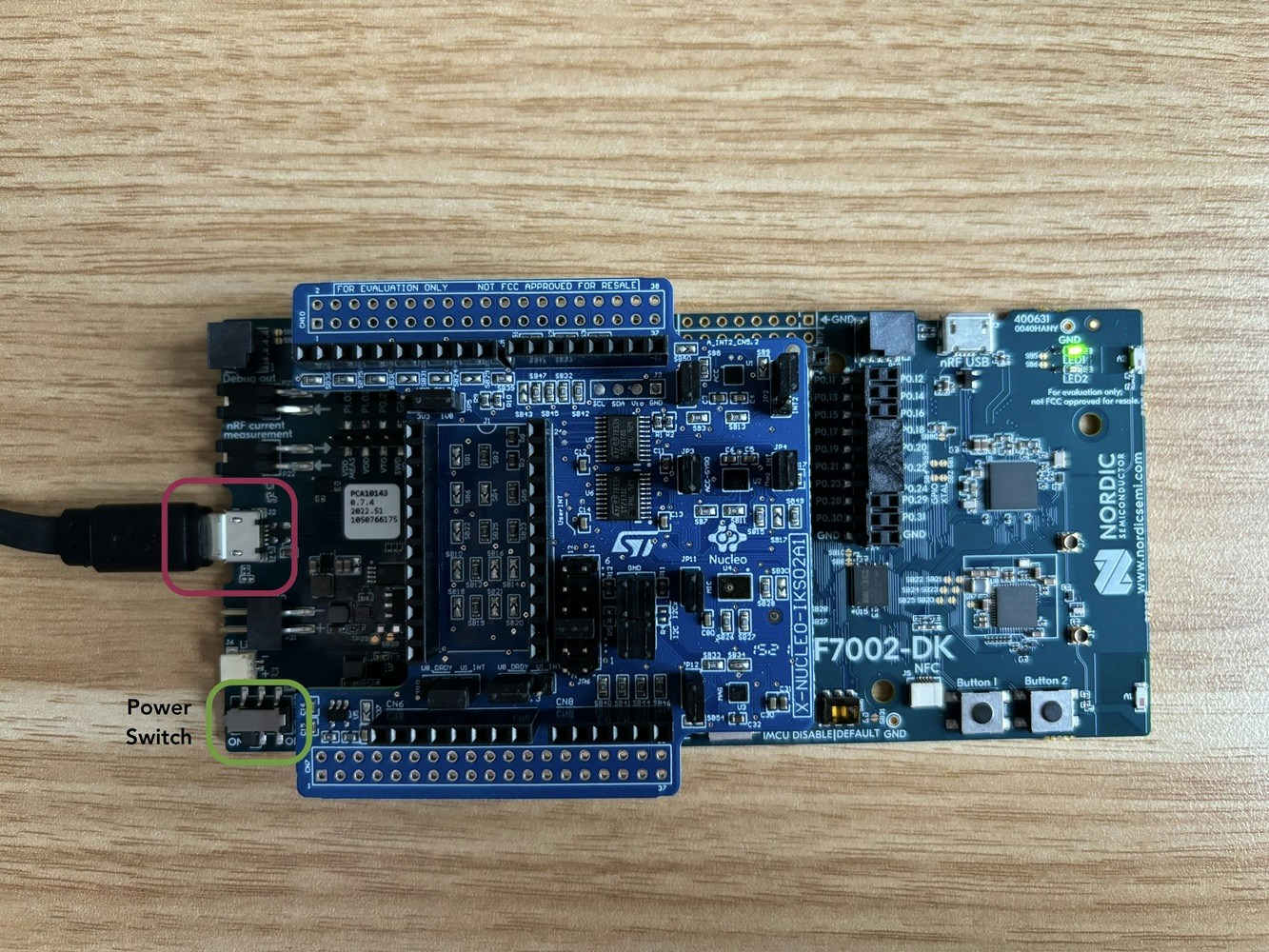
Connect a micro USB cable to the short USB port on the short side of the board (red). Make sure the power switch is toggled on.
3. Update the firmware
The development board does not come with the right firmware yet. To update the Firmware + Networking Component:Firmware + Networking Component This firmware contains both the application and the networking core firmware component.
- The development board is mounted as a USB mass-storage device (like a USB flash drive), with the name
JLINK. Make sure you can see this drive. - Download the latest Edge Impulse firmware.
- Install and open the nRF Connect for Desktop and go to the Programmer application
- Drag and drop the
nrf7002-dk-full.hexfirmware from the downloaded zip in this Programmer application (this firmware contains both application and networking core firmware). - Click “Erase & Write” and wait for device to boot up.
4. Connecting to Edge Impulse Studio
From a command prompt or terminal, run:--clean.
The nRF5340 DK exposes multiple UARTs. If prompted, choose the bottom one:
5. Setting up WiFI connection
Once the nRF7002 DK is connected to a project in your profile, it will prompt to setup a WiFi connection:6. Verify that the device is connected
That’s all! Your device is now connected to Edge Impulse. To verify this, go to your Edge Impulse project, and click Devices. The device will be listed here.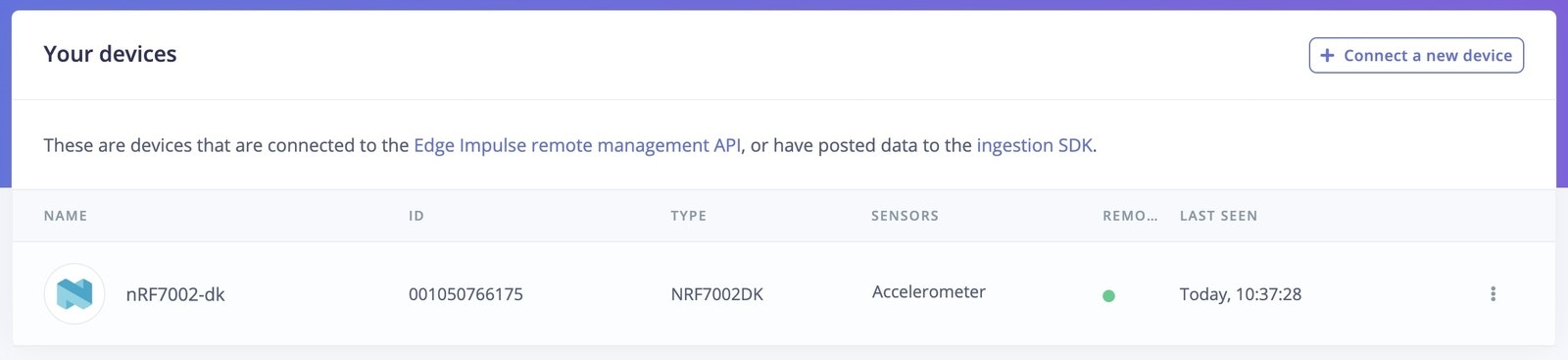
Device connected to Edge Impulse.
7. Flashing your model
When using the nRF7002 DK, you will not be able to connect to the Nordic nRF Edge Impulse app on your phone. The best way to flash your model is by navigating to the Deployment tab of your project in the studio on your PC and downloading the built firmware from there. You can follow the instructions in this section of the Nordic docs to flash the model onto your device.8. Inferencing
The default firmware for the nRF7002 DK provided above, ships with a default motion detection model. This model is created from the Tutorial: Continuous motion recognition and it’s corresponding Edge Impulse project. To see the inferencing results of this model, reconnect the the device to your computer with a USB cable and run:Next steps: building a machine learning model
With everything set up you can now build your first machine learning model with this tutorial: Looking to connect different sensors? The Data forwarder lets you easily send data from any sensor into Edge Impulse.Troubleshooting
Failed to flash
If your board fails to flash new firmware (aFAIL.txt file might appear on the JLINK drive) you can also flash using nrfjprog.
- Install the nRF Command Line Tools.
- Flash new firmware via: