

Installing dependencies
To set this device up in Edge Impulse, you will need to install the following software:- Edge Impulse CLI.
- On Linux:
- GNU Screen: install for example via
sudo apt install screen.
- GNU Screen: install for example via
Connecting to Edge Impulse
With all the software in place it’s time to connect the development board to Edge Impulse.1. Plugging in the X-NUCLEO-IKS02A1 MEMS expansion shield
Remove the pin header protectors on the nRF9161 DK and plug the X-NUCLEO-IKS02A1 shield into the development board.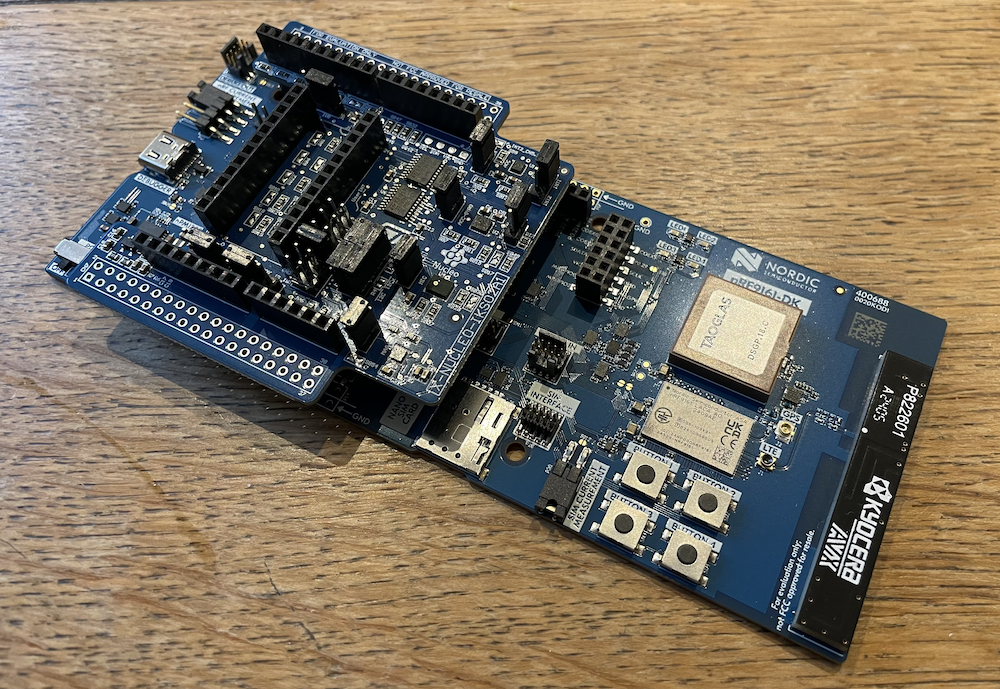
X-NUCLEO-IKS02A1 shield plugged in to the nRF9161 DK
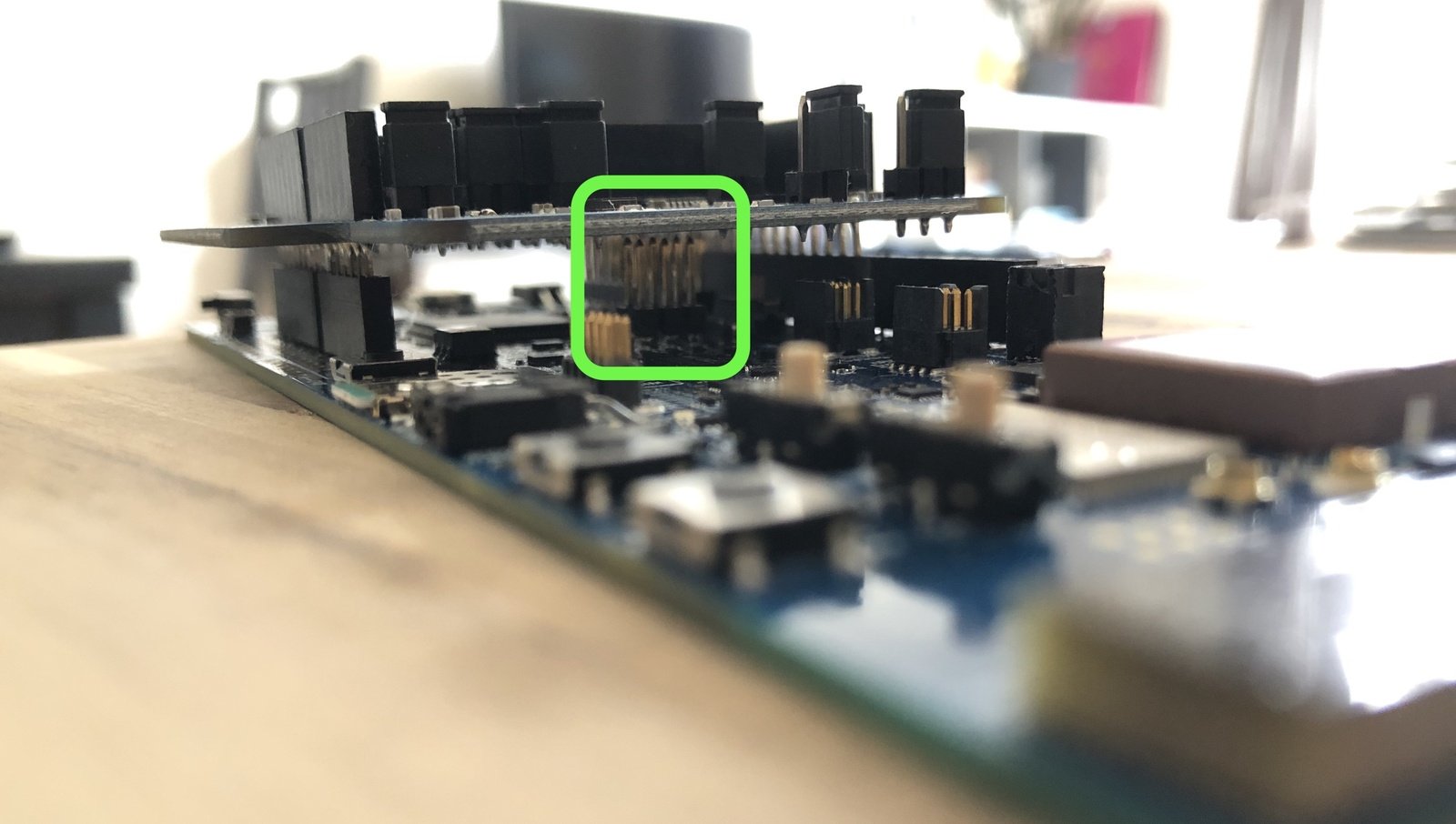
Make sure the shield does not touch any of the pins in the middle of the development board.
2. Connect the development board to your computer
Use a USB-C cable to connect the development board to your computer. Then, set the power switch to ‘on’.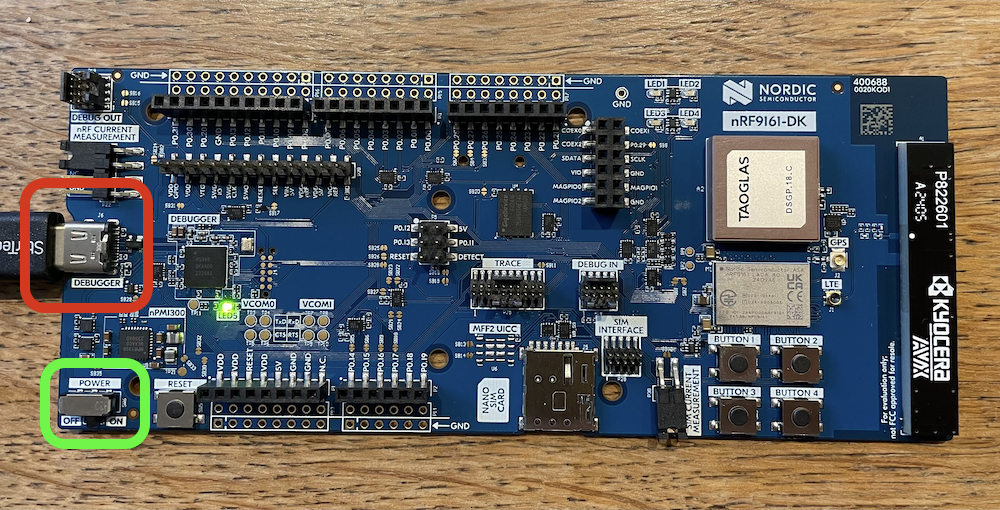
Connect a USB-C cable to the short USB port on the short side of the board (red). Make sure the power switch is toggled on.
3. Configure the board
nRF9161 DK can be configured with Board Configurator tool that is inside nRF Connect for Desktop. All information on how this tool works and how to install it can be found in the document page. For our application the board need to have following configuration: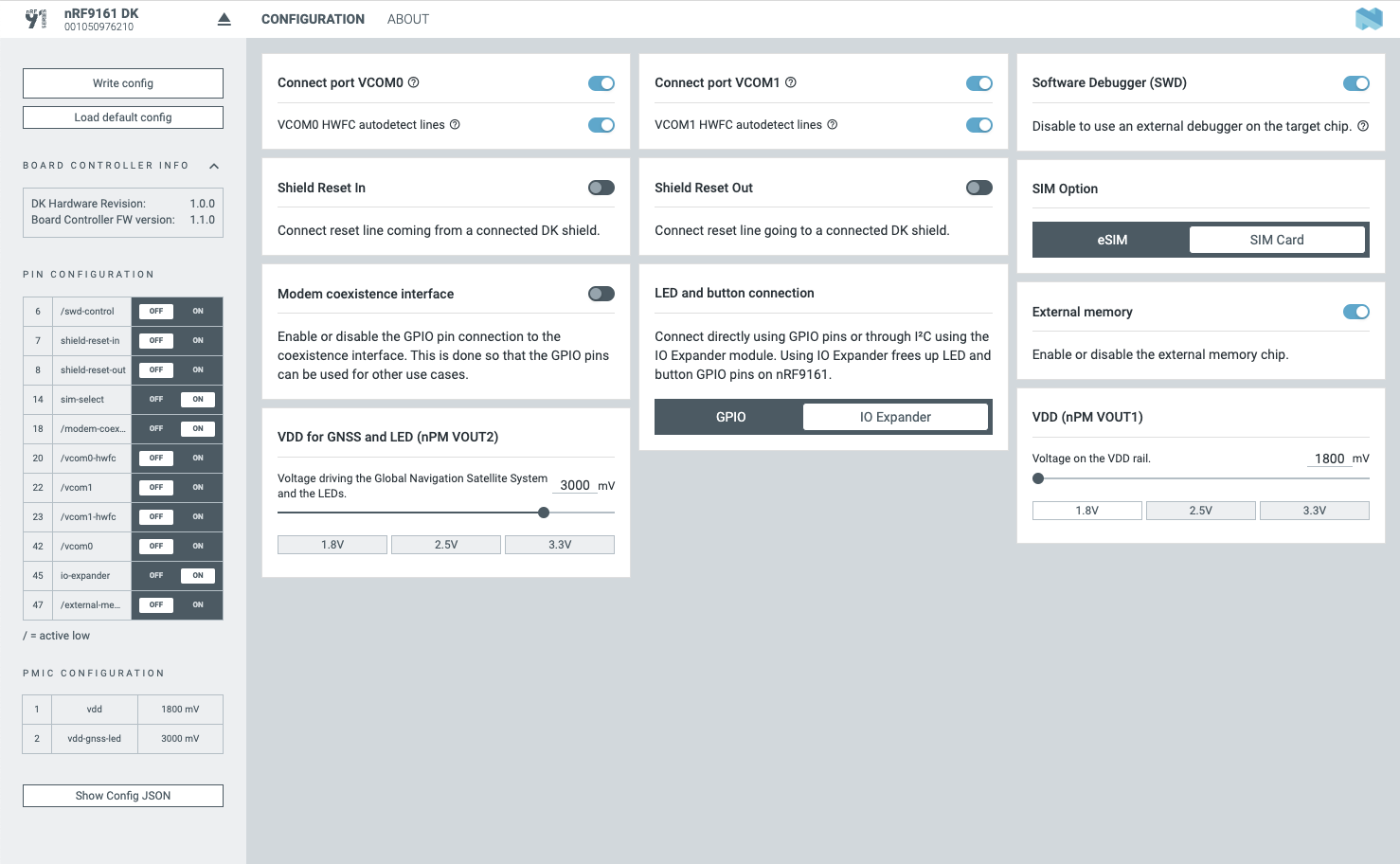
Configure the board using nRF Connect Board Configurator.
4. Update the firmware
The development board does not come with the right firmware yet. To update the firmware:- The development board is mounted as a USB mass-storage device (like a USB flash drive), with the name
JLINK. Make sure you can see this drive. - Install the nRF Command Line Tools.
- Download the latest Edge Impulse firmware.
- Flash the application by running the flash script for your Operating System.
- Wait 20 seconds and press the BOOT/RESET button.
5. Setting keys
From a command prompt or terminal, run:--clean.
The nRF9161 DK exposes multiple UARTs. If prompted, choose the top one:
6. Verifying that the device is connected
That’s all! Your device is now connected to Edge Impulse. To verify this, go to your Edge Impulse project, and click Devices. The device will be listed here.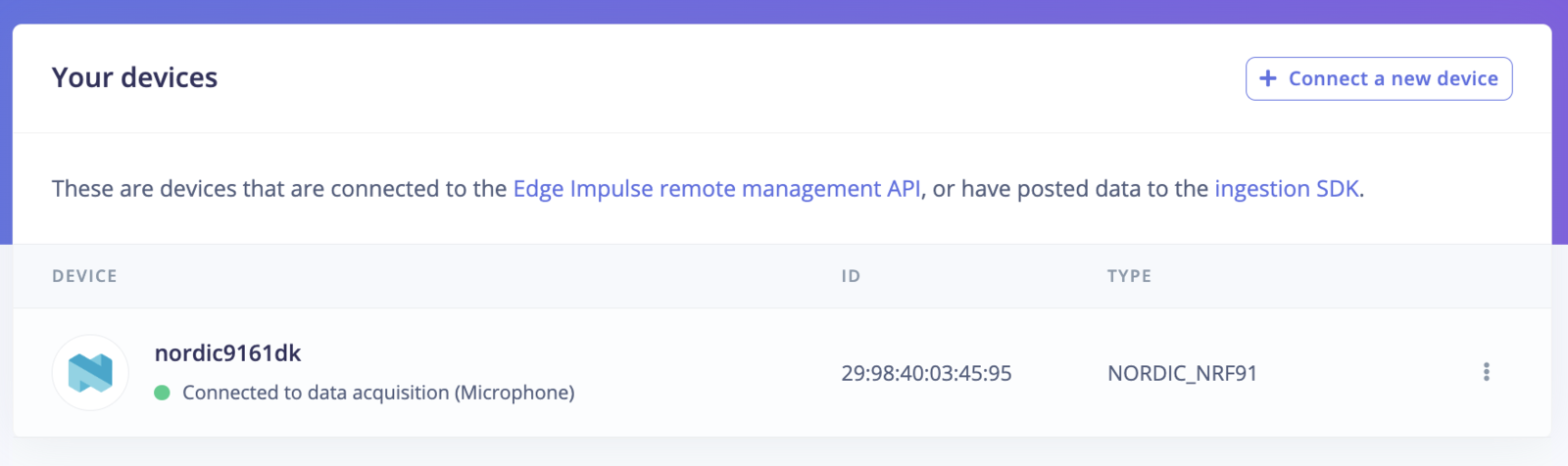
Device connected to Edge Impulse.