import akida
import cv2
import math
import time
import signal
import threading
import numpy as np
from queue import Queue
from scipy.special import softmax
from flask import Flask, render_template, Response

app = Flask(__name__, static_folder='templates/assets')

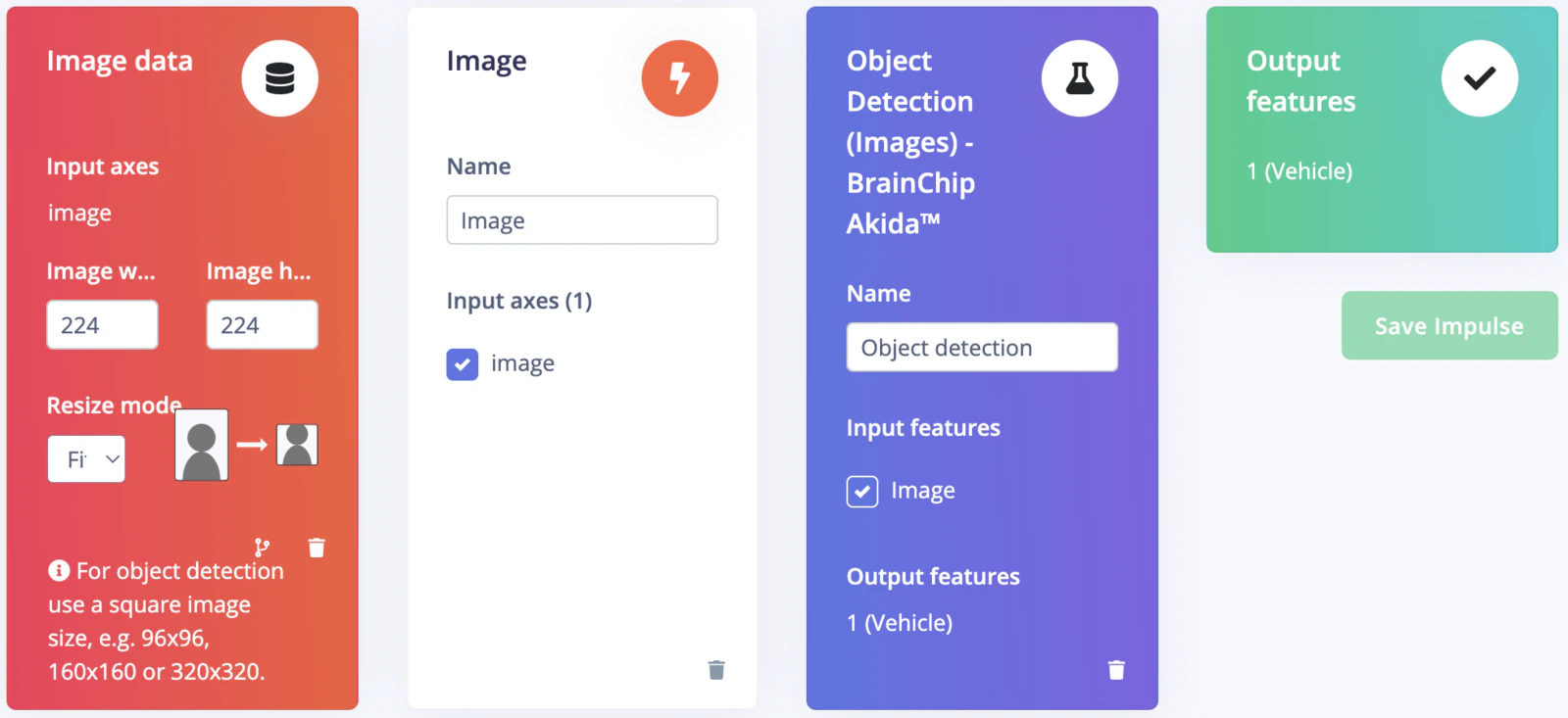
EI_CLASSIFIER_INPUT_WIDTH  = 224
EI_CLASSIFIER_INPUT_HEIGHT = 224
EI_CLASSIFIER_LABEL_COUNT = 1
EI_CLASSIFIER_OBJECT_DETECTION_THRESHOLD = 0.95
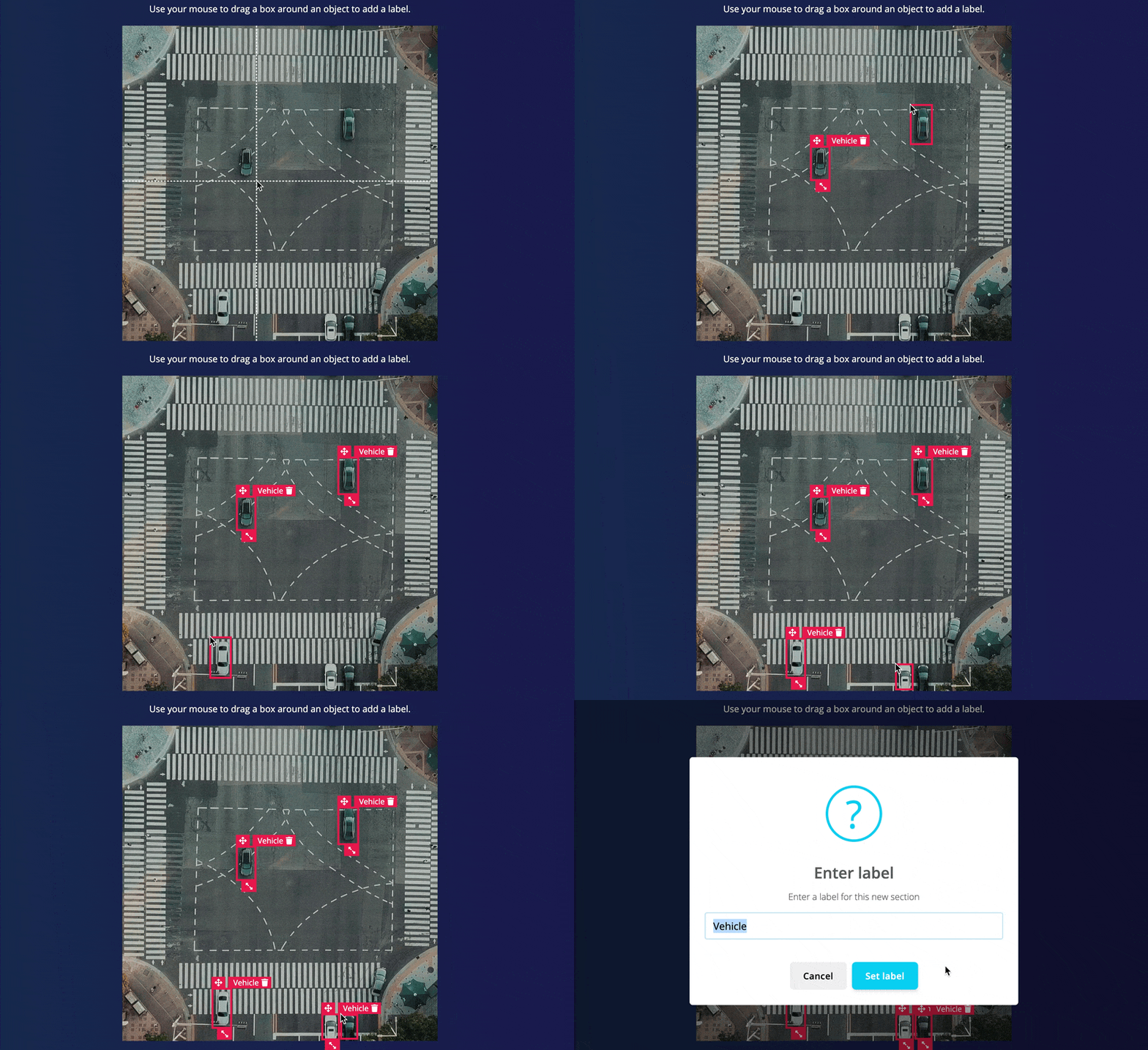
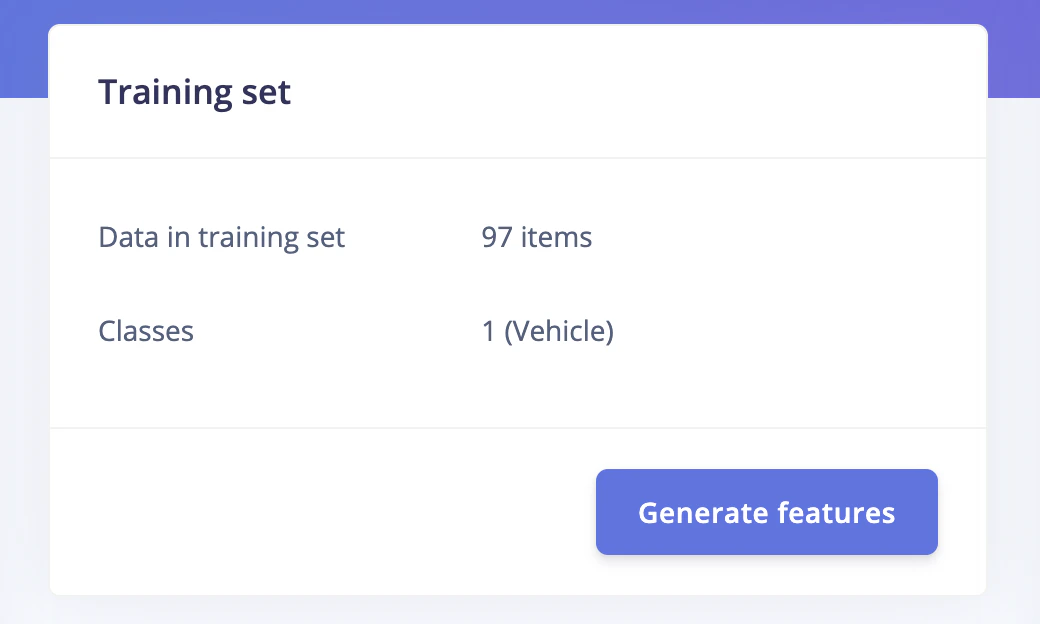
categories = ['Vehicle']
inference_speed = 0
power_consumption = 0

def ei_cube_check_overlap(c, x, y, width, height, confidence):
    is_overlapping = not ((c['x'] + c['width'] < x) or (c['y'] + c['height'] < y) or (c['x'] > x + width) or (c['y'] > y + height))

    if not is_overlapping:
         return False
    if x < c['x']:
        c['x'] = x
        c['width'] += c['x'] - x
    if y < c['y']:
        c['y'] = y;
        c['height'] += c['y'] - y;
    if (x + width) > (c['x'] + c['width']):
        c['width'] += (x + width) - (c['x'] + c['width'])
    if (y + height) > (c['y'] + c['height']):
        c['height'] += (y + height) - (c['y'] + c['height'])
    if confidence > c['confidence']:
        c['confidence'] = confidence

    return True

def ei_handle_cube(cubes, x, y, vf, label, detection_threshold):
    if vf < detection_threshold:
        return
    has_overlapping = False
    width = 1
    height = 1
    for c in cubes:
        # not cube for same class? continue
        if c['label'] != label:
             continue
        if ei_cube_check_overlap(c, x, y, width, height, vf):
            has_overlapping = True
            break

    if not has_overlapping:
        cube = {}
        cube['x'] = x
        cube['y'] = y
        cube['width'] = 1
        cube['height'] = 1
        cube['confidence'] = vf
        cube['label'] = label
        cubes.append(cube)

def fill_result_struct_from_cubes(cubes, out_width_factor):
    result = {}
    bbs = [];
    results = [];
    added_boxes_count = 0;

    for sc in cubes:
        has_overlapping = False;
        for c in bbs:
            # not cube for same class? continue
            if c['label'] != sc['label']:
                continue
            if ei_cube_check_overlap(c, sc['x'], sc['y'], sc['width'], sc['height'], sc['confidence']):
                has_overlapping = True
                break

        if has_overlapping:
            continue

        bbs.append(sc)
        results.append({
            'label'  : sc['label'],
            'x'      : int(sc['x'] * out_width_factor),
            'y'      : int(sc['y'] * out_width_factor),
            'width'  : int(sc['width'] * out_width_factor),
            'height' : int(sc['height'] * out_width_factor),
            'value'  : sc['confidence']
        })
        added_boxes_count += 1

    result['bounding_boxes'] = results
    result['bounding_boxes_count'] = len(results)
    return result

def fill_result_struct_f32_fomo(data, out_width, out_height):
    cubes = []
    out_width_factor = EI_CLASSIFIER_INPUT_WIDTH / out_width;
    for y in range(out_width):
        for x in range(out_height):
            for ix in range(1, EI_CLASSIFIER_LABEL_COUNT + 1):
                vf = data[y][x][ix];
                ei_handle_cube(cubes, x, y, vf, categories[ix - 1], EI_CLASSIFIER_OBJECT_DETECTION_THRESHOLD);

    result = fill_result_struct_from_cubes(cubes, out_width_factor)
    return result

def capture(video_file, queueIn):
    cap = cv2.VideoCapture(video_file)
    fps = cap.get(cv2.CAP_PROP_FPS)
    num_frames = cap.get(cv2.CAP_PROP_FRAME_COUNT)
    resize_dim = (EI_CLASSIFIER_INPUT_WIDTH, EI_CLASSIFIER_INPUT_HEIGHT)
    if not cap.isOpened():
        print("File not opened")
        sys.exit(1)

    while True:
        ret, frame = cap.read()
        if ret:
            #cropped_img = frame[0:720, 280:280+720]
            #resized_img = cv2.resize(frame, resize_dim, interpolation = cv2.INTER_AREA)
            resized_img = cv2.resize(frame, resize_dim)
            img = cv2.cvtColor(resized_img, cv2.COLOR_BGR2RGB)
            input_data = np.expand_dims(img, axis=0)
            if not queueIn.full():
                queueIn.put((frame, input_data))
        else:
            return

def inferencing(model_file, queueIn, queueOut):
    akida_model = akida.Model(model_file)
    devices = akida.devices()
    print(f'Available devices: {[dev.desc for dev in devices]}')
    device = devices[0]
    device.soc.power_measurement_enabled = True
    akida_model.map(device)
    akida_model.summary()
    i_h, i_w, i_c = akida_model.input_shape
    o_h, o_w, o_c = akida_model.output_shape
    scale_x = int(i_w/o_w)
    scale_y = int(i_h/o_h)
    scale_out_x = 1280/EI_CLASSIFIER_INPUT_WIDTH
    scale_out_y = 1280/EI_CLASSIFIER_INPUT_HEIGHT

    global inference_speed
    global power_consumption

    while True:
        if queueIn.empty():
            #print("queue empty, wait a while")
            time.sleep(0.01)
            continue
        img, input_data = queueIn.get()

        start_time = time.perf_counter()
        logits = akida_model.predict(input_data)
        end_time = time.perf_counter()
        inference_speed = (end_time - start_time) * 1000

        pred = softmax(logits, axis=-1).squeeze()

        floor_power = device.soc.power_meter.floor
        power_events = device.soc.power_meter.events()
        active_power = 0
        for event in power_events:
            active_power += event.power

        power_consumption = f'{(active_power/len(power_events)) - floor_power : 0.2f}'
        #print(akida_model.statistics)

        result = fill_result_struct_f32_fomo(pred, int(EI_CLASSIFIER_INPUT_WIDTH/8), int(EI_CLASSIFIER_INPUT_HEIGHT/8))

        for bb in result['bounding_boxes']:
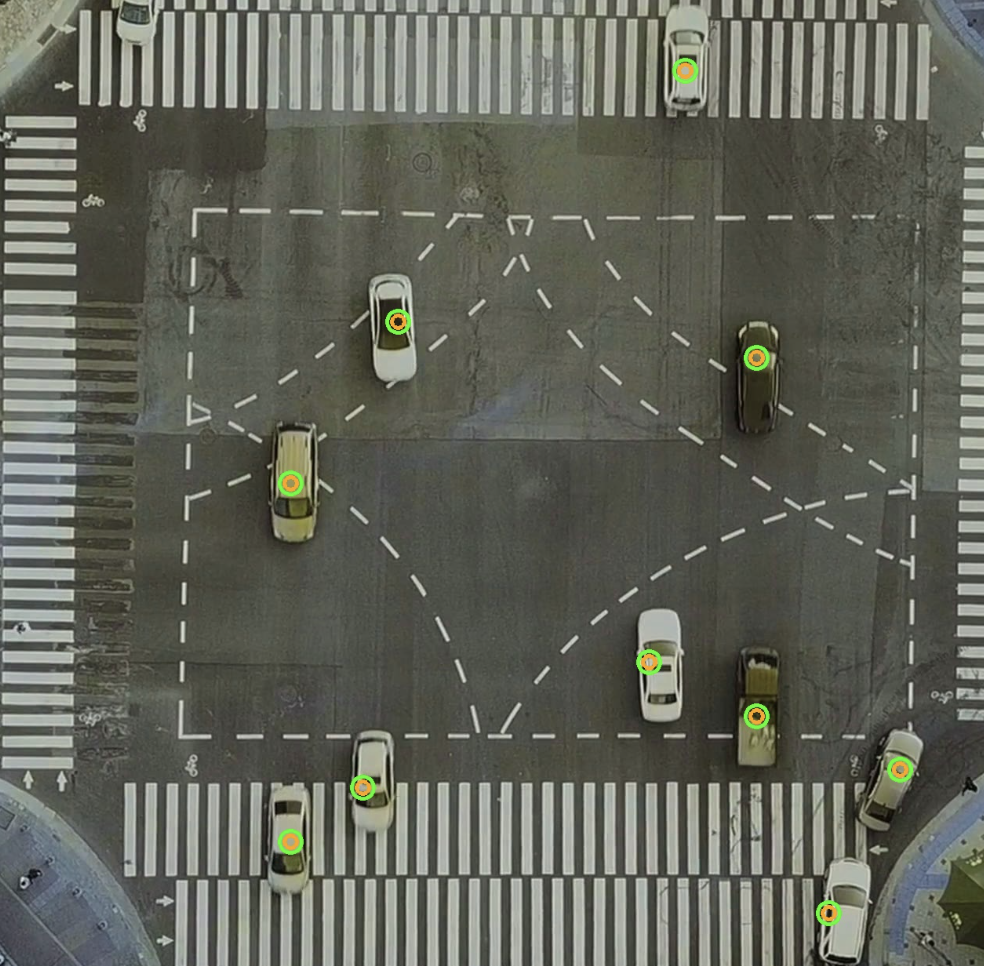
            img = cv2.circle(img, (int((bb['x'] + int(bb['width']/2)) * scale_out_x), int((bb['y'] + int(bb['height']/2)) * scale_out_y)), 14, (57, 255, 20), 3)
            img = cv2.circle(img, (int((bb['x'] + int(bb['width']/2)) * scale_out_x), int((bb['y'] +  int(bb['height']/2)) * scale_out_y)), 8, (255, 165, 0), 3)

        img = cv2.cvtColor(img, cv2.COLOR_RGB2BGR)

        if not queueOut.full():
            queueOut.put(img)

def gen_frames():
    while True:
        if queueOut.empty():
            time.sleep(0.01)
            continue
        img = queueOut.get()
        ret, buffer = cv2.imencode('.jpg', img)
        yield (b'--frame\r\n'
                b'Content-Type: image/jpeg\r\n\r\n' + buffer.tobytes() + b'\r\n')

def get_inference_speed():
    while True:
        yield f"data:{inference_speed:.2f}\n\n"
        time.sleep(0.1)

def get_power_consumption():
    while True:
        yield "data:" + str(power_consumption) + "\n\n"
        time.sleep(0.1)

@app.route('/video_feed')
def video_feed():
    #Video streaming route. Put this in the src attribute of an img tag
    return Response(gen_frames(), mimetype='multipart/x-mixed-replace; boundary=frame')

@app.route('/model_inference_speed')
def model_inference_speed():
        return Response(get_inference_speed(), mimetype= 'text/event-stream')

@app.route('/model_power_consumption')
def model_power_consumption():
        return Response(get_power_consumption(), mimetype= 'text/event-stream')

@app.route('/')
def index():
    return render_template('index.html')

if __name__ == '__main__':
    video_file = './video/aerial_1280_1280.avi'
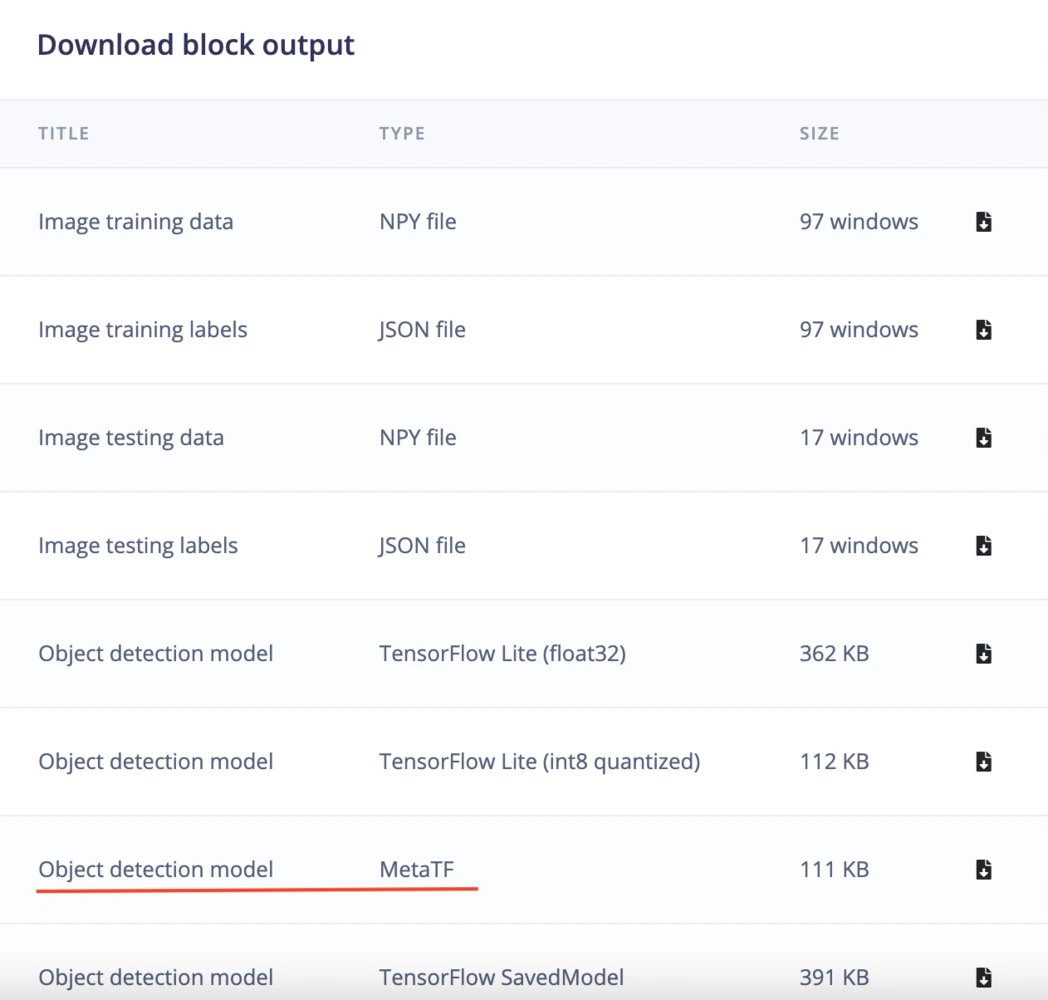
    model_file = './model/ei-object-detection-metatf-model.fbz '

    queueIn  = Queue(maxsize = 24)
    queueOut = Queue(maxsize = 24)

    t1 = threading.Thread(target=capture, args=(video_file, queueIn))
    t1.start()
    t2 = threading.Thread(target=inferencing, args=(model_file, queueIn, queueOut))
    t2.start()
    app.run(host = '0.0.0.0', port = 8080)
    t1.join()
    t2.join()