

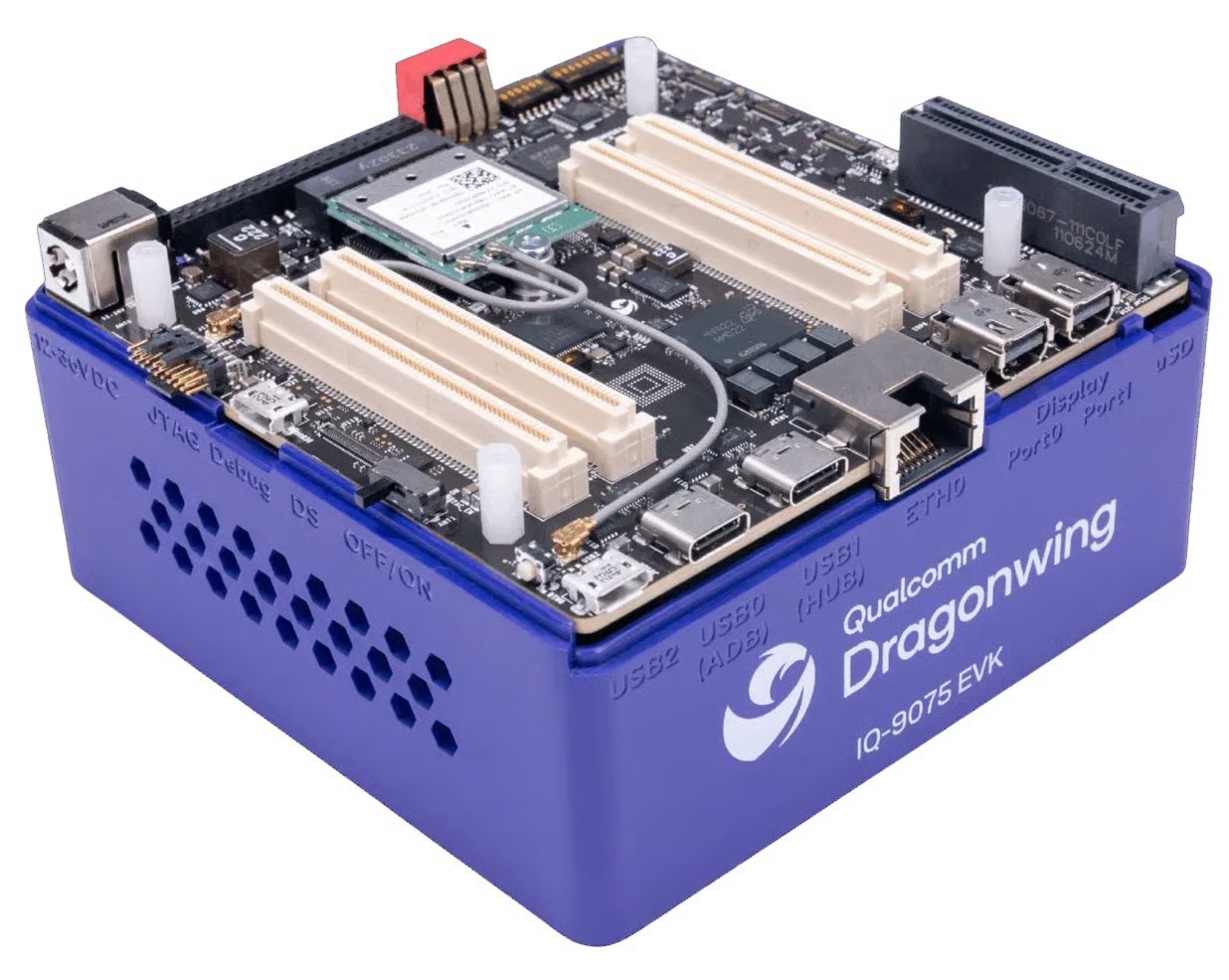
Qualcomm Dragonwing IQ-9075 EVK
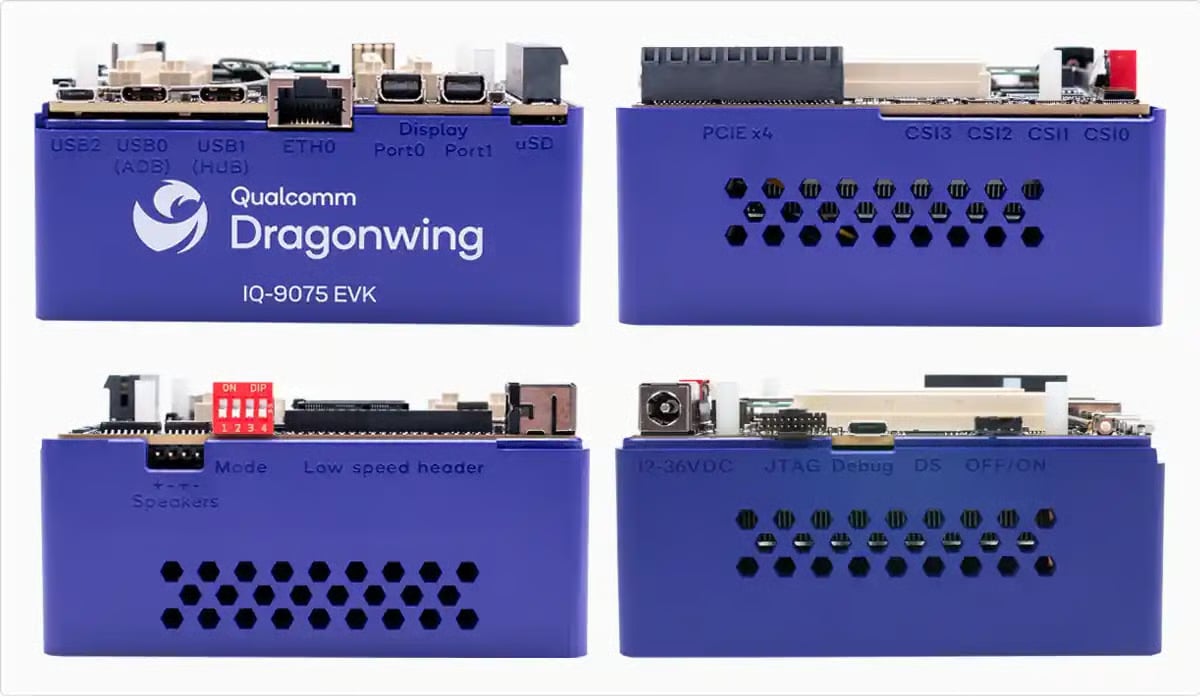
Qualcomm Dragonwing IQ-9075 EVK - side views
Setting up the EVK
The sections below provide abbreviated setup steps to get your IQ-9075 EVK up and running with Ubuntu. For further details, please refer to the Qualcomm Dragonwing IQ-9075 EVK Ubuntu setup documentation. The IQ-9075 EVK also supports running Qualcomm Linux. If this is your preferred operating system, please refer to the Qualcomm Dragonwing IQ-9075 EVK Qualcomm Linux setup documentation for guidance.Powering on the EVK
The IQ-9075 EVK receives its main power through a 2.10 mm barrel jack connector, which supports an input voltage range of 12 V to 36 V. The EVK also includes a USB-C to barrel plug adapter for convenience. Connect a +12 V power adapter to supply power to the board.Flashing Ubuntu
Updating Ubuntu image instead of flashingIf you have previously flashed your EVK and simply want to update the Ubuntu image, you can do so without reflashing. Follow the instructions in the IQ-9075 EVK Upgrade Ubuntu image documentation.
Ubuntu Desktop vs. Ubuntu ServerIf you want to use the GPU for inference, the recommended path is flashing your EVK with the Ubuntu Server image. See the warning in the Optional packages section below for more details.
USB0 on the board and the other end to your host device.
Then, you will be able to flash the board using the Qualcomm Launcher tool, which provides a user-friendly GUI for flashing firmware and operating systems onto Qualcomm devices. This is the preferred method for flashing Ubuntu onto your EVK. See the IQ-9075 EVK Flash Ubuntu using Qualcomm Launcher documentation for step-by-step instructions.
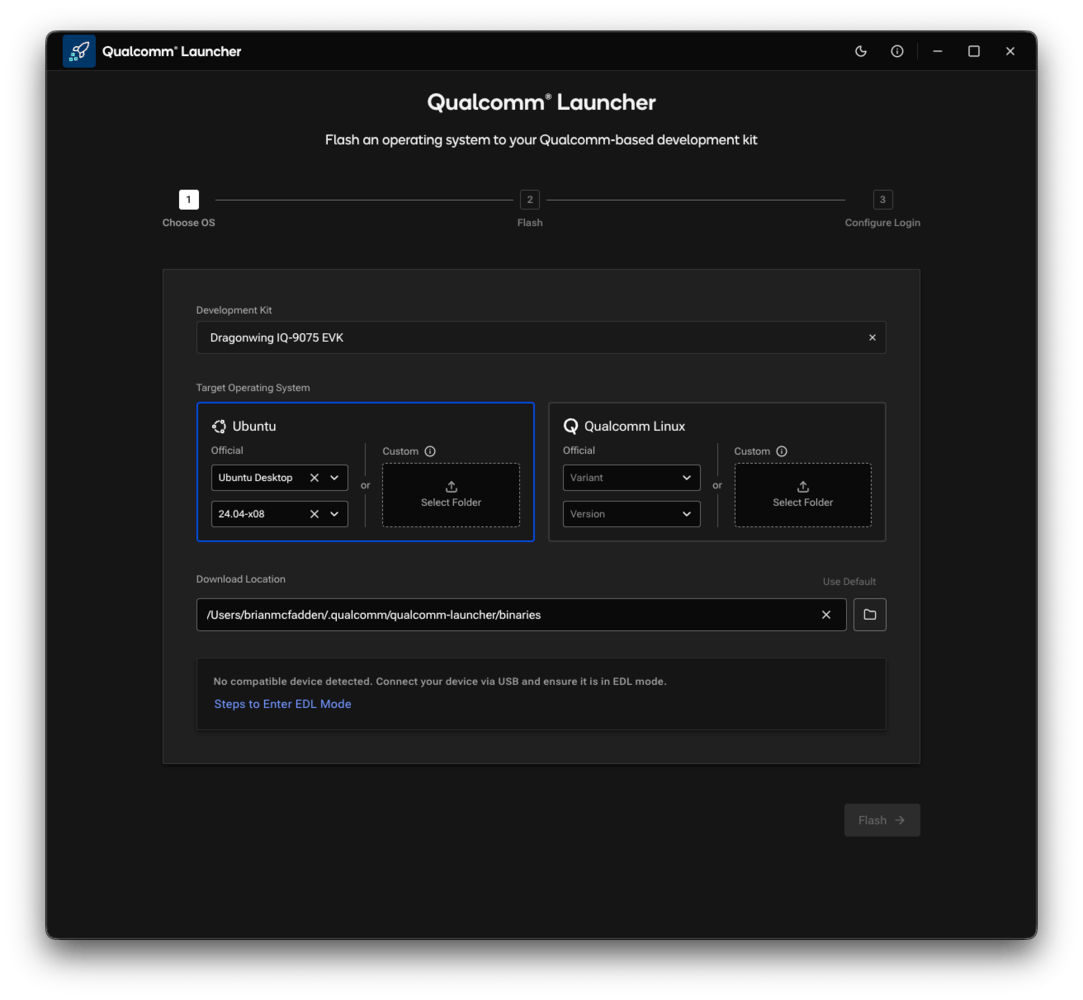
Qualcomm Launcher GUI
Setting up the UART
If you skipped setting up the UART connection in the Qualcomm Launcher, or used QDL to flash the board, you will need to set up the UART connection manually. See the IQ-9075 EVK Set up the debug UART instructions for guidance based on your host operating system.Connecting to a network
Again, if you skipped setting up a network connection in the Qualcomm Launcher, or used QDL to flash the board, you will need to set up the network connection manually. Using a serial console on your host, connect to the IQ-9075 EVK with a 115200 baud rate and configure the Wi-Fi usingnmcli.
1
Connect
2
Verify the connection
3
Confirm Internet access
Connecting over SSH
After completing the steps above, your IQ-9075 EVK can now be used as a single board computer by attaching a mouse, keyboard, and display. However, you can also optionally connect over SSH instead by following these steps.1
Find the IP address of your EVK
Using a serial console on your host, connect to the IQ-9075 EVK with a 115200 baud rate and identify the IP address:
2
Connect from your host machine
From your host machine, use the
ssh command to connect to your IQ-9075 EVK. The default username is ubuntu.3
Enter password when prompted
The default password is
ubuntu. You will be prompted to change the password on first login.Installing dependencies
Below is a minimal set of dependencies that you will need to install on your IQ-9075 EVK in order to run accelerated Edge Impulse models. Execute the commands on your EVK. For a more comprehensive list of dependencies, see the IQ-9075 EVK Install required software packages documentation.Base packages
Edge Impulse Linux CLI
Additional packages
Optional packages
Connecting to Edge Impulse
You can use the Edge Impulse Linux CLI to connect your IQ-9075 EVK to a project in Edge Impulse Studio. This allows you to send data from the device to the cloud for training and inference.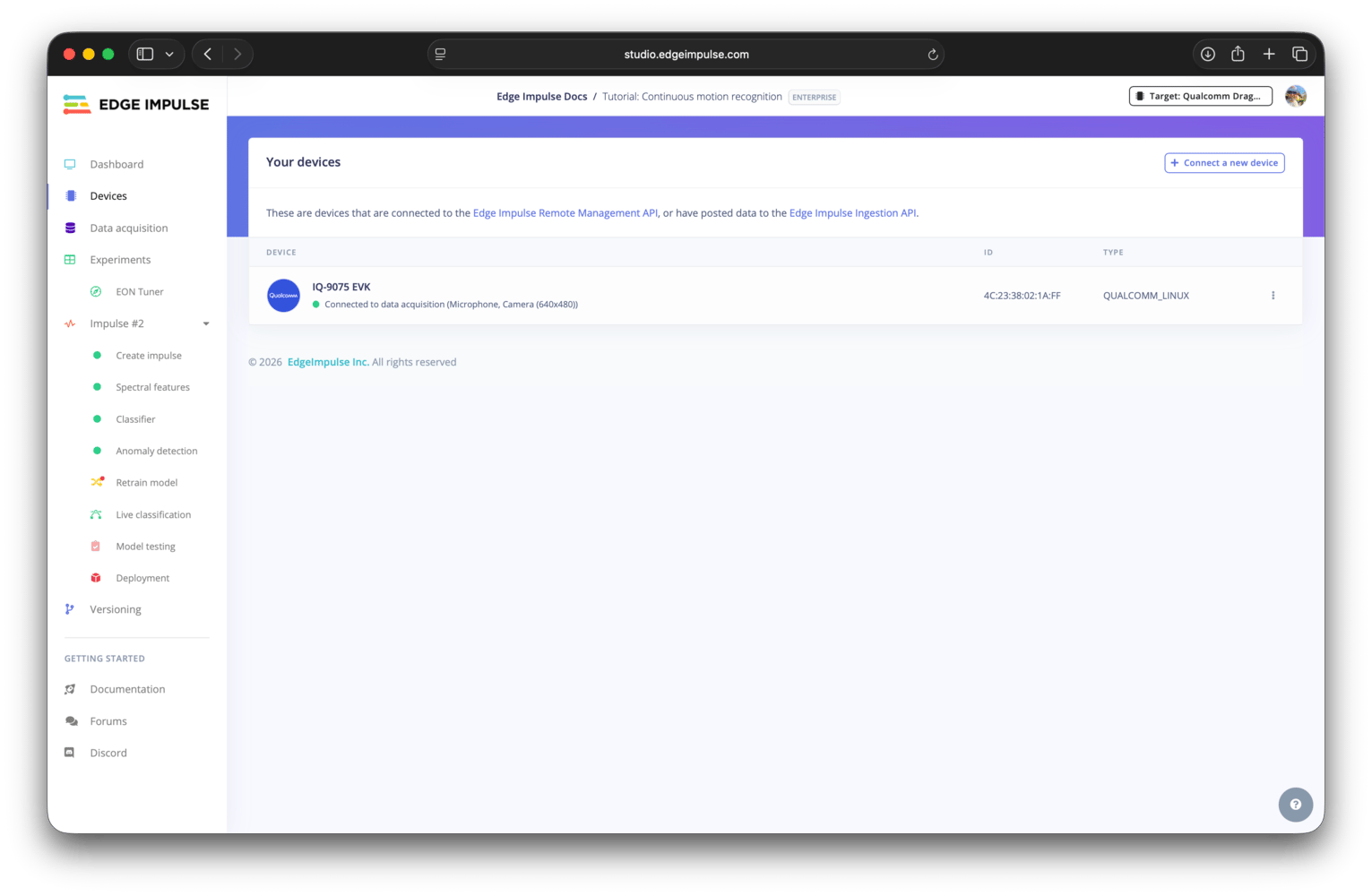
IQ-9075 EVK connected to a project
--disable-camera flag. Without this flag, the CLI will attempt to access a camera, which will result in an error when trying to launch the CLI and connect the EVK to a project.
To connect your EVK to a different project, execute the command above with the --clean flag.
Building a model
With everything set up you can now build your first machine learning model with these tutorials:- Responding to your voice
- Recognize sounds from audio
- Adding sight to your sensors
- Object detection
- Visual anomaly detection with FOMO-AD
Profiling a model
To profile your models for the IQ-9075 EVK in Studio:- Make sure to select the IQ-9075 EVK as your Target device. You can change the target at the top of the page near your user logo.
- On the settings page for your learning block, click the
Calculate performancebutton in the On-device performance section.
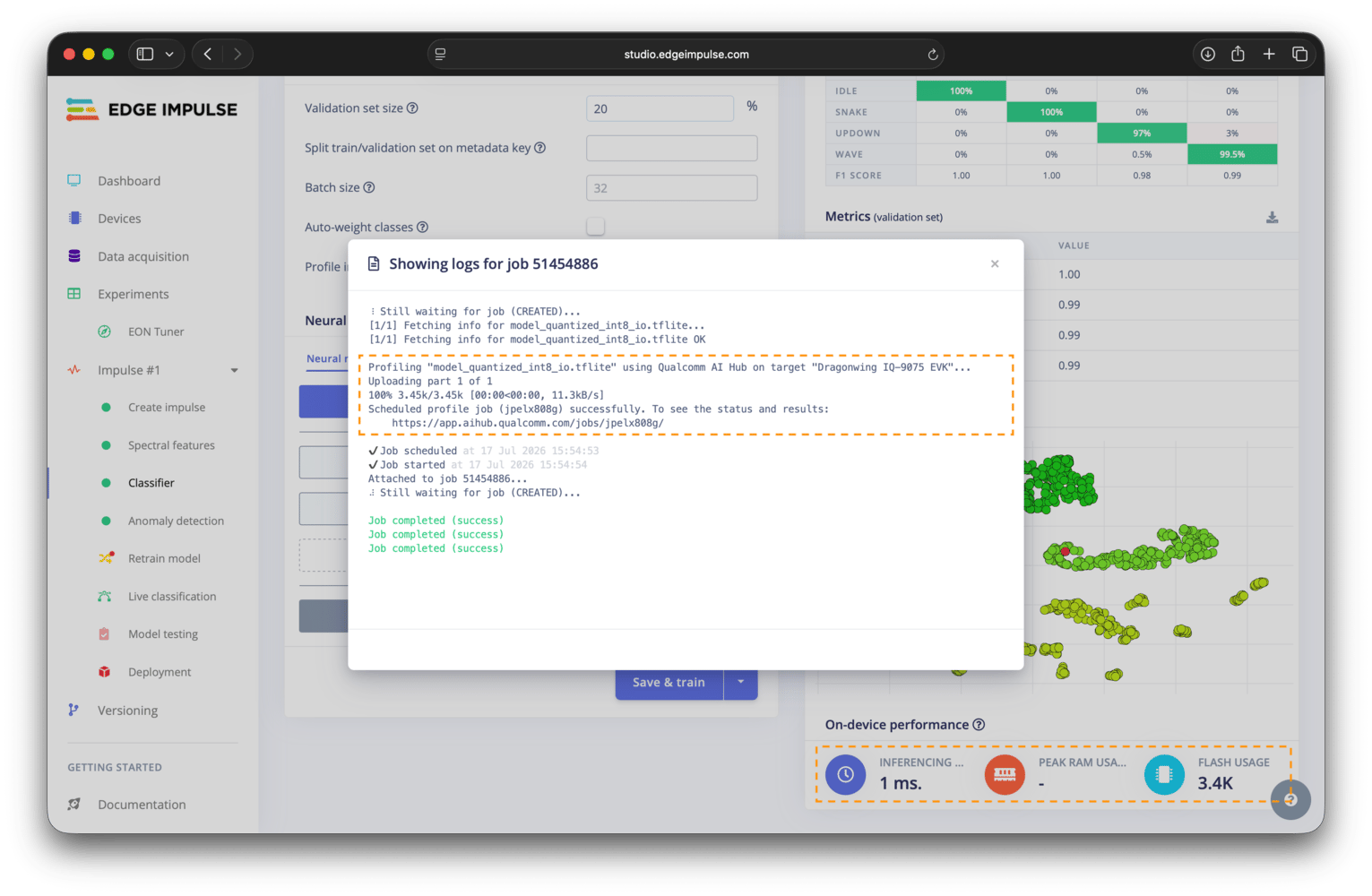
Model profiling for the IQ-9075 EVK using Qualcomm® AI Hub
Deploying a model
You can run your trained model on the IQ-9075 EVK using one of the EIM or IM SDK GStreamer deployment options. The EIM option is recommended for most users, while the GStreamer option is more advanced and requires additional setup.With an EIM deployment
In your project on the deployment page, select theQualcomm Dragonwing IQ 9075 EVK (AARCH64 with Qualcomm QNN) deployment option and build it. This will generate and download an .eim file that you will be able to run on your IQ-9075 EVK using the Edge Impulse Linux CLI or the Edge Impulse Linux Inferencing SDKs.
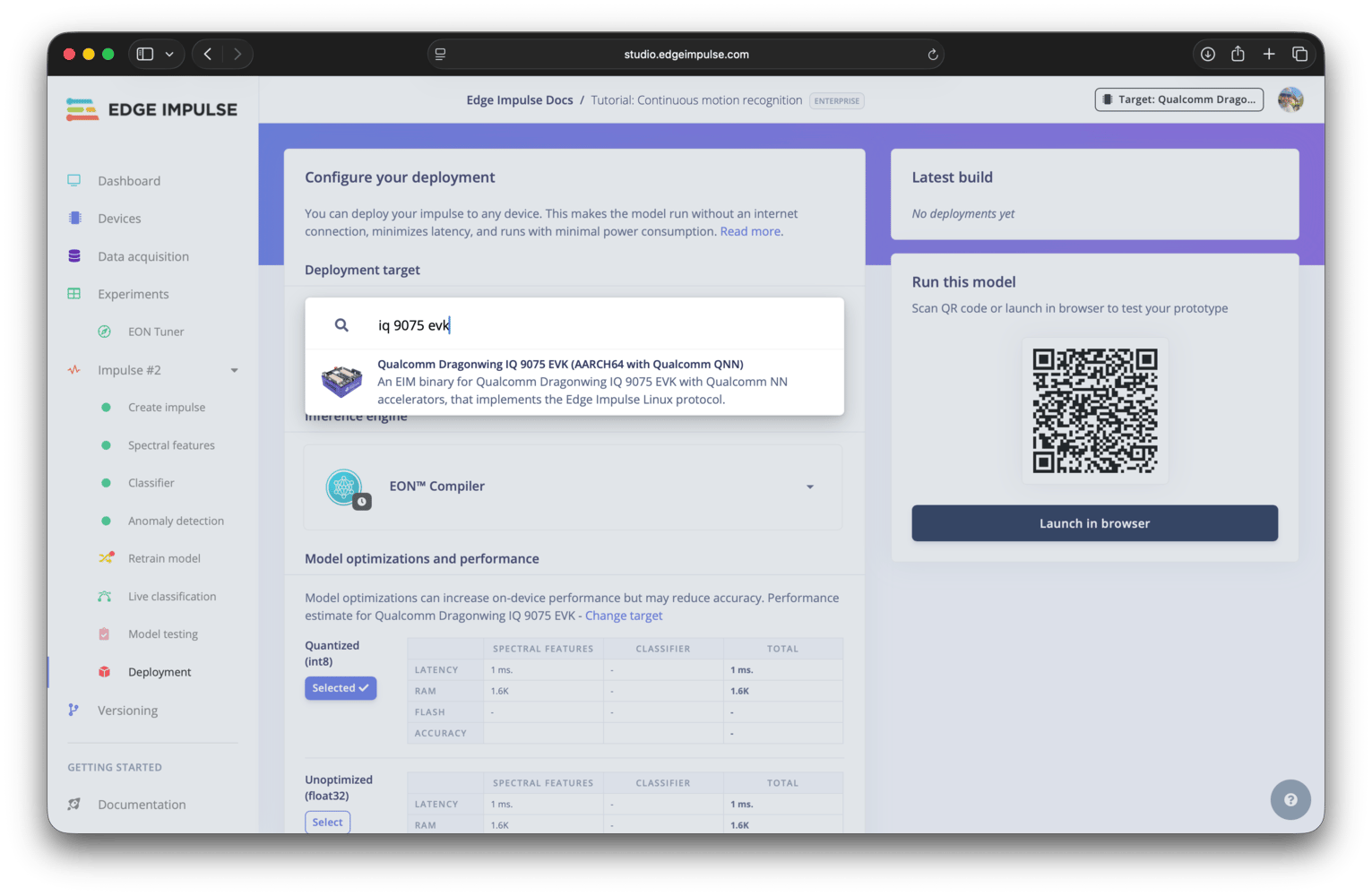
IQ-9075 EVK deployment option
Using the Edge Impulse Linux CLI
If you have not yet downloaded the.eim file, you can use the Edge Impulse Linux CLI to automatically build your model, download it to your IQ-9075 EVK, and then start running inference. To do this, execute the following command on your EVK and follow the prompts:
sudo to the command to allow the CLI to create the necessary directories.
If you need to change the project that your EVK is connected to, you can use the --clean flag to reset the connection and select a new project.
If you have already downloaded an .eim file and moved it to your IQ-9075 EVK, you can run it by executing the command below on your EVK and following the prompts:
Using the Edge Impulse Linux Inferencing SDKs
The.eim file can also be used with the Edge Impulse Linux Inferencing SDKs. Our Linux SDKs documentation has examples on how to integrate the .eim model with your favourite programming language.
With an IM SDK GStreamer plugin deployment
In your project on the deployment page, select one of the Qualcomm IM SDK GStreamer deployment options and build it. This will generate and download a.zip file. After unzipping the archive, you will find a README.md file with instructions on how to use the IM SDK GStreamer plugin to run your model.
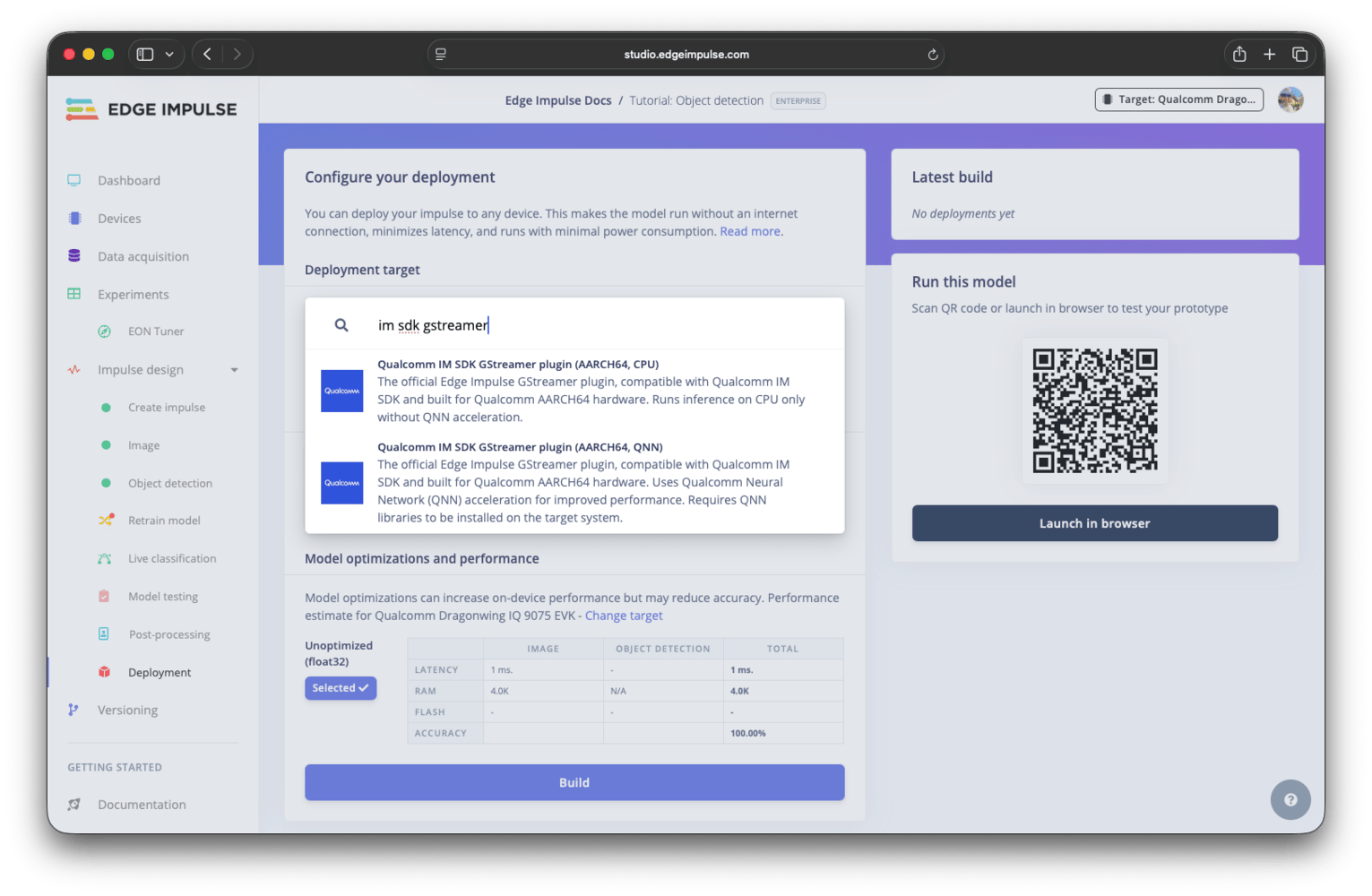
IM SDK GStreamer deployment option
Previewing image models
If you have an image model, either classification or object detection, you can see a preview of what your IQ-9075 EVK sees. After starting inference with the Edge Impulse Linux CLI, look for the message in your terminal that saysWant to see a feed of the camera and live classification in your browser. Open the provided URL in a browser. Both the camera feed and the inference results will be shown in real-time. Note that if you are opening the browser on a different device than the IQ-9075 EVK, you will need to be on the same network.
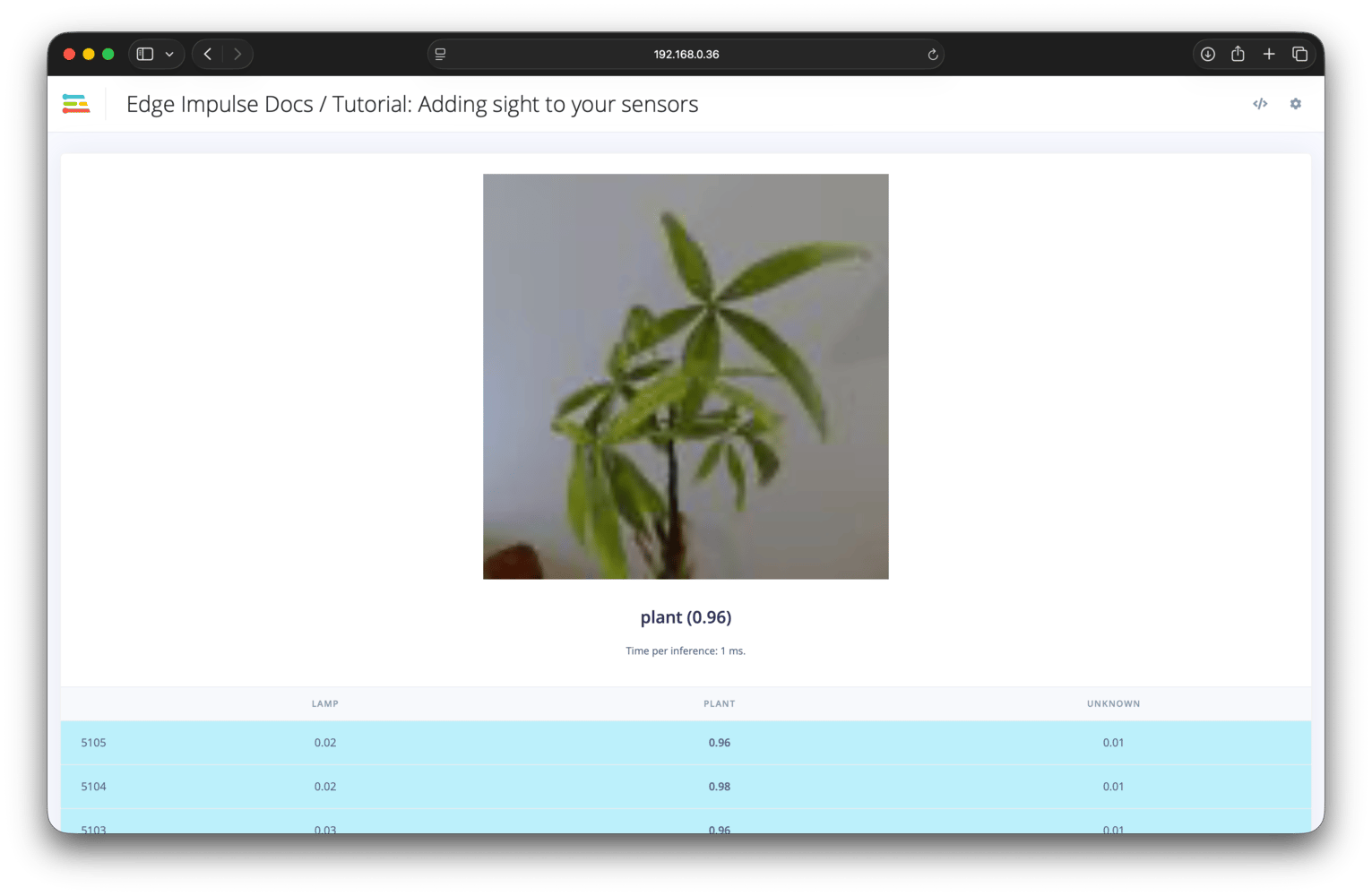
Image classification live inference
Troubleshooting
Edge Impulse Linux CLI fails to run with 'Cannot find any webcams' error
Edge Impulse Linux CLI fails to run with 'Cannot find any webcams' error
The Edge Impulse Linux CLI expects a webcam to be connected. If you are trying to run the Edge Impulse Linux CLI on the IQ-9075 EVK without a webcam plugged in, you can use a flag to disable the camera check:
qdl: unable to open USB device
qdl: unable to open USB device
If you see
qdl: unable to open USB device when flashing the board (on Windows) then make sure to update the driver using QDL’s install_driver.bat.