

idle, wave, and punch, from an accelerometer. The same sequence of prompts applies to other time-based sensor types or similar tasks.
Prerequisites
- An Edge Impulse project with accelerometer data (or clone the Continuous motion recognition tutorial project to your account)
- An AI coding agent with the Edge Impulse skills installed from the agent-tools repository
Initialize your project
Find your API key under Dashboard → Keys and your project ID under Project Info in Edge Impulse Studio and pass it to the agent:Get my Edge Impulse project info and list how many training samples exist per label
GET /api/{projectId} and GET /api/{projectId}/raw-data to return a summary, for example:
Upload training data
Upload from local files
Point the agent at a folder of CSV or WAV files. Each file becomes one training sample:Upload every CSV file in ./data/idle to my Edge Impulse project as training samples with label "idle", then do the same for ./data/wave and ./data/punch
x-label and x-file-name headers. Watch the count climb as uploads complete:
Generate synthetic data for testing
If you don’t have hardware yet, ask the agent to generate placeholder data:Generate 20 synthetic accelerometer samples for each of the labels "idle", "wave", and "punch" and upload them as training data to my Edge Impulse project. Use 3-axis (accX, accY, accZ) at 62.5 Hz for 10 seconds per sample.
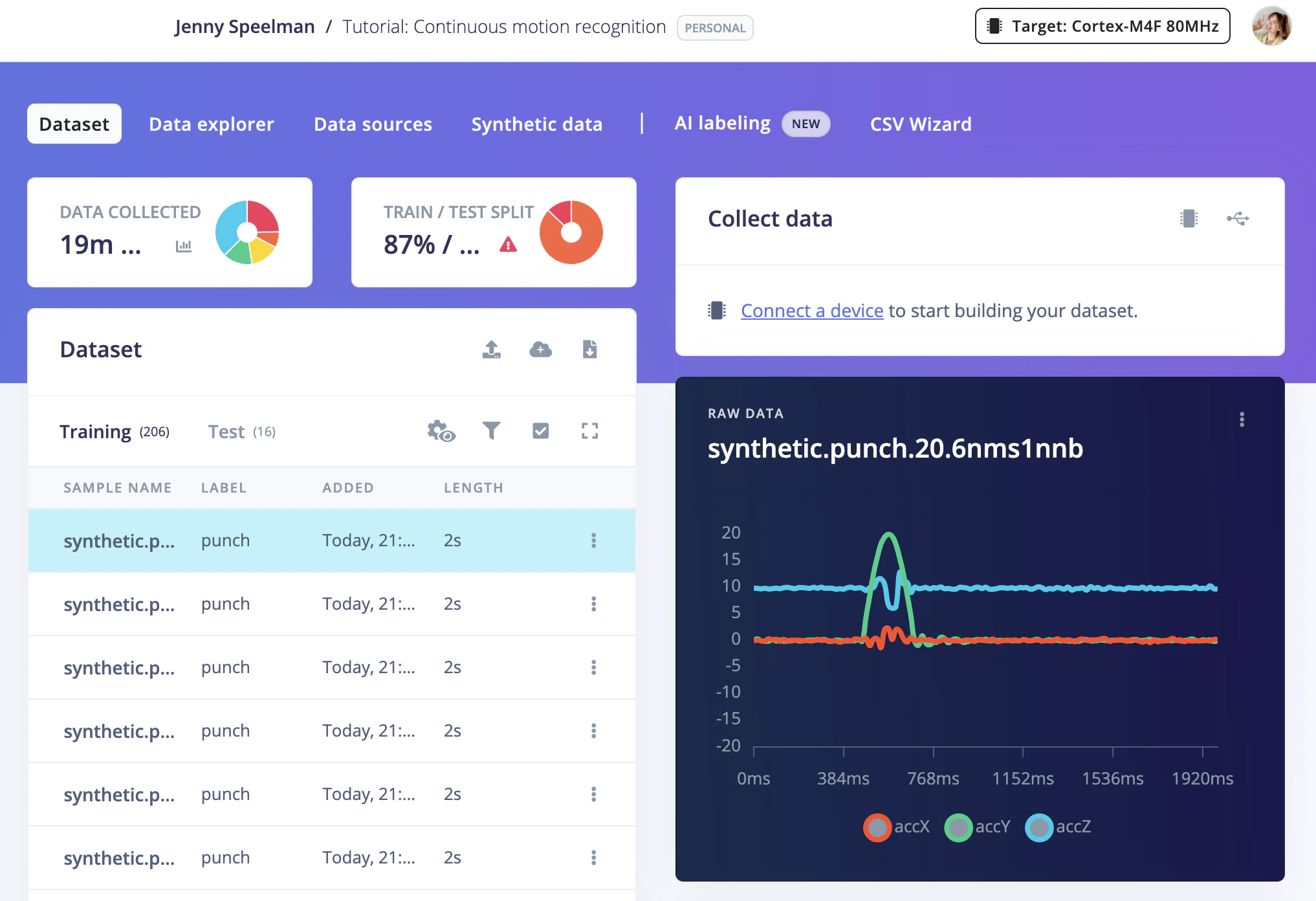
Synthetic accelerometer samples uploaded to Edge Impulse Studio
Review and clean data
Before training, verify that all samples are correctly labelled:List all training samples and flag any that look mislabelled in my Edge Impulse project, showing sample IDs where the label does not match the file name
Relabel all training samples whose filename contains "gesture_idle" to "idle" in my Edge Impulse project
Delete all training samples with label "unknown" in my Edge Impulse project
Set the training / testing split
Edge Impulse expects an 80/20 train-test split. Move 20 % of each class to the testing set:Move 20% of training samples for each label to the testing set in my Edge Impulse project, picking them randomly
POST /api/{projectId}/raw-data/{sampleId}/move.
Training the model
Start a training job in my Edge Impulse project and wait for it to finish, then print the accuracy
POST /api/{projectId}/jobs/train/{versionId}, then polls GET /api/{projectId}/jobs/{jobId}/status until the job completes:
https://studio.edgeimpulse.com/studio/<projectID>/jobs.
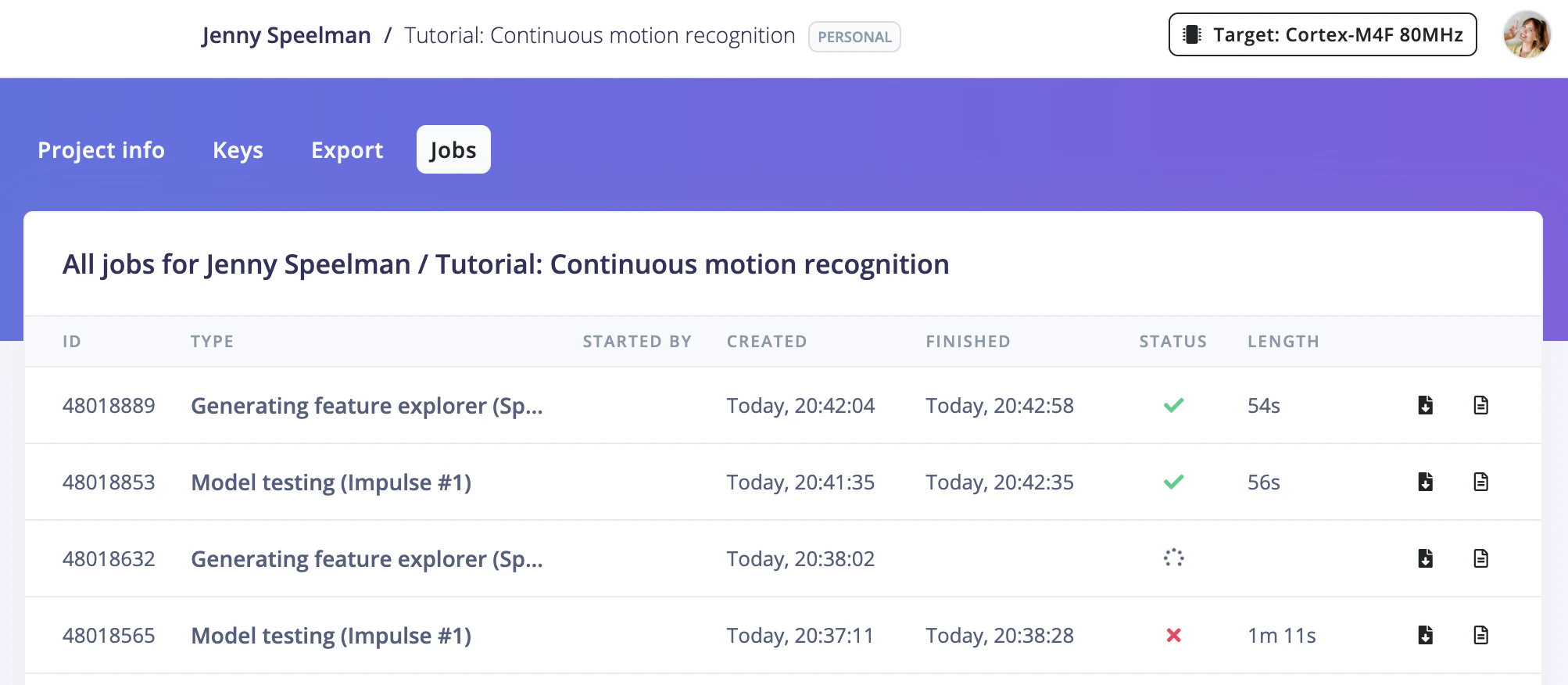
Training jobs running in Edge Impulse Studio
Evaluate the model
After training, check how well the model performs on the held-out test set:Run Edge Impulse model testing and show the confusion matrix and per-class F1 scores
Show me the samples that were misclassified in the test set of my Edge Impulse project
Export the deployment
Once you are happy with accuracy, export the model for your target device, for example:C++ library (for bare-metal or RTOS targets)
Export a C++ library deployment from my Edge Impulse project and save it to ./build
Arduino library
Export an Arduino library from my Edge Impulse project and save it to ./build/arduino-library.zip
POST /api/{projectId}/deploy, polls until the artifact is ready, then downloads it to the path you specified.
Deploy and run on device
C++ on a Linux device (Raspberry Pi, NVIDIA Jetson, etc.)
Ask the agent to build and run the SDK example for you:Unzip the Edge Impulse C++ library, build the Linux runner for ARM64, and give me the command to run it
cmake build commands, and prints the run command:
Arduino IDE
- Open the Arduino IDE and install the library from Sketch → Include Library → Add .ZIP Library, then select
./build/arduino-library.zip. - Open File → Examples → your-project-name → nano_ble33_sense_accelerometer (or the sketch matching your board).
- Upload the sketch and open the Serial Monitor at 115200 baud to see live inference results.
Check live inference
With the model running on device, point the agent at the Devices API to confirm the device is connected and sampling:List connected devices to my Edge Impulse project and show their last-seen time
End-to-end prompt
Rather than running steps one at a time, you can hand your AI agent the full workflow in a single prompt. Your AI agent will work through each phase and pause to ask you questions at each decision point: what to name things, whether results look good, and whether to continue.Run an end-to-end Edge Impulse workflow for me, pausing to ask me questions at each step:
Next steps
- More prompts: Browse the prompt library for ready-to-use prompts covering data management, training, evaluation, deployment, automation, and more
- Iterate: If accuracy is below target, collect more data for weak classes and retrain the model.
- EON Tuner: Let the agent run AutoML to find a more accurate or smaller model:
Run the EON Tuner in my Edge Impulse project and show the top 3 results ranked by accuracy - Automate: Schedule the full pipeline as a script that runs weekly:
Write a script that uploads new samples from ./inbox, retrains my Edge Impulse project, and emails me the accuracy weekly - Continuous deployment: Use the AI agent in CI/CD to rebuild and export the model whenever new data lands in your repository:
Create a GitHub workflow CI/CD action to rebuild and export the model from my Edge Impulse project whenever new data lands in my repository