

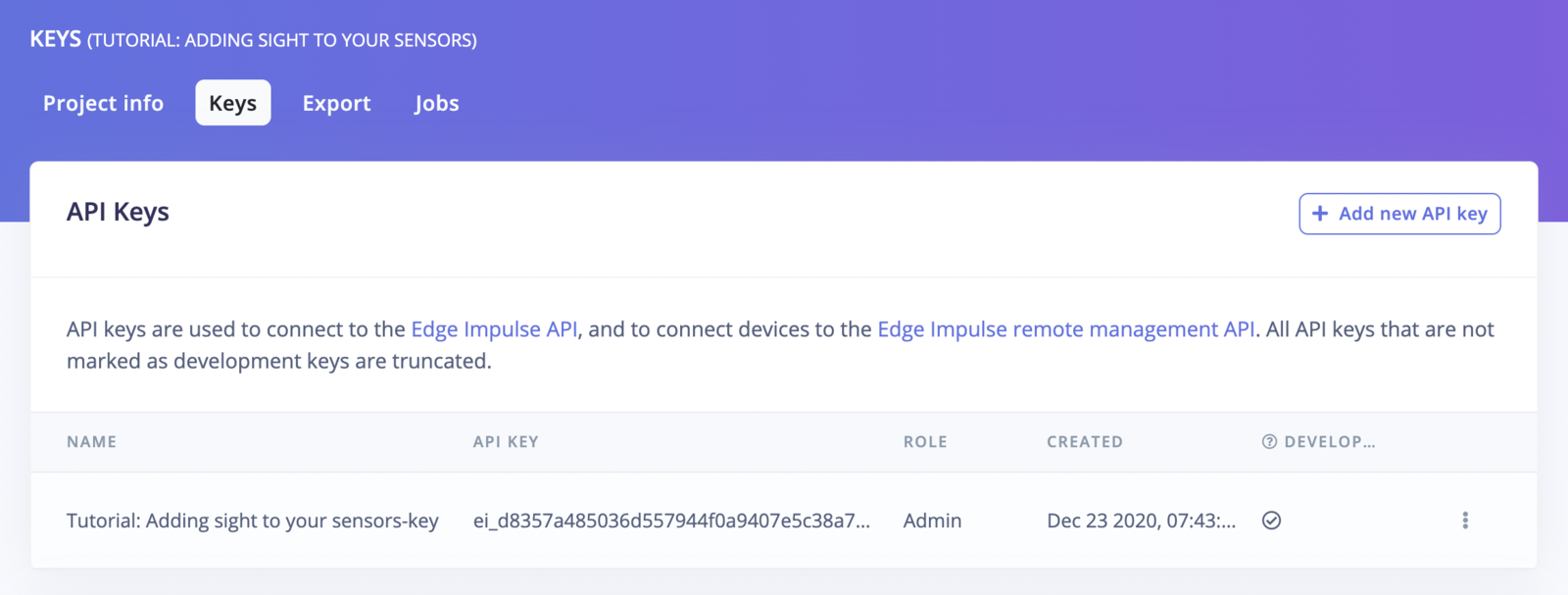
The API keys page in Edge Impulse Studio.
API keys
API keys authenticate requests to the Edge Impulse Studio API and the Edge Impulse remote management API. They are scoped to a single project. To create a new API key, click + Add new API key and fill in the form: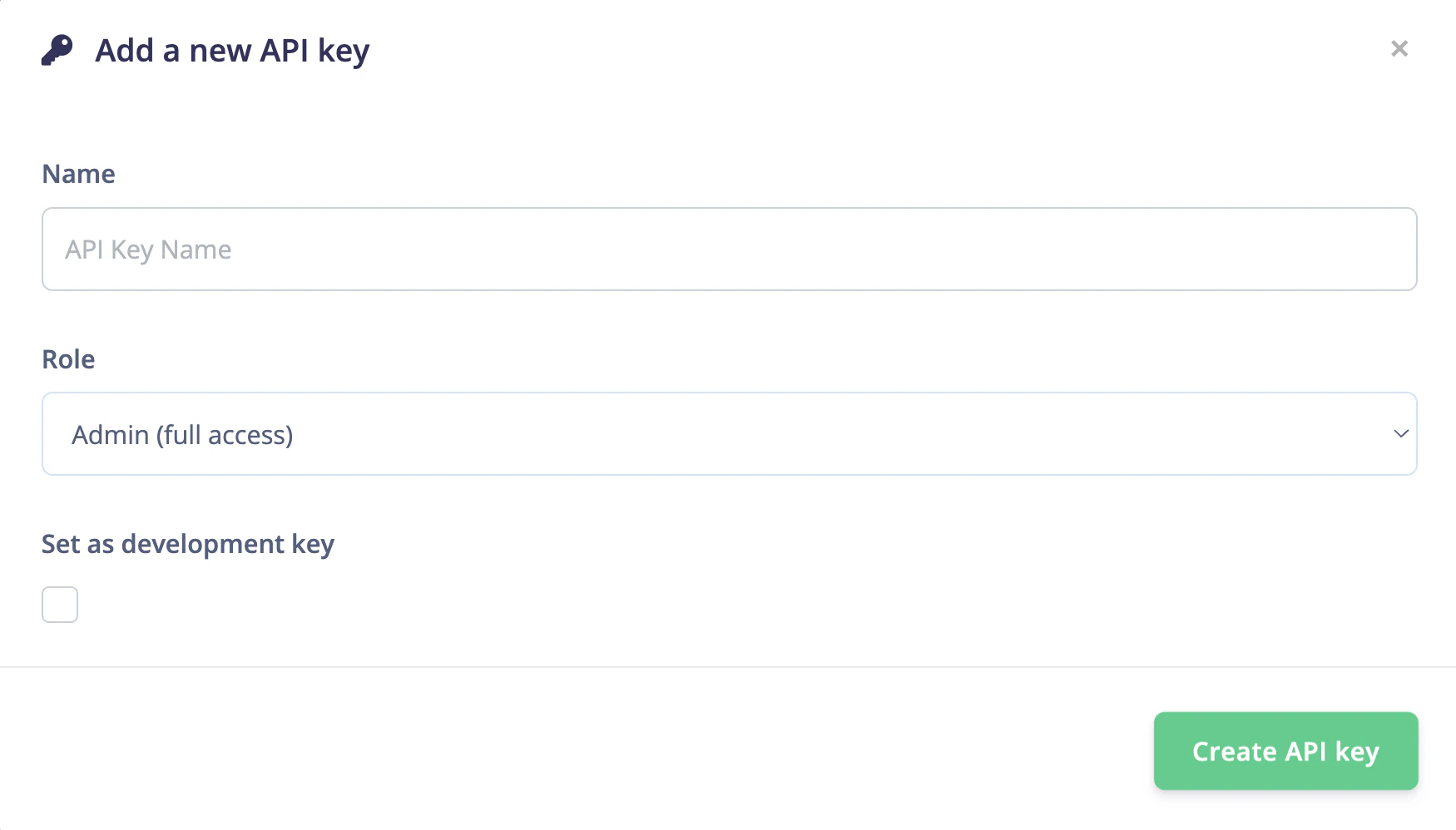
Add a new API key dialog.
Click Create API key to generate the key.
Roles
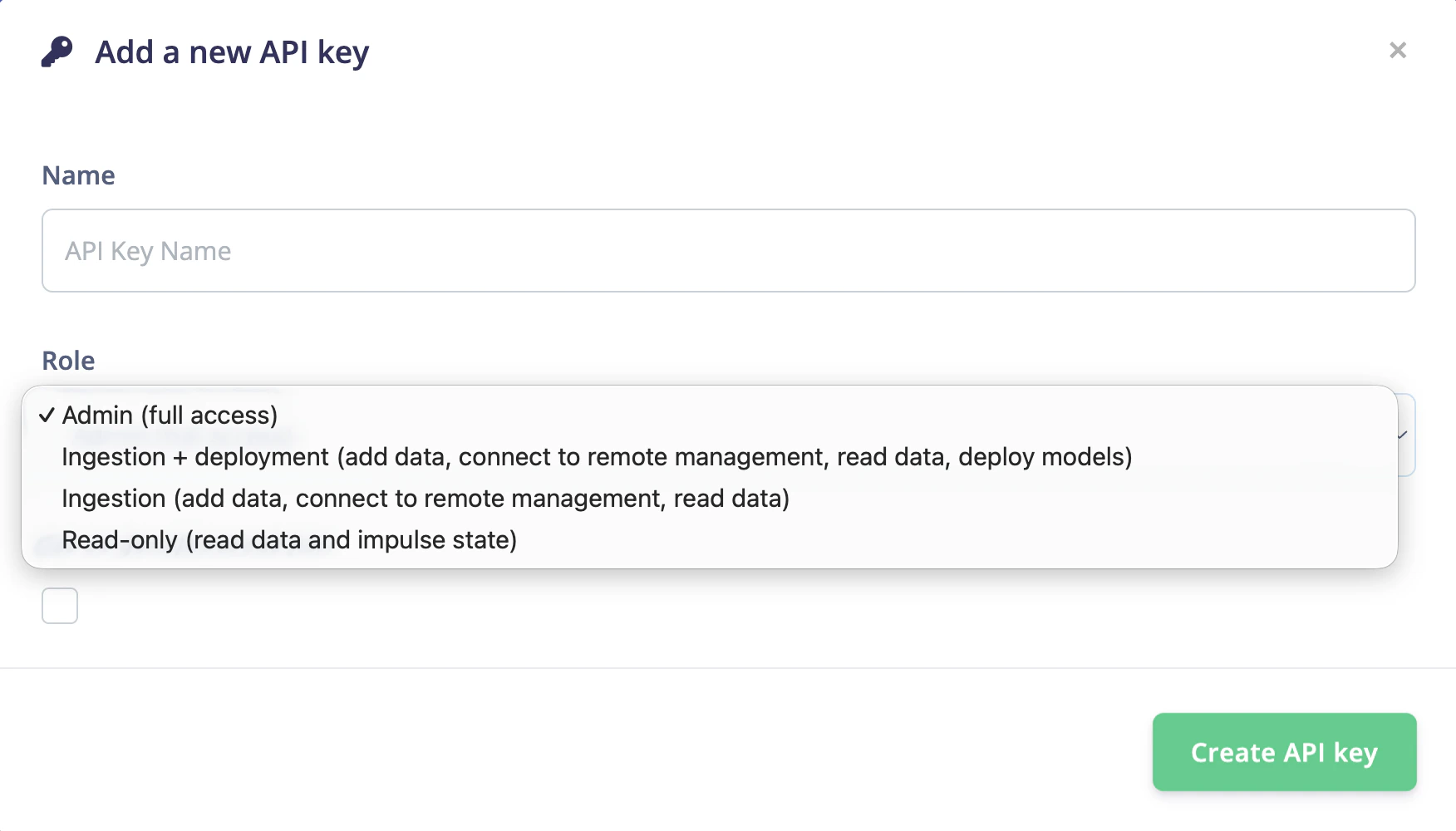
Add a new API key dialog with roles dropdown.
Development keys
The Edge Impulse CLI and other local tooling connect to your project using a development key. When you runedge-impulse-daemon or similar CLI commands, they look for a development key on the project, not just any API key.
Checking Set as development key also causes the key to be passed automatically to custom deployment blocks that have the privileged flag enabled.
New projects do not get a development key automatically. If you plan to use the CLI, create one manually here.
HMAC keys
HMAC keys are used to sign data sent to your project through the ingestion API. Signing data lets Edge Impulse verify the authenticity of incoming samples by confirming which device sent the data and when it was captured. Data is signed using HMAC-SHA256. When you create a signed data file, the HMAC key is used alongside fields likeiat (issued-at timestamp) and device_name to produce a signature that Edge Impulse can validate on ingestion.
To learn how to sign data with an HMAC key, see the ingestion API documentation.