

Account
The Account tab holds your profile information. You can update your profile photo, name, job title, and company name, then click Save changes to apply them. Your email address is shown here but cannot be edited directly.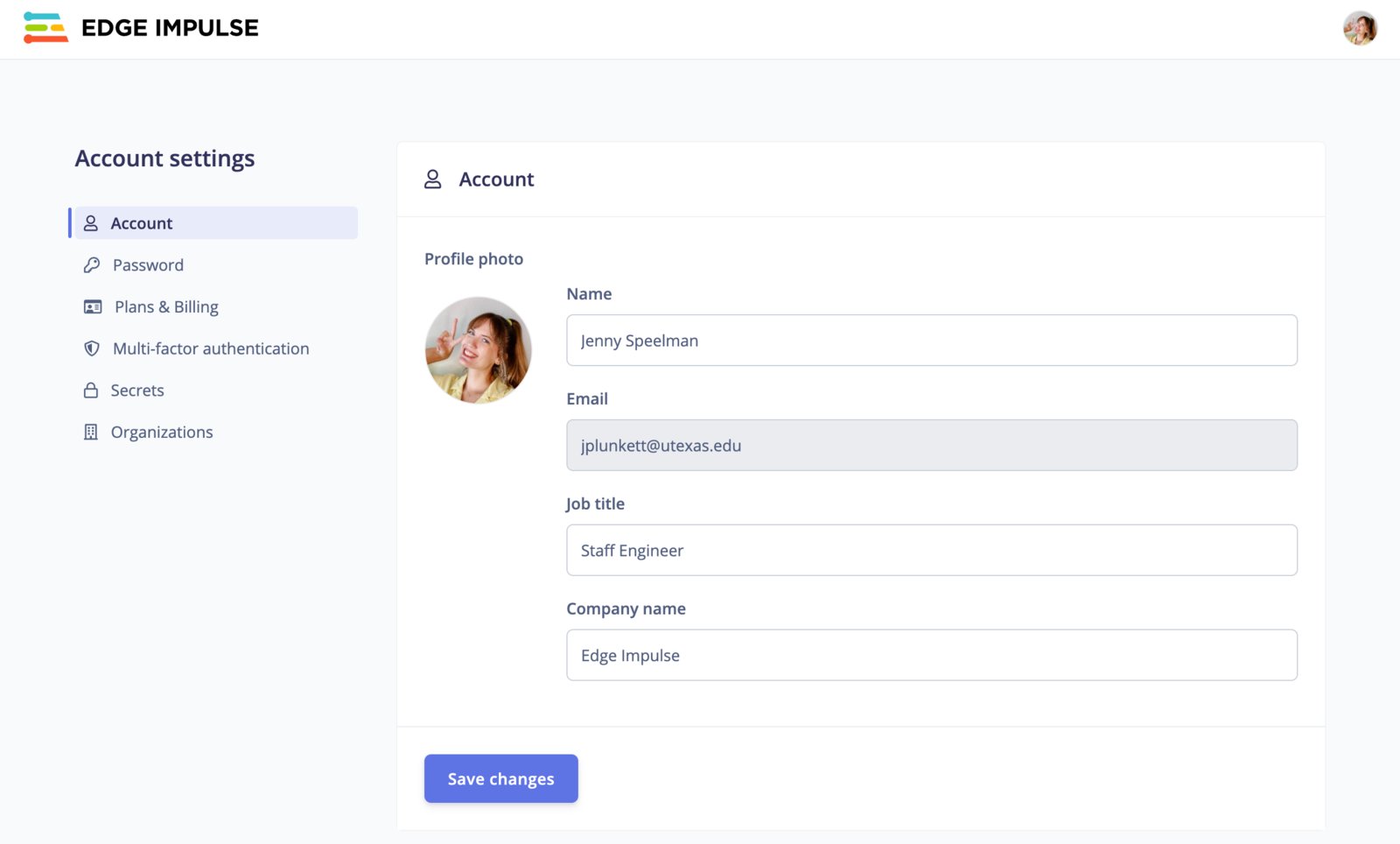
The Account tab in your Edge Impulse account settings.
Administrative zone
At the bottom of the Account tab you will find the Administrative zone, which contains the Delete your account button.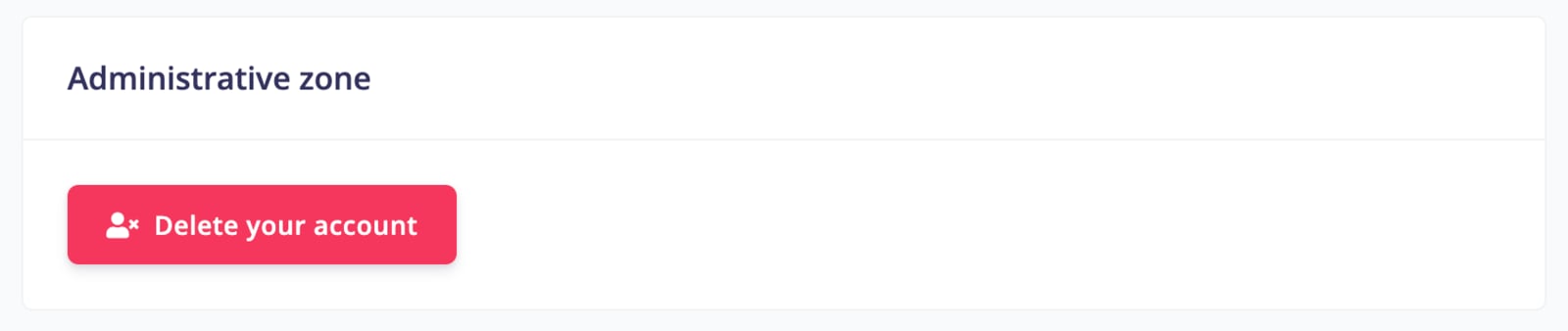
The Administrative zone, where you can delete your account.
Password
The Password tab lets you change your account password. Enter your current password, then your new password twice, and click Save changes.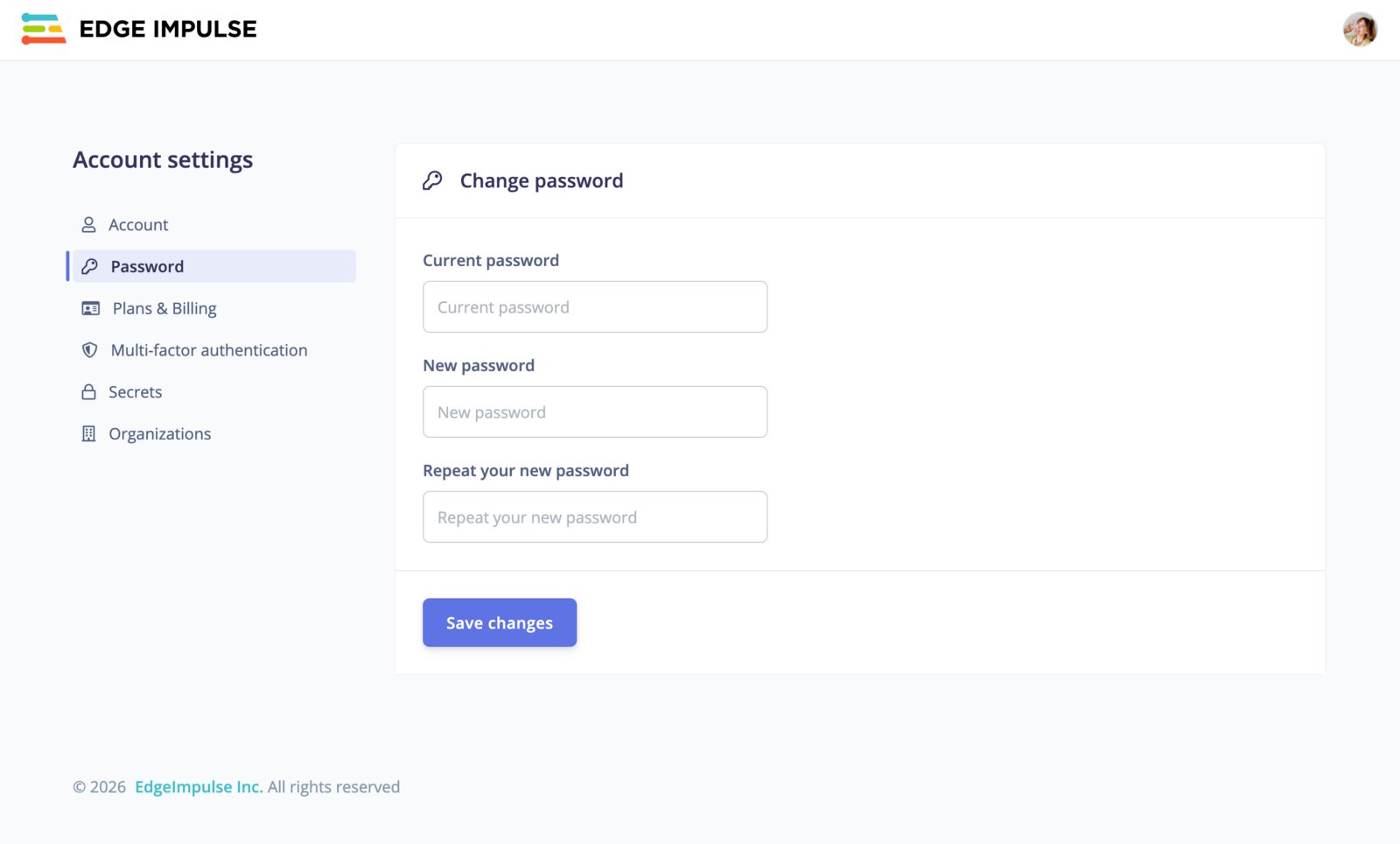
Changing your password.
Plans & Billing
The Plans & Billing tab shows your current plan and your compute usage for the month, broken down by CPU and GPU minutes. Use View plan details to review what your plan includes, or Upgrade plan to move to a higher tier. For a full comparison of available plans, see our pricing page.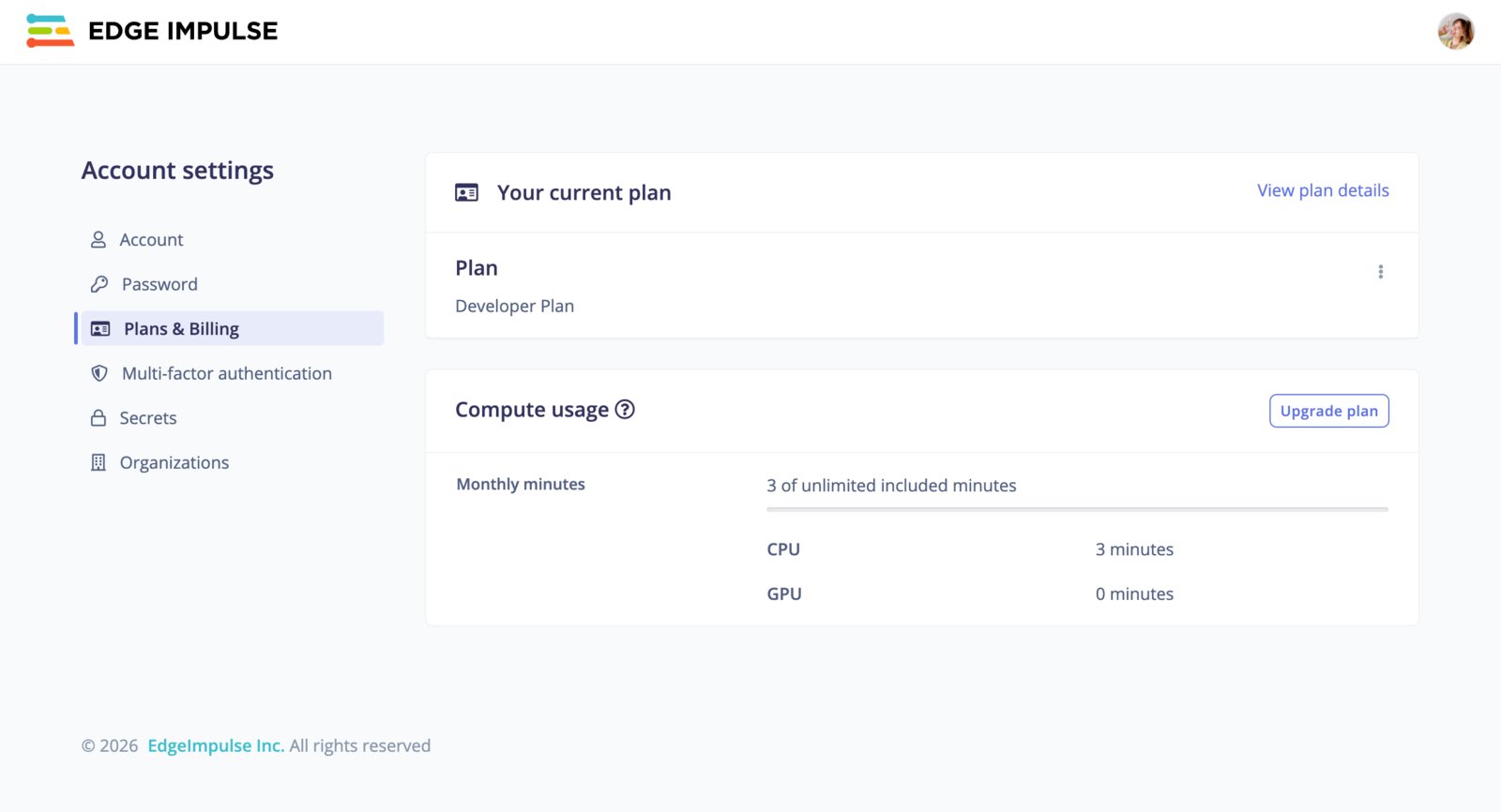
Your current plan and compute usage.
Multi-factor authentication
The Multi-factor authentication (MFA) tab lets you add an extra layer of security to your account. Click Set up using Google Authenticator or Authy and follow the prompts to register an authenticator app. Once configured, you will be asked for a one-time code from your authenticator app each time you sign in.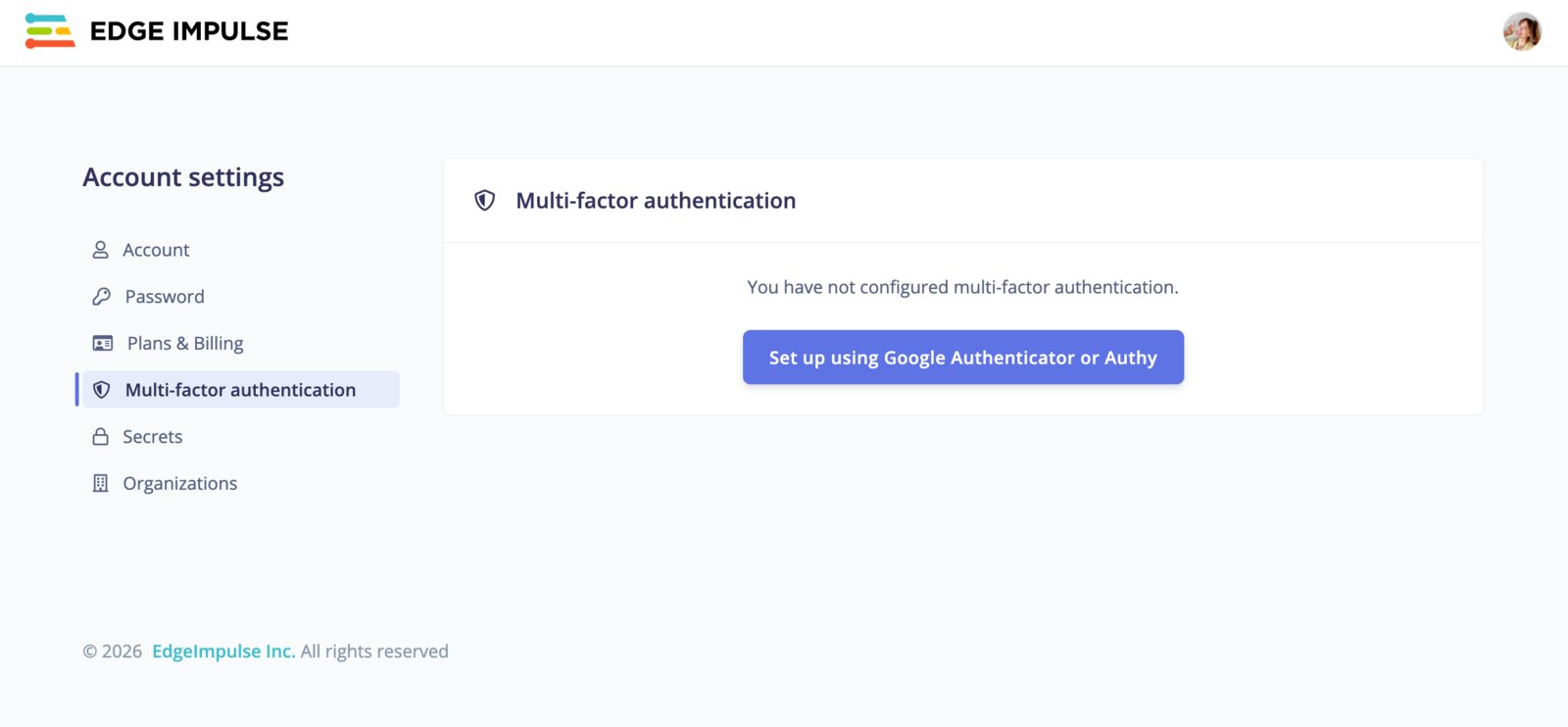
Setting up multi-factor authentication.
Secrets
The Secrets tab is used to hold sensitive data, like API keys for synthetic data generation. Click Add new secret to create one. Secrets are stored securely and can be referenced from your projects without exposing the underlying values. Secrets back features that call third-party services on your behalf: synthetic data blocks, AI labeling blocks, and custom blocks that declare the secrets they need. A block receives the secret as an environment variable at run time, so the name must match what the block expects. The value is write-once. These are personal secrets, scoped to your account. For a credential shared across a team, enterprise customers should use organization secrets instead.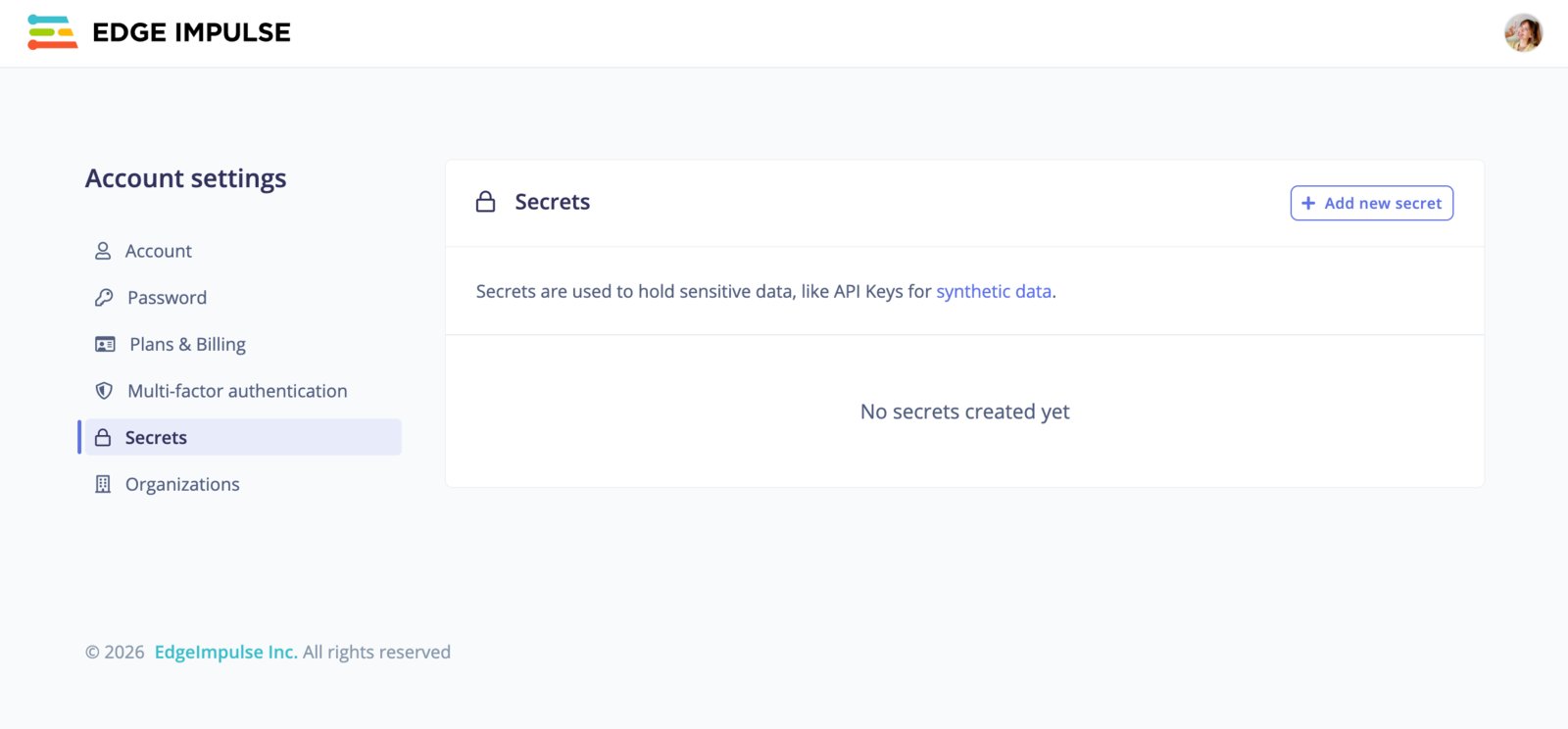
Managing account secrets.
- Name: the identifier for your secret. It is passed in as an environmental variable, so use a name like
SECRET_NAME. - Secret: the sensitive value itself. This won’t be visible after creating, so store a copy elsewhere if you need it.
- Description: an optional note describing what the secret is for.
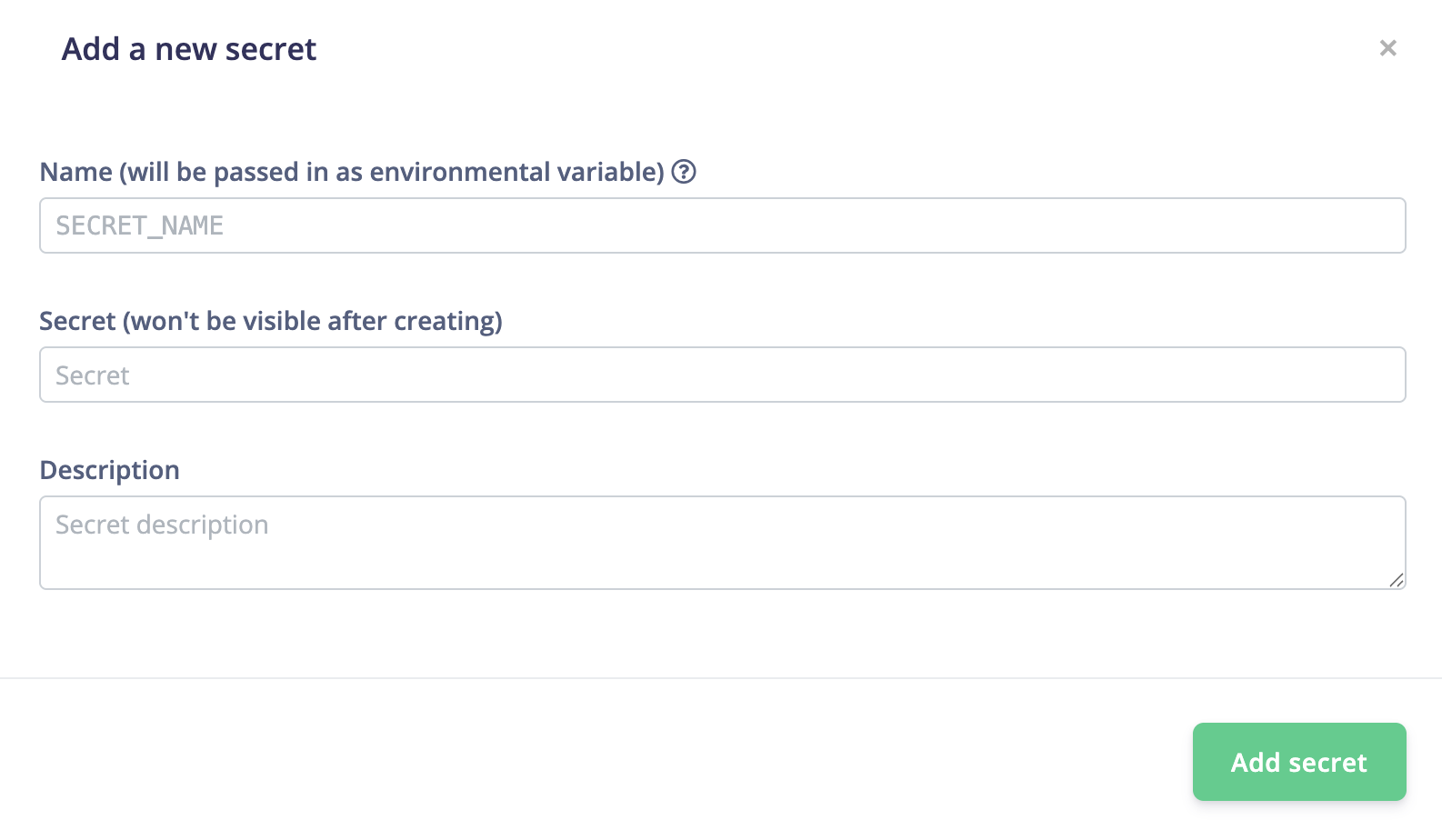
Adding a new secret.
Organizations
The Organizations tab lists the organizations you belong to. Organizational features are only available for enterprise customers. To learn more about what organizations offer, see Organizations.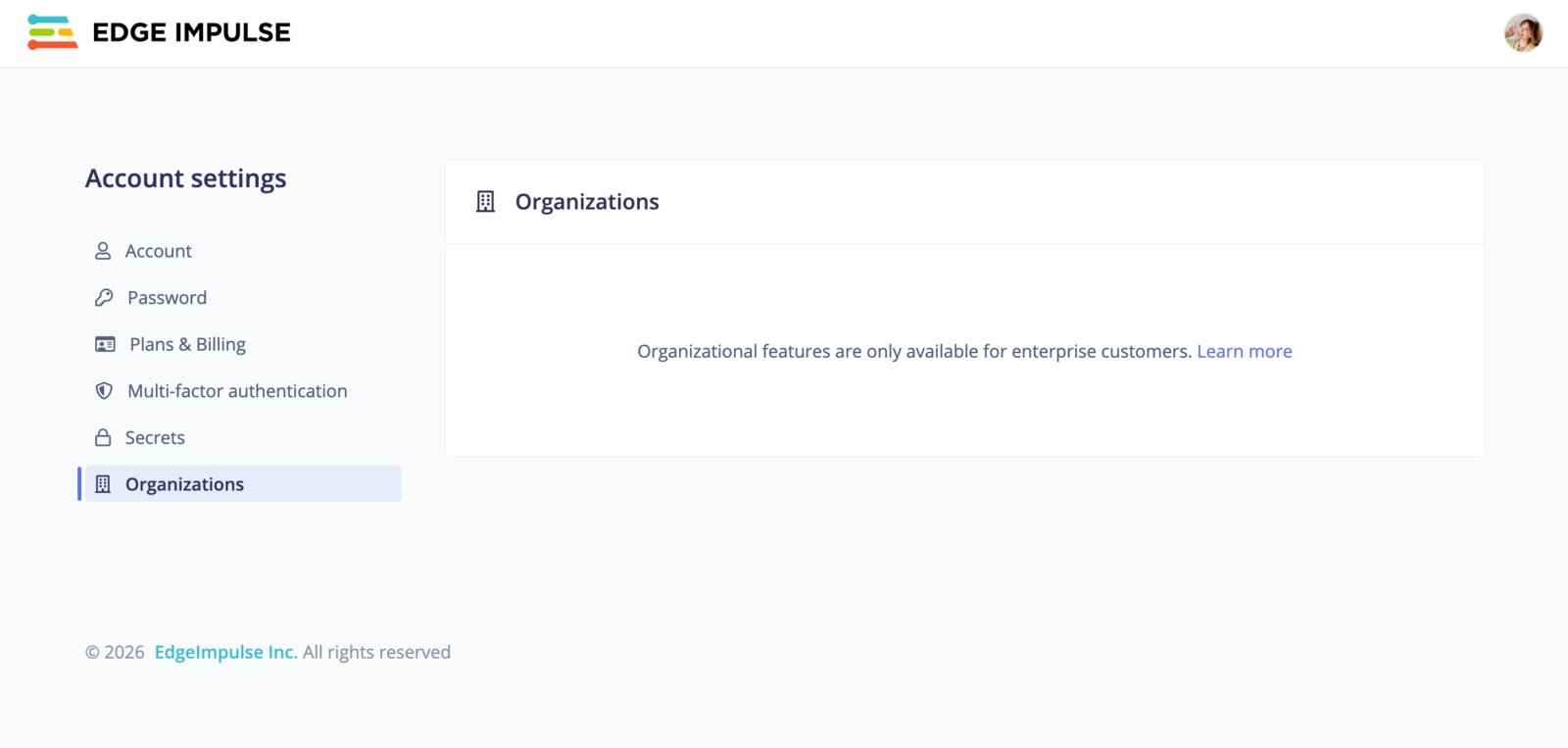
The Organizations tab.