

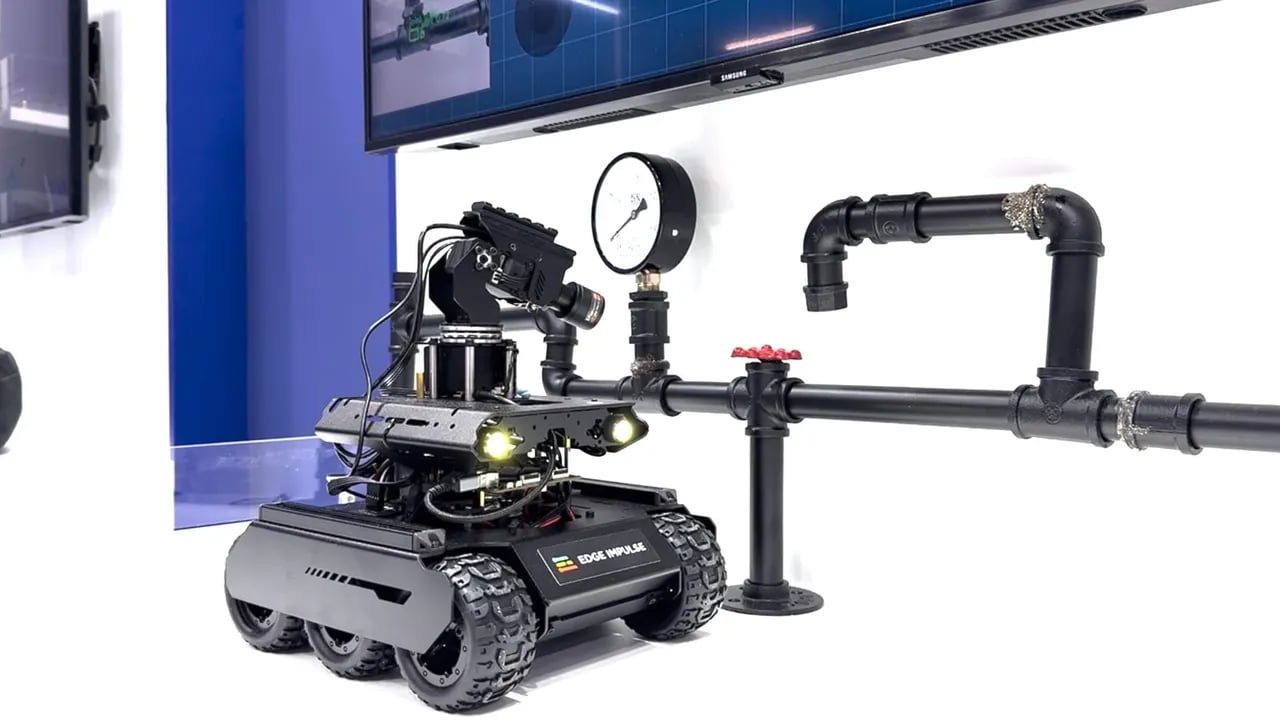
Inspection rover with a Waveshare UGV base and a pan/tilt gimbal
This tutorial is based on Moe Sani’s inspection robot demo at Embedded World 2026. For the full build story, read A look inside my edge AI inspection robot (ROS 2-native).
Problem statement
Inspection at pipelines, refineries, utilities, and other industrial sites has these constraints:- Hazardous access. Manual inspection can put people in unsafe or hard-to-reach places.
- Inconsistent data. Operators capture images from different angles, distances, and lighting.
- Limited connectivity. Field sites often have restricted, intermittent, or isolated networks.
- Audit requirements. Every decision must be traceable and reviewable after the run.
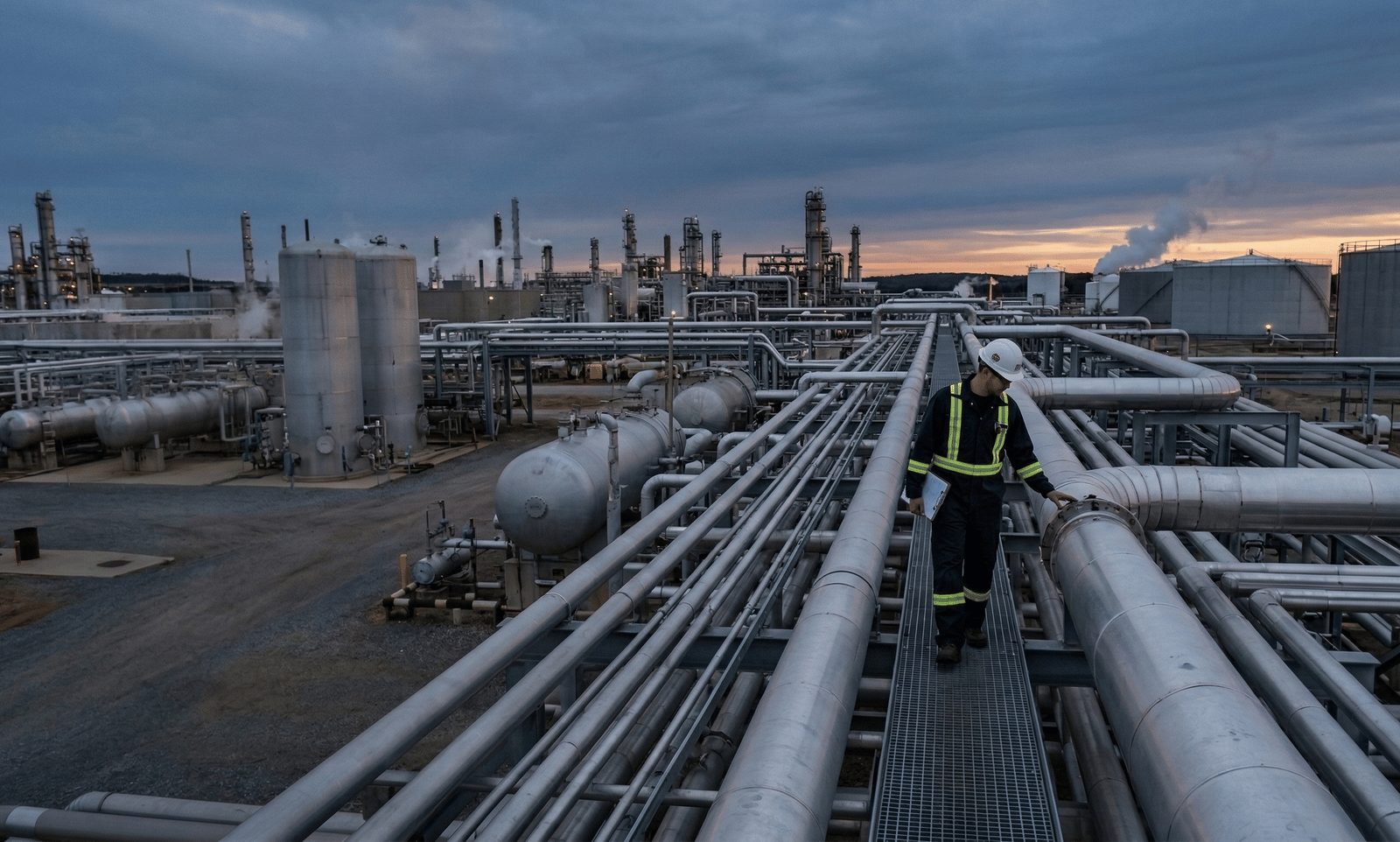
Manual inspection in a hazardous industrial environment
System architecture
Hardware minimum
- Mobile base. A rover with reliable velocity control, such as a Waveshare UGV.
- Gimbal. A two-axis pan/tilt mount that aims the close-up camera.
- Cameras. A wide-view camera for search and a close-up camera for inspection.
- Compute. Linux hardware that can run ROS 2 and Edge Impulse Linux inference.
- Safety controls. An emergency stop, a command watchdog, speed limits, and a manual override.
Perception pipeline
Perception runs in two stages, search and inspection:
The detector runs continuously or in short search windows. The higher-resolution inspection model runs only after the gimbal points at a candidate.
ROS 2 architecture
Perception nodes publish standard ROS 2 messages. The mission manager runs long tasks as ROS 2 actions. A safety gate sits between the mission manager and the motor driver, and the dashboard only reads topics.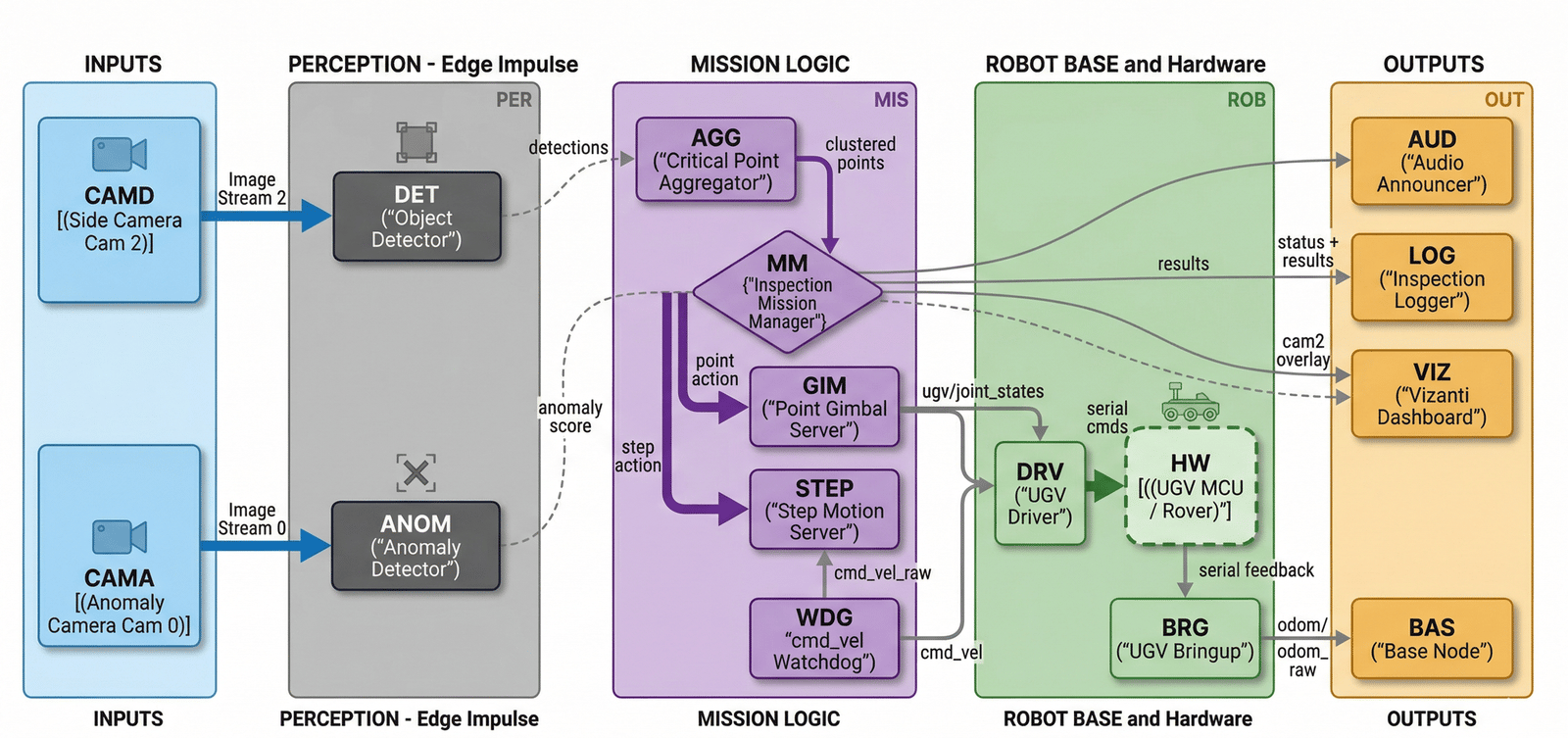
ROS 2 node architecture for the inspection rover
The main ROS interfaces:
Mission loop
The rover repeats a move-inspect-move loop along the inspection path:- STEP advances the rover one position along the inspection path.
- DET runs the object detector on the wide-view camera.
- AGG aggregates detections into stable critical point candidates.
- For each candidate:
- GIM aims the gimbal at the target location.
- ANOM captures a close-up after the camera settles and produces an anomaly score or class result.
- LOG records the detection, position, score, timestamp, and model version.
- The mission manager decides whether to continue, retry, alert, or stop.
Integrating Edge Impulse models
Run the search detector withedgeimpulse_ros. It loads a Linux .eim model and subscribes to the wide-view camera’s sensor_msgs/Image topic. For details, see Run Edge Impulse object detection with ROS 2.
Installation
Install ROS 2 message dependencies and OpenCV:Running the detector
Launch the detector:ros2 run:
Output topics
Configuration
Building your inspection system
1. Define mission requirements
Before you collect data, decide on the inspection target and operating limits:- Which points on the asset are critical?
- What does an abnormal result look like?
- Which inspection distances, angles, lighting, and speeds are acceptable?
- What should happen when confidence is low or the robot can’t inspect a component?
2. Design data collection
Collect data for each camera under the conditions the robot will see.3. Train two models in Edge Impulse
Create a separate Edge Impulse project for each model.
Export the detection model as a Linux
.eim deployment.
4. Integrate with ROS 2
Run the detector withedgeimpulse_ros as shown above, and check that /edgeimpulse_detector/detections publishes. Then:
- Use standard message types where you can.
- Let the dashboard read topics, but keep mission state in the mission manager.
- Keep safety separate from the models and the mission logic.
- Version the model paths and thresholds with the mission configuration.
5. Run the mission with actions
Implement each long-running task as a ROS 2 action, so it supports timeouts, cancellation, and recovery:- Detect and aggregate: run the detector and collect candidates.
- Point gimbal: move the pan/tilt mount to a target.
- Capture and inspect: take a close-up and run the inspection model.
- Move: advance the rover to the next position.
6. Add an independent safety layer
Treat model output as advice. Safety must not depend on the model being correct.- Use a
/cmd_velwatchdog with a short timeout. - Keep the emergency stop and collision avoidance outside the mission manager.
- Gate motor commands independently of detection output.
- Use low speed limits during inspection.
- Test failures such as a model crash, lost communication, a stalled gimbal, and blocked motion.
7. Validate progressively
- Test both models on representative offline images.
- Run static camera tests with the robot powered but stationary.
- Run controlled low-speed tests in a safe environment.
- Review logs for repeatability, false positives, false negatives, and motion timing.
- Expand field tests gradually.
Visualization and control
Vizanti is a browser-based ROS 2 interface that connects directly to the ROS 2 graph. Use it, or a similar web UI, for demos, field tests, and debugging.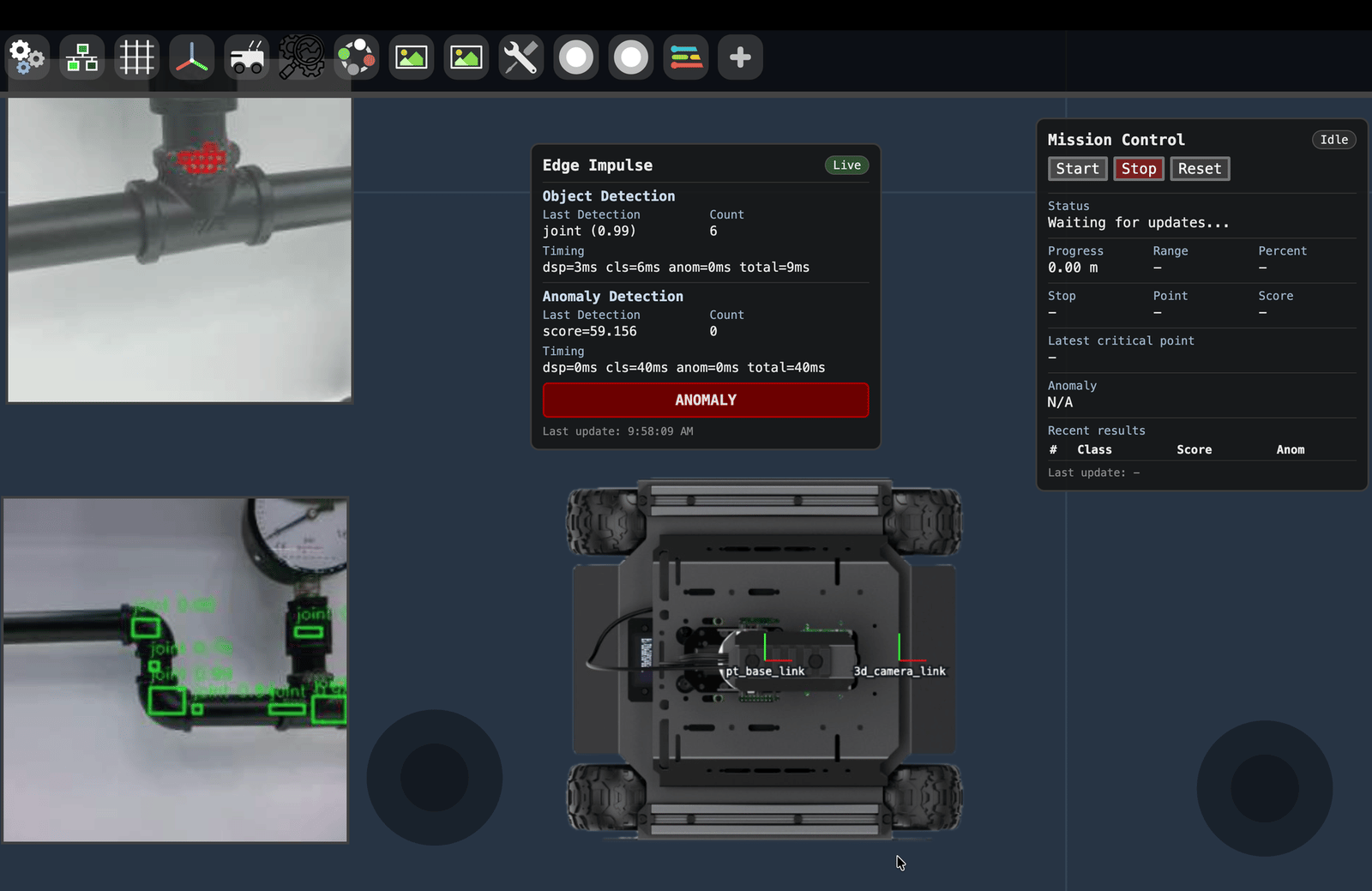
Vizanti operator dashboard
- Detection boxes on the wide-view feed and anomaly scores on the close-up feed
- A timeline of the STEP, GIM, and ANOM actions
- The inspection log, with the location, detection confidence, anomaly score, model version, and timestamp of each point
Improve the system over time
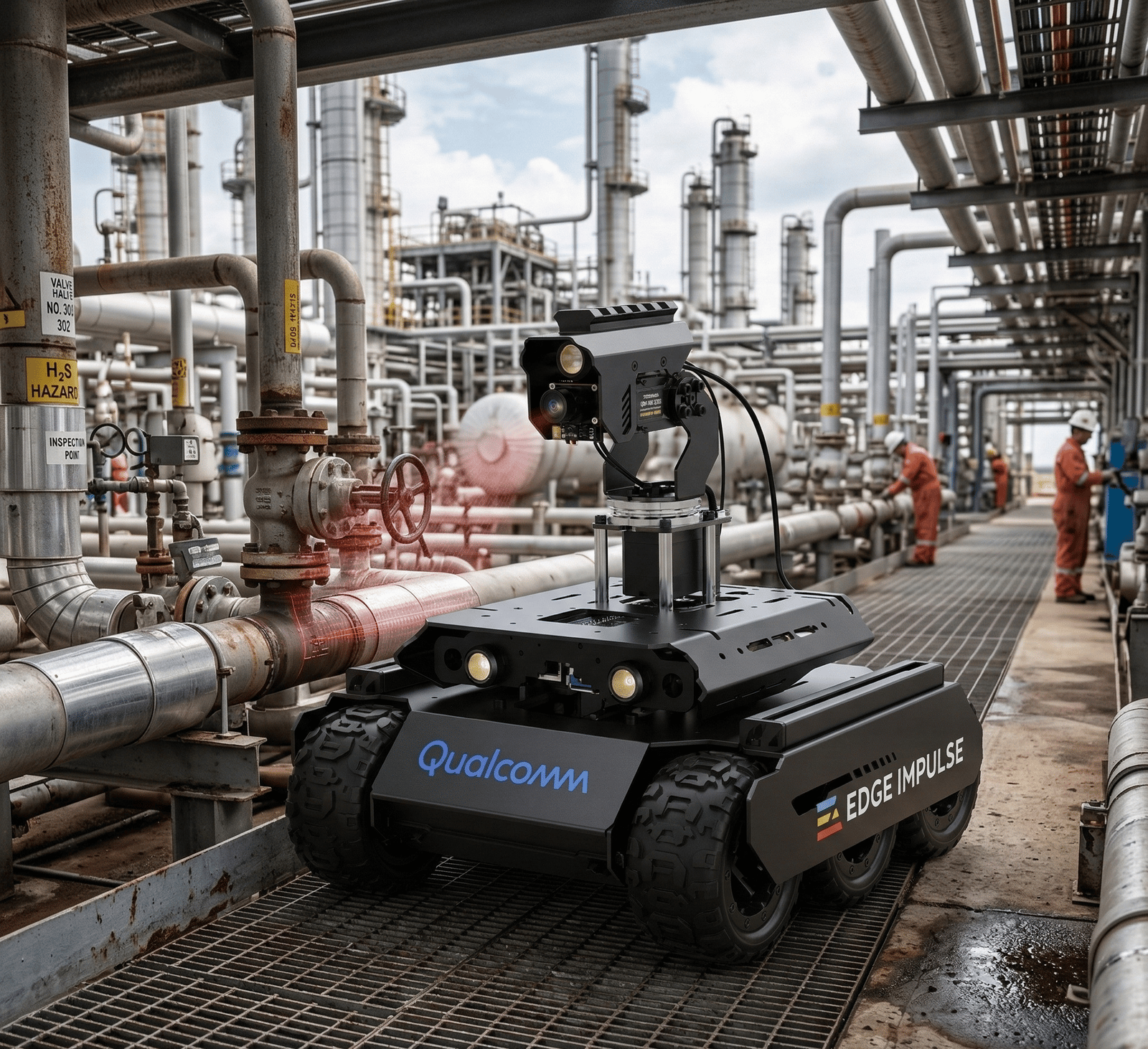
Inspection robot in a refinery
Resources
- A look inside my edge AI inspection robot (ROS 2-native): Moe Sani’s build story and architecture walkthrough
- edgeimpulse-ros on GitHub
- Edge Impulse Linux SDK for Python
- ROS 2 documentation
- Vizanti web-based ROS 2 UI