

SensorManager, fills a buffer sized to the model’s window, and runs the C++ classifier through JNI each time the buffer is full. Jetpack Compose for Wear OS shows the result on the watch face.
The keyword spotting example uses the same buffered approach for audio on a phone.
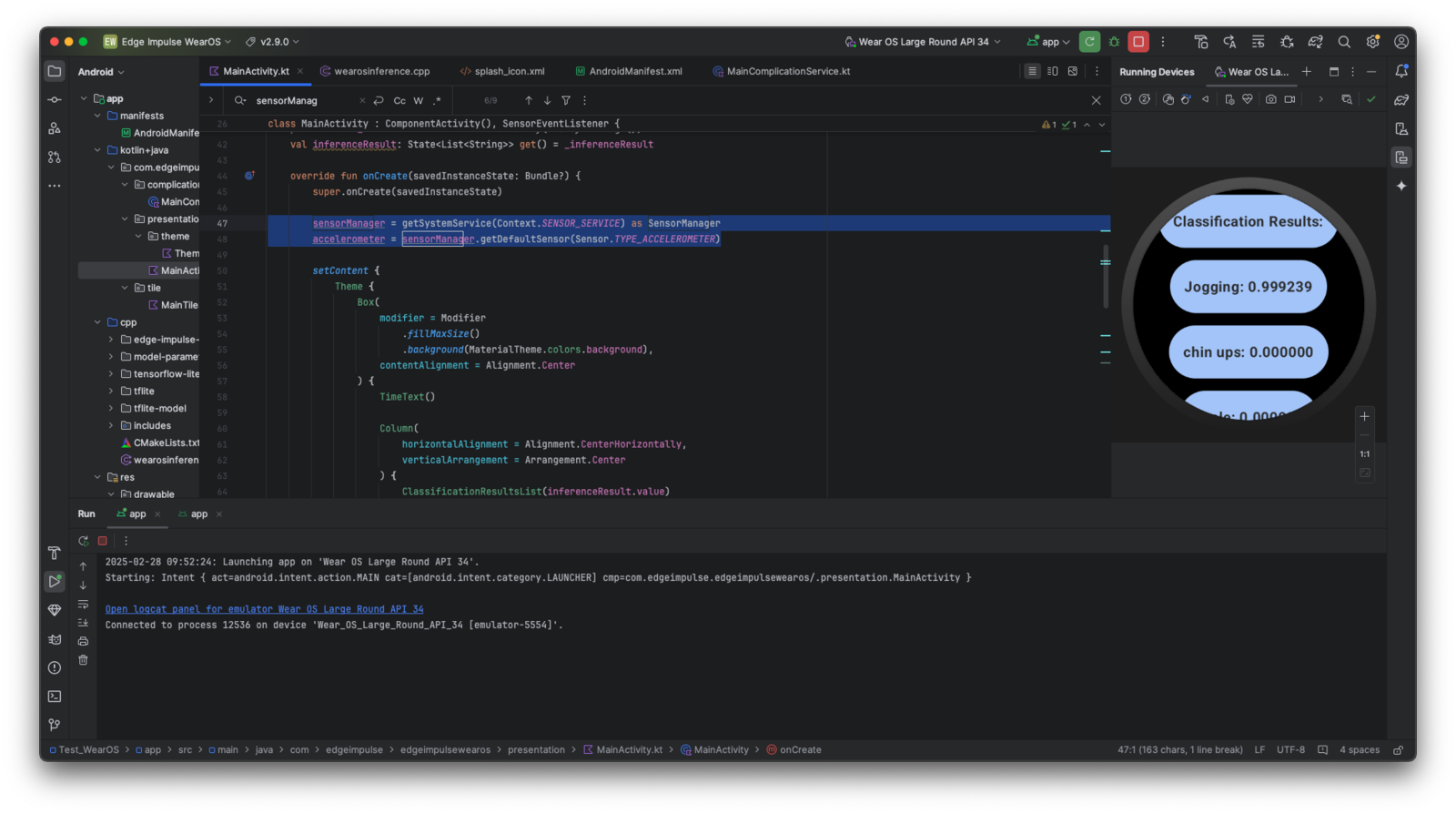
Wear OS app showing motion classification results on a round watch face
Prerequisites
- A motion classification model trained in Edge Impulse on accelerometer data, and optionally gyroscope data
- Android Studio with NDK 27.0.12077973 and CMake 3.22.1 installed
- A Wear OS device or emulator running API 30 or later
1. Clone the repository
2. Download TensorFlow Lite libraries
3. Export your model
- In Edge Impulse Studio, go to Deployment.
- Select Android (C++ library).
- Enable EON Compiler to reduce inference time and battery use.
- Click Build and download the
.zipfile.
4. Integrate the model
Extract the downloaded.zip file and copy its contents, except CMakeLists.txt, into app/src/main/cpp/. The folder then looks like this:
5. Match the input frame size
The model expects a fixed number of float values as input. Find the value inmodel_metadata.h:
MainActivity.kt to match:
6. Build and run
- Open the project in Android Studio.
- Select Build -> Make Project.
- Connect your Wear OS device or start a Wear OS emulator.
- Run the app.
How it works
Sensor setup
The app registers the accelerometer listener inonResume and removes it in onPause, so the sensor doesn’t drain the battery while the app isn’t visible:
Ring buffer collection
Each sensor event writes its x, y, and z values into the buffer. When the buffer is full, the app runs inference and resets the index:Native inference
The float array crosses the JNI boundary, and the native code passes it to the classifier:Wear OS UI
The app shows the result in a Jetpack Compose for Wear OSChip:
Adding gyroscope data
If your model was trained with both accelerometer and gyroscope, register both sensors and write all six values per sample:Troubleshooting
Incorrect or unstable classifications
Incorrect or unstable classifications
- Check that
EI_CLASSIFIER_DSP_INPUT_FRAME_SIZEmatches your model’s input size. - Check that the sensor sampling rate matches your training data. If you trained at a higher rate, change
SENSOR_DELAY_NORMALtoSENSOR_DELAY_GAME(about 50 Hz). - Check that the axis order in the buffer matches your training data.
High battery drain
High battery drain
- Keep the
unregisterListenercall inonPause(). - Lower the sampling rate to the minimum your model needs.
- Enable EON Compiler when you build the deployment.
No sensor data on emulator
No sensor data on emulator
- Use the emulator’s extended controls to inject sensor data.
- Test on a physical Wear OS device for realistic sensor data.