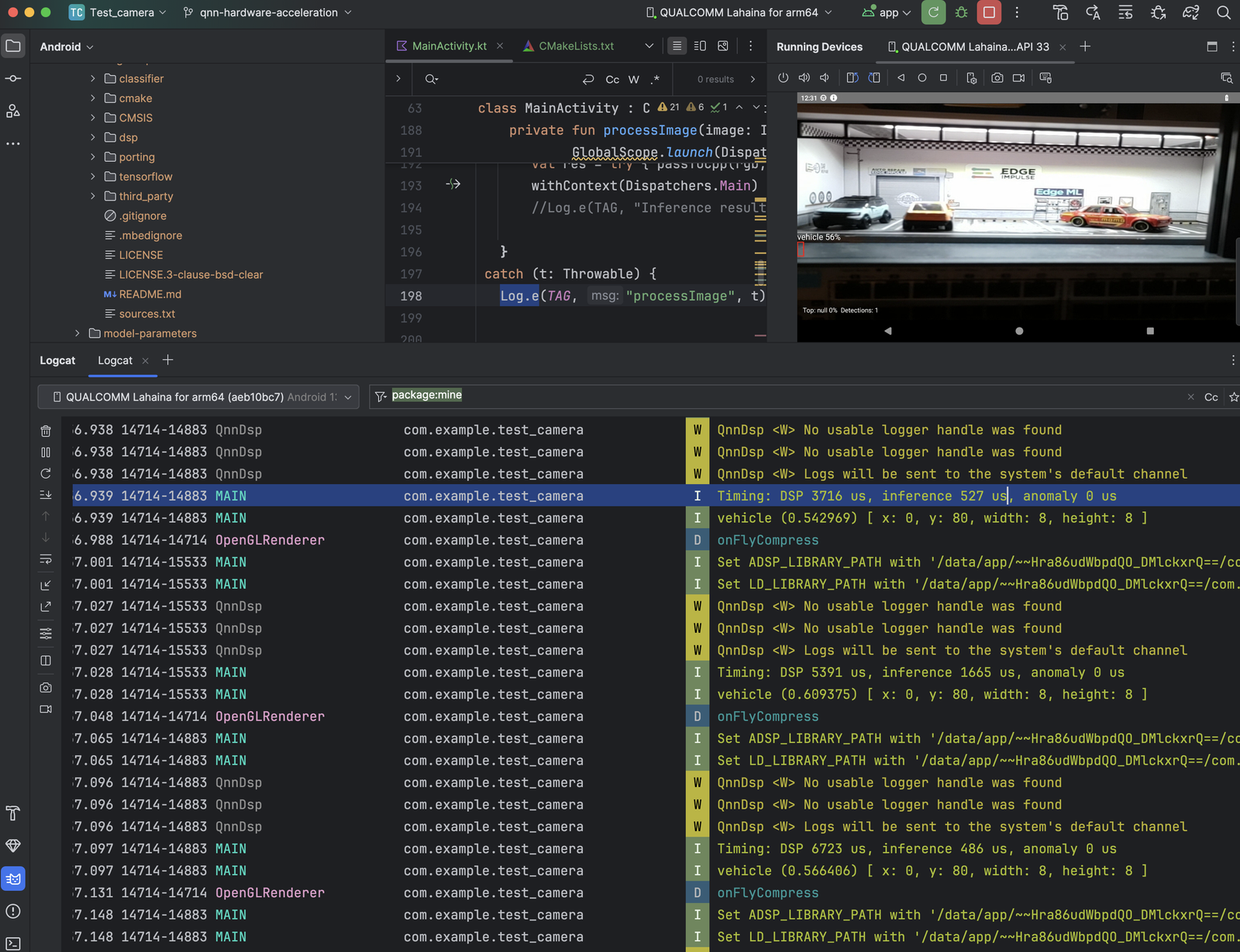
Enable hardware acceleration for Edge Impulse models on Android using the Qualcomm AI Engine Direct (QNN) TFLite Delegate. This tutorial demonstrates object detection with real-time performance improvements on Snapdragon devices.
This tutorial builds on the Camera Inference tutorial. You’ll add QNN hardware acceleration to leverage Qualcomm’s Hexagon NPU for significantly faster inference.
Reference code: https://github.com/edgeimpulse/qnn-hardware-acceleration
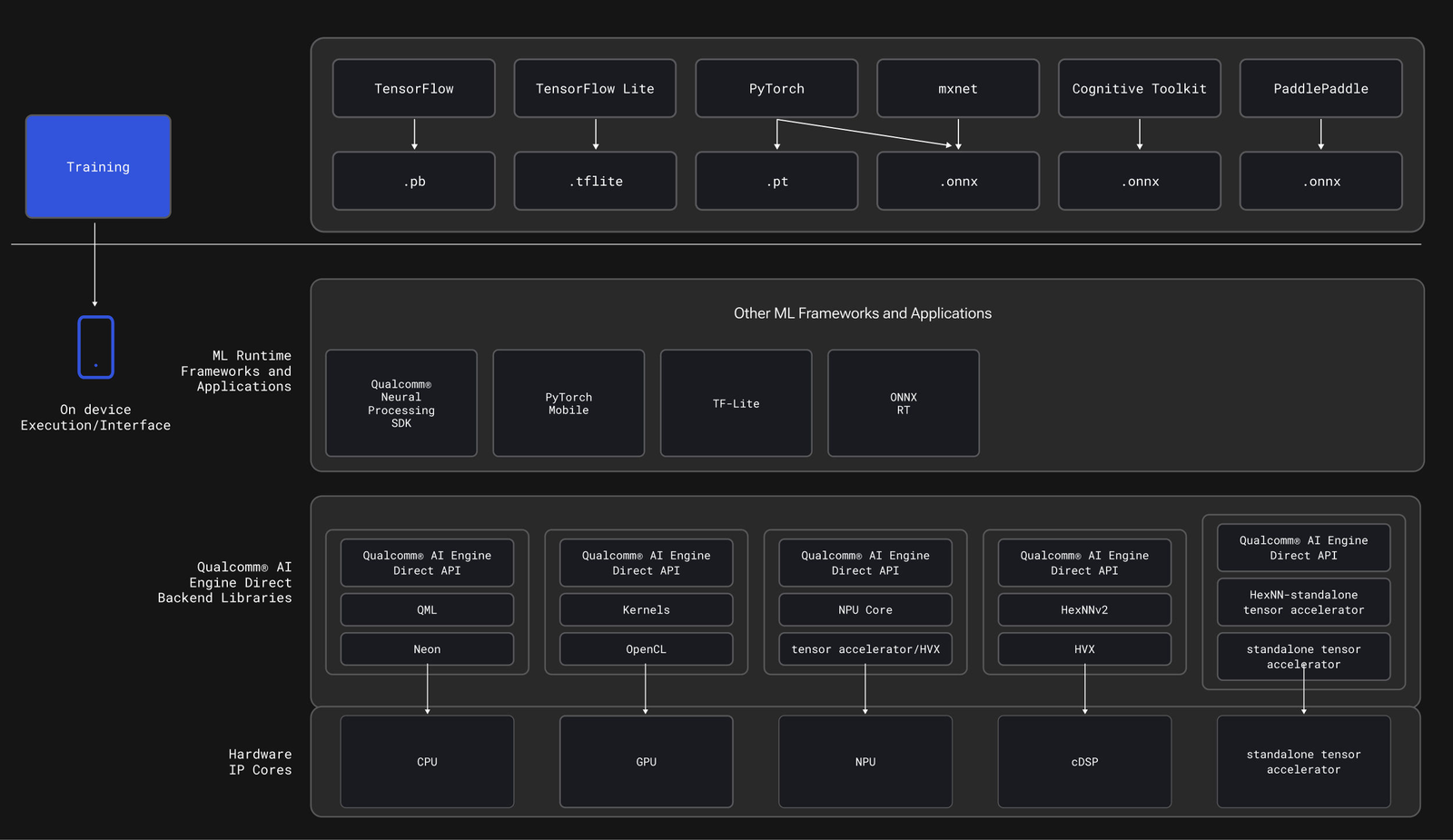
Where the QNN TFLite delegate fits in the Qualcomm AI Engine Direct stack

What you’ll build

An Android application that:
  • Runs Edge Impulse object detection models with Camera2 API
  • Accelerates inference using Qualcomm’s HTP/DSP via QNN delegate
  • Displays real-time bounding boxes with overlay
  • Logs detailed performance metrics to Logcat
Time: 1 hour
Difficulty: Advanced

Performance expectations

Results from YOLOv5 small (480×480 quantized) on Qualcomm RB3 Gen 2 (6490):
PathDSP (µs)Inference (µs)Speedup
Without QNN5,6405,748Baseline
With QNN3,748527~10.9× faster
Conservative gains:

Logcat timing without QNN acceleration
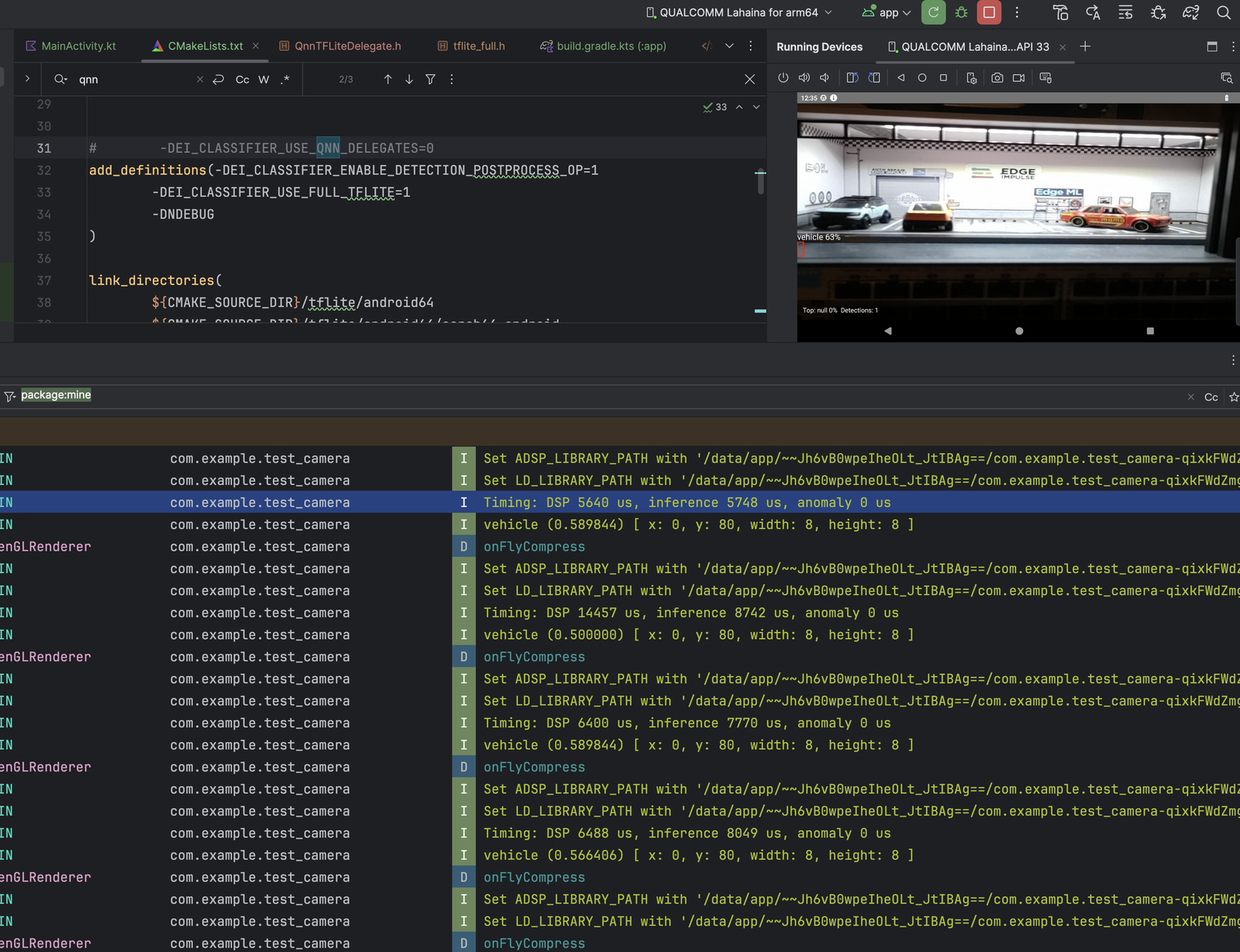
  • Inference: 5,748 → 527 µs ≈ 10.9× faster
  • DSP stage: 5,640 → 3,748 µs ≈ 1.5× faster
  • Smoother frame times with dedicated accelerator
  • Lower power consumption
INT8 quantized is required for HTP acceleration.Performance varies by device SoC, model architecture, and quantization. Optimizing your model for available QNN operations increases speedup dramatically.

Prerequisites

  • Edge Impulse account: Sign up
  • Trained object detection model
  • Android Studio: Ladybug 2024.2.2 or later
  • Snapdragon device real or Qualcomm Device Cloud with Hexagon NPU:
    • Snapdragon 8 Gen 1/2/3 (mobile)
    • Snapdragon 6/7 series (mid-range)
    • QRB series (embedded: RB3, RB5, Dragonwing)
  • Qualcomm AI Engine Direct SDK: Download from Qualcomm
  • Tools: Android API 35, NDK 27.0.12077973, CMake 3.22.1

Supported devices

Devices with Qualcomm Hexagon NPU Gen 2 or later: Mobile:
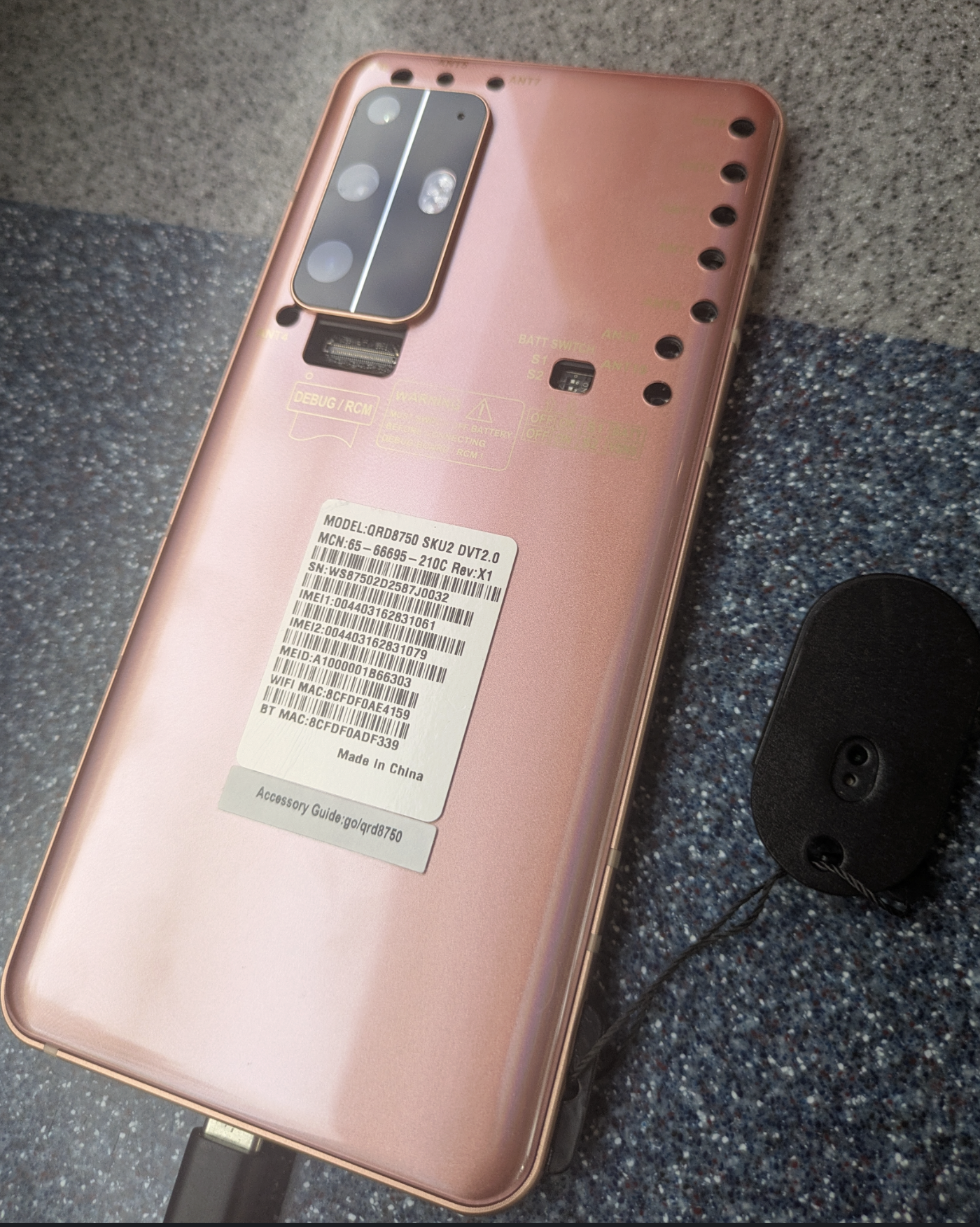
Example Snapdragon reference device used for testing

  • Snapdragon 8 Gen 3/2/1
  • Snapdragon 7+ Gen 2/3
  • Snapdragon 6 Gen 1
Embedded:
  • QRB6490 (Rubik Pi 3)
  • QRB5165 (RB5)
  • QCS2210 (Arduino UNO Q)
  • Dragonwing platforms
Test on Device Cloud:
Don’t have hardware? Try the Qualcomm Device Cloud with pre-configured Snapdragon devices.

1. Clone the repository

git clone https://github.com/edgeimpulse/qnn-hardware-acceleration.git
cd qnn-hardware-acceleration
Open in Android Studio and let Gradle/NDK sync.

2. Locate Qualcomm AI Engine Direct SDK

Download and install the Qualcomm AI Engine Direct SDK. Common installation paths:
# macOS/Linux
/opt/qairt/<version>/
~/qairt/<version>/

# Windows
C:\qairt\<version>\
You’re looking for the folder containing libQnnTFLiteDelegate.so for Android arm64.

Find the delegate directory

macOS/Linux:
# Replace /opt/qairt/2.xx with your actual path
find /opt/qairt/2.xx -type f -name libQnnTFLiteDelegate.so
Windows: Open File Explorer at C:\qairt\<version>\ and search for libQnnTFLiteDelegate.so. The parent folder of that file is your source directory (it also contains other libQnn*.so runtime libs).

3. Copy QNN libraries

Create the destination directory in your project:
mkdir -p app/src/main/jniLibs/arm64-v8a/
Copy the required libraries from the delegate directory you found: Required libraries:
# From QAIRT SDK to app/src/main/jniLibs/arm64-v8a/
libQnnTFLiteDelegate.so
libQnnHtp.so
libQnnHtpV**.so         # Match your device (V68/V69/V75/V79)
libQnnHtpV**Skel.so     # Skeleton library for your version
libQnnSystem.so
libQnnIr.so
libQnnSaver.so          # If included in your SDK
libPlatformValidatorShared.so  # If included
Optional:
libcdsprpc.so           # Some devices provide from /vendor
The repository includes a fetch script:
sh ./fetchqnnlibs.sh
You’ll need to configure the script with your QAIRT SDK path first.

4. Deploy your model

In Edge Impulse Studio:
  1. Go to Deployment
  2. Select Android (C++ library)
  3. Enable Quantized (int8) for best QNN performance
  4. Click Build
  5. Download the .zip
Extract into your project:
unzip ~/Downloads/your-model.zip -d app/src/main/cpp/

5. Configure Android manifest

Update app/src/main/AndroidManifest.xml:
<application 
    android:extractNativeLibs="true"
    ...>
    
    <uses-native-library 
        android:name="libcdsprpc.so" 
        android:required="false"/>
    
    <!-- Existing permissions and activities -->
</application>
This ensures QNN libraries are extracted and accessible.

6. Build and run

Build in Android Studio

  1. Connect your Snapdragon device via USB
  2. Enable USB debugging in Developer Options
  3. Click Run (green play button)
  4. Select your device

Monitor performance

Open Logcat and filter by MainActivity:
adb logcat -s MainActivity
Expected output:
DSP: 3748 us
Classification: 527 us
Anomaly: 0 us
End-to-end: 21 ms (~48 FPS)

Verify QNN acceleration

Check if QNN libraries are loaded:
# Check memory maps for QNN libraries
adb shell 'pid=$(pidof -s com.yourpackage.name); cat /proc/$pid/maps | grep -i qnn'

# Verify profiling output (if enabled)
adb shell ls -l /sdcard/qnn_profile.json
If you see QNN library paths, acceleration is active.

How it works

QNN TFLite delegate integration

// native-lib.cpp
#include <tensorflow/lite/delegates/external/external_delegate.h>

TfLiteDelegate* LoadQnnDelegate() {
    // Set environment for QNN
    setenv("ADSP_LIBRARY_PATH", GetNativeLibDir() + ":/dsp", 1);
    setenv("LD_LIBRARY_PATH", GetNativeLibDir() + ":" + 
           getenv("LD_LIBRARY_PATH"), 1);
    
    // Configure QNN options
    const char* qnn_options = 
        R"({"backend":"htp",
            "htp_performance_mode":"burst",
            "enable_intermediate_outputs":false})";
    
    // Load delegate
    TfLiteExternalDelegateOptions options = 
        TfLiteExternalDelegateOptionsDefault("/path/to/libQnnTFLiteDelegate.so");
    options.insert(&options, "qnn_options", qnn_options);
    
    return TfLiteExternalDelegateCreate(&options);
}

Environment configuration

The app automatically sets required environment variables on startup:
// MainActivity.kt
private fun setupQnnEnvironment() {
    val nativeLibDir = applicationInfo.nativeLibraryDir
    
    // Set library paths for QNN
    System.setProperty("ADSP_LIBRARY_PATH", "$nativeLibDir:/dsp")
    System.setProperty("LD_LIBRARY_PATH", "$nativeLibDir:${System.getenv("LD_LIBRARY_PATH")}")
    
    Log.d(TAG, "QNN environment configured: $nativeLibDir")
}

Project structure

qnn-hardware-acceleration/
├── app/
│   └── src/
│       ├── main/
│       │   ├── java/com/example/test_camera/
│       │   │   ├── MainActivity.kt       # Camera + overlay UI
│       │   │   ├── CameraManager.kt      # Camera2 handling
│       │   │   └── OverlayView.kt        # Bounding box drawing
│       │   ├── cpp/
│       │   │   ├── native-lib.cpp        # JNI + QNN integration
│       │   │   ├── edge-impulse-sdk/     # Your model
│       │   │   ├── model-parameters/
│       │   │   └── tflite-model/
│       │   ├── jniLibs/
│       │   │   └── arm64-v8a/            # QNN shared libraries
│       │   └── AndroidManifest.xml
│       └── CMakeLists.txt
└── build.gradle

Customization

Adjust HTP performance mode

In native-lib.cpp, modify QNN options:
// Options: "default", "burst", "balanced", "low_power", "high_performance"
const char* qnn_options = 
    R"({"backend":"htp",
        "htp_performance_mode":"high_performance",
        "enable_intermediate_outputs":false})";
Modes:
  • burst: Maximum speed, higher power (default)
  • high_performance: Sustained high performance
  • balanced: Balance between speed and power
  • low_power: Minimize power consumption

Enable profiling

const char* qnn_options = 
    R"({"backend":"htp",
        "htp_performance_mode":"burst",
        "profiling_level":"detailed",
        "enable_intermediate_outputs":true})";
Profile output saved to /sdcard/qnn_profile.json.

Optimize model for QNN

In Edge Impulse Studio:
  1. Use quantization: INT8 models leverage HTP better than FP32
  2. Supported operations: Check QNN operator support
  3. Enable EON Compiler: Optimizes for Qualcomm hardware

Change detection threshold

// MainActivity.kt
private val DETECTION_THRESHOLD = 0.5f  // Default

// Modify to be more/less sensitive
private val DETECTION_THRESHOLD = 0.7f  // Less sensitive (fewer false positives)
private val DETECTION_THRESHOLD = 0.3f  // More sensitive (more detections)

Performance tuning tips

Model optimization

  1. Use INT8 quantization - Essential for HTP acceleration
  2. Reduce input resolution - 320×320 vs 640×640 can be 4× faster
  3. Simplify architecture - Fewer layers = better HTP utilization
  4. Test operator coverage - Check which ops run on HTP vs CPU

Runtime optimization

// Increase thread count for CPU fallback operations
interpreter->SetNumThreads(4);

// Allocate tensors once
interpreter->AllocateTensors();

// Reuse input/output buffers
TfLiteTensor* input = interpreter->input_tensor(0);
TfLiteTensor* output = interpreter->output_tensor(0);

Frame rate optimization

// Reduce camera frame rate if processing can't keep up
val fpsRange = Range(15, 30)  // 15-30 FPS instead of 30-60
captureRequestBuilder.set(
    CaptureRequest.CONTROL_AE_TARGET_FPS_RANGE,
    fpsRange
)

Benchmark results

Real-world performance on different devices:
DeviceModelWithout QNNWith QNNSpeedup
RB3 Gen 2 (6490)YOLOv5s 480×480 INT85.7 ms0.5 ms11.4×
Snapdragon 8 Gen 2FOMO 96×96 INT82.1 ms0.3 ms7.0×
Pixel 8 Pro (Tensor G3)YOLOv5s 320×320 INT8N/AN/ANot supported
Google Tensor processors don’t include Hexagon NPU. QNN acceleration only works on Qualcomm Snapdragon devices.

Next steps

Additional resources

Summary

You’ve successfully enabled Qualcomm QNN hardware acceleration for Edge Impulse models on Android. Key takeaways:
  • 10×+ speedup possible with proper configuration
  • Drop-in integration - no model retraining required
  • INT8 quantization essential for HTP acceleration
  • Device-specific - Snapdragon/Dragonwing only
With QNN acceleration, you can deploy production-grade ML applications on edge devices with real-time performance and low power consumption. Questions? Join the discussion on the Edge Impulse Forum!