Documentation Index

Fetch the complete documentation index at: https://docs.edgeimpulse.com/llms.txt

Use this file to discover all available pages before exploring further.

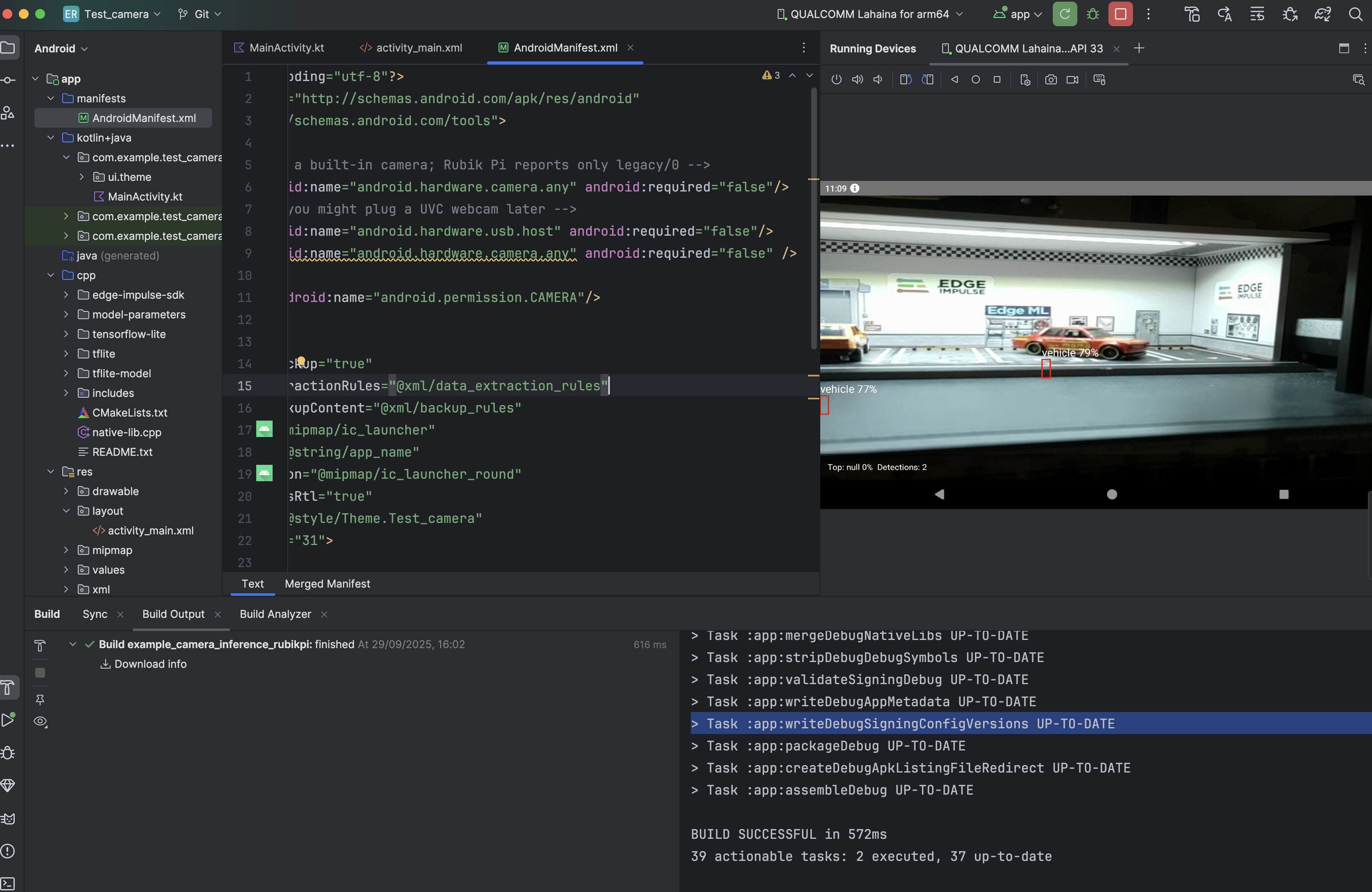
This tutorial shows how to run Edge Impulse computer vision models on a live Android camera feed. Frames are captured using CameraX, converted to the format your model expects, and passed to the Edge Impulse C++ classifier via JNI. Results (classification labels, bounding boxes, or anomaly regions) are drawn back over the camera preview in real time. The app supports image classification, object detection with bounding boxes, and visual anomaly detection. You switch between them by deploying a different model; the inference code structure is the same.
If you haven’t been through the Static buffer inference example yet, start there. It covers the JNI bridge and inference loop without the added complexity of a camera pipeline.

What you’ll build

An Android app that captures camera frames in real time, runs on-device inference, and renders classification labels, object detection bounding boxes, or anomaly heatmap regions as a visual overlay.

Prerequisites

Before starting, make sure you have:
  • A trained vision model in Edge Impulse: image classification, object detection, or visual anomaly detection
  • Android Studio with NDK 27.0.12077973 and CMake 3.22.1 installed
  • An Android device with a camera running API 24 or later

1. Clone the repository

git clone https://github.com/edgeimpulse/example-android-inferencing.git
cd example-android-inferencing/example_camera_inference

2. Download TensorFlow Lite libraries

cd app/src/main/cpp/tensorflow-lite

# macOS/Linux
sh download_tflite_libs.sh

# Windows
download_tflite_libs.bat

3. Export your model

In Edge Impulse Studio:
  1. Go to Deployment
  2. Select Android (C++ library)
  3. Enable EON Compiler (recommended: reduces memory and improves performance)
  4. Click Build and download the .zip

4. Integrate the model

Extract the downloaded .zip and copy all files except CMakeLists.txt into the project:
app/src/main/cpp/
Your structure should look like this:
app/src/main/cpp/
├── edge-impulse-sdk/
├── model-parameters/
├── tflite-model/
├── tensorflow-lite/
├── native-lib.cpp
└── CMakeLists.txt  ← keep the existing one

5. Build and run

  1. Open the project in Android Studio
  2. Build → Make Project
  3. Connect your Android device
  4. Run the app and grant the camera permission when prompted
Point the camera at objects and watch inference results appear as an overlay.

How it works

Camera frames flow from CameraX into an ImageAnalysis use case, where they’re converted to RGB and passed to the C++ classifier. Results come back as a structured object and are rendered by a custom overlay view.

Camera setup

CameraX binds a preview stream and a frame analysis pipeline to the activity lifecycle. The STRATEGY_KEEP_ONLY_LATEST backpressure strategy drops frames the classifier isn’t ready to process, keeping the preview smooth:
// MainActivity.kt
private fun startCamera() {
    val cameraProviderFuture = ProcessCameraProvider.getInstance(this)

    cameraProviderFuture.addListener({
        val cameraProvider = cameraProviderFuture.get()

        val preview = Preview.Builder().build()
        val imageAnalysis = ImageAnalysis.Builder()
            .setBackpressureStrategy(ImageAnalysis.STRATEGY_KEEP_ONLY_LATEST)
            .build()

        imageAnalysis.setAnalyzer(cameraExecutor) { imageProxy ->
            processImage(imageProxy)
        }

        cameraProvider.bindToLifecycle(this, cameraSelector, preview, imageAnalysis)
    }, ContextCompat.getMainExecutor(this))
}

Image processing

Each frame is converted to an RGB byte array on a background coroutine. The ImageProxy is closed immediately after reading to free the camera buffer:
private fun processImage(imageProxy: ImageProxy) {
    val bitmap = imageProxy.toBitmap()
    val rgbBytes = bitmapToRGB(bitmap)

    lifecycleScope.launch(Dispatchers.Default) {
        val result = runInference(rgbBytes)
        displayResults(result)
    }

    imageProxy.close()
}

Native inference

The image data crosses the JNI boundary as a byte array and is fed into the Edge Impulse classifier as a signal:
// native-lib.cpp
extern "C" JNIEXPORT jobject JNICALL
Java_com_example_test_camera_MainActivity_runInference(
    JNIEnv* env, jobject, jbyteArray imageData) {

    signal_t signal;
    signal.total_length = EI_CLASSIFIER_INPUT_WIDTH * EI_CLASSIFIER_INPUT_HEIGHT;
    signal.get_data = &ei_camera_get_data;

    ei_impulse_result_t result = {0};
    run_classifier(&signal, &result, false);

    return createResultObject(env, result);
}

Bounding box overlay

For object detection, a custom View subclass draws bounding boxes and labels directly over the camera preview:
class BoundingBoxOverlay : View {
    var boundingBoxes: List<BoundingBox> = emptyList()

    override fun onDraw(canvas: Canvas) {
        boundingBoxes.forEach { box ->
            val rect = Rect(box.x, box.y, box.x + box.width, box.y + box.height)
            canvas.drawRect(rect, paint)
            canvas.drawText("${box.label} ${box.confidence}", box.x.toFloat(), (box.y - 10).toFloat(), textPaint)
        }
    }
}

Customization

Adjust the confidence threshold

companion object {
    const val CONFIDENCE_THRESHOLD = 0.6f
}

private fun filterDetections(detections: List<BoundingBox>): List<BoundingBox> {
    return detections.filter { it.confidence >= CONFIDENCE_THRESHOLD }
}

Limit inference frequency

If the classifier is slower than the camera frame rate, you can throttle inference to run at a fixed interval:
private var lastInferenceTime = 0L
private val inferenceInterval = 200L  // ms

private fun processImage(imageProxy: ImageProxy) {
    val now = System.currentTimeMillis()
    if (now - lastInferenceTime >= inferenceInterval) {
        runInference(imageProxy)
        lastInferenceTime = now
    }
    imageProxy.close()
}

Bounding box alignment

If bounding boxes appear offset from detected objects, scale them to match model and view dimensions:
private fun scaleBoundingBox(
    box: BoundingBox,
    modelWidth: Int, modelHeight: Int,
    viewWidth: Int, viewHeight: Int
): BoundingBox {
    val scaleX = viewWidth.toFloat() / modelWidth
    val scaleY = viewHeight.toFloat() / modelHeight
    return box.copy(
        x = (box.x * scaleX).toInt(),
        y = (box.y * scaleY).toInt(),
        width = (box.width * scaleX).toInt(),
        height = (box.height * scaleY).toInt()
    )
}

Troubleshooting

  • Reduce inference frequency (run every 200–300 ms instead of every frame)
  • Lower the camera resolution via setTargetResolution()
  • Verify XNNPACK is not disabled in CMakeLists
  • Consider a smaller model architecture
  • If confidence is consistently low, try lowering the threshold slightly
  • Poor lighting is a common cause if the model wasn’t trained on similar conditions
  • Check that your camera resolution matches the model’s input resolution; a large mismatch degrades accuracy
  • Verify TFLite libraries were downloaded and are in app/src/main/cpp/tensorflow-lite/
  • Confirm model files (edge-impulse-sdk/, model-parameters/, tflite-model/) are all present in cpp/
  • Check that NDK and CMake versions match the prerequisites

Next steps

Resources