

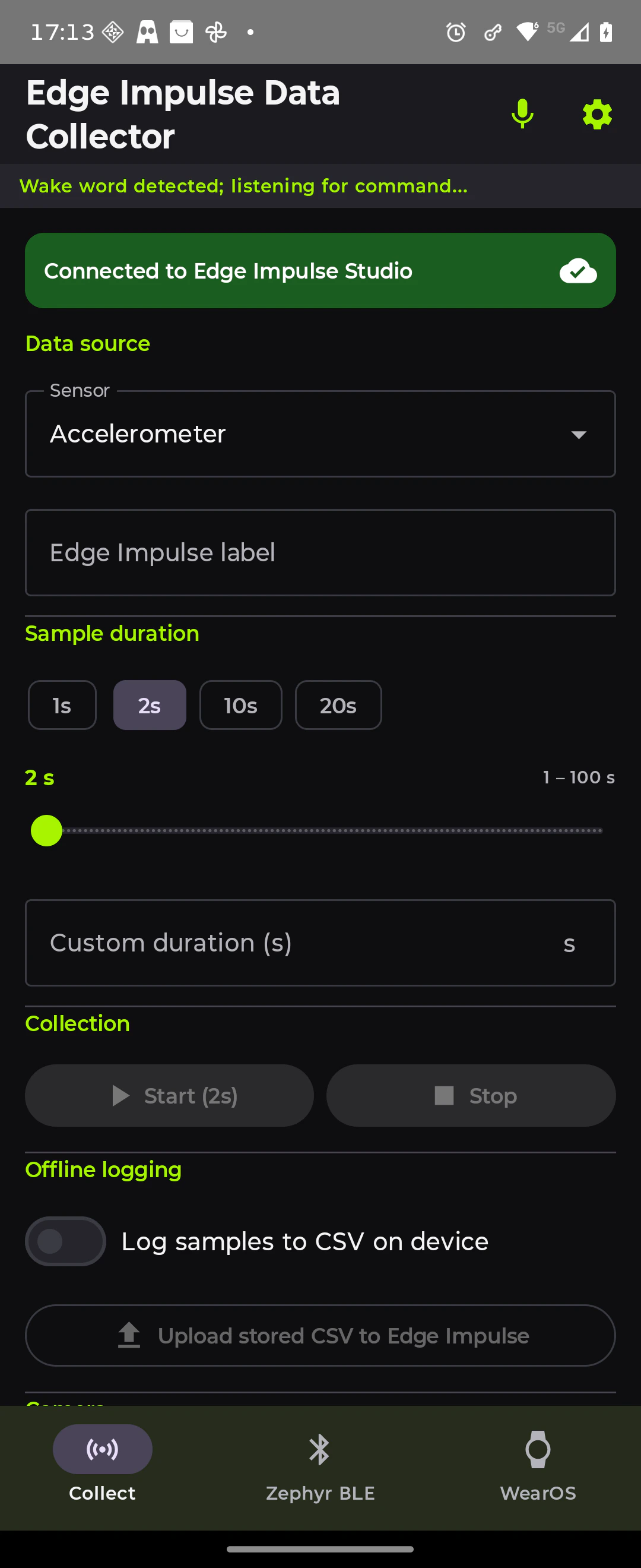
Collect tab: phone sensor selection, Edge Impulse Studio connection, sample duration, and offline CSV logging (wake-word banner visible at top)
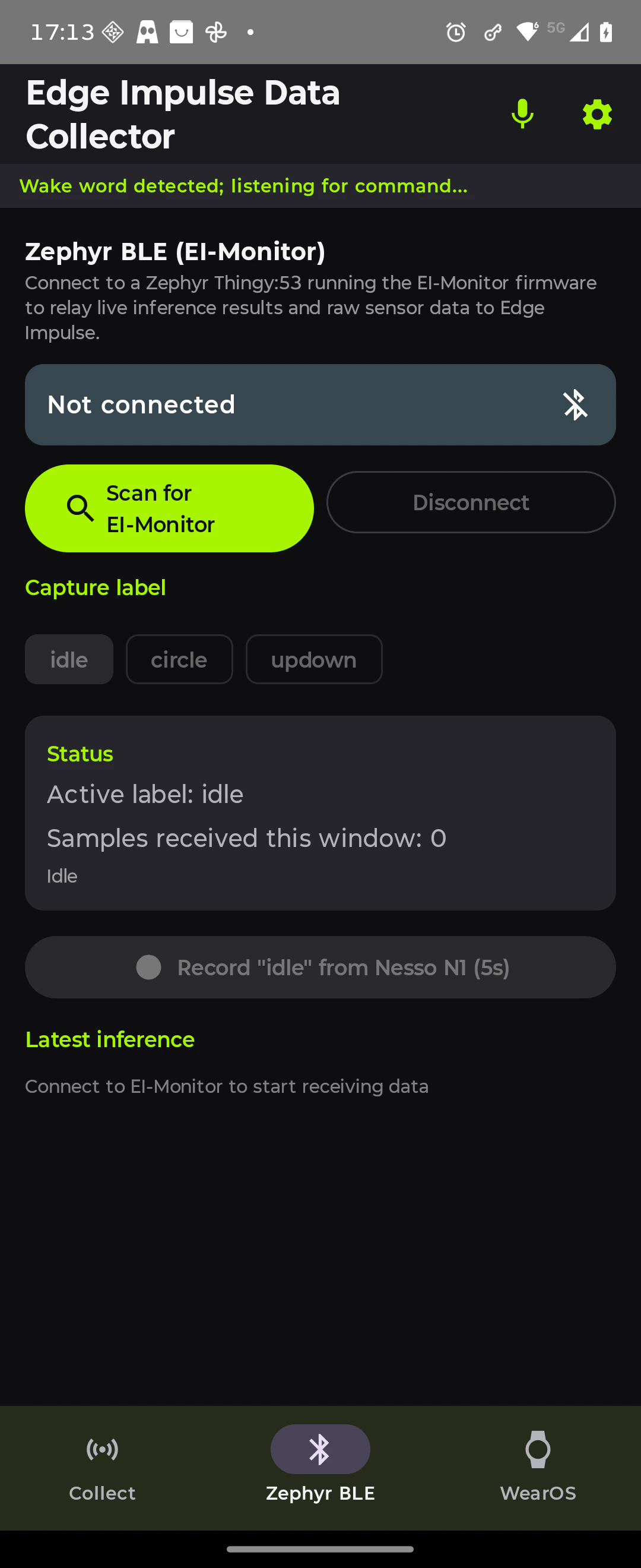
Zephyr BLE tab: scan for the EI-Monitor device, pick a capture label, and record IMU windows from a Nesso N1 / Nano 33 BLE / Thingy:53
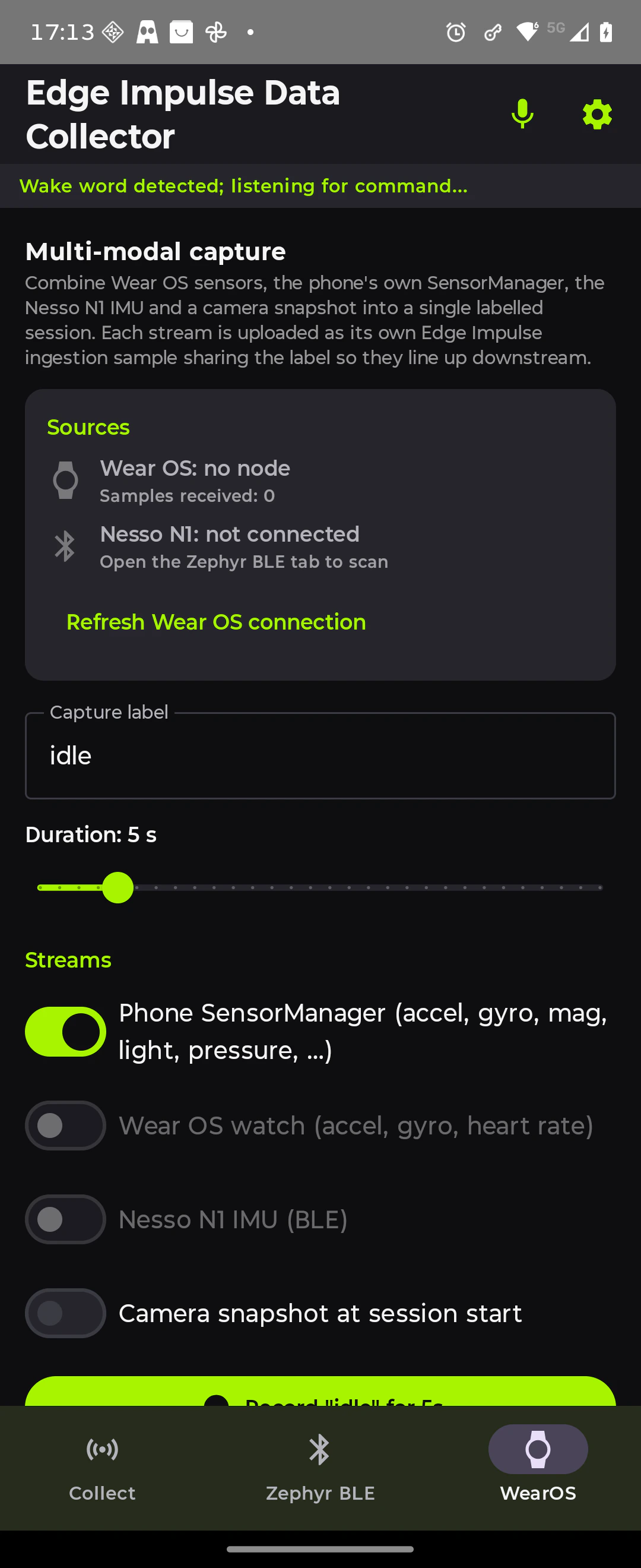
WearOS tab: multi-modal capture combining Wear OS, phone, and Nesso N1 streams in one labelled session; voice control banner shows 'Wake word detected'
Download pre-built APK
What you’ll build
An Android app with four tabs:Prerequisites
- An Edge Impulse account
- An Edge Impulse project and API key
- Android Studio (Ladybug 2024.2.2 or later)
- Android device running API 26 (Android 8.0) or later. API 31+ is recommended for on‑device speech recognition; the bundled TensorFlow Lite wake‑word engine runs on any API 26+ device
- For the Zephyr BLE tab: a device flashed with
ei-zephyr-ble-gatt-client - For the WearOS tab: a paired Wear OS watch with the companion module installed
- For the USB OTG tab: an Arduino from the supported board list flashed with the matching sketch from
sample-arduino/; a USB OTG adapter for your phone
sample-apk/edge-impulse-data-collector.apk in the repository if you want to sideload without building.1. Clone the repository
2. Get your API key
- Open your project in Edge Impulse Studio.
- Go to Dashboard → Keys.
- Click Add new API key and copy it (
ei_xxxxxxxxxxxxxxxxxxxxxxxxxxxxxxxx).
3. Configure the API key
Add your key to~/.gradle/gradle.properties (recommended because it keeps secrets out of source control):
gradle.properties in the project root, but do not commit that file.
4. Build and install
Install the Wear OS companion (optional)
If you want to use the WearOS tab, install thewearosdatalogger module on your watch. The cleanest path is adb over Wi‑Fi:
- On the watch: Settings → Developer options → Wireless debugging → ON.
- Tap Pair new device and note the IP:port and the 6‑digit pairing code displayed.
-
On your laptop (same Wi‑Fi as the watch, not on a guest/AP‑isolated network, with any VPN off):
-
Build and install the watch APK, targeting the watch by serial:
Or in one shot:
ANDROID_SERIAL=$WATCH ./gradlew :wearosdatalogger:installDebug.
5. Collect sensor data
- Open the app and go to the Collect tab.
- Enter your Edge Impulse label, for example
walking,idle, orrunning. This maps directly to the class label in Edge Impulse Studio. - Select a Sensor:
AccelerometerorPPG (Heart Rate). - Tap Start. Live sensor values stream to the screen.
- Tap Stop. The sample uploads immediately to your project.
- Repeat with different labels to build a balanced dataset.
6. Capture images
On the same Collect tab:- Enter a label (e.g.
crack,no_crack). - Tap Capture & upload image. The rear camera fires and the JPEG uploads with that label.
- Repeat to build an image dataset for classification or object detection.
7. Offline logging
Use this when you have no data connection (factory floor, outdoors):- Enable Log samples to CSV on device.
- Tap Start / Stop as normal. Samples accumulate in a local CSV file.
- When back online, tap Upload stored CSV to Edge Impulse to batch-upload everything.
8. Multi‑modal capture and auto source priority
The Collect tab also exposes a Multi‑modal capture card that records from every connected source in parallel for a fixed duration and uploads each stream with the same label. By default the app picks the highest‑fidelity source that is currently connected, so you only have to pair what you actually want to use:takePicture(…, OnImageCapturedCallback) and uploads in‑memory. No temporary files are written to disk.
9. Voice control (“Hey Android”)
The app ships with an on‑device wake‑word model (hey_android) trained in Edge Impulse Studio plus Android’s offline SpeechRecognizer, so you can label and trigger captures hands‑free, useful when the phone is strapped to a wrist, helmet, or vehicle dashboard.
-
Tap the microphone icon in the top app bar to enable voice control. Grant
RECORD_AUDIOwhen prompted. The icon turns blue when the wake engine is running and a status banner appears under the tab bar. - Say “Hey Android”. The wake engine fires, KWS pauses, and the speech recognizer starts listening for a follow‑up command.
-
Speak a command in the form “capture N seconds with label LABEL”, for example:
- “capture 5 seconds with label idle”
- “record 10 seconds with label updown”
- “start 20 seconds with label circle”
capture,record,start. Duration accepts digits (5,10,20) or spelled numbers up to sixty. Labels parsed today:idle,updown(alsoup down/up‑down), andcircle. Add more invoice/VoiceCommandParser.kt. - The recording starts immediately on whichever source is currently highest‑priority (Zephyr › Wear › phone) and uploads with the label you spoke. The wake engine resumes ~300 ms after the capture completes.
arm64-v8a TensorFlow Lite runtime (no network). Speech‑to‑text uses Android’s createOnDeviceSpeechRecognizer (API 31+) with EXTRA_PREFER_OFFLINE=true; on devices without an offline recognizer it transparently falls back to the network recognizer.10. Connect a Zephyr device (optional)
The Zephyr BLE tab acts as a BLE central, scanning for a device advertising asEI-Monitor and running the ei-zephyr-ble-gatt-client firmware.
Which firmware behaviour you get depends on which board you build for. The board’s .conf file toggles CONFIG_EI_SENSOR_LOCAL:
- Flash the board of your choice with the firmware. See the BLE GATT client tutorial.
- Open the Zephyr BLE tab.
- Tap Scan for EI-Monitor. The device appears in the list.
- Tap the device to connect. The banner turns green.
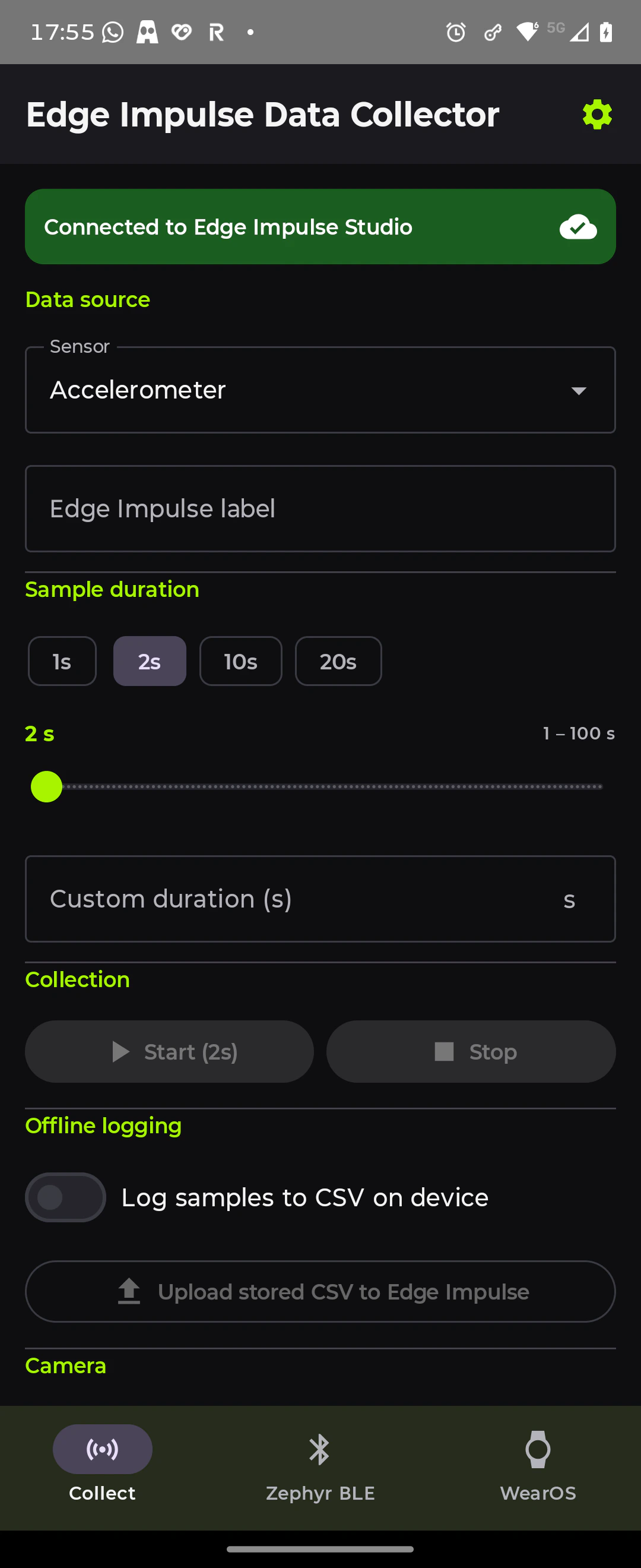
Connected to EI-Monitor with inference results streaming in
- Raw IMU windows and labelled inference results stream in and upload automatically to your project.
inference_result_t binary notification from the firmware:
11. Connect a USB OTG Arduino device
The USB OTG tab turns the Android phone into a USB host, reading CDC-ACM serial data from any Arduino that implements the wire protocol. No BLE, Wi-Fi, or network connection is needed. Data flows directly over the cable.Supported boards and sketches
All sketches are in thesample-arduino/ directory of the repository.
Wire protocol
All sketches output the same text protocol at 115200 baud:! header to identify sensor axes and auto-detects the IMG: header to switch into image capture mode.
Flash and connect
- Open the sketch for your board in the Arduino IDE.
- Edit the
#defineat the top of the file to match your exact board variant. - Install the libraries listed in the sketch header via Tools → Manage Libraries.
- Upload the sketch.
- Connect: Phone USB-C → OTG adapter → USB-A → Board USB cable. For boards without native USB (UNO classic, ESP32-CAM), use an FTDI / CP2102 / CH340 USB-serial adapter instead.
- Open the app and switch to the USB OTG tab. The device is detected automatically and IMU streaming starts.
Nano 33 BLE Sense + TinyML Kit (IMU + camera)
Thenano33ble_ai_kit_otg sketch extends the IMU stream with camera capture via the OV7675 on the Arduino TinyML Kit shield. IMU streaming starts automatically on boot; use the following serial commands (sent from the USB OTG tab or any serial monitor at 115200 baud) to control the camera:
BOARD_NANO33BLE at the top of the sketch for Rev1 (LSM9DS1) or uncomment BOARD_NANO33BLE_REV2 for Rev2 (BMI270 + BMM150). Switch the camera pixel format between GRAYSCALE and RGB565 by editing the CAM_FORMAT define or sending the g command at runtime.12. Verify your data in Edge Impulse Studio
- Open your project in studio.edgeimpulse.com.
- Go to Data acquisition. Your samples appear with labels, timestamps, and sensor axes.
- Use the Training / Test split slider to allocate data.
- Proceed to Create impulse to design and train your model.
How it works
System architecture: phone sensors, Zephyr BLE node, Wear OS watch, and USB-OTG devices feed into the Android hub, which logs locally and uploads to Edge Impulse
DataRepository so the upload path is identical regardless of where the data came from.
Data flows
Permissions
The app requests these on first launch. All are optional. Missing permissions disable only the feature that needs them, not the whole app.Troubleshooting
Zephyr BLE device not appearing in scan
Zephyr BLE device not appearing in scan
- Confirm the firmware is running and the device is advertising. Open a serial monitor and look for
Advertising as EI-Monitor. - On Android 12+, grant
BLUETOOTH_SCANandBLUETOOTH_CONNECTpermissions in Settings → Apps → Edge Impulse Data Collector → Permissions. - On Android < 12, grant
ACCESS_FINE_LOCATION. Android requires location permission for BLE scanning. - Make sure your phone’s Bluetooth is on and the device is within range (~10 m).
BLE connects but no data arrives
BLE connects but no data arrives
- The firmware must be running and actively sampling. Check the Zephyr serial log for
BLE GATT server started. - Verify the firmware’s GATT service UUID matches
GattProfile.ktin the app:12345678-1234-5678-1234-56789abcdef0. - Try disconnecting and reconnecting. The CCCD subscription can occasionally fail on first connect.
Camera capture does nothing
Camera capture does nothing
CAMERA permission in Settings → Apps → Edge Impulse Data Collector → Permissions and try again. If you’re on a build older than 25 May 2026, pull the latest source. An earlier CameraX integration silently dropped frames; this is fixed on main and the fix/data-collector-ble-reliability branch (commit 8319aaa).USB OTG device not detected
USB OTG device not detected
- Check that you have a proper OTG adapter and that the cable is firmly seated at both ends.
- Some phone USB-C ports are charge-only and do not support USB host mode. Try a different port or a different OTG adapter.
- The Arduino must be running the sketch and fully booted before you plug in.
- Dismiss any “Allow access to USB device?” system dialog that appears. The app handles the permission request automatically on first connect.
- For boards using a USB-serial chip (CP2102, CH340, FTDI FT232), the app bundles drivers for the most common chips. Less common chips may not be recognised.
USB OTG streams IMU but camera capture does nothing
USB OTG streams IMU but camera capture does nothing
- Confirm you uploaded
nano33ble_ai_kit_otg.ino(oresp32_eye_otg.ino).nesso_usb_serial_imu.inoanduno_r4_otg.inoare IMU-only and do not support camera capture. - Tap the camera icon on the USB OTG tab (or send the
ccommand) to trigger a capture; the tab does not auto-stream camera frames. - Verify that the OV7675 camera module is firmly seated in the TinyML Kit shield connector on the Nano 33 BLE Sense.
- Check the serial output with a monitor at 115200 baud. A
# ERROR: camera not availableline means the camera failed to initialise.
Offline CSV upload fails
Offline CSV upload fails
WearOS tab shows no data
WearOS tab shows no data
wearosdatalogger/ directory in the repository on your watch (see Install the Wear OS companion), then re-pair via Android’s Wear OS app.adb pair fails with 'protocol fault (couldn't read status message)'
adb pair fails with 'protocol fault (couldn't read status message)'
nc -zv <WATCH_IP> <NEW_PORT> says succeeded but adb pair still fails, it’s almost always a stale code. Reopen the watch dialog one more time. If the port is unreachable, the watch and laptop are on different subnets / Wi‑Fi bands, or a VPN / firewall is blocking it.Next steps
Once your dataset is in Edge Impulse Studio:- Create impulse: Add a processing block (e.g. Spectral Analysis for IMU, MobileNet for images) and a learning block, then train.
- Deploy to Android: Use the Static Buffer Inference, Keyword Spotting, or Camera Inference tutorials to run your trained model on-device.
- Add hardware acceleration: See QNN Hardware Acceleration to speed up inference using Qualcomm’s Hexagon NPU on Snapdragon devices.