

Problem Statement
Traditional on-street parking enforcement, which relies on static signage, time-limited meters, and periodic monitoring by human attendants, is prone to inefficiencies, non-compliance, and enforcement gaps. These limitations often result in parking misuse, particularly in areas with time-restricted or paid zones, undermining both urban regulation and revenue. In the context of smart cities, there is a need for automated, intelligent systems that can monitor parking behavior in real time.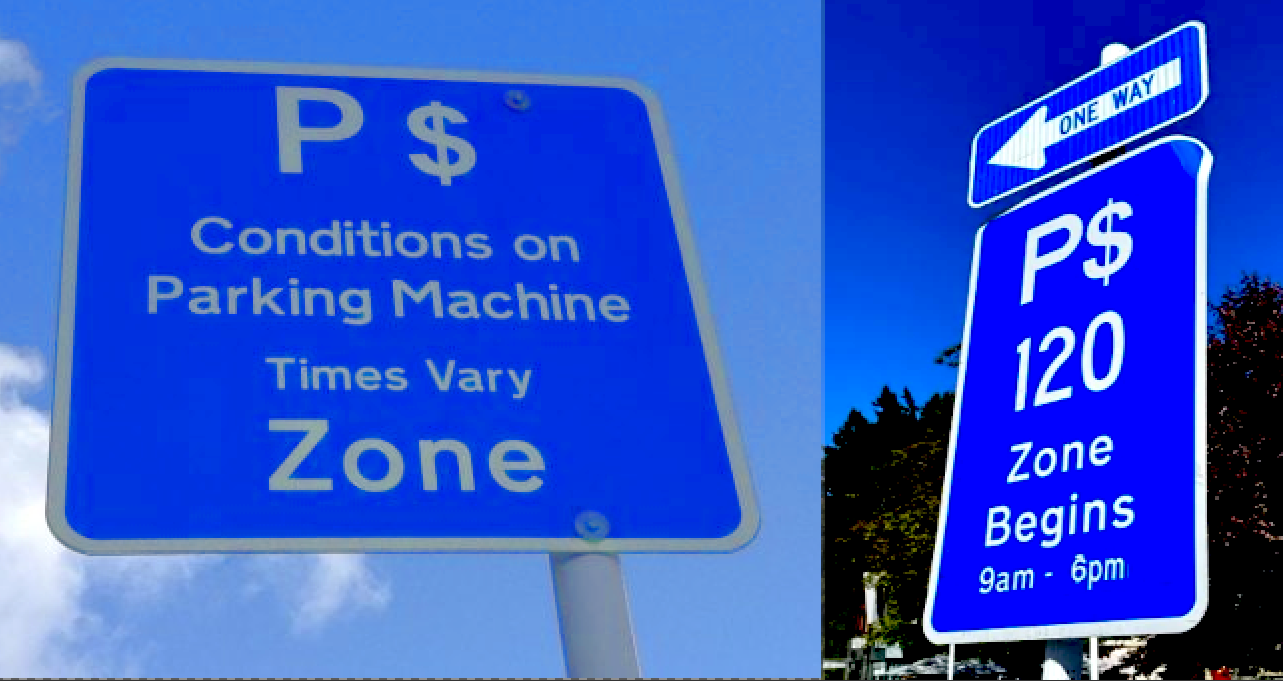
Parking Zone
Solution
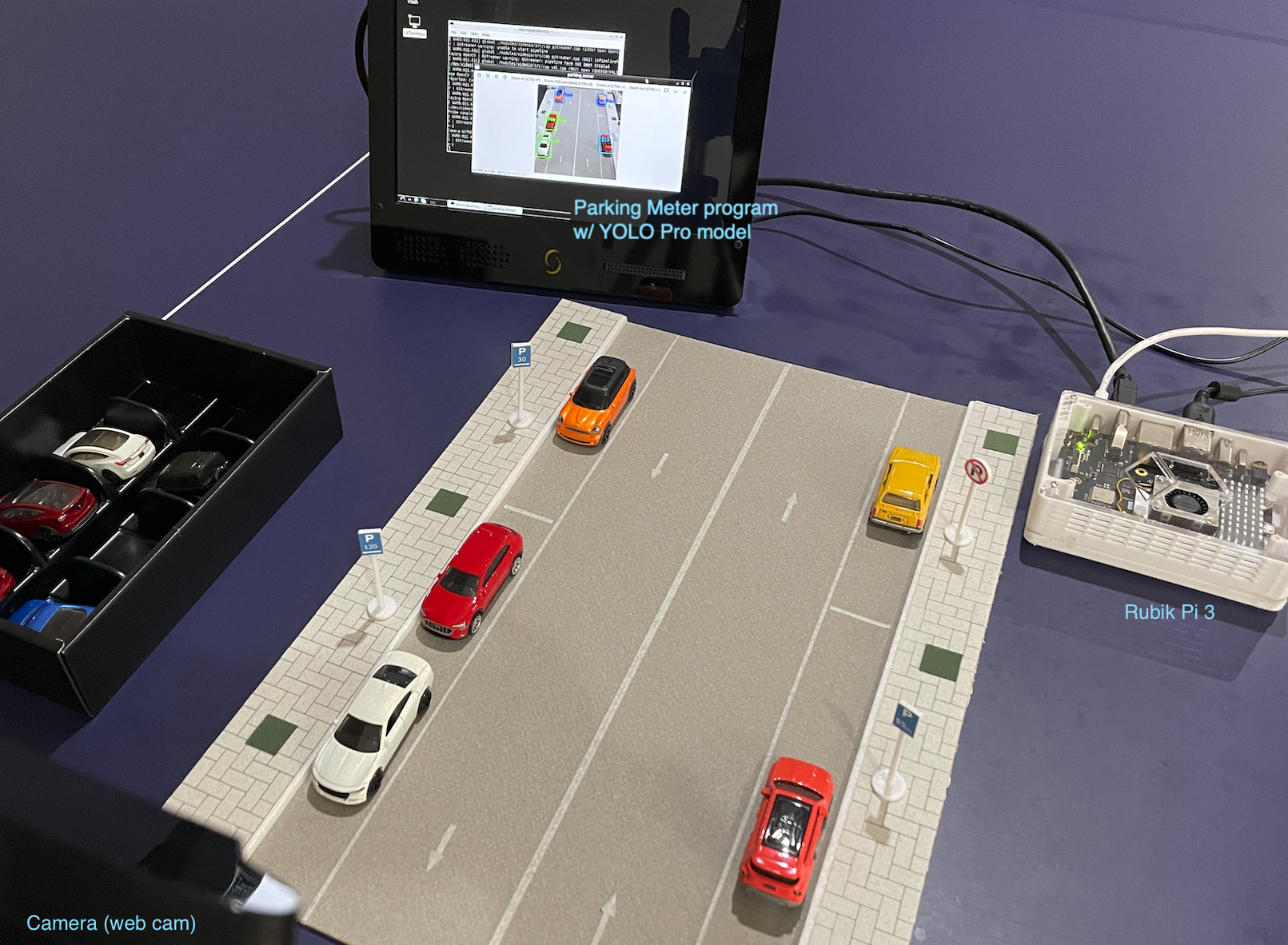
To address this challenge and as part of a learning process in deploying vision-based Edge AI, we developed this project powered by Edge Impulse’s YOLO Pro object detection. The model is trained and optimized using Edge Impulse Studio, then deployed on a Thundercomm Rubik Pi 3 for real-time inference. Leveraging transfer learning and pre-trained weights from YOLO Pro, we significantly reduced the amount of data required for model training while maintaining high accuracy for our targeted use case. This system integrates seamlessly with Python-based tracking logic, enabling enforcement of zone-specific parking rules (e.g., no-parking zones, paid durations, violation thresholds) with visual feedback and temporal tracking. The result is a low-cost, energy-efficient, and scalable solution suitable for modern urban parking management: a Smart Parking Meter.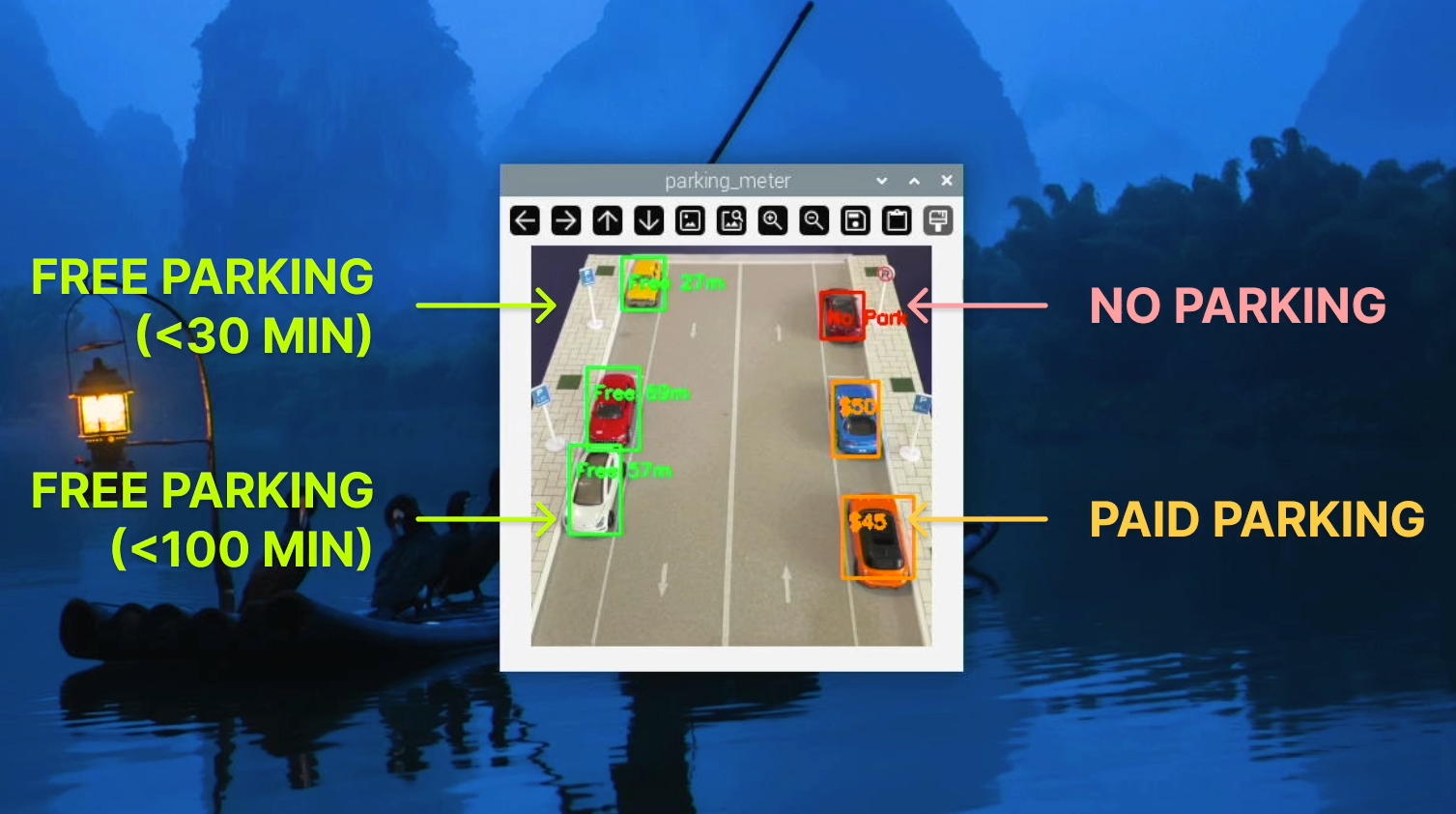
Vision-based Parking System
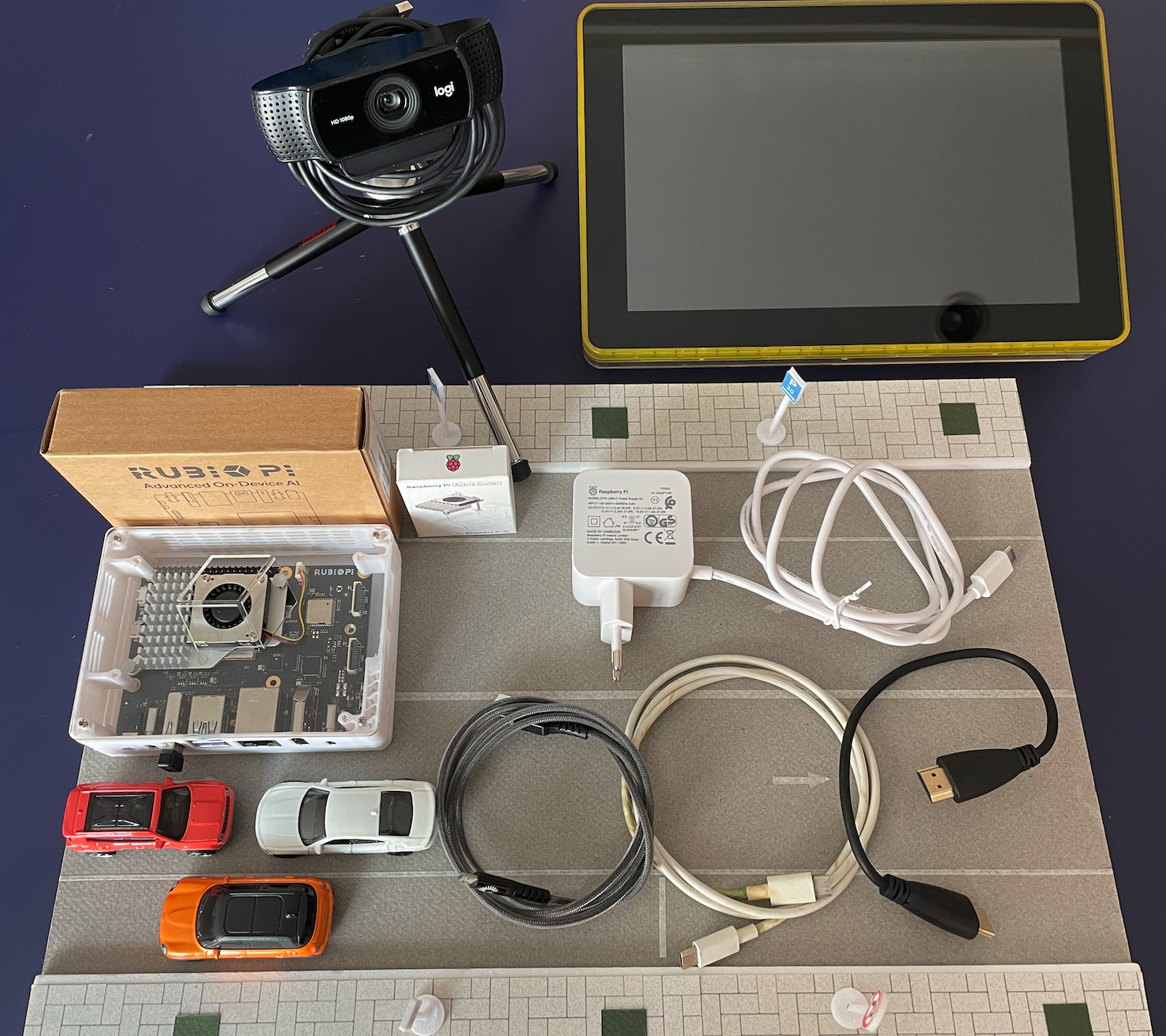
Hardware Components
- Rubik Pi 3
- USB-C Power Adaptor (eg. 27W Pi 5 Power adapter)
- Raspberry Pi 5 Active Cooler (optional)
- 3D print case (optional)
- PC/laptop (for ssh and EDL mode firmware flash)
- Keyboard, mouse
- USB-C/A to USB-C
- USB-C/A to micro-USB
- USB Camera/webcam (eg. Logitech C920/C922)
- LCD/monitor with HDMI cable
- Mini tripod
- Car Miniatures with Street Parking setup
Hardware
Software & Online Services
- Edge Impulse Studio
- Edge Impulse Linux & Python SDK
- Ubuntu OS (24.04)
- OpenCV
Steps
1. Preparing the Rubik Pi
When we receive the Rubik Pi 3, we will find it pre-installed with either Qualcomm Linux (based on Yocto), or a minimal Ubuntu OS version. If yours comes with QC Linux, you need to switch to Ubuntu OS, because it lacksapt and dpkg package managers, has limited OpenCV, GStreamer support, and runs in a restricted environment.
Prepare a USB-C and a micro-USB cable, then follow this link, https://softwarecenter.qualcomm.com/catalog/item/Qualcomm_Launcher, to download Qualcomm Launcher. Next, follow the instructions here: https://www.thundercomm.com/rubik-pi-3/en/docs/rubik-pi-3-user-manual/1.0.0-u/Update-Software/3.2.Flash-using-Qualcomm-Launcher to perform the flashing and switch the Rubik Pi to Ubuntu OS.
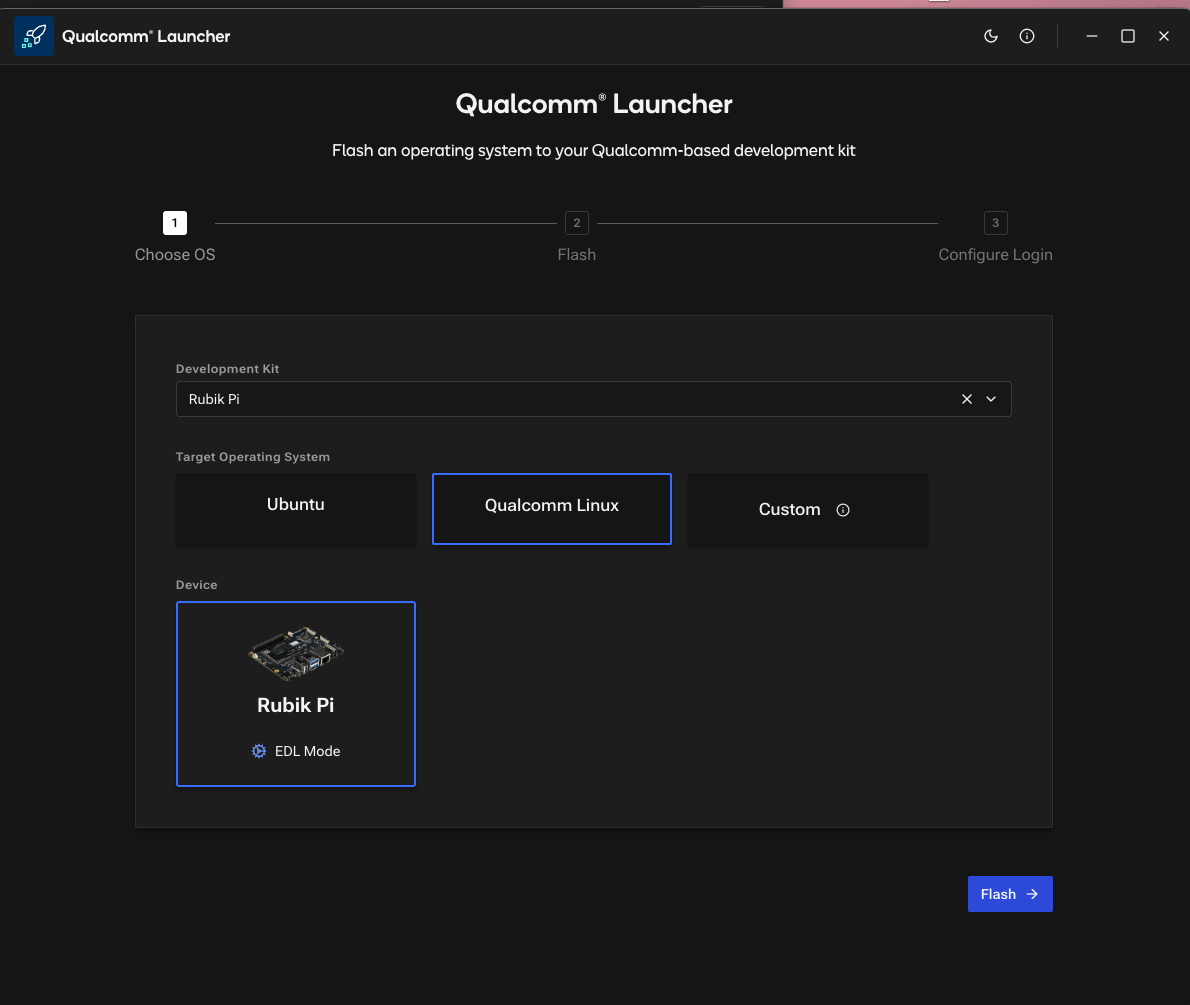
Qualcomm Launcher
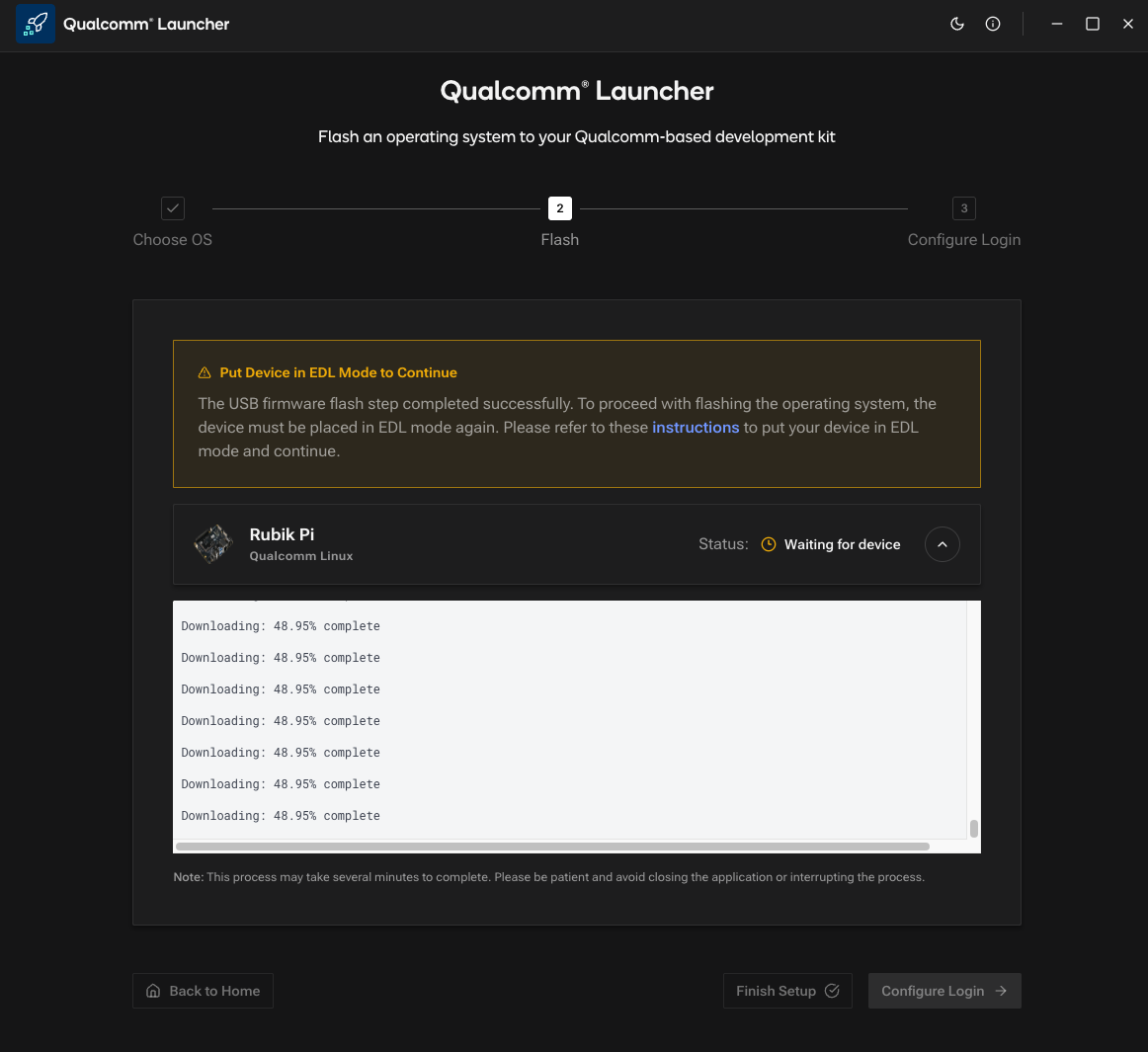
Put in EDL mode
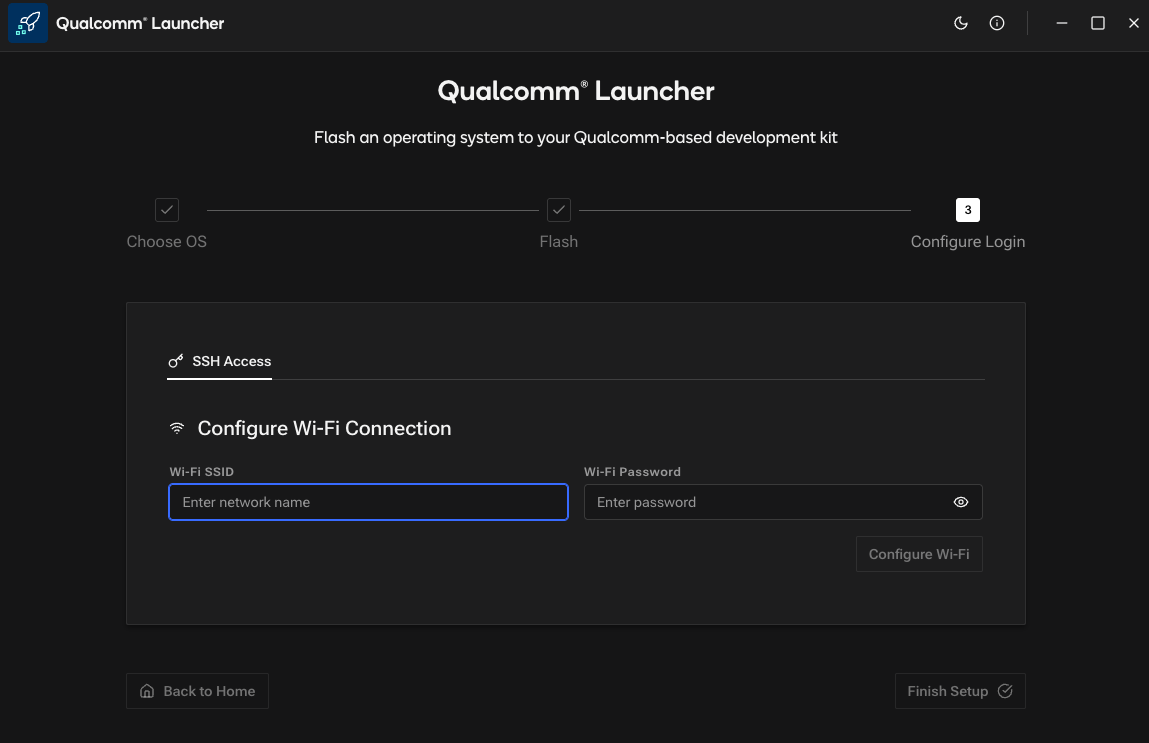
WiFi Config
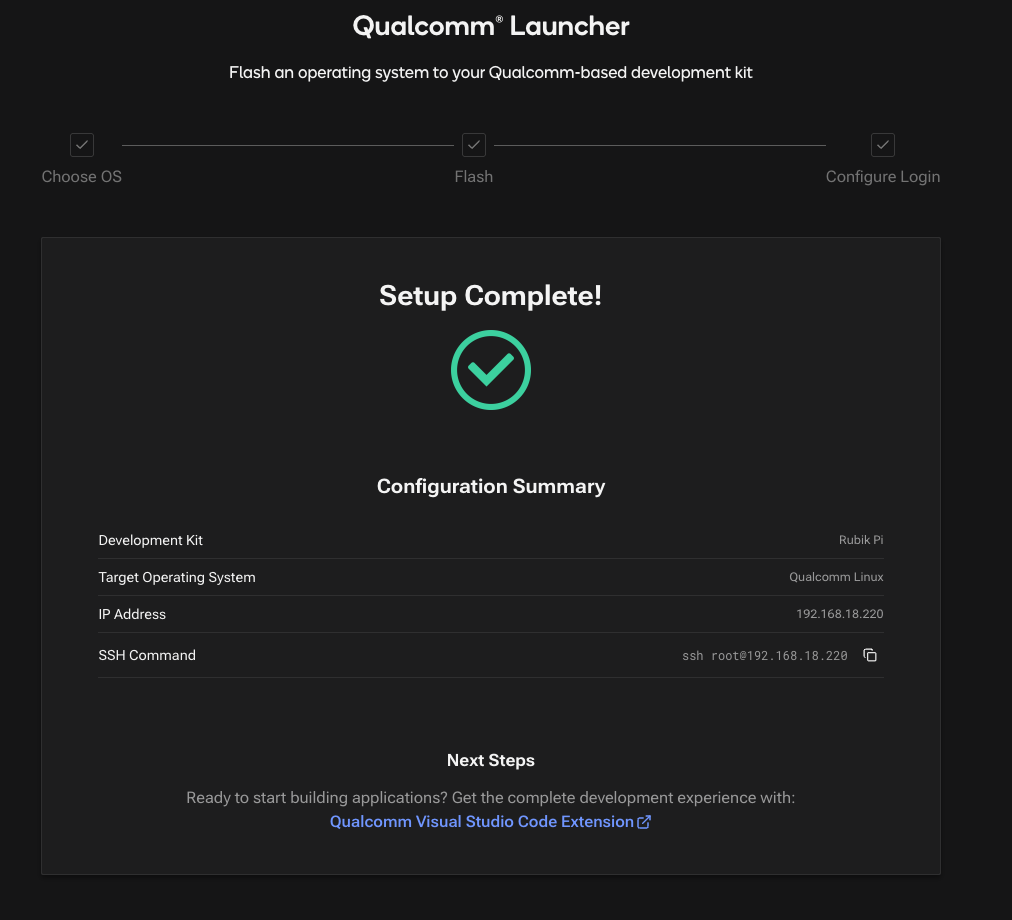
Setup Complete
Note: For the Python SDK and other dependencies, follow the instruction as described in Step 5 below.Desktop / display problems and troubleshooting By default, the Rubik Pi Ubuntu flashing process will only install the command-line (Server) version of Ubuntu. To add a Desktop, you can try the following solutions: Option 1: Install LXDE / Light desktop Run the following commands:
2. Collecting Data
In the initial stage of building a model in Edge Impulse Studio, we need to prepare the data. You can collect your own data to better suit the purposes of your project; in this case we capture from smartphone/camera and save them in a folder. For those who are not familiar with Edge Impulse Studio, please follow these steps: open studio.edgeimpulse.com, log in or create an account, then create a new project. Choose Images project option, then Object detection. In Dashboard > Project Info, choose Bounding Boxes for labeling method and *Rubik Pi 3 for target device. Then in Data acquisition, click on Upload Data tab. Choose your saved folder then upload. You also can connect a USB camera to the Rubik Pi and connect to Edge Impulse Studio to collect images. With the Edge Impulse Linux CLI setup on the Rubik Pi, run:edge-impulse-linux --clean
This will start a wizard which asks you to login and choose your project, then connects your Rubik Pi with USB camera to your Studio project to collect photos.
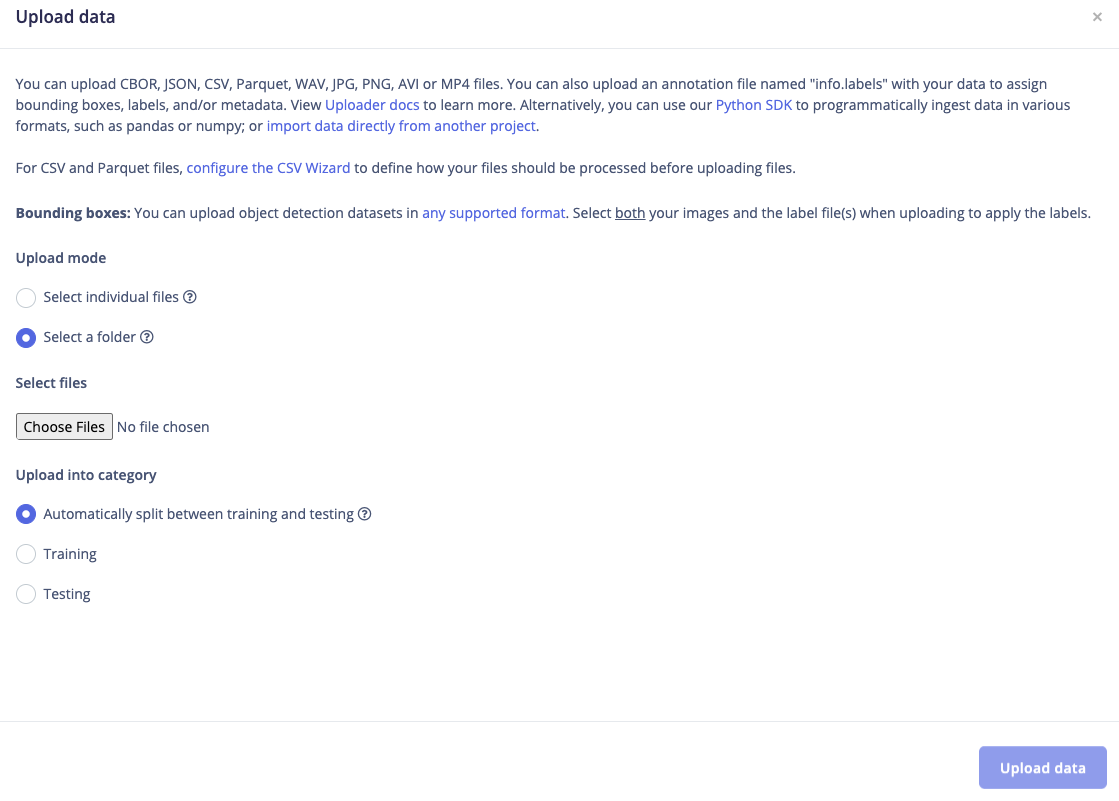
Upload data

Collect sample from Rubik Pi
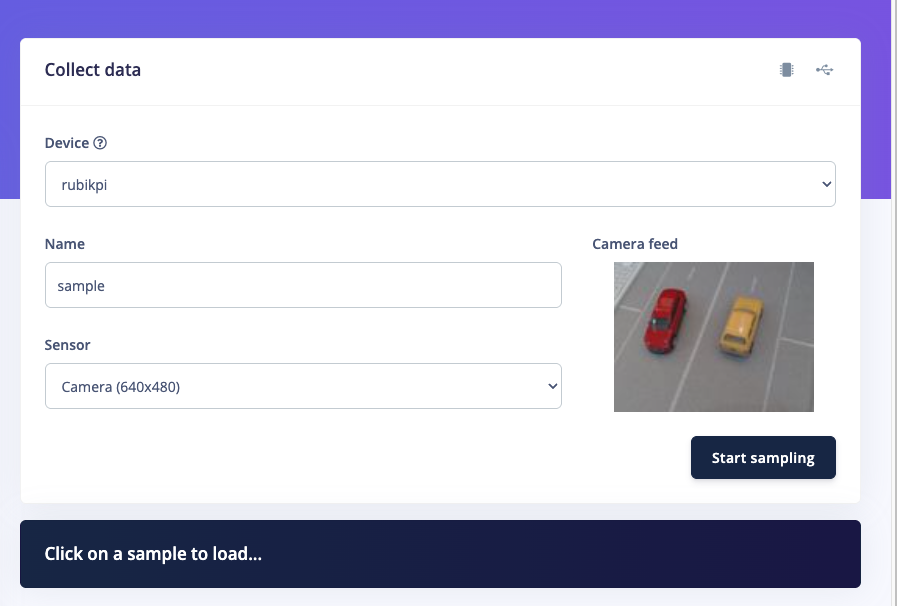
Sampling from connected device
3. Labeling
The next step is labeling, now click on Data Acquisition, click on Labeling queue tab, then drag a box around an object and label it, then click Save. Repeat this until all images are labelled. Alternatively, you can try Edge Impulse’s new feature AI auto labeling to help speed things up. After labeling, it’s recommended to split the data into Training and Testing sets, around an 80/20 ratio. If you haven’t done this yet, click on Train / Test Split to automate this process.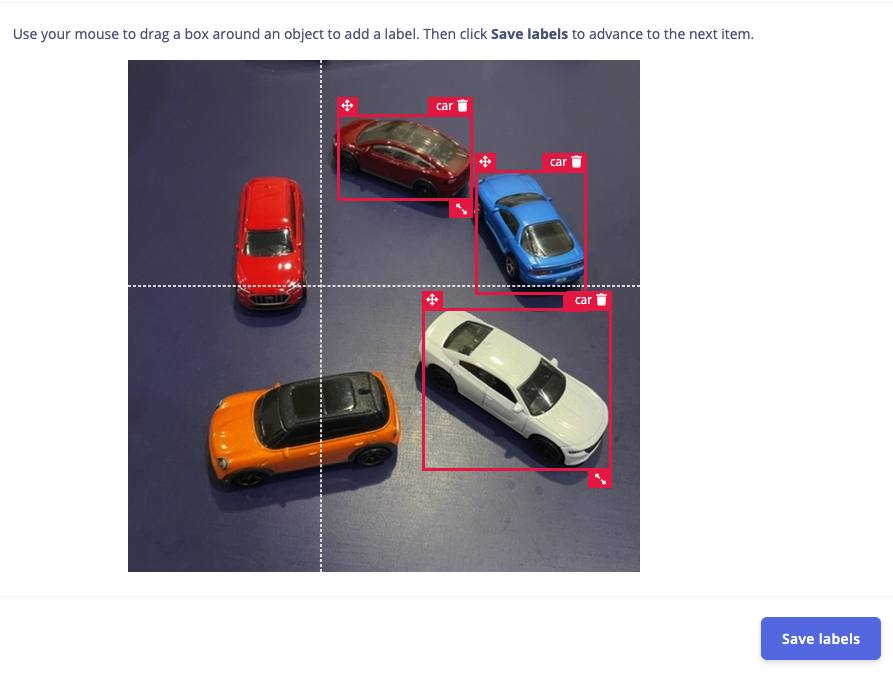
Manual labeling
4. Train and build Yolo-Pro model
Once your labelled dataset is ready, go to Impulse Design > Create Impulse, and set the image width and height to 320x320. Choose Fit shortest axis, then select Image and Object Detection as the learning blocks, and click Save Impulse. Next, navigate to the Image Parameters section, select RGB as the color depth, and press Save parameters. After that, click on Generate, where you’ll be able to see a graphical distribution of the feature data. Now, move to the Object Detection section and configure the training settings. Select GPU and set the training cycles to around 200, learning rate to 0.001 and medium for model size. Choose YOLO-Pro as the NN architecture. Once done, start training by pressing Start, and monitor the progress. If everything goes well and the precision result is around 90%, proceed to the next step. Go to the Model Testing section, click Classify all, and if the result is around 90%, you can move on to the final step: Deployment.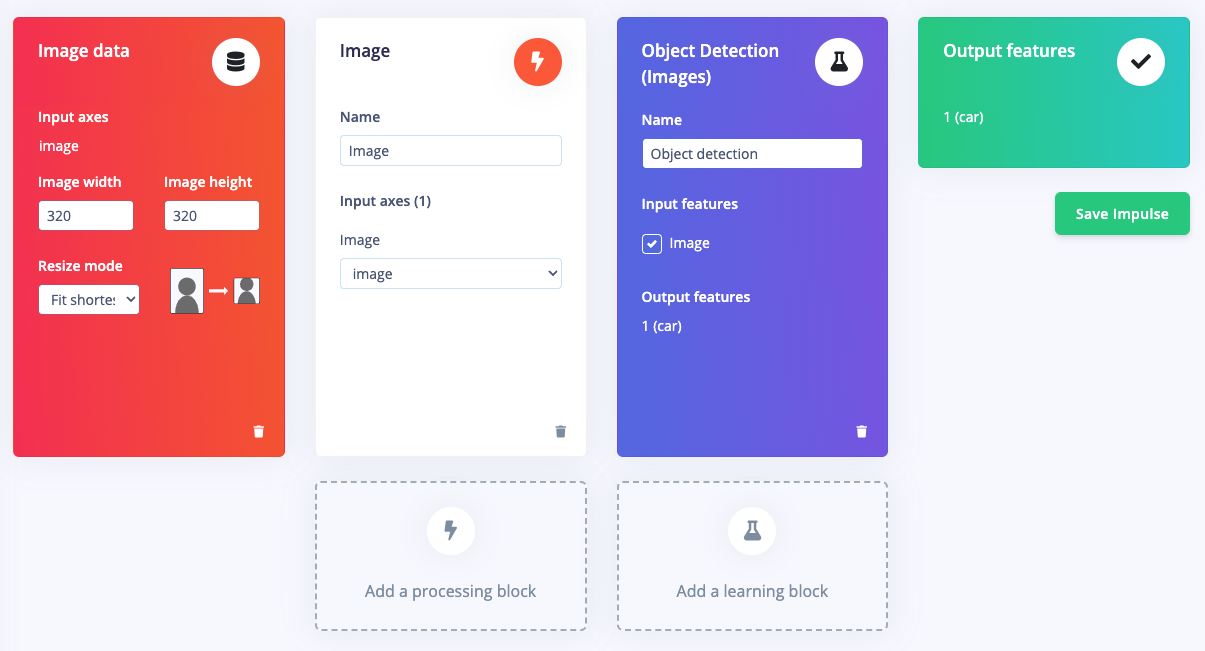
Learning blocks
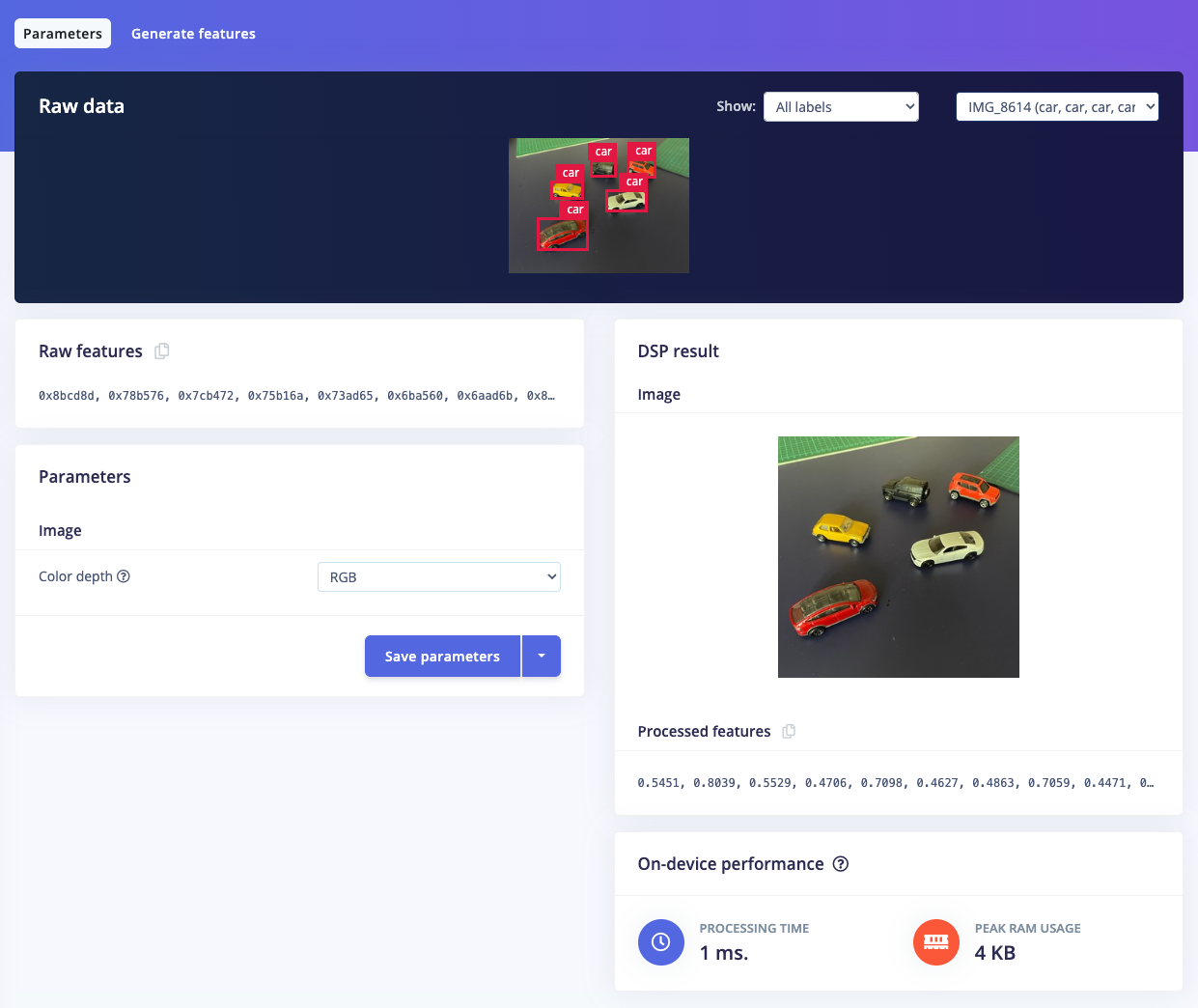
Save parameters
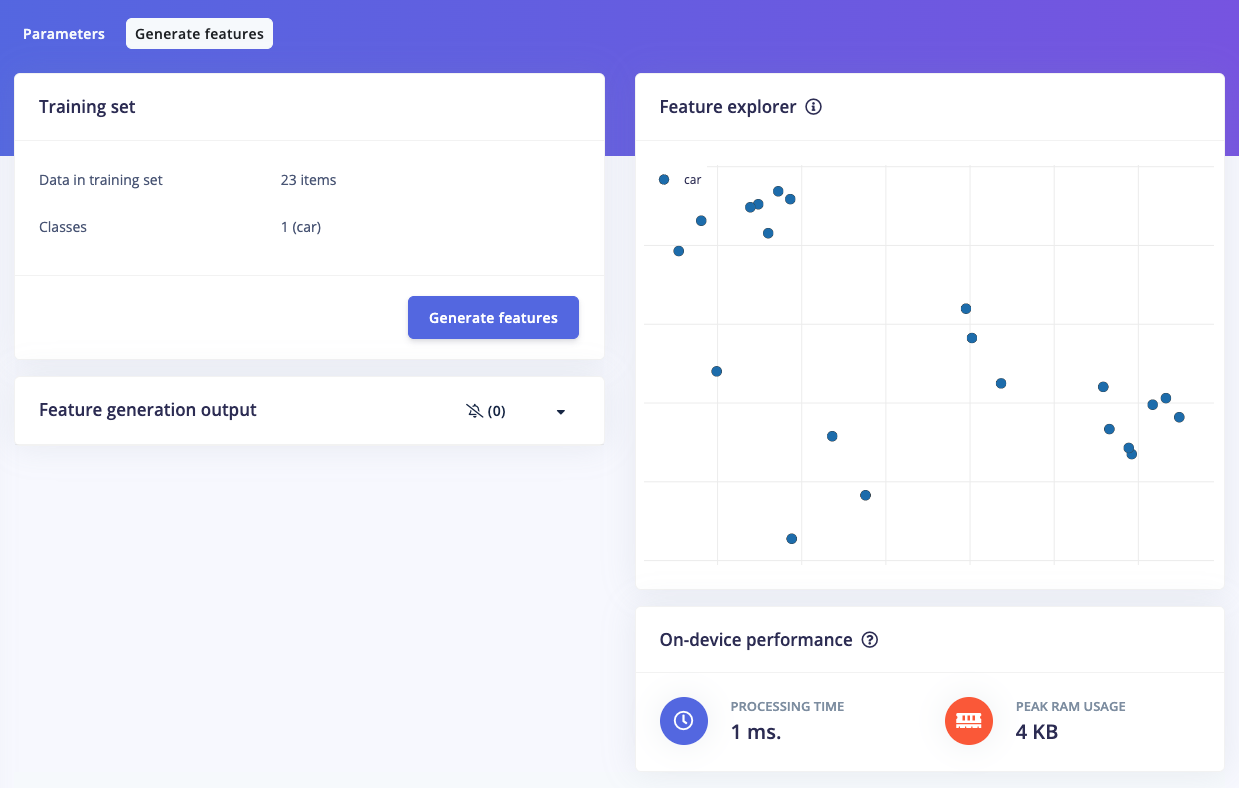
Generate features
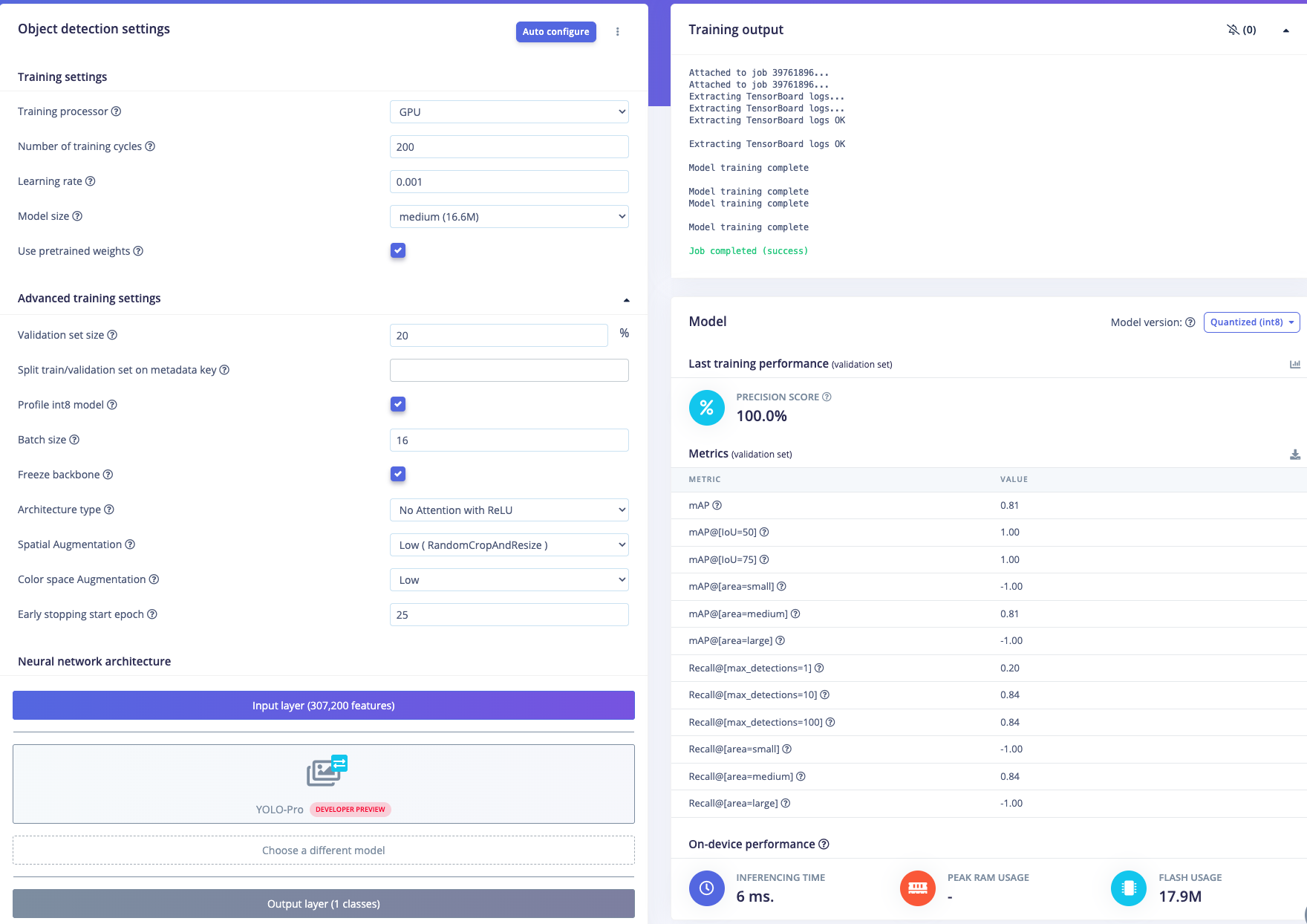
NN setting & result
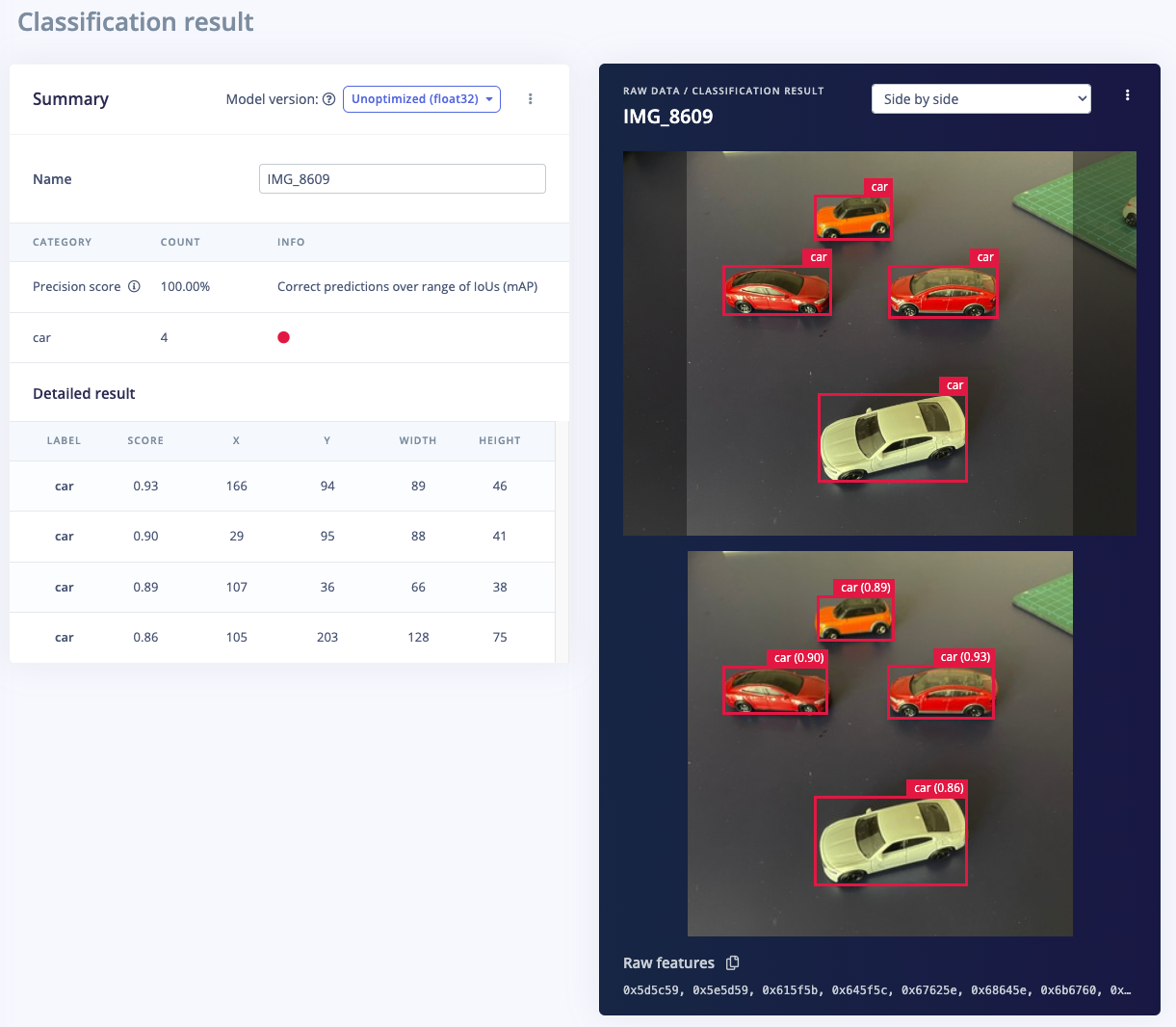
Side by side comparison
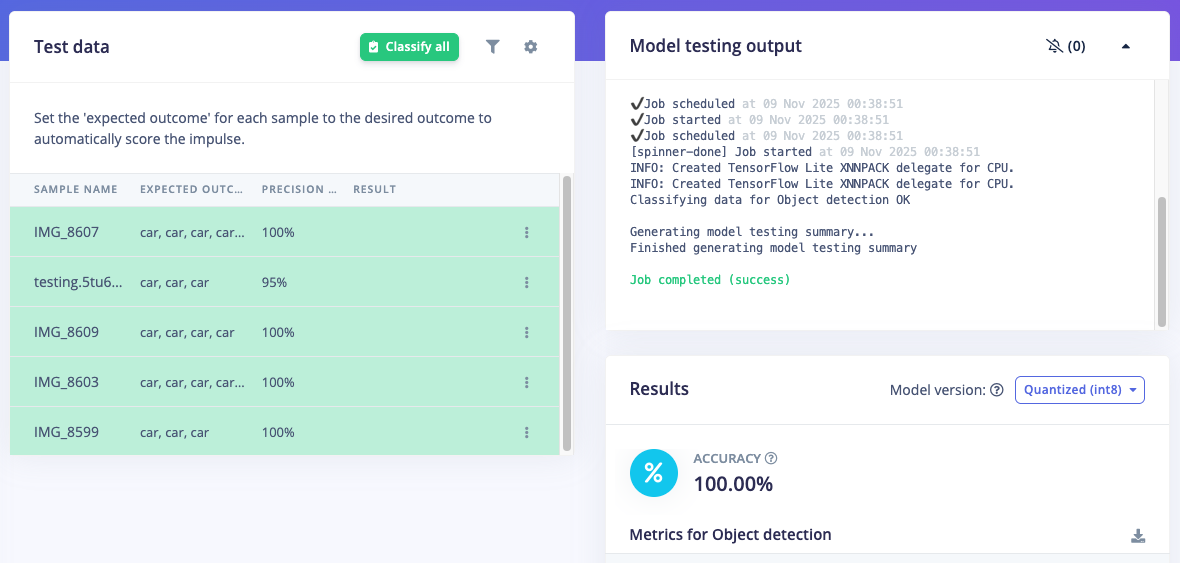
Model test
5. Deploy Model on Rubik Pi
Simply ensure that the model has been built in Edge Impulse Studio. Now, you can test, download the model, and run everything directly from the Rubik Pi (Ubuntu 24.04). On the Rubik, there are several things that need to be done. Install a recent version of Python 3 (>= 3.7). Ubuntu 24.04 should comes with with Python 3.12 installed. You can verify this by running this command:python3 —version.
Ensure you have the latest Edge Impulse Linux CLI installed (in Step 1). Then install the Linux Python SDK, OpenCV, ffmpeg, Gstreamer, numpy and other dependencies:
git clone https://github.com/edgeimpulse/linux-sdk-python
Then install other dependencies: pip install -r requirements.txt
Next, build/download/run the model via the Edge Impulse runner. Open a terminal on the Rubik Pi or ssh from your PC/laptop then simply type edge-impulse-linux-runner (you can add --clean to allow you to select your project if you’ve tried a different project in the past). Log in to your account then choose your project. Then choose your specific Impulse (if any) and be sure to select quantized model. This process will download the model.eim, which is specifically built for aarch64 QNN (Qualcomm Hexagon) architecture. During this process, the console will display the path where the model.eim has been downloaded. For example, in the image below, it shows the file located at /home/ubuntu/.ei-linux-runner/models/624749/v10-quantized…../model.eim
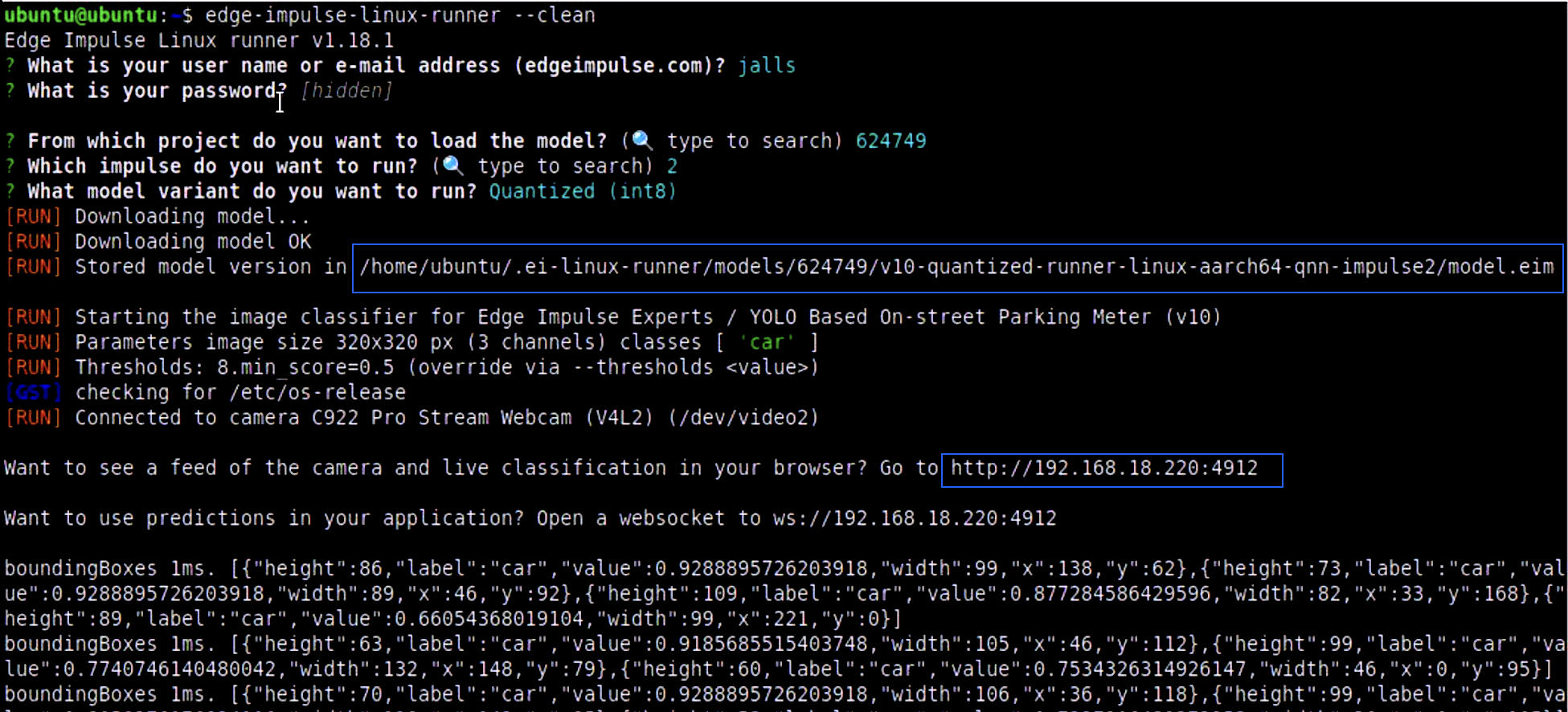
Edge Impulse Runner
cp -v model.eim /home/ubuntu
Now the model is ready to run in a high-level language such as Python. To ensure this model works, we can re-run the EI Runner with a camera attached to the Rubik Pi. You can see the camera feed and inference in a browser, at the local IP address of the Rubik on port 4912. Run this command once again: edge-impulse-linux-runner
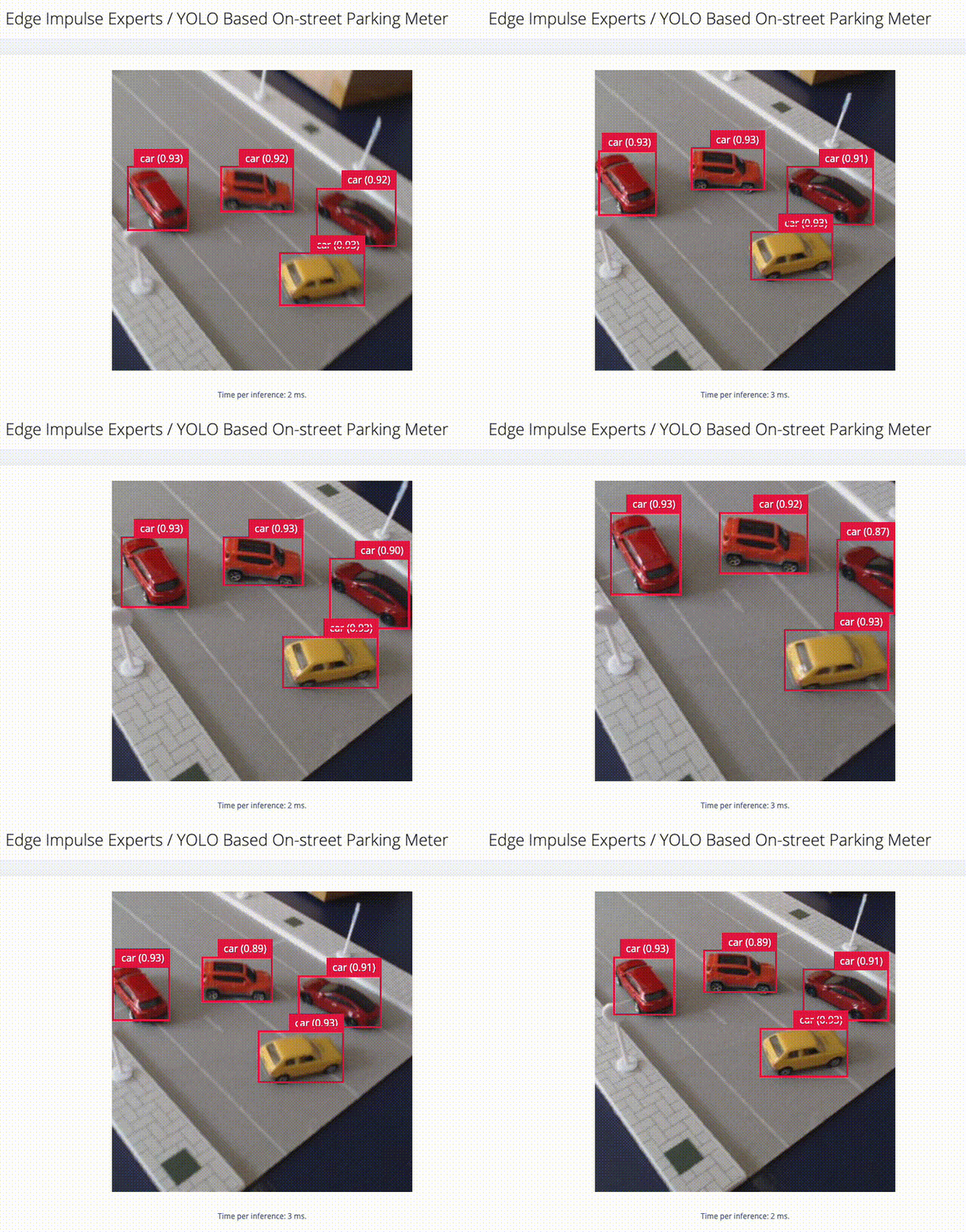
Live inferencing
6. Build a Smart Parking Application (Python)
With the impressive accuracy of live inferencing using the Edge Impulse Runner, we can now create a Python-based Parking Meter program. This code performs object tracking and parking duration analysis using bounding boxes detected by our YOLO-Pro model. For every frame, it identifies the location and size of detected cars, then attempts to match them with previously tracked objects using Intersection over Union (IoU), distance between centers, and size similarity. If a match is found, it checks whether the object has moved; if not, it updates the tracked object’s “stopped” duration. If the object has moved or reappeared after more than 3 seconds, it resets the timer. The system only starts displaying bounding boxes if a car has remained stationary for 5 seconds or more, ensuring it is actually parked. Each car is also assigned to one of four parking zones (A, B, C, or D) based on its location. Zone A and B allow parking but turn the bounding box red if the duration exceeds 30 or 100 seconds. Zone C is a no-parking zone and triggers a red box after just 5 seconds. Zone D is a paid parking area where the display shows a dollar amount instead of time, charging $5 every 10 seconds. This zone-based logic allows for flexible rules depending on where the car is parked, and visual feedback is given via color-coded bounding boxes and overlaid text.Note: Minutes are converted to seconds. So that we don’t have to wait for the actual parking time :-)
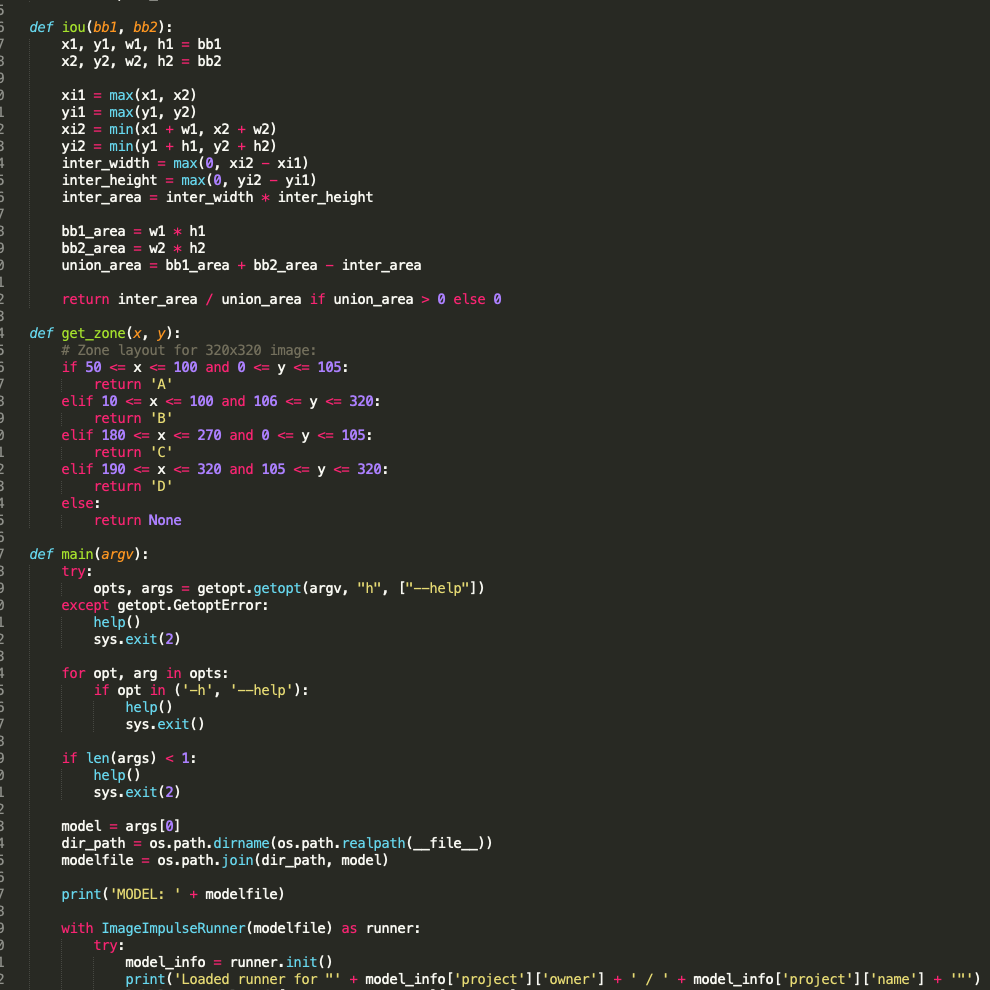
Code Screenshot
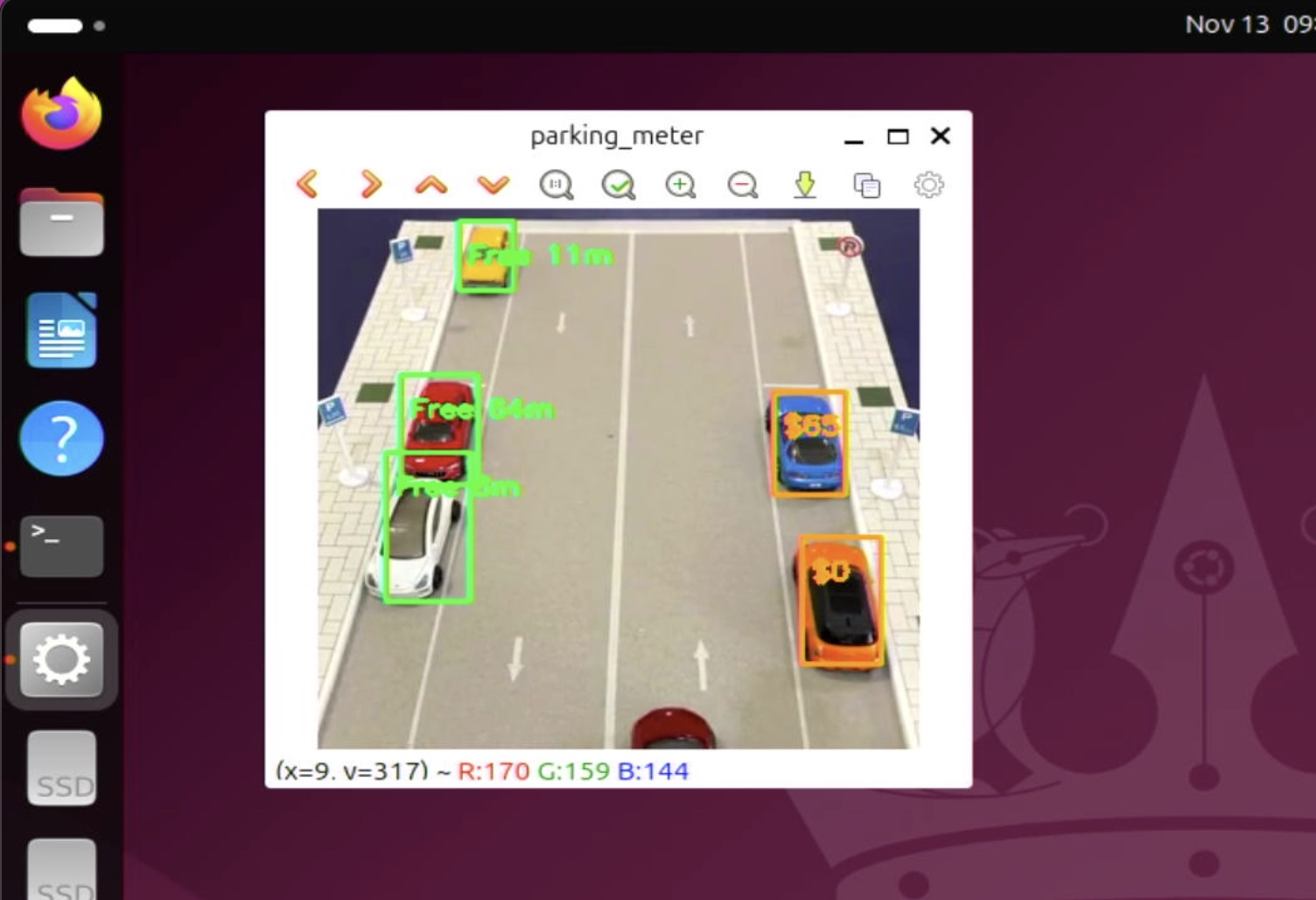
Rubik Pi display
parkingmeter.py) with the following command:
python3 parkingmeter.py <path to modelfile>/model.eim
Check out our demo video: