

Introduction
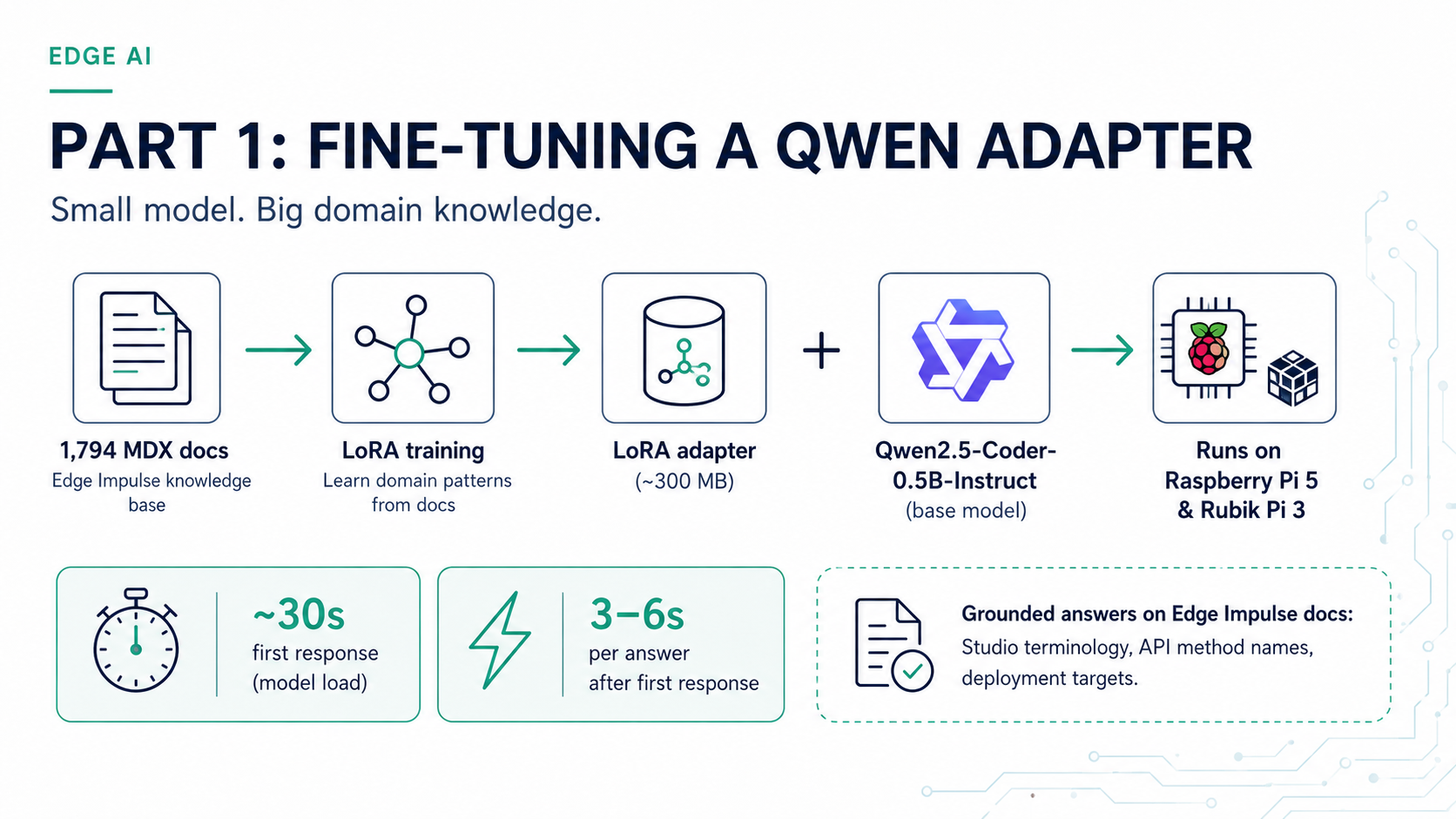
Edge AI development often happens in environments with limited connectivity: on the factory floor, at a demo table, or embedded in a field device. When that happens, having the Edge Impulse documentation available to a local language model means you can still ask questions about the Studio API, deployment options, DSP blocks, and SDK usage without reaching the internet. This project fine-tunesQwen/Qwen2.5-Coder-0.5B-Instruct using LoRA (Low-Rank Adaptation) on 1,794 Edge Impulse documentation files. The resulting adapter ships on Hugging Face and can be loaded in a few lines of Python on any Linux device. This guide covers how to set it up and run it on two common platforms:
- Raspberry Pi 4 / Pi 5: the most accessible Linux edge device for developers
- Thundercomm Rubik Pi 3: a QCS6490-based board with 12 TOPS NPU and a Raspberry Pi-compatible form factor
What the adapter covers
The adapter is trained on the full Edge Impulse documentation set as of mid-2026, covering:- Studio projects, datasets, and data acquisition
- DSP and transformation blocks
- Learning and processing blocks
- Model deployment and edge inference
- Python SDK, REST API, and CLI tools
- Hardware board setup and deployment guides
Hardware requirements
Setting up the Raspberry Pi
Flash Raspberry Pi OS (64-bit Bookworm) to an SD card using Raspberry Pi Imager, enable SSH during imaging, and boot the Pi. Then SSH in and run: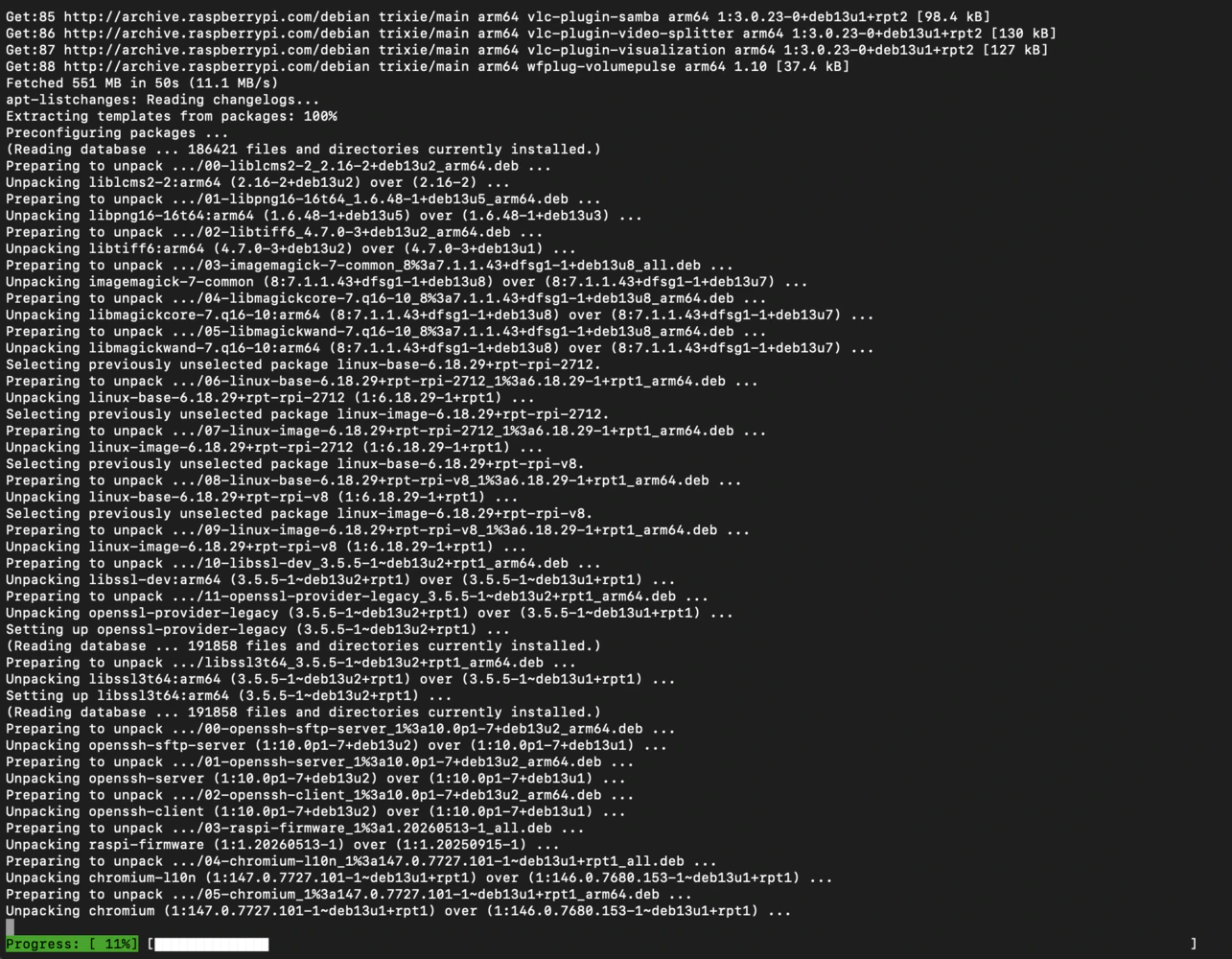
On a Pi 4, install the
cpu PyTorch wheel. The full CUDA wheel will fail. On a Pi 5 with 8 GB RAM, inference is comfortable with float32. On a Pi 4 with 4 GB, add --low-cpu-mem-usage when loading the base model.Setting up the Rubik Pi 3 (QCS6490)
The Rubik Pi 3 ships with Ubuntu 24.04 or Qualcomm Linux. Log in with usernameubuntu / password ubuntu (you may be prompted to change it on first boot), connect to your network with sudo nmtui, then reboot to sync the system clock. After rebooting:
float16.
If you want to also use Edge Impulse on this board for model training and deployment, install the Edge Impulse Linux CLI after the steps above. See the Thundercomm Rubik Pi 3 setup guide for full CLI installation instructions.
Load the base model and adapter
With the virtual environment activated, save the following asload_model.py on your device:

~/.cache/huggingface).
Ask a question
float32. On the Rubik Pi 3 at float16 it is roughly the same. The model has the full documentation vocabulary baked in, so answers about Studio workflows, SDK methods, and deployment targets are grounded in real documentation rather than general web knowledge.
Best practices
- On a Raspberry Pi 4 with 4 GB RAM, close other services before loading the model to avoid OOM. Run
sudo systemctl stopfor any unused services. - Validate generated code before deploying it to hardware or calling it against the Edge Impulse REST API.
Related adapter: Arduino code generation
A companion adapter trained on Arduino documentation is available ateoinedge/arduino-qwen0.5-lora. It uses Qwen/Qwen2.5-Coder-0.5B-Instruct as its base model and is fine-tuned to write Arduino sketches, understand Arduino library APIs, and answer hardware-level questions. Load it using the same pattern:
Related
This series- Offline SLMs for Edge AI Development, Part 2: Retrieval-Augmented Generation with FAISS: add a FAISS retrieval index on top of this adapter for grounded, up-to-date answers
- Offline SLMs for Edge AI Development, Part 3: Agentic Coding with llama.cpp and OpenCode: serve GGUF models with llama-server and use OpenCode as an offline agentic coding assistant
Reference
- Hugging Face model (Edge AI docs):
eoinedge/edgeai-docs-embedding-qwen1.5-0.5b-instruct - Hugging Face model (Arduino):
eoinedge/arduino-qwen0.5-lora - Full stack source: eoinjordan/pi-openclaw-mcp-stack
- Base model:
Qwen/Qwen2.5-Coder-0.5B-Instruct - Hardware guides: Thundercomm Rubik Pi 3 · Raspberry Pi 5 · Qualcomm RB3 Gen 2 · NVIDIA Jetson Orin
- Python libraries:
transformers,peft,torch,sentence-transformers,faiss-cpu,flask