

- Up to 250 MHz Arm Cortex-M55 application processor with turboSPOT® and Helium™ technology
- Enhanced memory performance with 64KB I-Cache and 64KB D-Cache, 3.75MB of system RAM, and 4MB of embedded non-volatile memory for code/data
- Ultra-low power ADC and stereo digital microphone PDM interfaces for truly always-on voice
- High-fidelity telco-quality audio
- High-speed USB 2.0
- Wide range of integrated sensor interfaces including ADC, SPI, I²C, and UART
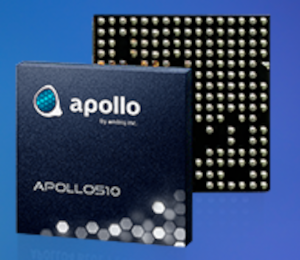
Ambiq Apollo5 SoC
Deployment options
Ambiq Apollo510 EVB firmware
Ambiq Apollo510 EVB firmware
A binary containing both the Edge Impulse data acquisition client and your full impulse.
Installing dependencies
To set this device up in Edge Impulse, you will need to install the following software:Connecting the Apollo 5 Audio Add-on Board (Models with Audio Input Only)
This step is only needed when using models requiring microphone input, such as the example below. Skip this section if you are testing other models that do not need audio input. Connect the microphone board to the Apollo510-EVB as shown below.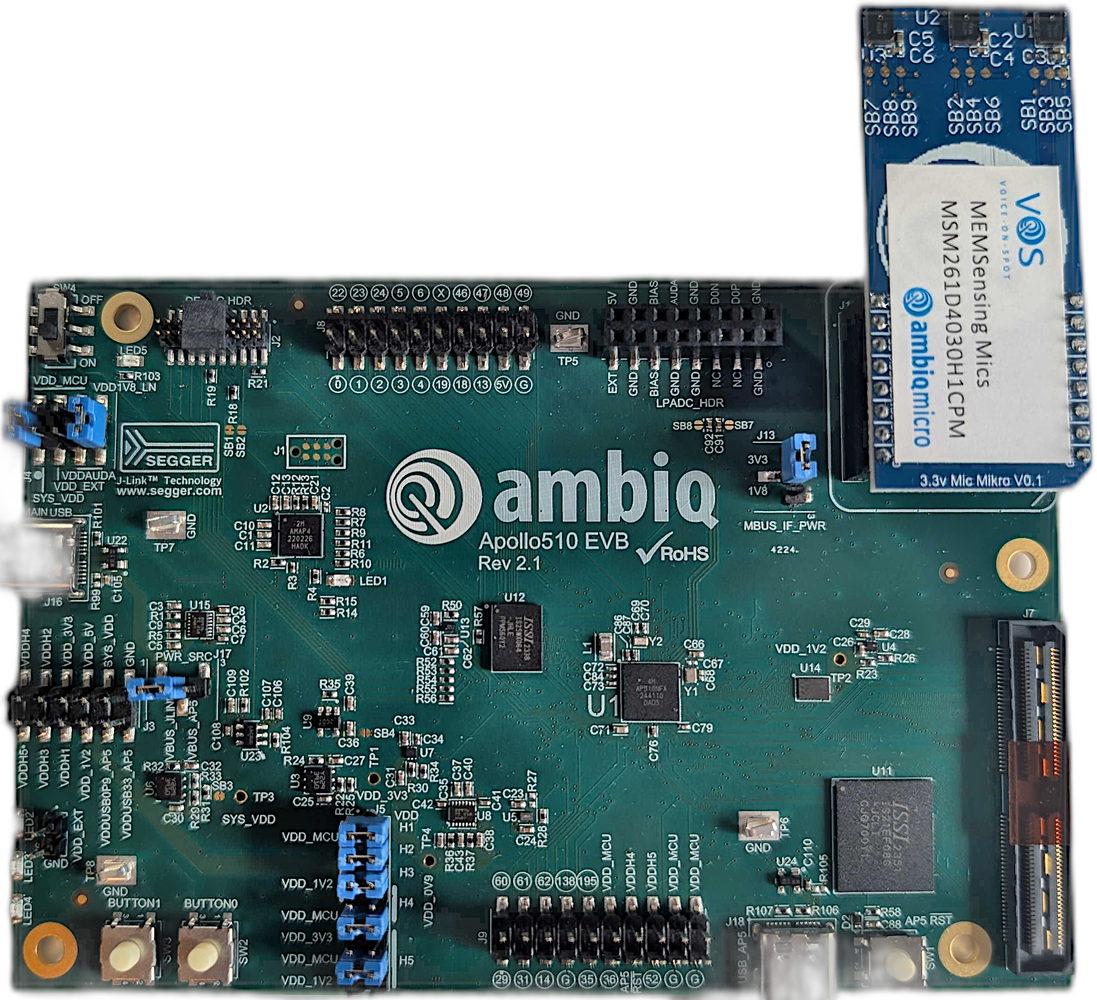
Apollo510-EVB With Microphone
Connecting an ArduCam Mega 5MP SPI
This step is only needed when using models requiring camera input. Skip this section if you are testing other models that do not need camera input. The ArduCam Mega 5MP SPI connects to the Apollo510-EVB pins as shown in the table below: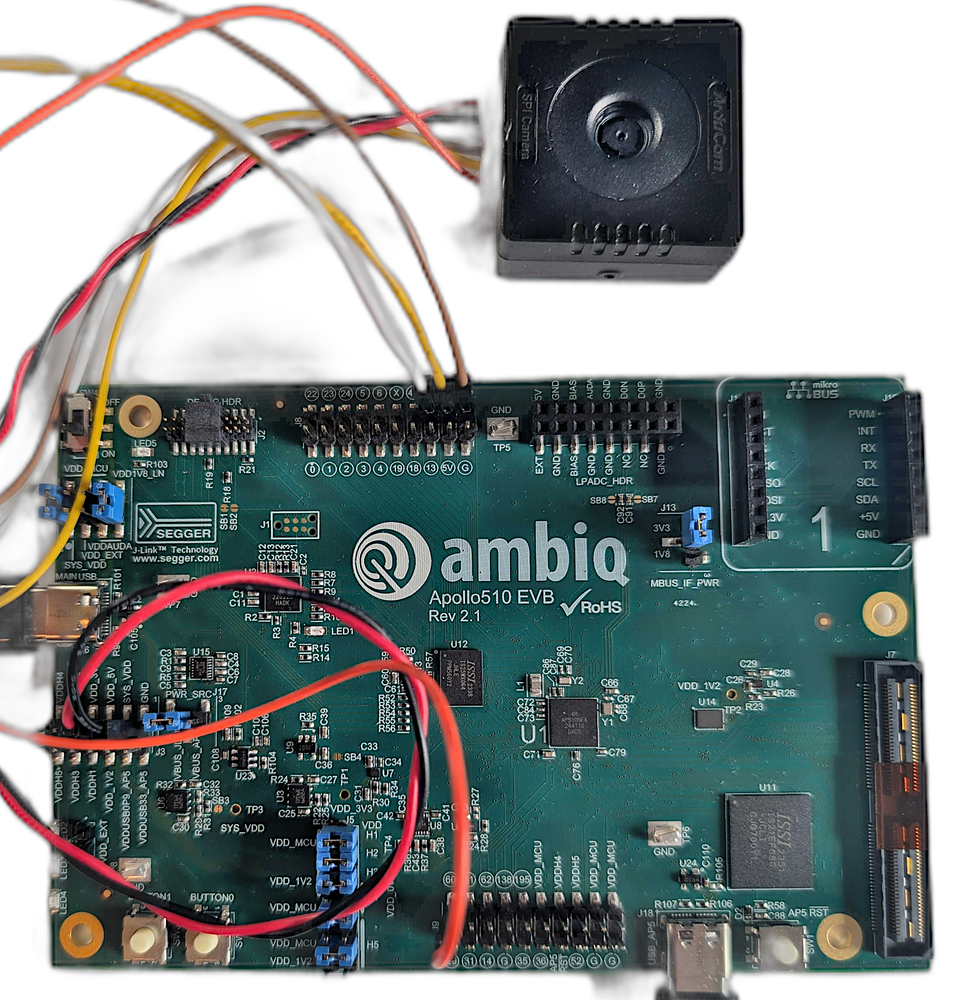
ArduCam connected
Flashing pre-built firmware
Pre-built image with only audio support and “Hello World” detector example here Get started by extracting the archive and choose the appropriate script for your system architecture to flash the firmware: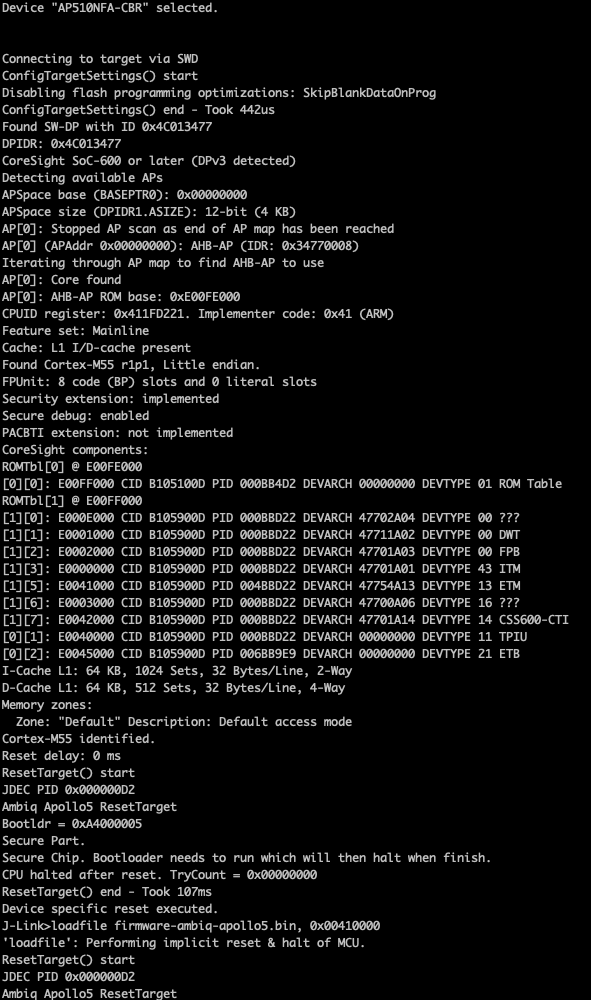
Flashing new firmware
Connecting to Edge Impulse
Using the daemon
From a command prompt or terminal, run:--clean.
Alternatively, you can access the project API Key as shown below by navigating to the Dashboard section on the left pane of your Studio project and select the Keys tab, then click the copy/paste icon next to the API Key to copy the entire text to your clipboard, then run:
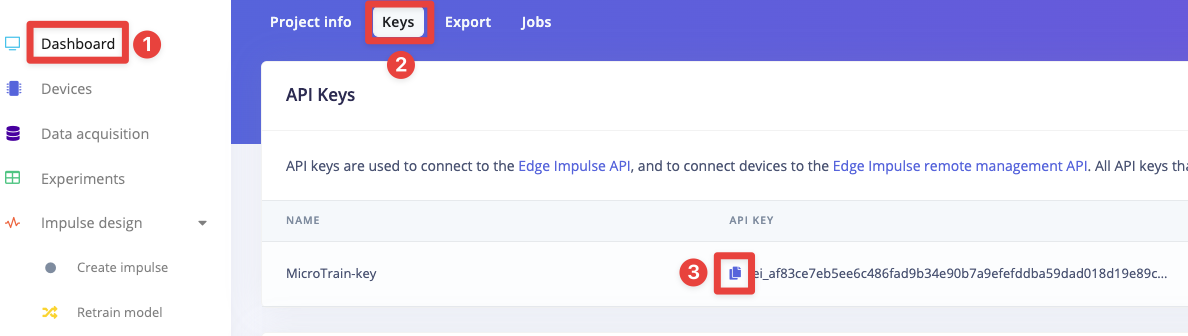
edge-impulse-api-key
Connecting to Studio
Run theedge-impulse-daemon and connect to your project, you will be prompted to name your device:
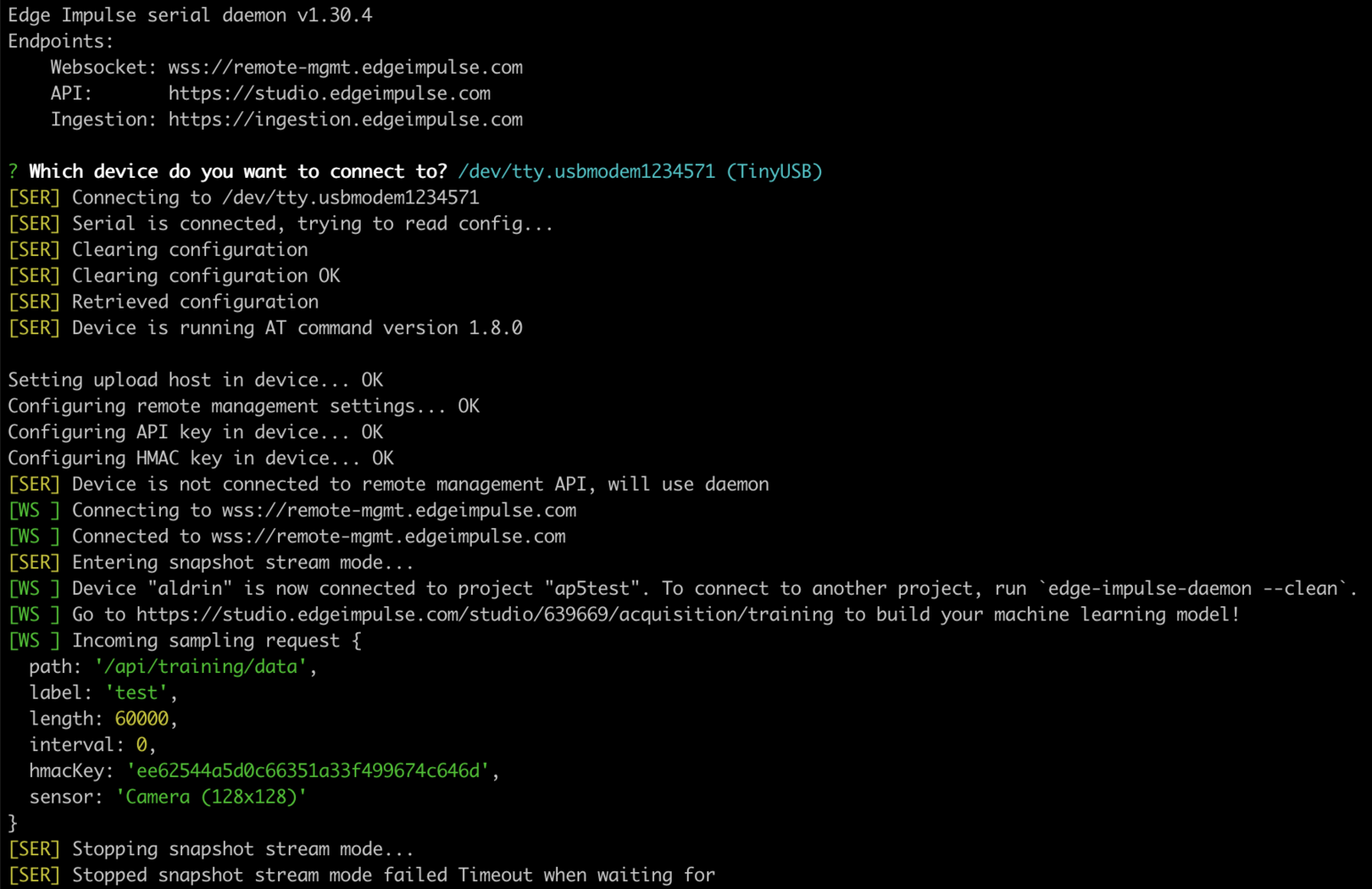
Connecting to Edge Impulse.

Device connected to Edge Impulse.
Collecting data
Audio
With the device connected to Studio, you can use it to collect audio data up to 5 seconds in length for training and testing your model. Navigate to the Data acquisition tab and start collecting samples: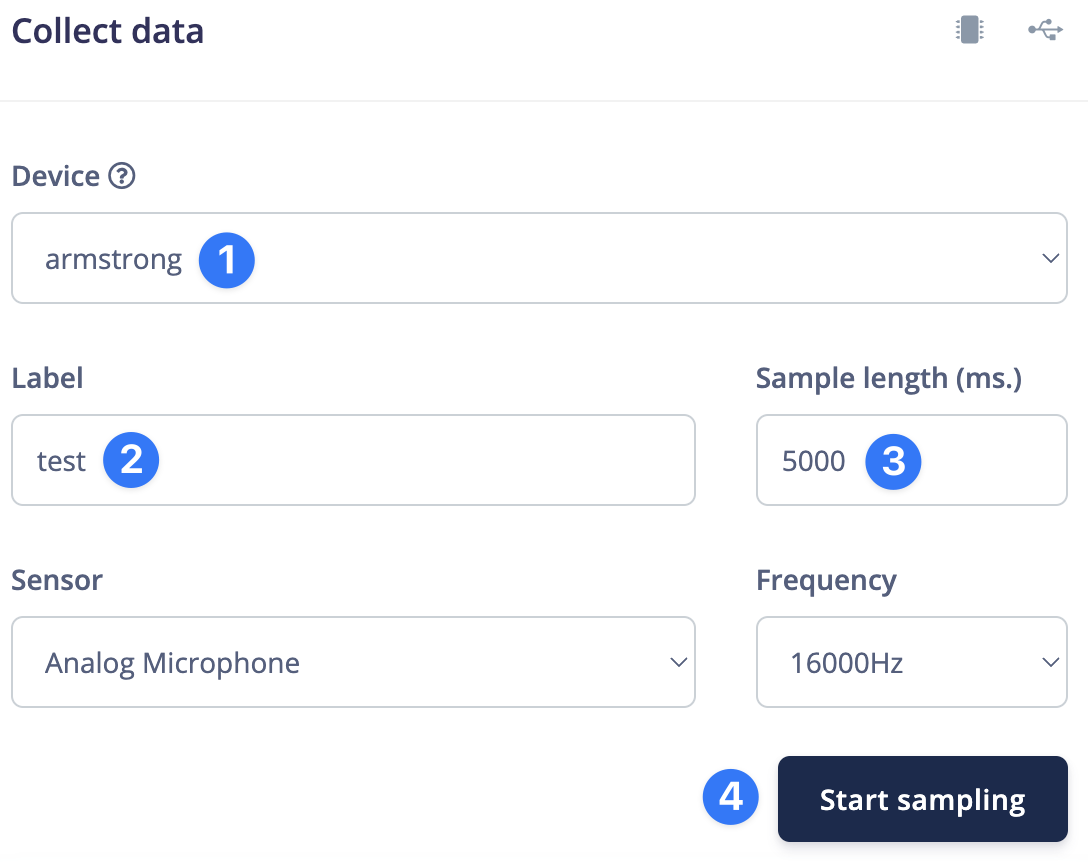
How to collect an audio sample
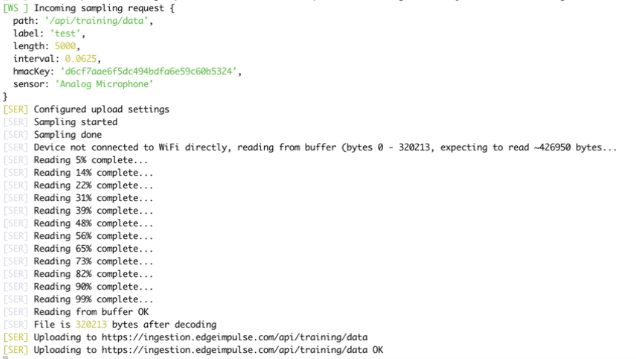
Collecting an audio sample
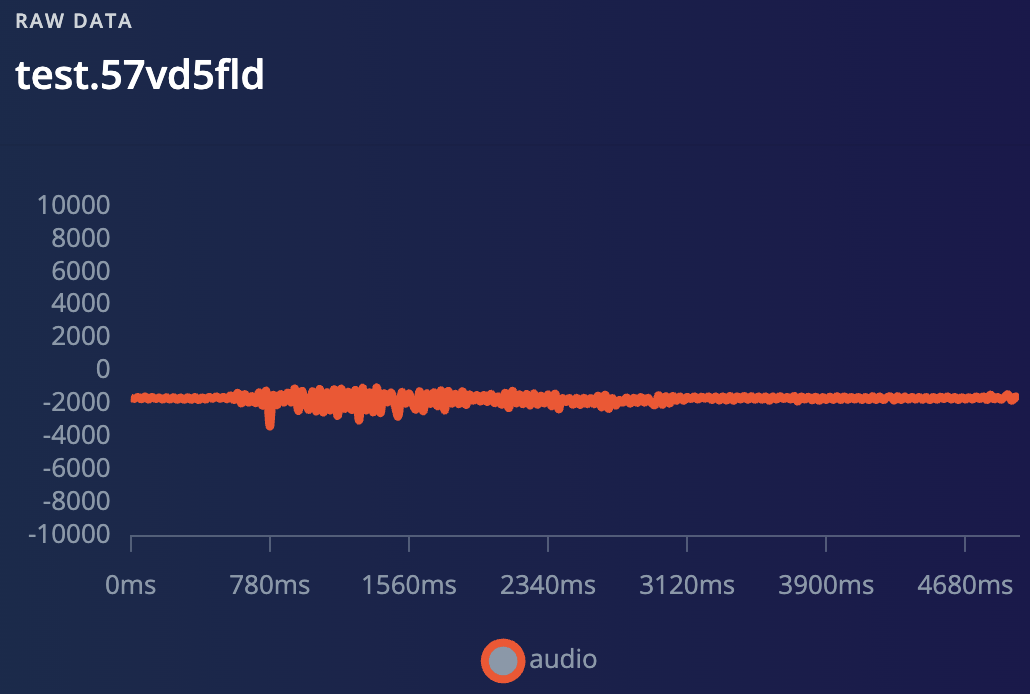
Example sample
Video
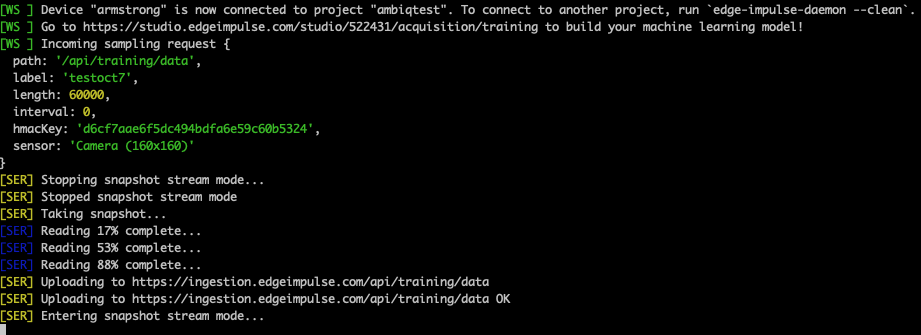
How to collect an image sample
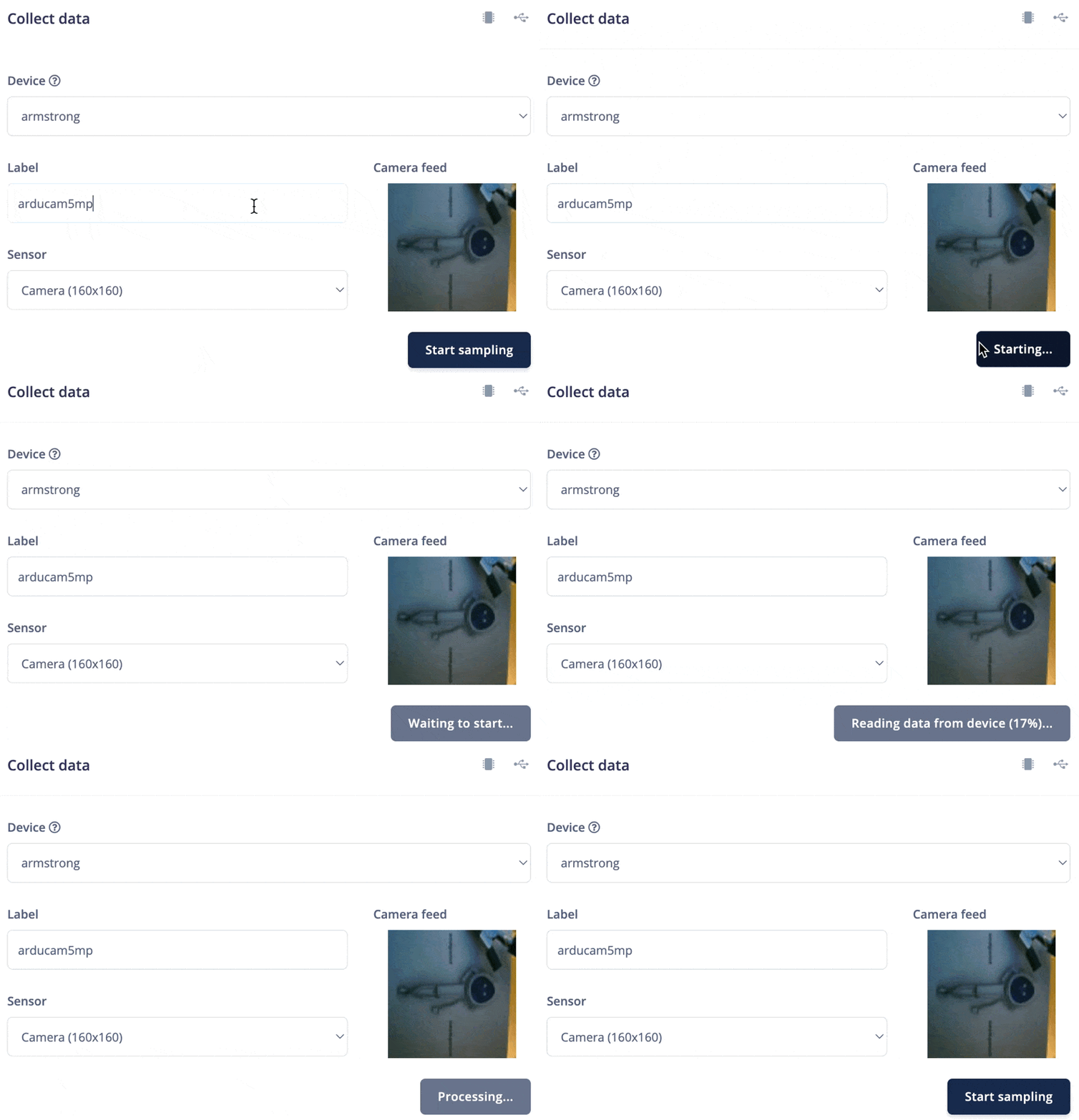
Collecting an image sample
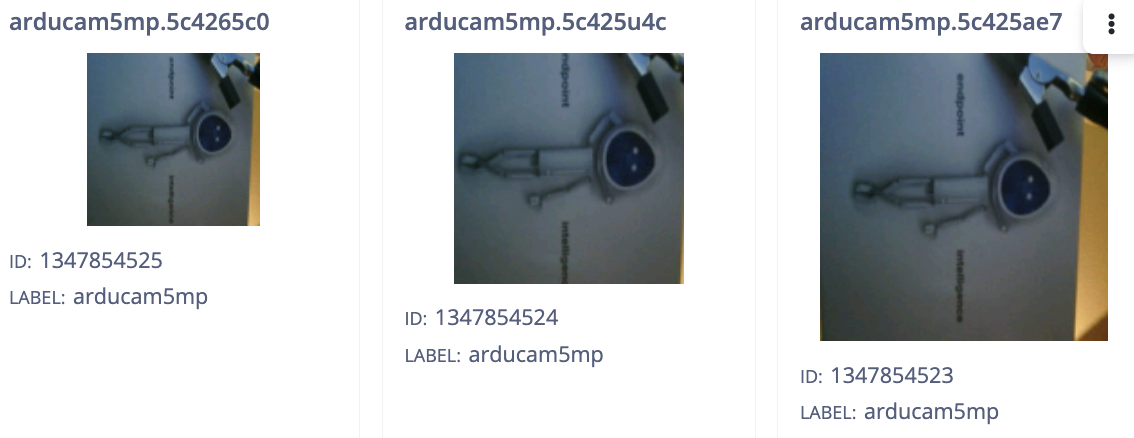
Three different options
Next steps: building a machine learning model
With everything set up you can now build your first machine learning model with these tutorials:Example project
Start by going to your Studio projects then create a new project and navigate to theCreate impulse section of Impulse design, at which point you will be prompted to select your target, choose the Apollo5:
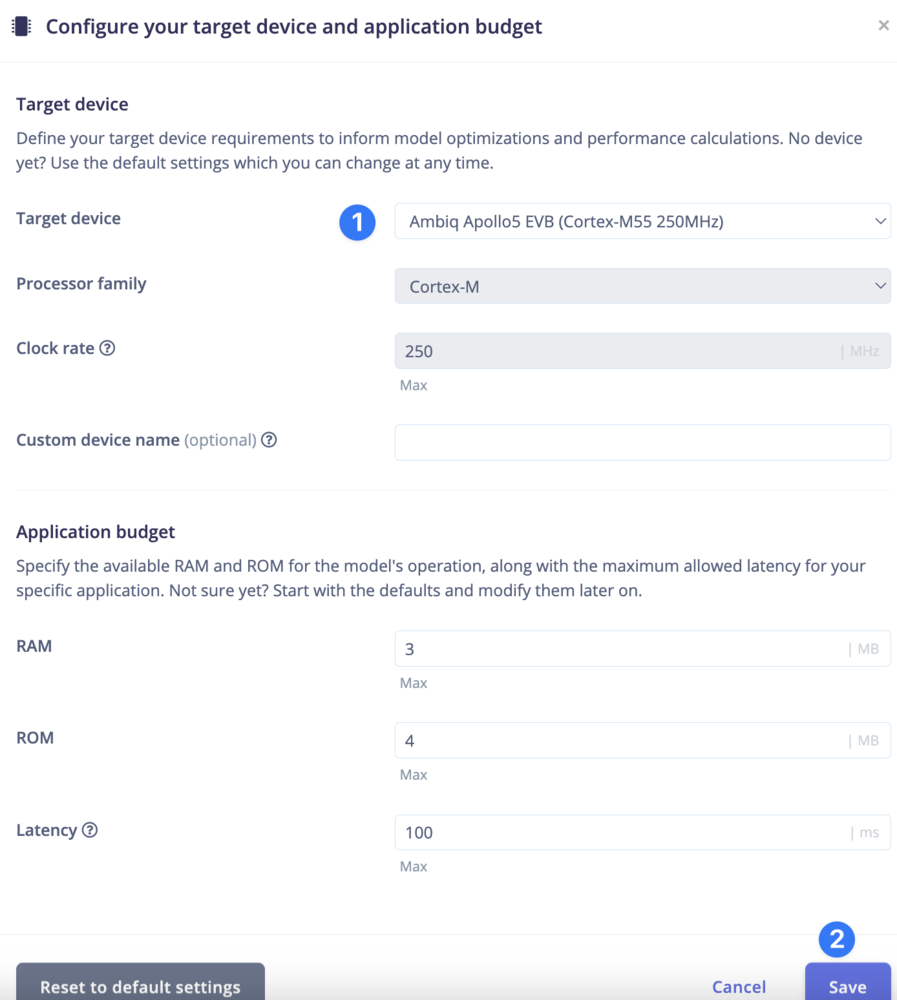
Choosing target hardware
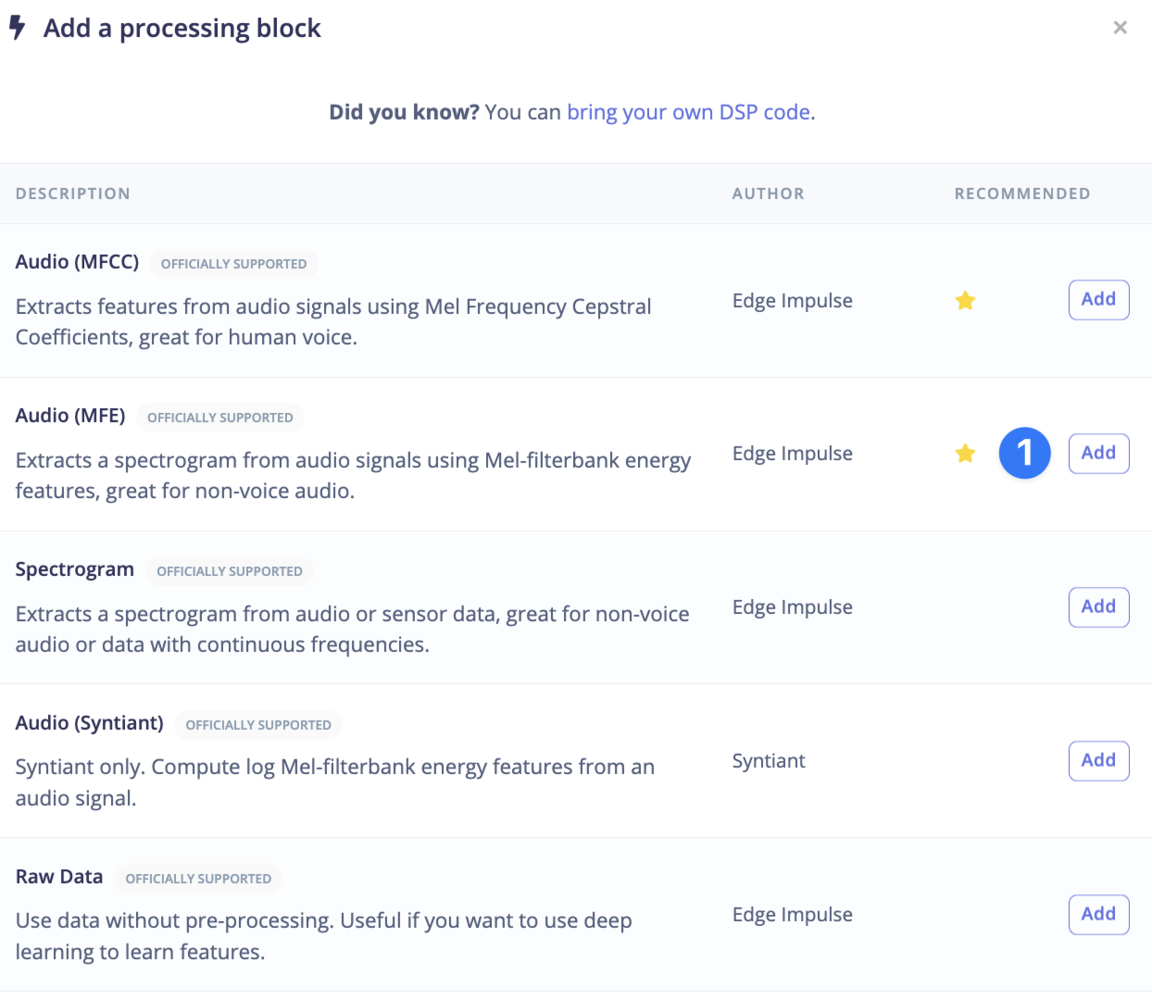
DSP
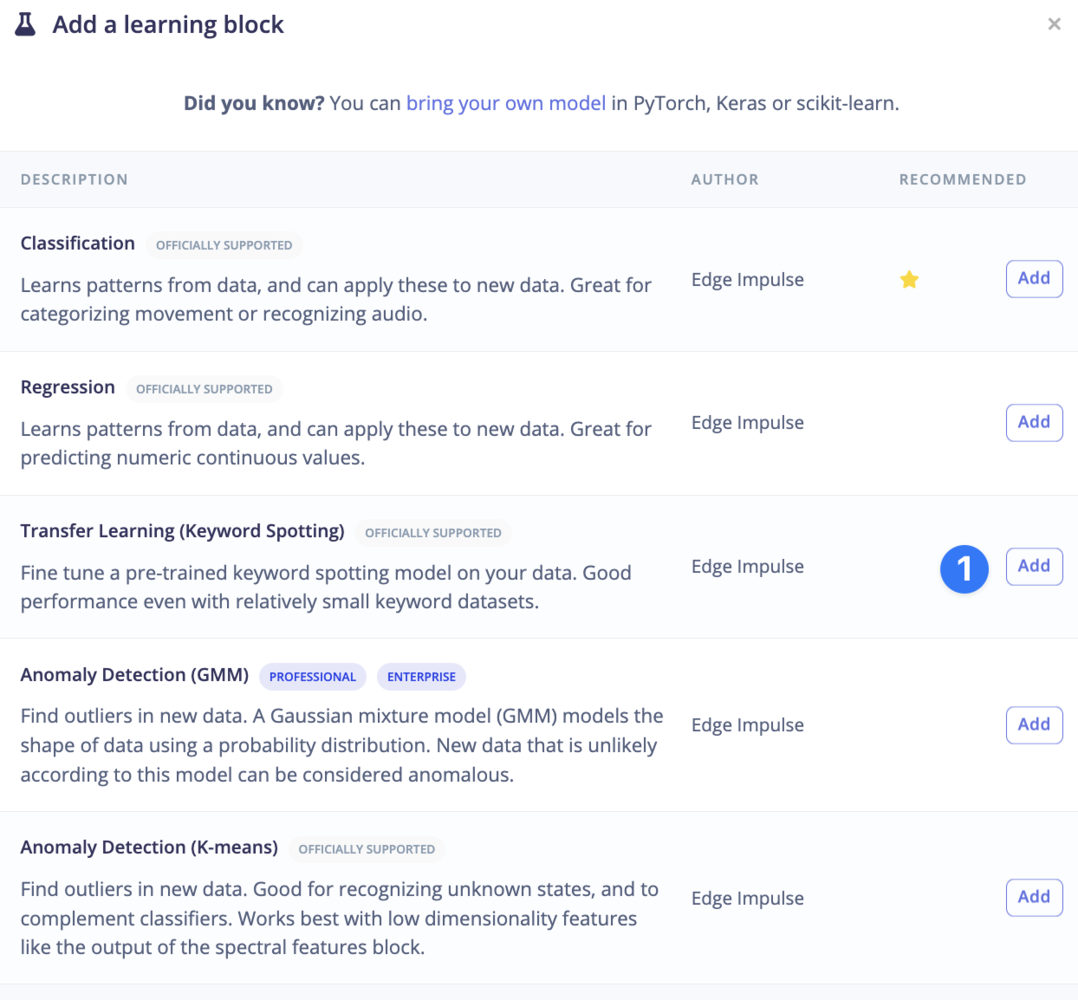
KWS
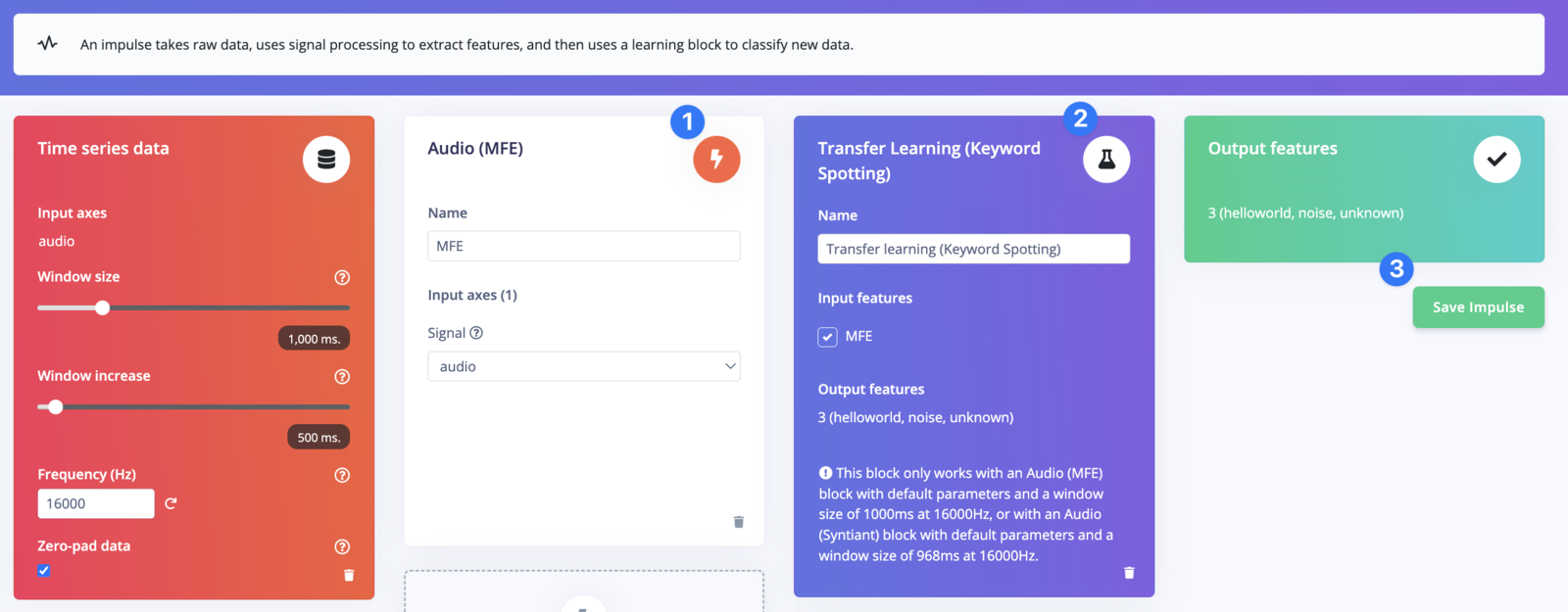
Saving it all
Processing
Now select the DSP block: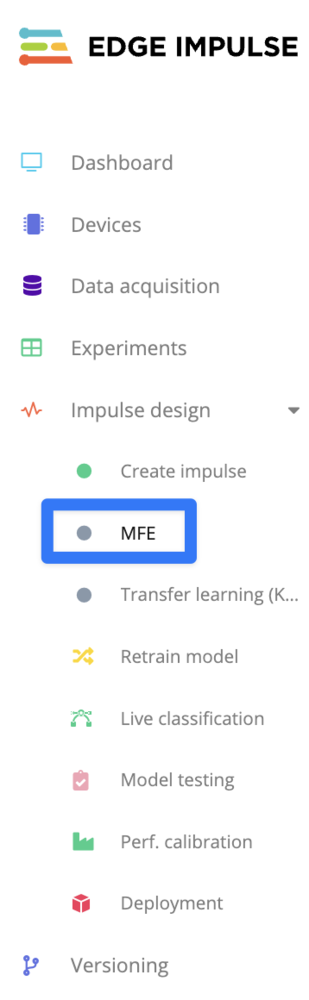
Select DSP
Generate features:
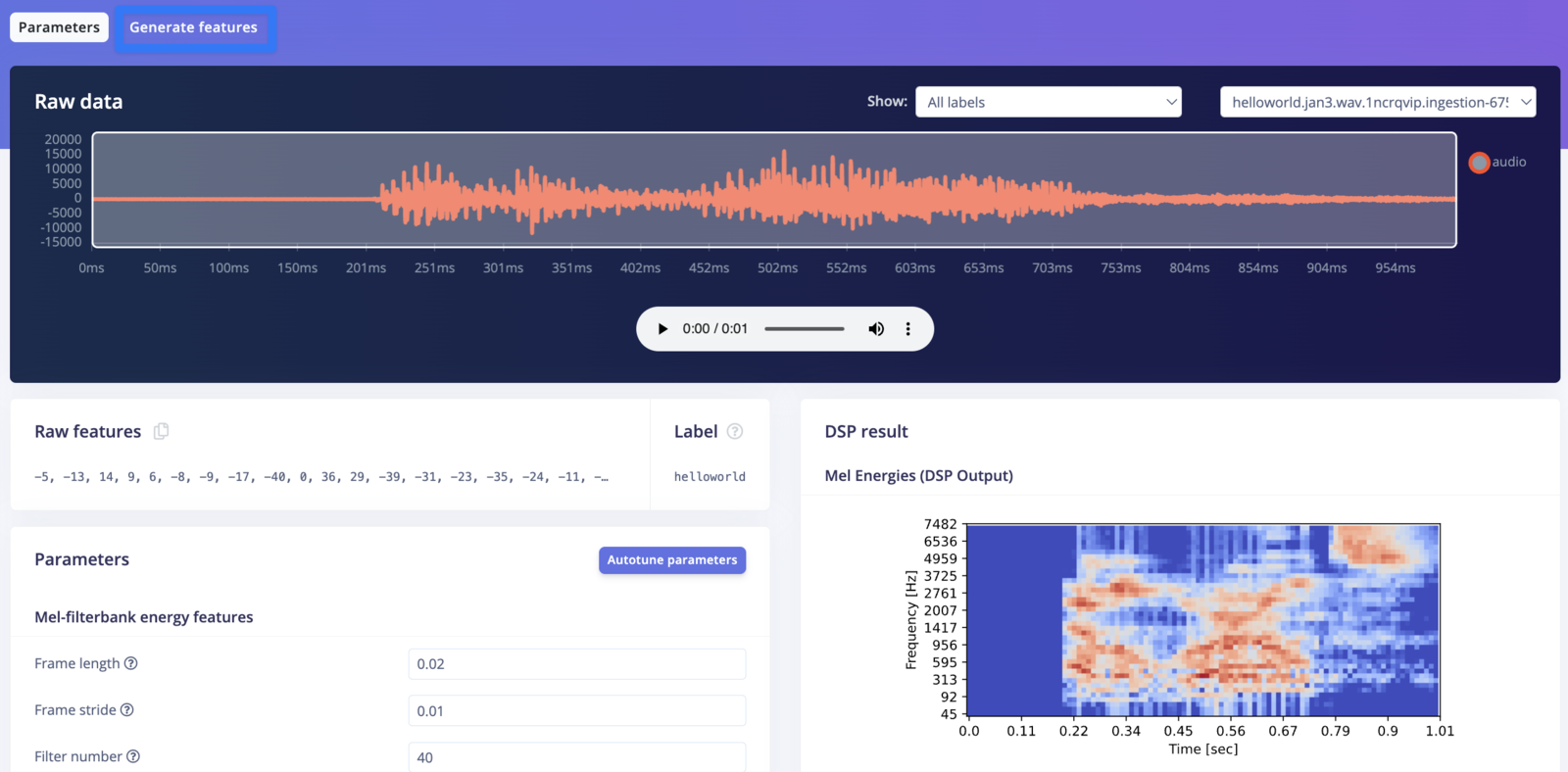
Generate features
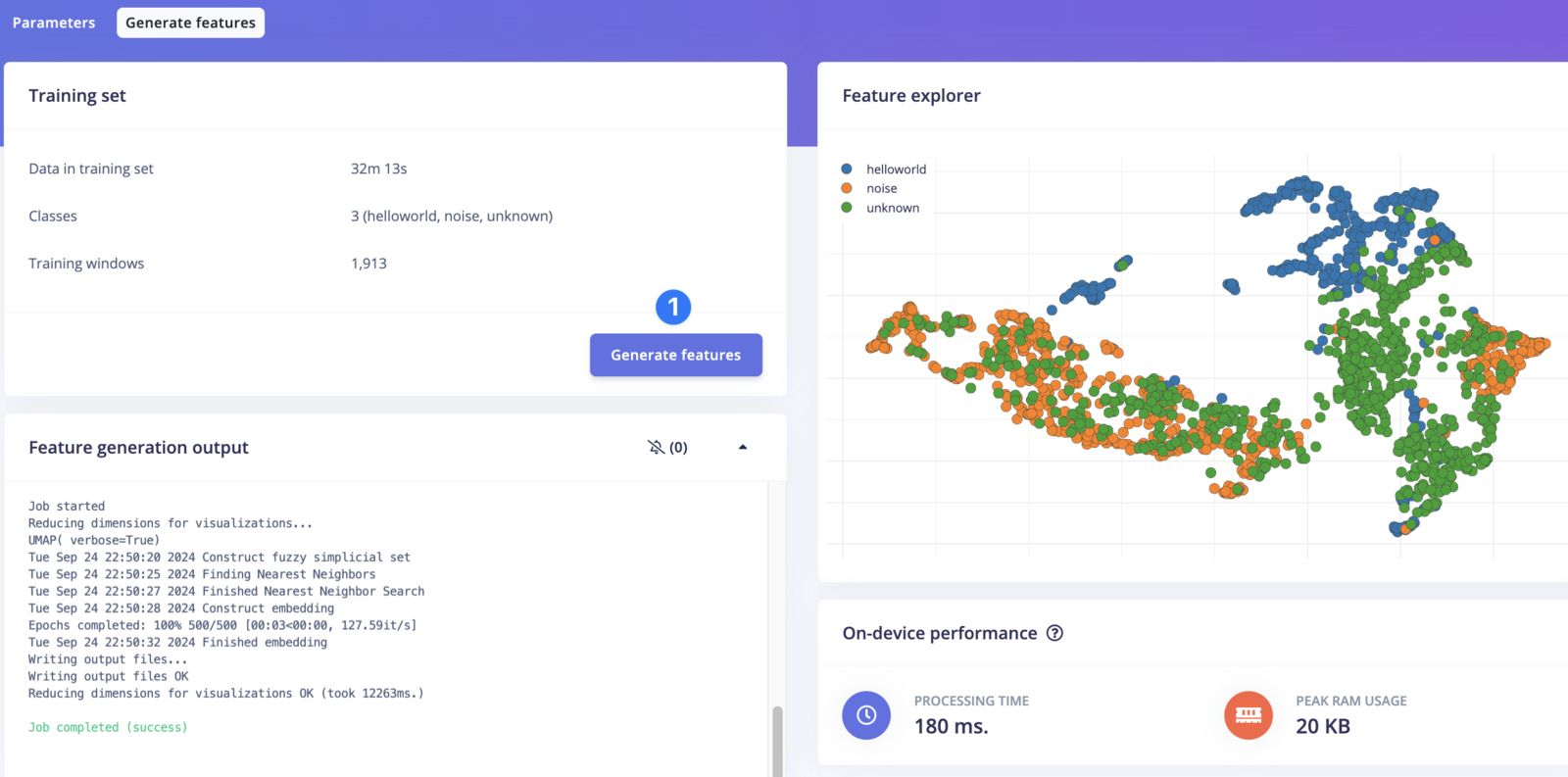
DSP complete
Training
Select the learning block: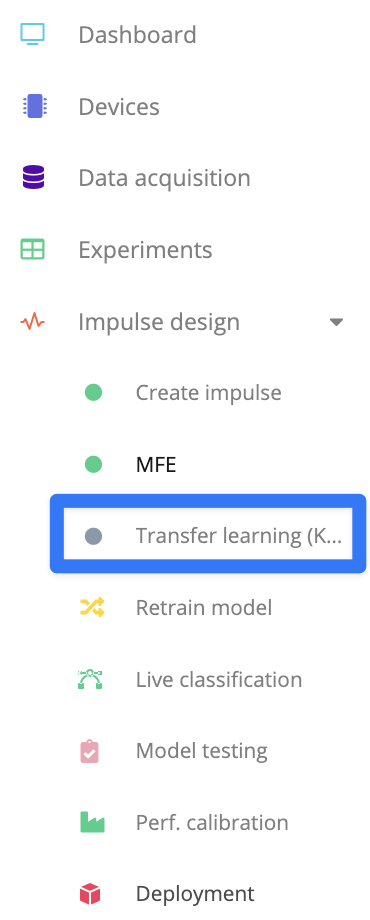
Select learning block
Save & train and you’ll eventually see an output like this:
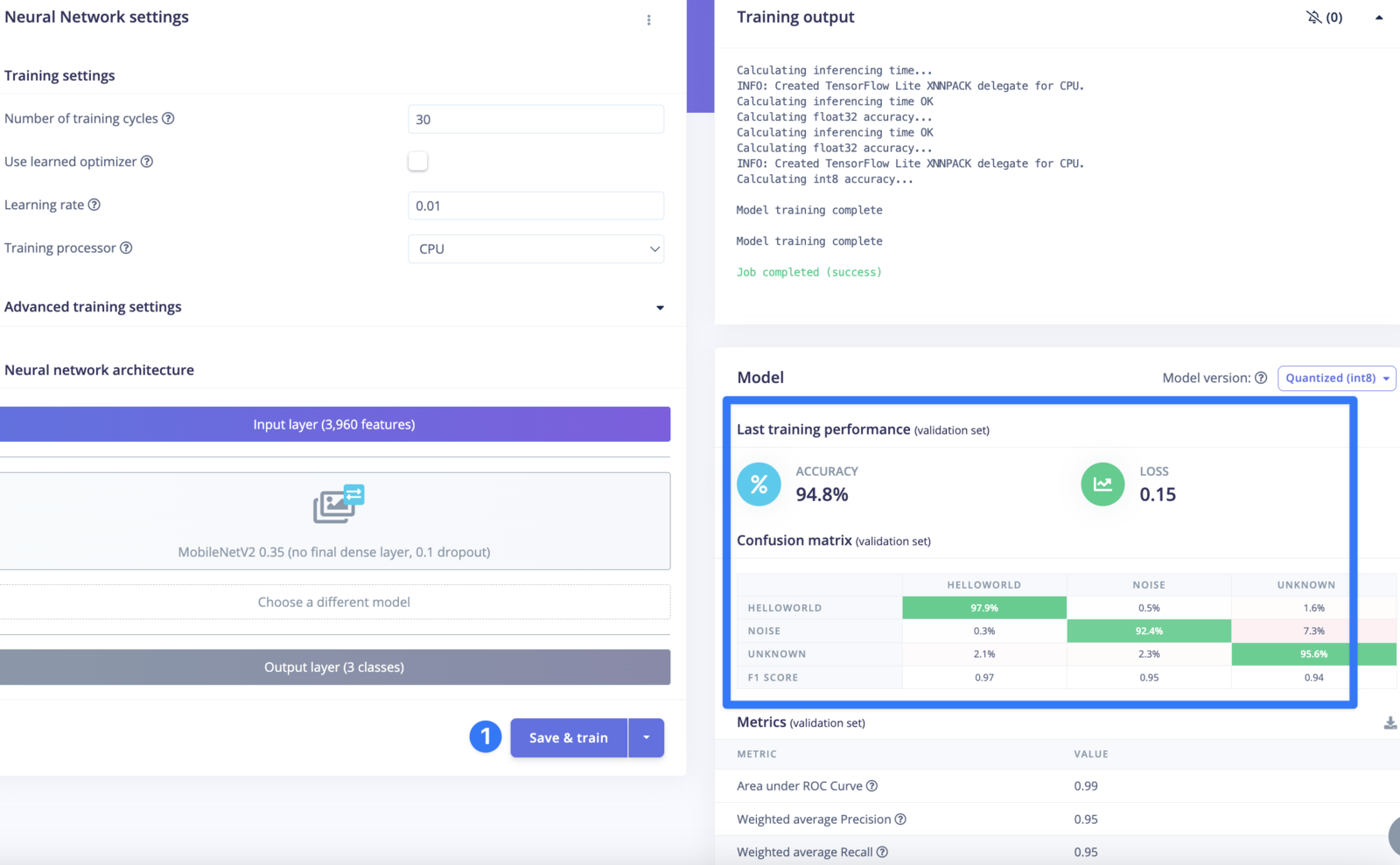
Training
Testing
Go to theModel testing section and enable int8 testing:
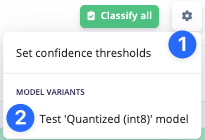
Select int8 testing
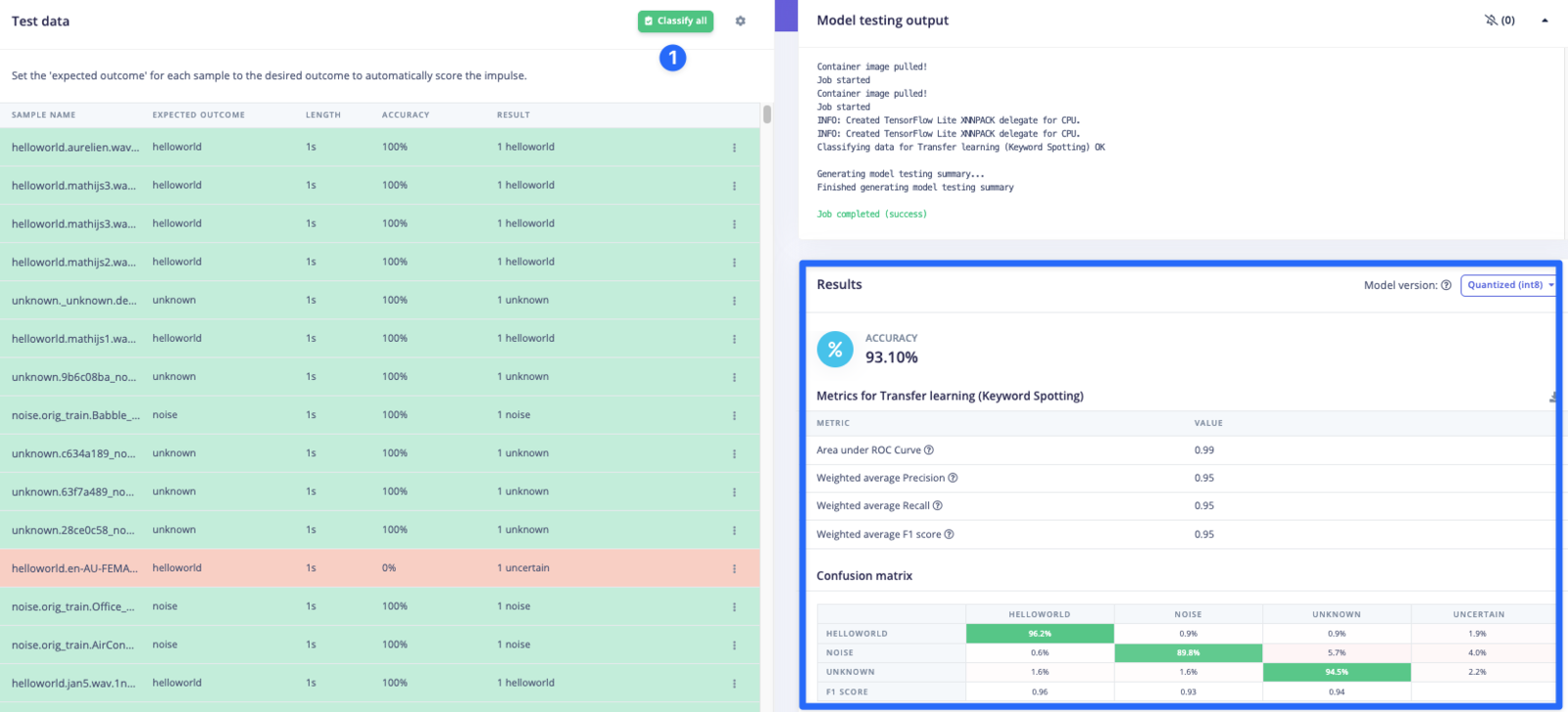
Test results
Deploying
Navigate to theDeployment section and choose the Apollo 5:
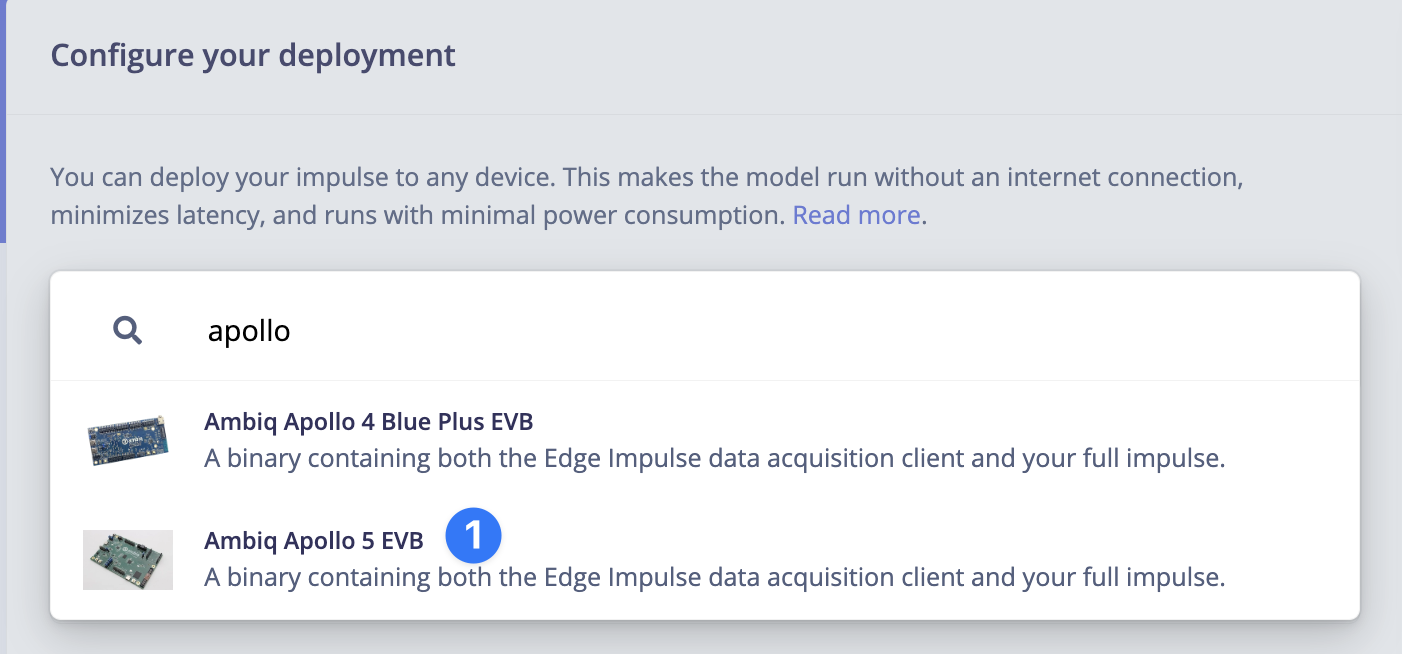
Selecting the Apollo5
Build and wait for the job to finish, when it does a zip archive will be downloaded to your computer.
Flashing
See the previous section on flashing the board.Running the impulse
You can run your impulse by usingedge-impulse-run-impulse:
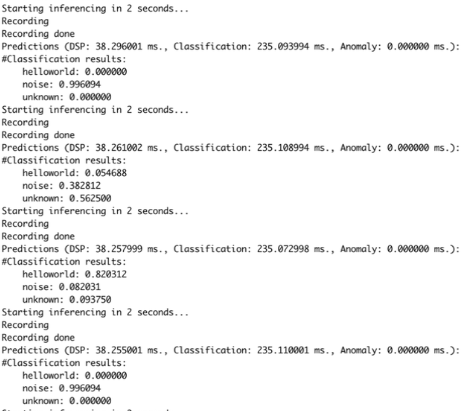
Running the impulse