Set up Raspberry Pi 4 for Edge Impulse, connect peripherals, install the Linux CLI, and troubleshoot deployment.
The Raspberry Pi 4 is a versatile Linux development board with a quad-core processor running at 1.5GHz, a GPIO header to connect sensors, and the ability to easily add an external microphone or camera - and it’s fully supported by Edge Impulse. You’ll be able to sample raw data, build models, and deploy trained machine learning models directly from the Studio.In addition to the Raspberry Pi 4 we recommend that you also add a camera and / or a microphone. Most popular USB webcams and the Camera Module work fine on the development board out of the box.
You can set up your Raspberry Pi without a screen. To do so:
Flash the Raspberry Pi OS image to an SD card using the Raspberry Pi Imager.
You must use 64-bit OS with _aarch64 and 32-bit OS with armv7l_*
During the flashing process, access the Customisation options menu in the Raspberry Pi Imager to preconfigure the following options:
Set your hostname to something memorable (e.g., raspberrypi).
Choose a username and password (as of Bookworm, the default pi/raspberry is no longer available).
Configure your WiFi settings for network architecture (SSID, password).
wpa_supplicant.conf cannot be used from Bookworm onward to set up WiFi and networking. You must use the Pi Imager or the advanced menuraspi-config tool to set up WiFi.
Configure Remote Access by enabling SSH, set the SSH to use password authentication.
You can also create an empty file called ssh in the boot drive to enable SSH if you have not set up SSH through the Raspberry Pi Imager options.
Insert the SD card into your Raspberry Pi 4, and let the device boot up.
Find the IP address of your Raspberry Pi. You can either do this through the DHCP logs in your router or by scanning your network.
You can scan your network on macOS and Linux via:
arp -na | grep -i dc:a6:32
which should return something like:
? (192.168.1.19) at dc:a6:32:f5:b6:7e on en0 ifscope [ethernet]
Here 192.168.1.19 is your IP address.
Connect to the Raspberry Pi over SSH. Open a terminal window on MacOS or Linux and run (replace username with your chosen username). If you’re using Windows, you can use PuTTY or the Windows Subsystem for Linux (WSL) to access SSH:
ssh <username>@192.168.1.19
You can also try using <username>@<hostname> instead of the IP address if your system supports mDNS.
If you are prompted with a security warning about the authenticity of the host, type yes and press Enter then enter your chosen password.
6. You can now run commands directly on your Raspberry Pi through the terminal. Please continue to the next section to install Edge Impulse dependencies.
If you have a screen and a keyboard/mouse attached to your Raspberry Pi:
Flash the Raspberry Pi OS image to an SD card. During the flashing process, access the Customisation options menu in the Raspberry Pi Imager to preconfigure the following options:
Set your hostname to something memorable (e.g., raspberrypi).
Choose a username and password (as of Bookworm, the default pi/raspberry is no longer available).
Configure your WiFi settings for network architecture (SSID, password).
wpa_supplicant.conf cannot be used from Bookworm onward to set up WiFi and networking. You must use the Pi Imager or the advanced menuraspi-config tool to set up WiFi.
Insert the SD card into your Raspberry Pi 5, and let the device boot up.
Connect to your WiFi network via the UI if not already set up during the flashing process.
Click the ‘Terminal’ icon in the top bar of the Raspberry Pi.
You can now run commands directly on your Raspberry Pi through the terminal. Please continue to the next section to install Edge Impulse dependencies.
The following setup instructions are for Raspberry Pi OS Bullseye and older releases. It is recommended to use the latest Raspberry Pi OS Bookworm or newer releases.
You must use 64-bit OS with _aarch64 and 32-bit OS with armv7l_*
To set up WiFi, either use the Raspberry Pi Imager OS Customisation options or after flashing the OS, find the boot mass-storage device on your computer, and create a new file called wpa_supplicant.conf in the boot drive. Add the following code:
ctrl_interface=DIR=/var/run/wpa_supplicant GROUP=netdevupdate_config=1country=<Insert 2 letter ISO 3166-1 country code here>network={ ssid="<Name of your wireless LAN>" psk="<Password for your wireless LAN>"}
(Replace the fields marked with <> with your WiFi credentials)
Create an empty file called ssh in the boot drive to enable SSH or set up SSH through the Raspberry Pi Imager “SERVICES” options.
Insert the SD card into your Raspberry Pi 4, and let the device boot up.
Find the IP address of your Raspberry Pi. You can either do this through the DHCP logs in your router, or by scanning your network. E.g., on macOS and Linux via:
arp -na | grep -i dc:a6:32? (192.168.1.19) at dc:a6:32:f5:b6:7e on en0 ifscope [ethernet]
Here 192.168.1.19 is your IP address.
You can also try using raspberrypi.local instead of the IP address if your system supports mDNS.
Connect to the Raspberry Pi over SSH. Open a terminal window and run:
ssh <username>@192.168.1.19
Log in with the default username pi and password raspberry.
Important: Edge Impulse requires Node.js version 20.x or later. Using older versions may lead to installation issues or runtime errors. Please ensure you have the correct version installed before proceeding with the setup.
For CSI cameras (like the Raspberry Pi Camera Module), you also need to install the gstreamer1.0-libcamera package:
sudo apt install gstreamer1.0-libcamera
If you have a Raspberry Pi Camera Module, you also need to activate it first. Run the following commands:
sudo raspi-config
Use the cursor keys to select and open Interfacing Options, and then select Camera and follow the prompt to enable the camera. Then reboot the Raspberry.
You should now be able to run Edge Impulse CLI tools from the container running on your Raspberry.Note that this will only work using an external USB camera.
With all software set up, connect your camera or microphone to your Raspberry Pi (see ‘Next steps’ further on this page if you want to connect a different sensor), and run:
edge-impulse-linux
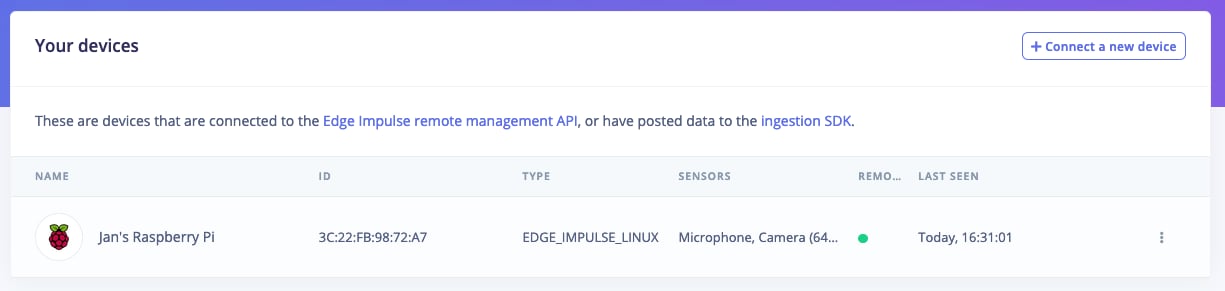
This command connects your Raspberry Pi to Edge Impulse Studio. It will prompt you to log in and select a project. Once authenticated, your Raspberry Pi will appear in the Edge Impulse Studio under Devices. To verify this, go to your Edge Impulse project, and click Devices. The device will be listed here.
Device connected to Edge Impulse.
You can now sample raw data, build models, and deploy trained machine learning models directly from the Studio. Please let us know if you have any questions or need further assistance: forum.edgeimpulse.com.If you want to switch projects run the command with --clean.
Looking to connect different sensors? Our Linux SDK lets you easily send data from any sensor and any programming language (with examples in Node.js, Python, Go and C++) into Edge Impulse.
To run your impulse locally, just connect to your Raspberry Pi again, and run:
edge-impulse-linux-runner
This will automatically compile your model with full hardware acceleration, download the model to your Raspberry Pi, and then start classifying. Our Linux SDK has examples on how to integrate the model with your favourite programming language.
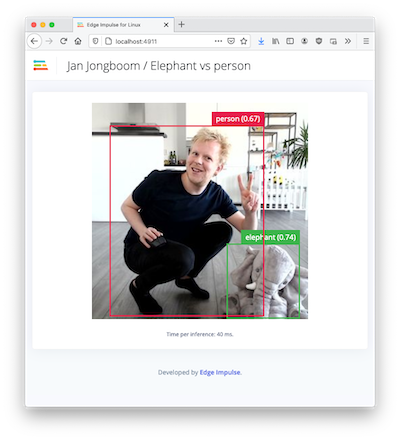
If you have an image model then you can get a peek of what your device sees by being on the same network as your device, and finding the ‘Want to see a feed of the camera and live classification in your browser’ message in the console. Open the URL in a browser and both the camera feed and the classification are shown:
If you see the following error when trying to deploy a .eim model to your Raspberry Pi:
Failed to run impulse Error: Unsupported architecture “aarch64”
It likely means you are attempting to deploy a .eim Edge Impulse model file to a 32-bit operating system running on a 64-bit CPU. To check your hardware architecture and OS in Linux, please run the following commands:
It means that you are running a 32-bit OS on a 64-bit CPU. To run .eim models on aarch64 CPUs, you must use a 64-bit operating system. Please download and install the 64-bit version of Raspberry Pi OS if you see aarch64 when you run uname -m.
When using RPi OS Bookworm and RPi camera module you need to install gstreamer1.0-libcamera package first. However once gstreamer1.0-libcamera is installed it hides v4l2deviceproviders, as a result it hides webcam.To resolve this issue, you need to install the gstreamer1.0-libcamera package and use the latest edge-impulse-linux >=v1.9.2 to fix this issue.