

Edge Impulse public project: https://studio.edgeimpulse.com/public/953867/live
GitHub repository: https://github.com/SamuelAlexander/face-following-robot-uno-q
Demonstration video: https://youtu.be/TYtrBvlE7Mc

Introduction
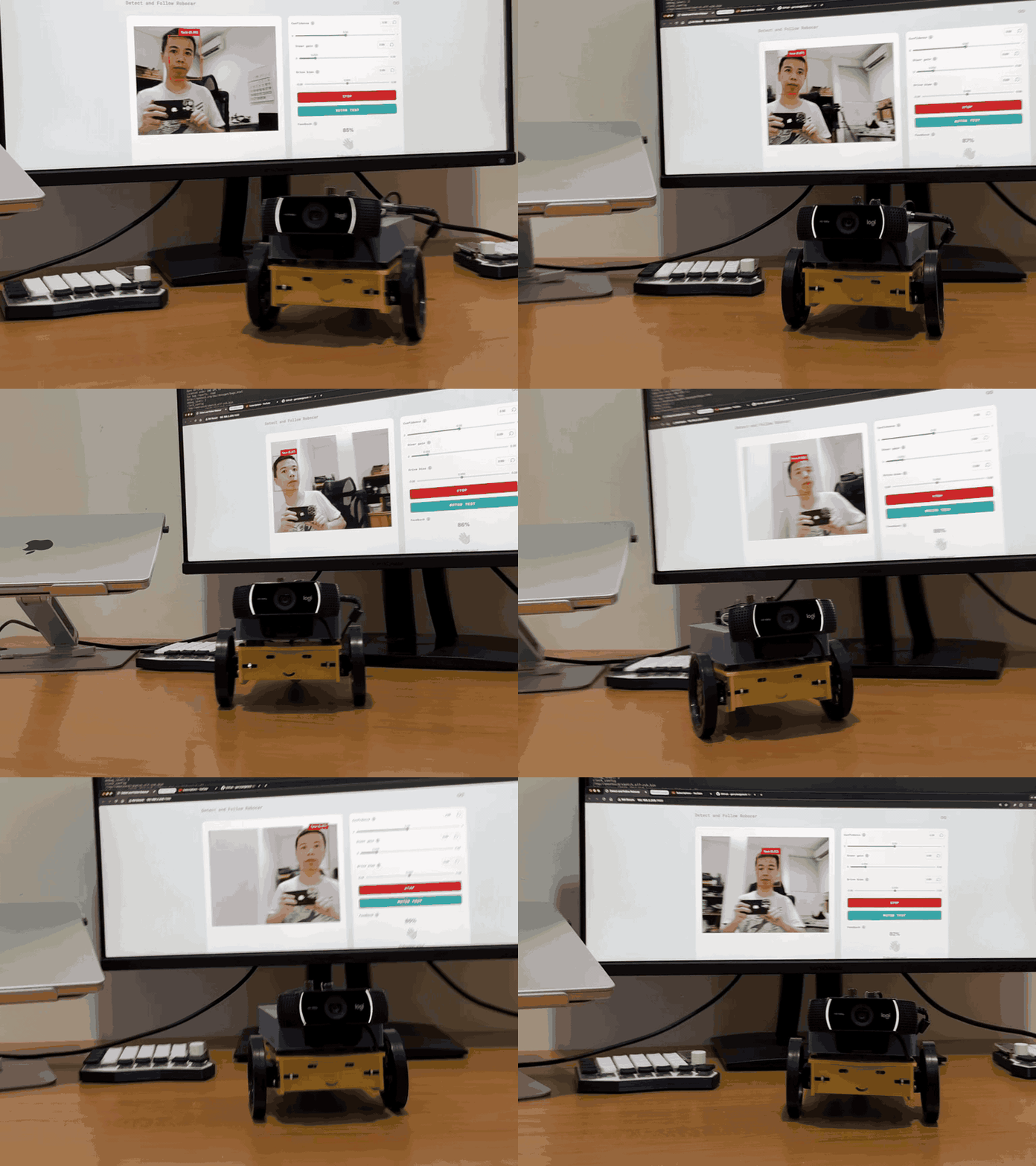
This project combines computer vision and robotics on a single board. A camera captures video, a lightweight face-detection model (powered by Edge Impulse) locates the face, and a proportional controller converts that position into differential wheel commands, all at ~10-15 FPS. The UNO Q’s split architecture makes this possible:- MPU (Qualcomm, Linux) —> runs the ML model and control logic in Python
- MCU (STM32, Zephyr RTOS) —> drives servo PWM with real-time precision
What you’ll learn
- How the UNO Q’s MPU/MCU split architecture works
- Using App Lab bricks (pre-built middleware) for AI and web interfaces
- Bridge RPC communication between Python and an Arduino sketch
- Proportional steering control for differential-drive robots
- Live parameter tuning through a Socket.IO web dashboard
Prerequisites
Hardware
Software
- Arduino App Lab v0.6 or later (runs in-browser, no local install needed)
- A computer on the same network as the UNO Q
- Edge Impulse Studio account
Source code
The full project source is available at: https://github.com/SamuelAlexander/face-following-robot-uno-qArchitecture overview
The system has three layers: Why split MPU and MCU? ML inference is computationally heavy and non-deterministic, it belongs on a Linux processor. Servo PWM timing is safety-critical and must be jitter-free, it belongs on a real-time microcontroller. Bridge RPC connects the two with ~8 ms round-trip latency.Hardware assembly
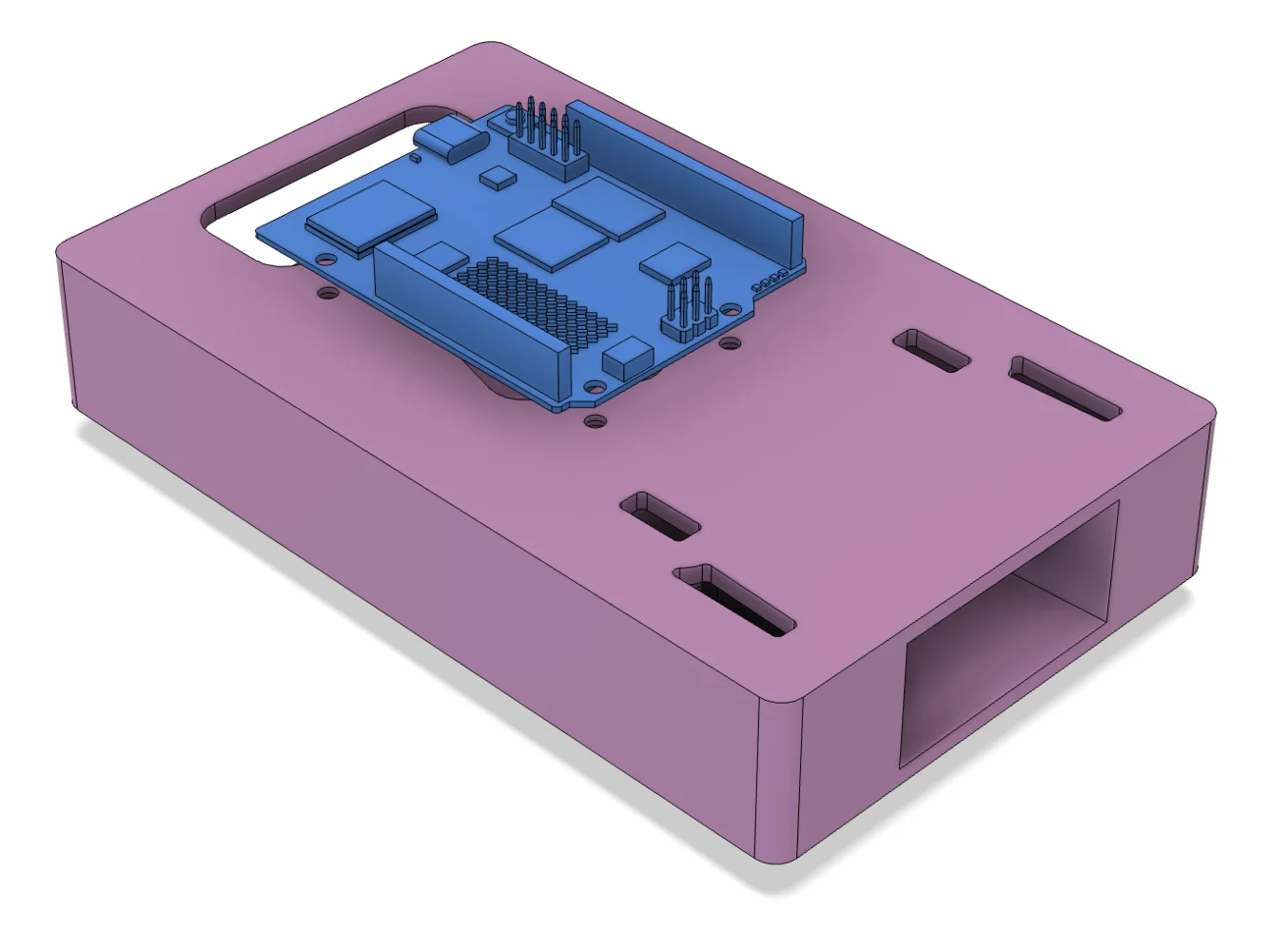
Chassis overview
The robot uses a simple differential-drive layout:- Two continuous-rotation servos mounted on opposite sides
- A rear caster or skid point for stability
- A top-mounted platform for the UNO Q and camera
- The USB power bank sits on or below the platform as ballast

Wiring
Place a 100 uF capacitor across the servo power and ground rails to absorb current spikes.
Connect the webcam to the USB-A port on the USB-C splitter. The USB-C side powers the UNO Q.
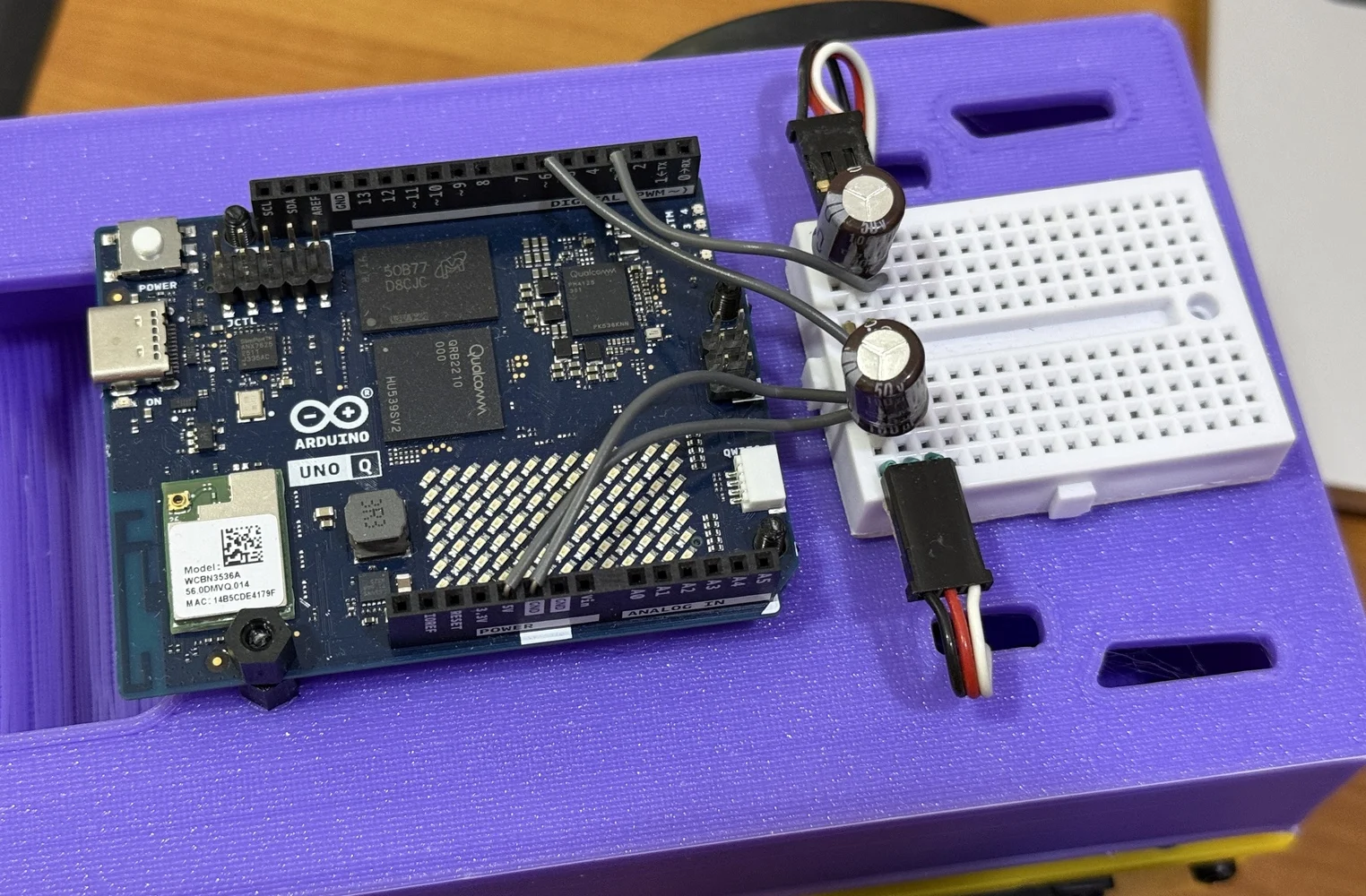
Note: The right servo is mounted mirrored relative to the left. The firmware handles this with a pulse inversion flag, no crossed wires needed.
Project setup in App Lab
File structure
Every App Lab project follows this layout:Configuring bricks
Bricks are pre-built middleware packages that run on the MPU. They provide high-level capabilities without writing boilerplate. This project uses two: Inapp.yaml:
video_object_detection, captures camera frames, runs the face-detection model, and delivers results to your Python code via callbacksweb_ui, serves the HTML/JS dashboard and provides a Socket.IO server for real-time communication
model: face-detection line selects a built-in lightweight face-detection model. No training or Edge Impulse account needed.
Sketch dependencies
Insketch/sketch.yaml, the key libraries are Arduino_RouterBridge (Bridge RPC) and Servo (PWM output):
The MCU sketch: Servo control
The MCU firmware is intentionally minimal, it receives pulse-width commands over Bridge RPC and writes them to the PWM hardware. All decision-making lives on the MPU.Bridge RPC endpoint
The sketch exposes a single function that the MPU can call. It uses the Arduino Servo library for reliable pin-level PWM output:- Arduino Servo library handles PWM output via
attach(pin)andwriteMicroseconds(). This is more portable than the low-level Zephyr PWM API (pwm_set_dt), which depends on devicetree index mappings that can vary between board revisions. Bridge.provide_safe()registers the function so it runs in the Arduinoloop()context, safe for hardware operations like PWM writes. Never useBridge.provide()for GPIO/servo/motor calls, as that runs in a background RPC thread where hardware APIs can fail.- Pulse inversion handles the mirrored right servo:
inverted = 3000 - pulse. This mirrors the pulse around the 1500 us stop point, so the same “forward” command from Python moves both wheels in the same physical direction. - Empty
loop()is correct, the Bridge library hooks into the loop internally to dispatch queuedprovide_safecallbacks.
Continuous-rotation servo basics
The closer to 1500, the slower the wheel turns. This project uses offsets up to ±125 us for responsive but desk-safe motion.
The MPU application: Detection to steering
The Python application on the MPU handles three responsibilities: receiving detections from the vision brick, computing steering commands, and communicating with both the MCU and the web UI.Brick initialization
VideoObjectDetection brick fires a callback every time it processes a frame. The on_detect_all variant fires for every frame, including ones with no detections, useful for keeping a watchdog timestamp fresh:
Detection format
The brick delivers detections as a dictionary, with each label mapped to a list of detection instances:confidence score and a bounding_box_xyxy tuple of (x_min, y_min, x_max, y_max) in pixel coordinates. The TARGET_CLASS constant must match the model’s label exactly, “face”` for the built-in face-detection model.
Important: The per-label value is always a list, even for a single detection. Code that expects a plain dict per label (without the list wrapper) will silently miss all detections.
Proportional steering controller
The controller converts the face’s horizontal position into differential wheel commands:STEER_CURVE = 0.4) makes the response more aggressive for small errors and softer near the frame edges, a simple alternative to PID that works well for this use case.
Coasting and lost target
When the face momentarily disappears (occlusion, blink, brief look-away), the controller coasts on the last-known position forTRACKING_TIMEOUT seconds (default 0.5s) before declaring the target lost. This avoids jittery stop-start behavior.
When the target is truly lost, the robot stops. An optional search mode (disabled by default) slowly rotates to scan for the face.
Bridge communication and rate limiting
The UNO Q Bridge has no internal queue, sending commands too fast crashes the serial link. The application rate-limits Bridge calls to a maximum of 20 Hz (50 ms intervals):Bridge.notify() is fire-and-forget (no response waited), which avoids blocking the inference loop. Bridge.call() would wait for a return value and slow down the control loop.
Safety note: The emergency stop bypasses rate limiting entirely to guarantee the MCU receives the stop command immediately.
Watchdog
A background thread checks whether detection callbacks have stopped arriving. If no callback fires for 1.5 seconds (indicating a camera or pipeline failure), the watchdog forces a stop command:The web UI
The dashboard runs in any browser on the same network and provides live monitoring and parameter tuning.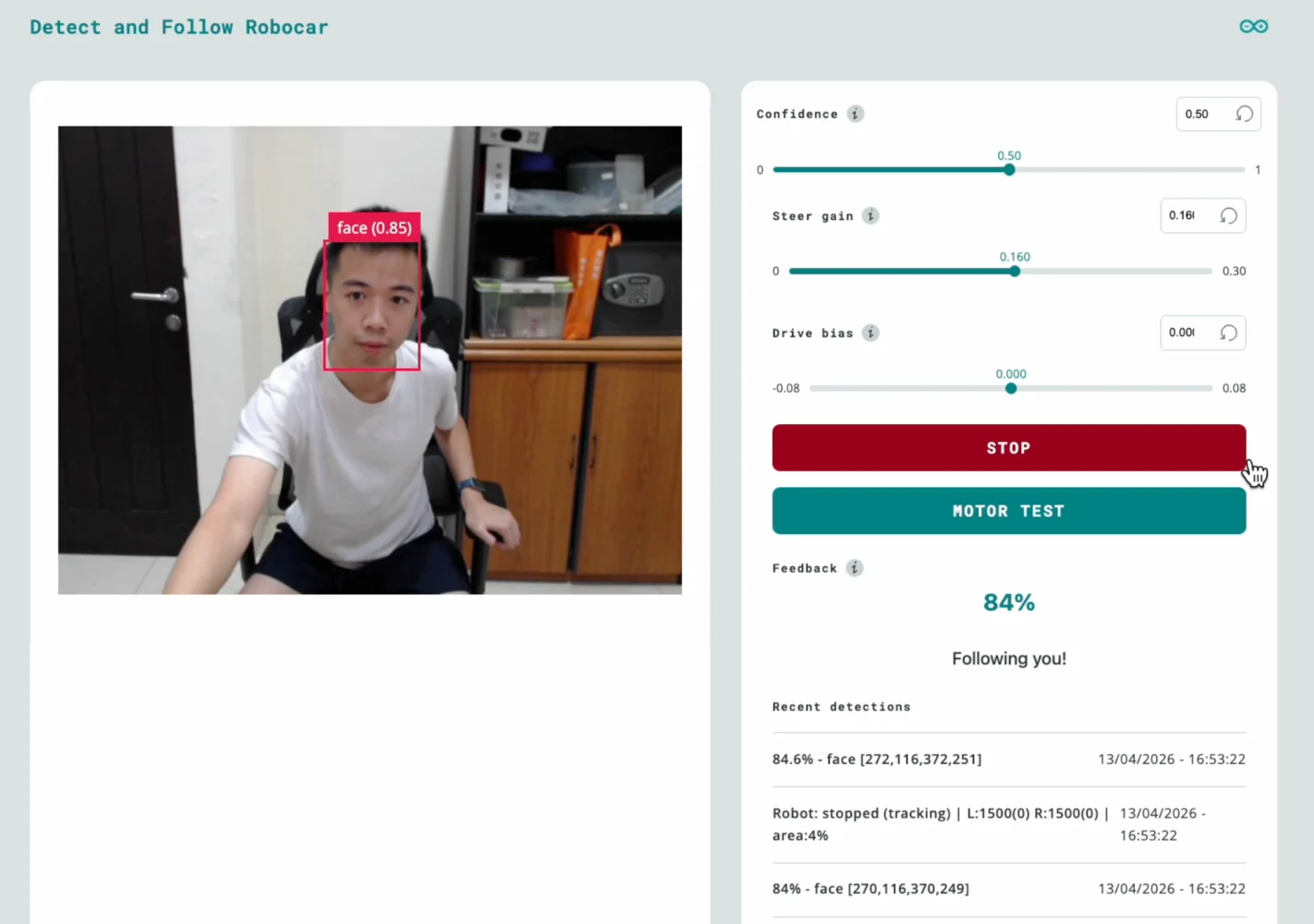
Features
All slider changes take effect immediately via Socket.IO, no restart required. This makes tuning fast: adjust a slider, observe the robot’s response, repeat.
Deploy and run
App Lab GUI
- Open Arduino App Lab in your browser
- Create a new app or import the project files
- Click Run, App Lab compiles the sketch, flashes the MCU, and starts the Python app
First boot checklist
- Check the log for the
sample_detectionsline, it prints the raw detection payload on the first frame. Verify:- The label is
"face"(matchesTARGET_CLASS) - The bounding box coordinates are reasonable for your camera resolution
- The label is
- Open the Web UI at
http://<UNO_Q_IP>:7000, you should see the video stream and detection events appearing in “Recent detections” - Verify servos, press the Motor Test button in the UI. Both wheels should turn left, pause, then turn right. If not, check wiring and servo power before proceeding to face tracking.
Tuning guide
Steering direction
If the robot turns away from your face instead of toward it, flip the steering sign inmain.py:
Frame width calibration
Check thesample_detections log output. If the max x coordinate in bounding_box_xyxy is significantly different from FRAME_WIDTH_FALLBACK (default 640), update the constant to match. A wrong value causes asymmetric or weak steering.
Gain tuning
Start with these defaults and use the Web UI sliders to adjust:
Workflow: Start with the robot on a desk. Increase
STEER_GAIN until the robot centers on your face smoothly. If it oscillates (overshoots left-right), reduce the gain. Once tuned, update the defaults in main.py so the robot starts with good values.