

- The current version is
0.5.0(March 2026), with major improvements such as deeper Edge Impulse integration. - The legacy version documented
version 0.1.23(early 2026 release).
Using the Arduino App Lab with Arduino UNO Q
Before you start, make sure your UNO Q setup is properly set up. You can connect it directly to your computer via USB using the latest version of Arduino App Lab, or use a USB hub with an HDMI monitor, keyboard, and mouse to enable WiFi and SSH access (SBC mode). If you’re using SBC mode, Arduino App Lab will launch automatically when the board starts. If it doesn’t appear, go to Applications (top-left corner) → Accessories → Arduino App Lab. When using Desktop or Network mode, simply ensure you have the latest version of the Arduino App Lab desktop application installed and it will automatically keep your board updated.Deploying Object detection application
If you have connected a USB webcam to your UNO Q, you can test the example application calledDetect objects on Camera.
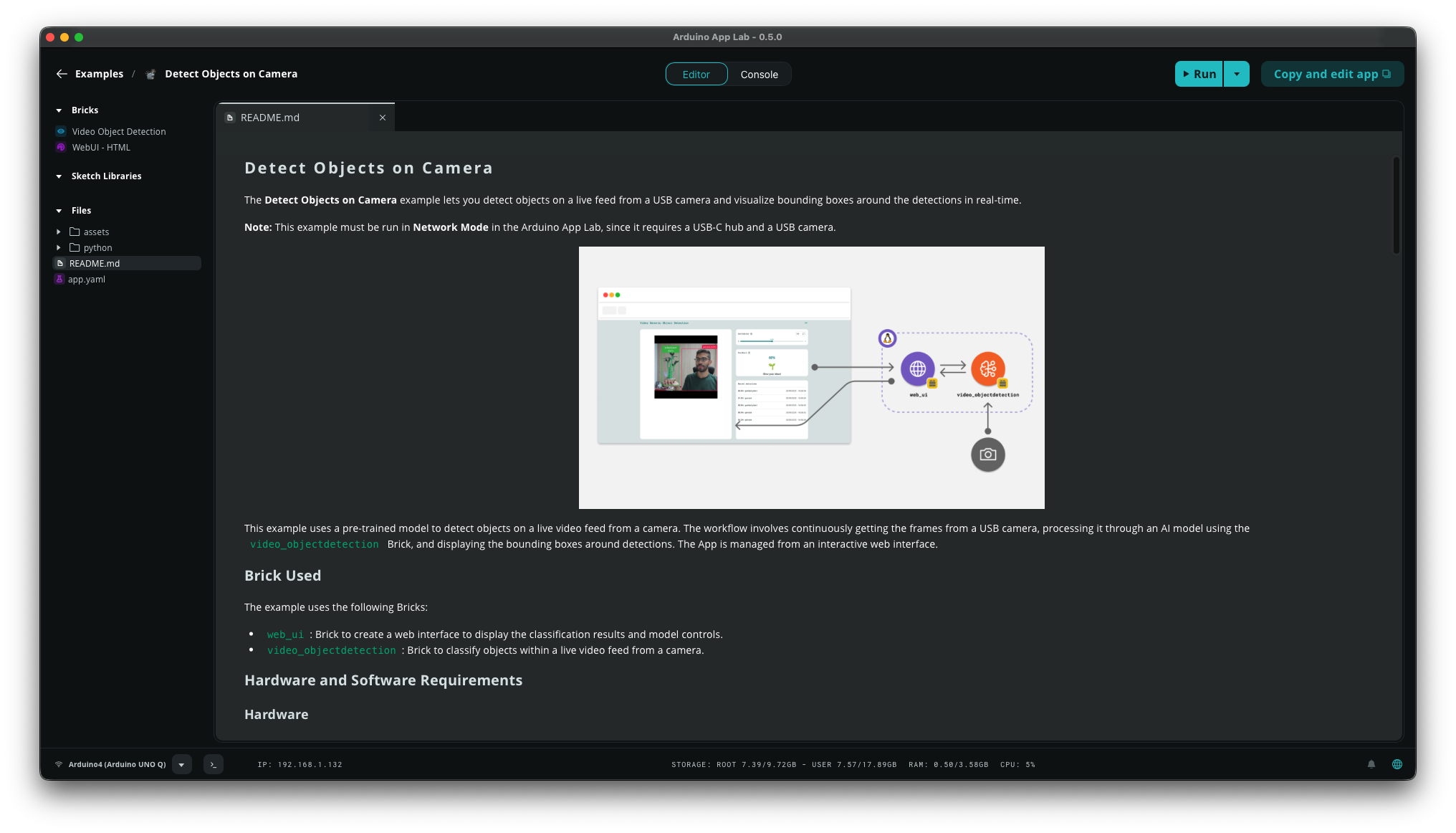
Detect Object on Camera application from Arduino App Lab version 0.5.0
Video Object Detectionfor real-time object detection using a pre-trained Edge Impulse model.WebUI - HTMLwhich hosts a simple web interface and provides APIs and Websockets for interaction.
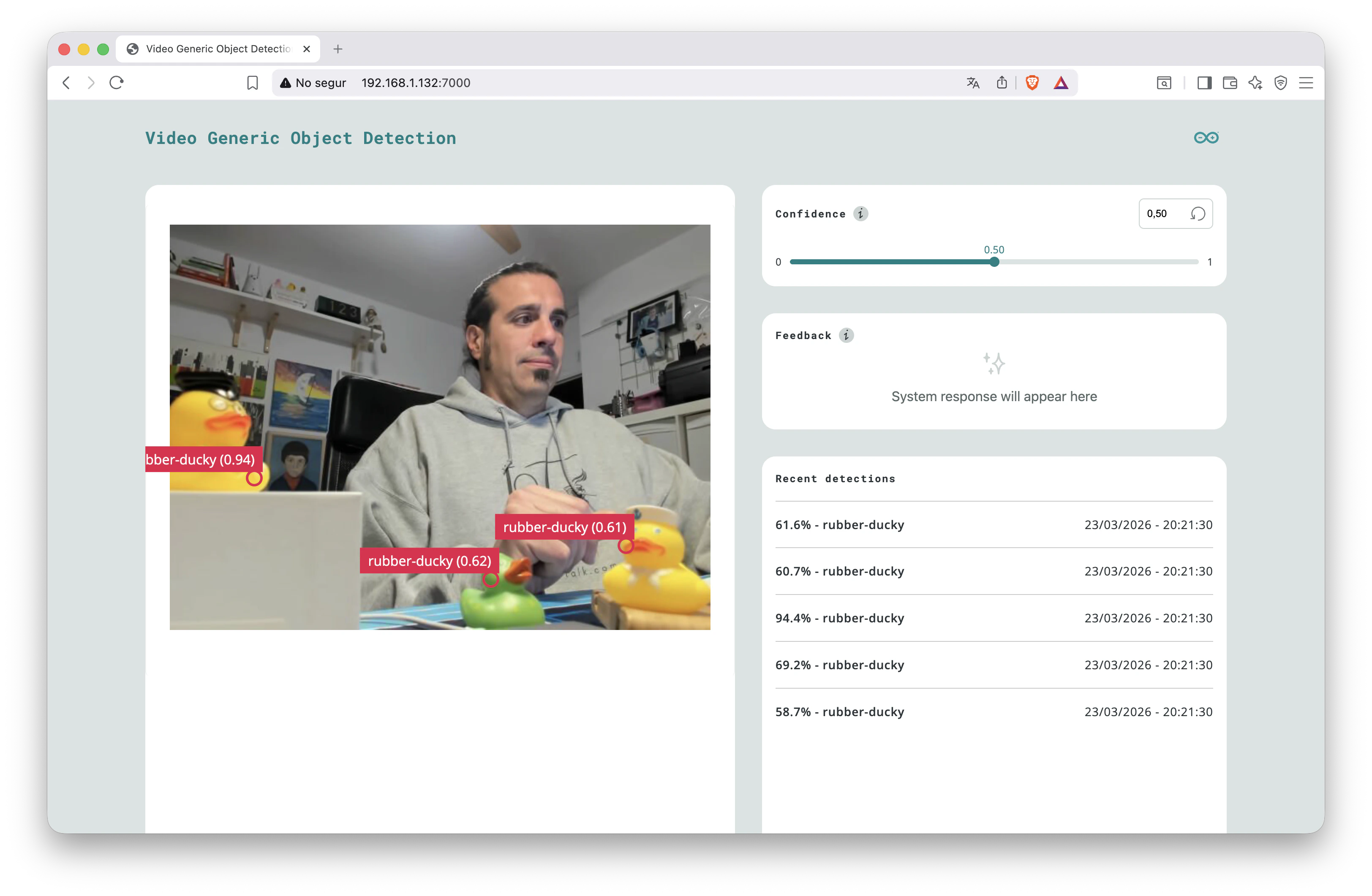
7000.
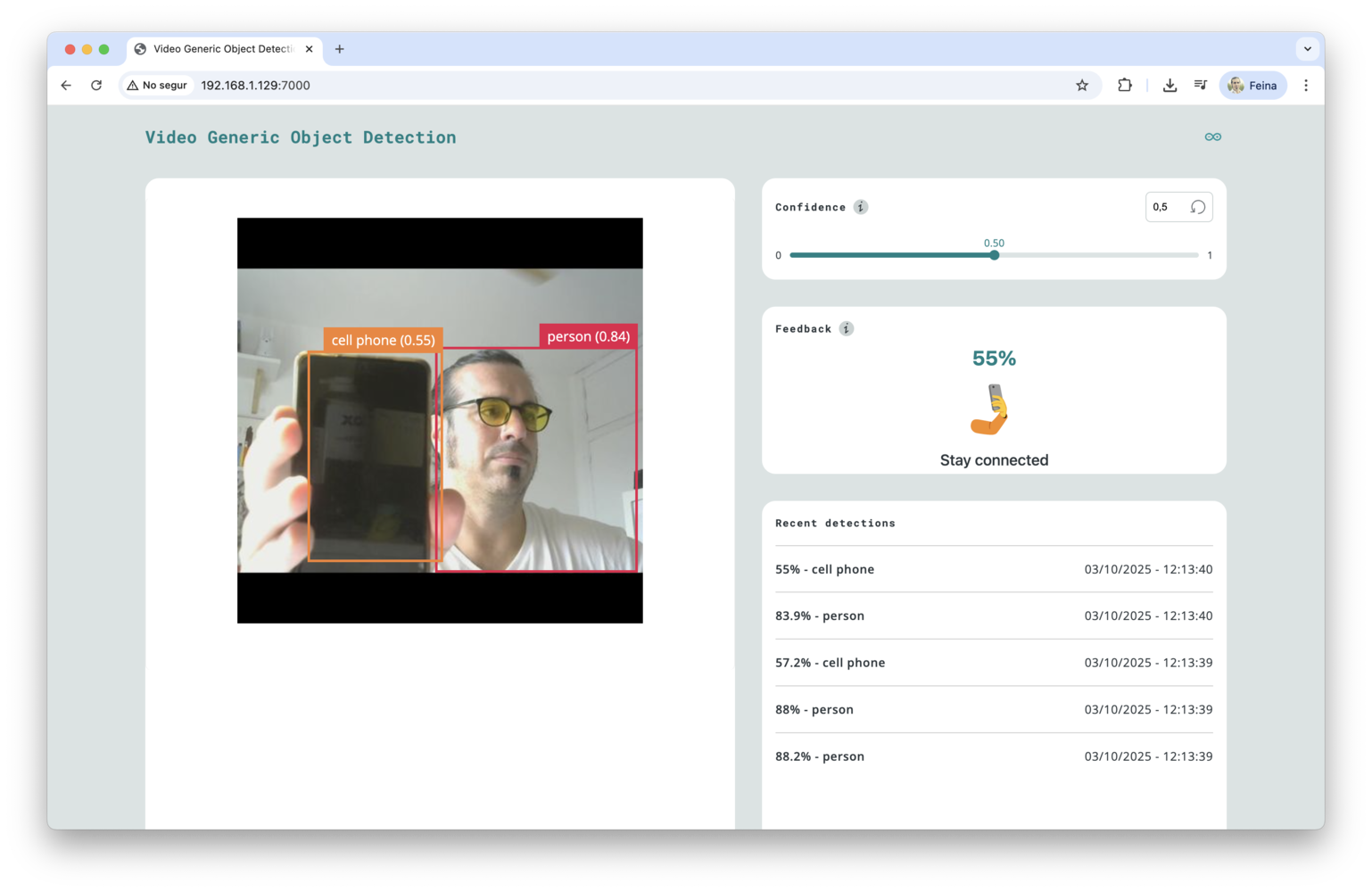
Testing the Video Generic Object Detection application after deploying the Detect Object on Camera application from Arduino App Lab into the UNO Q
Deploying a custom model
Now that you have tested the Arduino App Lab on your UNO Q, it’s time to create your own application using a model you have trained in your Edge Impulse account.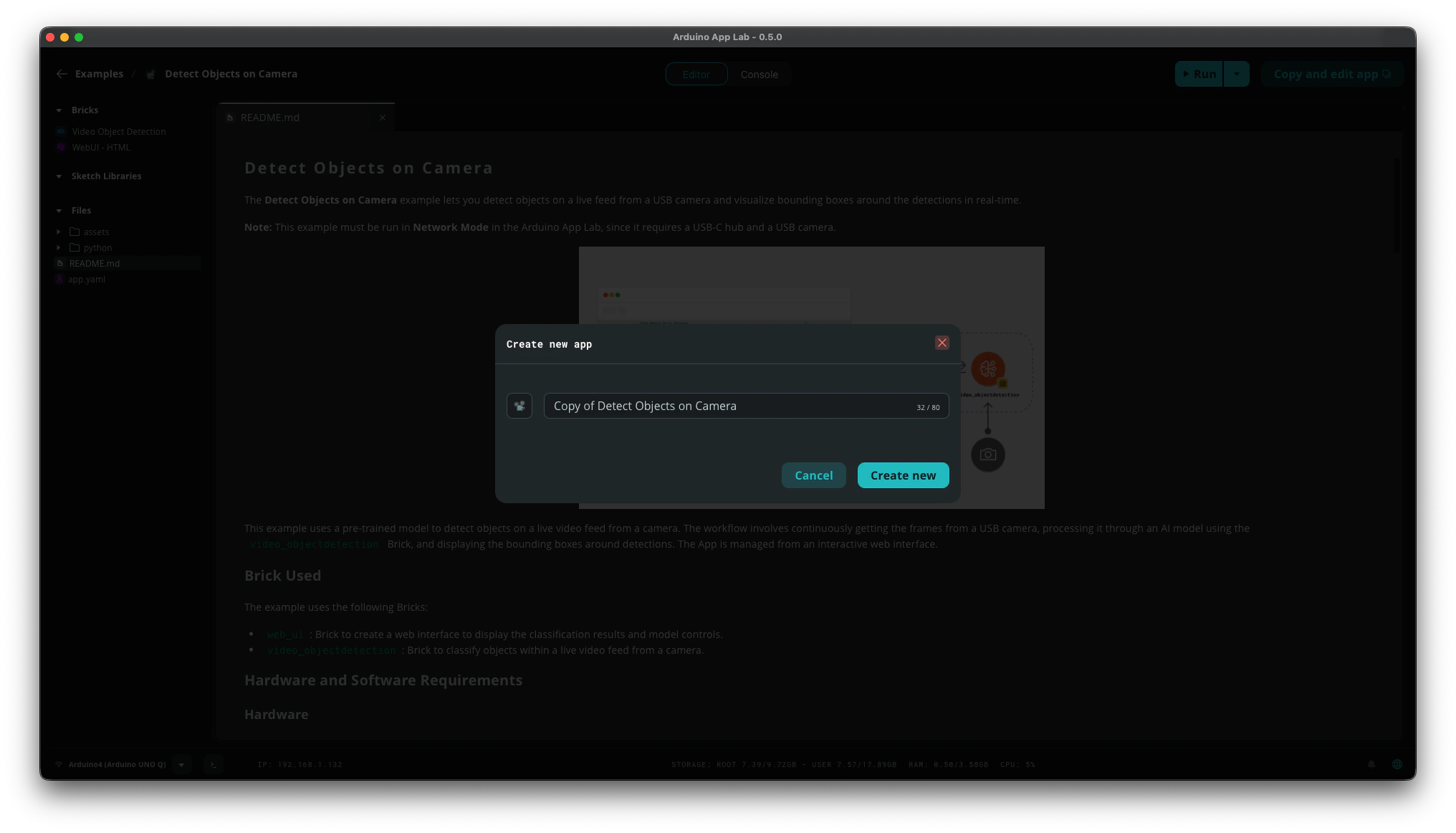
Copy and Edit the App on Arduino App Lab
Detect Objects on Camera example in Arduino App Lab and click the Copy and edit app button. Give a new name and click Create new. The copied app will appear in the My Apps section.
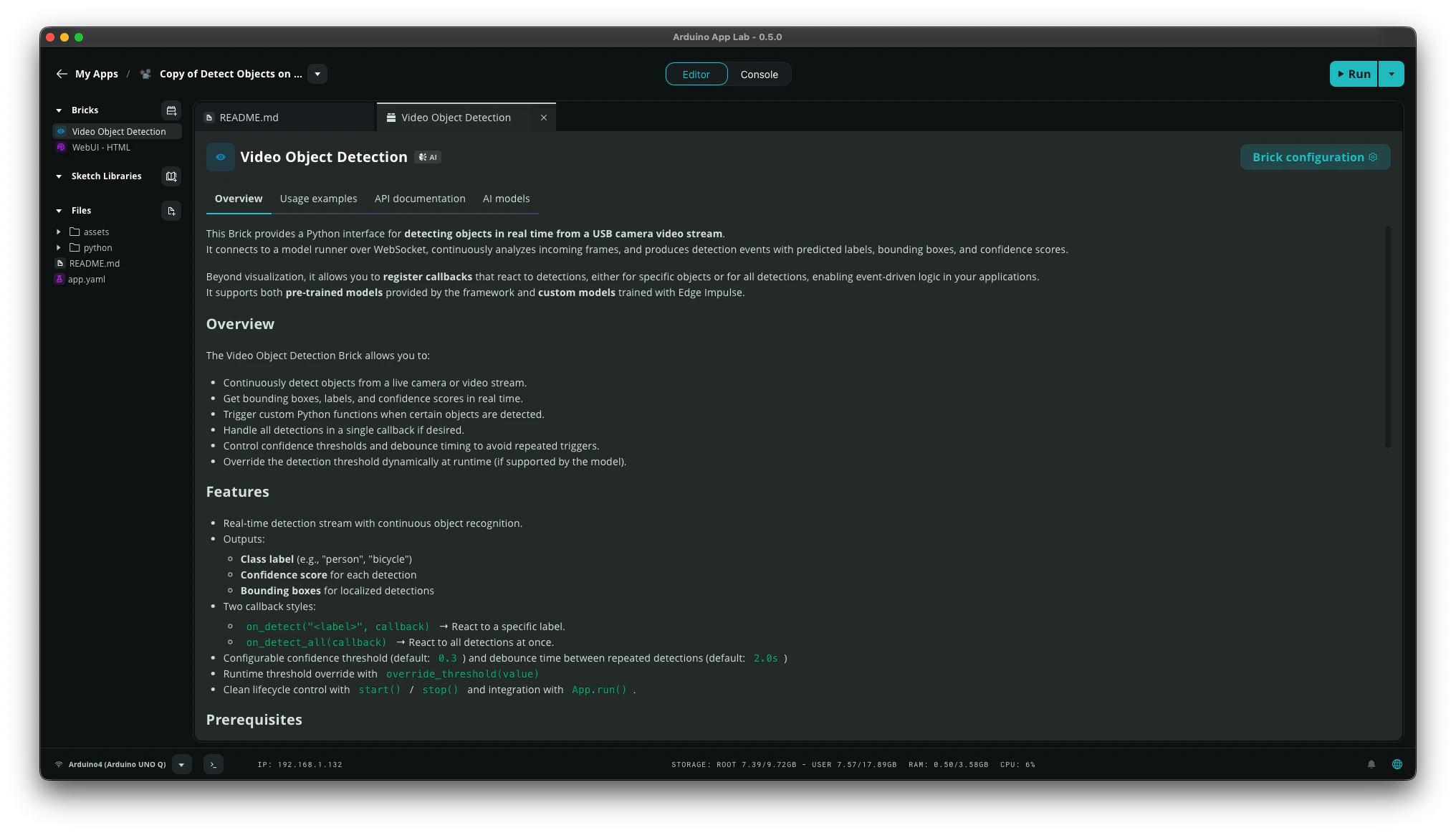
Copy and Edit the App on Arduino App Lab
Video Object Detection and WebUI - HTML as before. Click on the Video Object Detection brick and go to the AI models tab to view the available AI models for this brick.
If the model you want to use isn’t listed, click Train New AI model. Training your own models give you control over what the AI recognizes in your application.
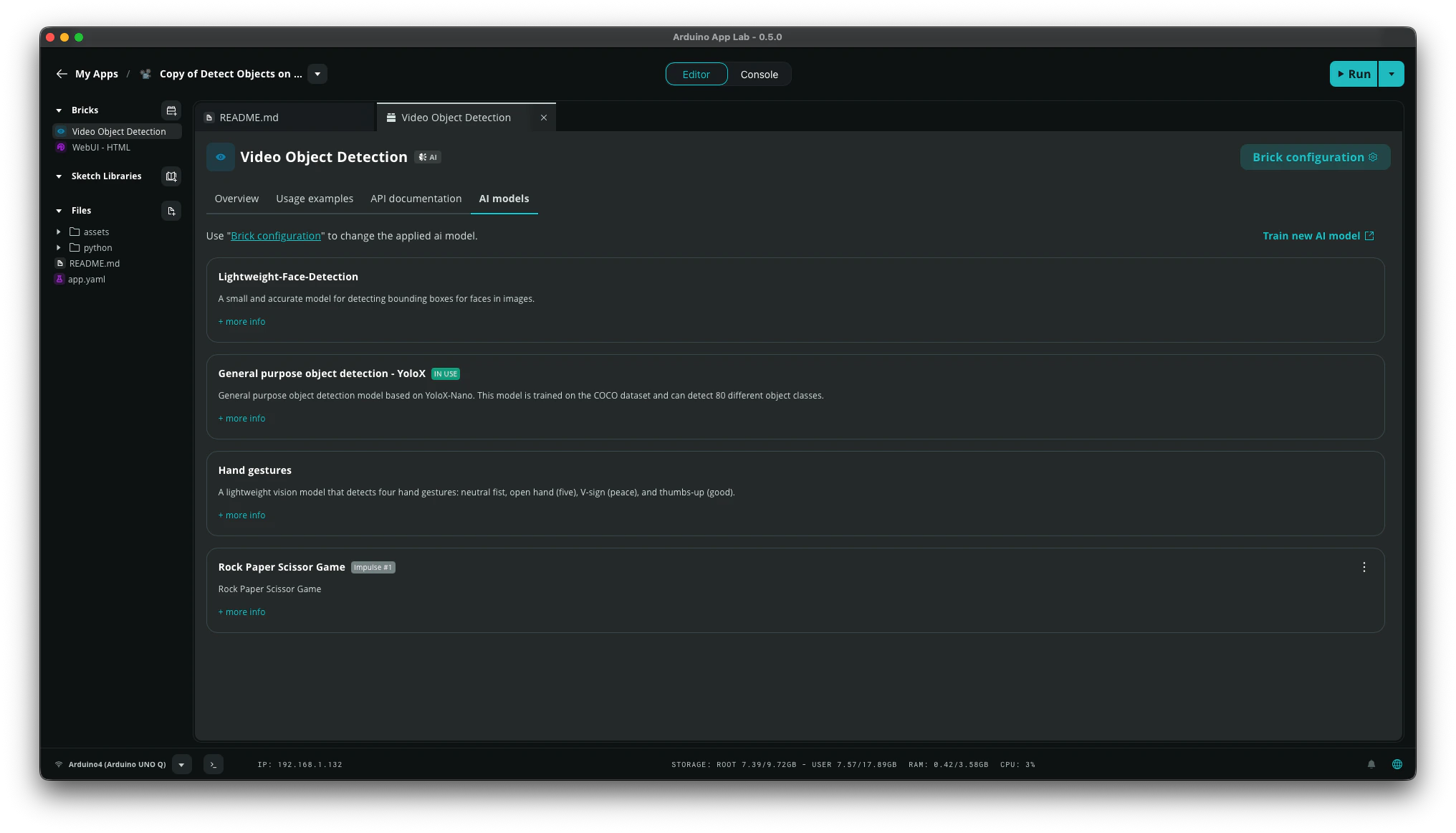
Train a new AI model with Edge Impulse for the Brick of you application
- Sound recognition
- Keyword spotting
- Image classification
- Motion recognition with anomaly detection (only for boards with built-in IMU sensor)
- Object detection with centroids (FOMO)
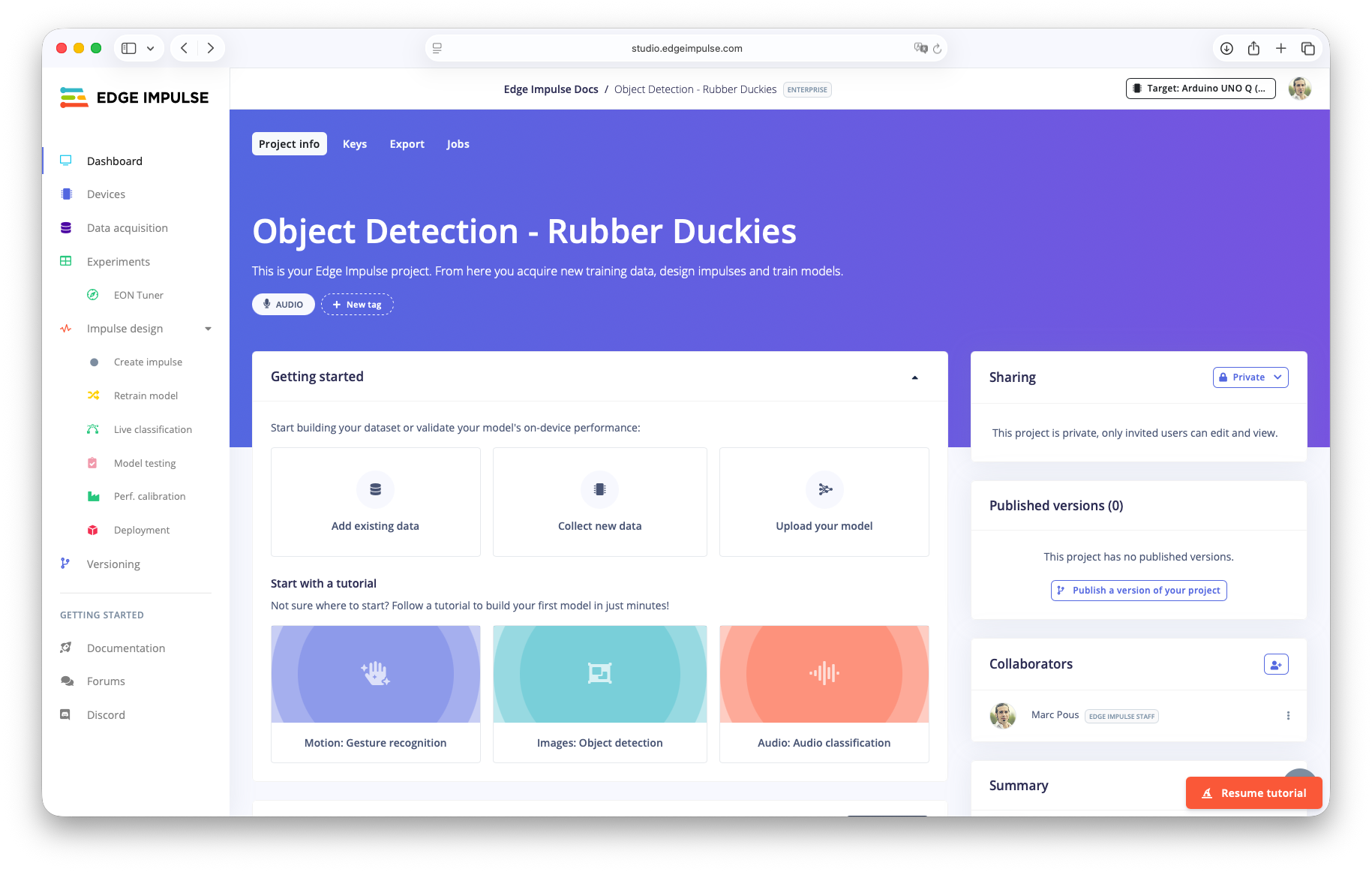
Edge Impulse project for Object Detection with Rubber Ducks
Train your model in Edge Impulse Studio
Follow the steps through the Edge Impulse Studio to train your own AI model with this initial dataset of Rubber Ducks. Feel free to add new images of Rubber Ducks and label them properly.- Open the cloned project and select UNO Q as your target hardware.
- In the menu, click
Create impulse. ChooseImageas the processing block andObject Detection (Images)as learning block. Then clickSave impulse. - Go to
Imageblock, clickSave parametersand thenGenerate features. - Go to
Object Detectionblock and train your neural network using FOMO (Faster Objects, More Objects) MobileNetV2 0.35 model. ClickSave & train. Once the training is complete, you will see the Confusion matrix and the on-device performance metrics. - Go to
Deployment, selectUNO Qas the Deployment target, and clickBuild. After the build finishes in theLatest buildsection clickGo to Arduino.
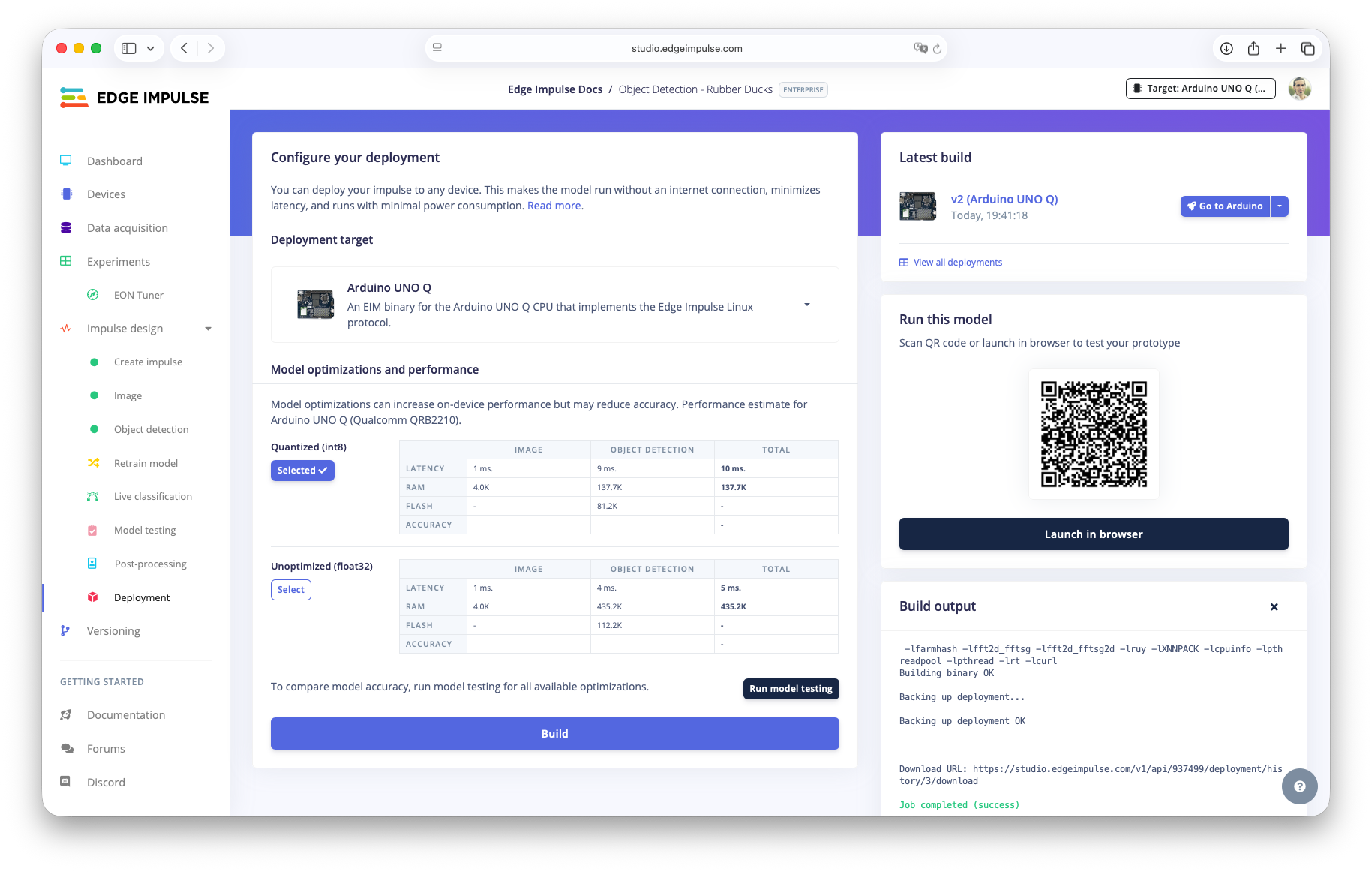
Deploy the Object Detection with Rubber Ducks for UNO Q
Download and select the new custom model
Return to Arduino App Lab. Your new model should now appear in the Brick’s AI models list. FindObject Detection - Rubber Ducks model, click Download and then once downloaded go to Brick Configuration.
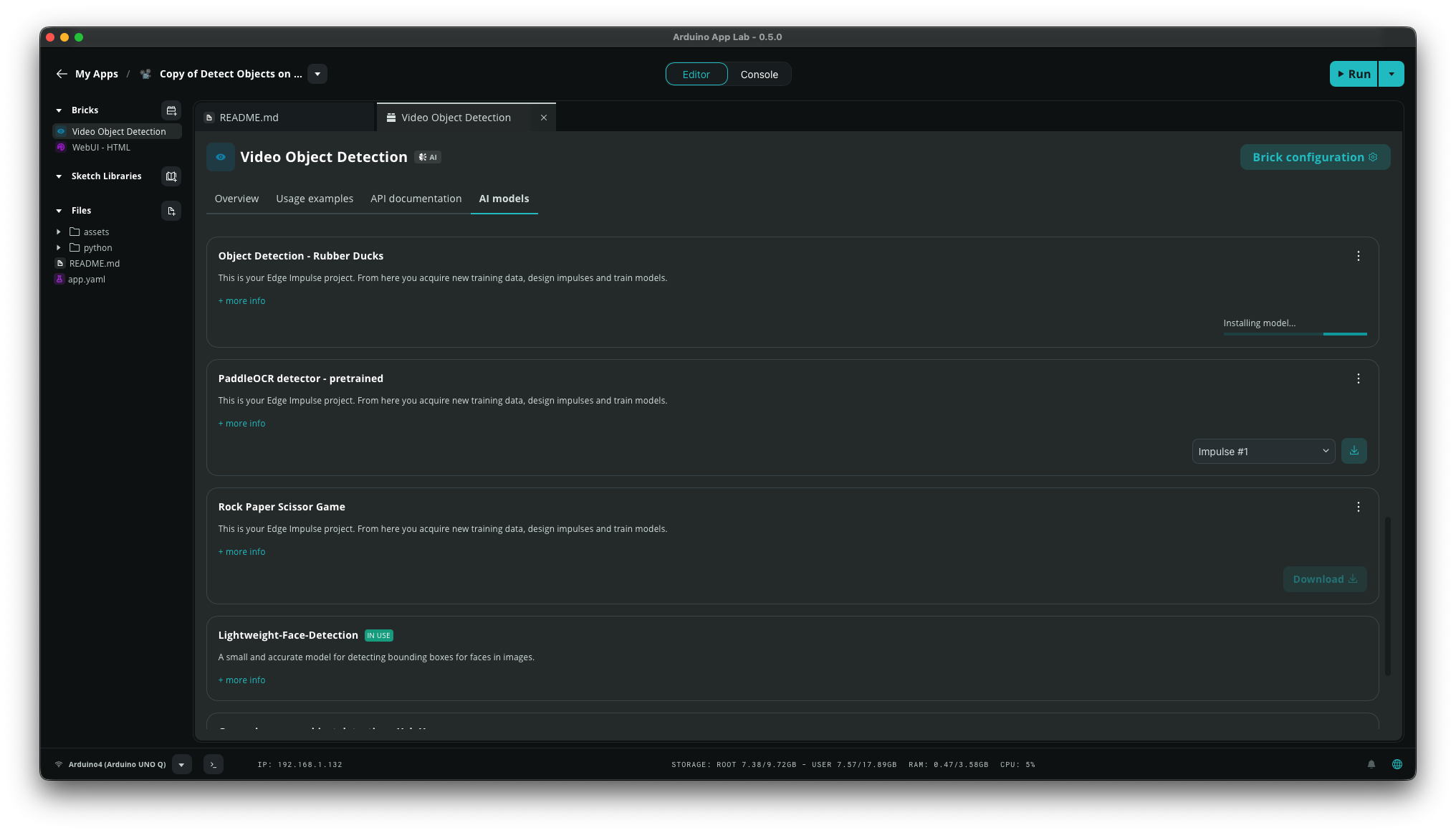
Download the Object Detection with Rubber Ducks to your UNO Q
Brick Configuration select your custom model and click Save.
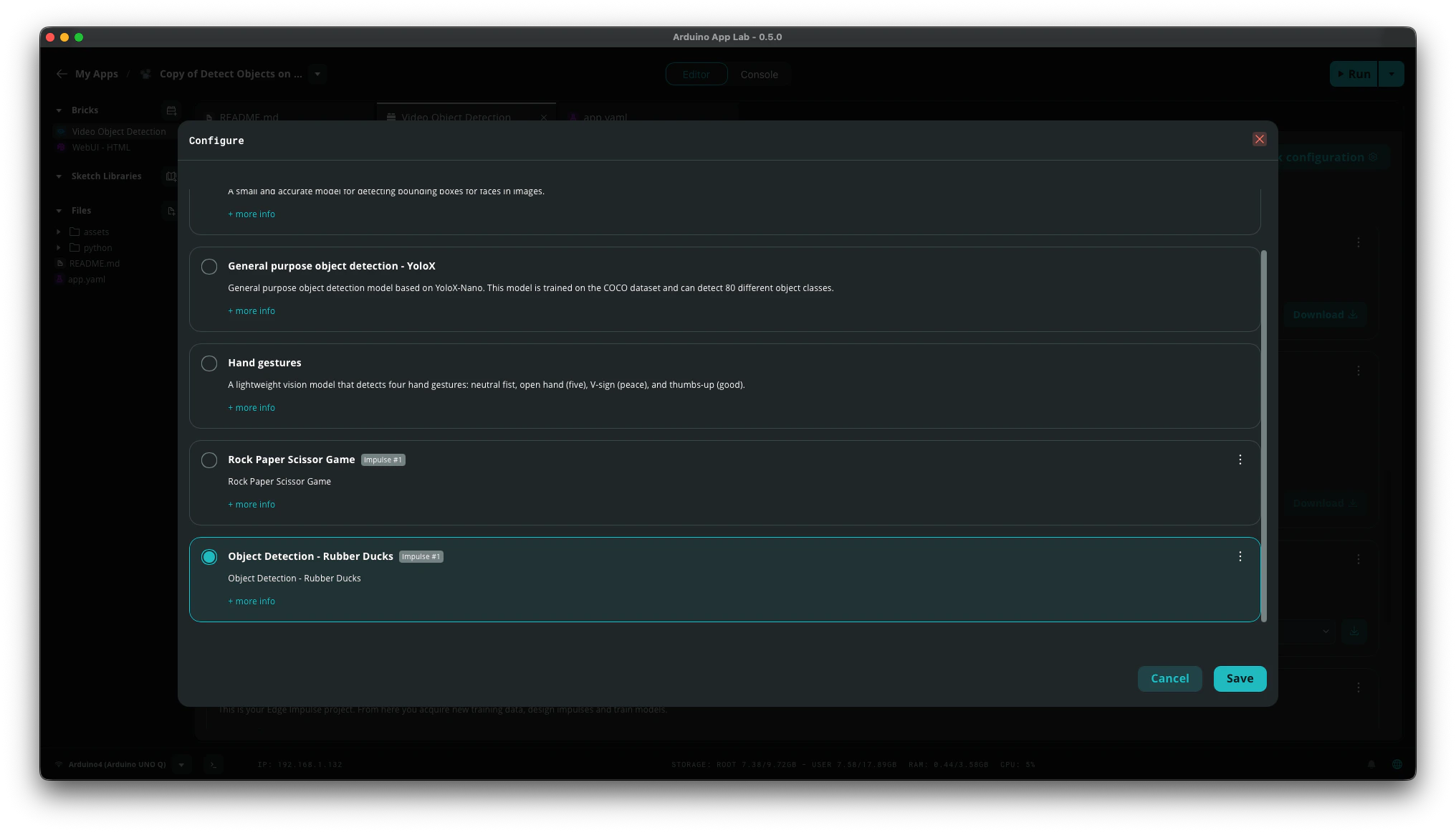
Select the Object Detection with Rubber Ducks model for your Brick
app.yaml file under the Video Object Detection brick definition.
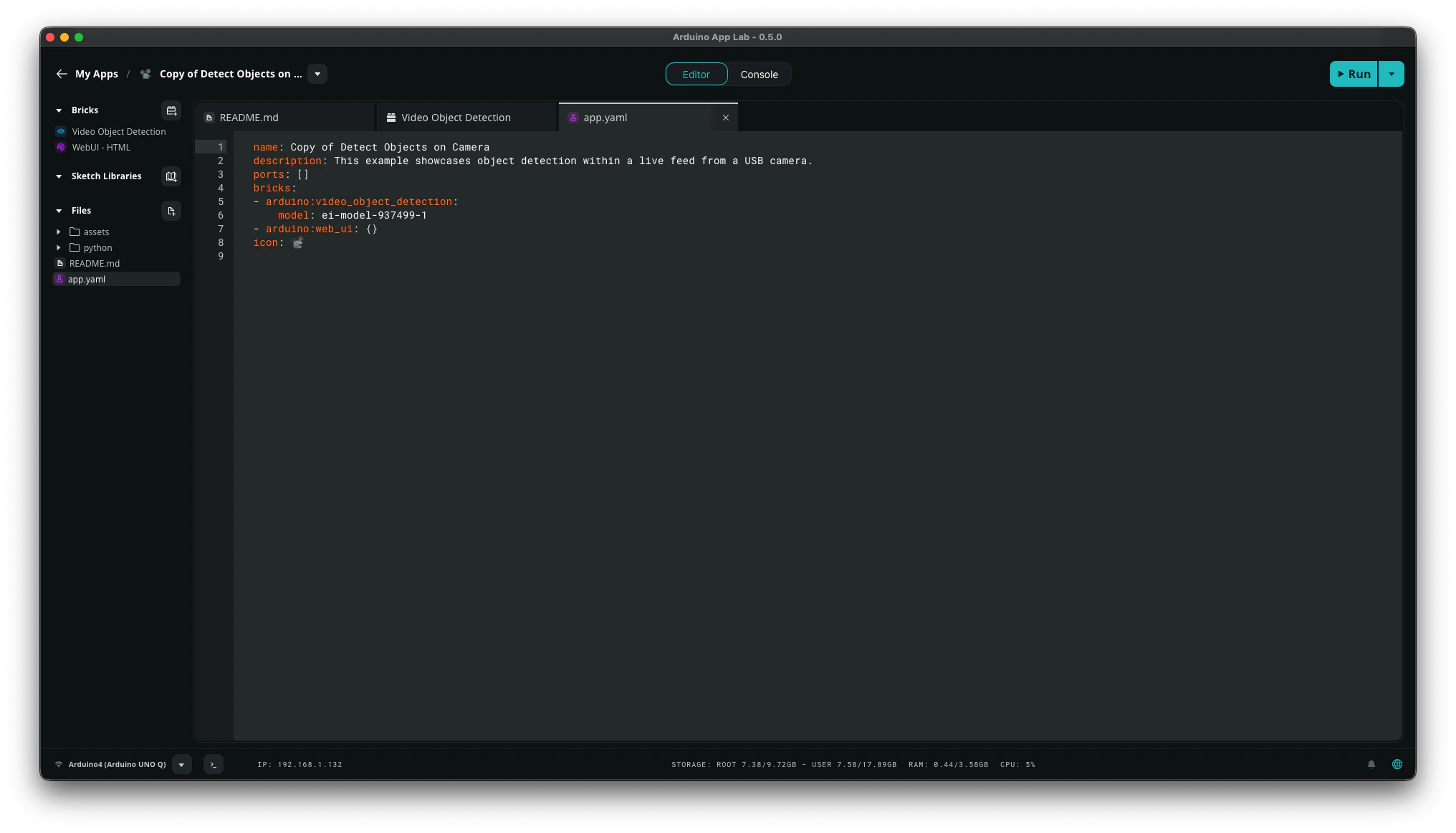
Your AI model appears on your app.yaml file
Your AI model appears on your app.yaml file
Legacy Guide (v0.1.23)
Linux aarch64 or Linux Arduino UNO Q (GPU). Then, import it on your UNO Q to run edge AI applications that use your custom model.
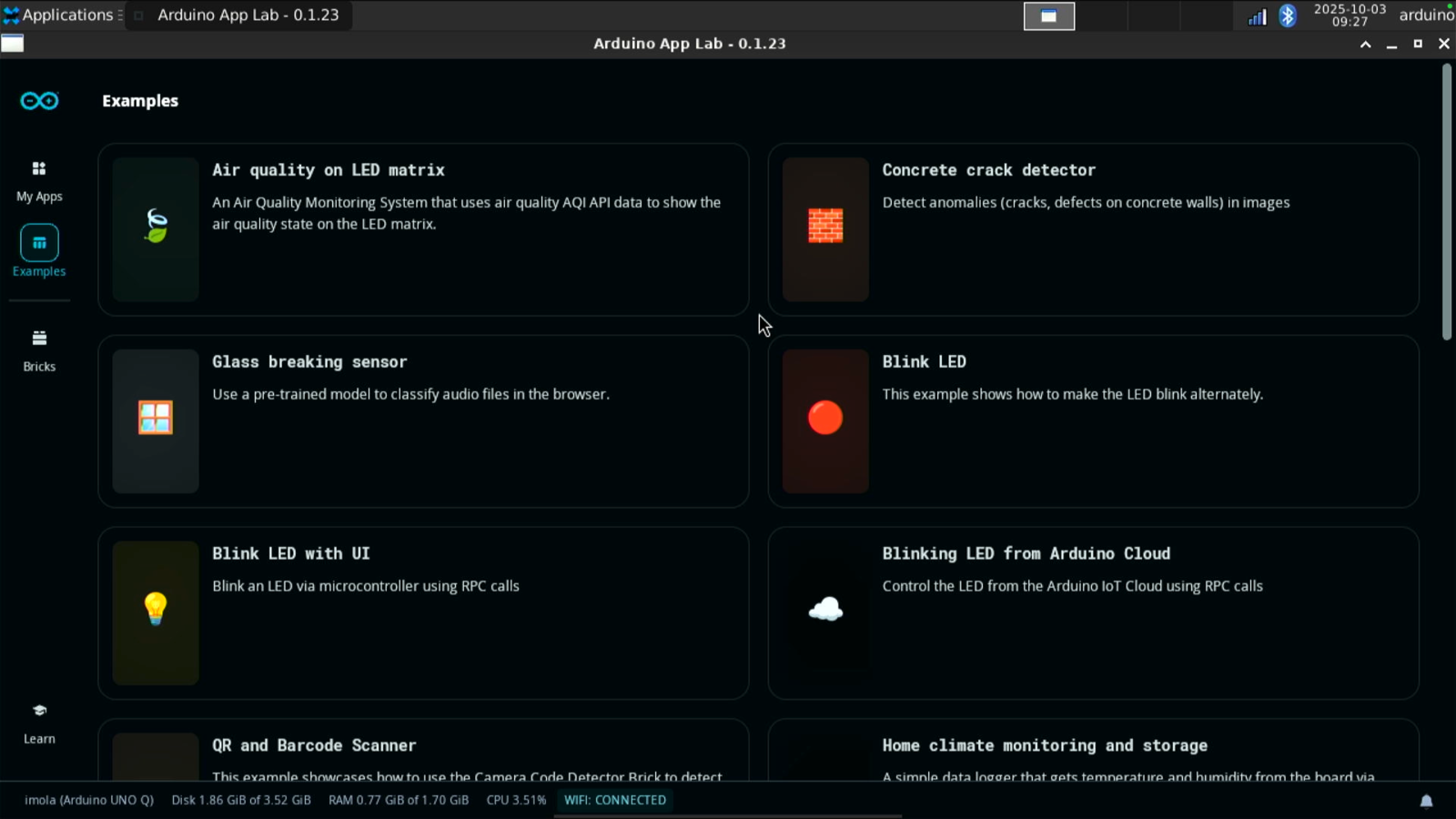
Arduino App Lab version 0.1.23
Prerequisites
Before you start, make sure you have completed the UNO Q setup using a monitor, keyboard, and mouse to enable WiFi and SSH access. Additionally, make sure you followed one of the following tutorials and have a trained impulse:- Sound recognition
- Keyword spotting
- Image classification
- Motion recognition with anomaly detection (only for boards with built-in IMU sensor)
- Object detection with centroids (FOMO)
Deploying an example application
The Arduino App Lab launches automatically when the UNO Q starts. If you don’t see it, go to Applications (top left corner), navigate to Accessories, and click on Arduino App Lab.Keyword spotting
First we are going to deploy theHey Arduino application in the Arduino App Lab examples onto the UNO Q.
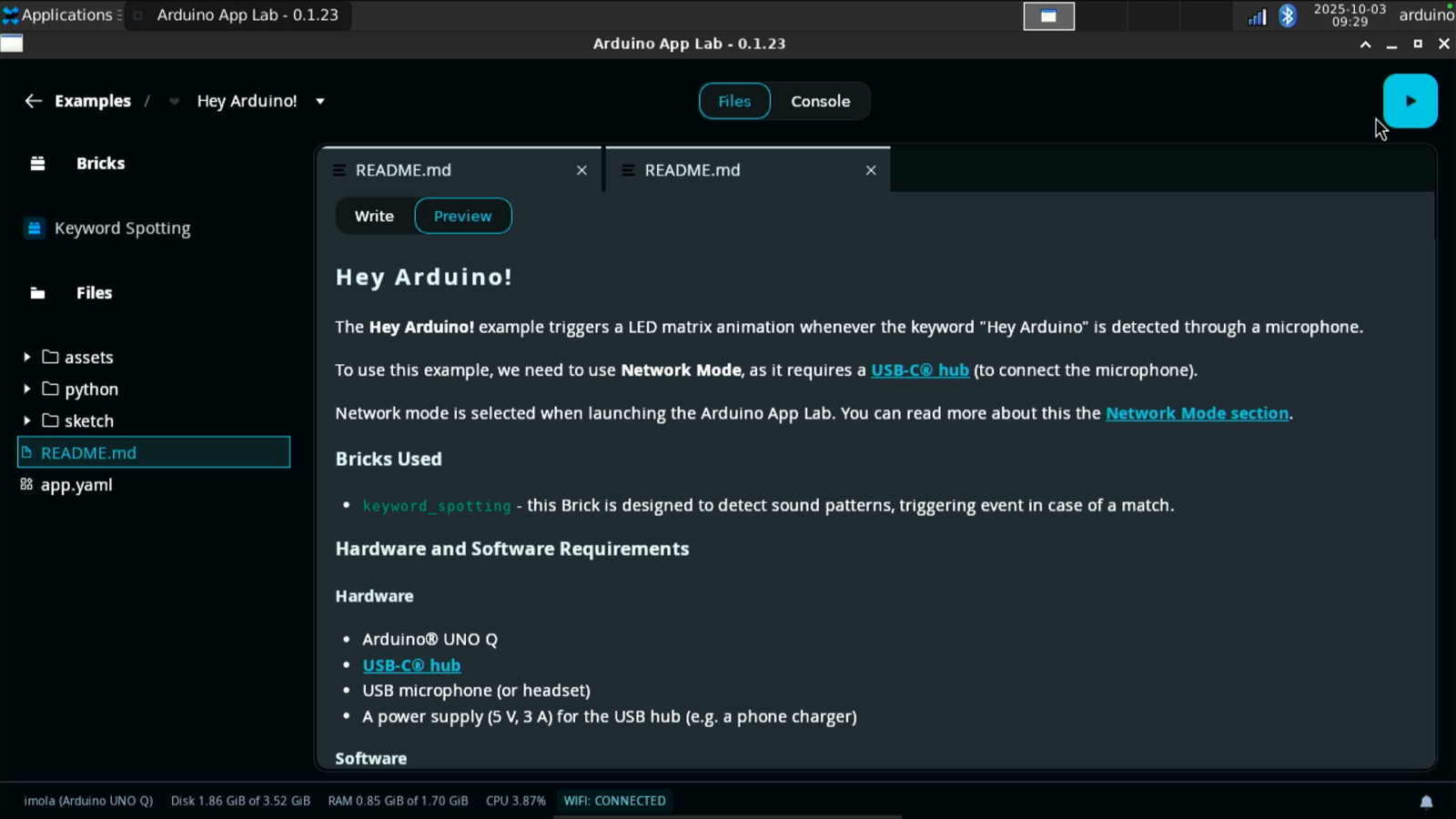
Hey Arduino keyword spotting application from Arduino App Lab version 0.1.23
Hey Arduino application is a keyword spotting application designed to trigger an LED matrix animation (a heart shape animation) when the phrase “Hey Arduino” is detected by the microphone.
This application is interesting as it takes advantage of both the CPU and the MCU available on the UNO Q. The CPU handles the keyword spotting, and the onboard microcontroller runs the Sketch to visualize the LED matrix animations once the keyword has been recognized.
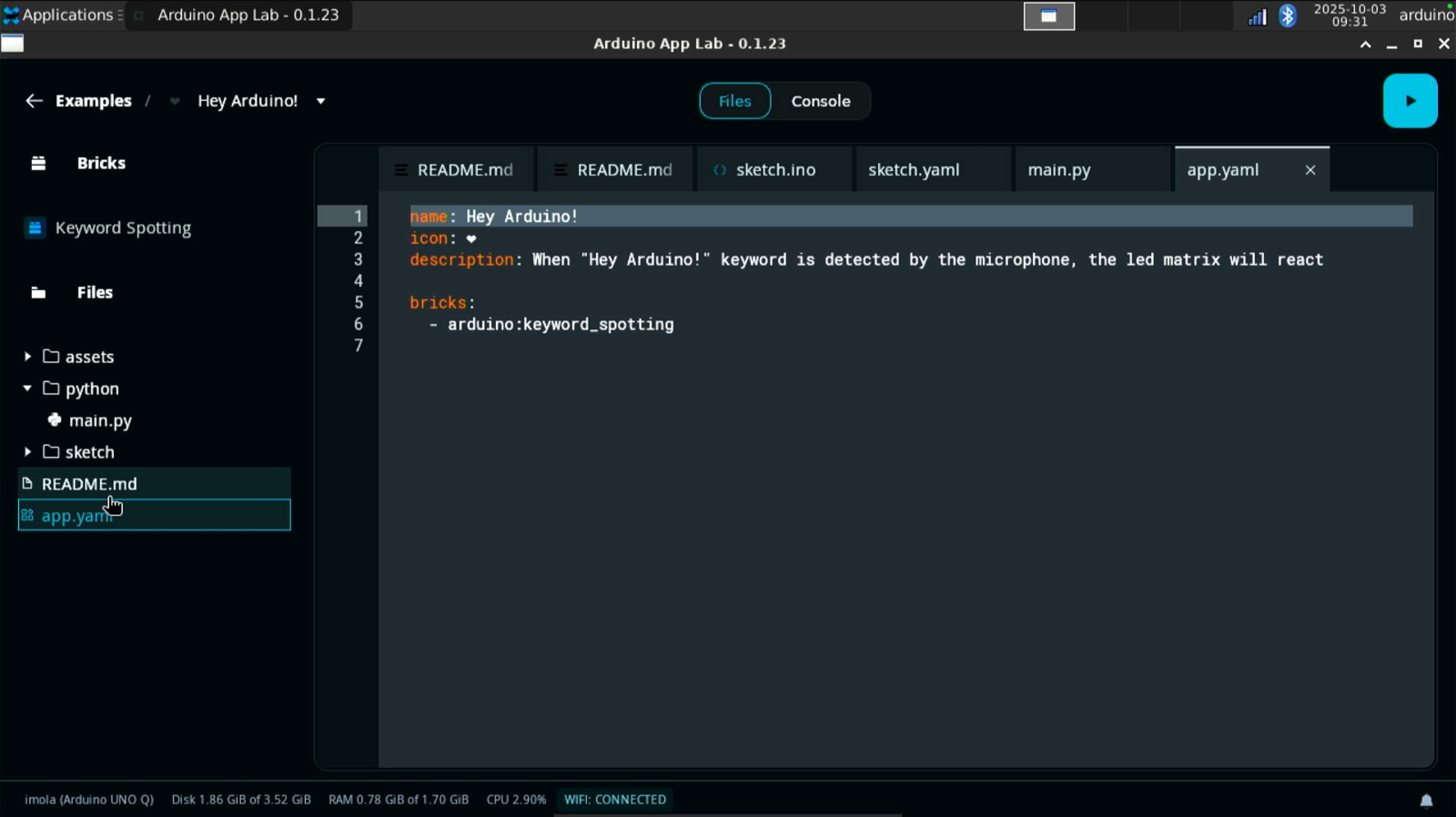
Hey Arduino app.yaml file from Arduino App Lab version 0.1.23
keyword_spotting brick. A brick is like a code package that provides a specific functionality that is needed to the application. In this case, it adds the ability to detect sound patterns through a USB microphone and trigger an event when a match occurs.
The keyword_spotting brick uses a pre-trained Edge Impulse audio classification model that identifies Hey Arduino. It continuously monitors the audio and when it detects the keyword it triggers the microcontroller using the Bridge tool to activate the LED animation.
To deploy the application on your UNO Q click the green button in the top right corner. The App Launch starts deploying the application locally.
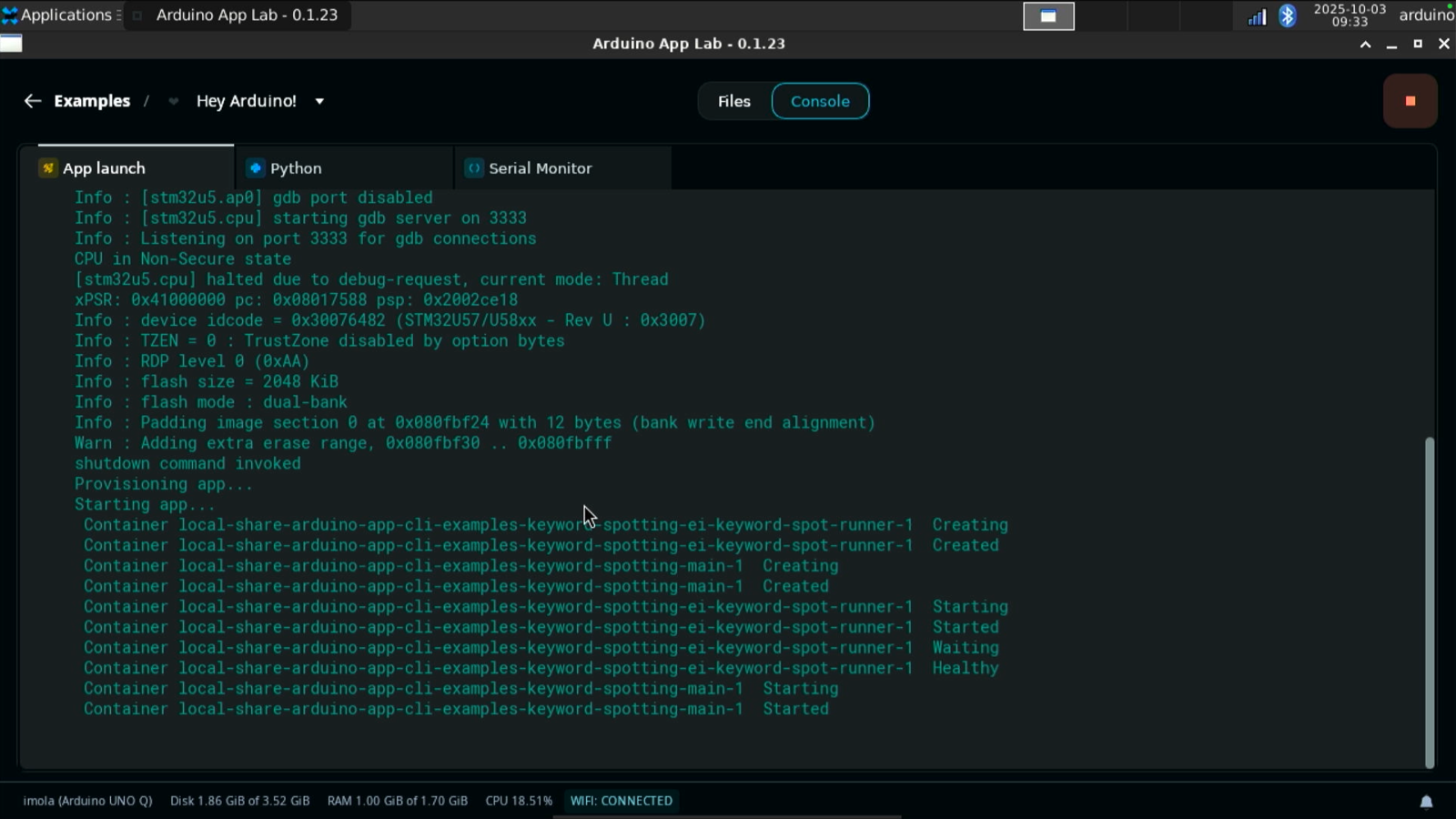
Hey Arduino application deploying to the UNO Q from the Arduino App Lab
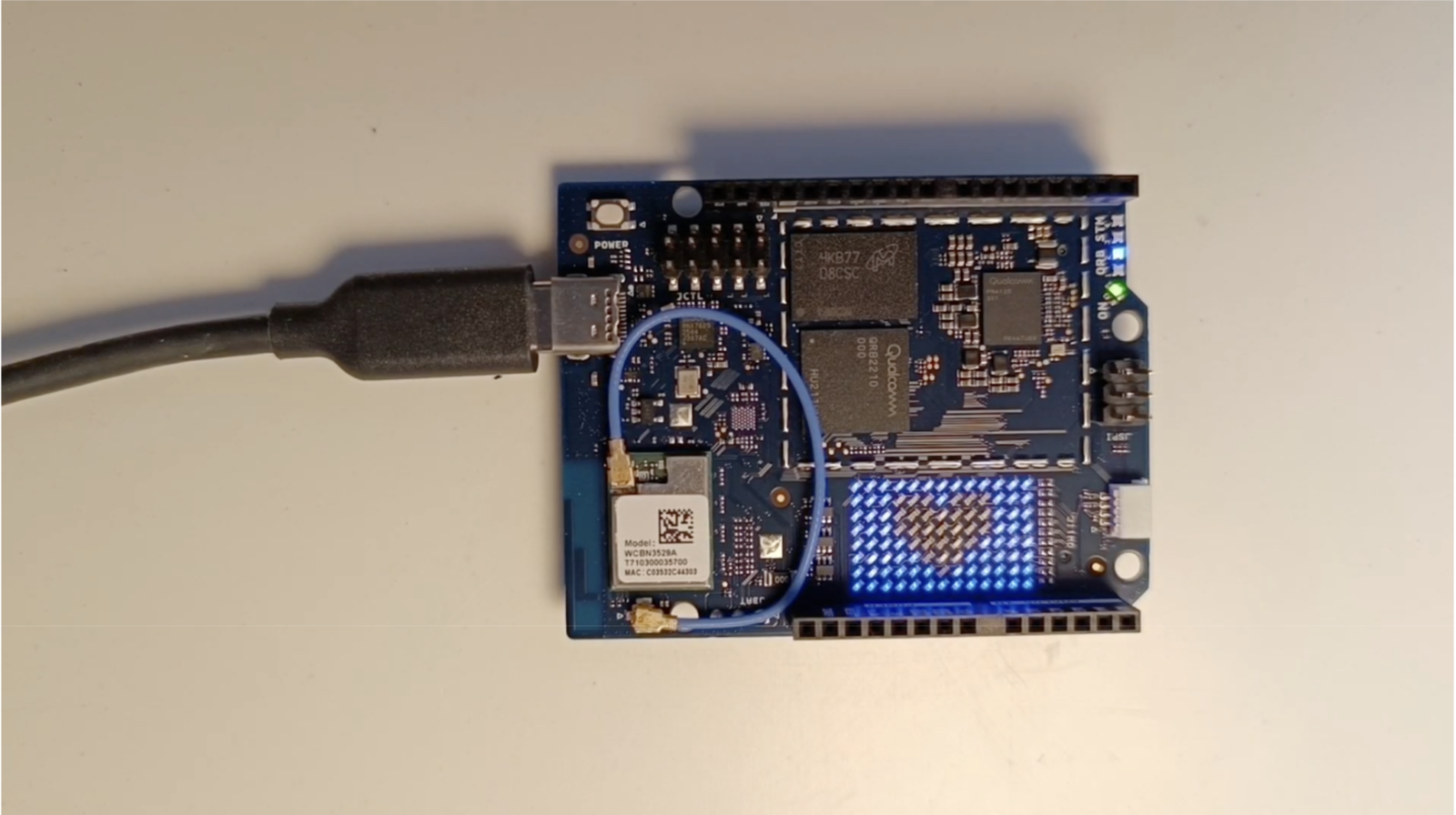
Hey Arduino matrix animation on the UNO Q
Object detection
If you have connected a USB webcam to your UNO Q, you can test the applicationDetect objects on Camera.
This application uses two bricks, the video_object_detection and the WebUI - HTML which hosts a web application and exposes APIs or Websockets to be used in the application.
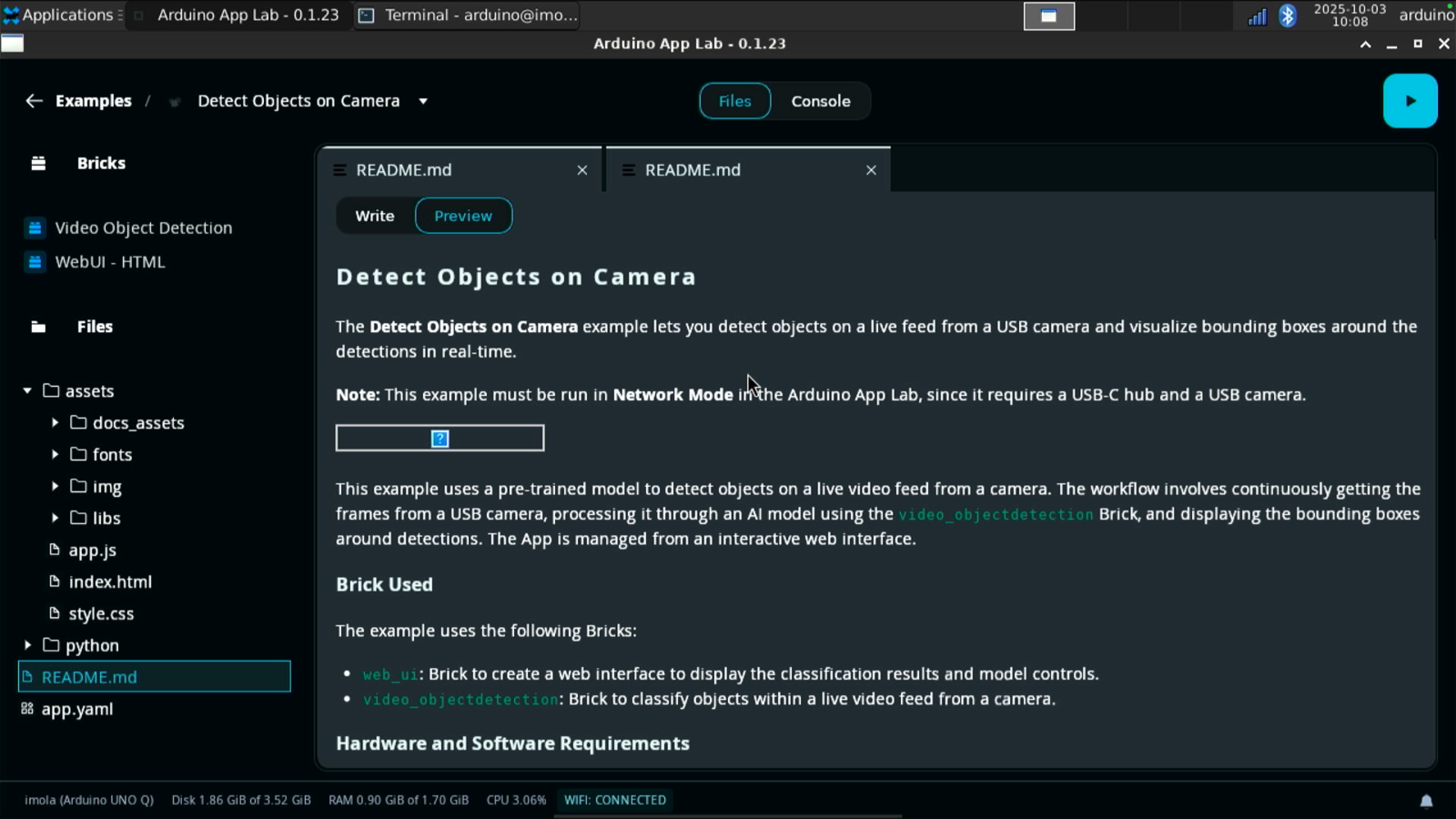
Detect Object on Camera application from Arduino App Lab version 0.1.23
video_object_detection brick to find objects on a live video feed from the camera.
To access the UI of the application, use the browser and go to the local IP address of your UNO Q using the port 7000.
Testing the Video Generic Object Detection application after deploying the Detect Object on Camera application from Arduino App Lab into the UNO Q
Deploying a custom application
Now that you have tested the Arduino App Lab on your UNO Q, it’s time to create your own application using an impulse trained in your Edge Impulse account. We are going to replicate theDetect Objects on Camera application and we will use a custom model, instead of the pre-trained model that comes with the brick. For this tutorial, we will use a face detection model.
Creating a new app
Click on “My Apps” in the left menu of the Arduino App Lab and then click on the top right hand corner button calledCreate new app +.
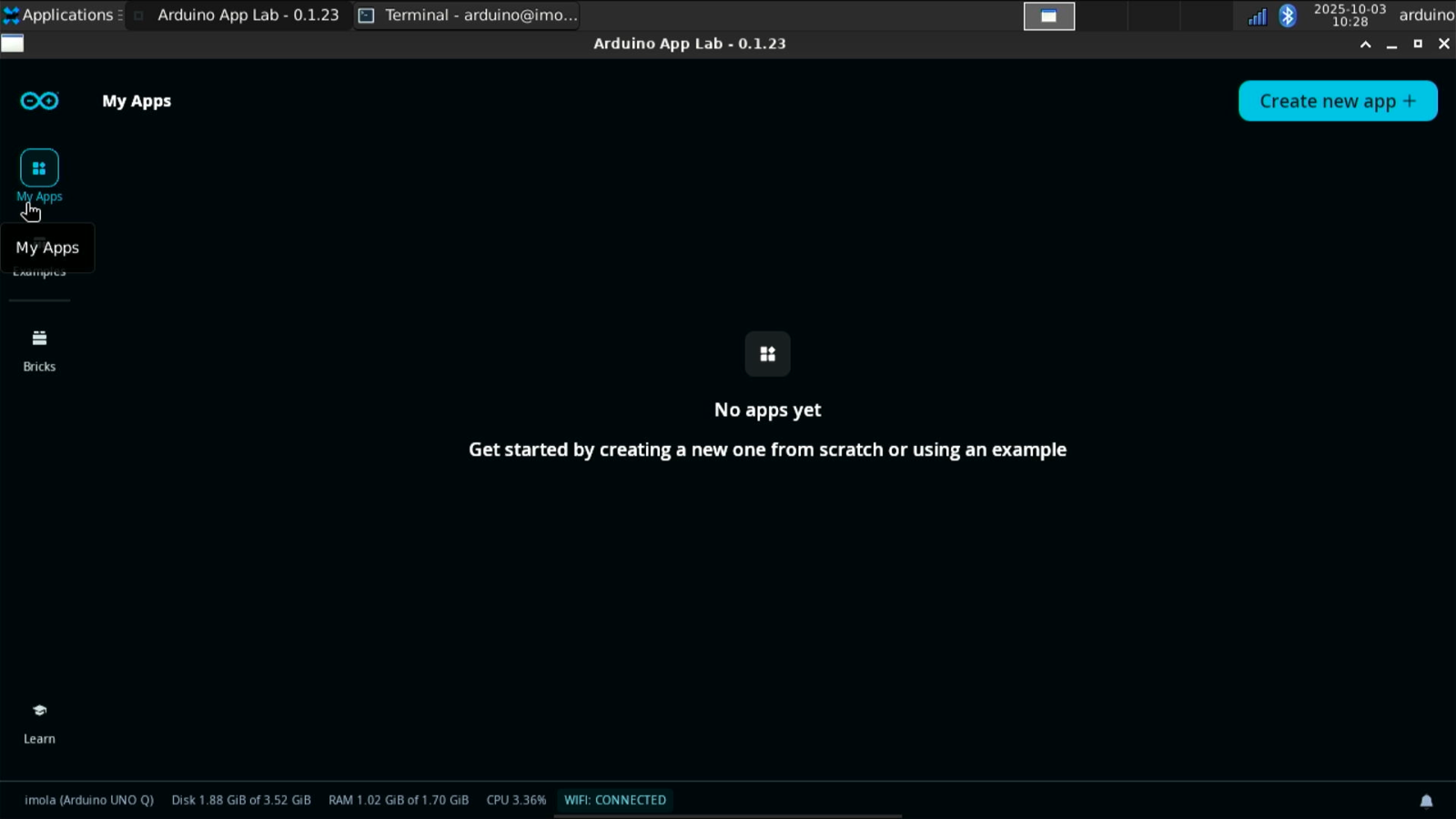
My Apps section in Arduino App Lab version 0.1.23
video_object_detection and web_ui).
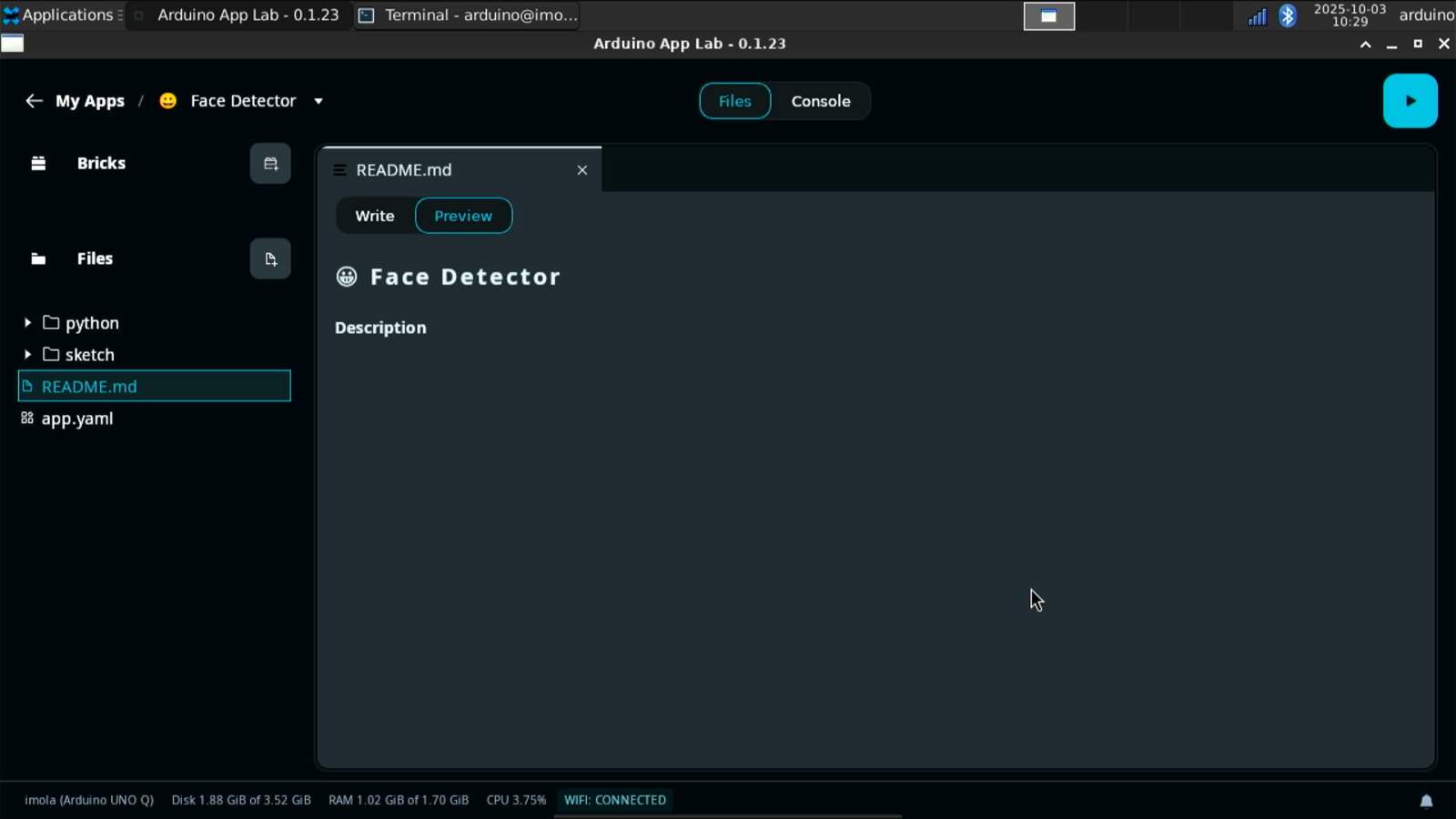
New application created with bricks in Arduino App Lab version 0.1.23
0.1.23.
Copying the impulse
Next, you will need the.eim file generated by Edge Impulse Studio for Linux aarch64. You can either download the Edge Impulse model using the Edge Impulse Linux CLI tools.
You can manually copy the .eim file to the following folder of the UNO Q or use VS Code (see below):
video_object_detection brick will use it for inference, instead of the default pre-trained model.
Using VS Code
To copy the file from your local computer to the UNO Q using the VS Code, follow these instructions:- Connect to your UNO Q via SSH using the
Remote SSHextension - Open the target folder
- Drag and drop the
.eimfile from your local computer into that folder
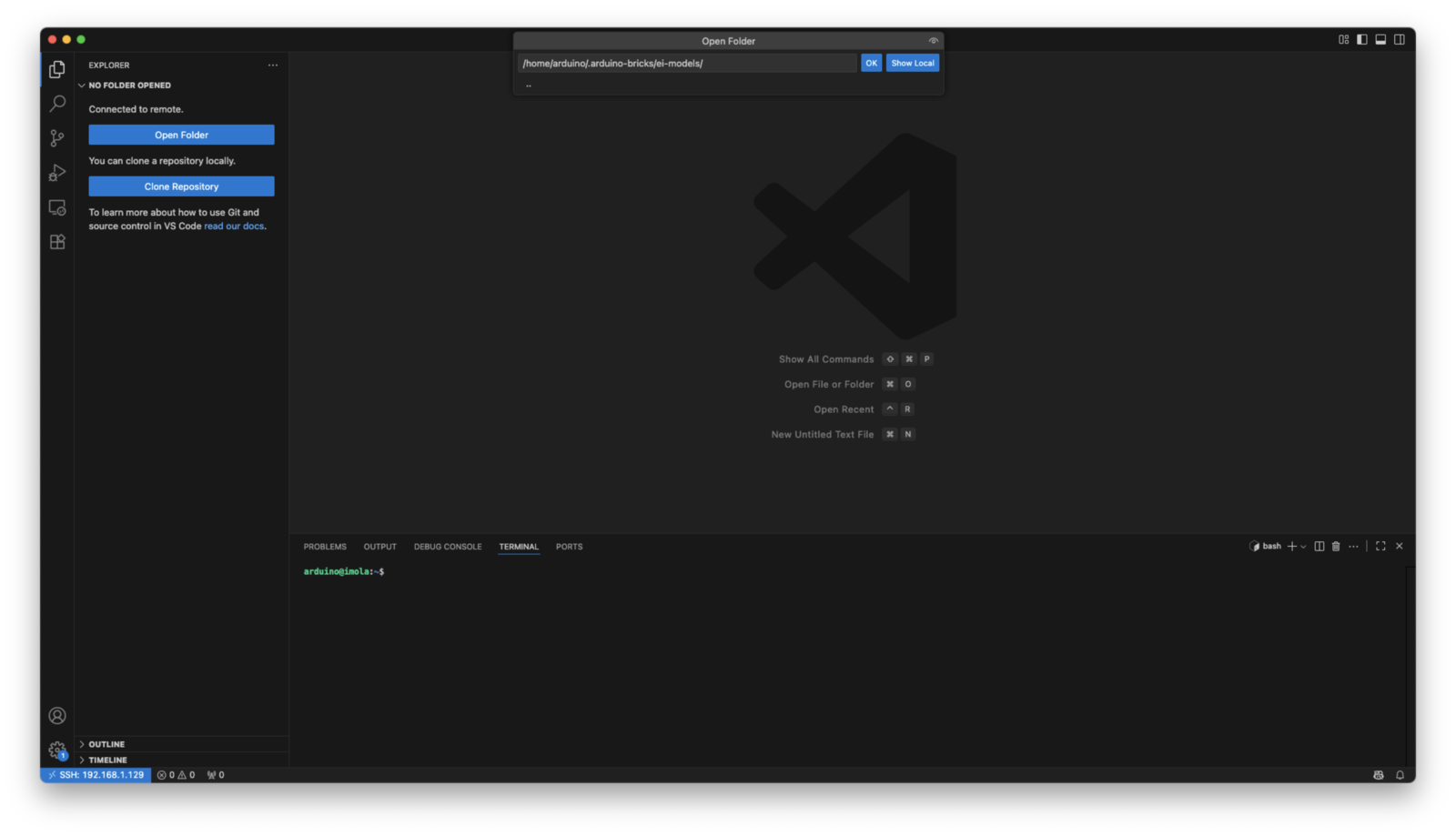
VS Code access to the UNO Q to develop the new application
Building the application
Go to your application in the folder:app.yaml file from SSH using this new variable for the video_object_detection brick.
EI_OBJ_DETECTION_MODEL variable. You can update models for other bricks or use cases using these variables:
Copying additional assets
After you have saved your changes, follow the instructions below to copy the assets and webUI files from the example to your application and copy the main Python script.Detect objects on Camera example that we used before, except it uses your own custom model trained with Edge Impulse Studio.
Running the application
To run the application, type: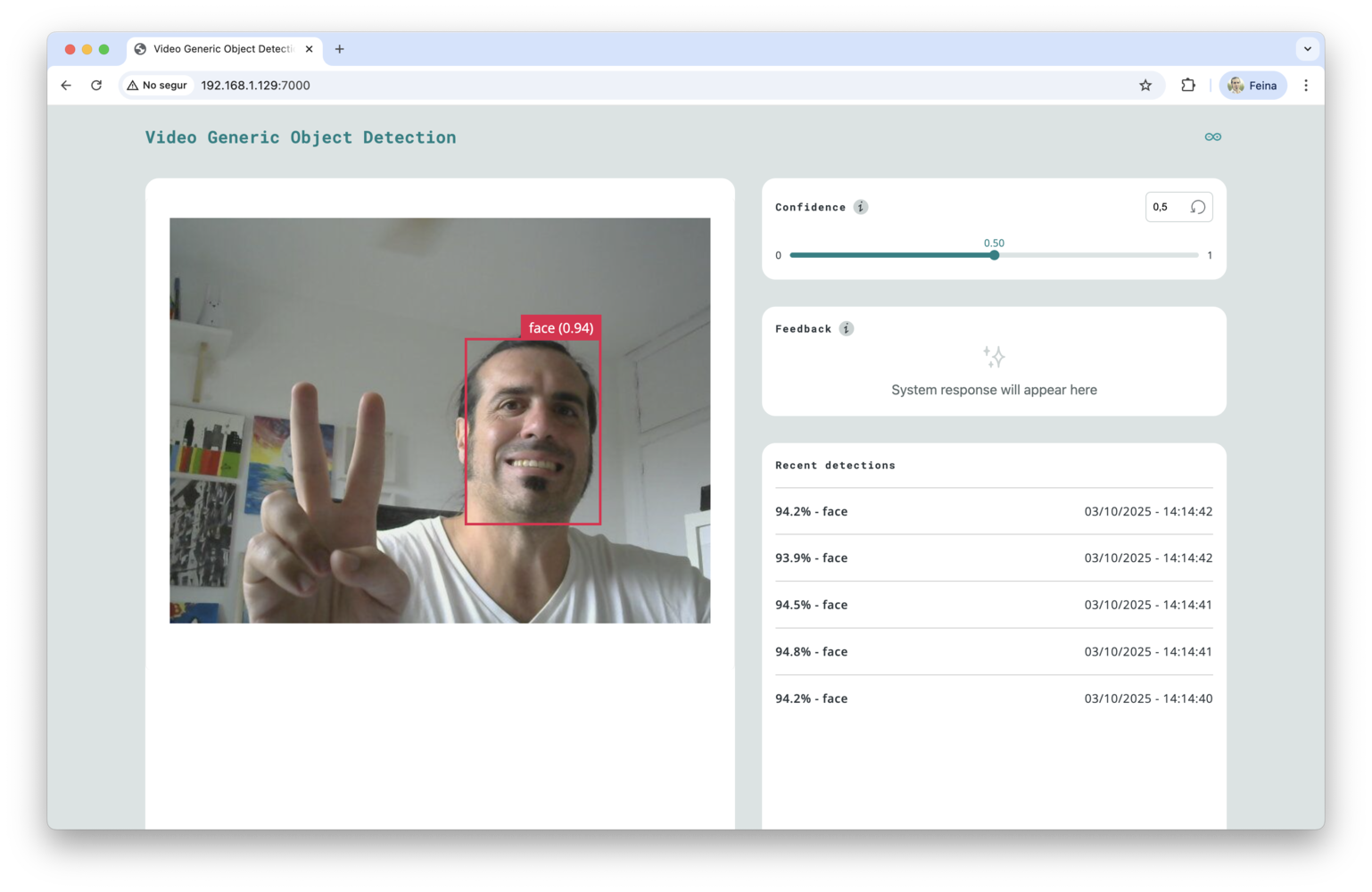
New application deployed in the UNO Q via Arduino App Lab with an Edge Impulse custom model