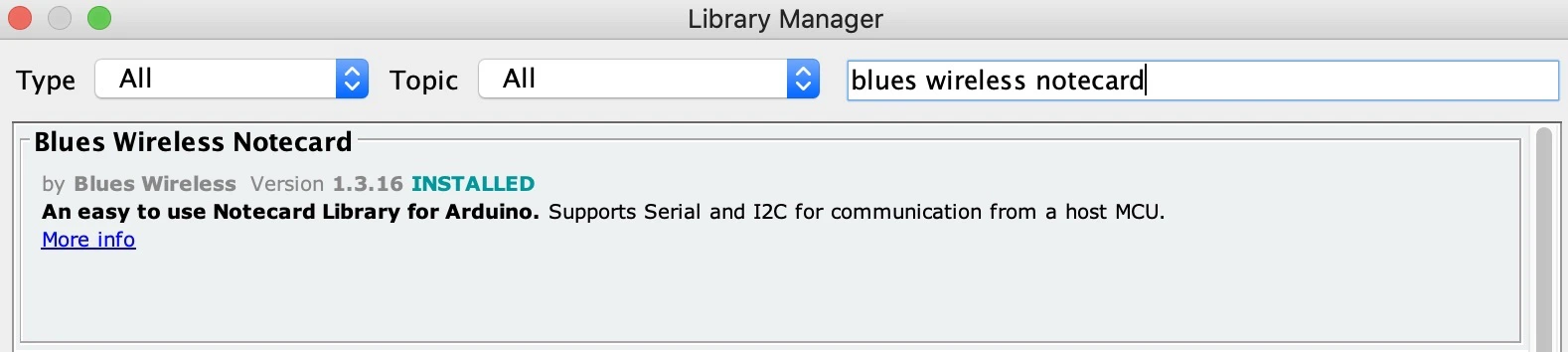
#include <Notecard.h>
#include <PDM.h>
#include <Wire.h>
#define EIDSP_QUANTIZE_FILTERBANK 0
#define EI_CLASSIFIER_SLICES_PER_MODEL_WINDOW 3
#include <Running_Faucet_Blues_Wireless_inferencing.h>
#define serialDebugOut Serial
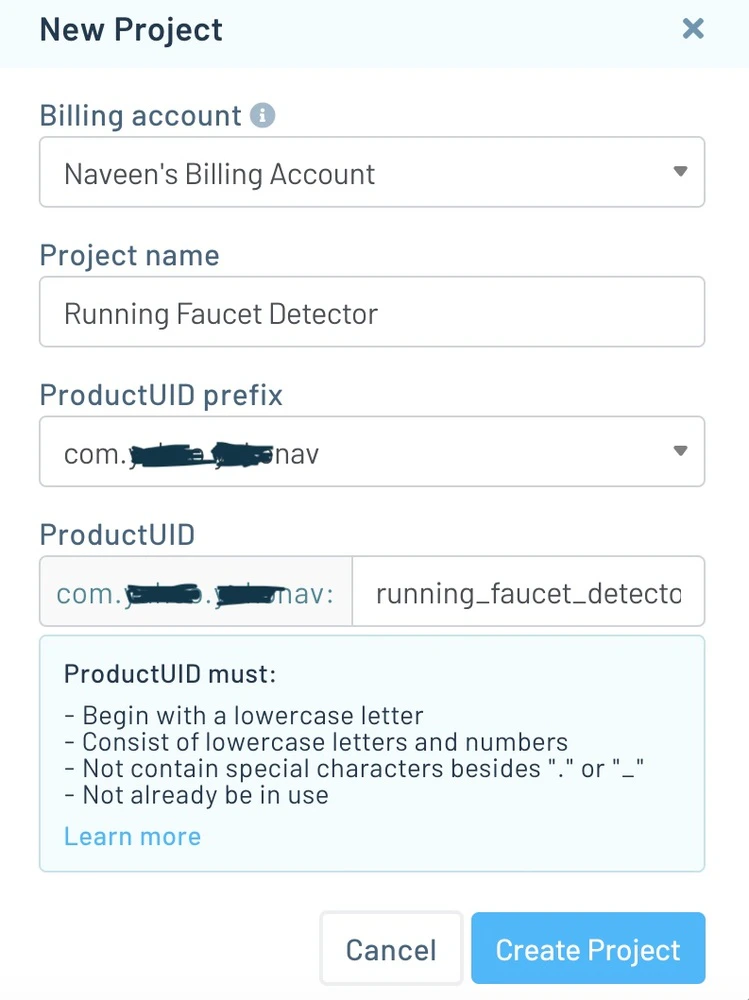
#define MY_PRODUCT_ID "com.xxxxx.xxxxxxxx:running_faucet_detector"
#define FROM_PHONE_NUMBER "+16xxxxxxxxx" // Twilio provided
#define TO_PHONE_NUMBER "+8195xxxxxxxxx" // Target phone
#define CONTINUOUS_THRESOLD_SECS (20)
#define NOTE_THRESOLD_SECS (30)
#define LED_RED LEDR
#define LED_BLUE LEDB
#define FAUCET_IDX 0
#define NOISE_IDX 1
// Notecard instance
Notecard notecard;
static rtos::Thread inference_thread(osPriorityLow);
/** Audio buffers, pointers and selectors */
typedef struct {
signed short *buffers[2];
unsigned char buf_select;
unsigned char buf_ready;
unsigned int buf_count;
unsigned int n_samples;
} inference_t;
static inference_t inference;
static bool record_ready = false;
static signed short *sampleBuffer;
static bool debug_nn = false;
static int print_results = -(EI_CLASSIFIER_SLICES_PER_MODEL_WINDOW);
uint32_t continuous_faucet_running_start_time;
uint32_t last_notification_sent_time;
uint8_t prev_prediction = NOISE_IDX;
/* Forward declaration */
void run_inference_background();
void notecard_success()
{
digitalWrite(LED_BLUE, LOW);
delay(1000);
digitalWrite(LED_BLUE, HIGH);
}
void notecard_error()
{
digitalWrite(LED_RED, LOW);
delay(1000);
digitalWrite(LED_RED, HIGH);
}
void configure_notehub()
{
// Setup Notehub
J *req = notecard.newRequest("hub.set");
if (req) {
JAddStringToObject(req, "product", MY_PRODUCT_ID);
JAddBoolToObject(req, "sync", true);
JAddStringToObject(req, "mode", "periodic");
JAddNumberToObject(req, "outbound", 24 * 60); // 1 day
JAddNumberToObject(req, "inbound", 60); // 60 mins
if (!notecard.sendRequest(req)) {
notecard.logDebug("ERROR: Setup Notehub request\n");
notecard_error();
}
} else {
notecard.logDebug("ERROR: Failed to set notehub!\n");
notecard_error();
}
notecard_success();
}
uint32_t get_current_timestamp_from_notecard()
{
uint32_t timestamp = 0;
J *rsp = notecard.requestAndResponse(notecard.newRequest("card.time"));
if (rsp != NULL) {
String zone = JGetString(rsp, "zone");
if (zone != "UTC,Unknown") {
timestamp = JGetNumber(rsp, "time");
}
notecard.deleteResponse(rsp);
}
return timestamp;
}
void send_alert_message()
{
// Add a note
J *req = notecard.newRequest("note.add");
if (req != NULL) {
// send immediately
JAddBoolToObject(req, "sync", true);
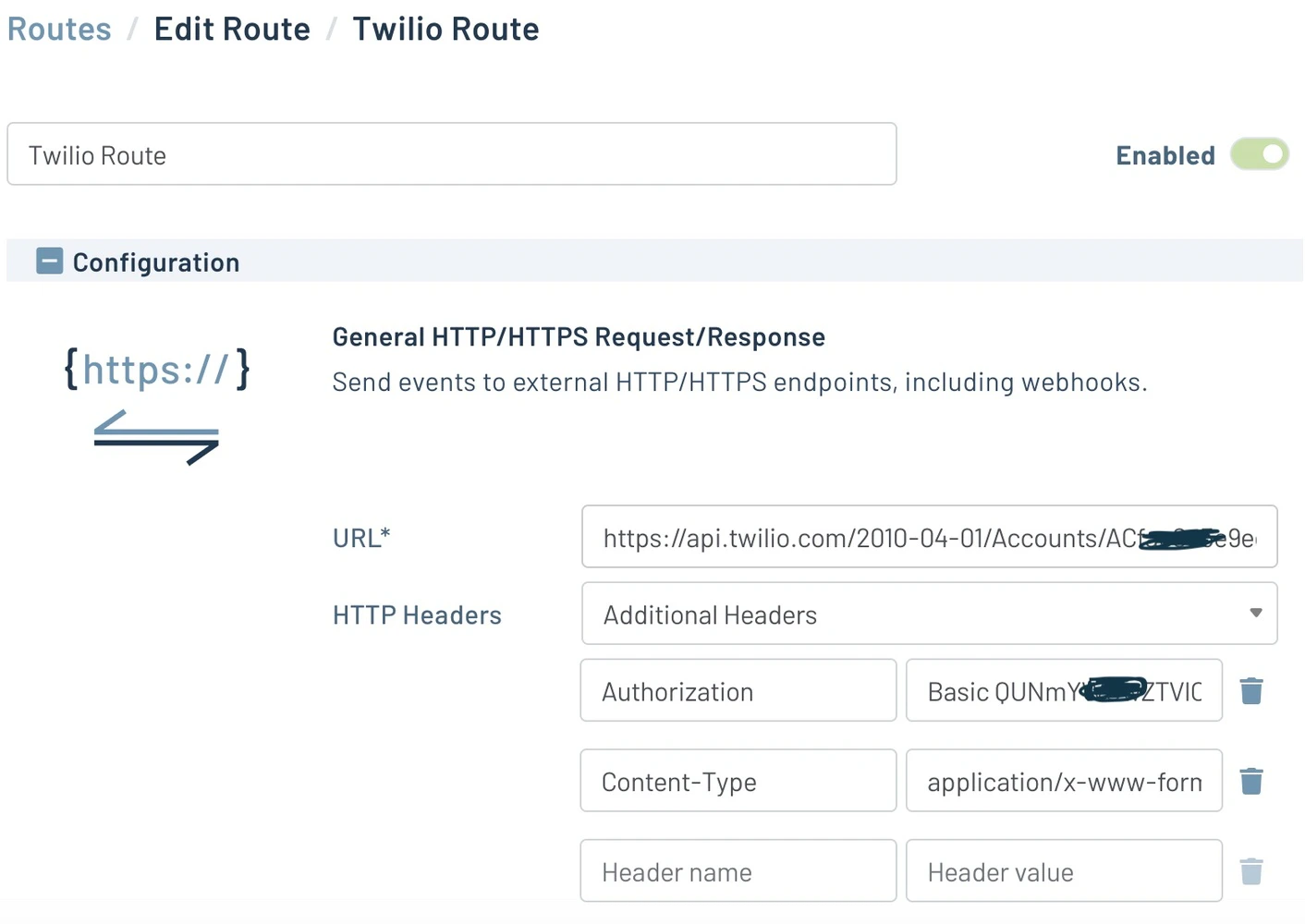
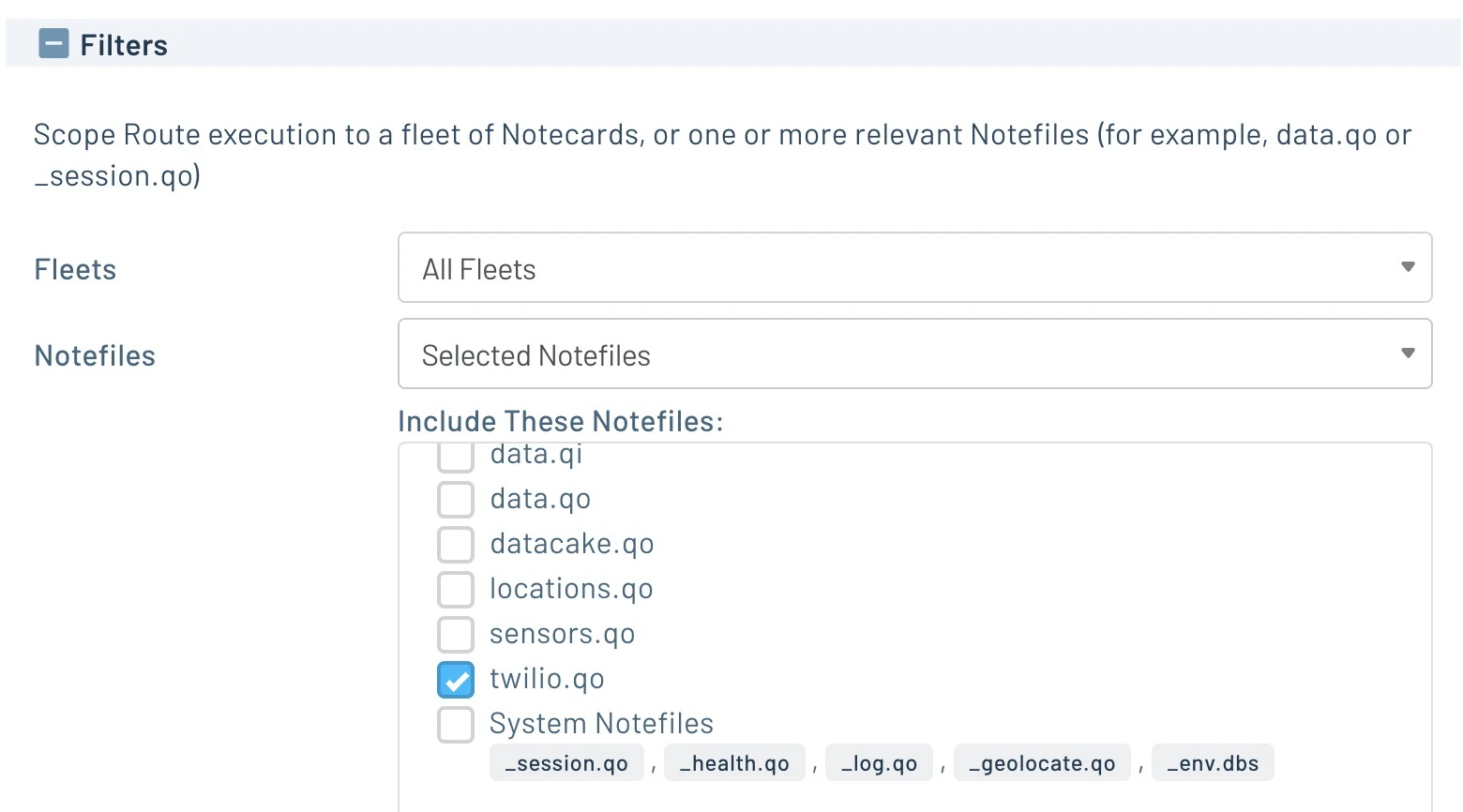
JAddStringToObject(req, "file", "twilio.qo");
J *body = JCreateObject();
if (body != NULL) {
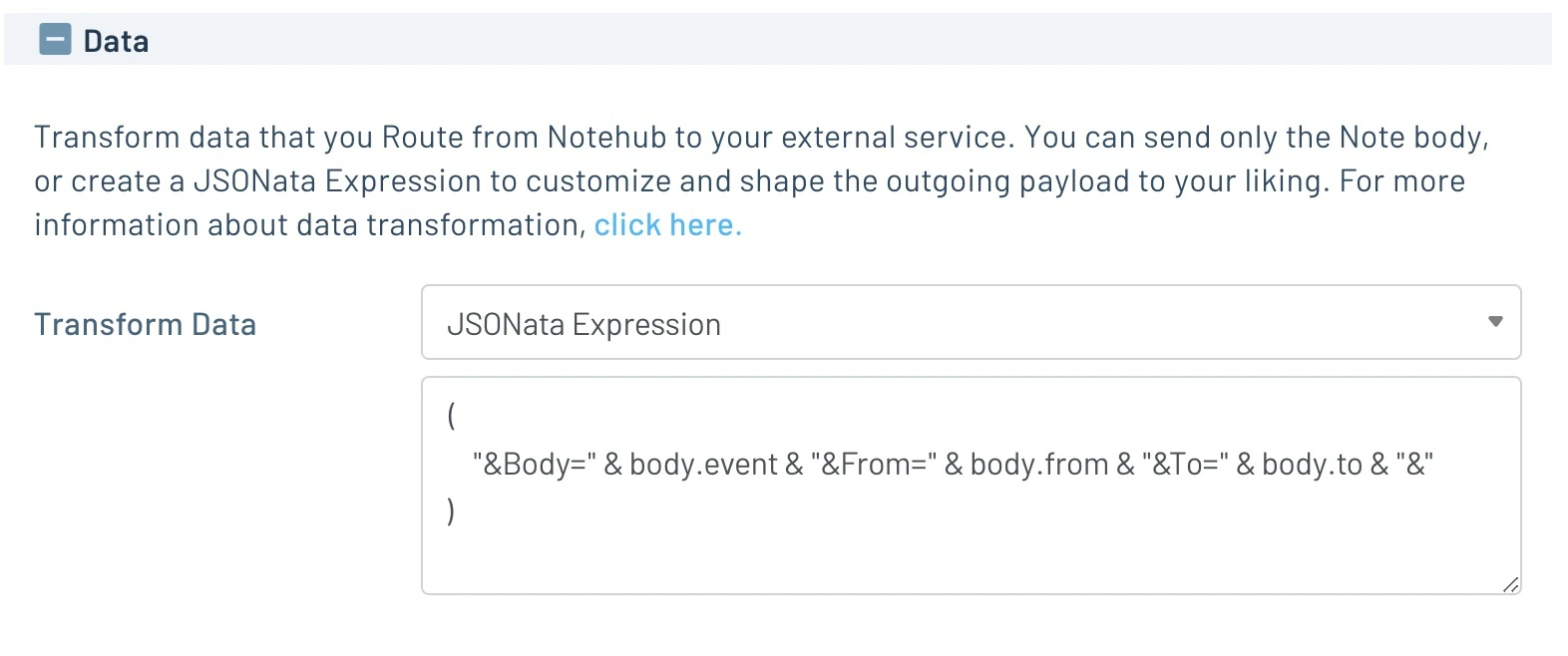
JAddStringToObject(body, "event", "Running Faucet Alert");
JAddStringToObject(body, "from", FROM_PHONE_NUMBER);
JAddStringToObject(body, "to", TO_PHONE_NUMBER);
JAddItemToObject(req, "body", body);
}
if (!notecard.sendRequest(req)) {
notecard.logDebug("ERROR: add note request\n");
notecard_error();
} else {
ei_printf("Note sent!\n");
}
}
notecard_success();
}
void setup()
{
serialDebugOut.begin(115200);
delay(1000);
pinMode(LED_RED, OUTPUT);
pinMode(LED_BLUE, OUTPUT);
digitalWrite(LED_RED, HIGH); // Off
digitalWrite(LED_BLUE, HIGH); // Off
//while (!serialDebugOut) {}
Wire.begin();
// Initialize Notecard with I2C communication
notecard.begin(NOTE_I2C_ADDR_DEFAULT, NOTE_I2C_MAX_DEFAULT, Wire);
notecard.setDebugOutputStream(serialDebugOut);
configure_notehub();
if (microphone_inference_start(EI_CLASSIFIER_SLICE_SIZE) == false) {
ei_printf("ERR: Failed to setup audio sampling\r\n");
return;
}
inference_thread.start(mbed::callback(&run_inference_background));
last_notification_sent_time = get_current_timestamp_from_notecard();
}
// this loop only samples the audio data
void loop()
{
bool m = microphone_inference_record();
if (!m) {
ei_printf("ERR: Failed to record audio...\n");
return;
}
}
// this loop inference continuously on another thread
void run_inference_background()
{
run_classifier_init();
while (1) {
signal_t signal;
signal.total_length = EI_CLASSIFIER_SLICE_SIZE;
signal.get_data = µphone_audio_signal_get_data;
ei_impulse_result_t result = {0};
EI_IMPULSE_ERROR r = run_classifier_continuous(&signal, &result, debug_nn);
if (r != EI_IMPULSE_OK) {
ei_printf("ERR: Failed to run classifier (%d)\n", r);
return;
}
if (++print_results >= (EI_CLASSIFIER_SLICES_PER_MODEL_WINDOW)) {
ei_printf("Predictions ");
ei_printf("(DSP: %d ms., Classification: %d ms.)",
result.timing.dsp, result.timing.classification, result.timing.anomaly);
ei_printf(": \n");
for (size_t ix = 0; ix < EI_CLASSIFIER_LABEL_COUNT; ix++) {
ei_printf(" %s: %.5f\n", result.classification[ix].label,
result.classification[ix].value);
}
// above 80% confidence score
if (result.classification[FAUCET_IDX].value > 0.8f) {
uint32_t current_time = get_current_timestamp_from_notecard();
if (prev_prediction == FAUCET_IDX) {
ei_printf("Continuously Faucet running time: %ld\n", (current_time - continuous_faucet_running_start_time));
if ((current_time - continuous_faucet_running_start_time) > CONTINUOUS_THRESOLD_SECS) {
if (current_time - last_notification_sent_time > NOTE_THRESOLD_SECS) {
send_alert_message();
last_notification_sent_time = current_time;
}
}
} else {
// reset counter
continuous_faucet_running_start_time = current_time;
ei_printf("Faucet running time reset\n");
}
prev_prediction = FAUCET_IDX;
} else {
prev_prediction = NOISE_IDX;
}
print_results = 0;
}
}
}
/**
@brief PDM buffer full callback
Get data and call audio thread callback
*/
static void pdm_data_ready_inference_callback(void)
{
int bytesAvailable = PDM.available();
// read into the sample buffer
int bytesRead = PDM.read((char *)&sampleBuffer[0], bytesAvailable);
if (record_ready == true) {
for (int i = 0; i<bytesRead >> 1; i++) {
inference.buffers[inference.buf_select][inference.buf_count++] = sampleBuffer[i];
if (inference.buf_count >= inference.n_samples) {
inference.buf_select ^= 1;
inference.buf_count = 0;
inference.buf_ready = 1;
}
}
}
}
static bool microphone_inference_start(uint32_t n_samples)
{
inference.buffers[0] = (signed short *)malloc(n_samples * sizeof(signed short));
if (inference.buffers[0] == NULL) {
return false;
}
inference.buffers[1] = (signed short *)malloc(n_samples * sizeof(signed short));
if (inference.buffers[1] == NULL) {
free(inference.buffers[0]);
return false;
}
sampleBuffer = (signed short *)malloc((n_samples >> 1) * sizeof(signed short));
if (sampleBuffer == NULL) {
free(inference.buffers[0]);
free(inference.buffers[1]);
return false;
}
inference.buf_select = 0;
inference.buf_count = 0;
inference.n_samples = n_samples;
inference.buf_ready = 0;
// configure the data receive callback
PDM.onReceive(&pdm_data_ready_inference_callback);
PDM.setBufferSize((n_samples >> 1) * sizeof(int16_t));
// initialize PDM with:
// - one channel (mono mode)
// - a 16 kHz sample rate
if (!PDM.begin(1, EI_CLASSIFIER_FREQUENCY)) {
ei_printf("Failed to start PDM!");
}
// set the gain, defaults to 20
PDM.setGain(75);
record_ready = true;
return true;
}
static bool microphone_inference_record(void)
{
bool ret = true;
if (inference.buf_ready == 1) {
ei_printf(
"Error sample buffer overrun. Decrease the number of slices per model window "
"(EI_CLASSIFIER_SLICES_PER_MODEL_WINDOW)\n");
ret = false;
}
while (inference.buf_ready == 0) {
delay(1);
}
inference.buf_ready = 0;
return ret;
}
/**
Get raw audio signal data
*/
static int microphone_audio_signal_get_data(size_t offset, size_t length, float *out_ptr)
{
numpy::int16_to_float(&inference.buffers[inference.buf_select ^ 1][offset], out_ptr, length);
return 0;
}
static void microphone_inference_end(void)
{
PDM.end();
free(inference.buffers[0]);
free(inference.buffers[1]);
free(sampleBuffer);
}