

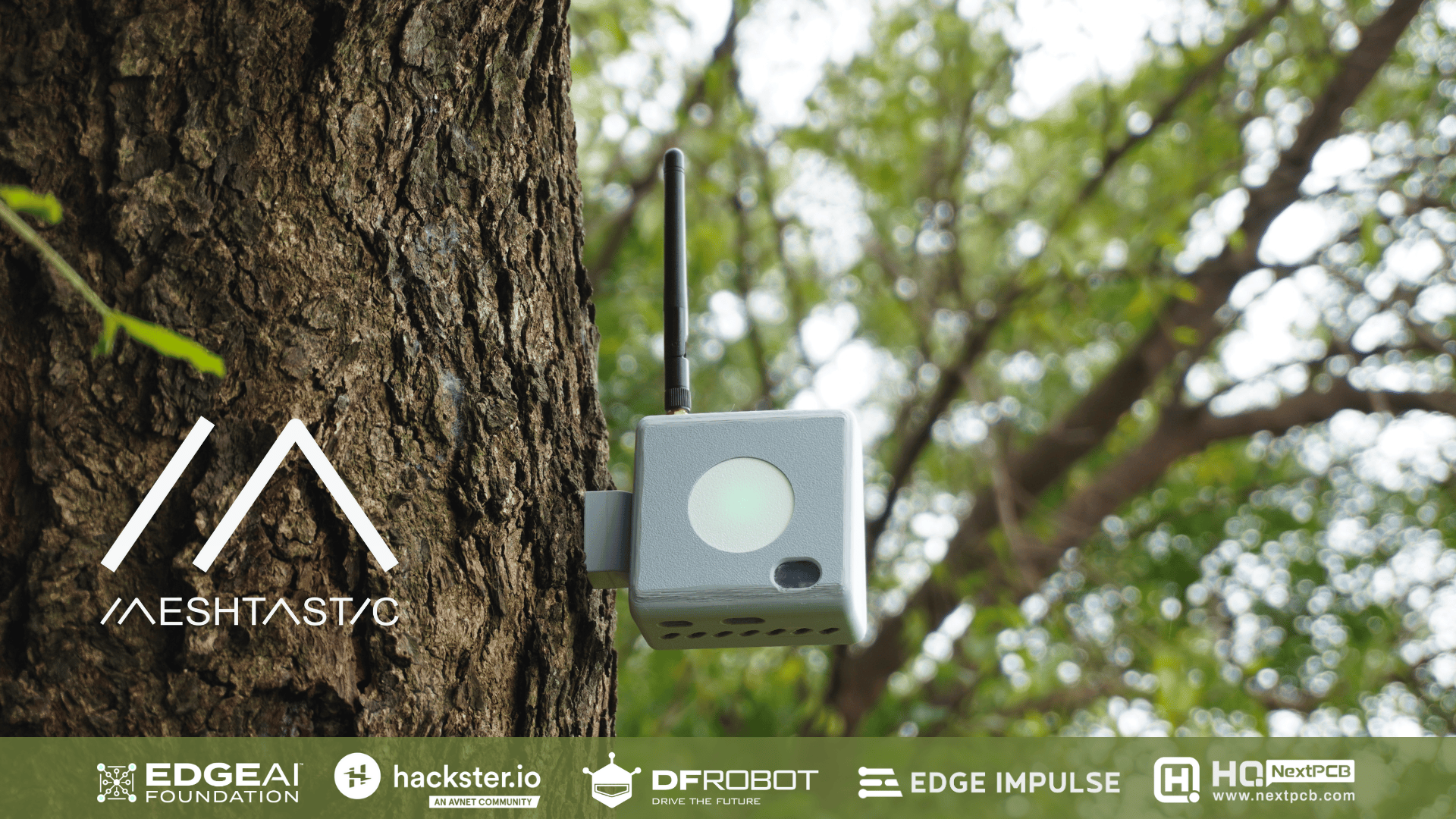
Intro
Forests are the lungs of our planet, yet they remain vulnerable to poaching, illegal logging, and devastating wildfires. Remote regions are often unmonitored because they lack infrastructure, no cellular coverage, no internet, and no reliable power. Traditional solutions depend on towers, GSM networks, or satellite links, all of which are either unreliable or prohibitively expensive in deep forest zones. Forest Guard redefines forest monitoring with a self-sustaining, decentralized, and intelligent mesh network that brings security where no traditional network can.
What Makes Forest Guard Different?
Instead of relying on costly connectivity, our system builds a solar-powered sensor mesh using LoRa Meshtastic. Each node is intelligent at the edge, capable of running AI models locally to detect events like gunshots via an onboard microphone and Edge Impulse classification. Coupled with environmental sensors and a smoke detector, the system can issue real-time alerts about fire outbreaks or human intrusion.
When an anomaly is detected, the alert propagates through the LoRa mesh to a gateway node, which syncs with the cloud when internet is available. The data is visualized on a web-based dashboard, showing sensor activity, live alerts, and precise node locations on a map.
This means no single point of failure, no dependency on fragile infrastructure, and the ability to scale across vast landscapes with just low-power radios and the sun.
Why It Matters
- Early Fire Detection - Prevent small sparks from becoming catastrophic forest fires.
- Anti-Poaching & Logging Defense - Gunshot detection provides actionable intelligence for rangers.
- Sustainable Design - Fully solar-powered nodes with custom PCBs for durability.
- Decentralized & Resilient - Operates even without internet; data flows peer-to-peer until a gateway is reached.
- Community & Conservation Impact - Helps safeguard biodiversity, human settlements, and natural heritage.
- ESP32-S3 & RP2040 LoRa modules
- Solar & battery management
- Environmental, smoke, and audio sensors


Supplies
Components For 1x Node Unit:
- 1x Custom Node PCB
- 1x Gravity: Multifunctional Environmental sensor
- 1x Gravity: GNSS Sensor
- 1x Fermion: I2S MEMS Microphone
- 1x Fermion: MEMS Smoke Detection Sensor
- 1x RP2040 LoRa with Type C adapter
- 1x Li-Po Battery
- 1x 70x70mm Solar Panel
- 8x M3x10mm Screws


- 1x Arduino Uno R4 WiFi
- 1x Fermion: 3.5” 480x320 TFT LCD Display
- 1x RP2040 LoRa
- 1x Li-Po Battery
- 1x Micro Push Switch
- 4x M2x5mm Screws
- 1x 3V Buzzer


- 3D Printer (for enclosures and mounting parts)
- Soldering Kit (iron, solder wire, flux, wick)
- Screwdriver Kit (for M2/M3 hardware)
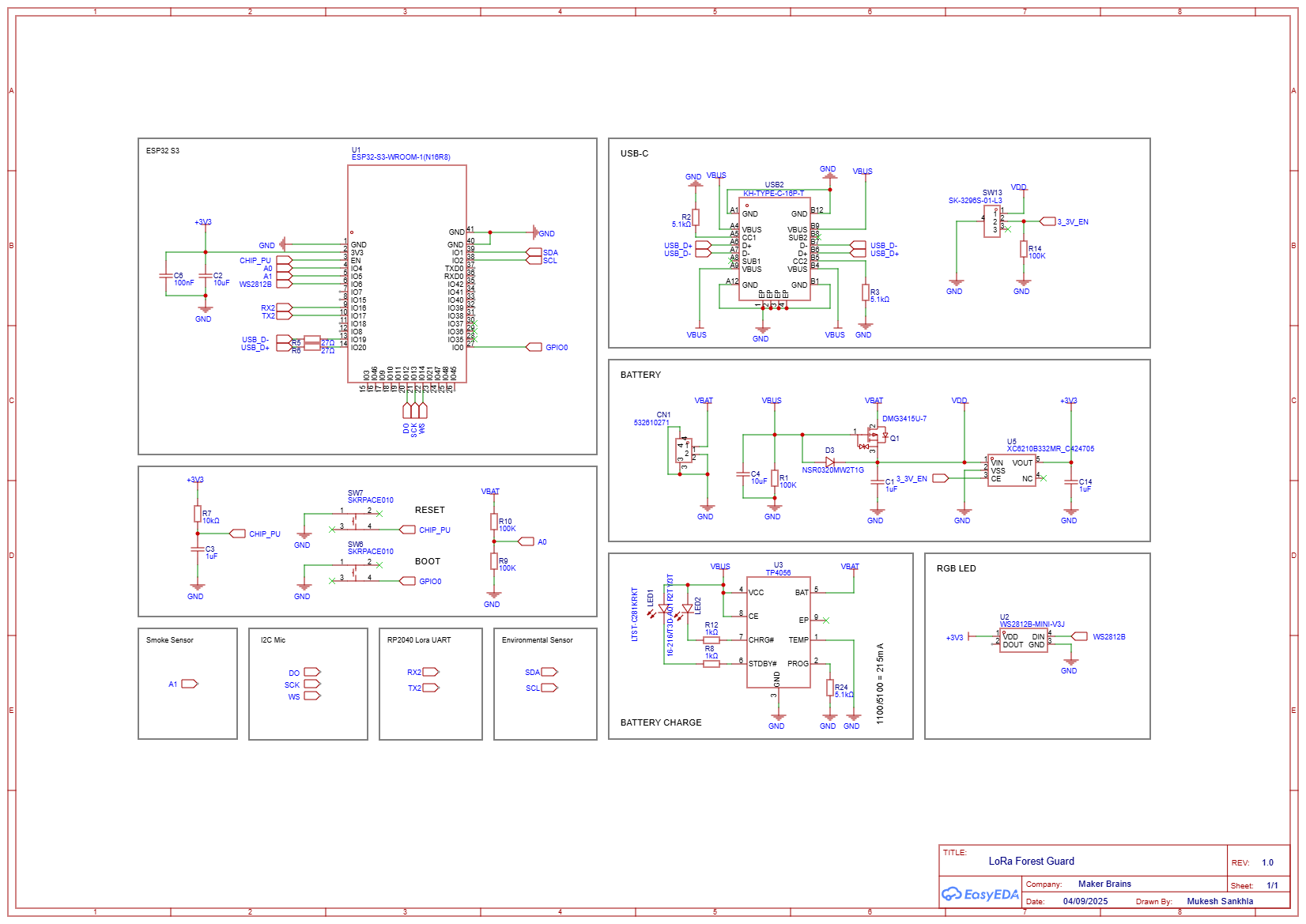
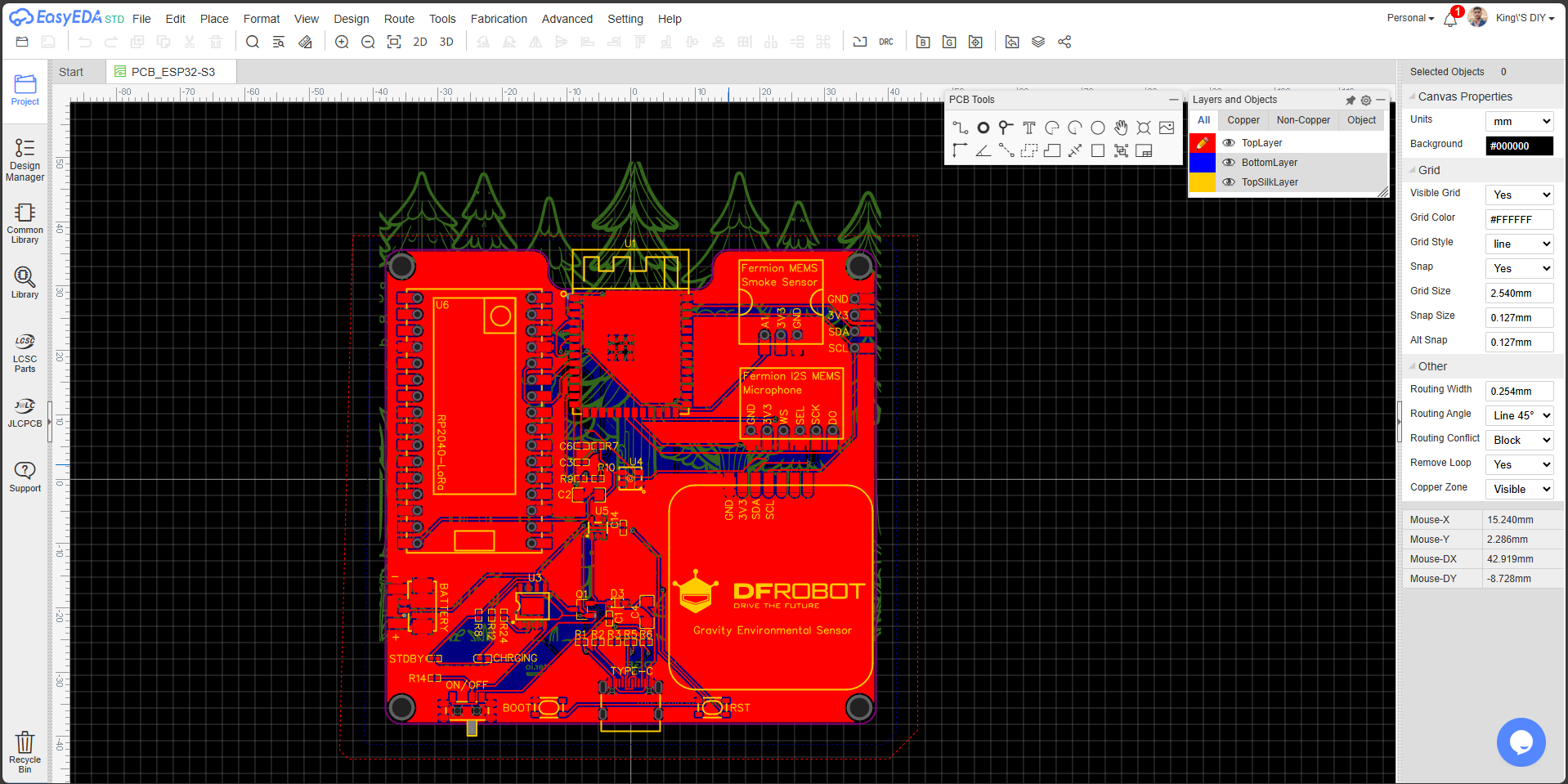
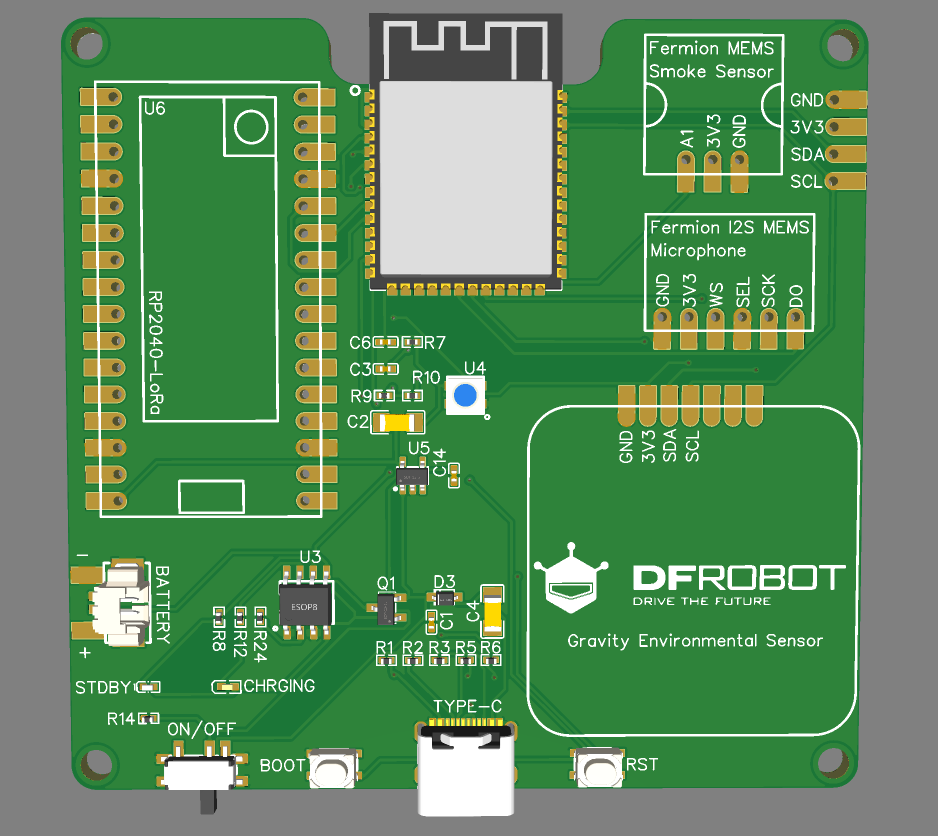
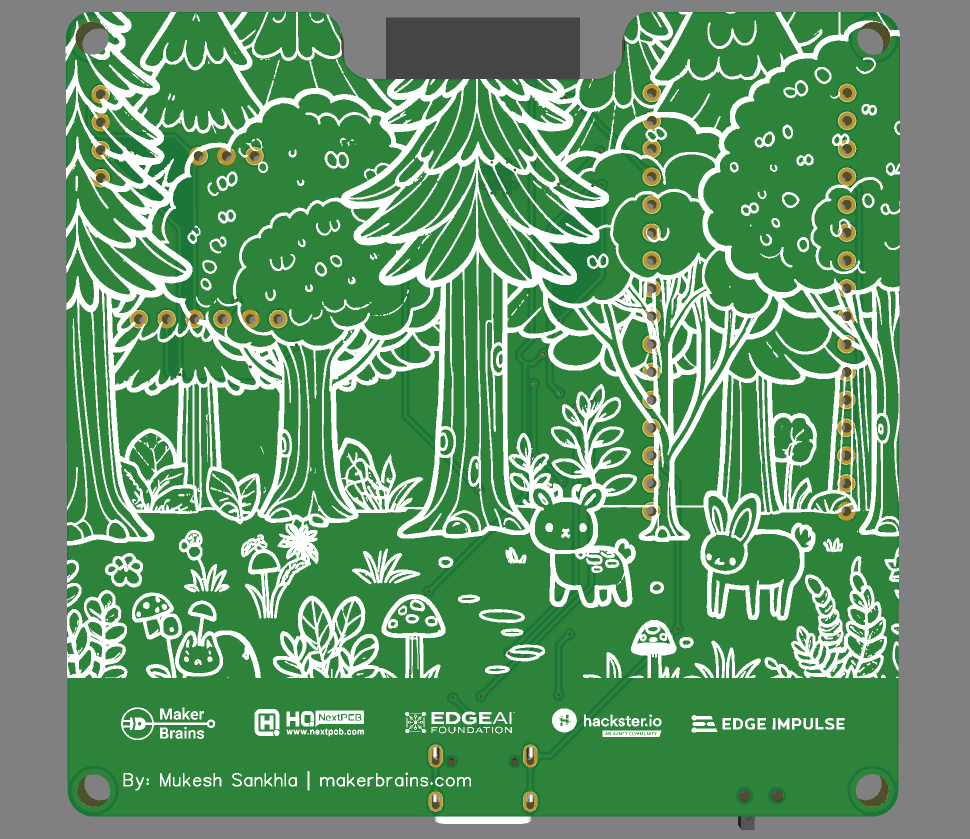
Step 1: PCB Design

- ESP32-S3 as the main controller
- Battery management and charging circuit
- Type-C USB for programming/power
- Headers for plugging in LoRa module and sensors


Step 2: Meshtastic Setup on RP2040 LoRa
We’ll flash the Meshtastic firmware onto the RP2040 LoRa modules and configure them for UART communication. ⚠️ Important Safety Note: Always connect the antenna before powering on the LoRa module to prevent damage.


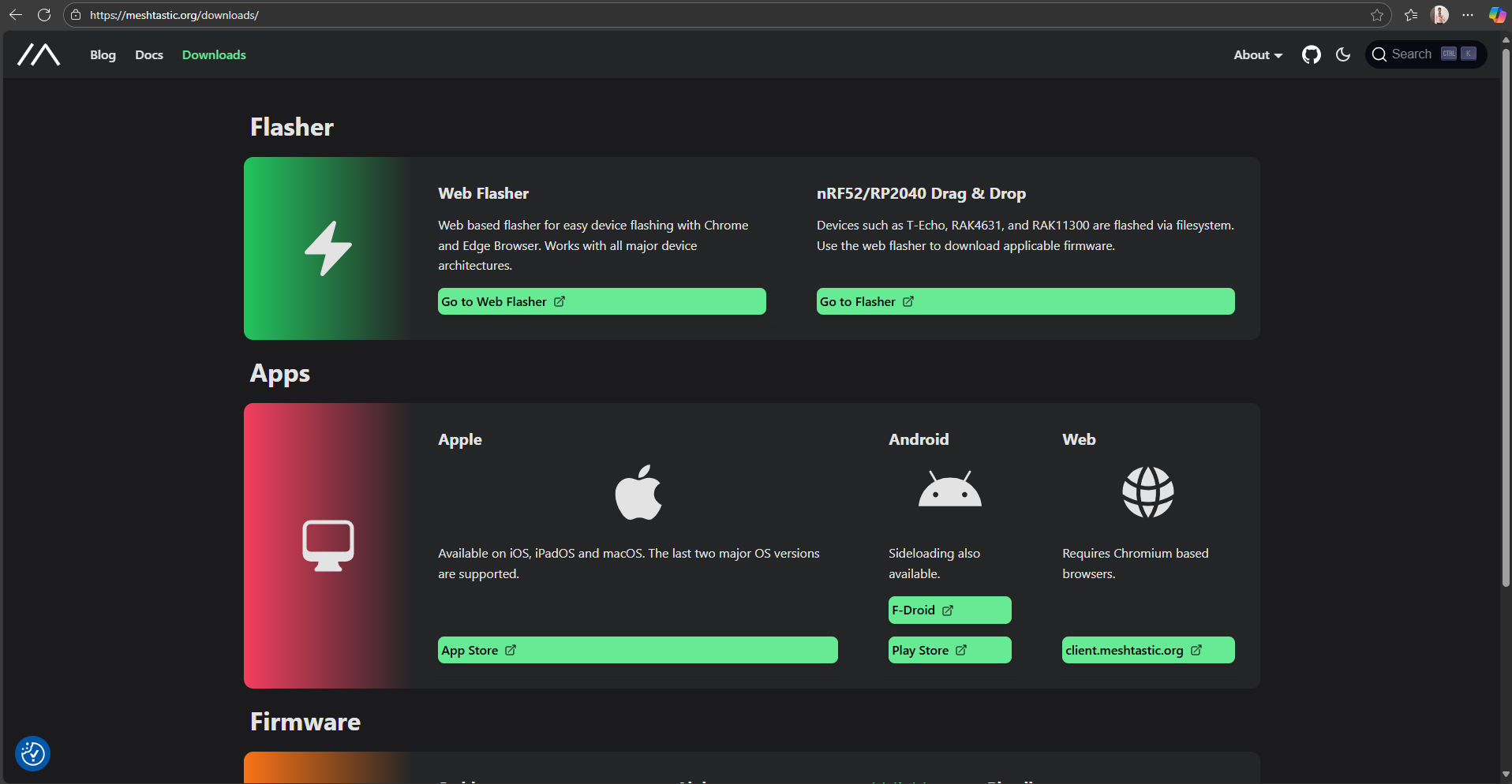
- Go to Meshtastic Downloads.
- Click Go to Flasher.
- Select Target Device: RP2040 LoRa.
- Choose a version → click Flash → then Continue.
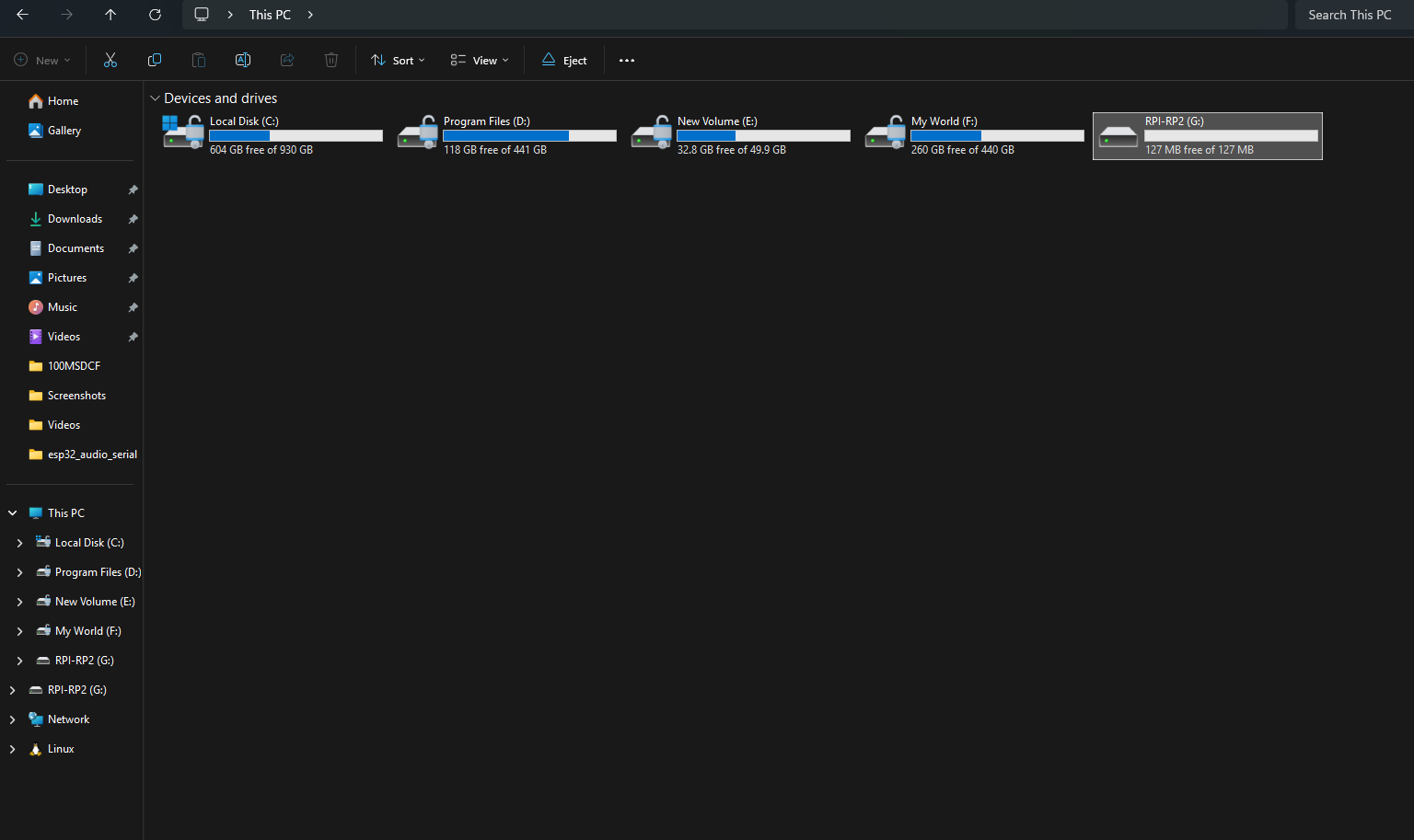
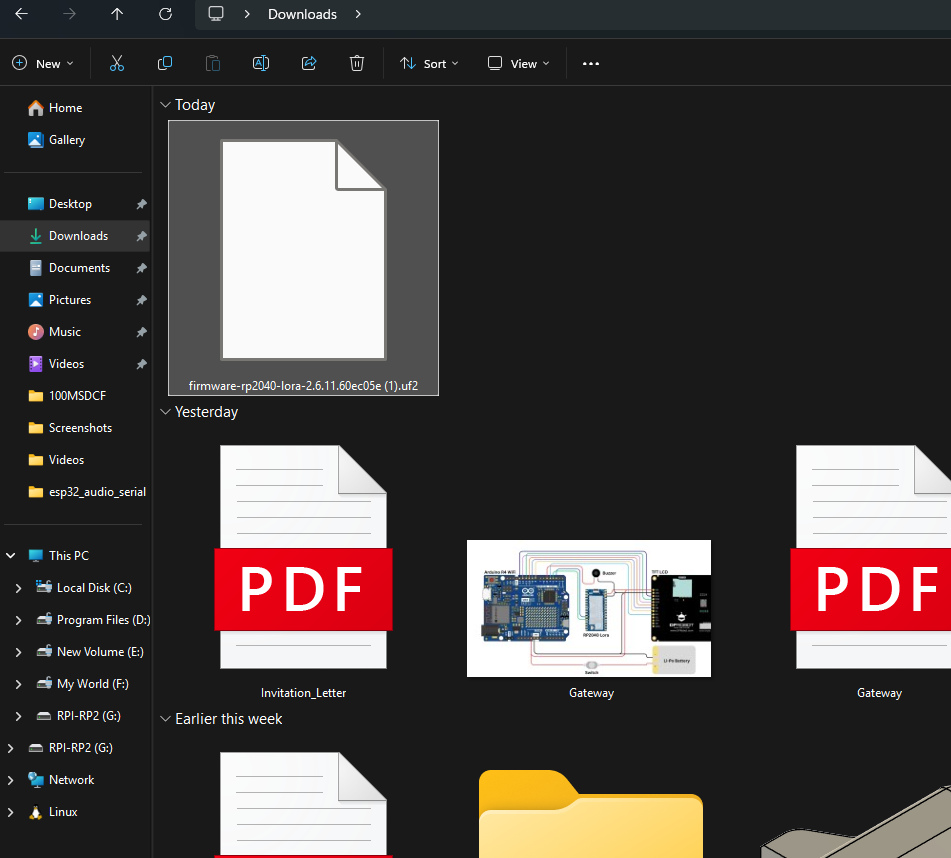
- Download the .UF2 firmware file.
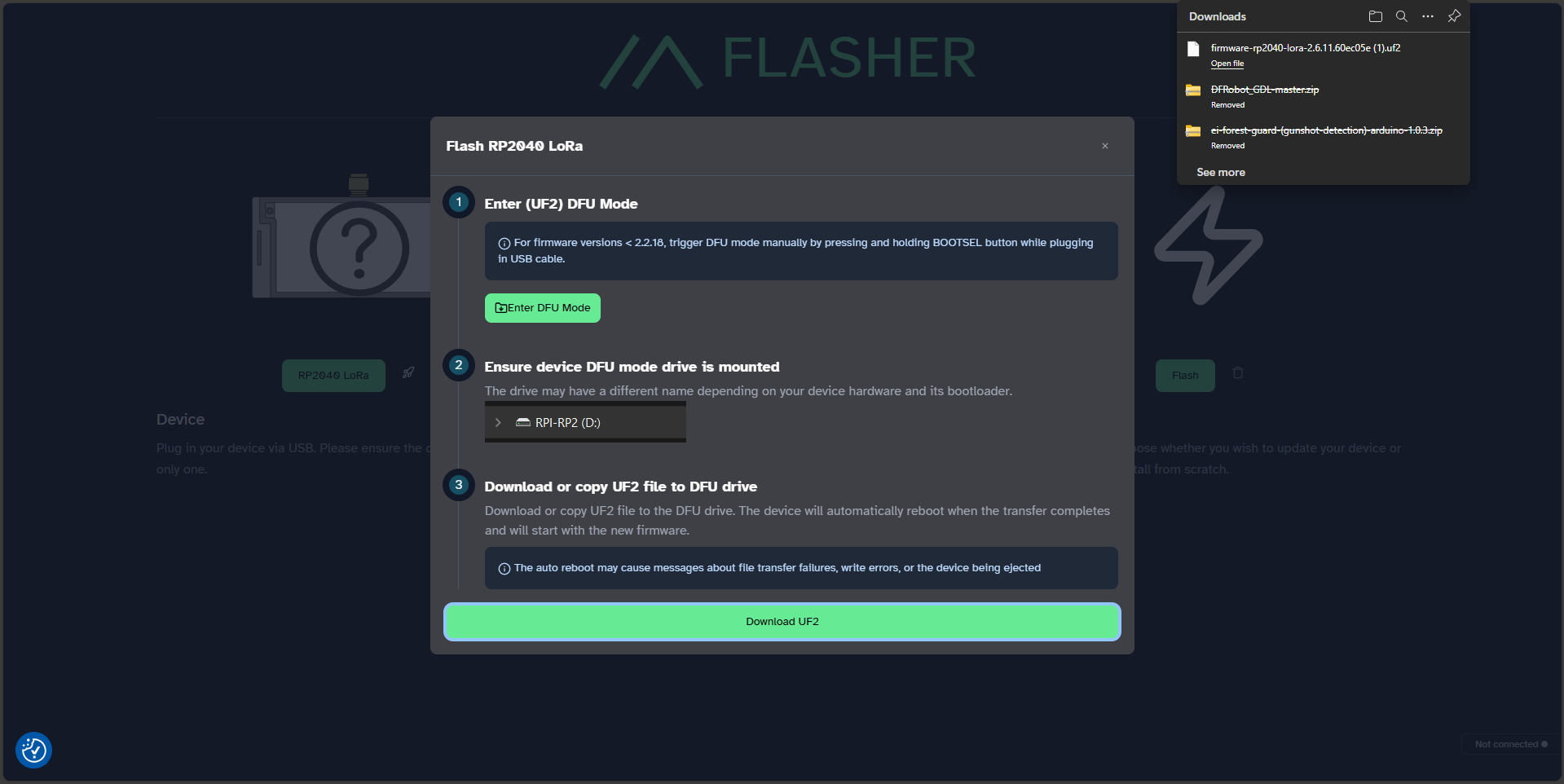
- Press and hold the BOOT button on the module.
- While holding BOOT, connect the USB Type-C cable to your PC.
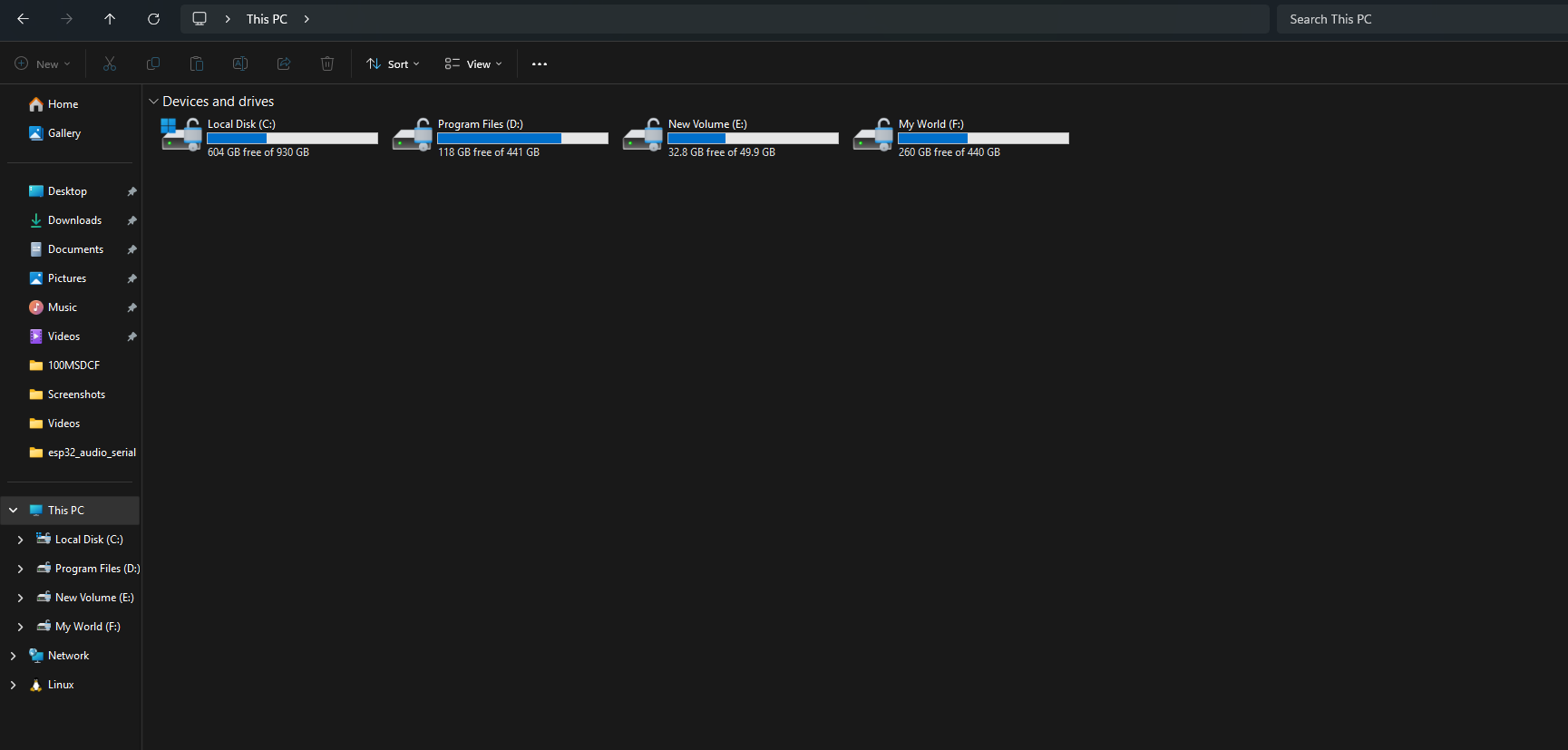
- A new drive named RP2 will appear.
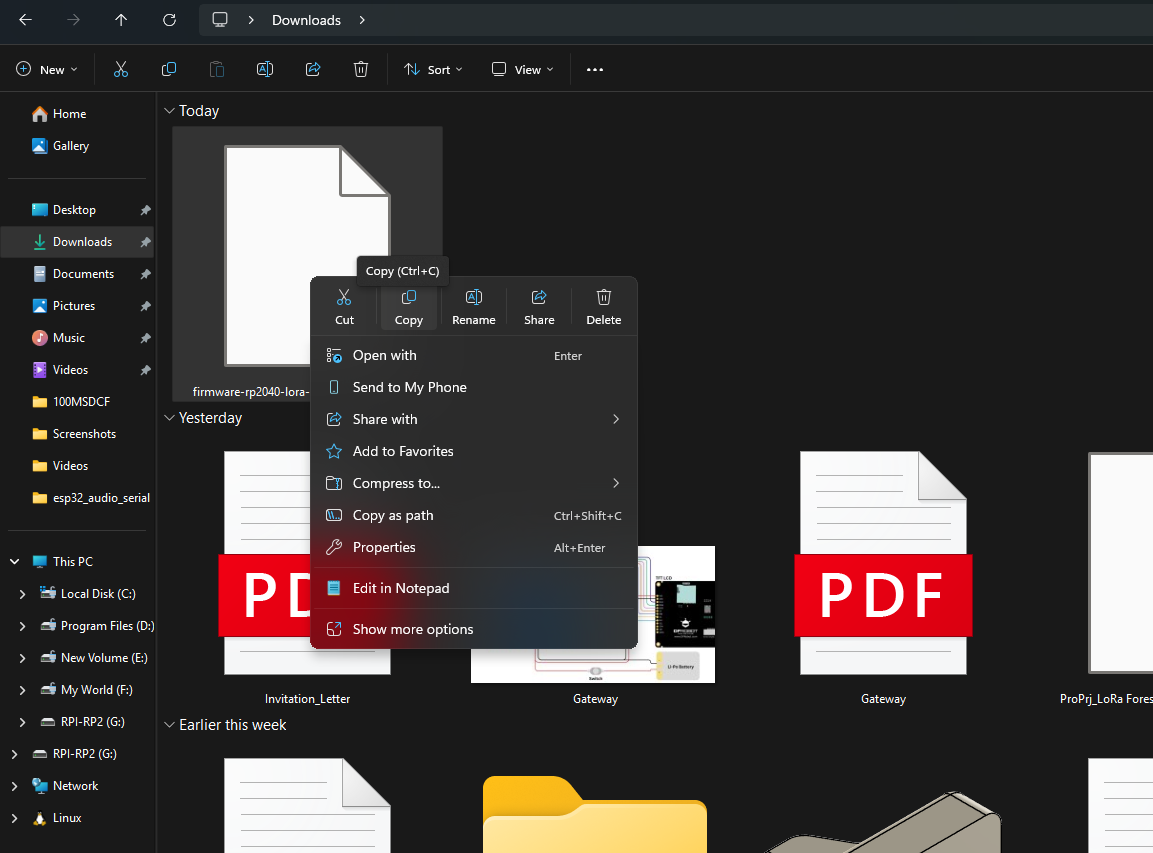
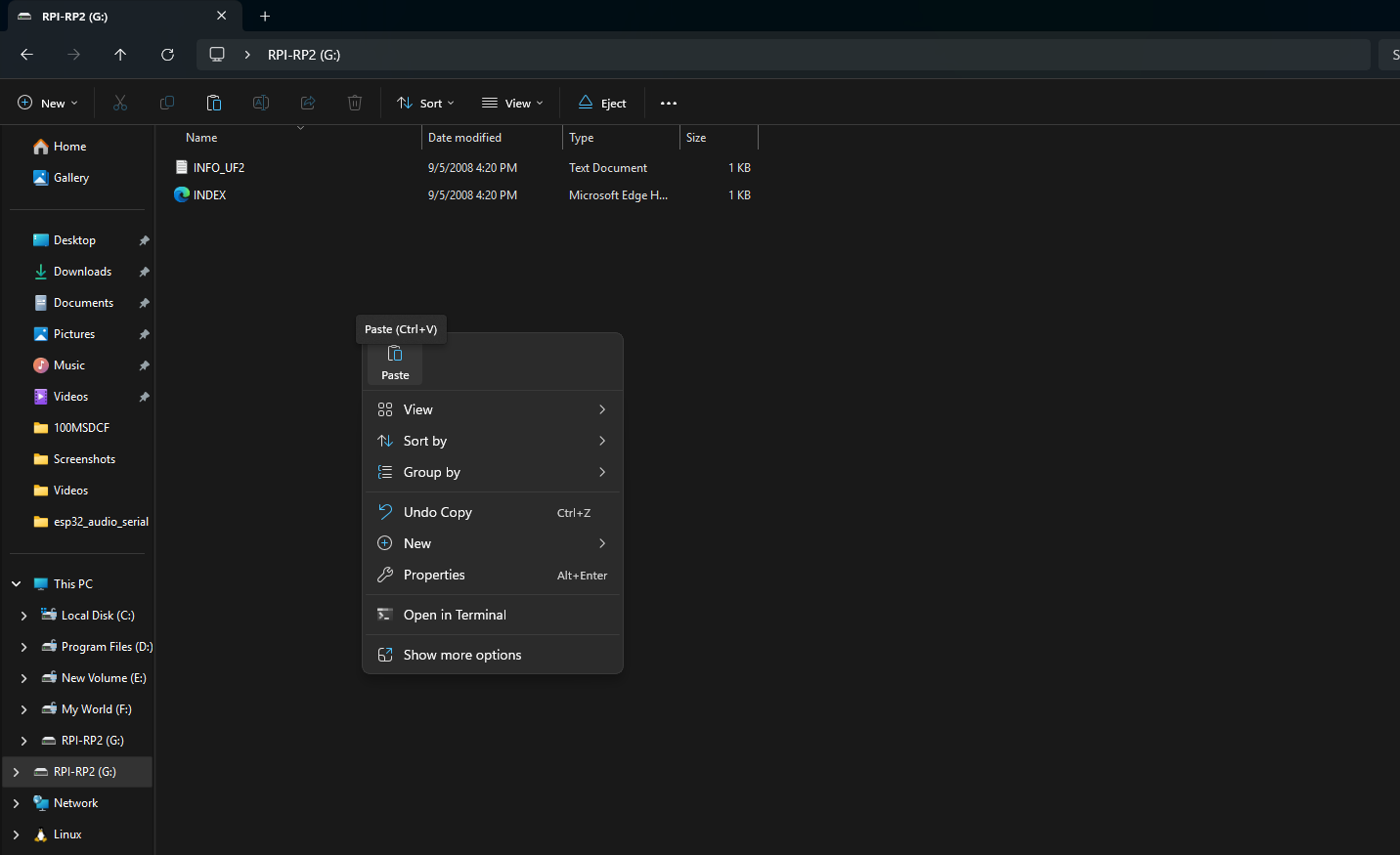
- Copy the downloaded .UF2 file into the RP2 drive.
- Once copied, press the RESET button.
- The device will reboot with the new firmware.
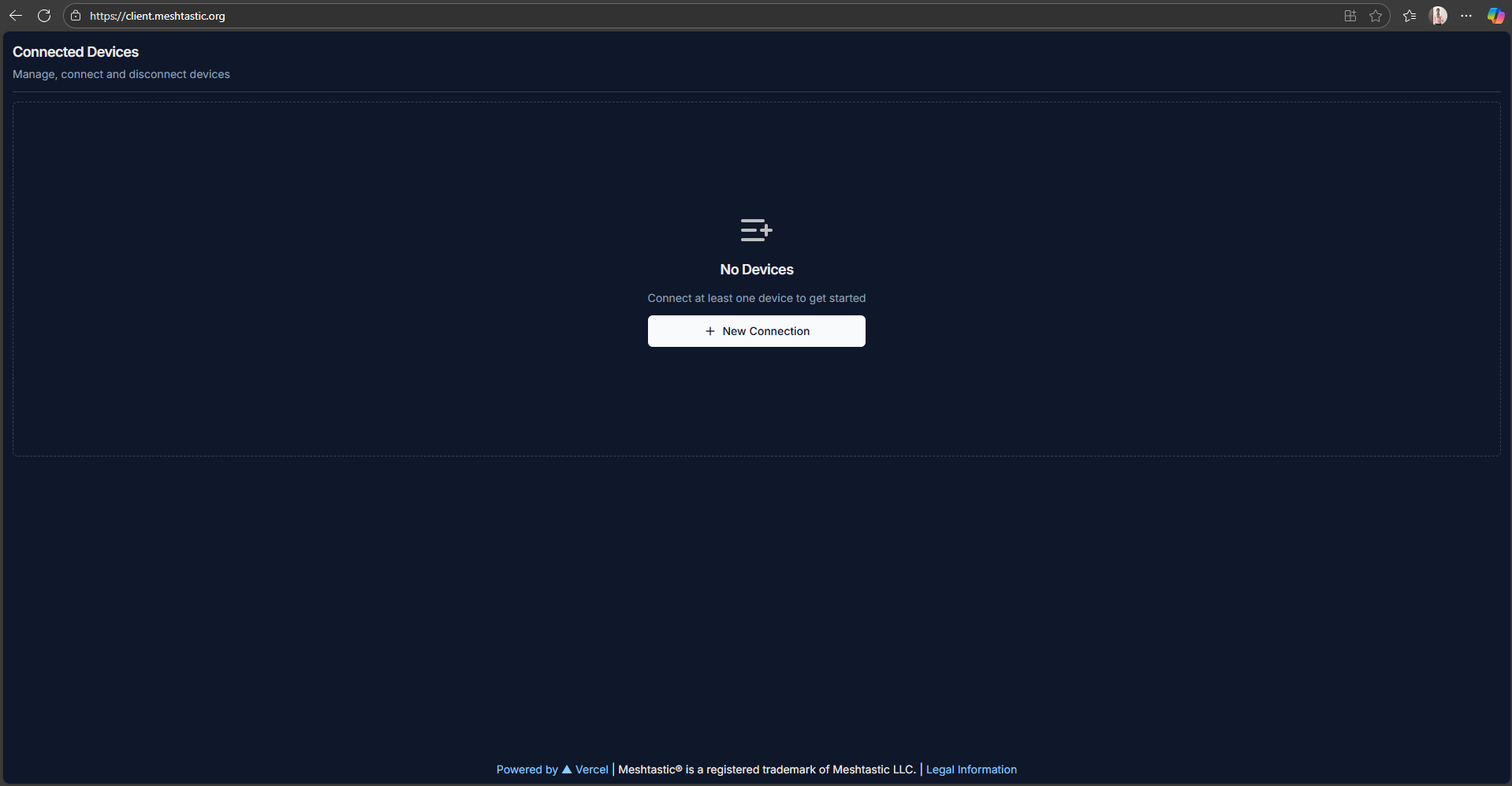
- Open Meshtastic Client.
- Click New Connection.
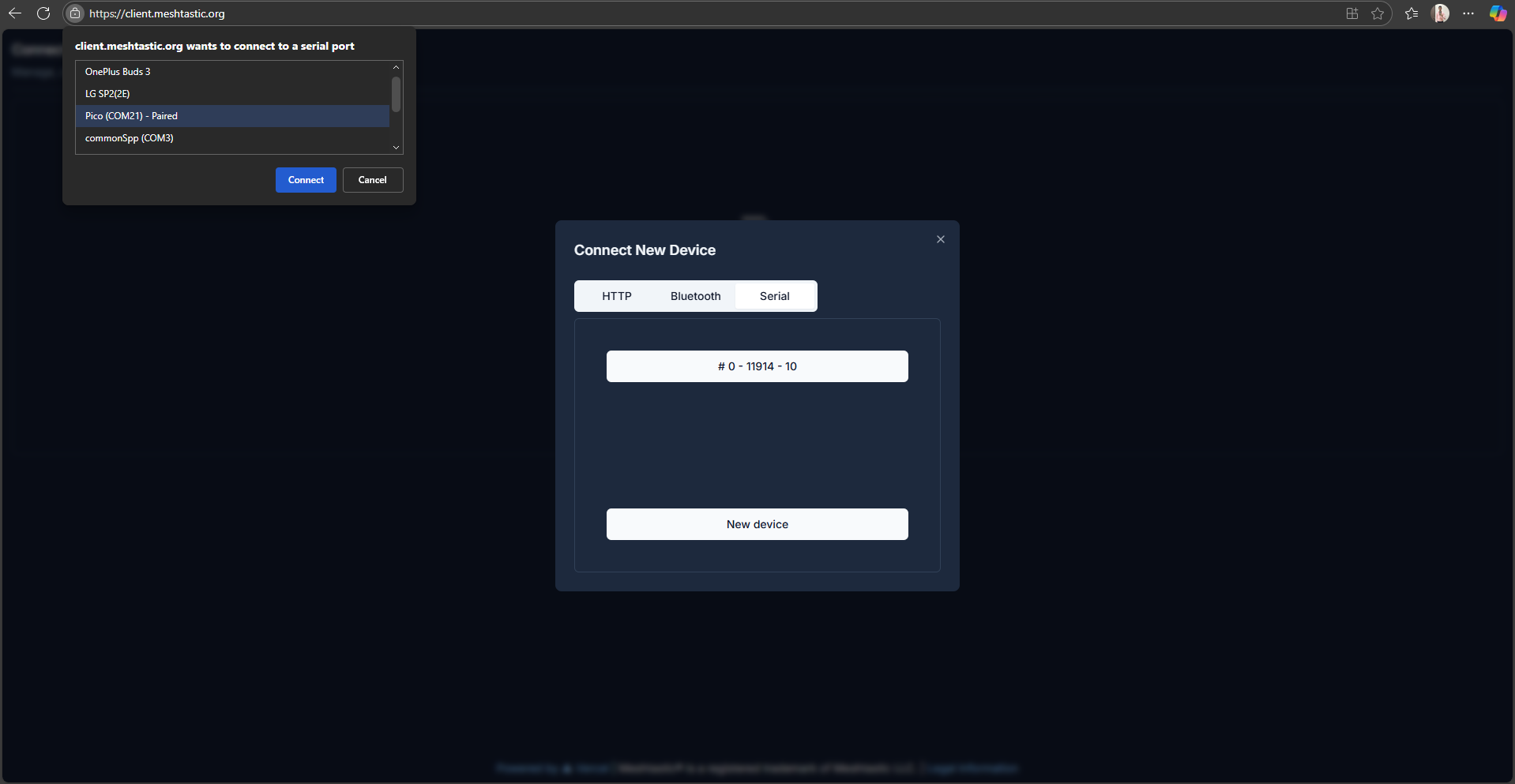
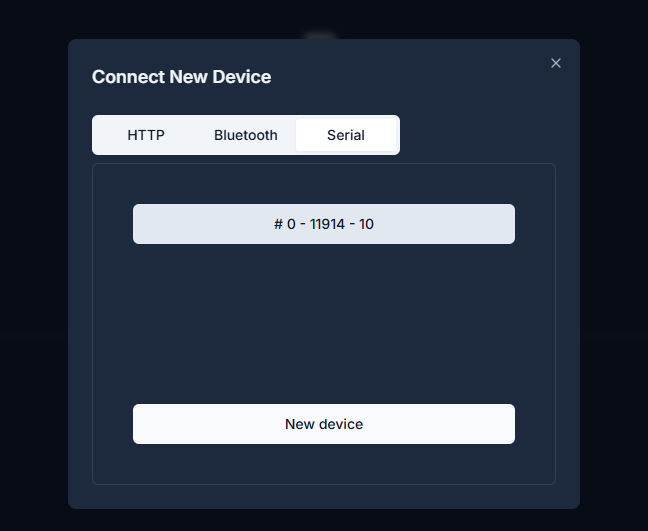
- Select Serial.
- Click New Device → choose the COM port where your module is connected.
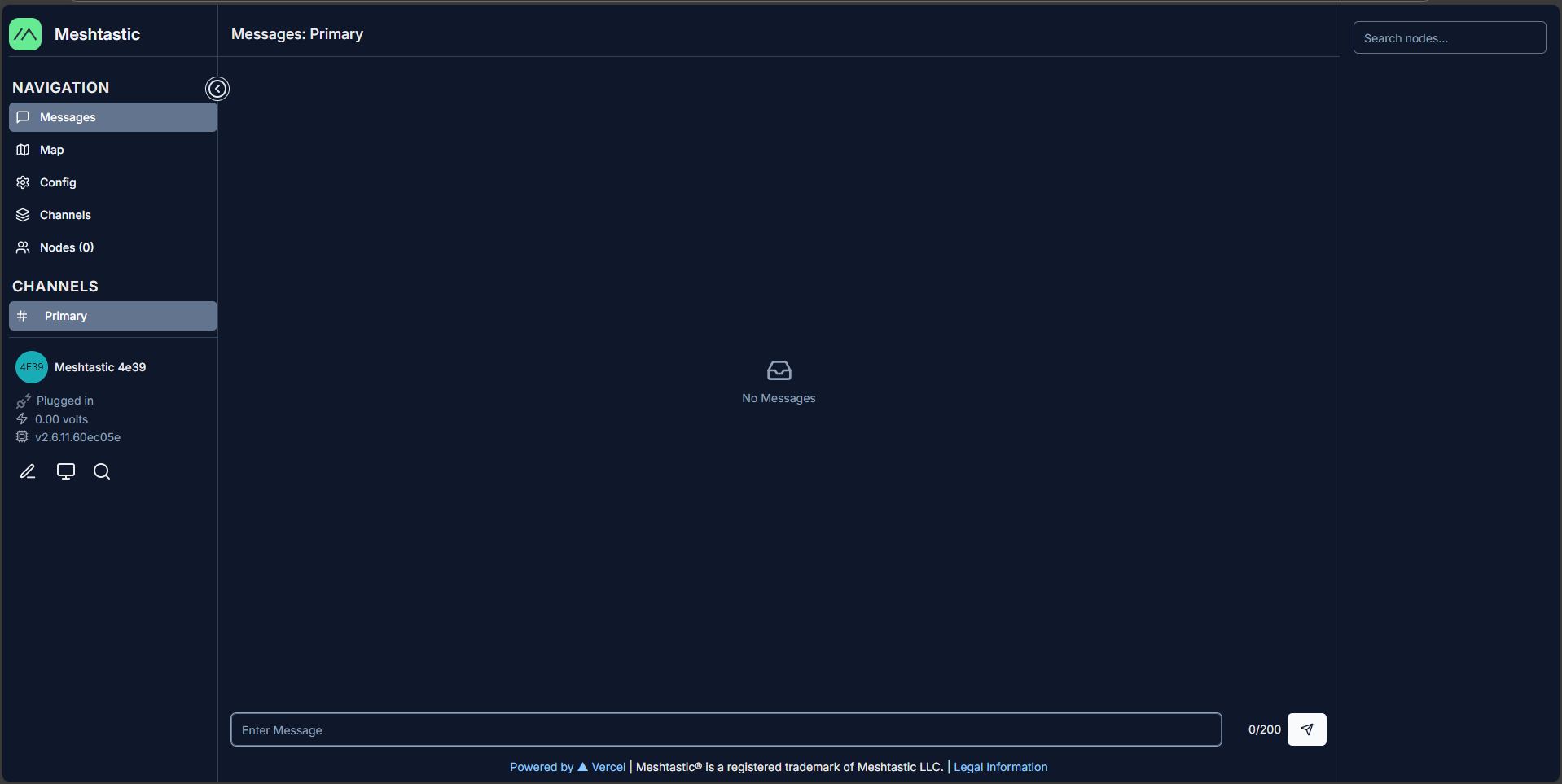
- You should now see the Meshtastic Node Page.
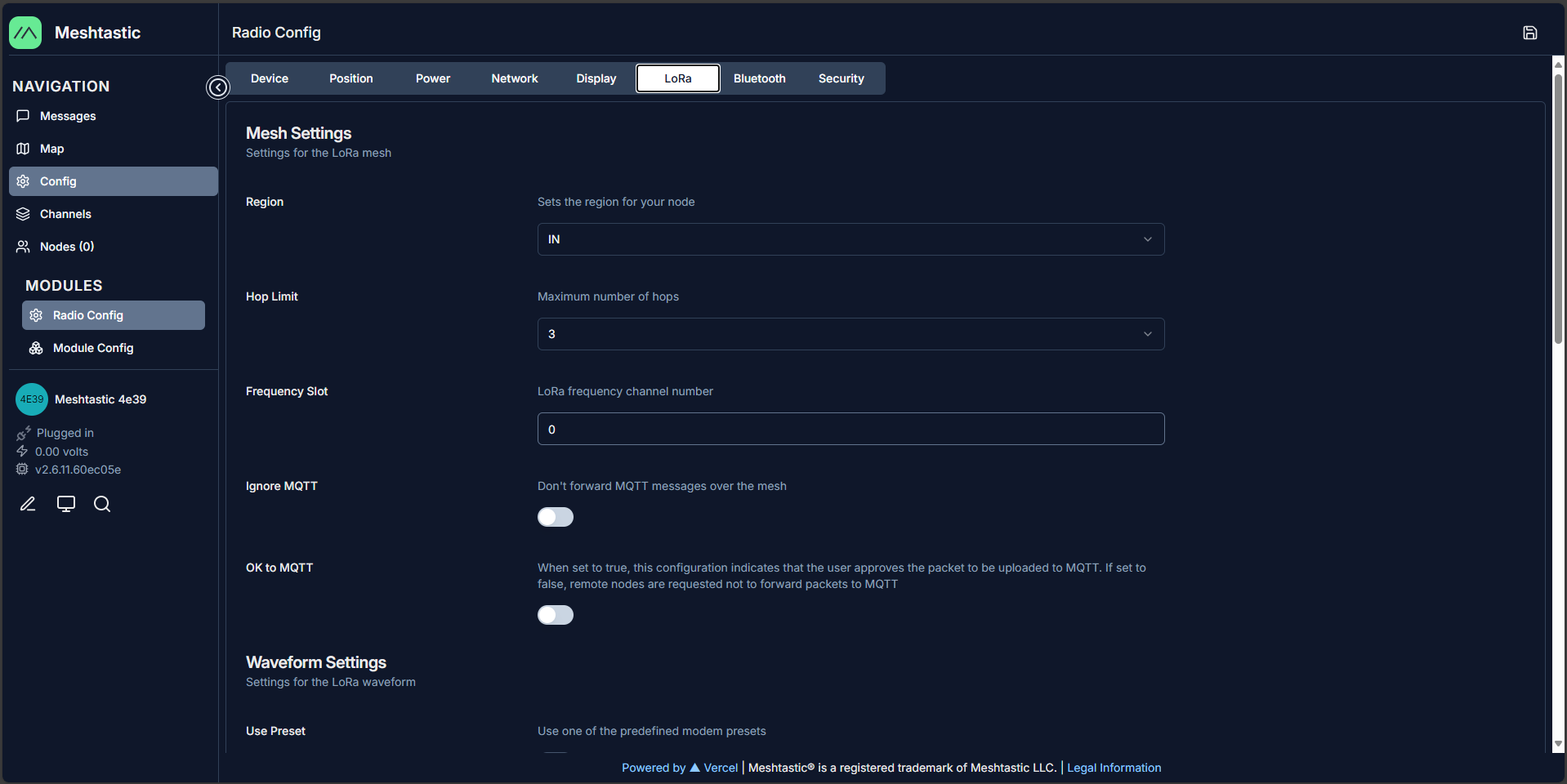
- Go to Config → LoRa.
- Set the Region according to your country’s LoRa regulations.
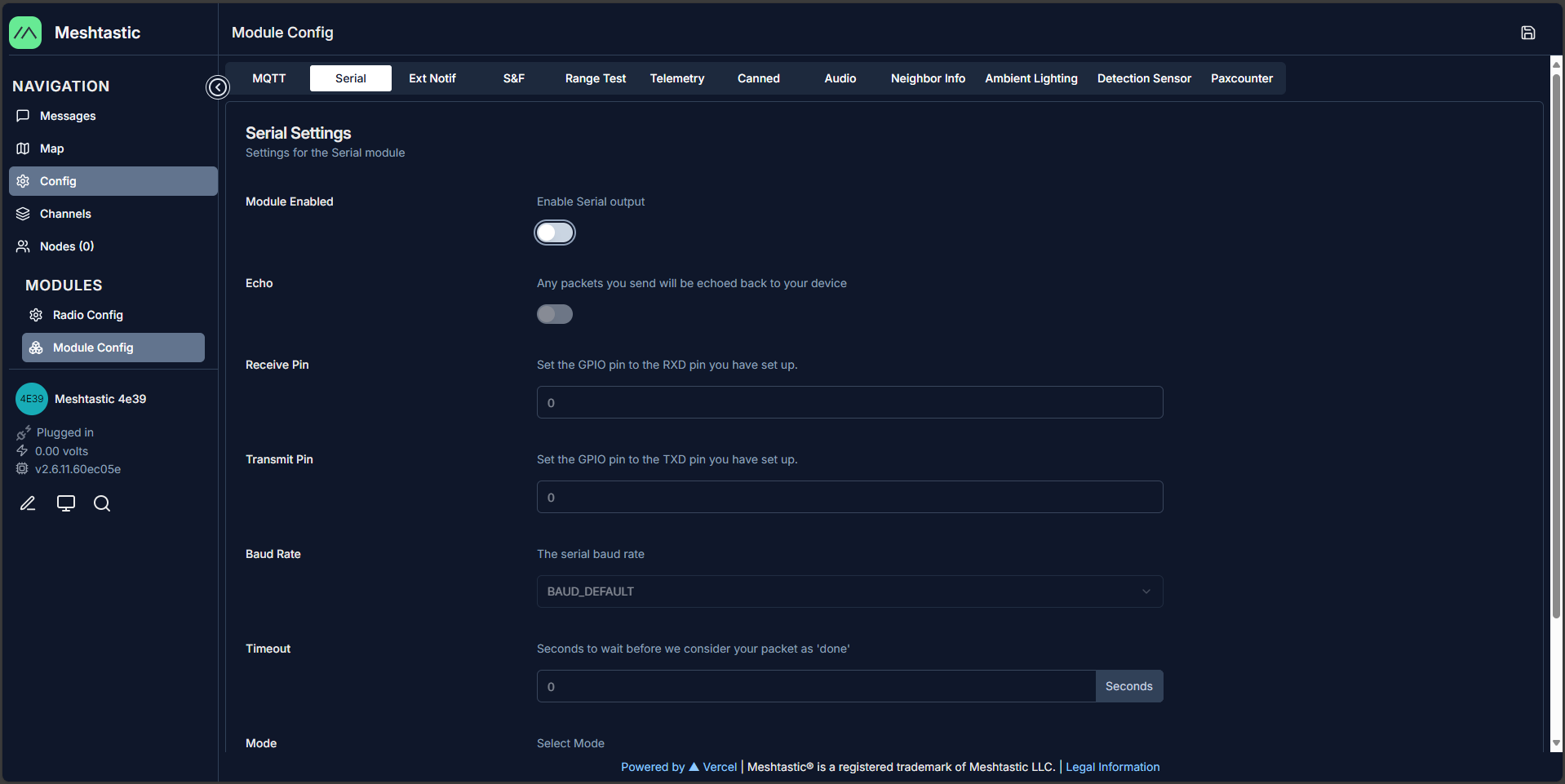
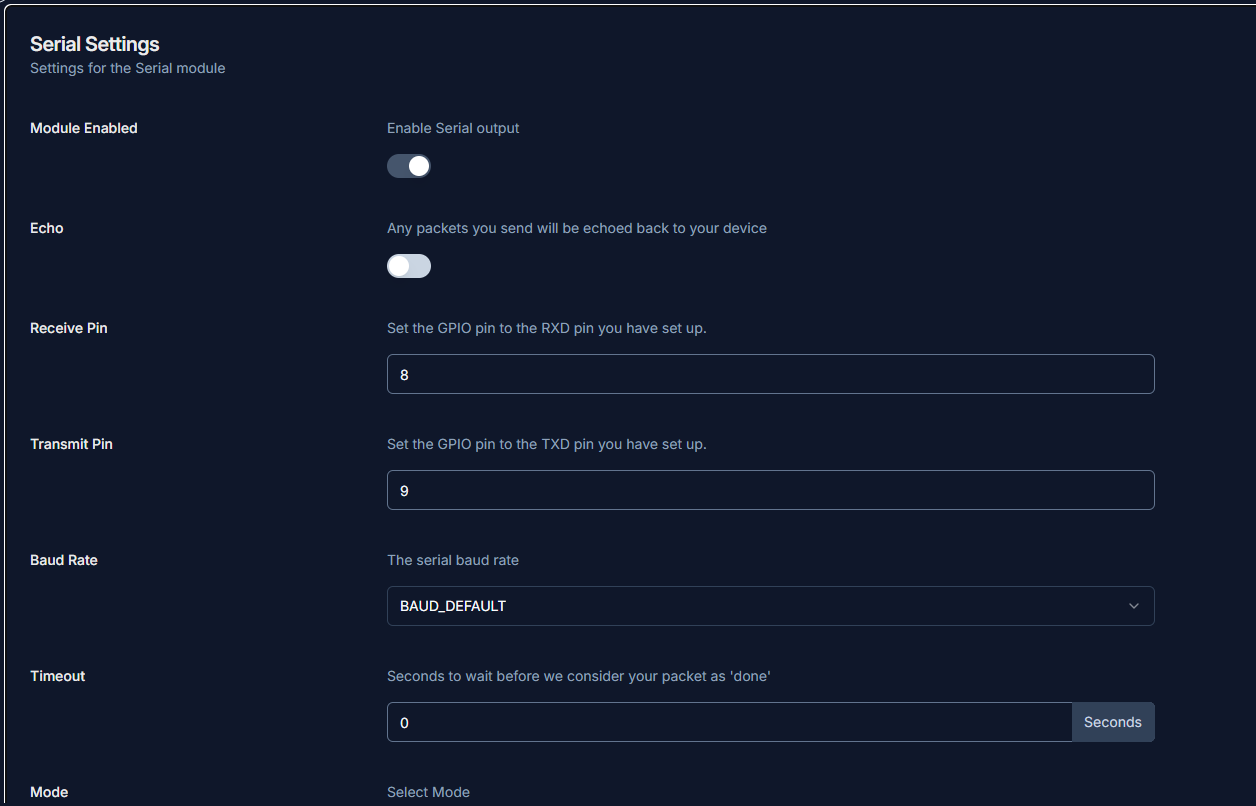
- Go to Module Config → Serial.
- Enable Serial Output.
- Set pins:
- Receive Pin (RX): 8
- Transmit Pin (TX): 9
- Save by clicking the top-right save button.
Step 3: PCB Assembly

- Gravity: Multifunctional Environmental Sensor
- Fermion I²S MEMS Microphone
- Fermion MEMS Smoke Detection Sensor
- RP2040 LoRa Module with Type-C Adapter
- Use a clean, static-free surface.
- Preheat your soldering iron to around 350 °C (for leaded solder) or 370–380 °C (for lead-free).
- Have tweezers and flux ready to handle small pins.
- Begin with the smallest modules (sensors) first MEMS microphone and Smoke sensor..
- Than carefully align the Environmental sensor and solder the I²C pins.
- Finally, solder the LoRa module.
- Double-check pin alignment before applying solder. Incorrect orientation can damage the modules.
- After soldering each module, use a multimeter in continuity mode.
- Probe between the module pin and the corresponding PCB pad/trace.
- A beep or zero-resistance confirms proper connectivity.


Step 4: Node CAD Design and 3D Printing
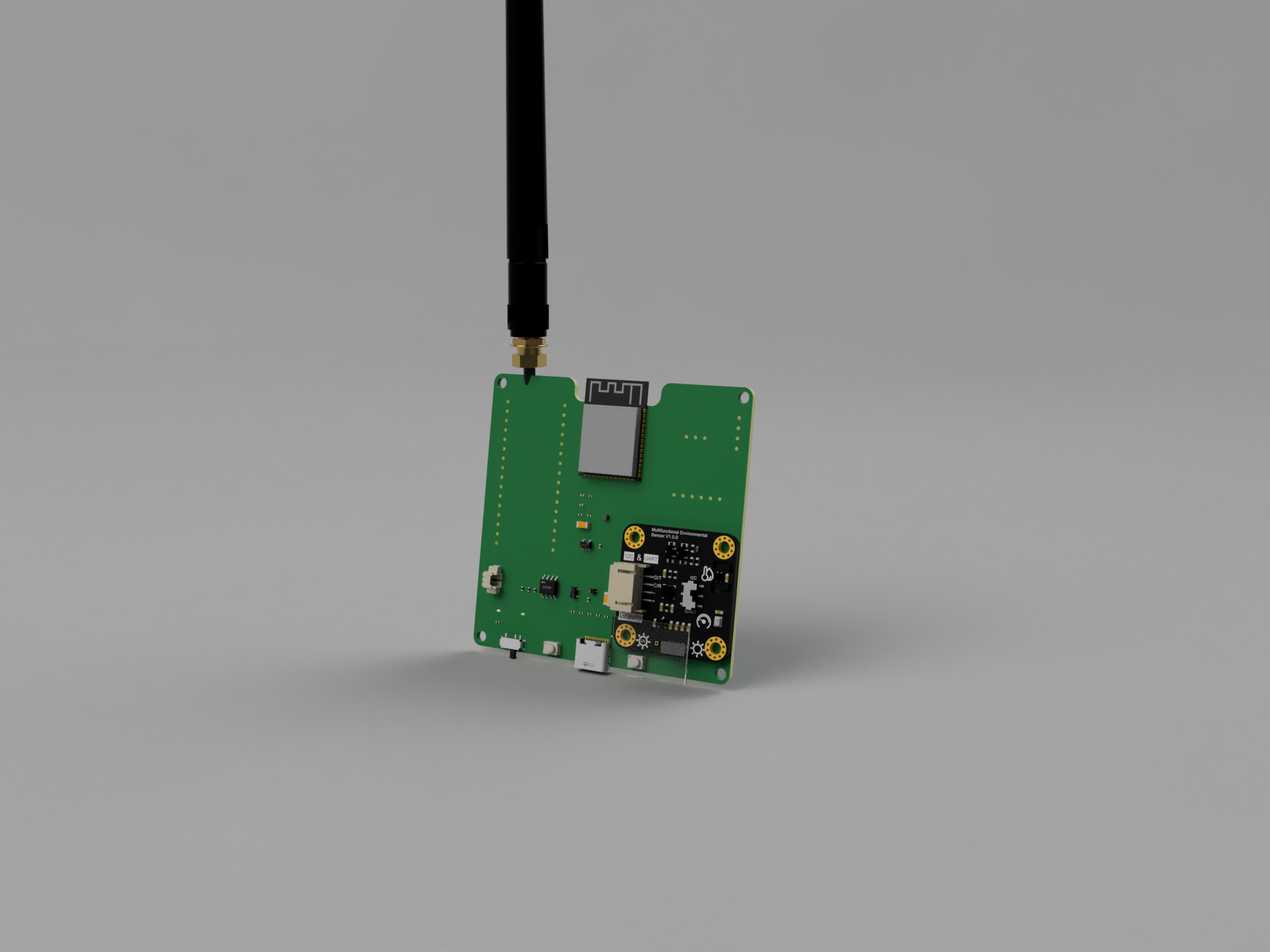
 To make the Forest Guard Node truly field ready, I designed a custom enclosure in Fusion 360. This was done by first importing all the standard components and then exporting the PCB 3D model from EasyEDA into Fusion 360, ensuring that every cutout and mount point lined up perfectly.
Enclosure Features
The Node enclosure is made up of multiple parts:
To make the Forest Guard Node truly field ready, I designed a custom enclosure in Fusion 360. This was done by first importing all the standard components and then exporting the PCB 3D model from EasyEDA into Fusion 360, ensuring that every cutout and mount point lined up perfectly.
Enclosure Features
The Node enclosure is made up of multiple parts:
- Housing - Holds the custom PCB, with cutouts for the Type-C port, push switch, and top-mounted LoRa antenna. A large center cutout allows light from the onboard RGB LED to pass through.
- Diffuser - A dedicated piece that diffuses the RGB LED light, making it visible in the field without being harsh.
- Cover - Designed to mount the solar panel on top and provide space for the GNSS sensor.
- Mount & Clip Set - Allows the node to be attached securely to trees, walls, or other structures.
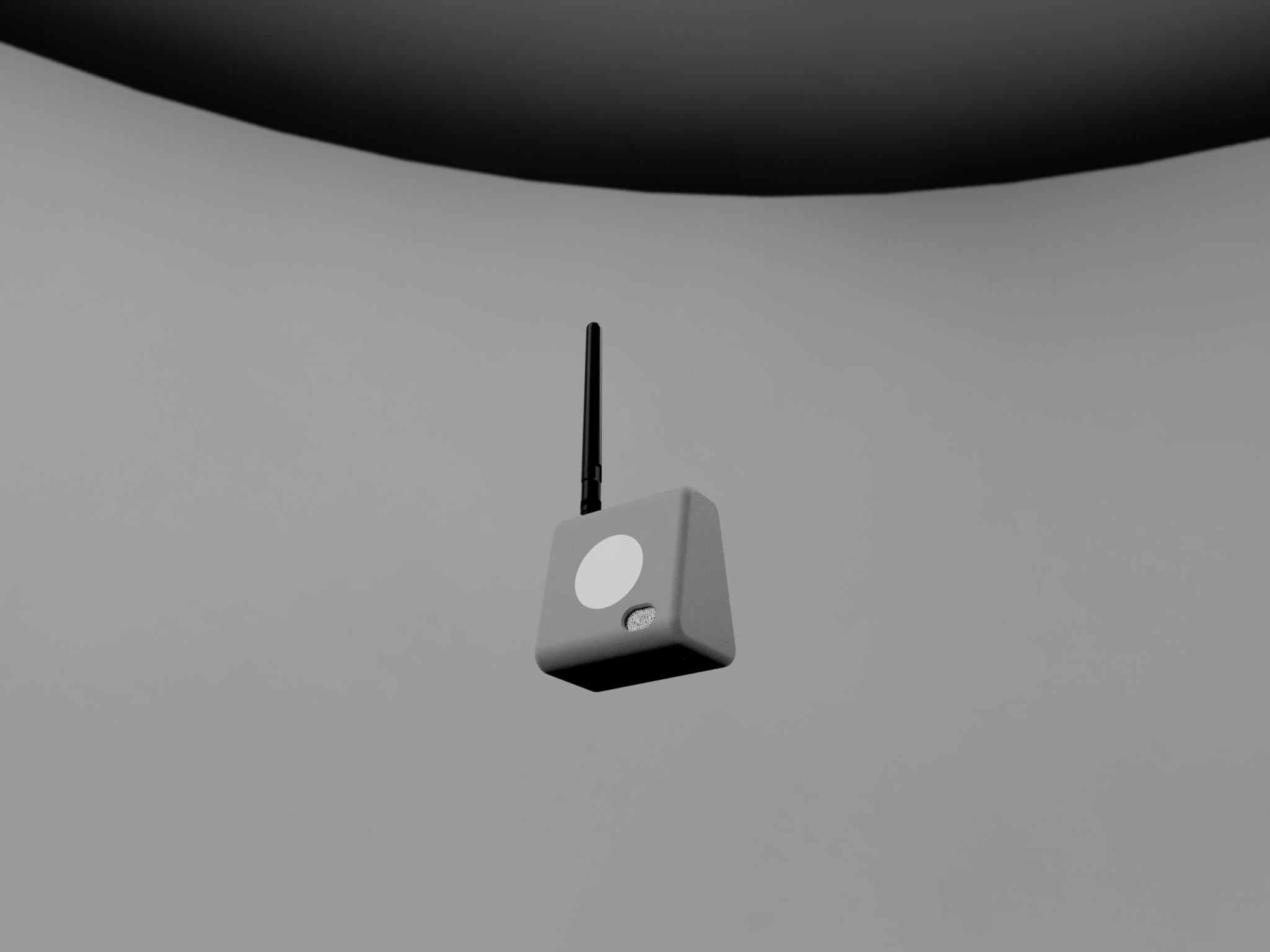
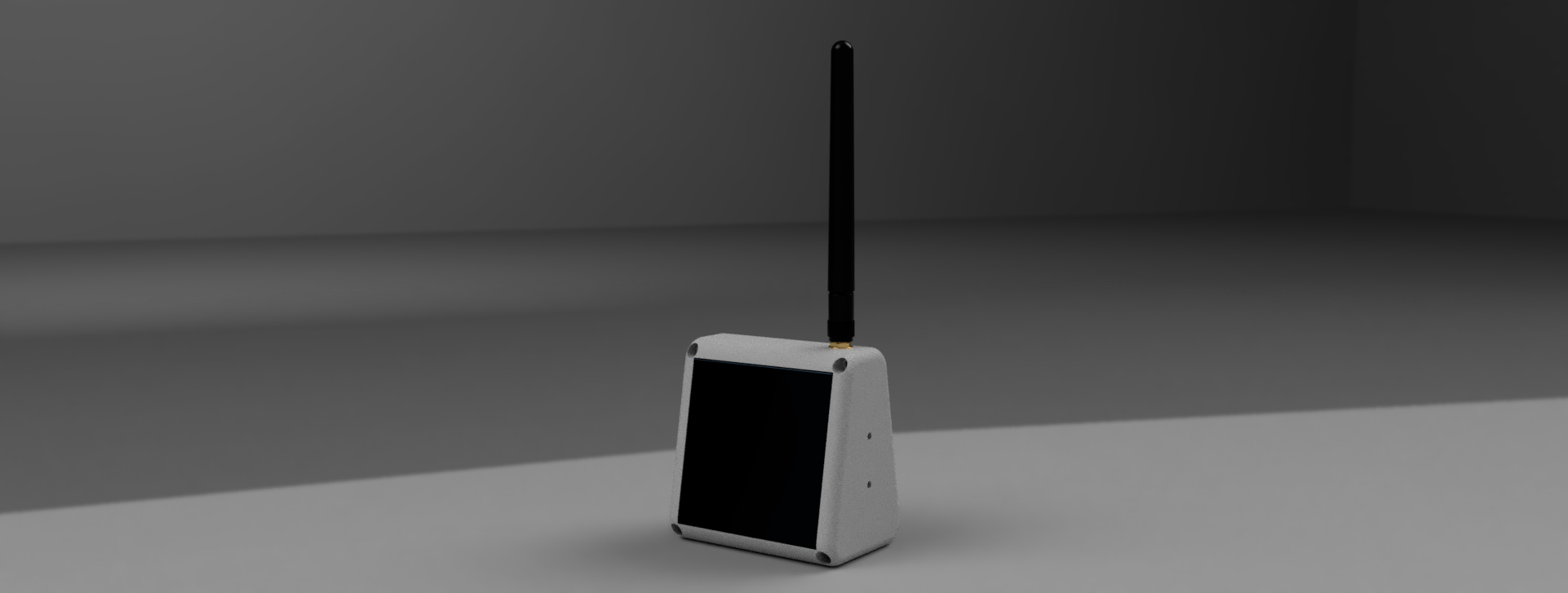



- Housing and cover were printed in light gray PLA for durability and aesthetics.
- Diffuser was printed in pure white PLA to achieve soft light diffusion from the RGB LED.
- STL files - Ready-to-print files for direct 3D printing.
- Fusion 360 design file - For anyone who wants to modify or customize the design further.
Forest Guard Tx Fusion 360 File
Step 5: Diffuser and Light Visor Assembly
To make the RGB LED indicator and environmental sensor light input effective, we add a diffuser and a light visor to the node housing. This ensures the LED glow is soft and visible in the field, while the environmental sensor gets accurate light readings without interference. Parts Needed- Housing
- Diffuser
- Small piece of clear plastic (cut from packaging or acrylic sheet)
- Quick glue (super glue or instant adhesive)
- Apply a thin line of quick glue around the Diffuser cutout in the housing.
- Carefully snap the diffuser into place as shown (it should align flush with the cutout).
- Hold gently for a few seconds until the glue sets.


- Locate the cutout for the Environmental Sensor light input.
- Apply a small amount of quick glue around the edges of this cutout.
- Place the clear plastic piece over the opening. This acts as a protective window and ensures correct light transmission for the sensor.


Step 6: Solar Wire Soldering
- Cut two wires, each about 10 cm long (one red, one black).
- Solder the red wire to the + pad on the back of the battery connector.
- Solder the black wire to the – pad.


Step 7: Housing Assembly
- Take the assembled PCB, housing, battery, and the LoRa antenna.
- First, connect the antenna to the LoRa module.
- ⚠️ Never power on without the antenna connected.
- Connect the battery to the PCB.
- Place the PCB inside the housing, aligning the Type-C port with the cutout.
- Secure the PCB using 4× M3 screws.
- Unscrew the antenna, pass it through the top housing hole, and screw it back in place.
- Finally, use double-sided tape to fix the battery to the back of the PCB.


Step 8: Solar Panel Assembly
- Take the solar panel, cover, and quick glue.
- Align the solar panel with the cutout on the cover and snap it into place.
- From the back side of the cover, locate the four holes.
- Apply a small amount of quick glue into each hole to secure the panel firmly.
- Let it sit for a few minutes to allow the glue to set fully.


Step 9: Cover Assembly
- Take the cover and the GNSS sensor module.
- Connect the GNSS antenna to the GNSS module.
- Place the module over the mounting holes on the cover.
- Secure the module using 4× M3 screws.
- Use double-sided tape to secure the antenna on the cover so it stays in place.


Step 10: Final Connections
Take the Housing Assembly and the Cover Assembly. Use the 4-pin connector that came with the GNSS sensor:- Cut the connector in half using a cutter.
- Plug one side into the GNSS sensor.
- Strip the wires on the other side and solder them to the PCB as follows:
- Red to 3V3
- Black to GND
- Green to SDA
- Blue to SCL


- Black to -Ve
- Red to +Ve


Step 11: Final Assembly
- Take the assembled housing and the assembled cover.
- Carefully align the cover on top of the housing.
- ⚠️ Make sure no wires get pinched during this step.
- Once aligned, snap the cover into place.
- Use 4× M3 screws to securely fasten the cover to the housing. Now your Forest Guard Node is fully assembled and ready for field testing!


Step 12: Pre-Requisite to Program Node (Edge Impulse)
What is Edge Impulse?
Edge Impulse is an edge AI development platform that makes it simple to:- Collect and label sensor data (audio, vibration, environmental, camera, etc.).
- Train ML models using classical algorithms or neural networks.
- Optimize models for low-power microcontrollers like ESP32, RP2040, and STM32.
- Generate ready-to-use Arduino libraries that can be imported directly into your Node firmware.
Audio Classification for Gunshot Detection
For this project, we focus on audio classification using the onboard MEMS microphone: Data Collection- Record short audio clips of gunshots and background forest sounds (wind, birds, insects, etc.).
- Upload these samples into your Edge Impulse project.
- Edge Impulse automatically converts raw audio into spectrograms (MFCCs), which represent the frequency patterns of the sound.
- This allows the model to detect unique signatures of gunshot sounds compared to other noises.
- A classification model is trained to output labels like:
- “gunshot”
- “background”
- The model learns the difference in frequency and amplitude patterns.
- Once trained and tested, export the model as an Arduino library.
- Include this library in your Node code.
- The ESP32-S3 runs the inference on its second core, ensuring real-time classification without blocking sensor updates or LoRa communication.
Why This Matters
This setup means that every Node becomes an intelligent sentinel:- Capable of hearing gunshots in the forest.
- Making real-time decisions without cloud dependency.
- Sending alerts through the LoRa mesh instantly.
Create Edge Impulse Project
To train and deploy your ML model, you first need to set up a project in Edge Impulse Studio. Create a Project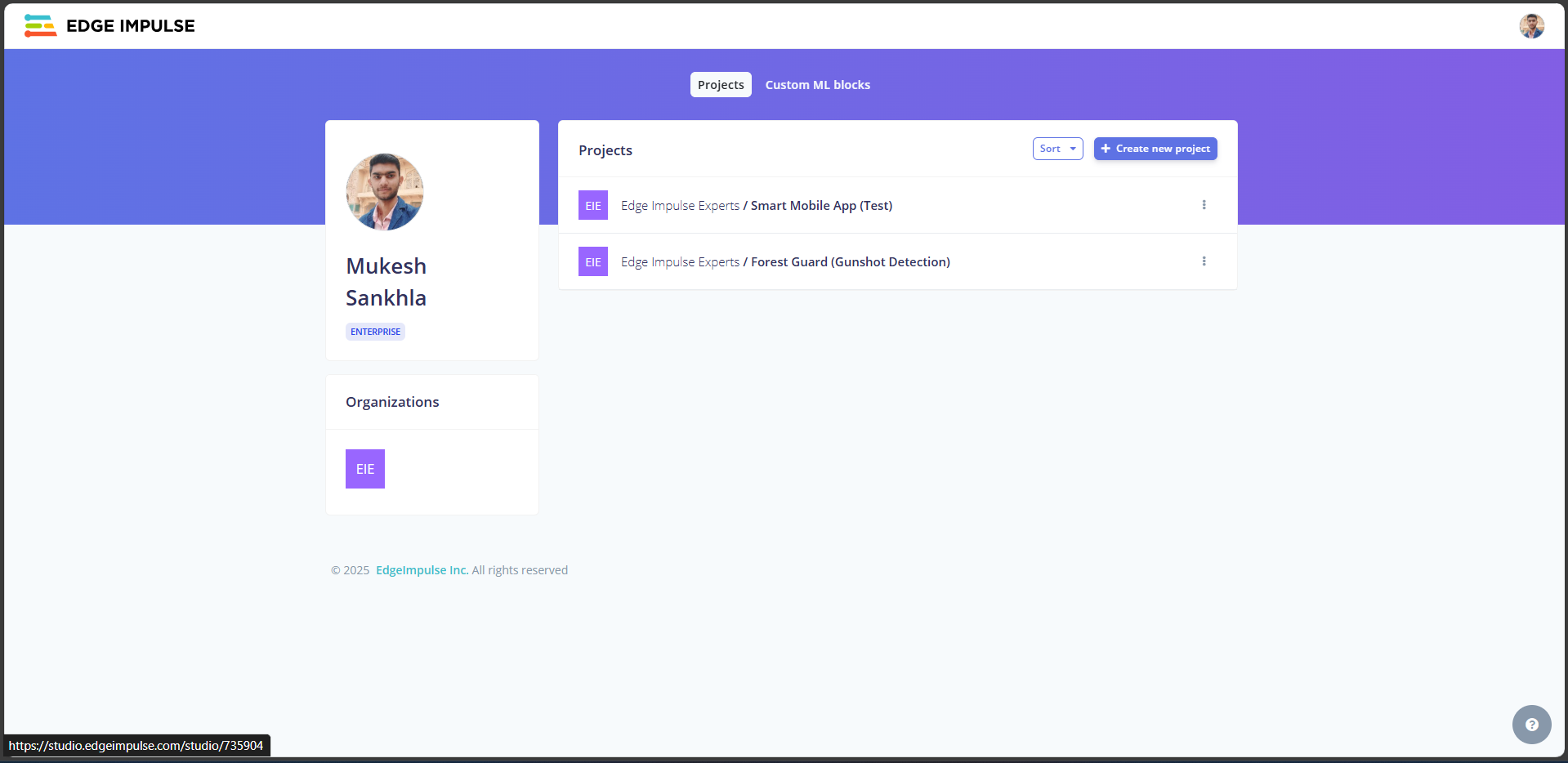
- Open Edge Impulse Studio.
- Login with your account credentials.
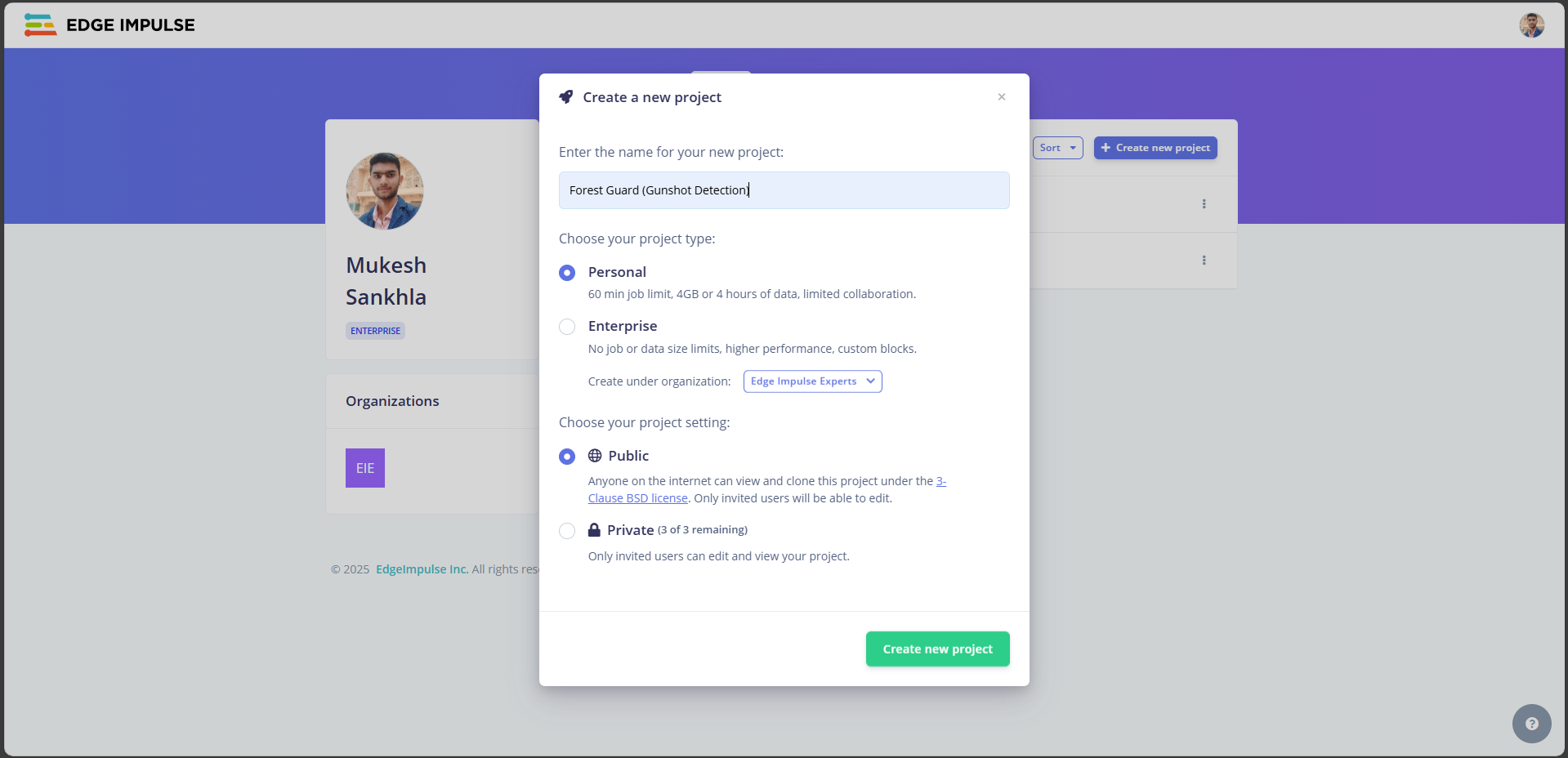
- Click on “Create New Project”.
- Give your project a meaningful name, e.g., Forest Guard Gunshot Detector.
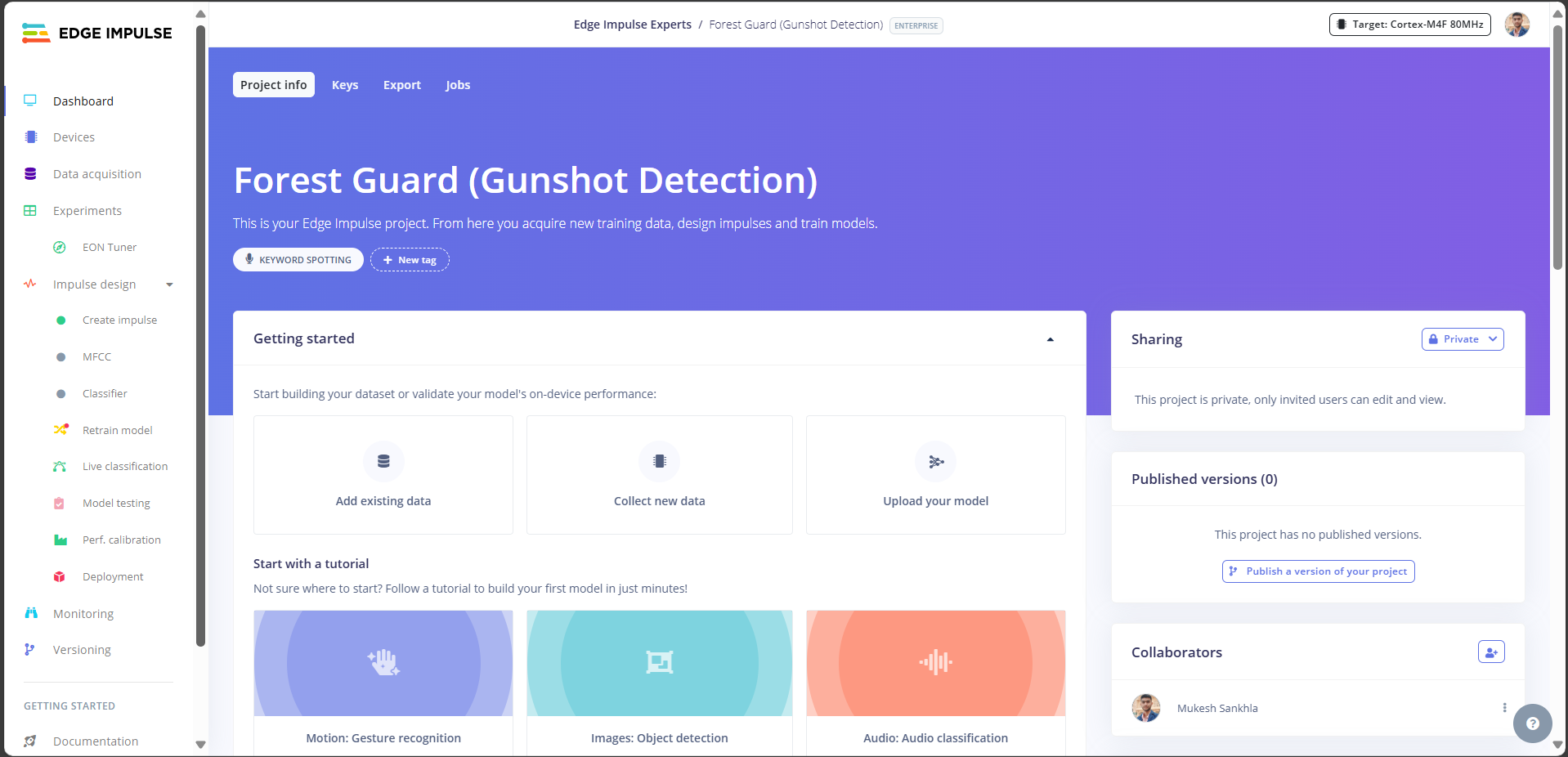
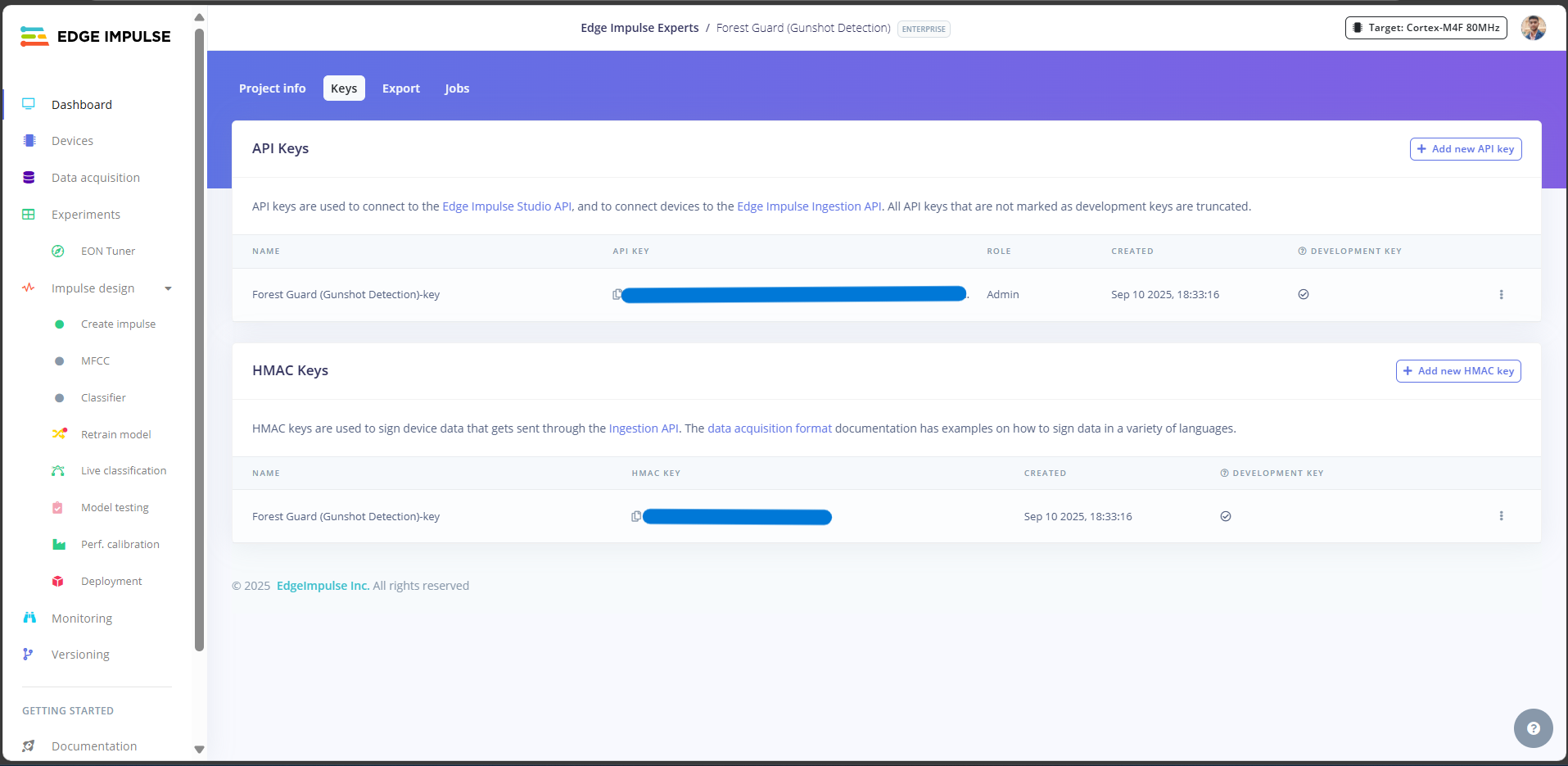
- After the project is created, go to Dashboard → Keys.
- Locate your Project API Key.
- Copy this key and keep it handy. You’ll need it in the Flask tool and Node code to connect data and models to Edge Impulse.
Step 13: Challenge to Collect Data
One of the biggest hurdles when working with Edge Impulse is data collection, especially for audio and image inputs. While numeric sensor streams (like temperature or humidity) can be pushed directly via serial, Edge Impulse currently doesn’t allow us to easily stream raw audio or image frames from the ESP32 to their platform in the same fast-forward way. This means we normally have to:- Log data to an SD card.
- Remove the card.
- Copy files to the computer.
- Upload them manually to Edge Impulse.
My Solution: Flask Data Uploader
To make this seamless, I built a Flask-based desktop tool that bridges the ESP32 and Edge Impulse: ESP32 Data Firmware- First, flash a simple Arduino sketch onto the ESP32 that streams audio (from the microphone) or images (from a camera) over Serial USB.
- On the PC side, run my Flask tool.
- It listens to the ESP32’s serial port and captures the incoming raw data.
- Using your Edge Impulse API key, the tool automatically uploads this data into your project.
- No need for SD cards or manual file transfers.
- Data is organized and labeled as it’s uploaded.
- Faster iteration when training models with new samples.
Step 14: ESP32 Audio Serial Code
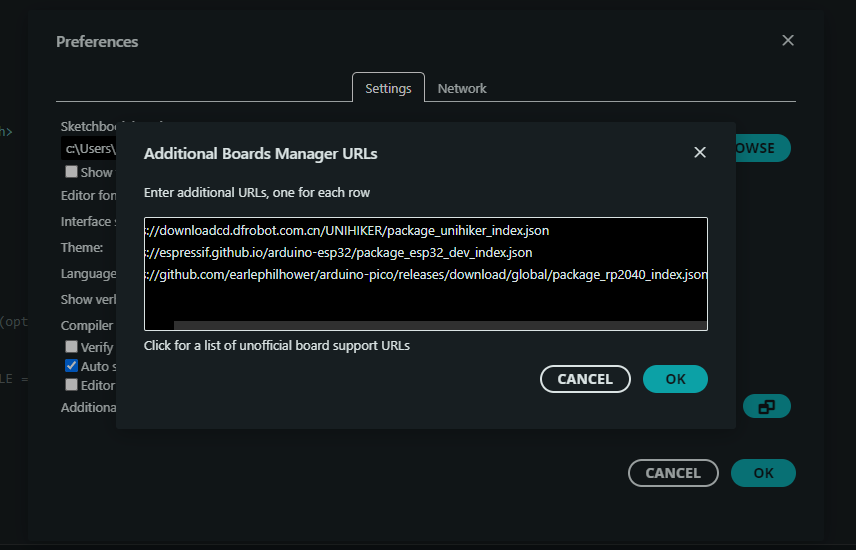
Before we can collect and upload audio samples into Edge Impulse, we need the ESP32-S3 to stream raw microphone data over Serial USB. This is done by flashing a small Arduino sketch that continuously records from the I²S microphone and sends the audio buffer to the PC. Install the ESP32 Board Package (Board Manager)- Open Arduino IDE → File → Preferences.
- In Additional Boards Manager URLs, add:
- Click OK.
- Go to Tools → Board → Boards Manager….
- Search “ESP32” and install esp32 by Espressif Systems (latest).

Tip: After install, restart Arduino IDE if the boards list doesn’t refresh.
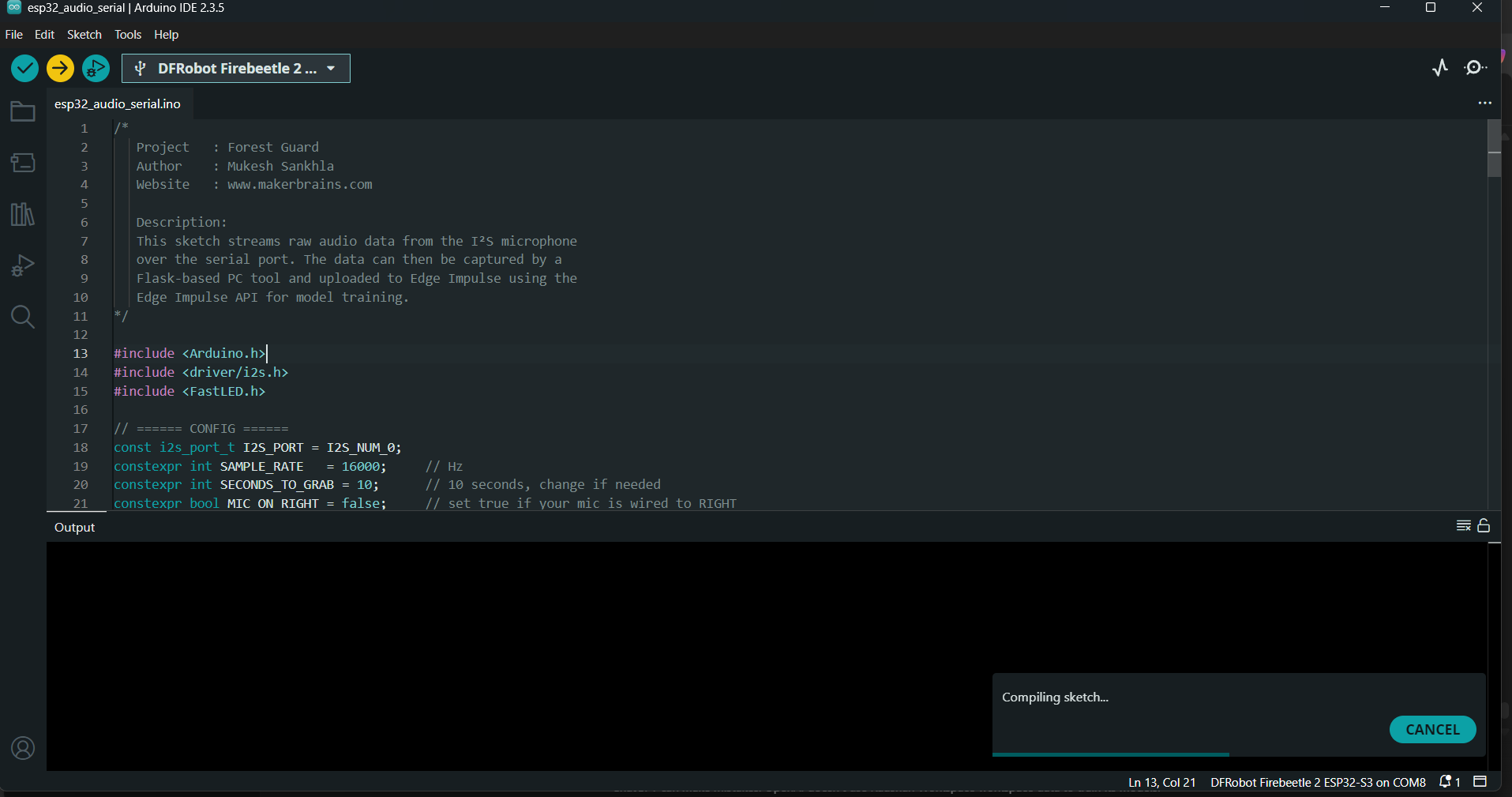
- Open the provided esp32_audio_serial.ino sketch into Arduino IDE.
- This code initializes the microphone, records a buffer, and streams it line-by-line over Serial.
- Inside the sketch, you’ll see a configurable parameter:
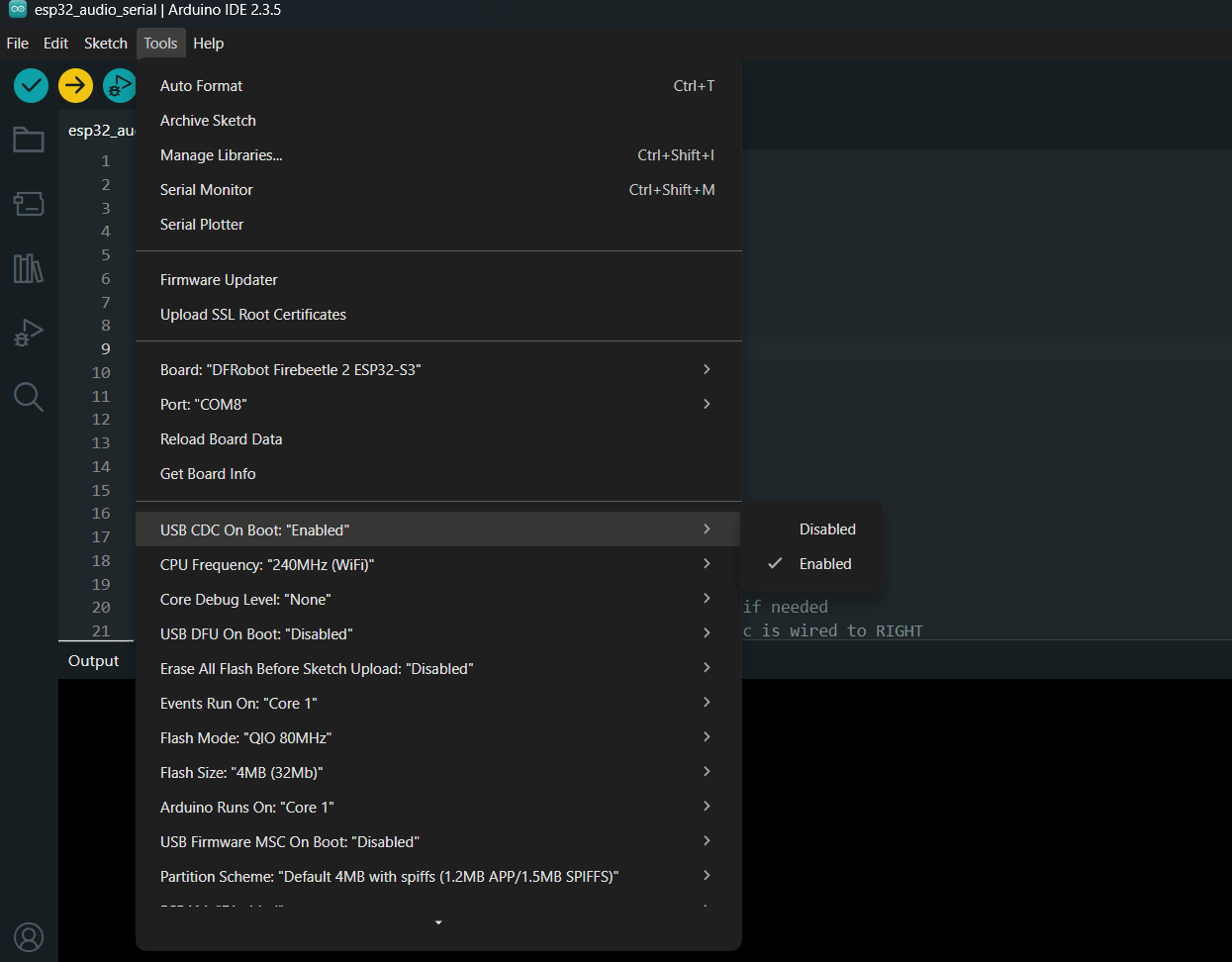
- Go to Tools → Board → ESP32 → DFRobot FireBeetle 2 ESP32-S3.
- Connect your ESP32-S3 to the PC with USB-C.
- Under Tools → Port, choose the correct COM port.
- Under Tools → USB CDC On Boot → Enable
- Click Upload to flash the code onto your ESP32-S3.
Step 15: Run Flask Tool
Now that your ESP32-S3 is streaming microphone data over Serial, let’s use the Flask Data Tool to capture it and upload directly into your Edge Impulse project. Setup the Flask Tool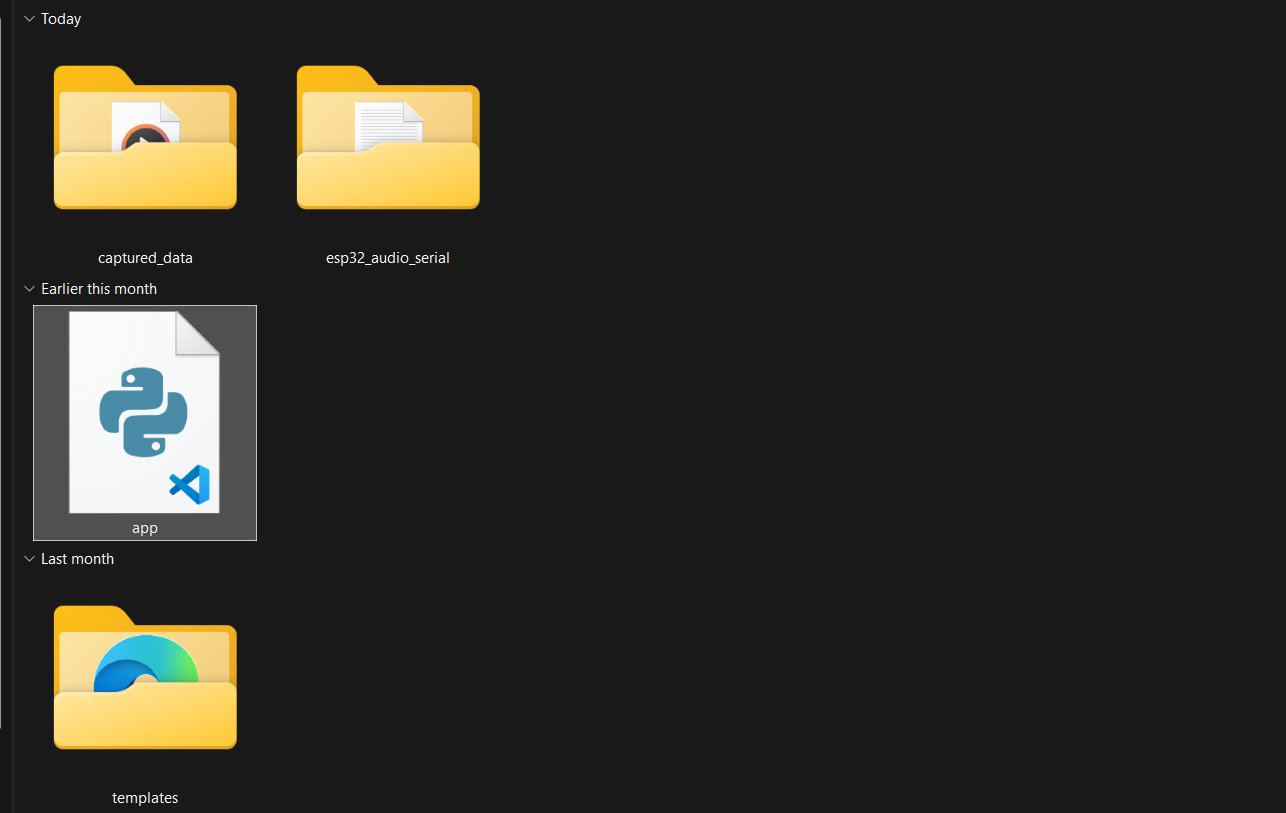
- Download the project repository:
- 👉 Forest-Guard GitHub Repository
- Open the Edge Impulse Data Tool folder.
- Run the Flask app:
- Once the server is running, open your browser and go to: http://127.0.0.1:5000/
- You will see the data collection dashboard.
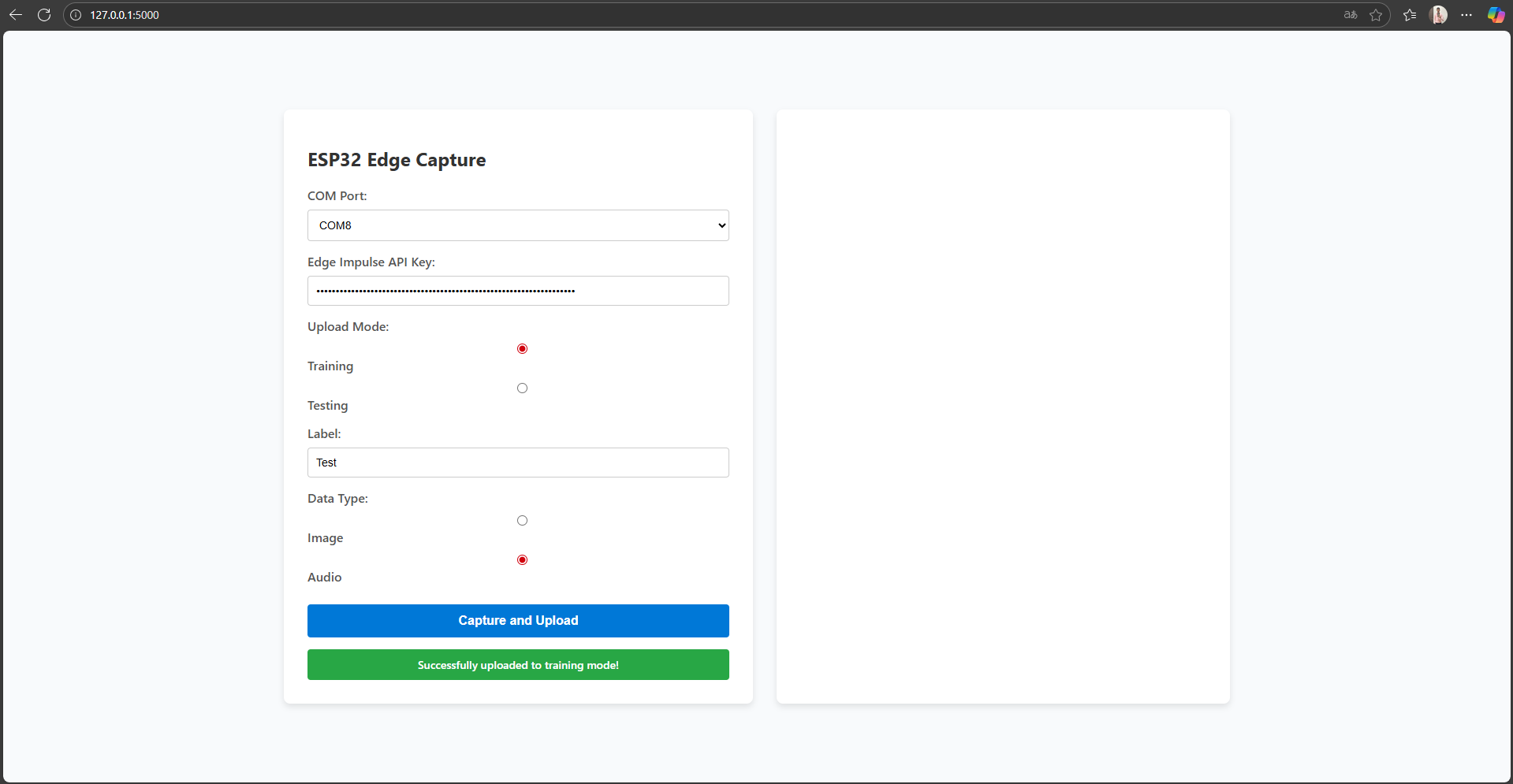
- Select COM Port → Choose the port where your ESP32 is connected.
- Paste API Key → Enter your Edge Impulse project API key (from Step 14).
- Choose Mode → Select whether this sample is for training or testing.
- Enter Label → e.g., gunshot or background.
- Select Data Type → Choose Audio.
- Click Capture → Recording will begin.
- The Node LED will glow green while audio is being recorded.
- Once the LED turns off, the captured audio file is automatically uploaded to your Edge Impulse project.
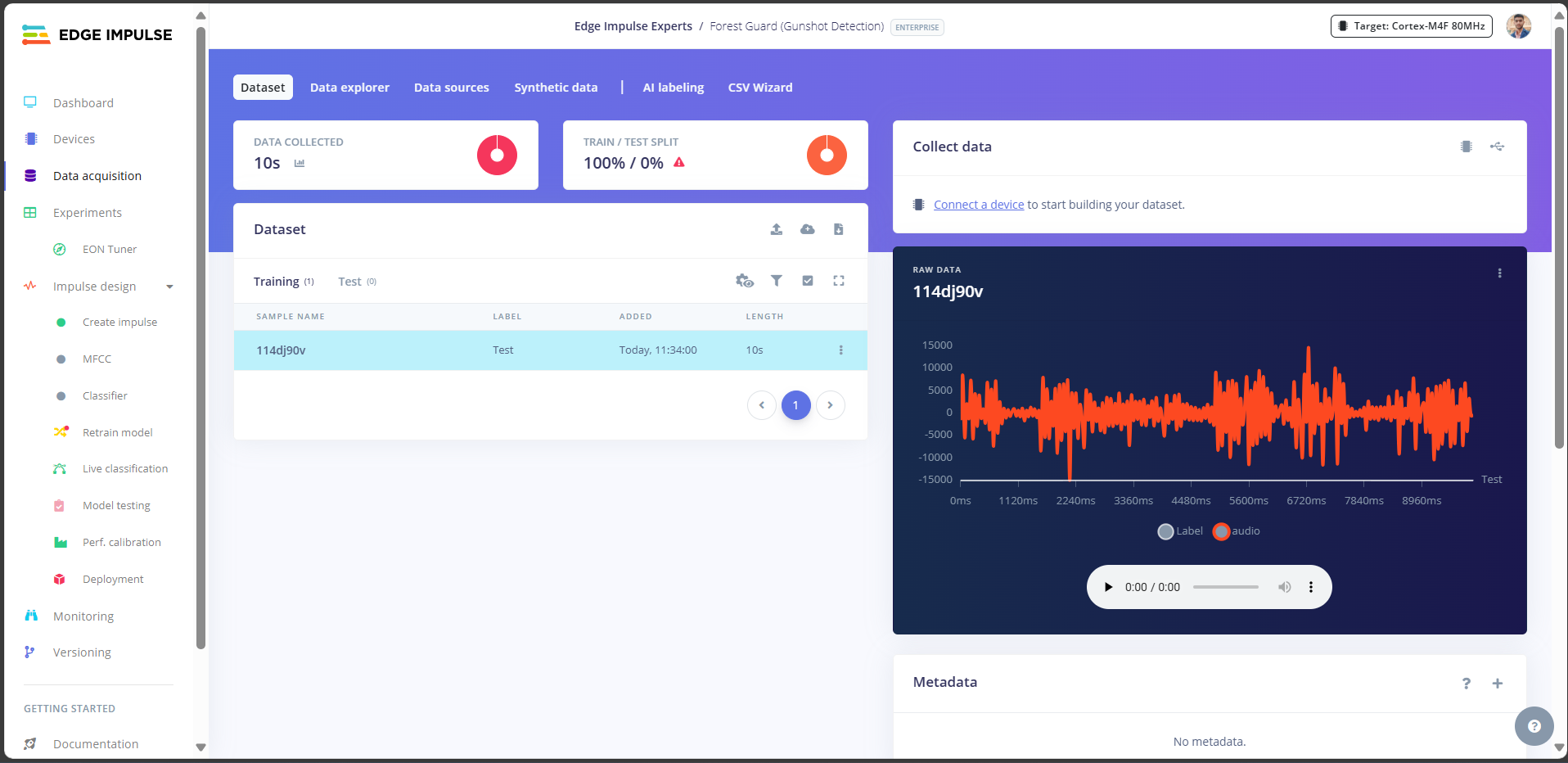
Step 16: Collect Data
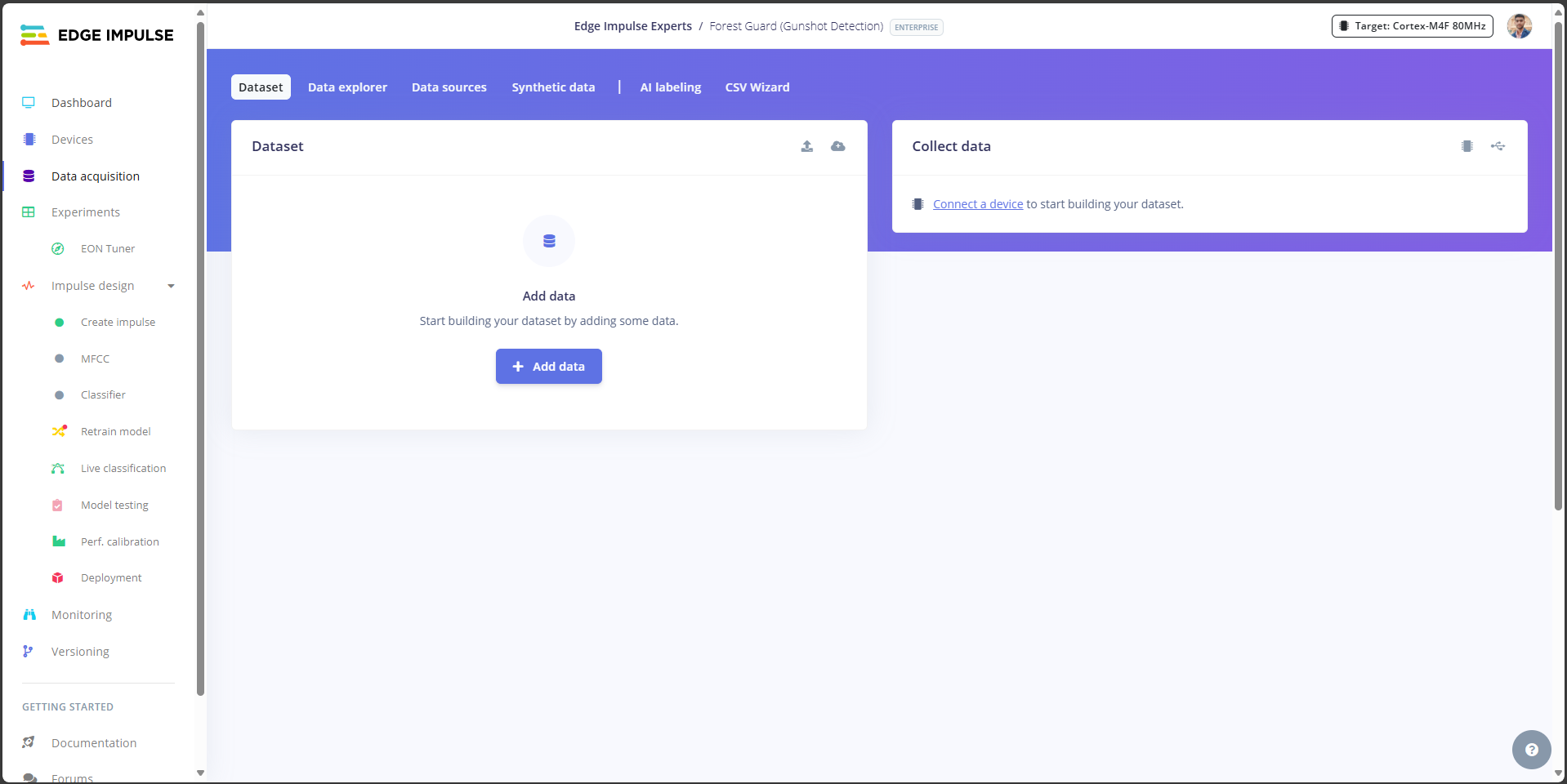
- Set the label flag to Noise.
- Start recording samples in different environments:
- Indoors → quiet rooms, fan noise, people talking.
- Outdoors → wind, birds, insects, cars, etc.
- Collect at least 120 seconds of audio in each scenario.
- The more variety, the better the model can tell background noise apart from gunshots.
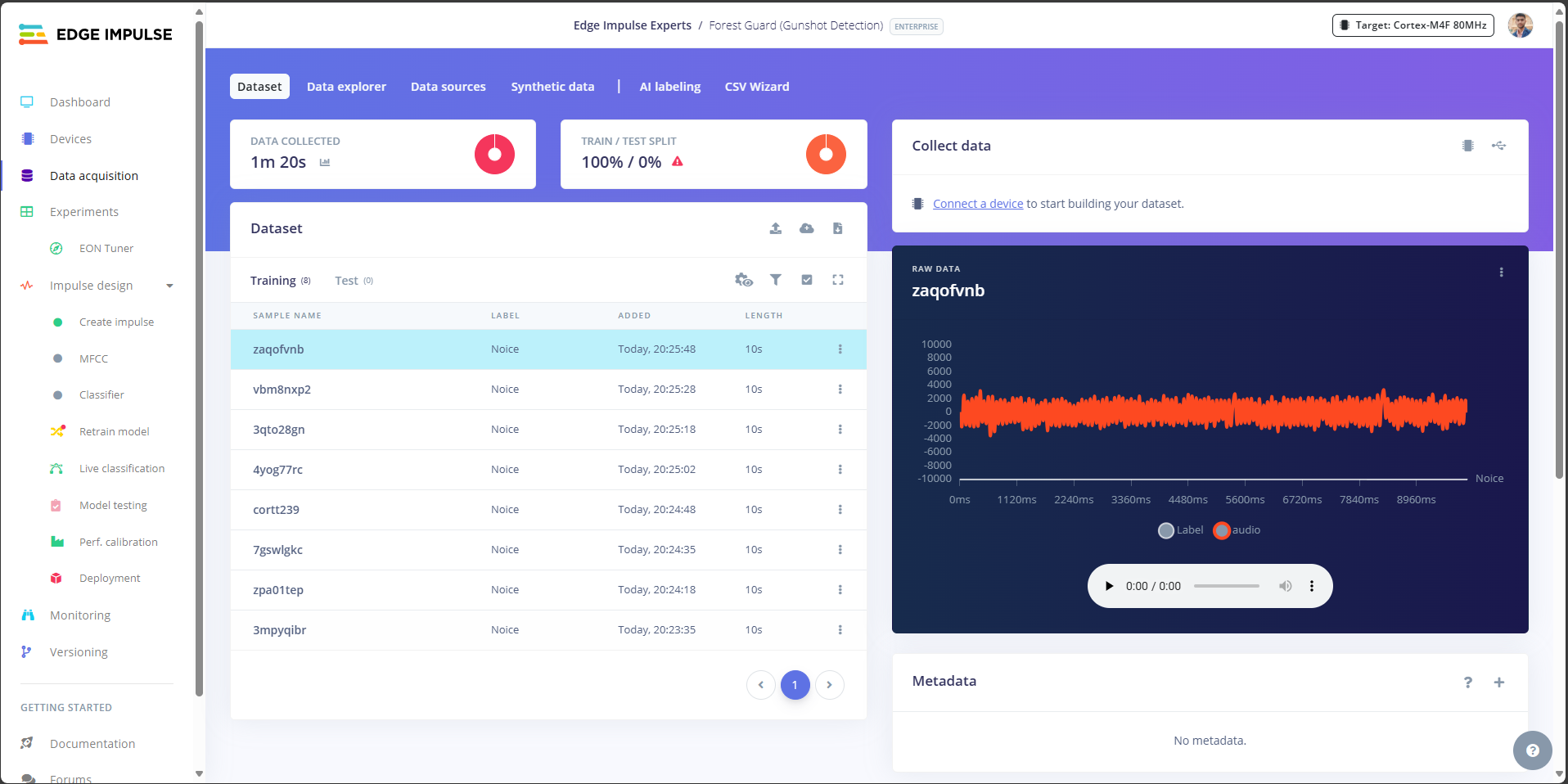
- Set the label flag to Gun.
- Play different gunshot audio samples (different calibers, environments, echo levels).
- Record up to 120 seconds of audio in total.
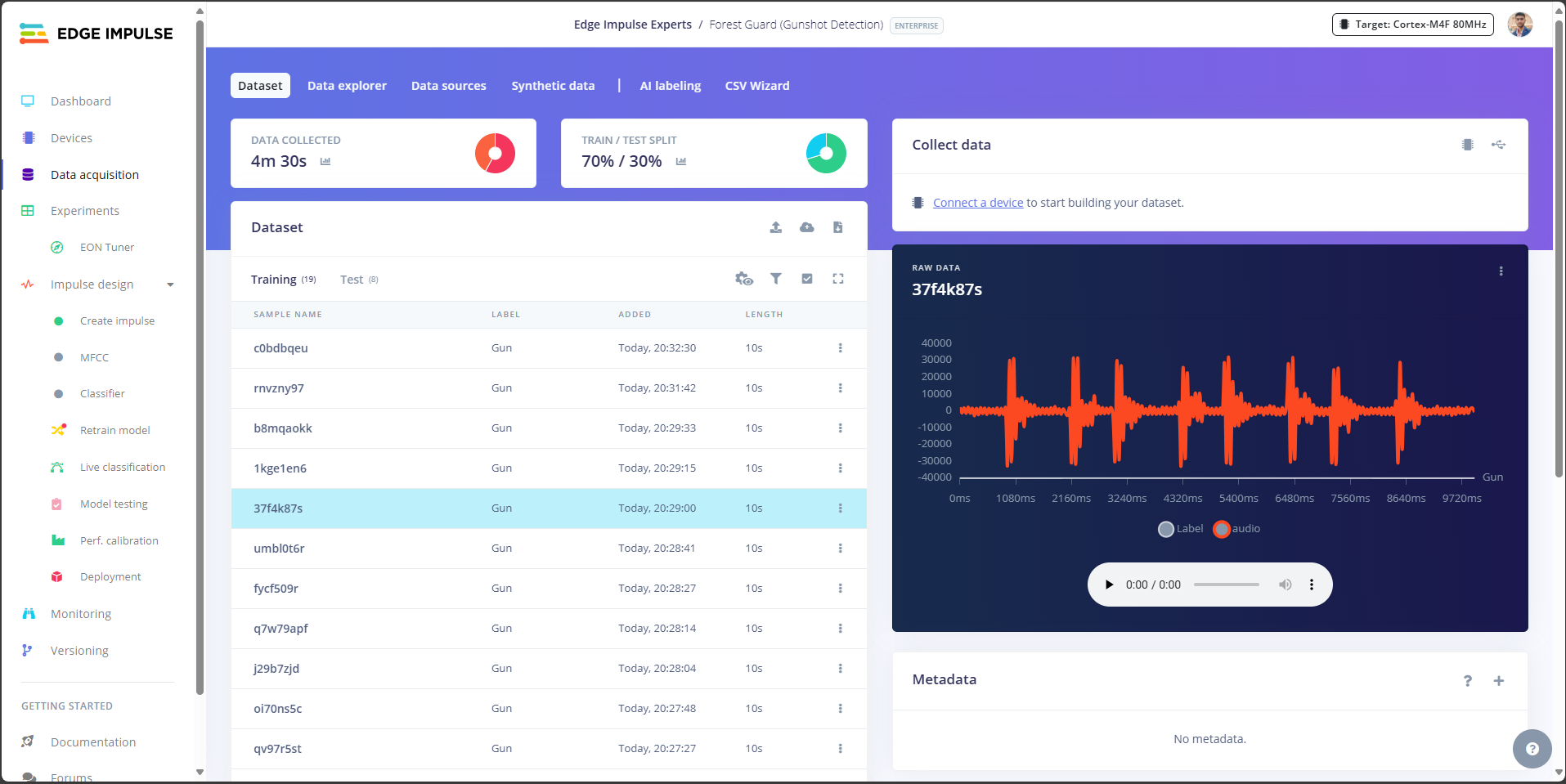
- Split your dataset 80:20 → 80% for training, 20% for testing.
- Edge Impulse automatically suggests the split, but you can also move samples manually if needed.
- Collect data at different volumes and distances.
- Try to balance the number of Noise and Gunshot samples.
- Keep background data diverse - this prevents false positives.
Step 17: Split Data
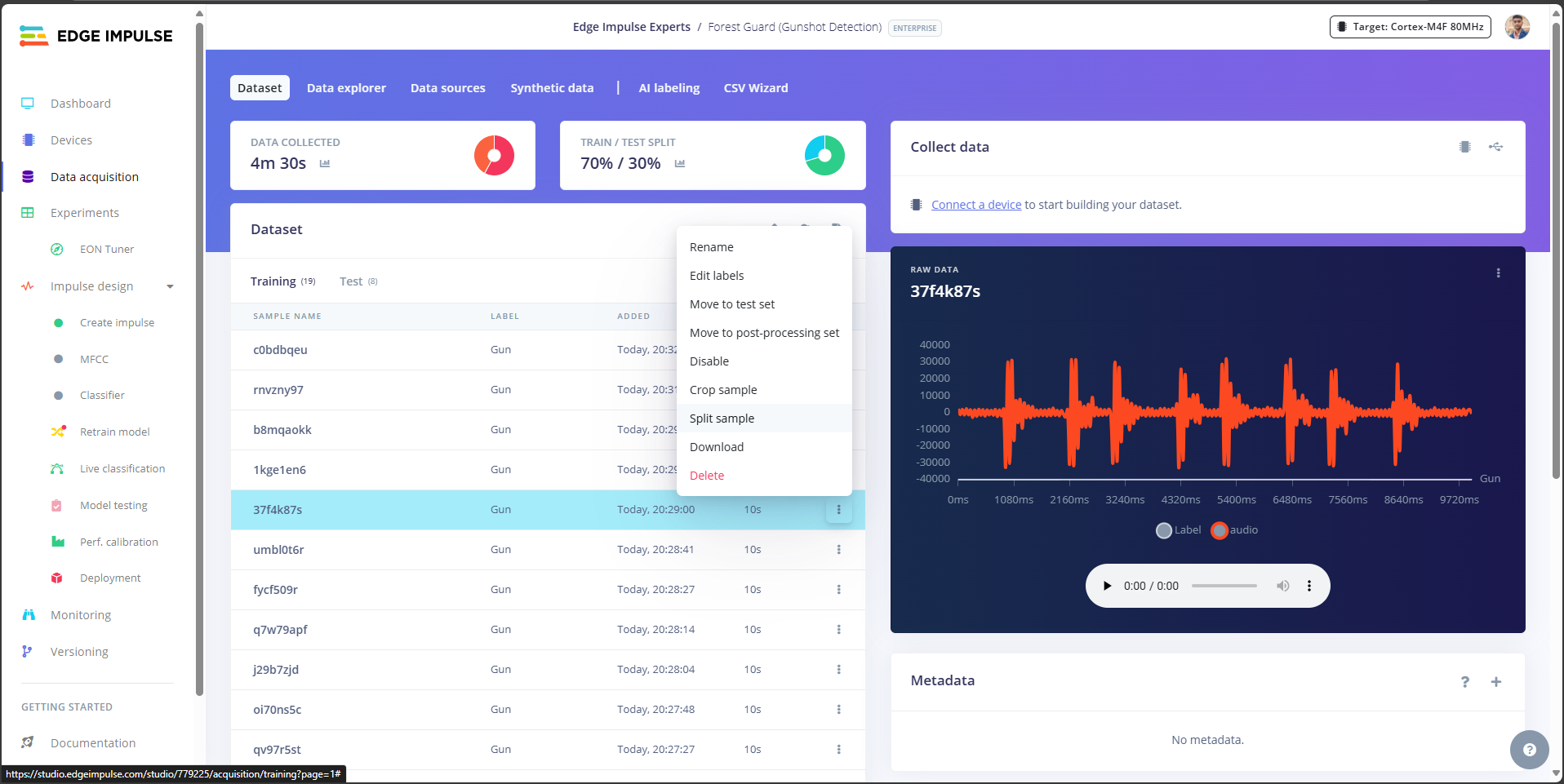
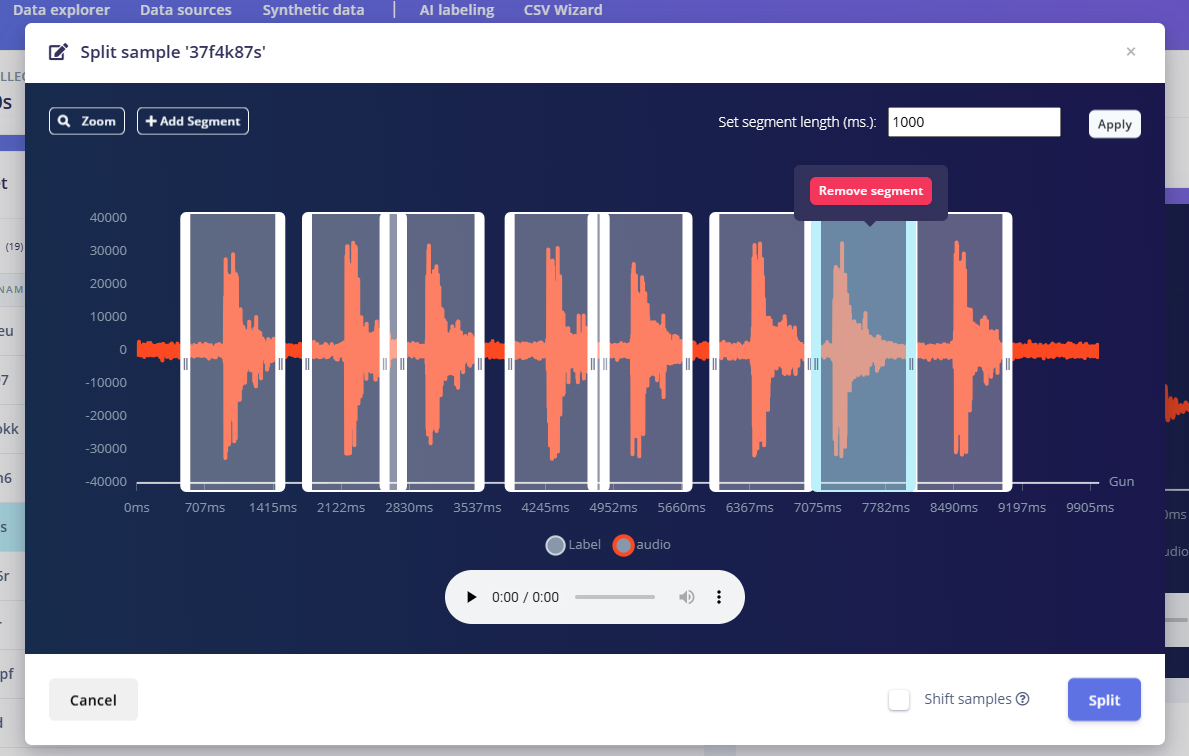
Right now, each recorded audio sample is 10 seconds long. For better accuracy, we need to split these into smaller 1-second samples that can be used as training features in Edge Impulse. Splitting Process in Edge Impulse- In Edge Impulse Studio, go to the Data Acquisition tab.
- Find one of your 10-second audio samples (either Noise or Gunshot).
- Click on the three dots (…) menu next to the sample.
- Choose Split Sample.
- Use the tool to crop each segment into 1-second chunks.
- Example: a 10-second audio file becomes 10× 1-second samples.
- For gunshot recordings, isolate the exact segment of the shot to ensure the model learns the event clearly.
- Click Split to save.
Step 18: Create Impulse
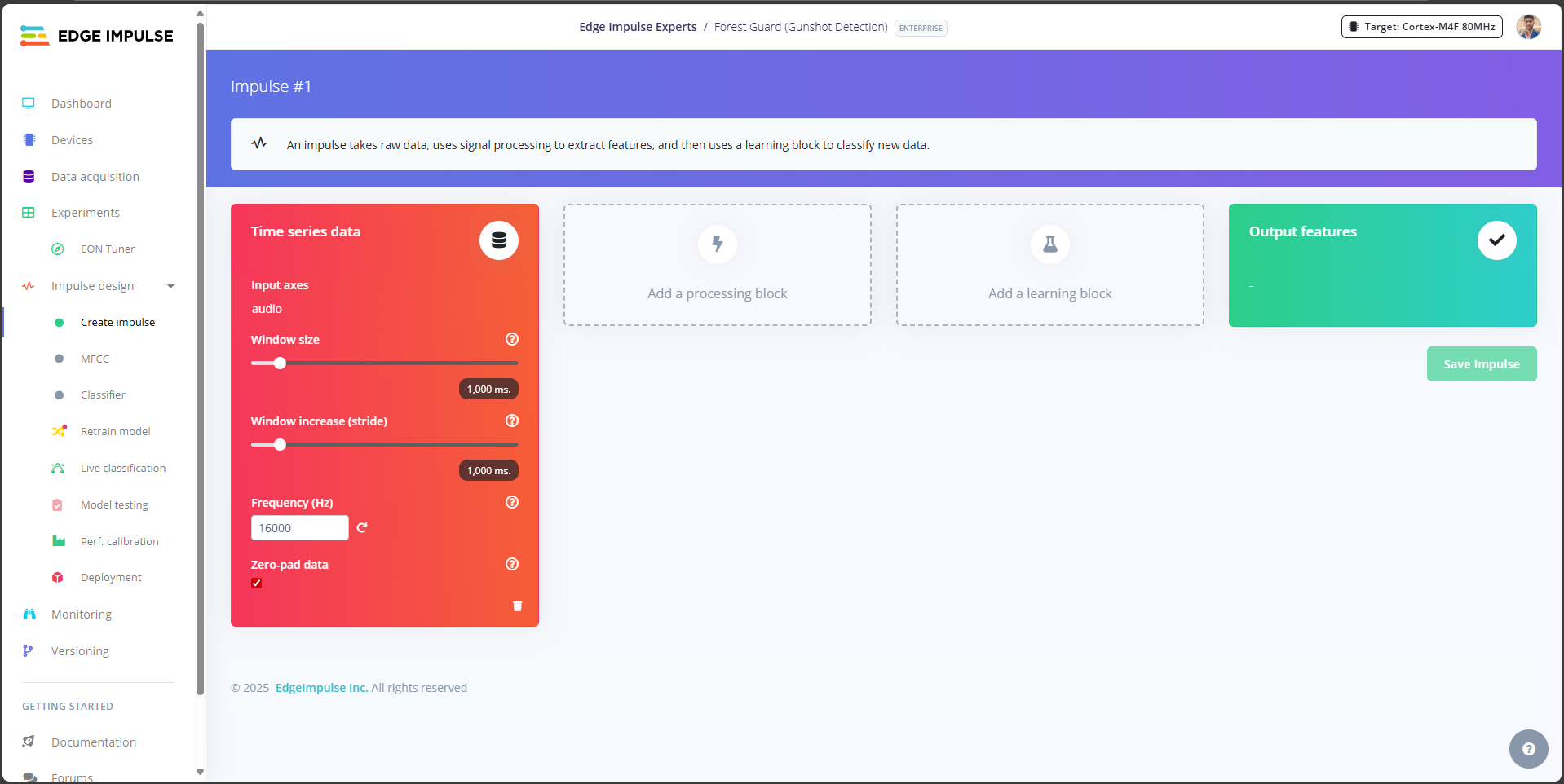
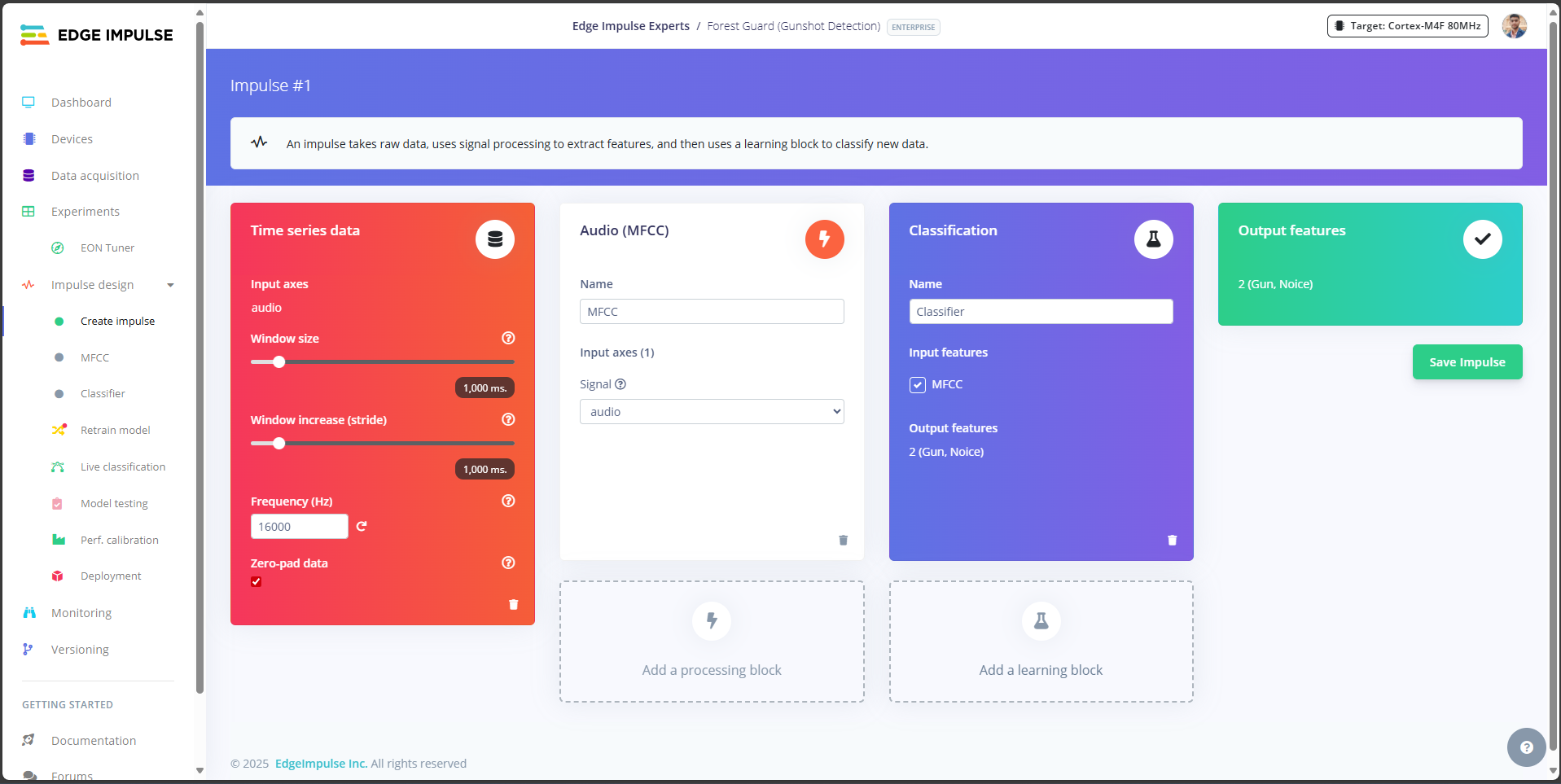
With your dataset ready and split into 1-second audio clips, the next step in Edge Impulse is to design the impulse, the pipeline that converts raw audio into features, and then trains a classification model. Create a New Impulse- In Edge Impulse Studio, go to the Create Impulse tab.
- Set the Window Size and Frequency as shown in the reference image (these define how much audio is processed in each slice and at what sample rate).
- Processing Block: Select Audio (MFCC).
- MFCC (Mel-Frequency Cepstral Coefficients) transforms raw sound waves into a spectrogram, a compact representation of sound patterns that the ML model can learn from.
- Learning Block: Select Classification.
- This will train a neural network to classify between labels like Gunshot and Noise.
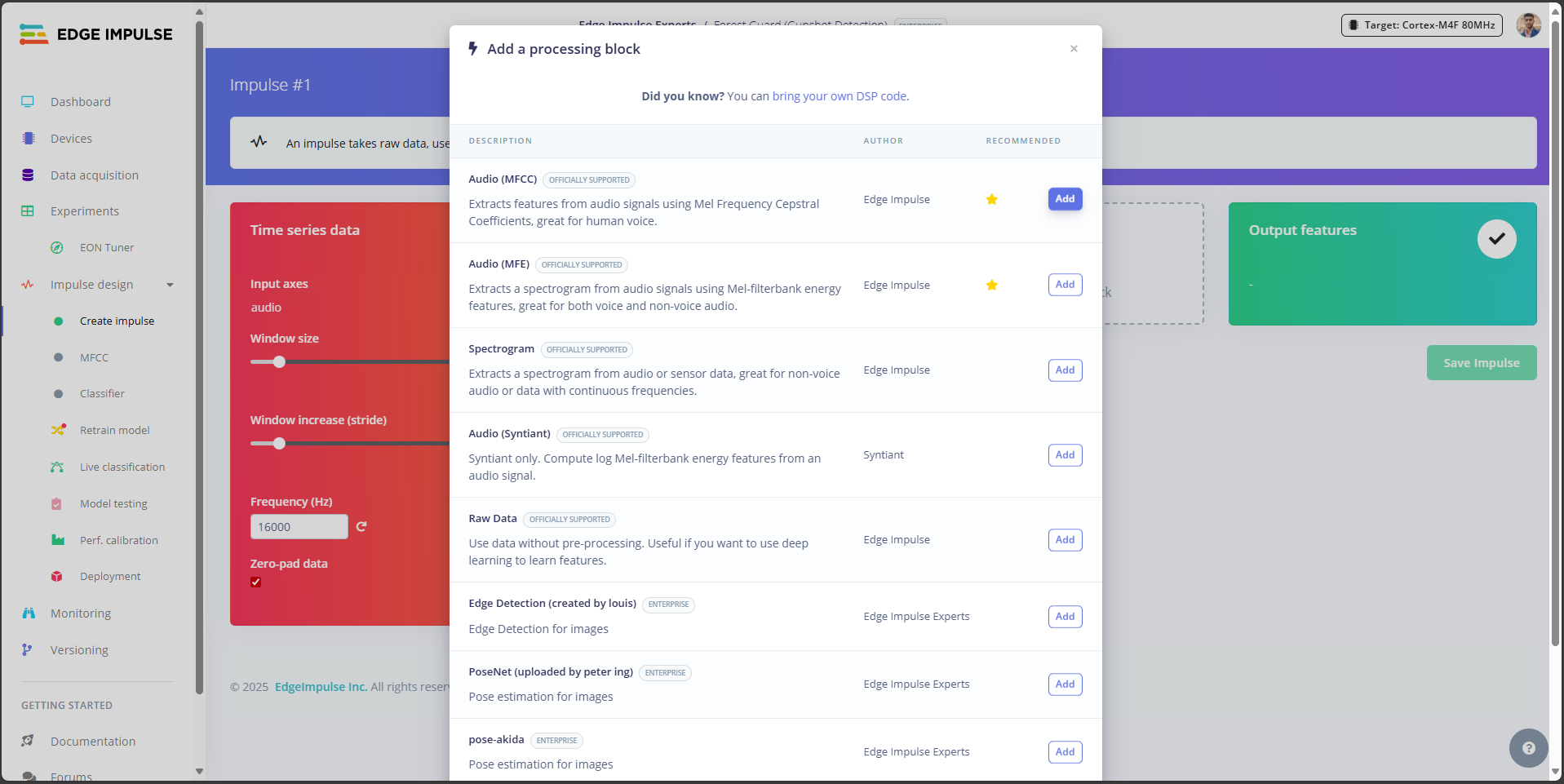
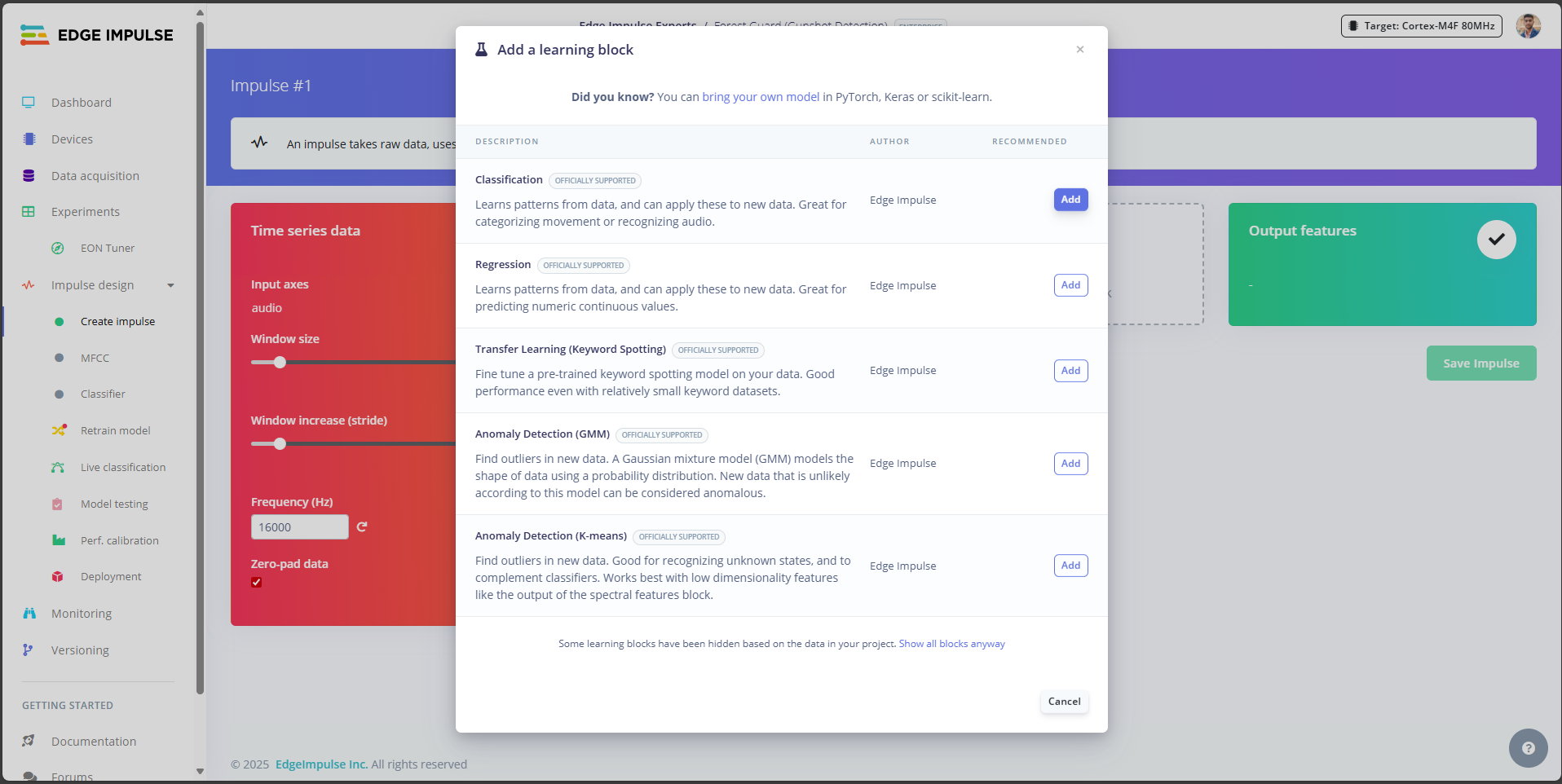
- Once both blocks are added and configured, click Save Impulse. This locks in the pipeline that will be used in the next steps for feature extraction and training.
Step 19: Generate Features
Now that the impulse is created, we need to extract features from our audio samples. This is the process that converts raw sound into meaningful patterns (MFCCs) that the classifier can learn from.- In Edge Impulse Studio, go to the MFCC block (under Impulse Design).
- Click Save Parameters to confirm the default MFCC settings.
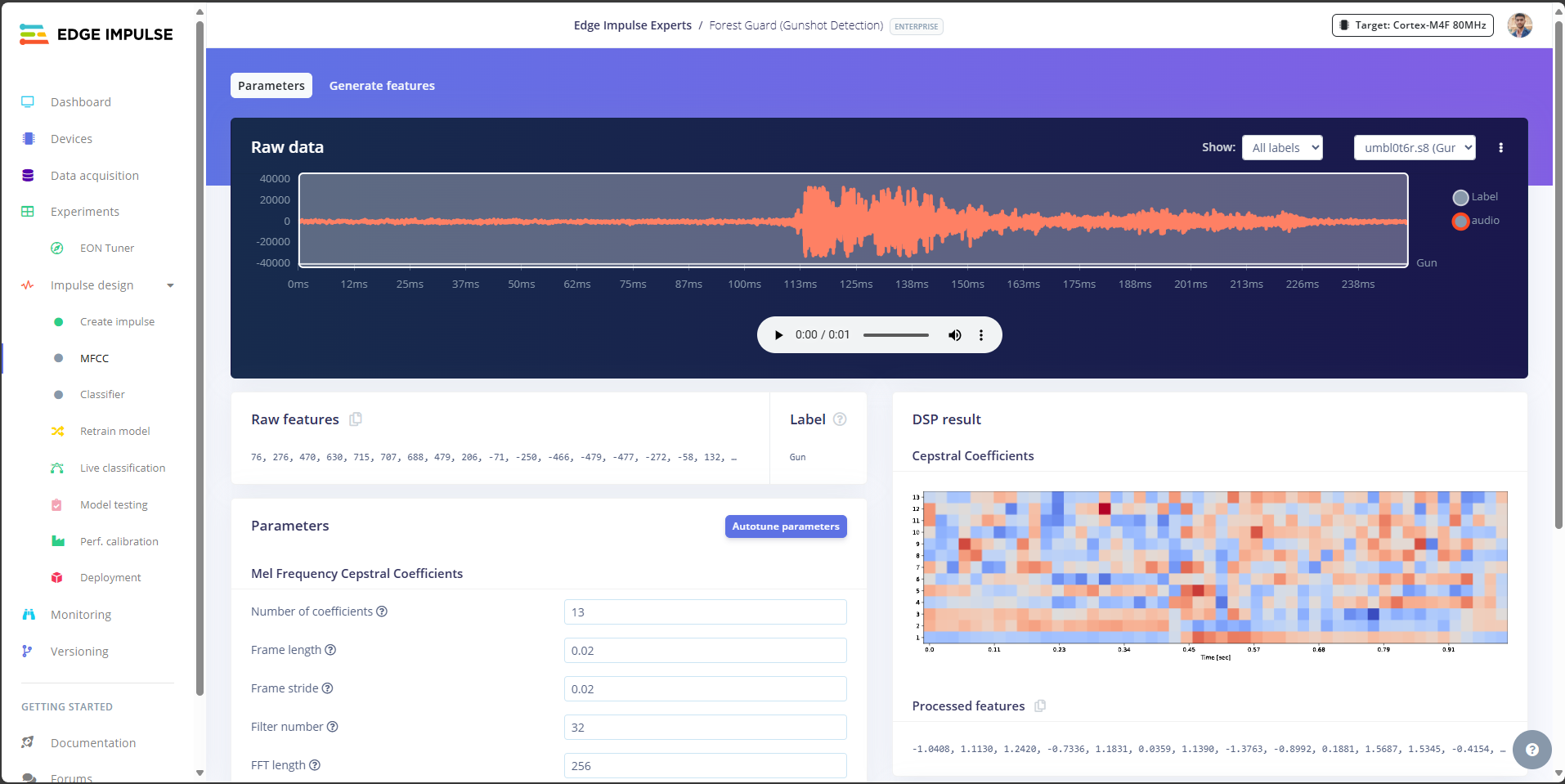
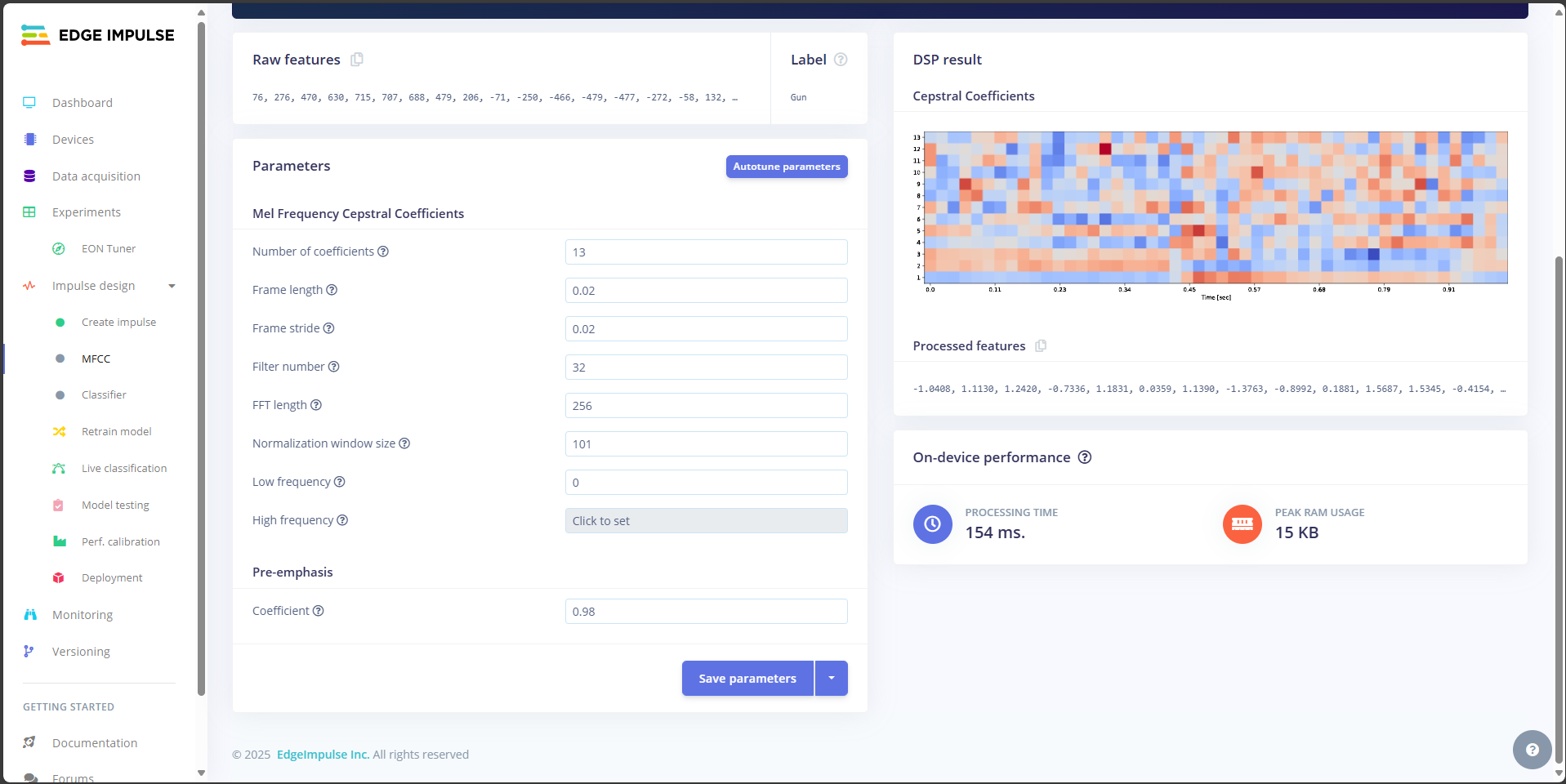
- Press Generate Features.
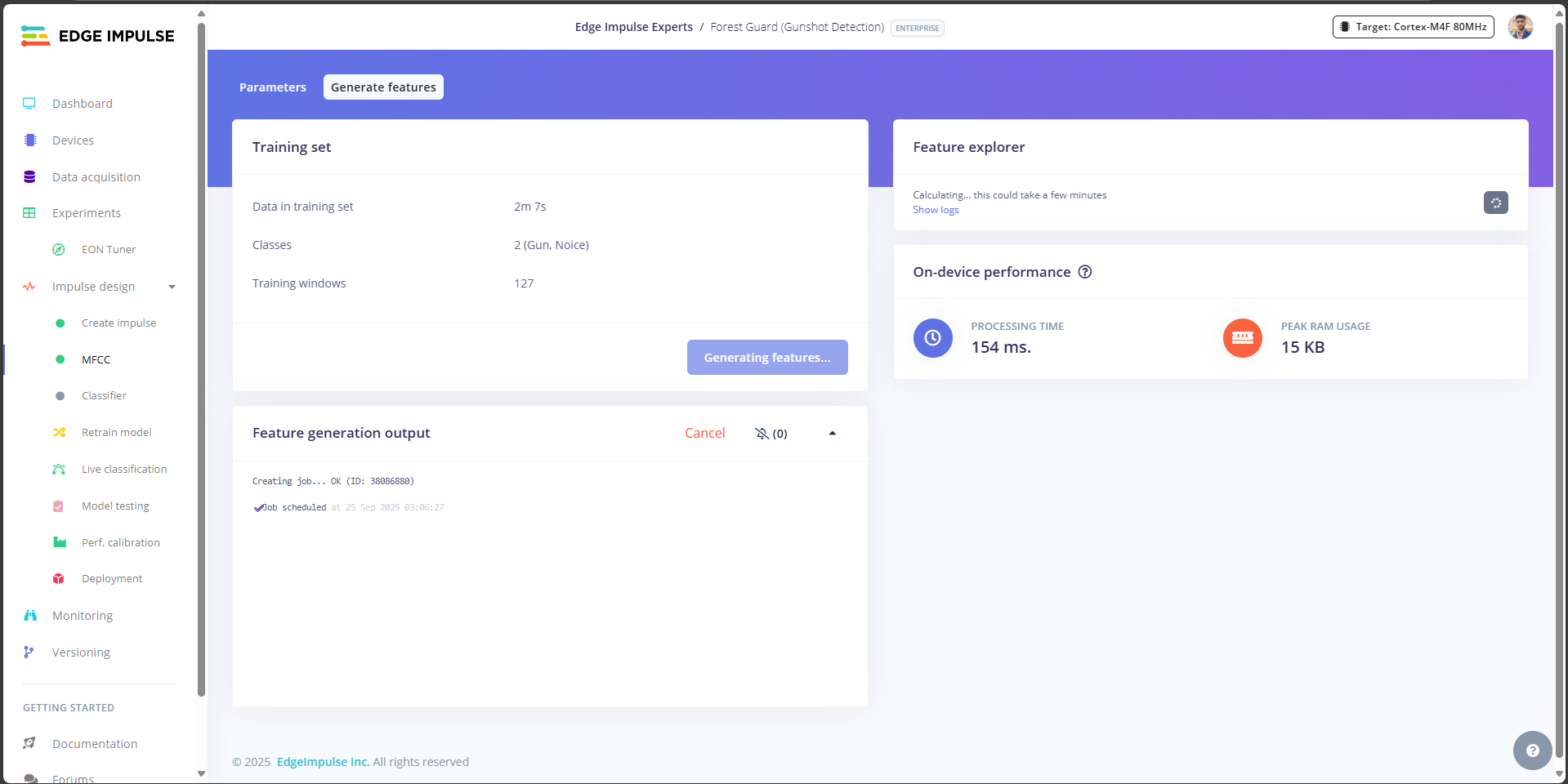
- Edge Impulse will now process all your audio samples.
- This step can take a few minutes depending on dataset size.
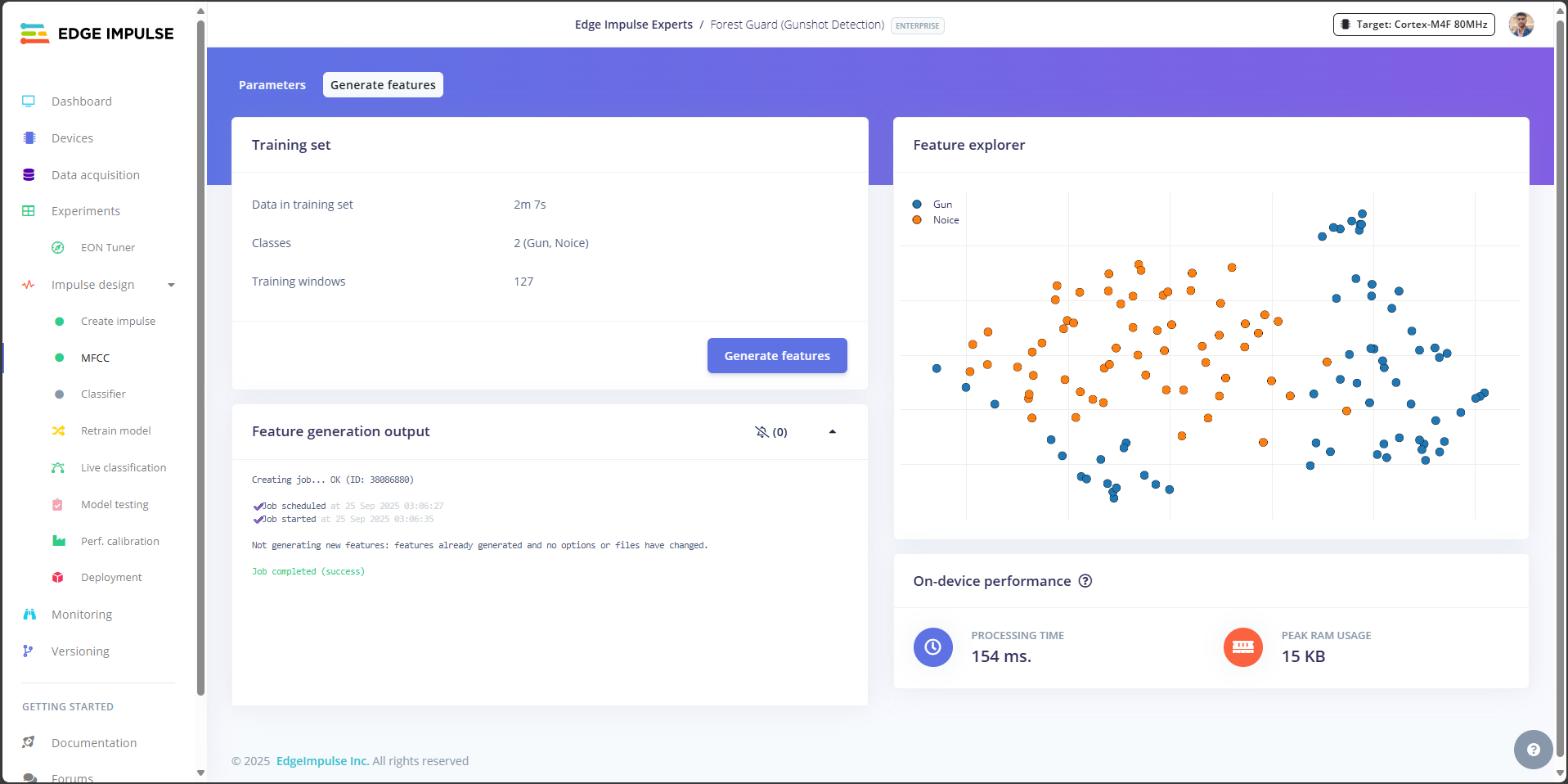
- Once finished, you’ll see a Feature Explorer graph on the right side of the screen.
- Each point on the graph represents a 1-second audio sample.
- Samples with similar characteristics (like background noise) will cluster together, while distinct sounds (like gunshots) will form separate groups.
- Clear separation between Gunshot and Noise clusters is a good sign. It means your model will be easier to train accurately.
Step 20: Train Classification Model
With your features generated, it’s time to train the Neural Network classifier that will distinguish between Gunshot and Noise.- In Edge Impulse Studio, go to the Classifier tab.
- Click Save and Train.
- Training will take a few minutes depending on dataset size.
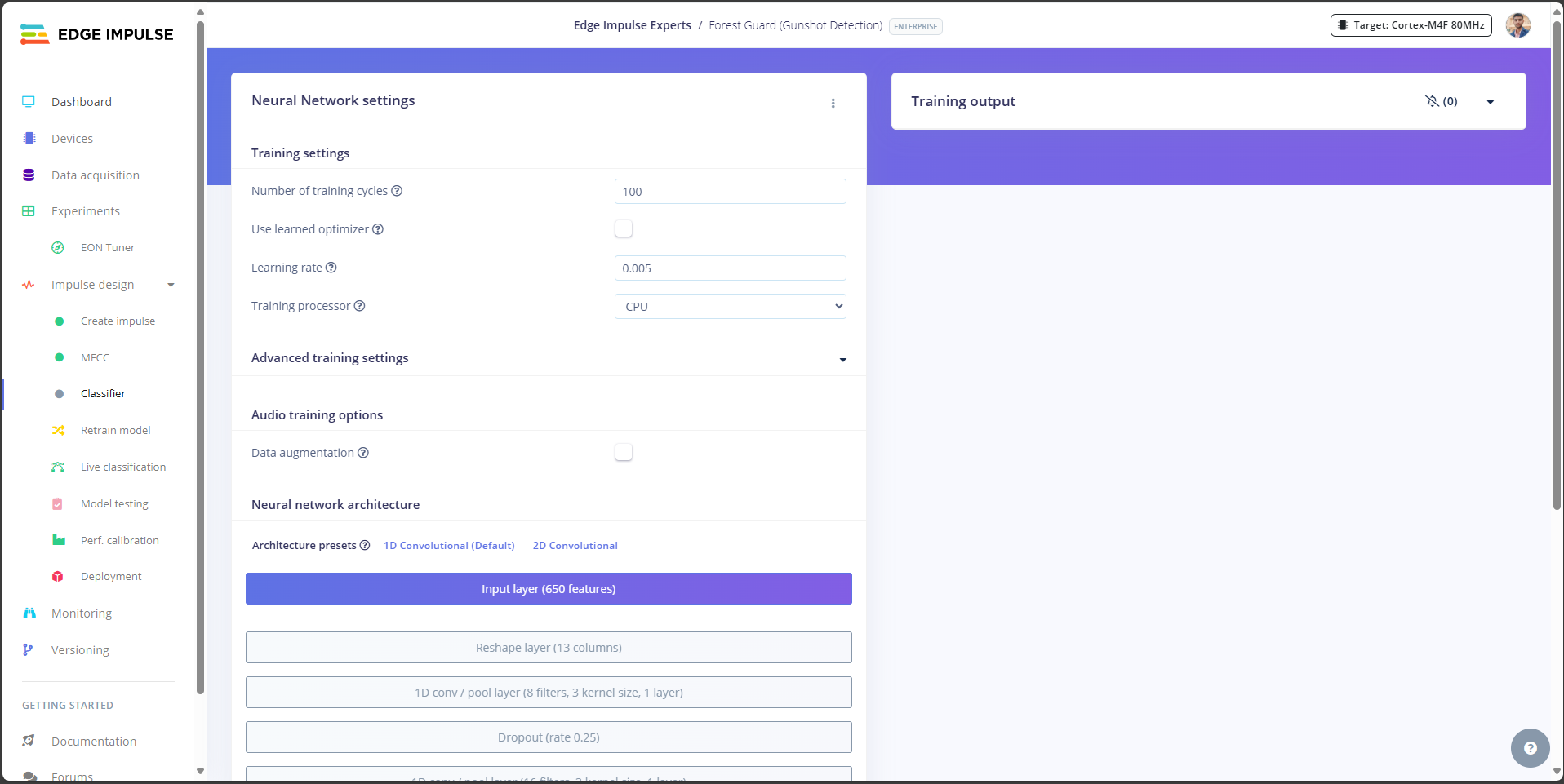
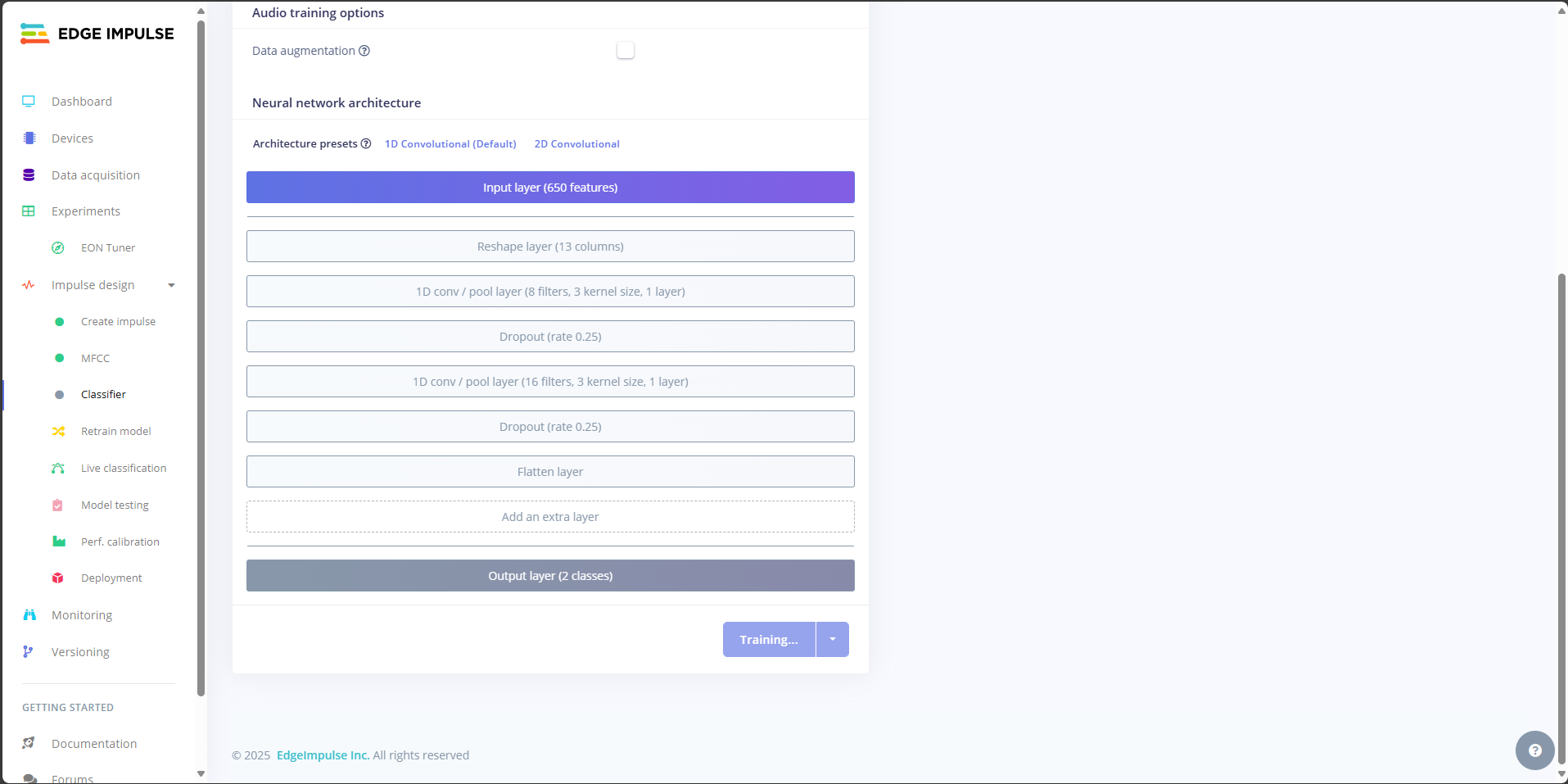
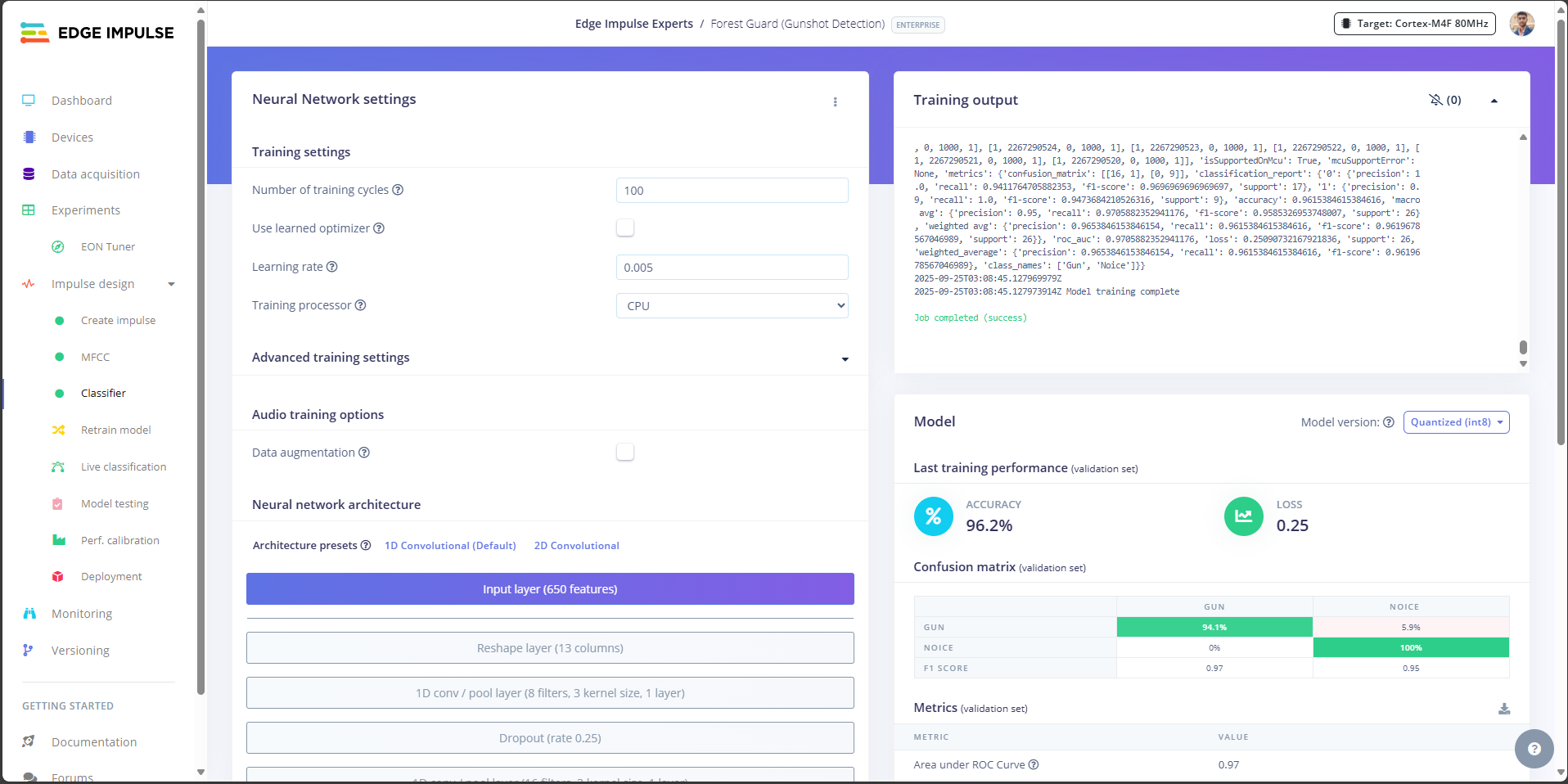
- Number of training cycles: 100
- Learning rate: 0.005
- Processor: CPU
- Architecture: 1D Convolutional Neural Network (recommended for audio)
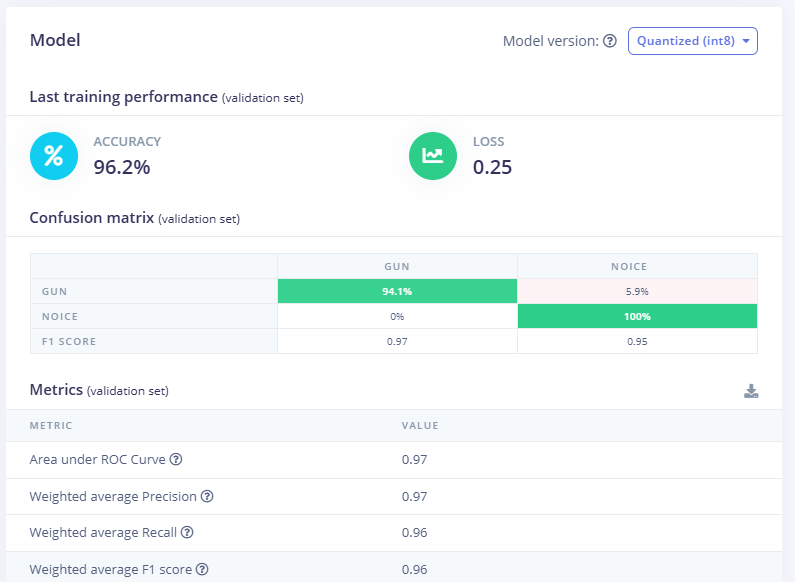
- Accuracy → ~96% (based on your dataset).
- Loss → around 0.25 (lower is better).
- Confusion Matrix →
- Gunshot classified correctly ~94% of the time.
- Noise classified correctly ~100% of the time.
- Precision: 0.97
- Recall: 0.96
- F1 Score: 0.96
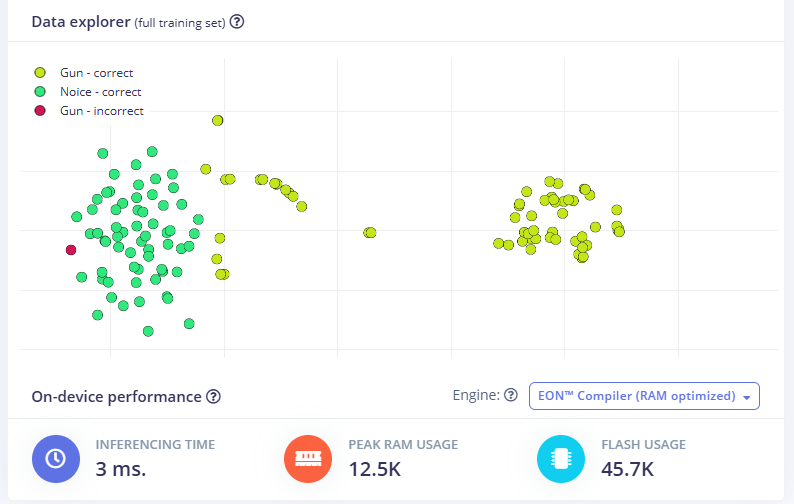
- Inferencing time: ~3 ms
- RAM usage: ~12.5 KB
- Flash usage: ~45 KB
Step 21: Build and Download the Model
Once your classifier is trained and performing well, the next step is to export the model so it can run directly on your ESP32-S3 Node. Edge Impulse makes this very easy by packaging the trained model into an Arduino-compatible library.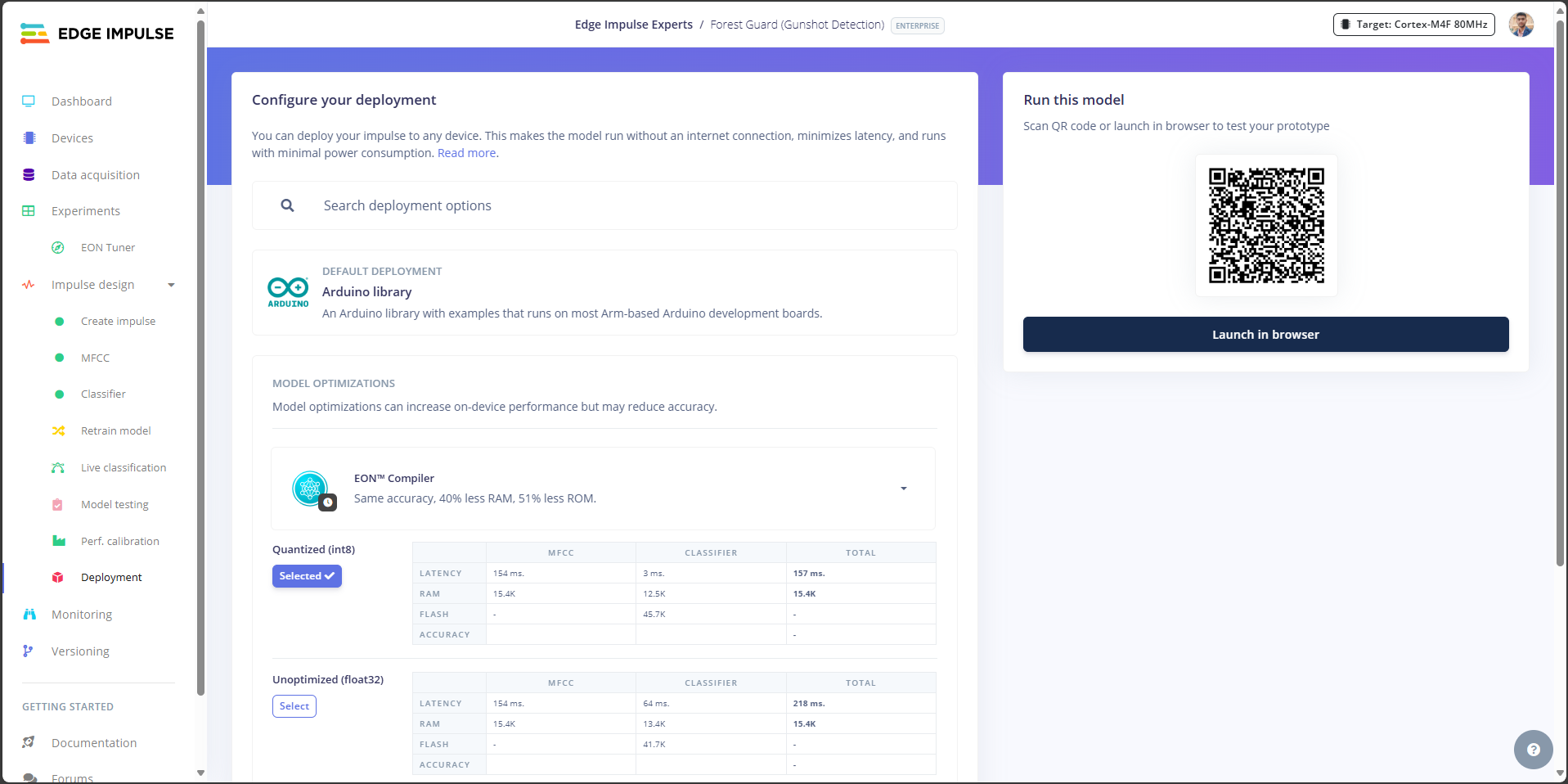
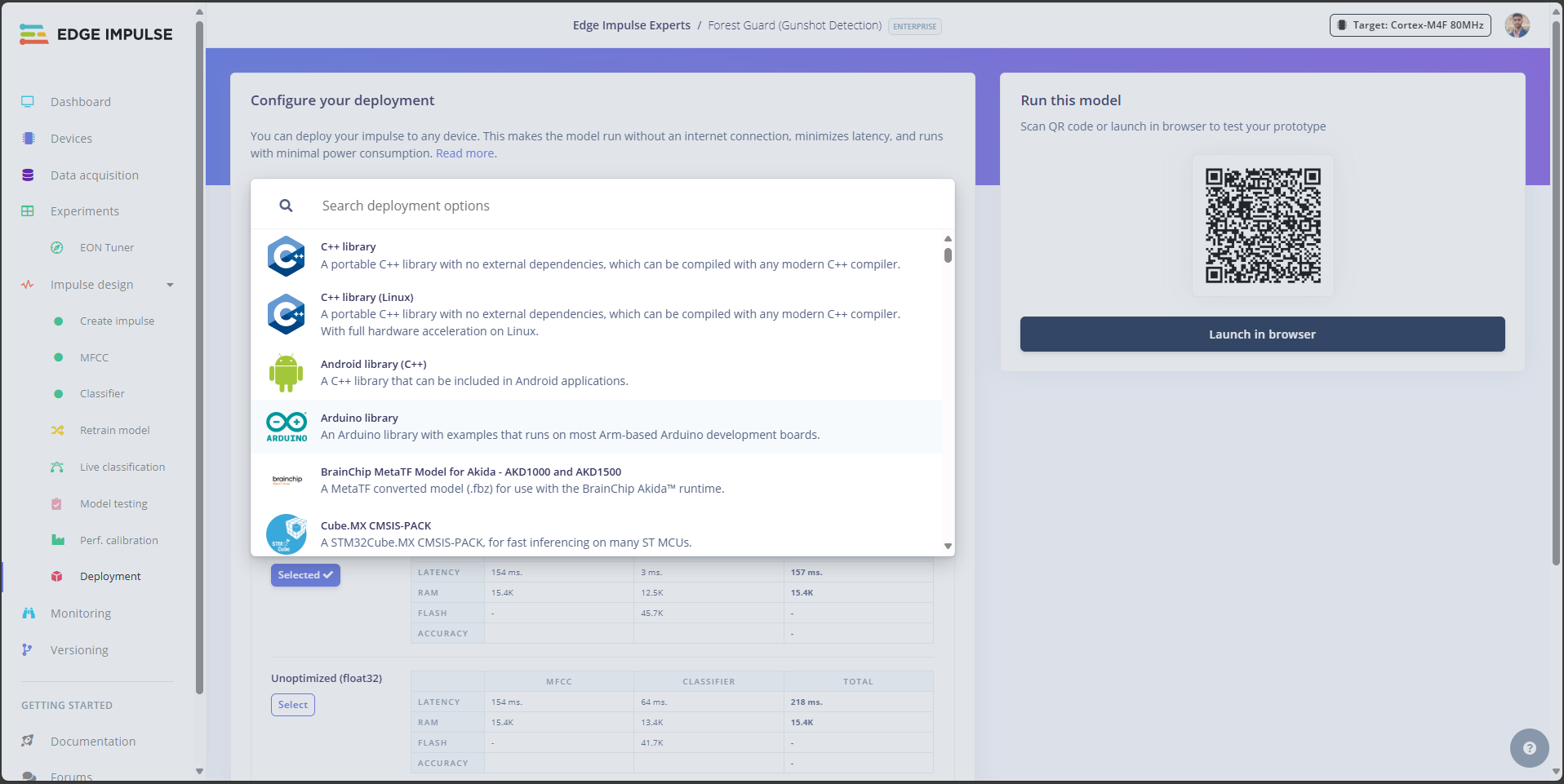
- In Edge Impulse Studio, go to the Deployment tab.
- Under Deployment options, select Arduino library.
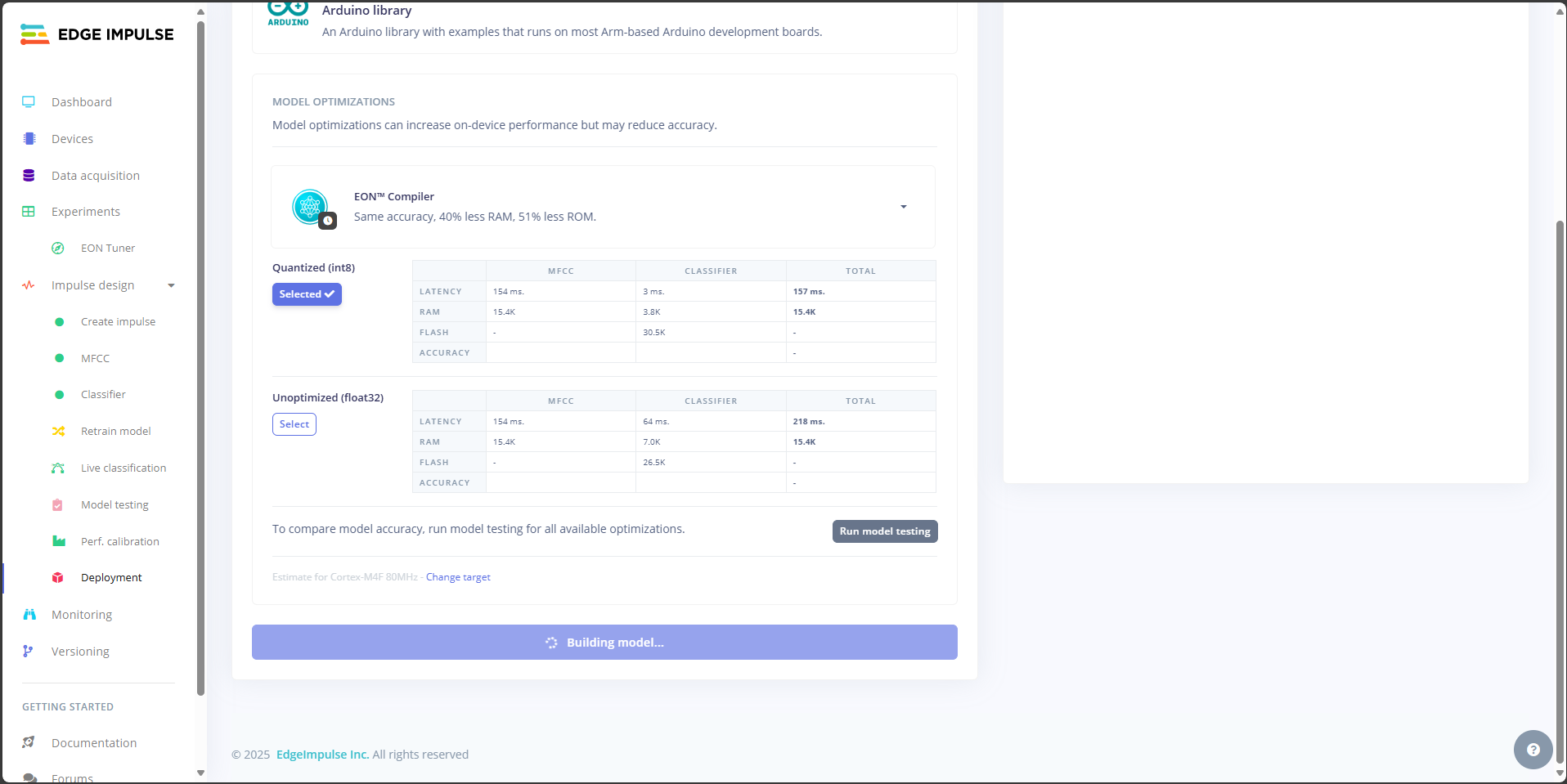
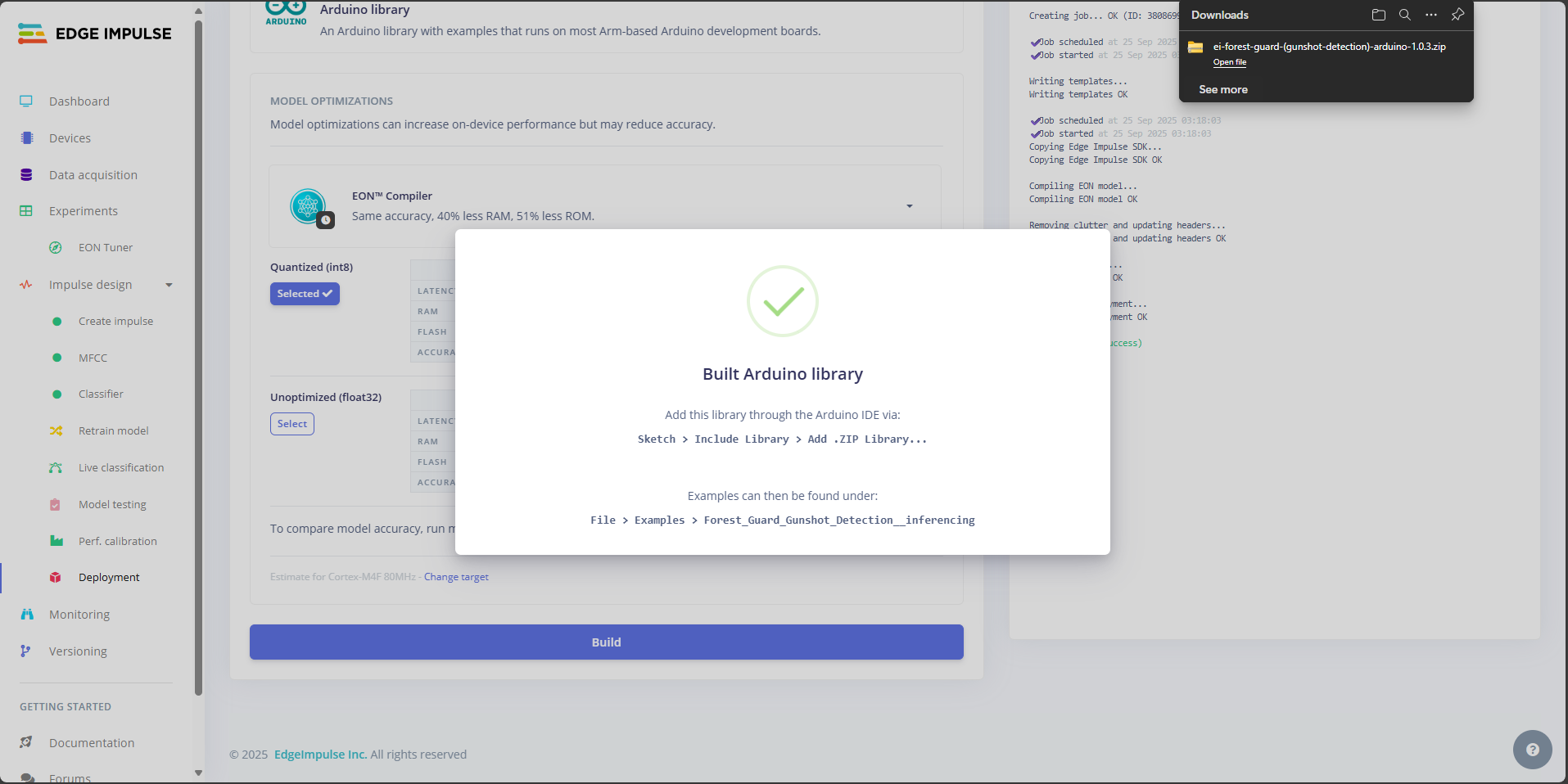
- This will create a .zip library that can be imported into the Arduino IDE.
- Click Build.
Forest\_Guard\_Gunshot\_Detector\_arduino-1.0.0.zip
Step 22: Arduino Setup
Now that we have our trained Edge Impulse model ready, let’s set up the Arduino IDE with all the required libraries to compile and upload the Node code. Open the Project- Launch Arduino IDE.
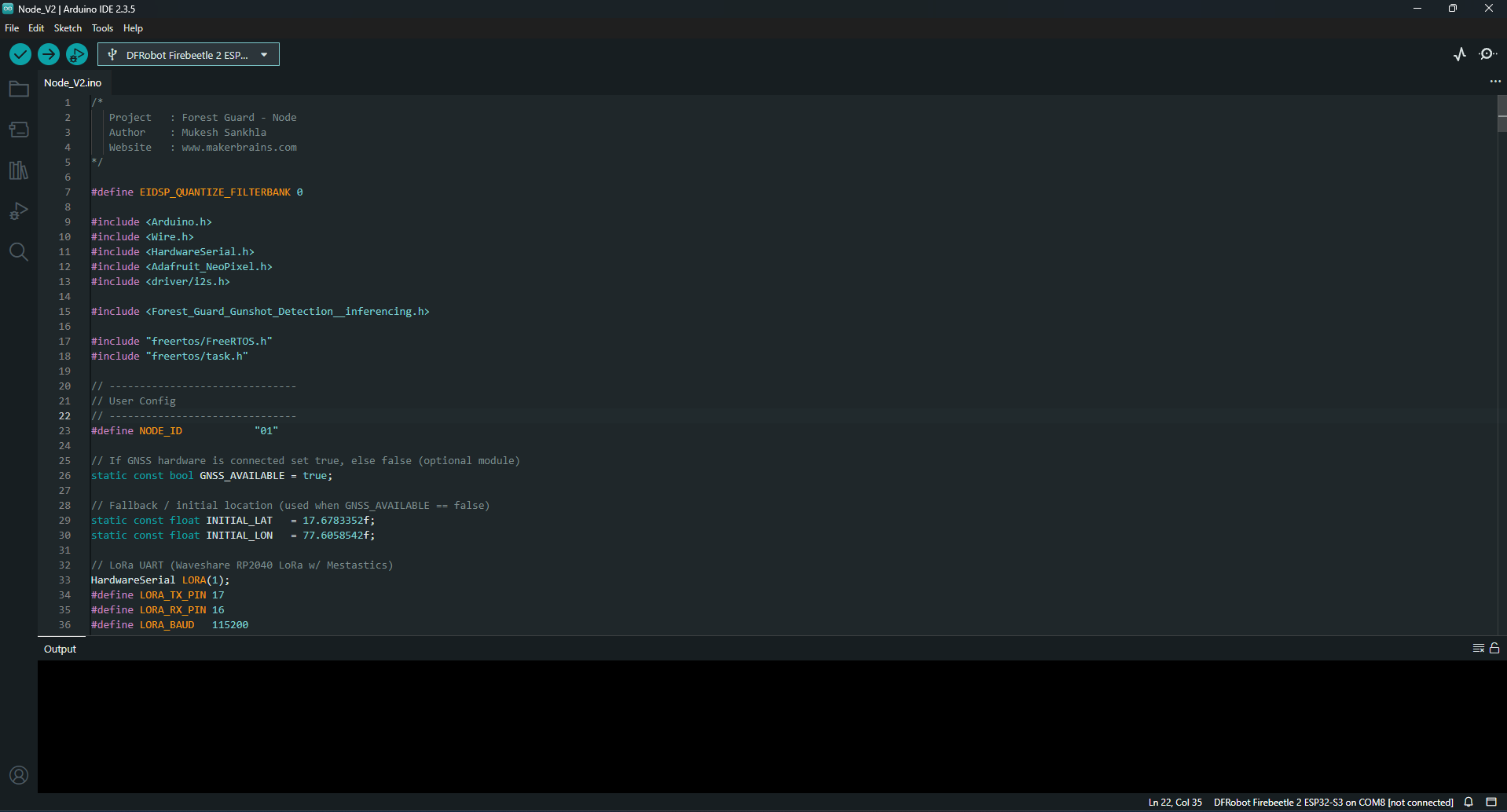
- Open the Node_V2.ino file (this is the main code for the Forest Guard Node).
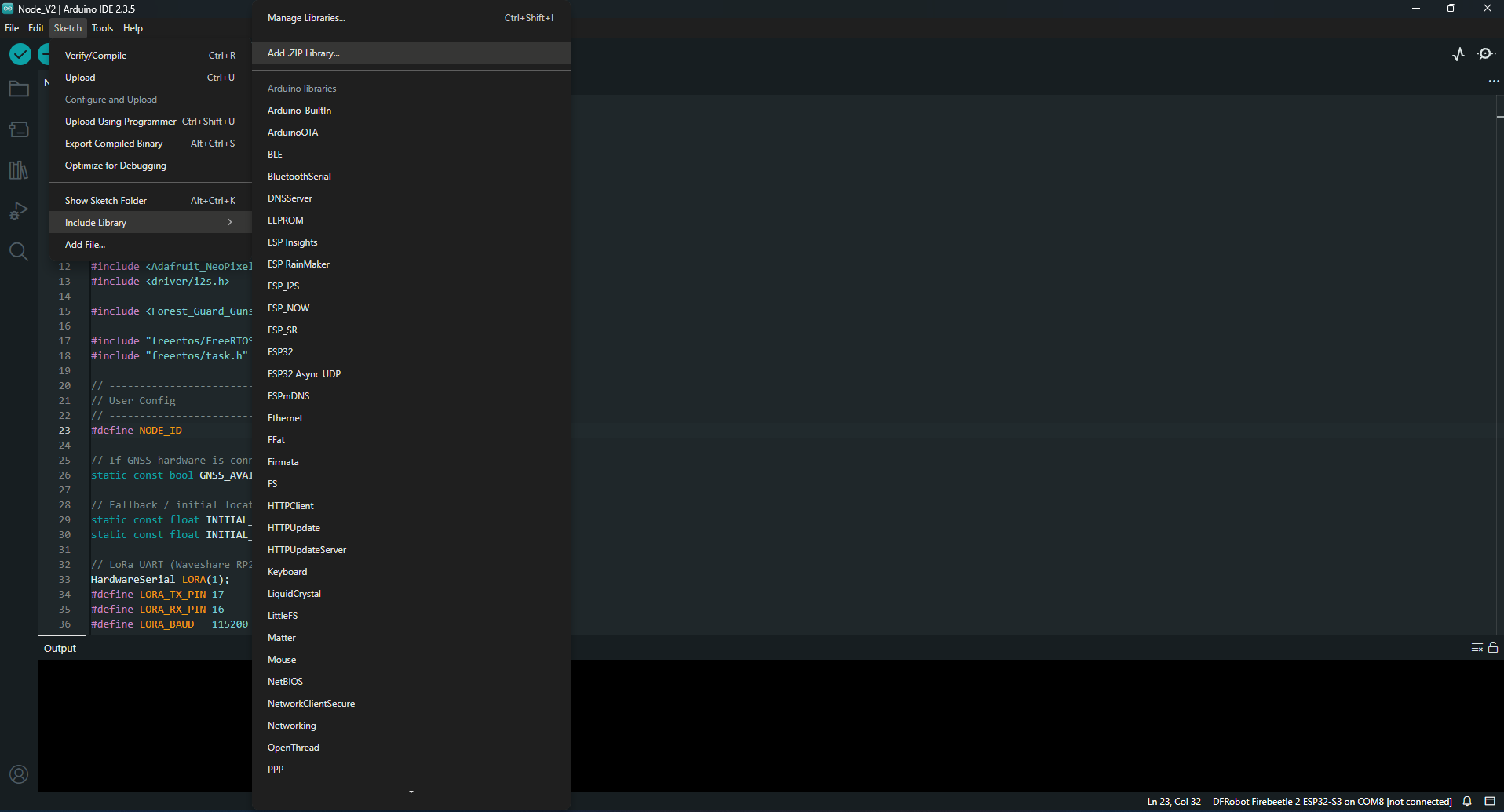
- Go to Sketch → Include Library → Add .ZIP Library…
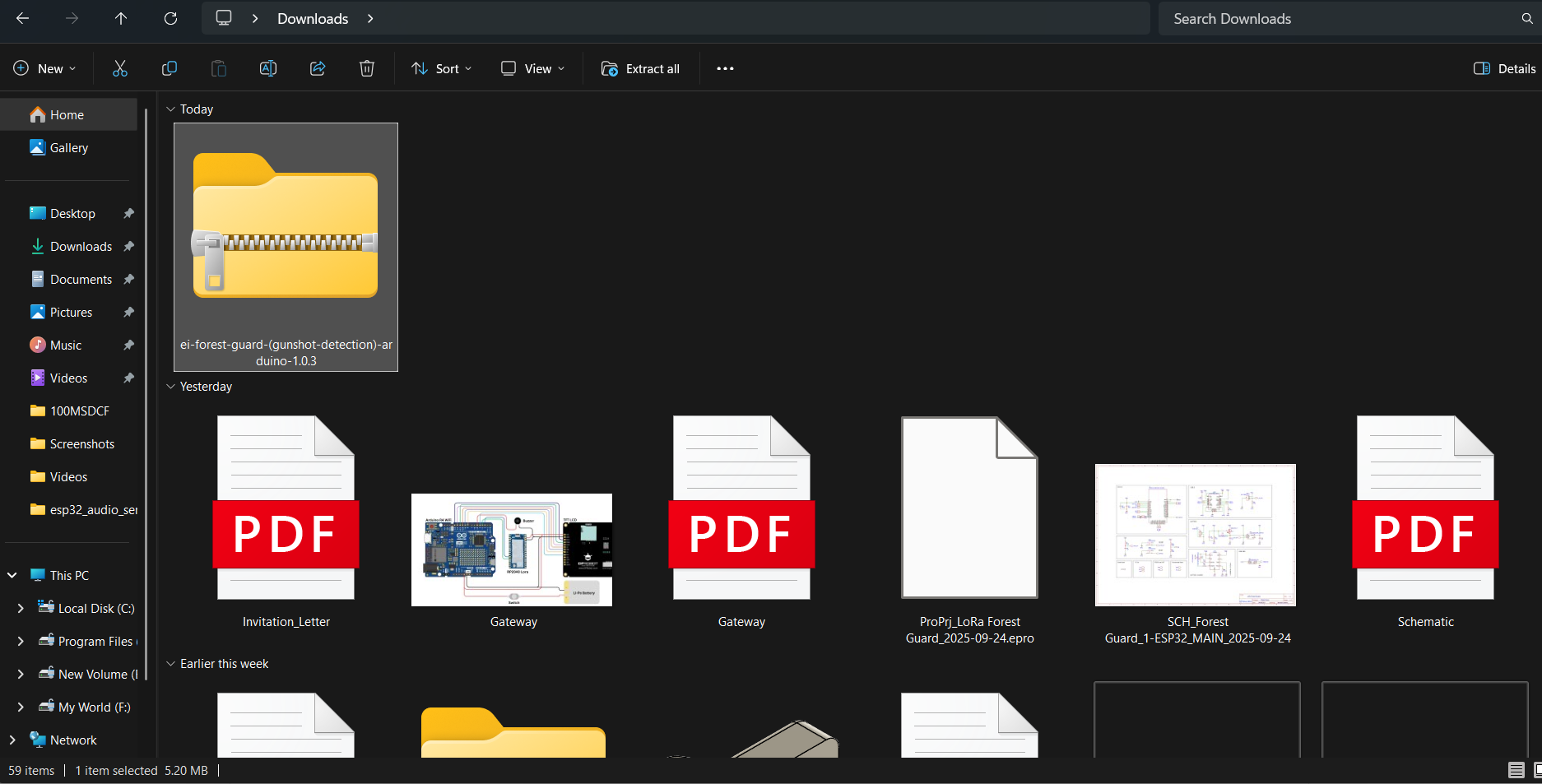
- Select the .zip file you downloaded from Edge Impulse in Step 20.
- This adds your custom ML model to the project.
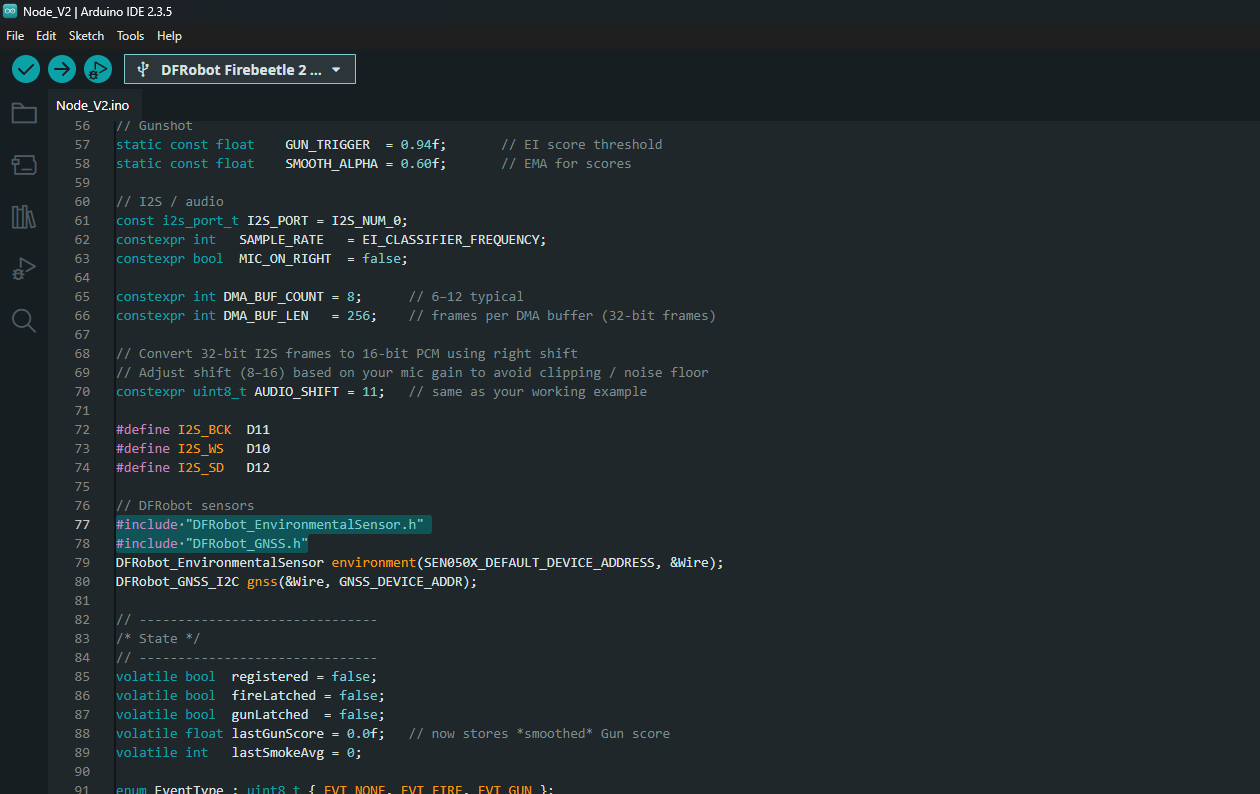
- Install it the same way (Add .ZIP Library).
- Install it the same way (Add .ZIP Library).
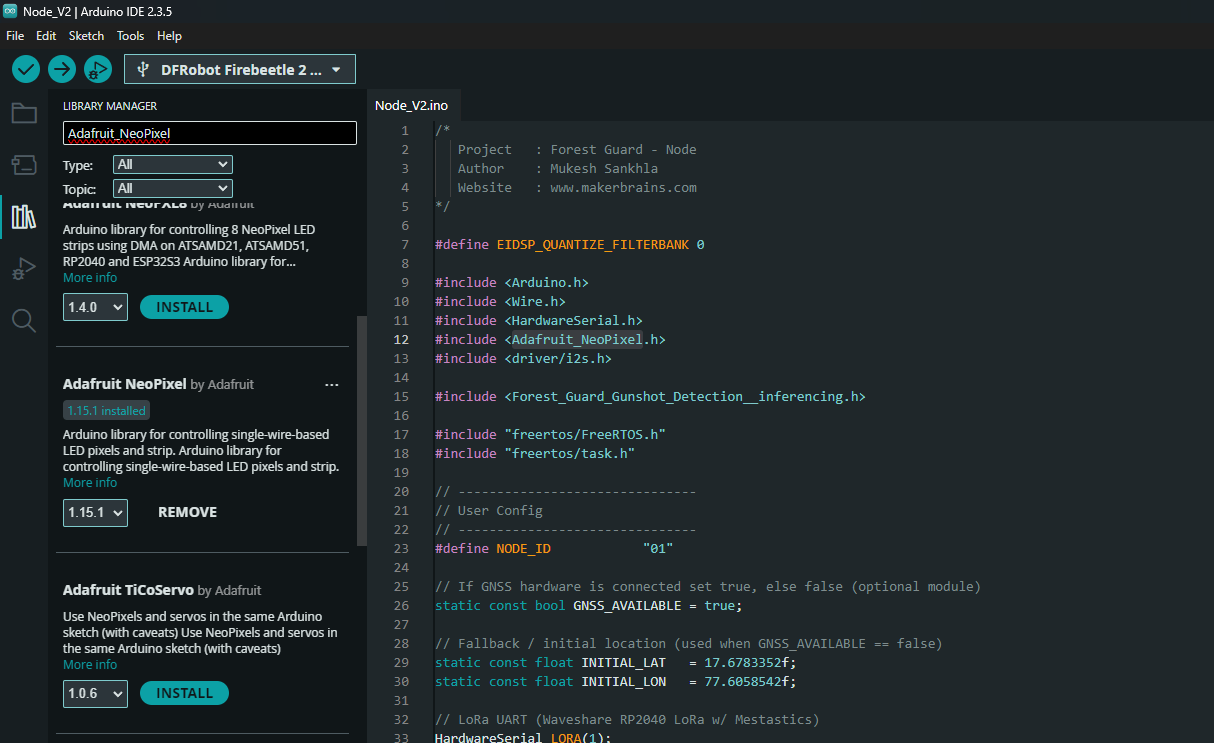
- In Arduino IDE, open Library Manager (Sketch → Include Library → Manage Libraries…).
- Search for Adafruit NeoPixel.
- Install the latest version.
Step 23: Upload the Code
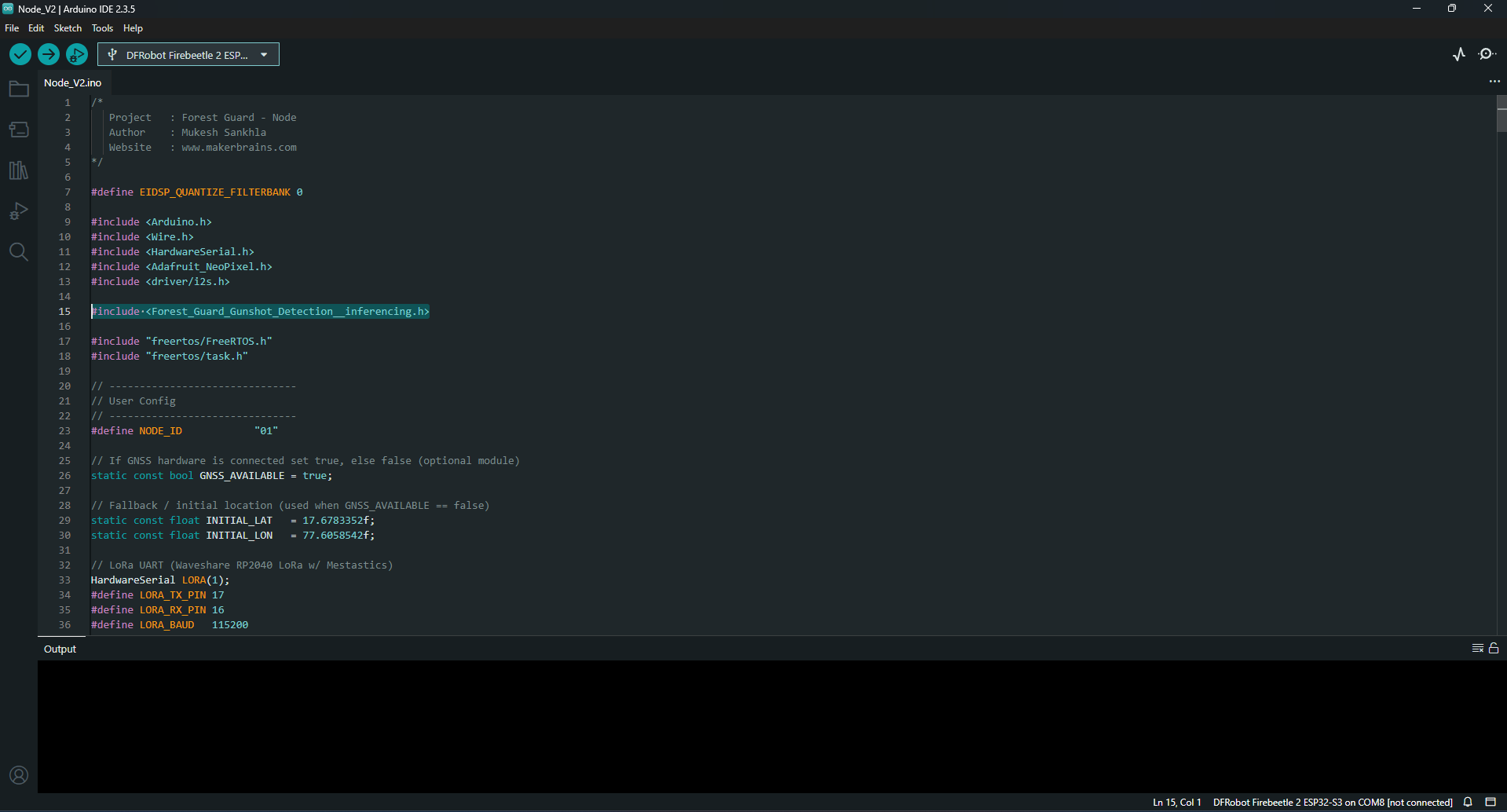
Now that everything is configured, it’s time to flash the Node firmware to the ESP32-S3. Code Adjustments Before Upload Open the Node_V2.ino sketch in Arduino IDE and check the following user configuration section:- Edge Impulse Include
- Change the
#include <...inferencing.h>line to match the filename of the model you downloaded in Step 20. - Example:
- Set a unique NODE_ID for each device.
- Example: “01”, “02”, etc.
- If your Node has a GNSS sensor attached → set GNSS_AVAILABLE = true.
- If not → set it to false.
- When GNSS is disabled, update the fallback latitude and longitude:
- Go to Tools → Board → ESP32 → DFRobot FireBeetle 2 ESP32-S3.
- Connect your ESP32-S3 via USB-C cable.
- Under Tools → Port, select the correct COM port.
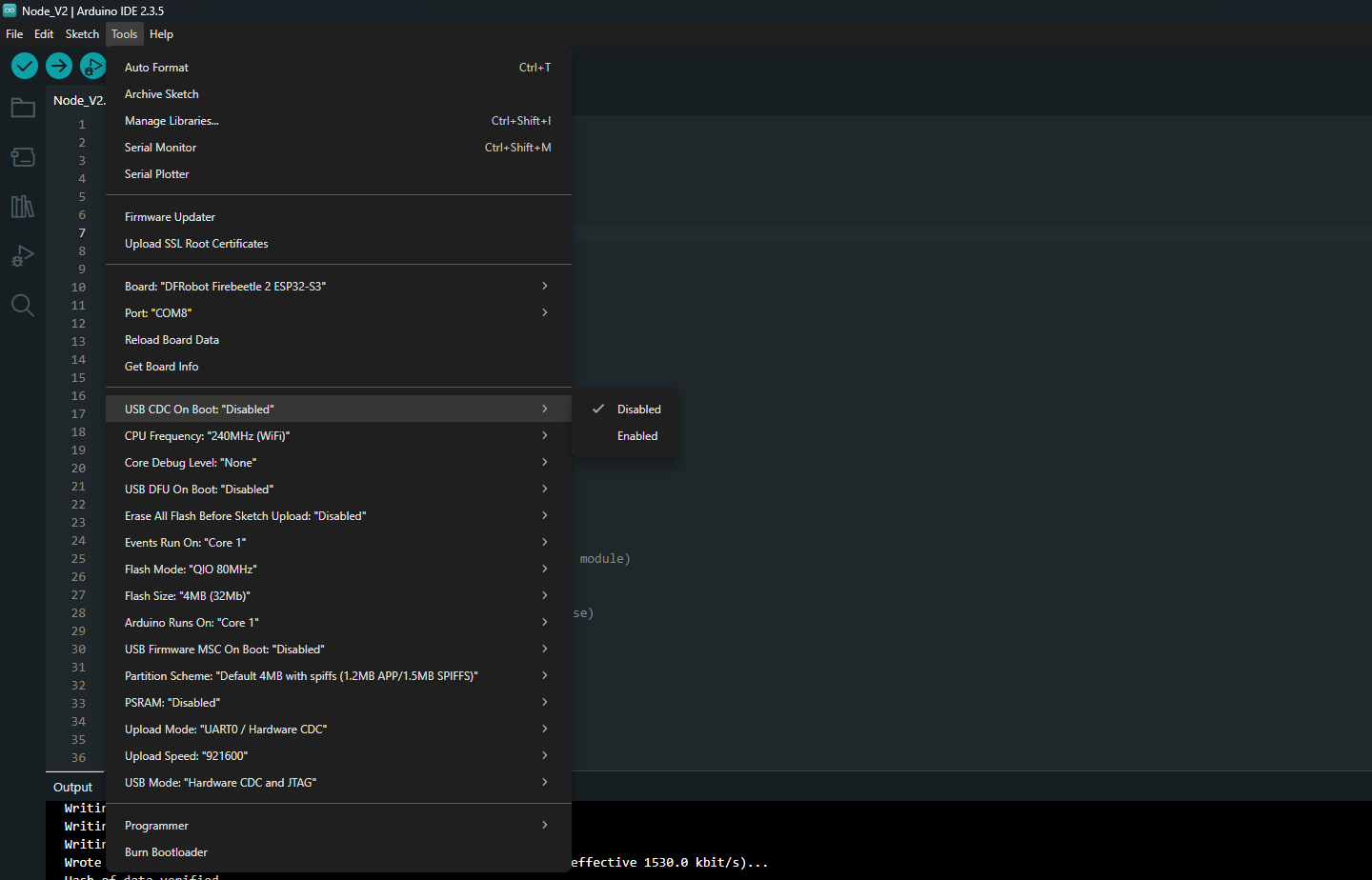
- Go to Tools → USB CDC On Boot → Disable.
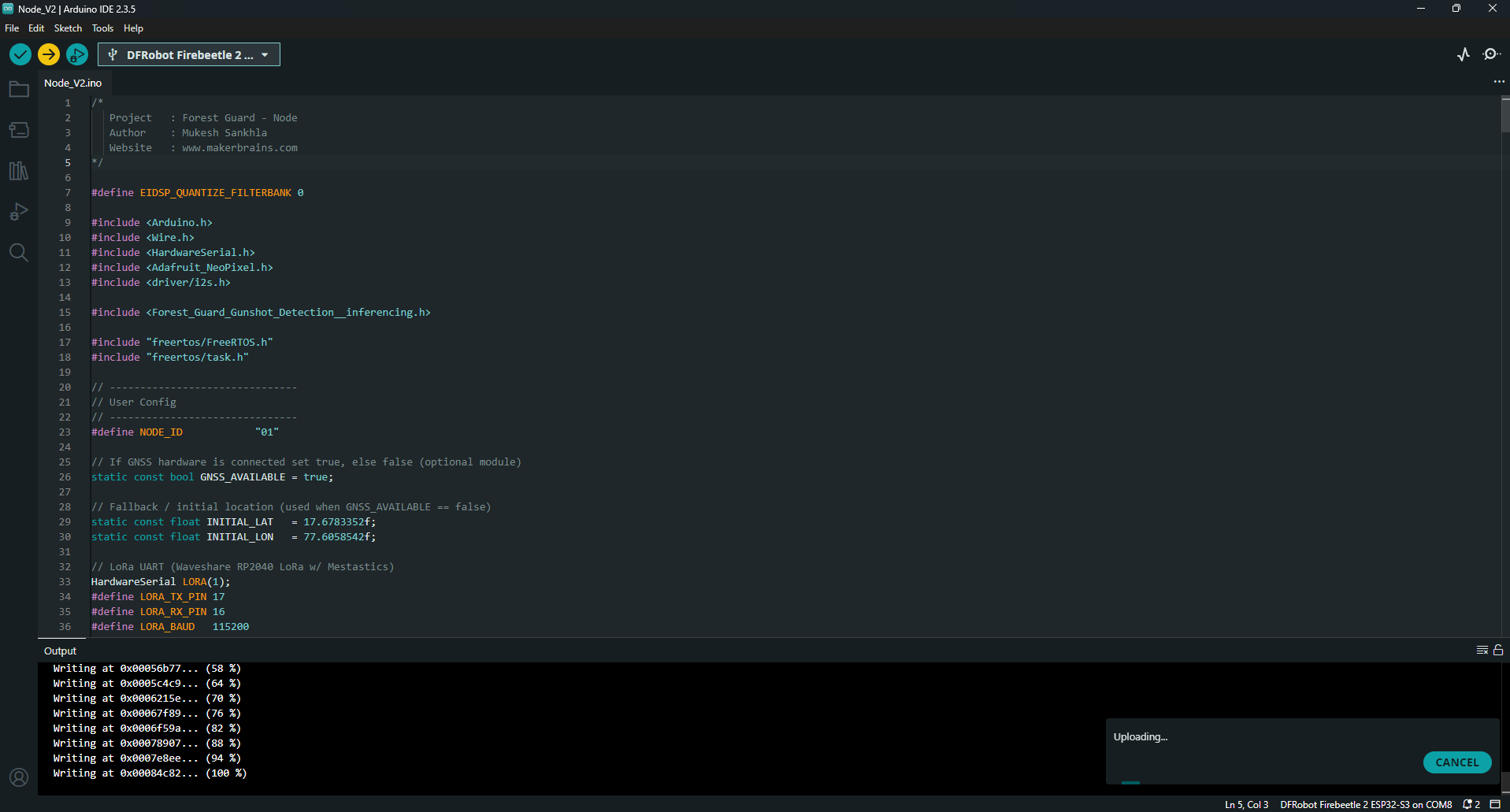
- Click the Upload button in Arduino IDE.
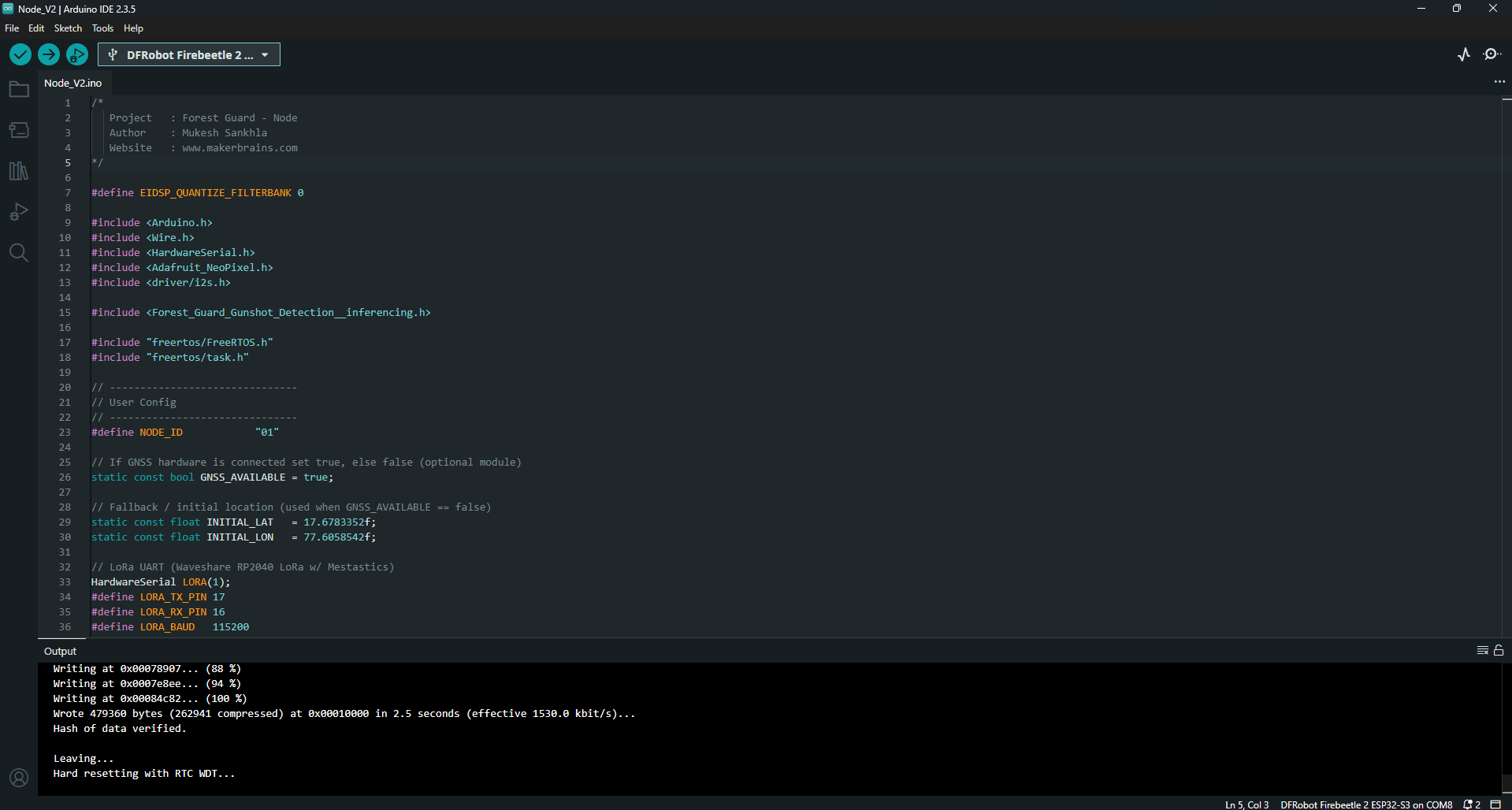
- The code will compile (this may take a while since the Edge Impulse model is large).
- Once complete, the firmware will be flashed to your ESP32-S3 Node.
- The Node should boot with a Blue breathing LED (boot + LoRa init).
- After registration with the Gateway, it will begin sending sensor data and detecting events.
Step 24: Gateway Design and 3D Printing
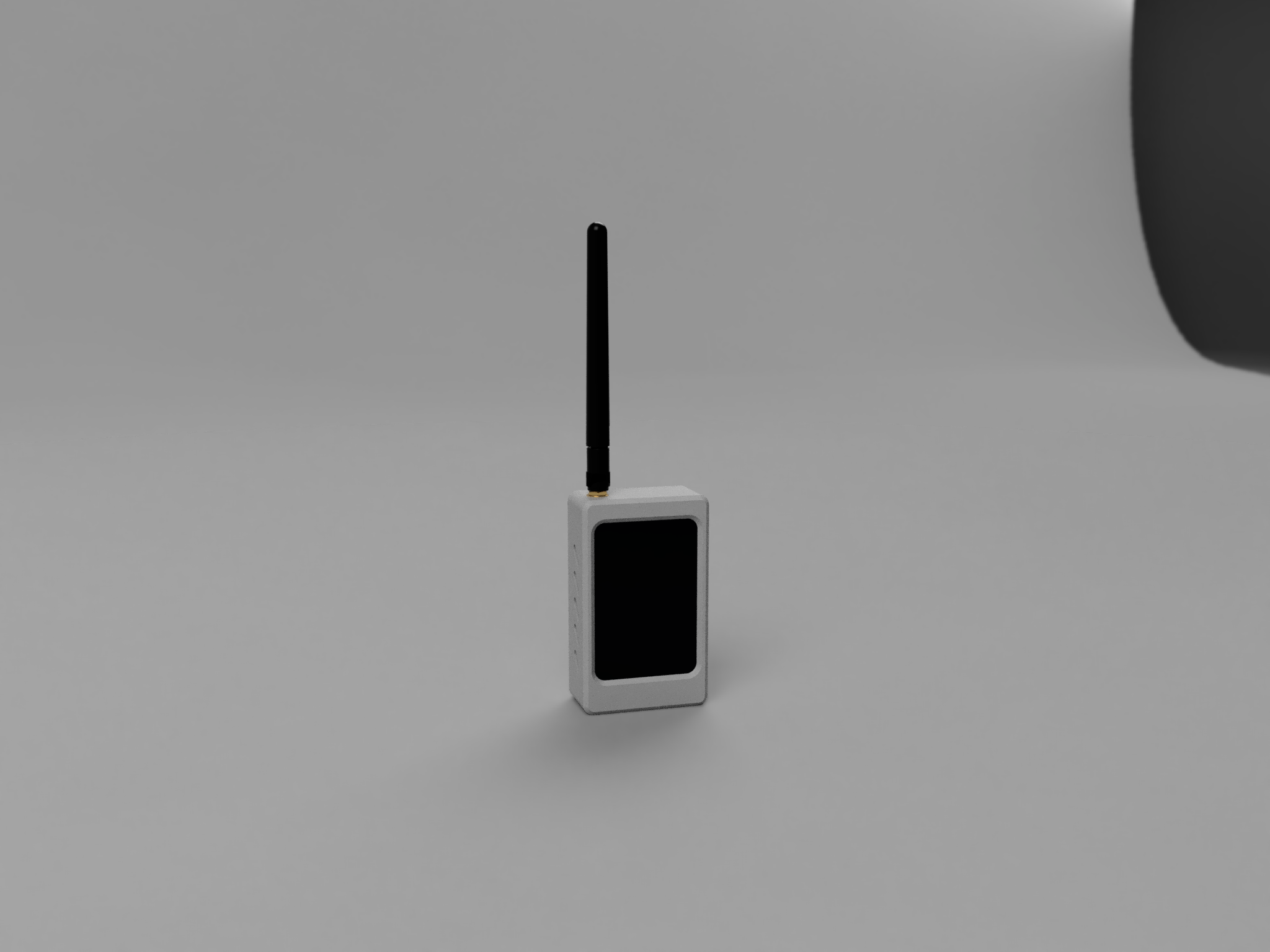
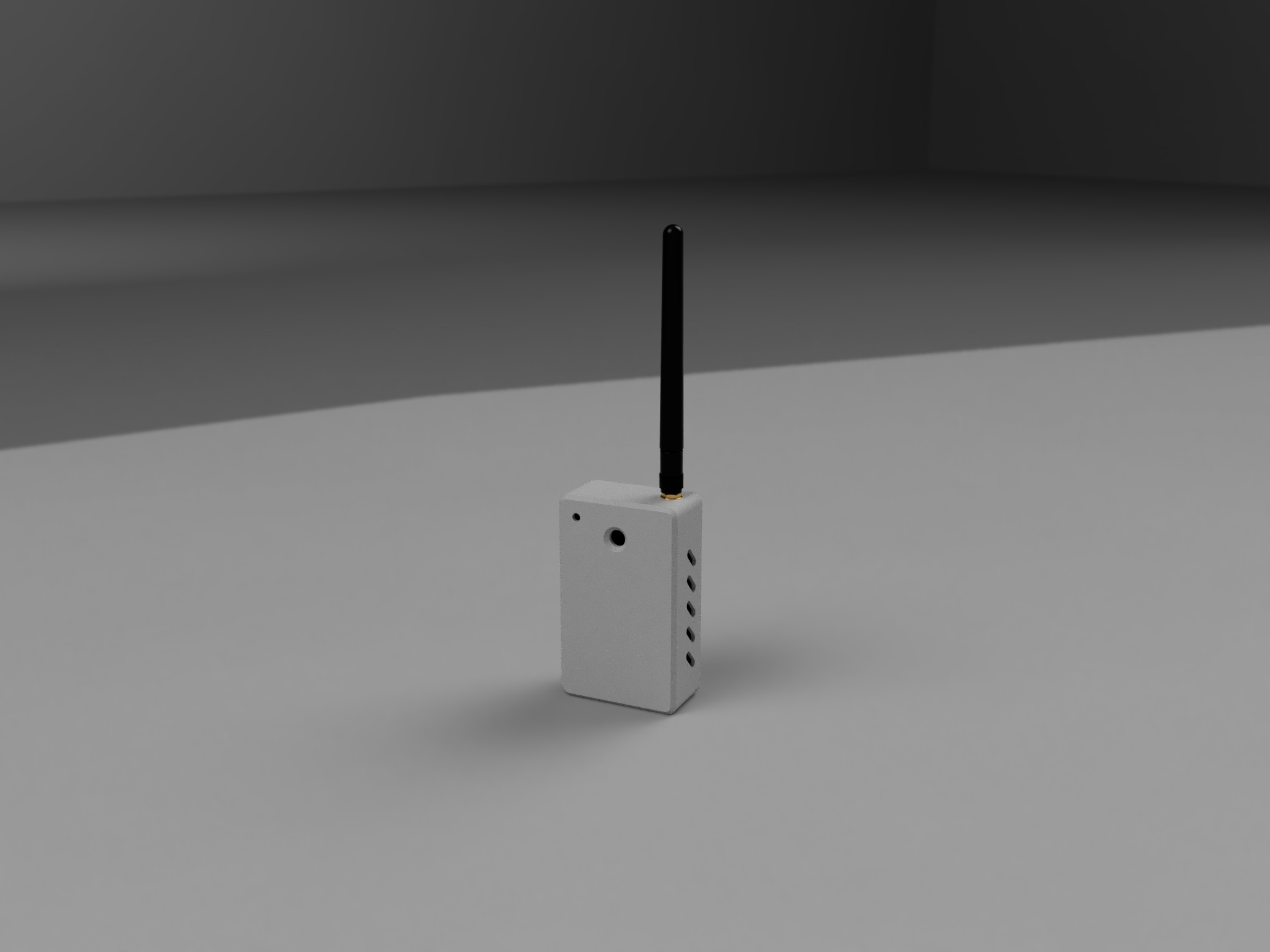
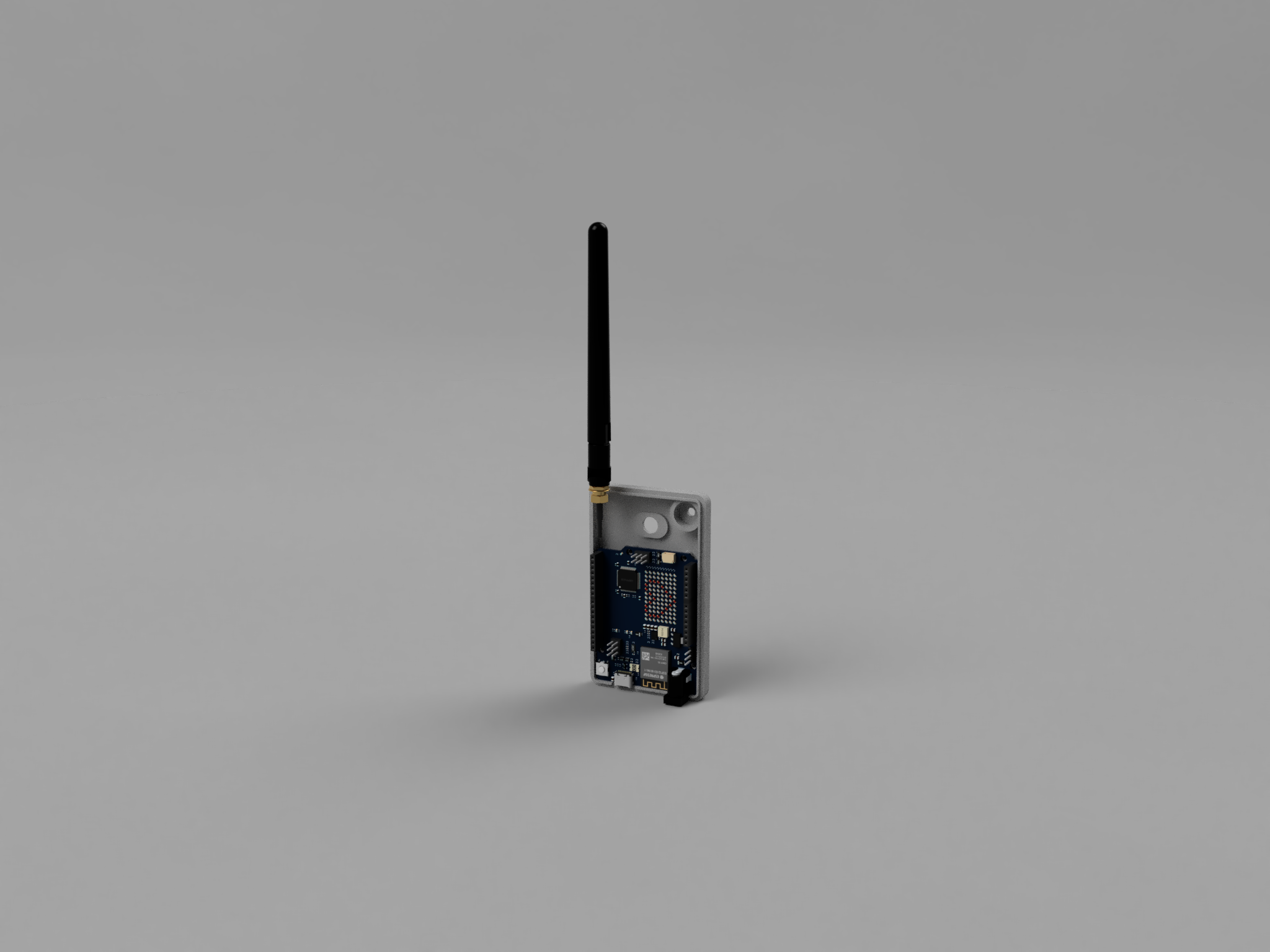
- Housing - Includes cutouts for the TFT display, LoRa antenna, and the Arduino Type-C port.
- Cover - Designed with mounting holes to securely fix the Arduino board inside.


Forest Guard Rx Fusion 360 File
Step 25: Housing Assembly
- Take the gateway housing and the TFT display.
- Place the display into the housing, making sure it is in the correct orientation with the screen aligned to the cutout.
- Secure the display using 4× M2 screws.
- Double-check that the screen sits flush with the housing and is firmly fixed in place.


Step 26: Antenna Assembly
- Take the LoRa antenna.
- Unscrew the antenna connector from the module.
- Pass the antenna through the antenna hole on the housing.
- Screw the antenna back onto the LoRa module from the outside.
- Make sure the antenna is firmly seated and facing upright.


Step 27: Arduino Assembly
- Take the Arduino Uno R4 WiFi and the gateway cover.
- Align the Arduino with the mounting holes on the cover.
- Secure it in place using 4× M2 screws.
- Ensure the Type-C port and headers remain accessible through the cover cutouts.


Step 28: Buzzer and Power Switch Assembly
- Take the buzzer, the power switch, and some quick glue.
- Insert the buzzer into its dedicated slot on the cover.
- Insert the power switch into its cutout hole on the cover.
- Apply a small amount of quick glue around the switch edges to secure it in place.


Step 29: Connections
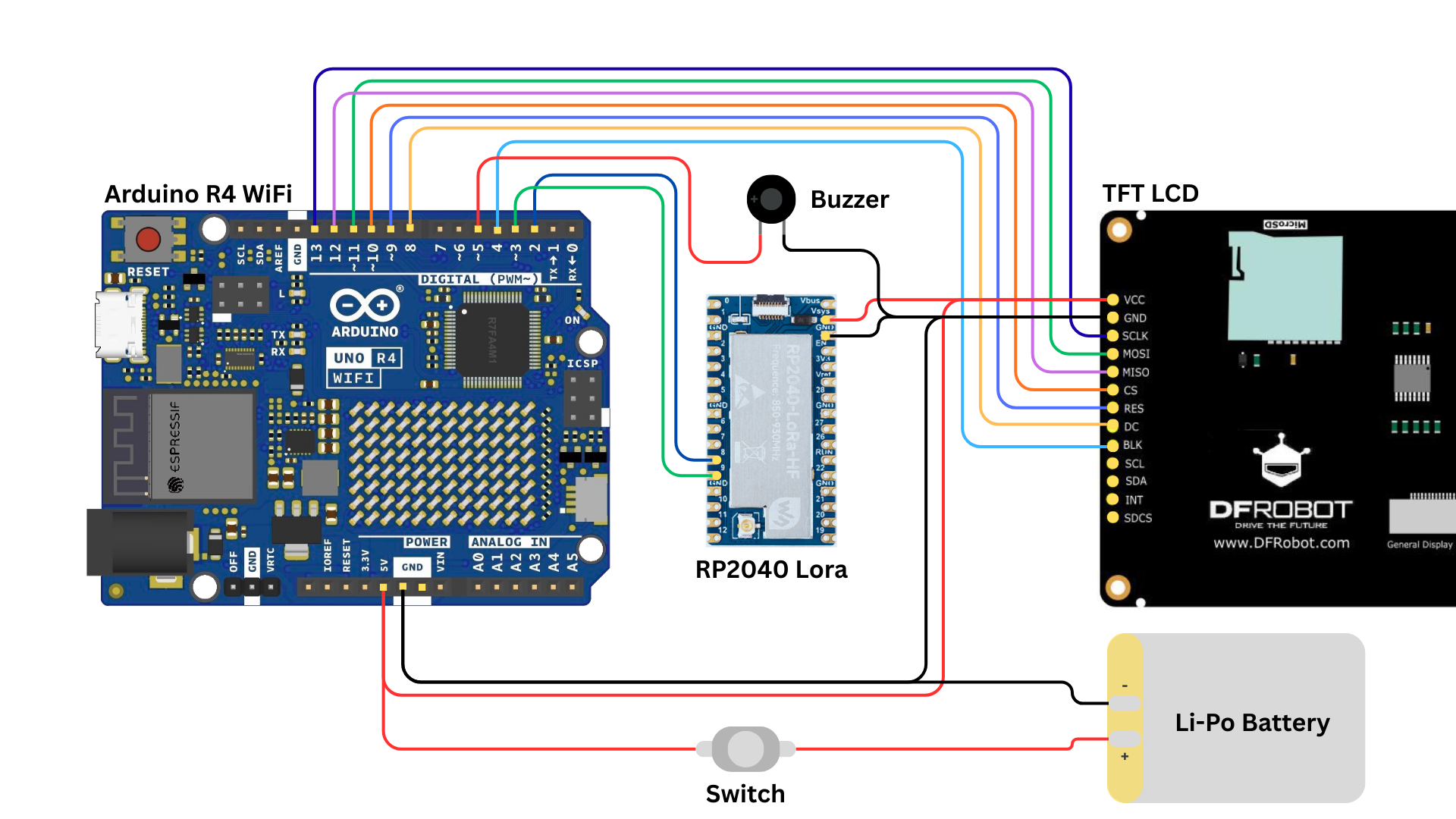
- Connect as shown in the wiring diagram above (image).
- Ensure all data and control pins are matched correctly, with 5V and GND powering the display.
- GND → GNS (LoRa GND)
- 5V → VSys (LoRa Power)
- Pin 2 → Pin 9 (LoRa UART RX/TX pair)
- Pin 3 → Pin 8 (LoRa UART TX/RX pair)
- Connect the battery and power switch between GND and 5V of the Arduino.
- Connect the buzzer:
- GND → Arduino GND
- +Ve → Arduino Pin5


Step 30: Arduino Code
Now let’s program the Gateway so it can communicate with the nodes, process sensor/event data, and upload everything to Firebase.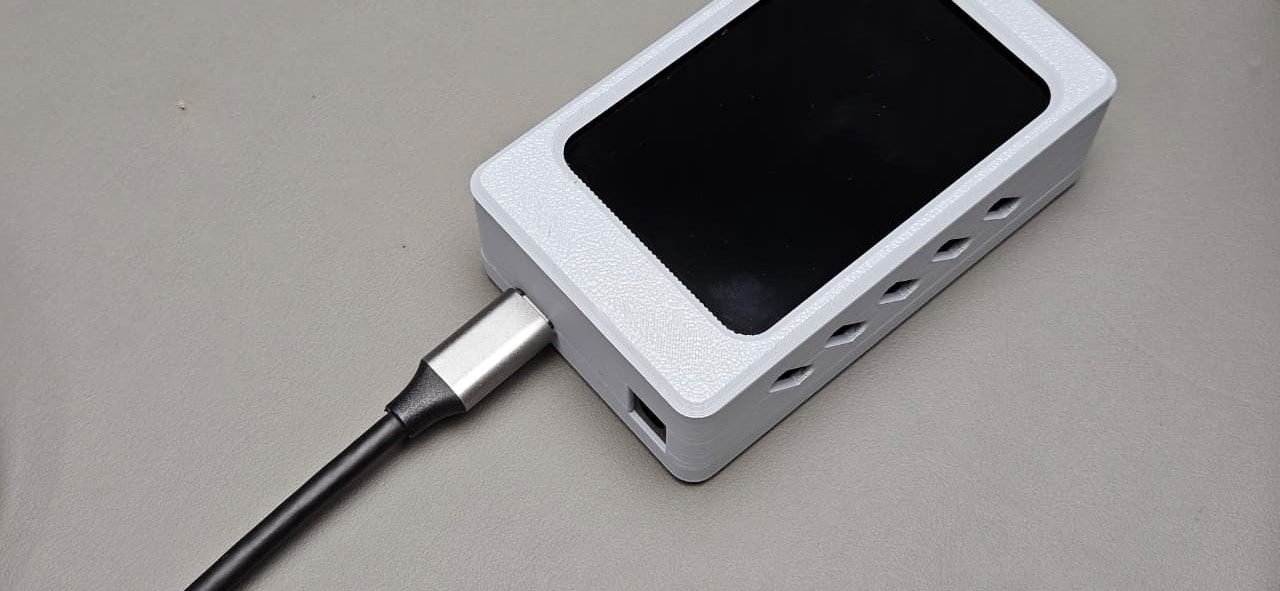
- Go to the Forest Guard GitHub repository.
- Download and extract the files.
- Open Gateway_V1.ino in the Arduino IDE.
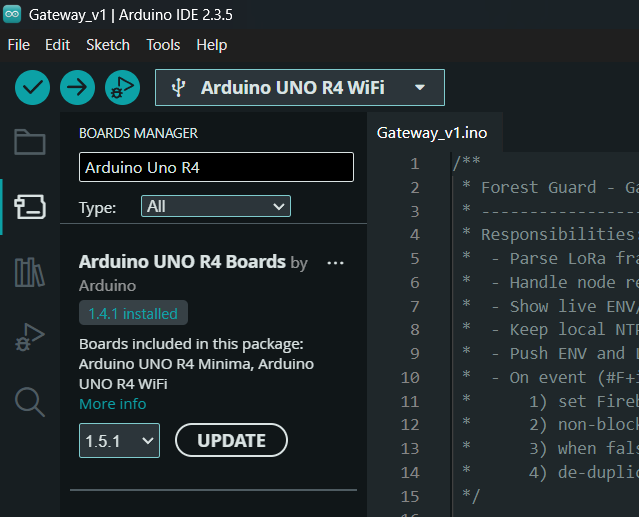
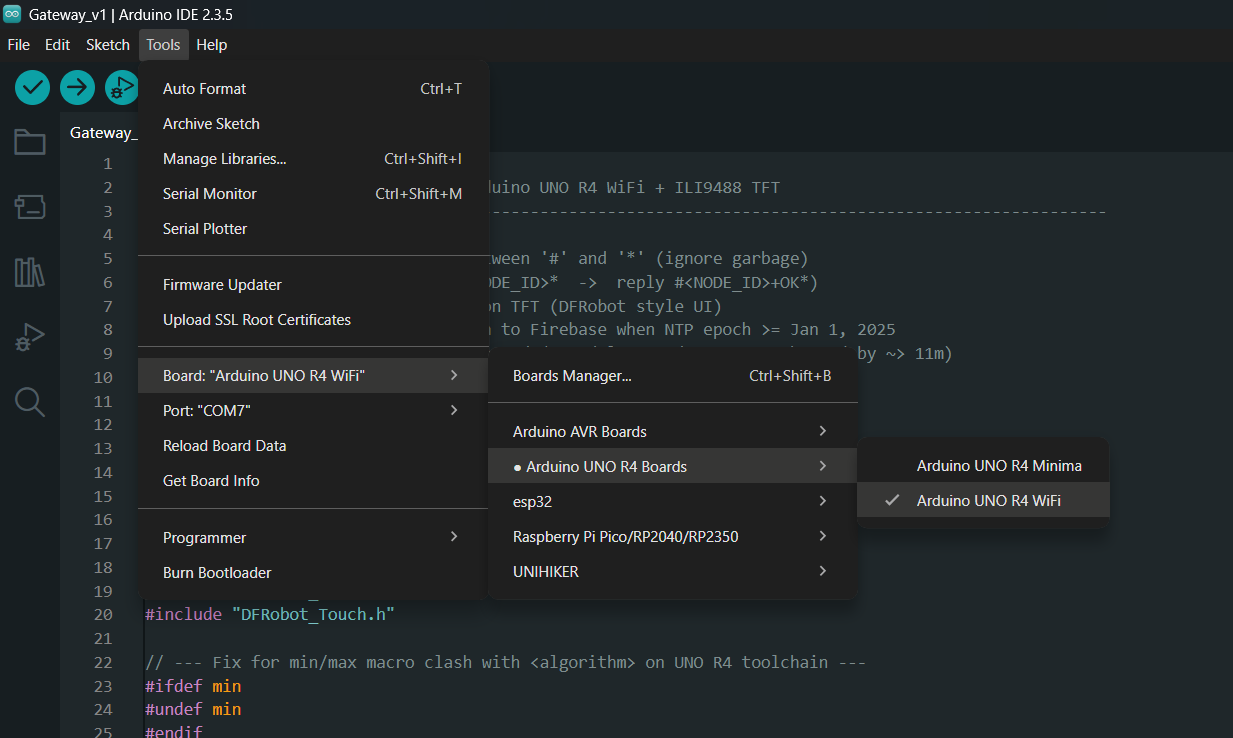
- Make sure the Arduino Uno R4 WiFi board package is installed via Board Manager.
- Install all required libraries as shown in the reference images (WiFiS3, ArduinoHttpClient, NTPClient, DFRobot UI/TFT libraries, etc.).
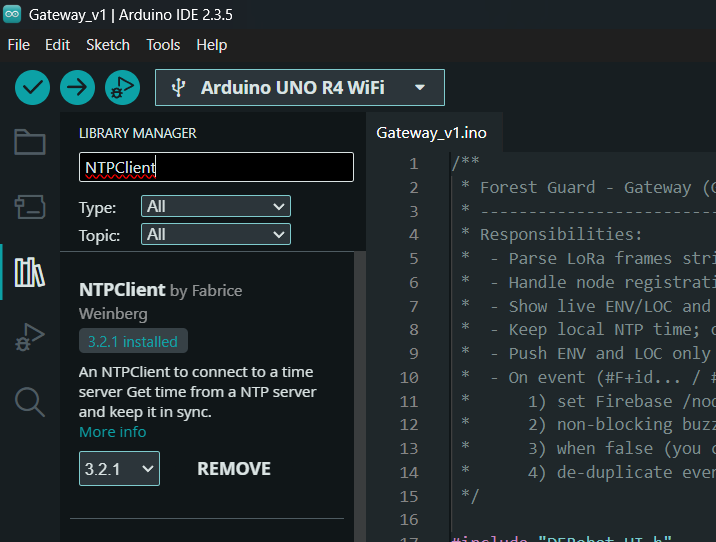
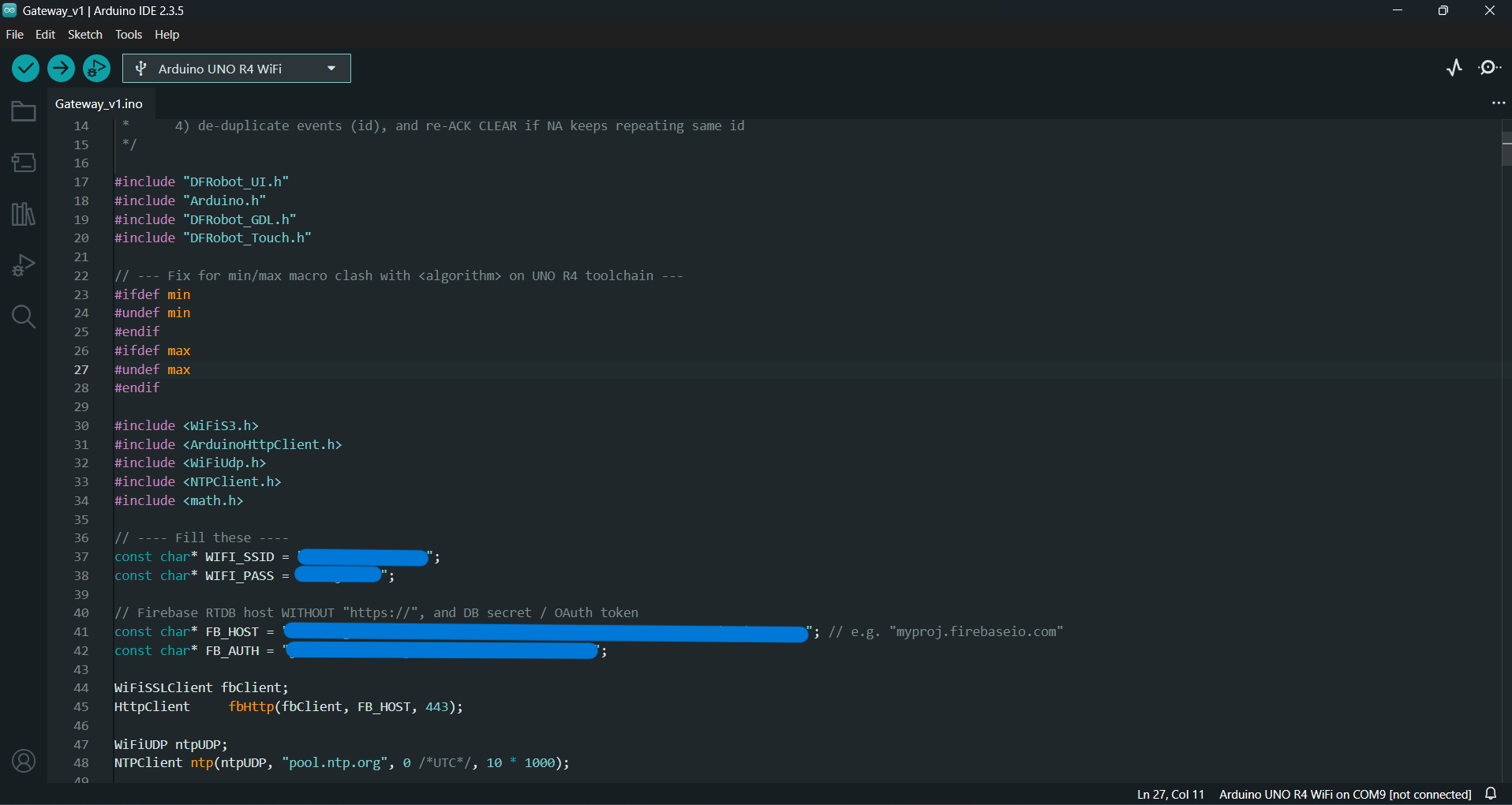
- Enter your WiFi SSID and password.
- Enter your Google Firebase host URL and authentication key.
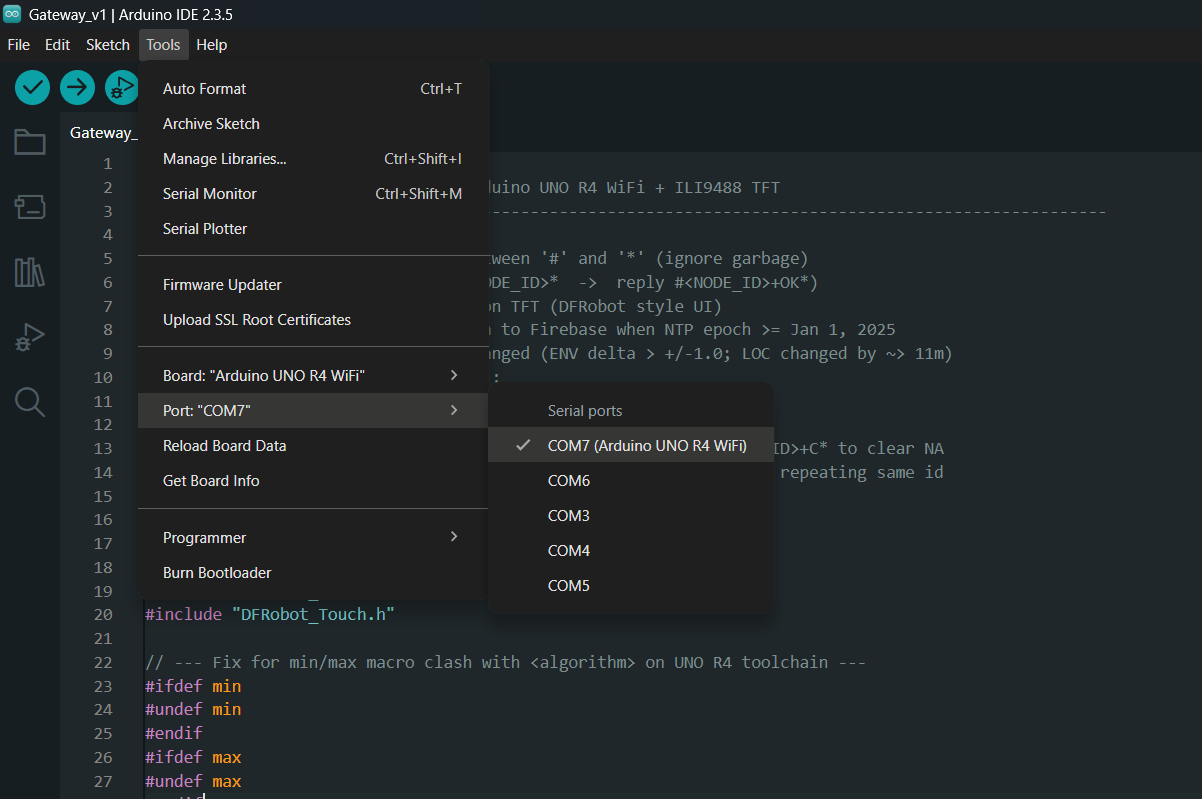
- In Tools → Board, select Arduino UNO R4 WiFi.
- In Tools → Port, select the correct COM port for your board.
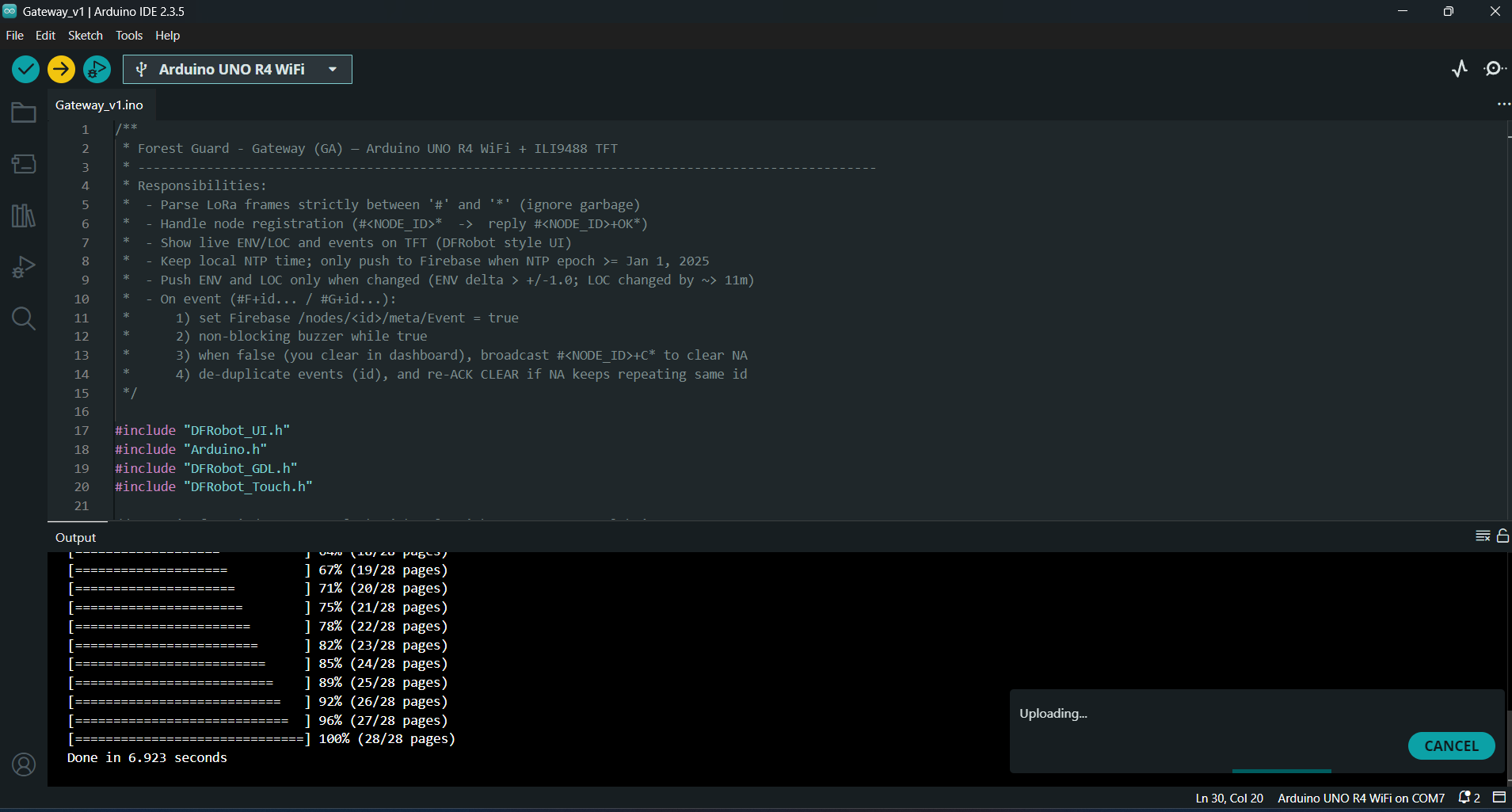
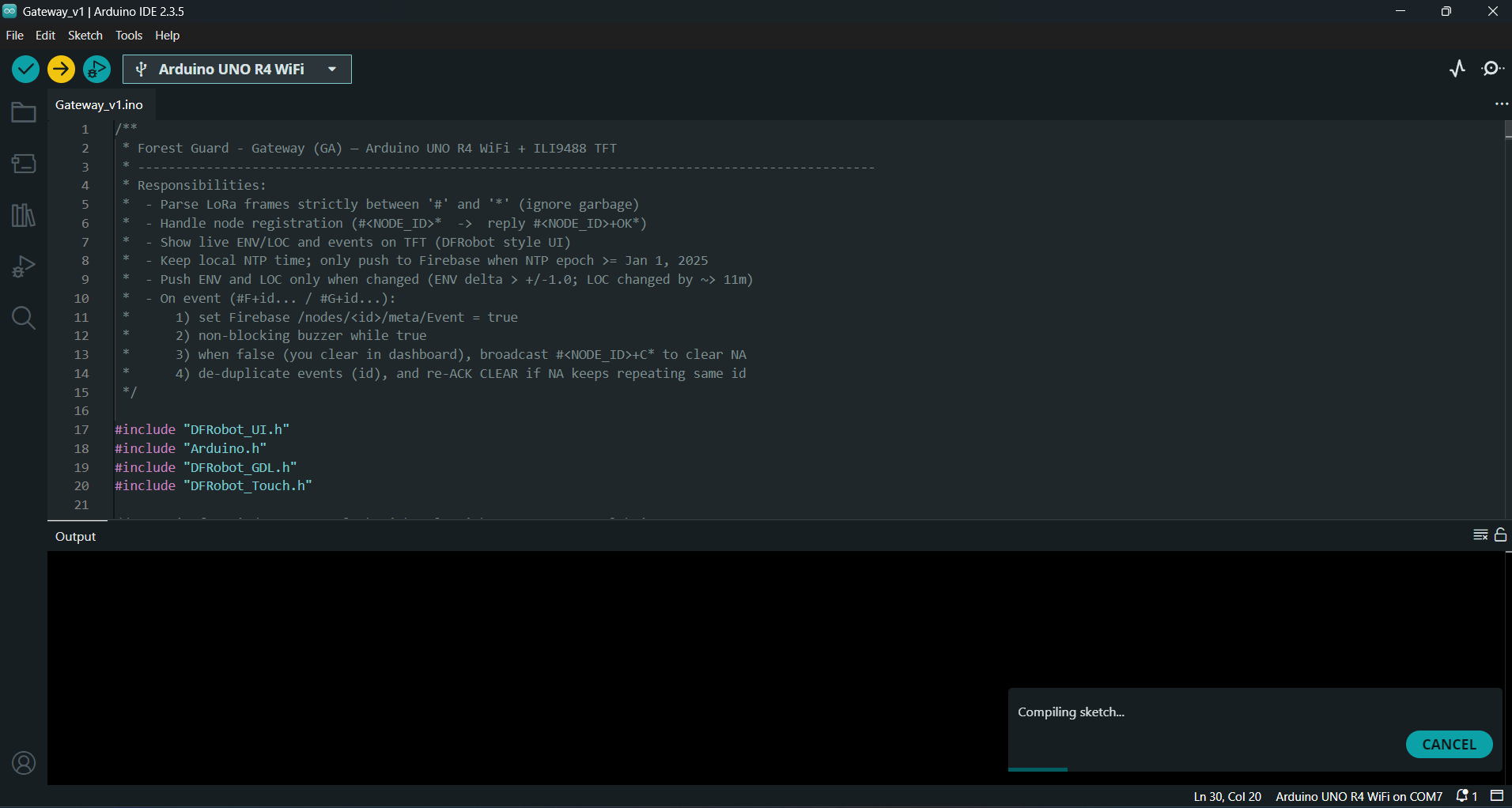
- Click Upload.
- Connect to WiFi.
- Sync time via NTP.
- Register nodes and receive LoRa messages.
- Push ENV, LOC, and event data into Firebase.
- Drive the TFT display and buzzer for real-time monitoring.
Step 31: Firebase Project Setup
1) Create a Firebase project- Open https://console.firebase.google.com/
- Create project → (Google Analytics optional; you can keep default).
- Wait for provisioning to finish.
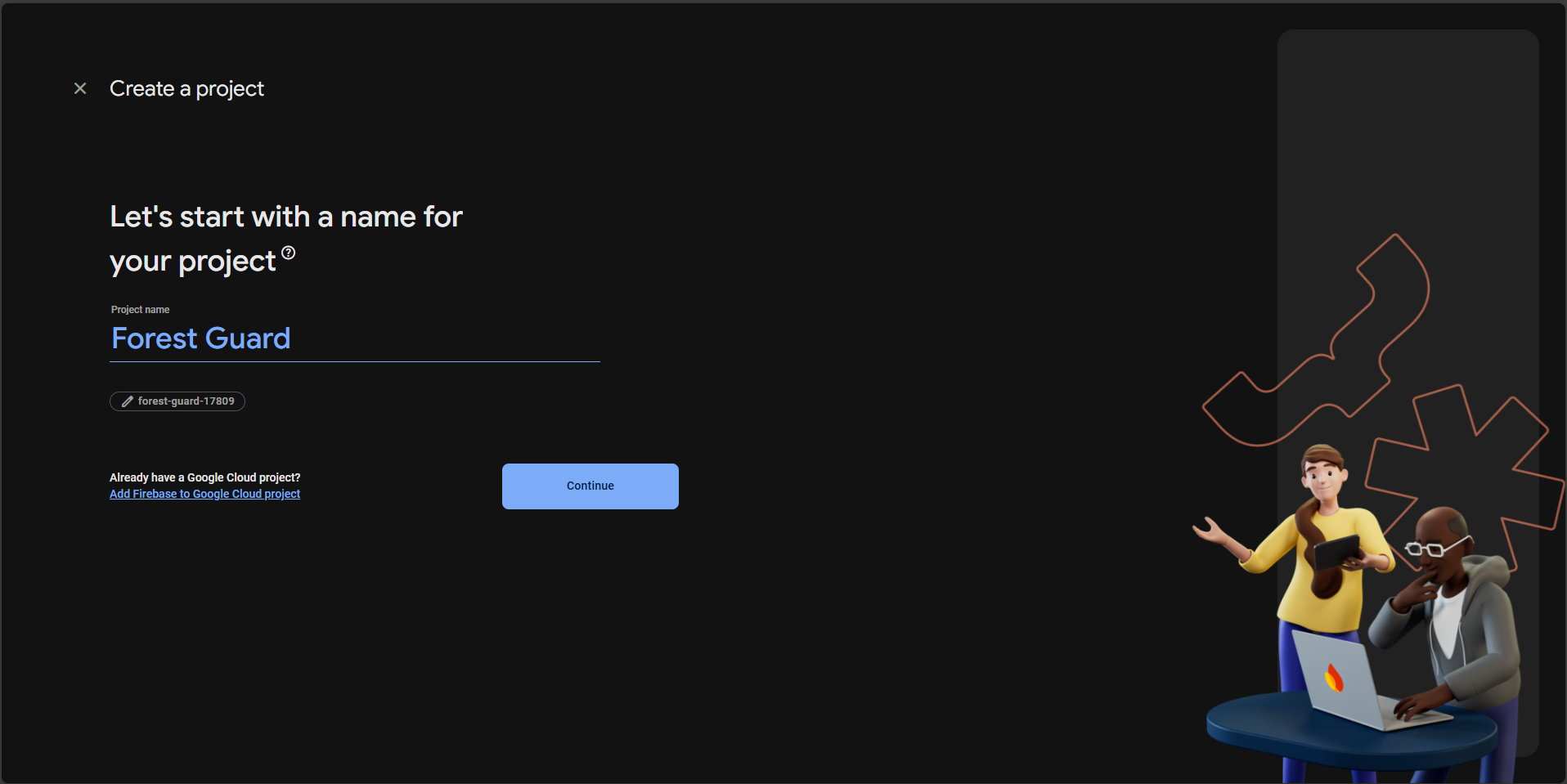
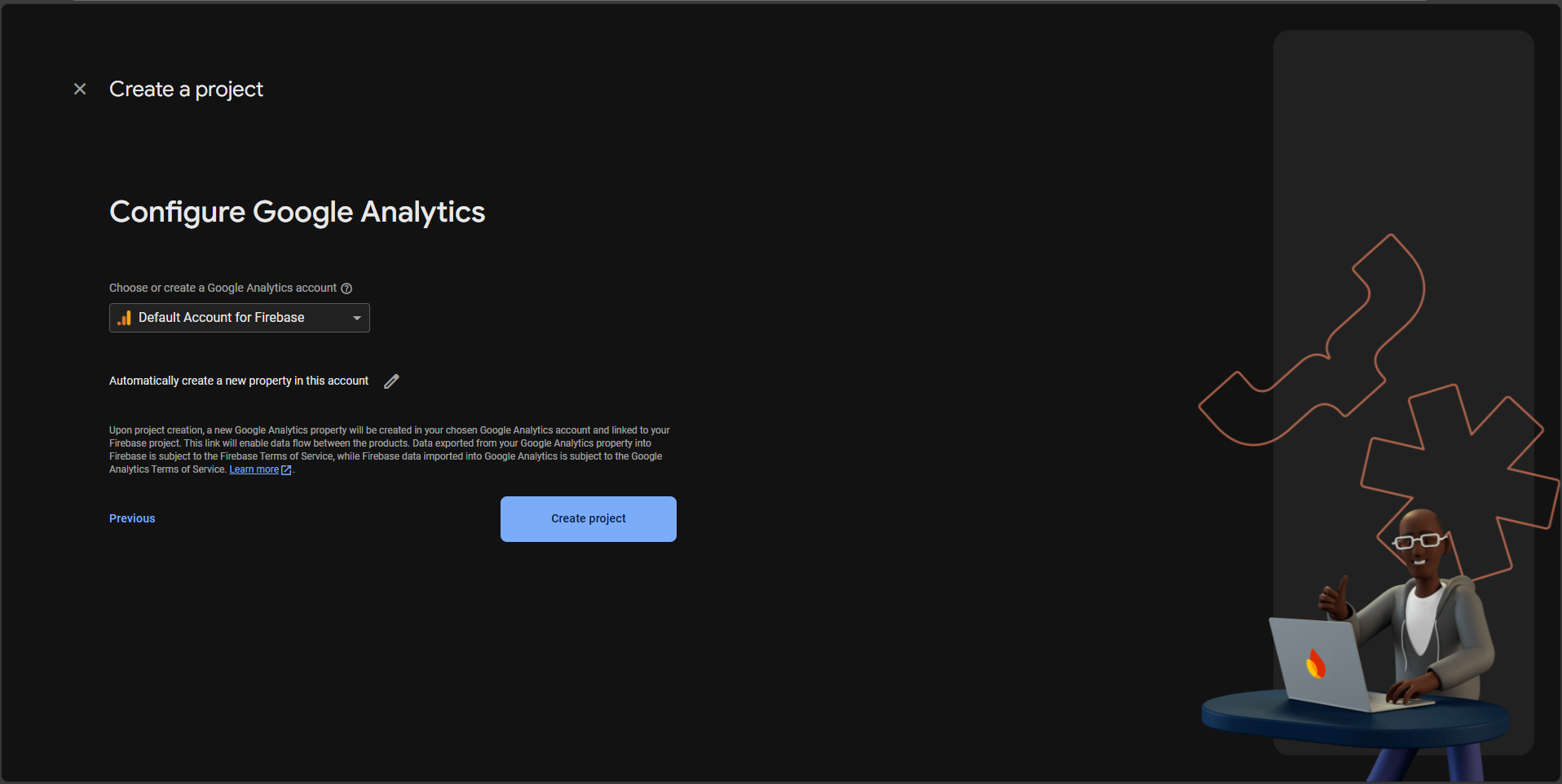
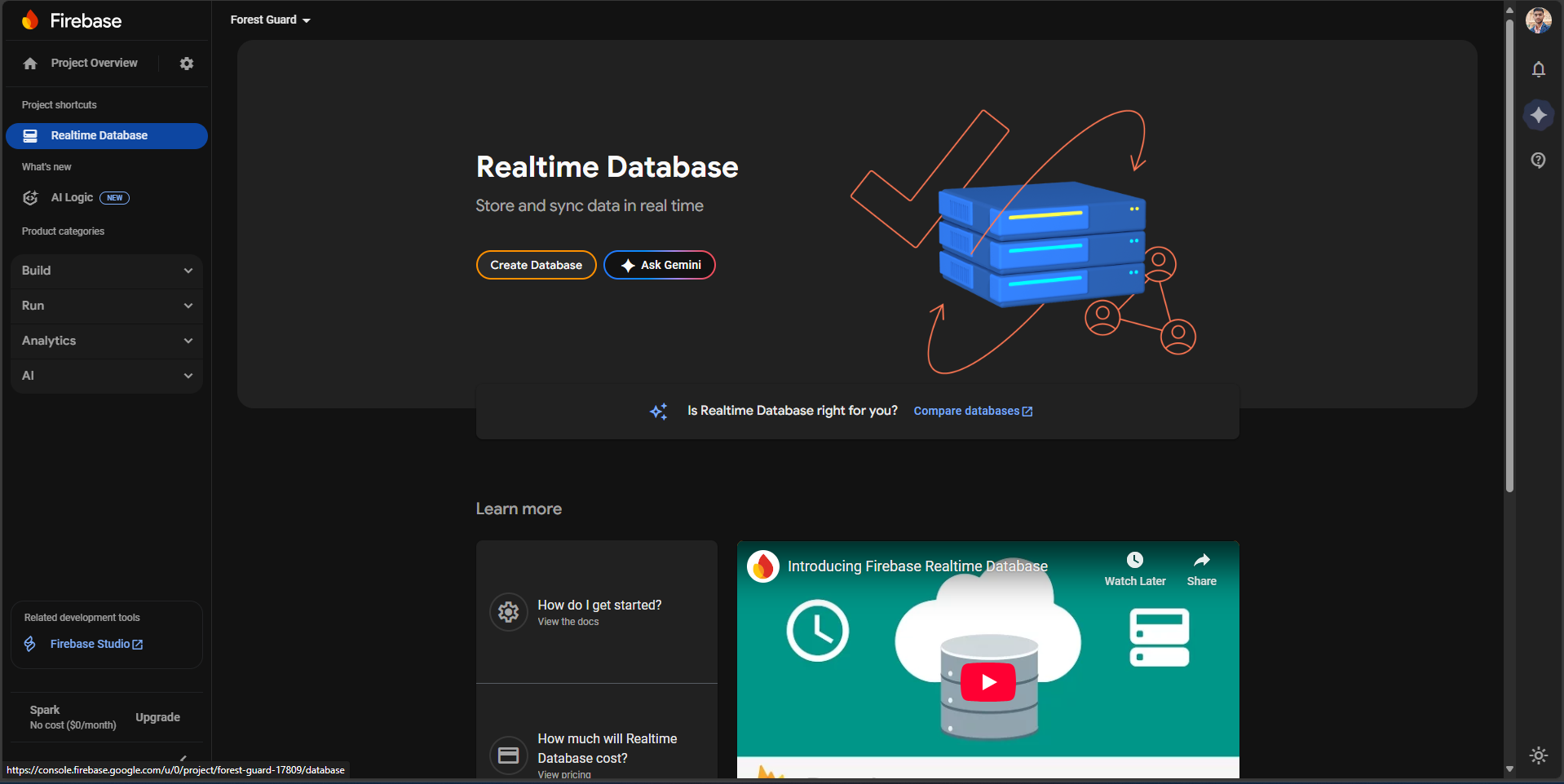
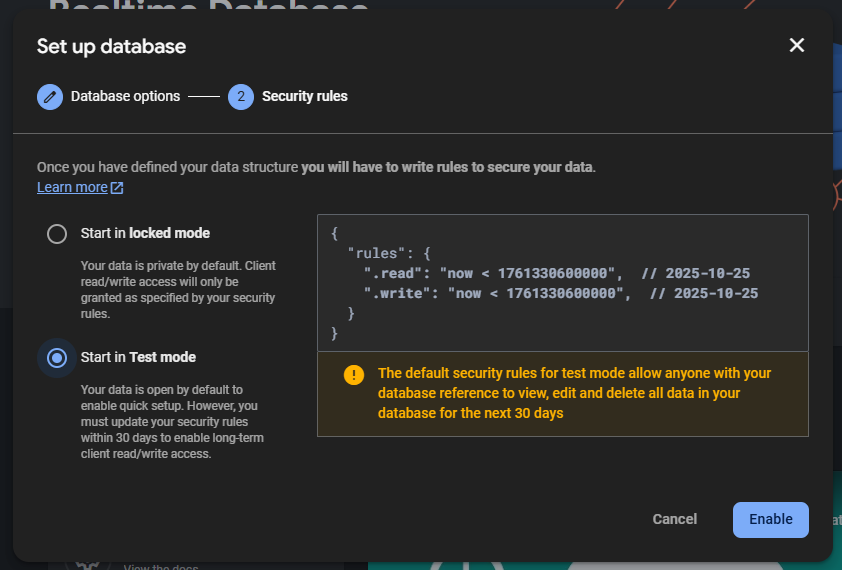
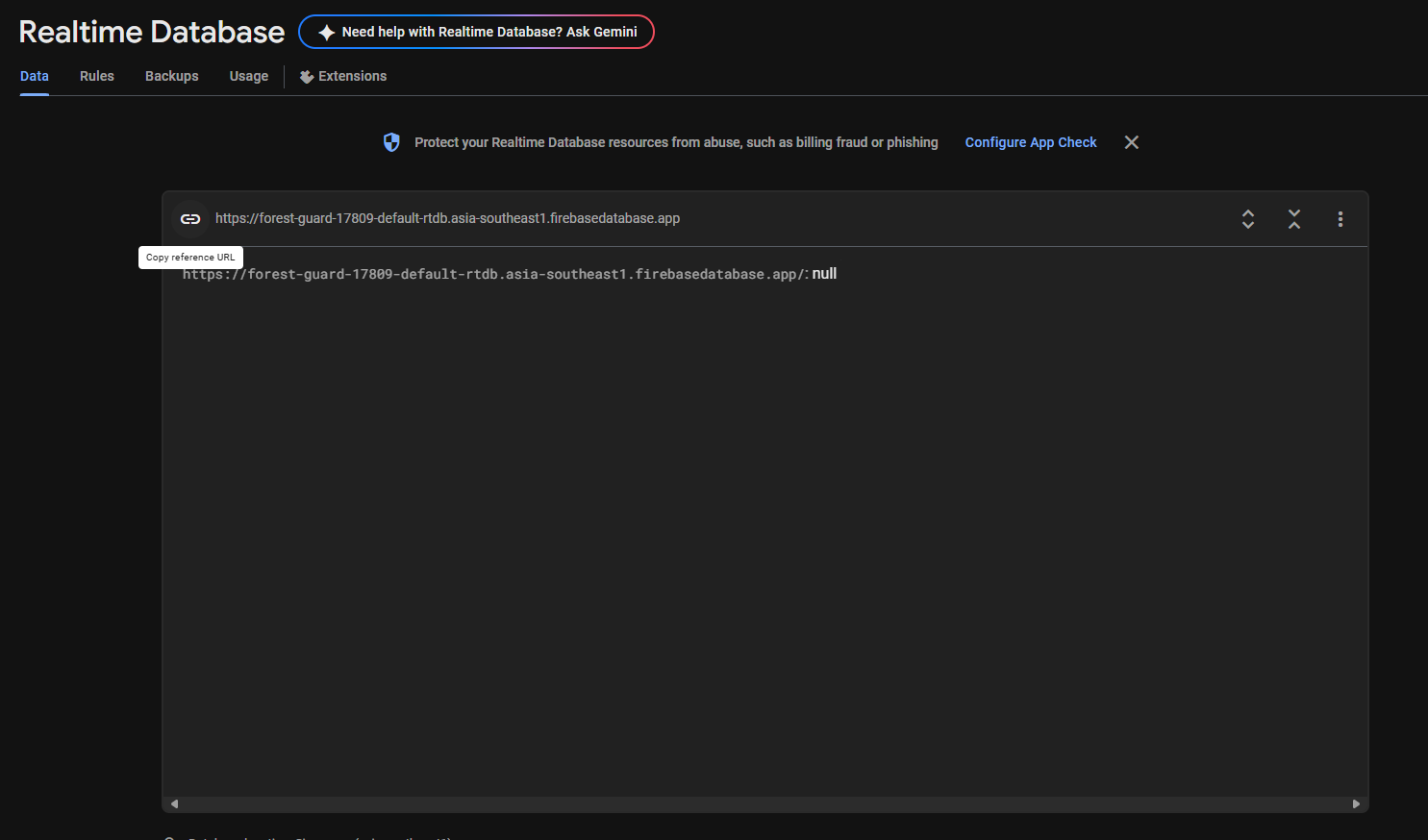
- Left sidebar → Build → Realtime Database → Create Database
- Choose a region close to you (e.g., asia-southeast1 / Singapore).
- For quick testing select Start in Test mode (Firebase allows open read/write for 30 days).
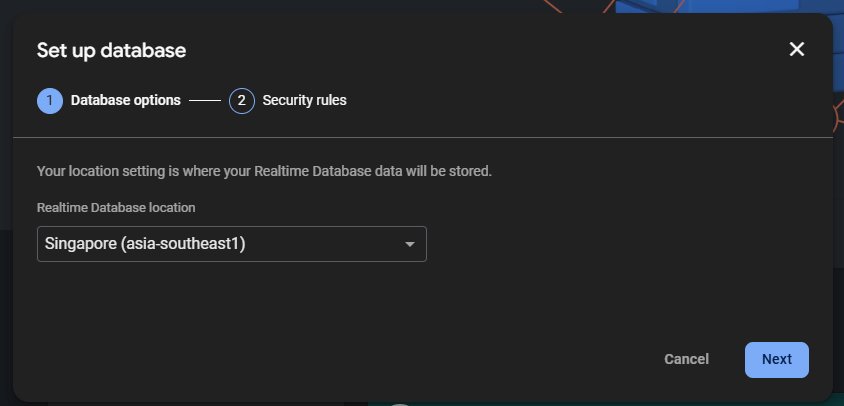
- Project settings (gear) → Service accounts
- Click Database secrets → Show → Copy the secret.
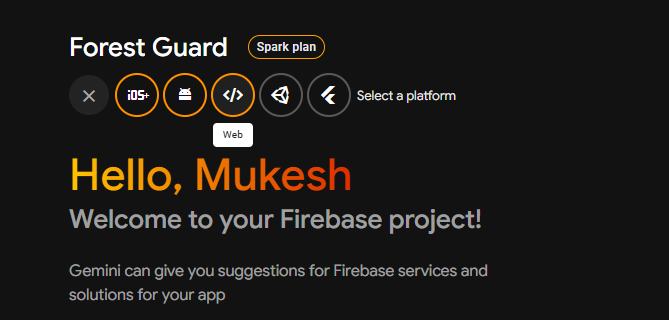
- Project Overview → Add app → Web
- Give it a name (e.g., Forest Guard) → Register app
- On the next screen you’ll see your Web SDK config:

Step 32: How the System Works
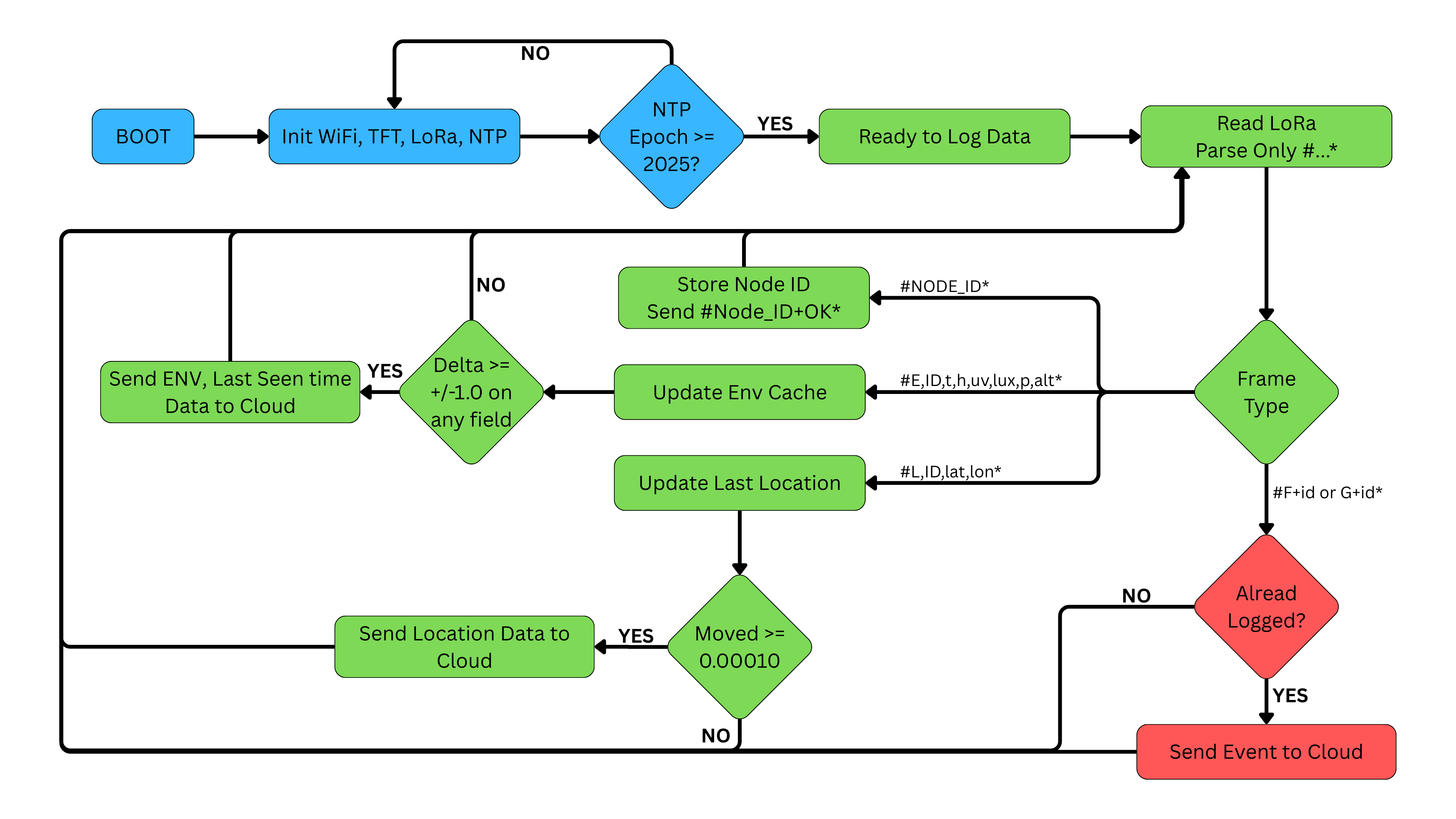
1) Node (NA) boot & registration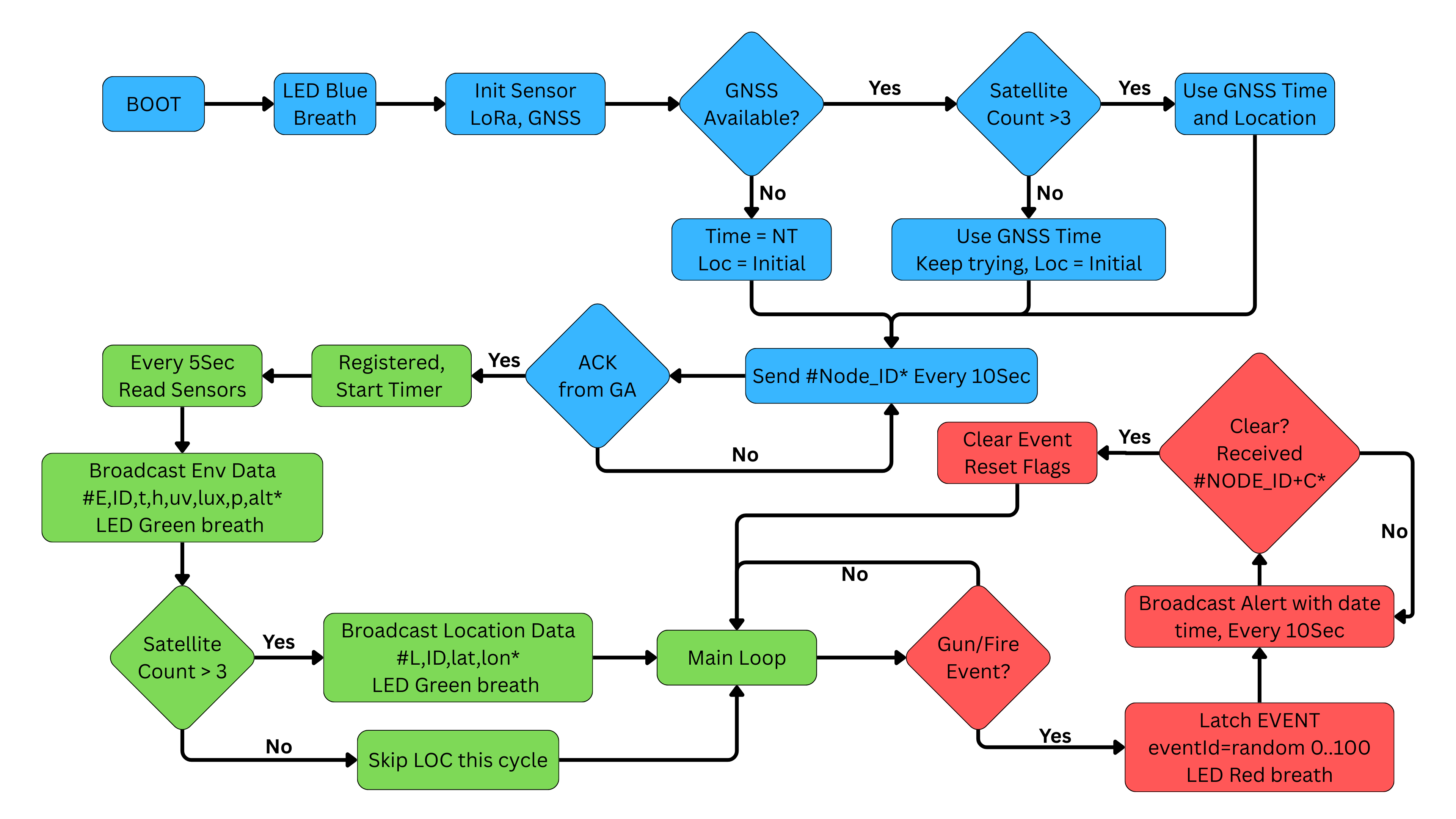
- NA = ESP32-S3 with Env + Smoke + Mic + (optional) GNSS + RP2040 LoRa (Meshtastic).
- On boot:
- LED Blue breath.
- Initializes sensors.
- Checks GNSS_AVAILABLE. If present, uses GNSS time; location is sent only when satsUsed > 3.
- Registers with GA by broadcasting #* every 10 s until GA replies #+OK*.
- Only after registration do Edge Impulse (gunshot) and fire/smoke checks start.
- Every 10sec the NA sends:
- ENV: #E,,temp,humidity,uv,lux,pressure,alt*
- LOC: #L,,lat,lon* (only if GNSS fix has >3 sats; if GNSS is not fitted, system can use your initial set location).
- LED Green breath on successful send.
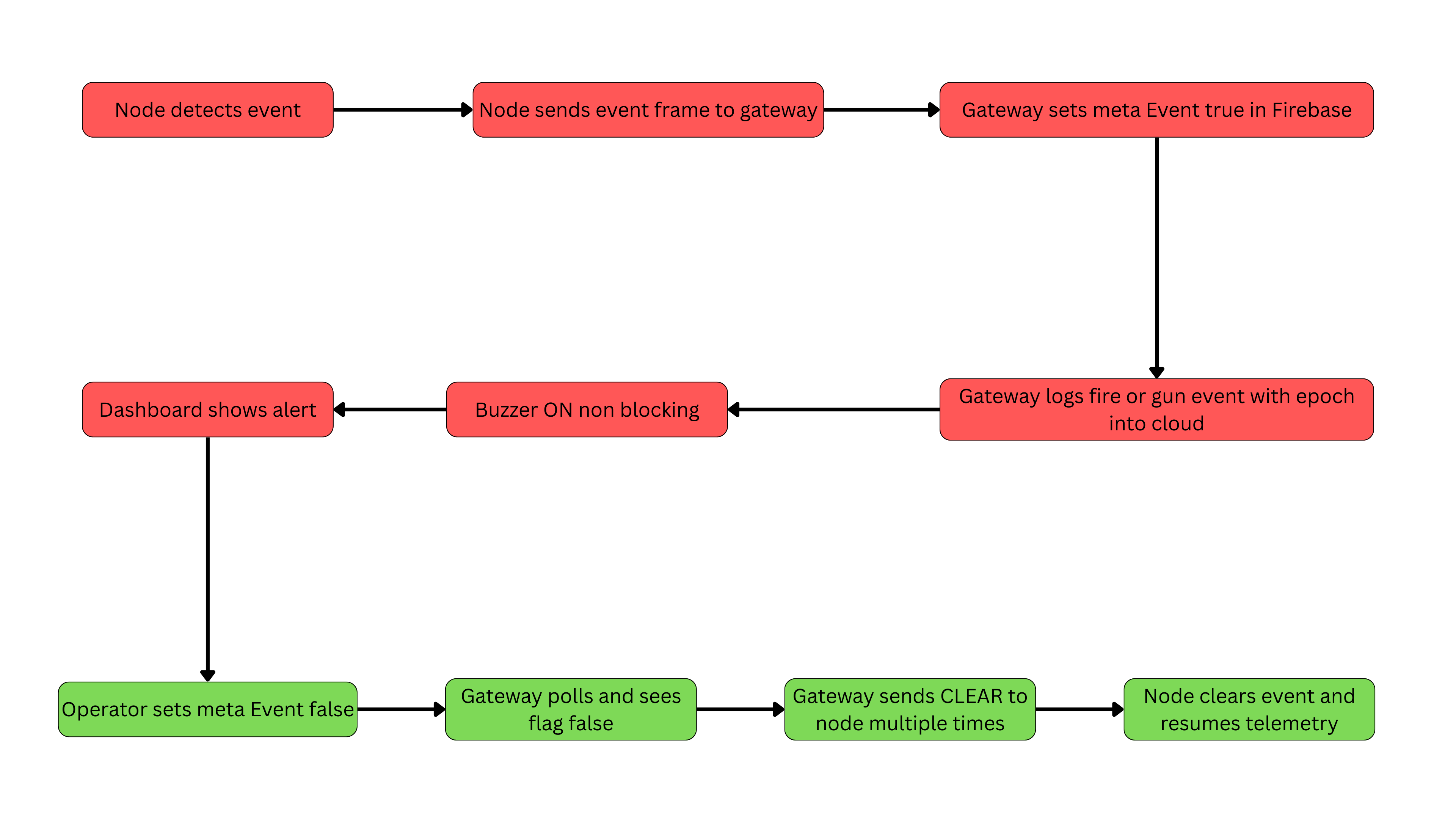
- Gunshot: Edge Impulse score crosses threshold (e.g., ≥0.90).
- Fire: Smoke reading crosses threshold with hysteresis.
- Node latches a single “current event” and creates eventId = random(0..100).
- Sends every 10 s until cleared by GA:
- Fire: #F+,,,YYYY/MM/DD,HH:MM:SS* or NT if no GNSS time.
- Gun: #G+,,,YYYY/MM/DD,HH:MM:SS* or NT.
- LED Red breath while event is latched.
- GA = Arduino UNO R4 WiFi + TFT UI + Buzzer.
- LoRa noise-proofing: both sides parse **only bytes between # and ***; everything else is ignored.
- On #* → replies #+OK* (register ACK).
- On telemetry:
- Maintains last posted values and only uploads to Firebase when changed
- ENV changed by ≥ ±1.0 per field
- LOC changed by ≥ 0.00010° (~11 m)
- NTP gate: GA writes to Firebase only after epoch ≥ 2025-01-01 (NTP warmup).
- GA writes to Firebase RTDB paths:
- nodes//env/ →
{ temp, humi, uvi, li, pres, alt } - nodes//Loc/ →
{ lat, lon }(capital L) - nodes//fire/ →
{ value, NodeTime } - nodes//gun/ →
{ score, NodeTime } - nodes//meta →
{ Event, lastSeenAt } - When an event frame arrives:
- Sets meta/Event = true.
- Logs the event (de-duplicates by eventId).
- Starts buzzer (non-blocking toggle).
- Dashboard reads RTDB to render map, charts, and alerts.
- When the site is inspected and safe, the operator sets meta/Event = false in the dashboard.
- GA polls meta/Event. When it becomes false:
- GA broadcasts #+C* (a few times for reliability).
- Stops buzzer, unlatches its local event, and remembers the last cleared eventId.
- If NA keeps repeating the same eventId, GA does not re-log the event; it simply re-ACKs CLEAR and moves on.
- NA receives #+C* → clears its event latch and resumes normal telemetry.
- Blue: boot/LoRa/registration
- Green: data sent
- Red: event latched
Step 33: Dashboard
To visualize the data coming from the Forest Guard Nodes, I built a custom web dashboard using Lovable.dev. This dashboard connects directly to Firebase and provides both a quick overview and detailed insights into the forest monitoring network. Forest Guard Dashboard Setup- When the dashboard is first opened, it takes you to a Firebase configuration page.
- Here, you enter your Firebase host and authentication key.
- Once saved, the dashboard connects to the database and loads the real-time data.
- The map view shows the live location of all deployed nodes.
- Each node is color-coded by status:
- Gray → Inactive
- Green → Active
- Red → Alert (fire or gunshot detected)
- By clicking on a node, you can quickly check its latest sensor data and status.
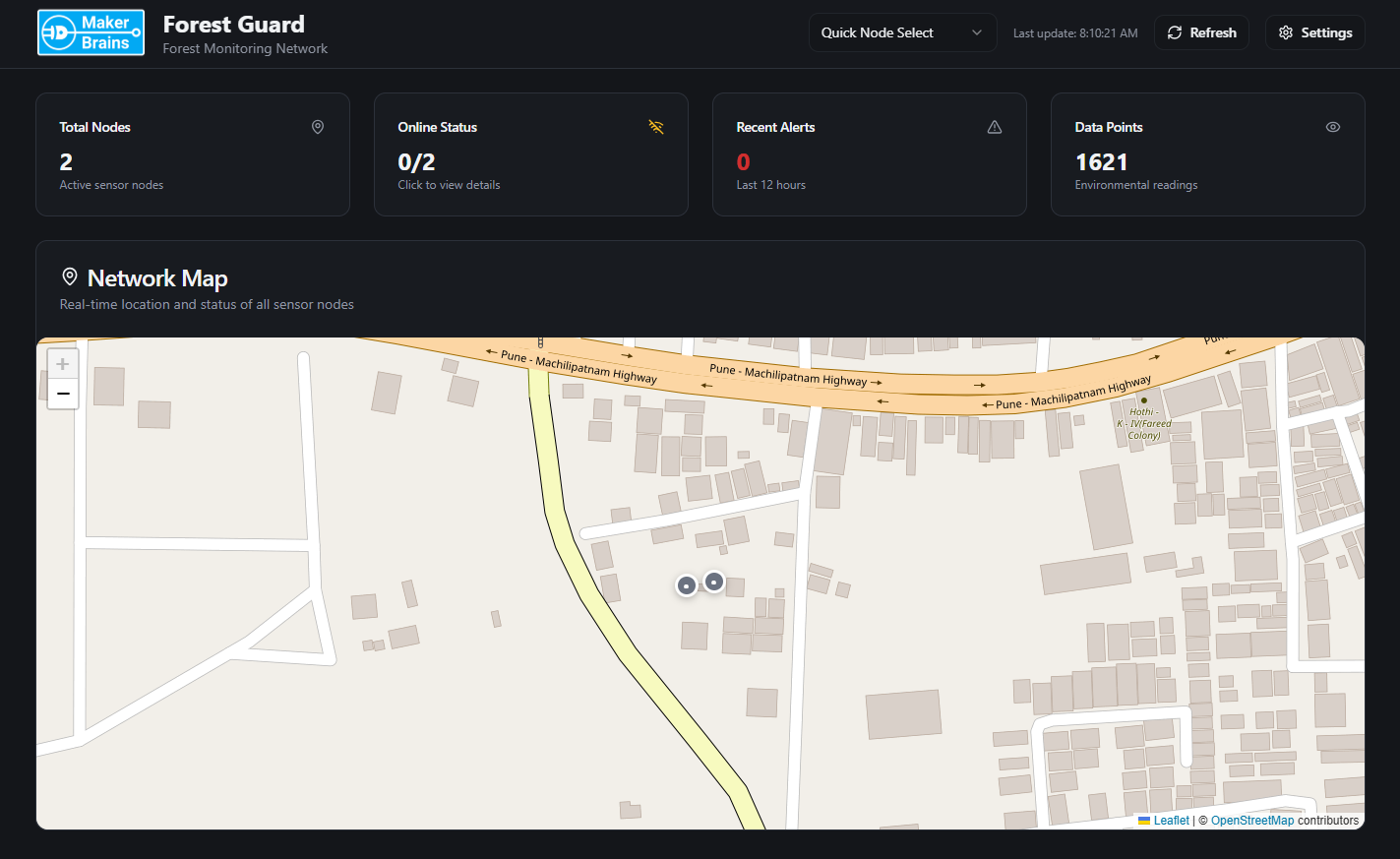
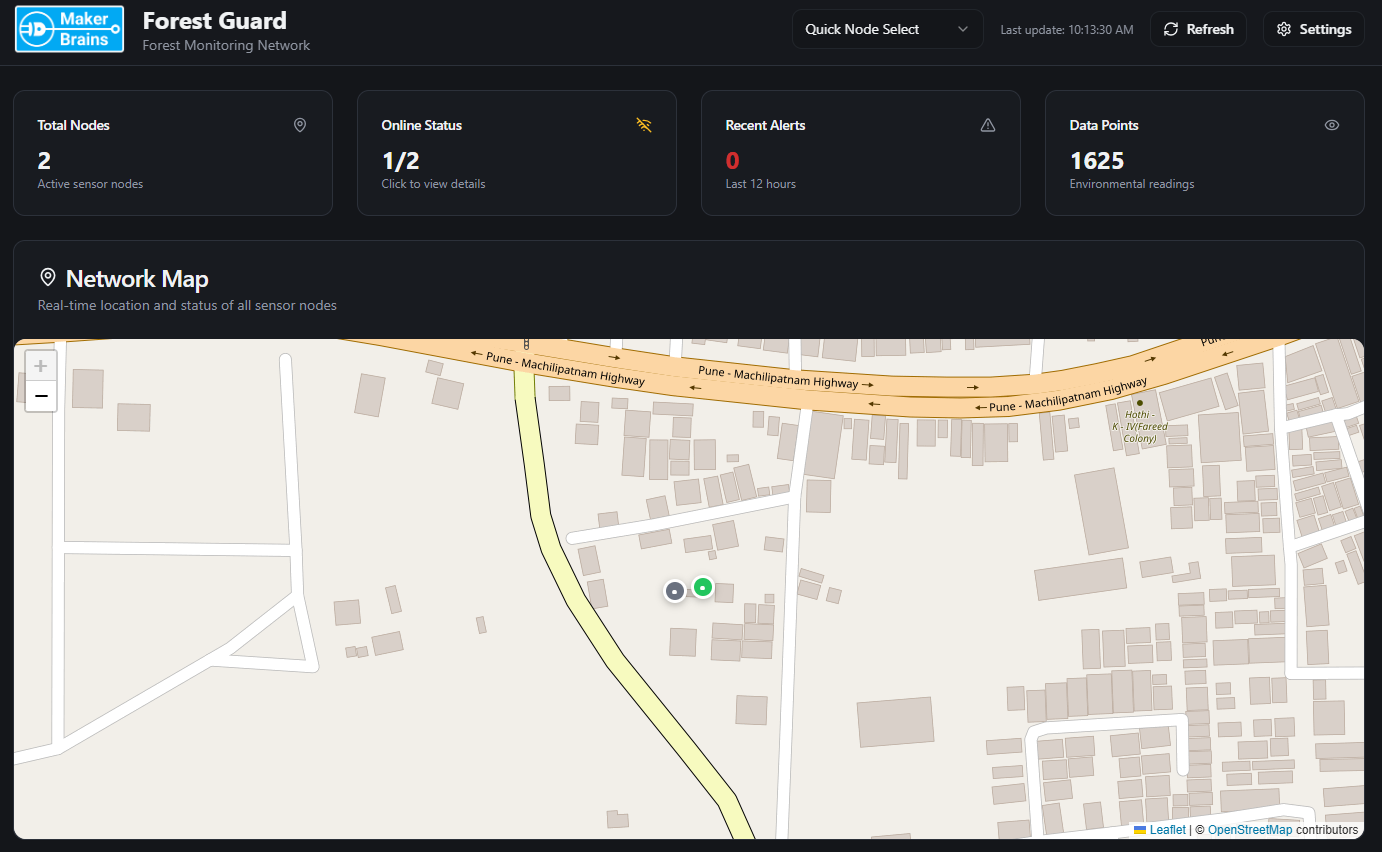
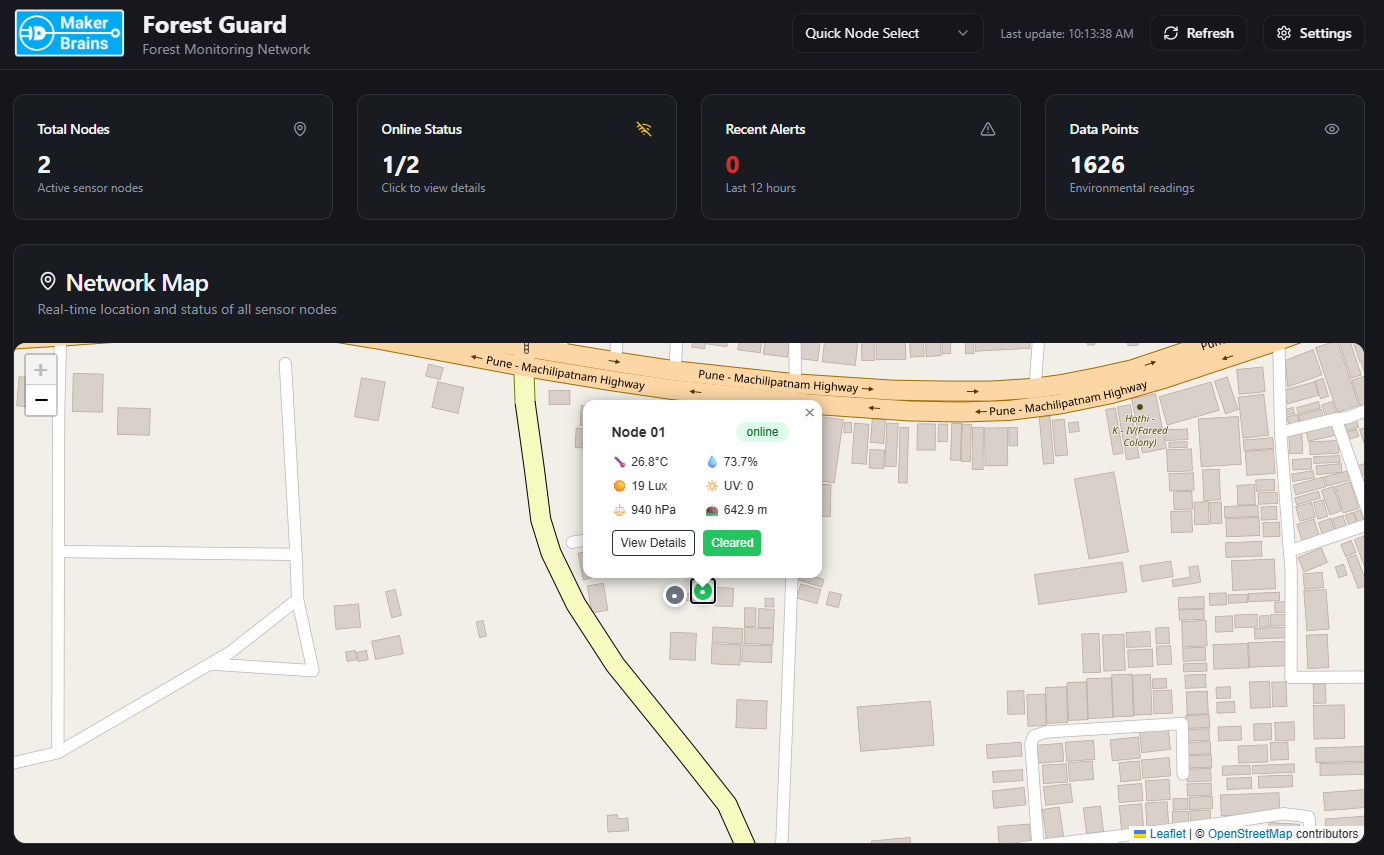
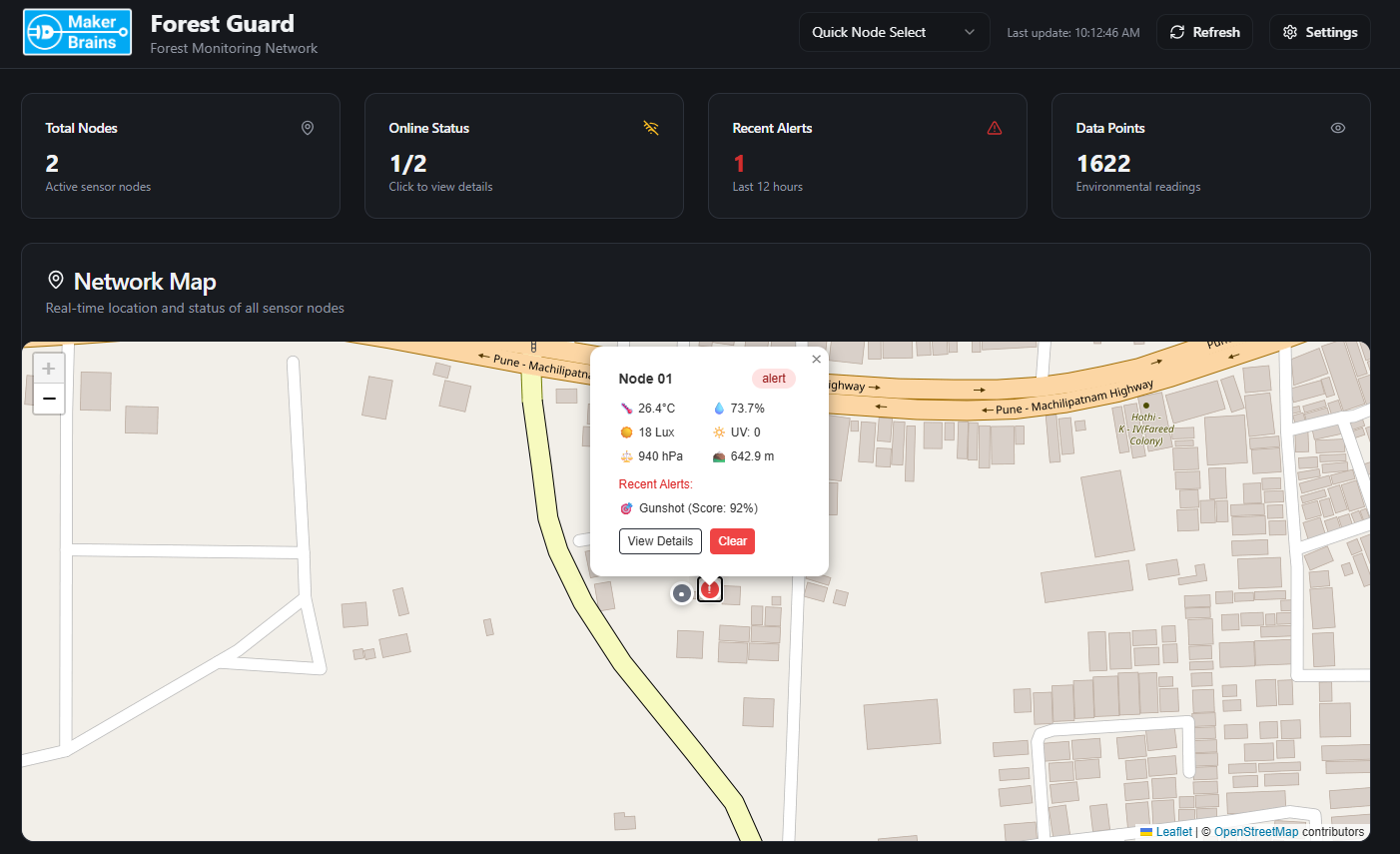
- Total Nodes → Number of nodes in the network.
- Online Status → Active vs inactive nodes.
- Recent Alerts → Count of fire/gunshot events in the last 12 hours.
- Data Points → Total environmental readings logged.
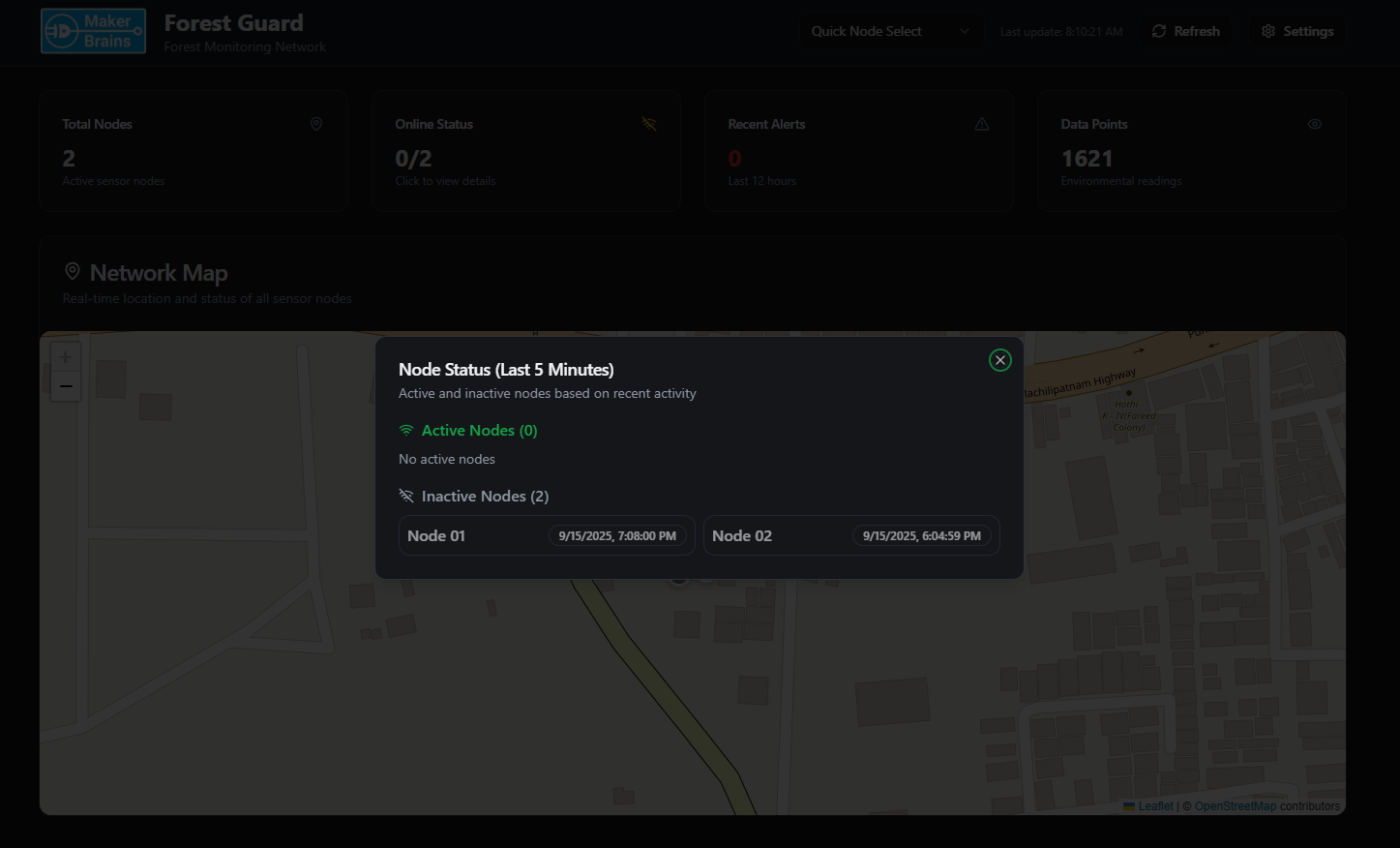
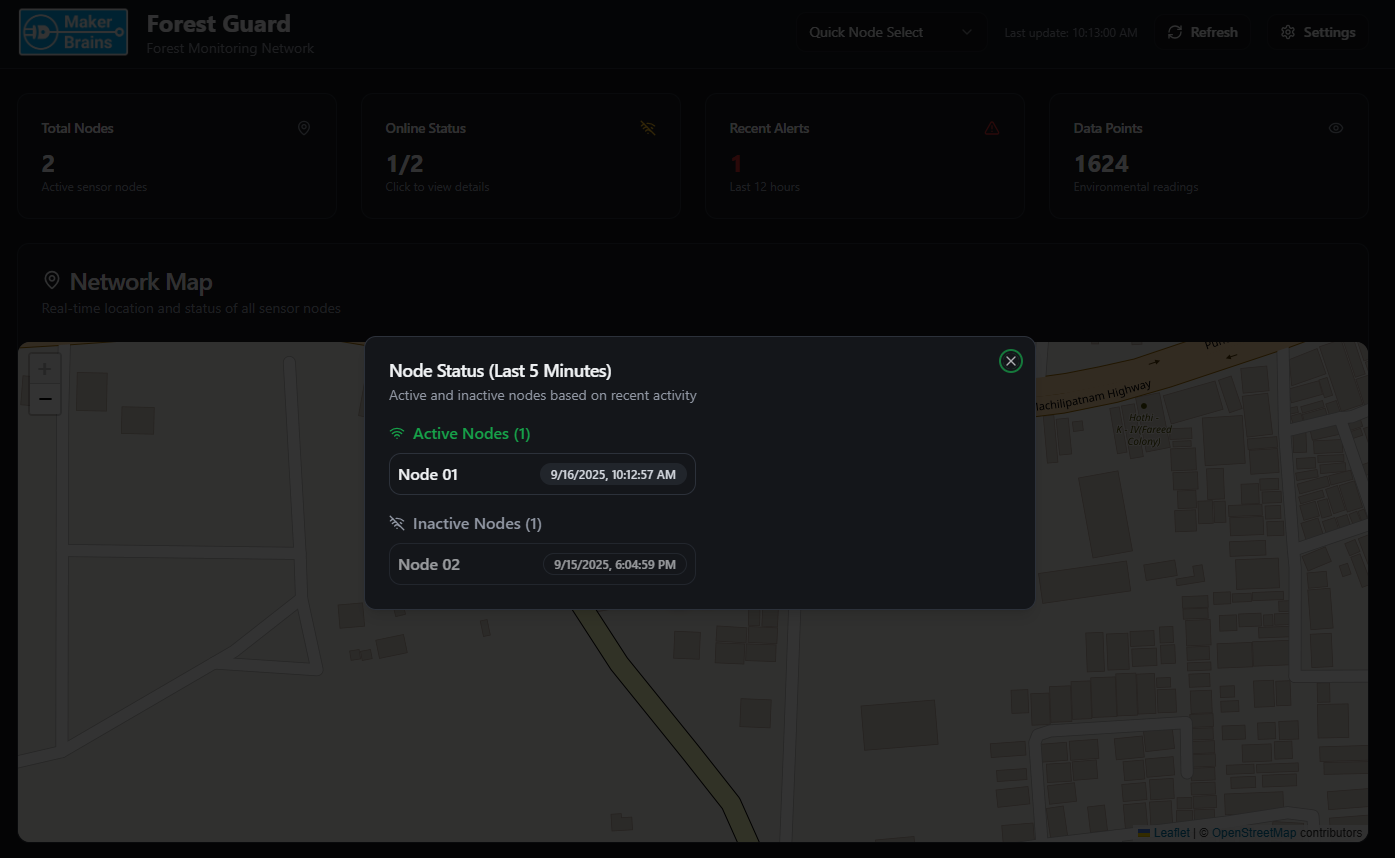
- Current Environmental Conditions (temperature, humidity, pressure, light, UV, altitude).
- Trends over Time with graphs for Temperature & Humidity, Light & UV Index.
- Fire Detection Events (timestamped alerts from smoke sensor).
- Gunshot Detection Events (with AI confidence scores from Edge Impulse model).
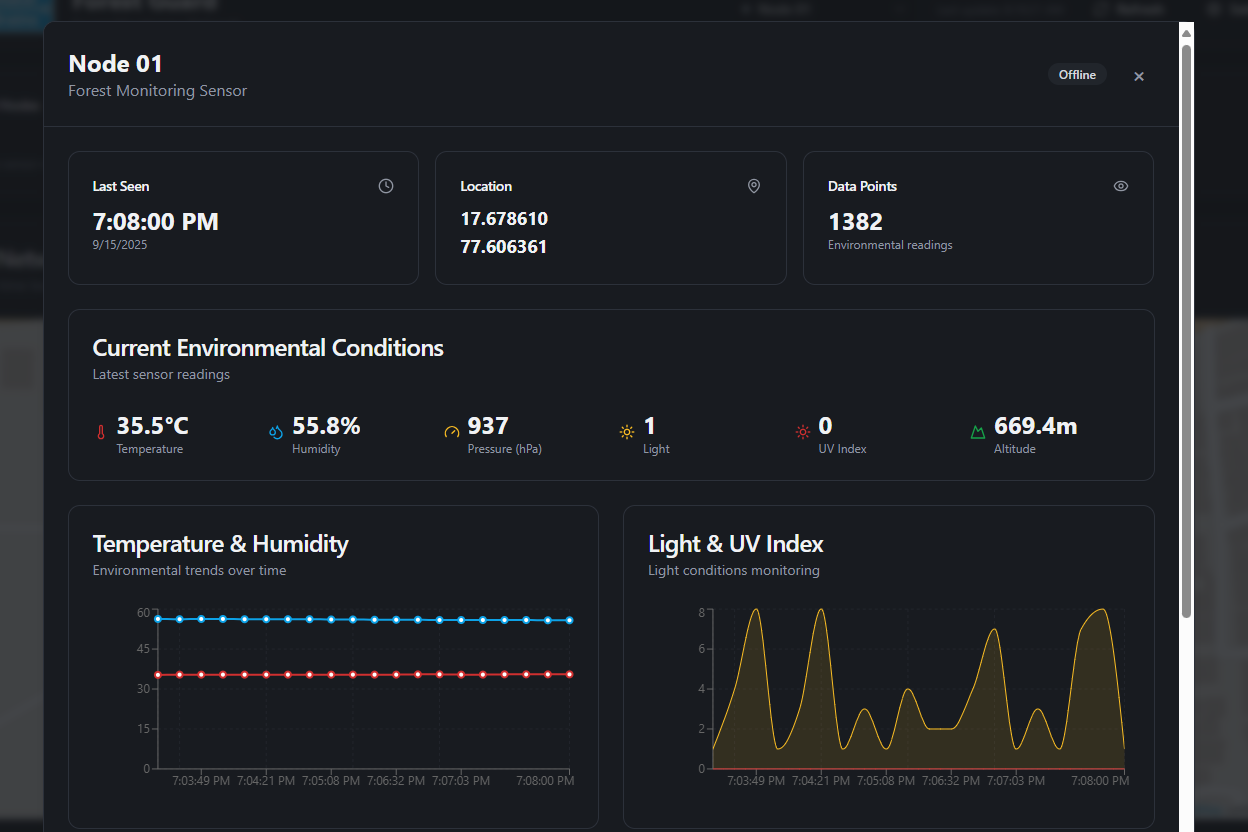
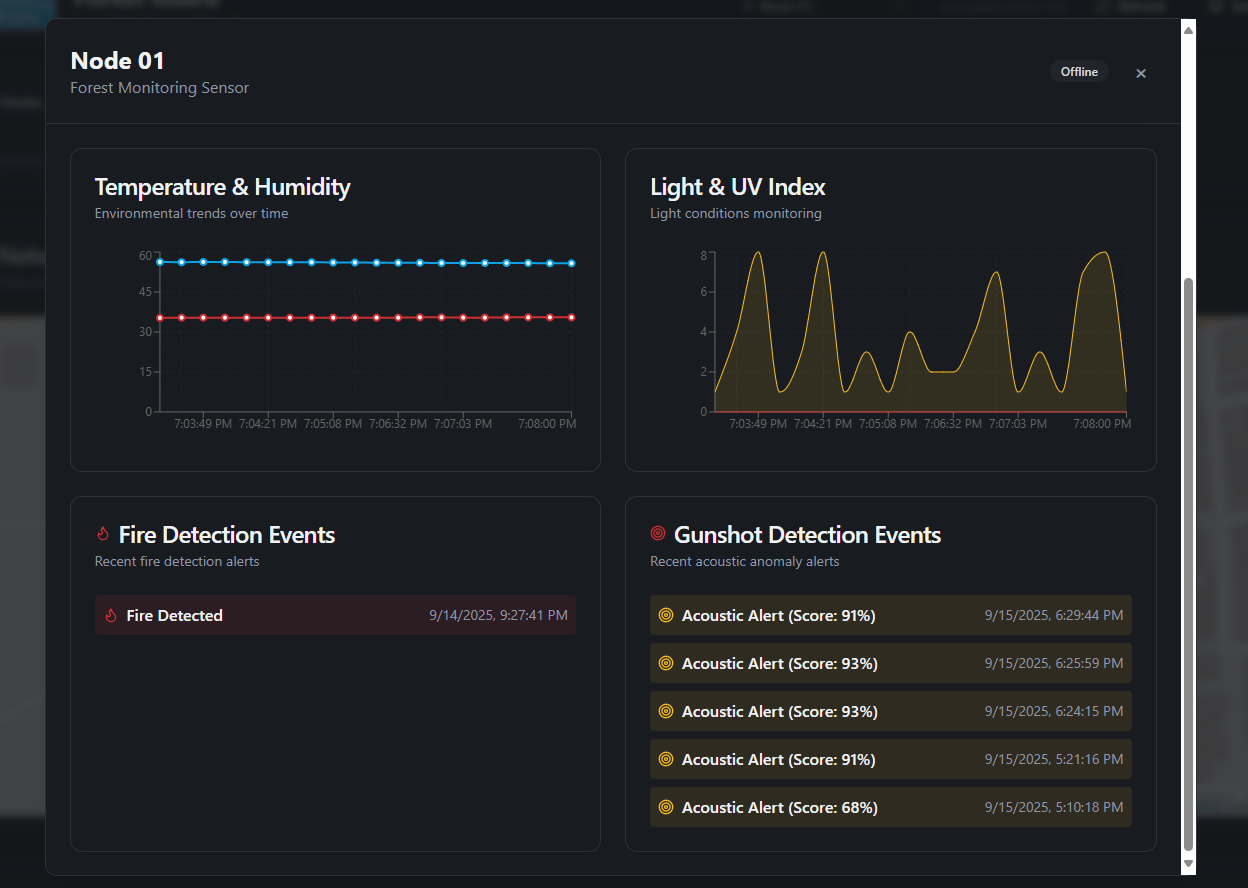
- Which nodes are active, where they are, and what conditions they’re reporting.
- Whether a fire or gunshot event has been detected.
- Historical trends that help understand the forest’s environmental conditions.
Step 34: Conclusion


- By training on audio recordings of chainsaws or tree cutting, the system could become an anti-illegal logging detector.
- With audio datasets of endangered or extinct species calls, it could serve as a wildlife discovery and monitoring system, helping scientists and communities identify rare animals in the wild.