

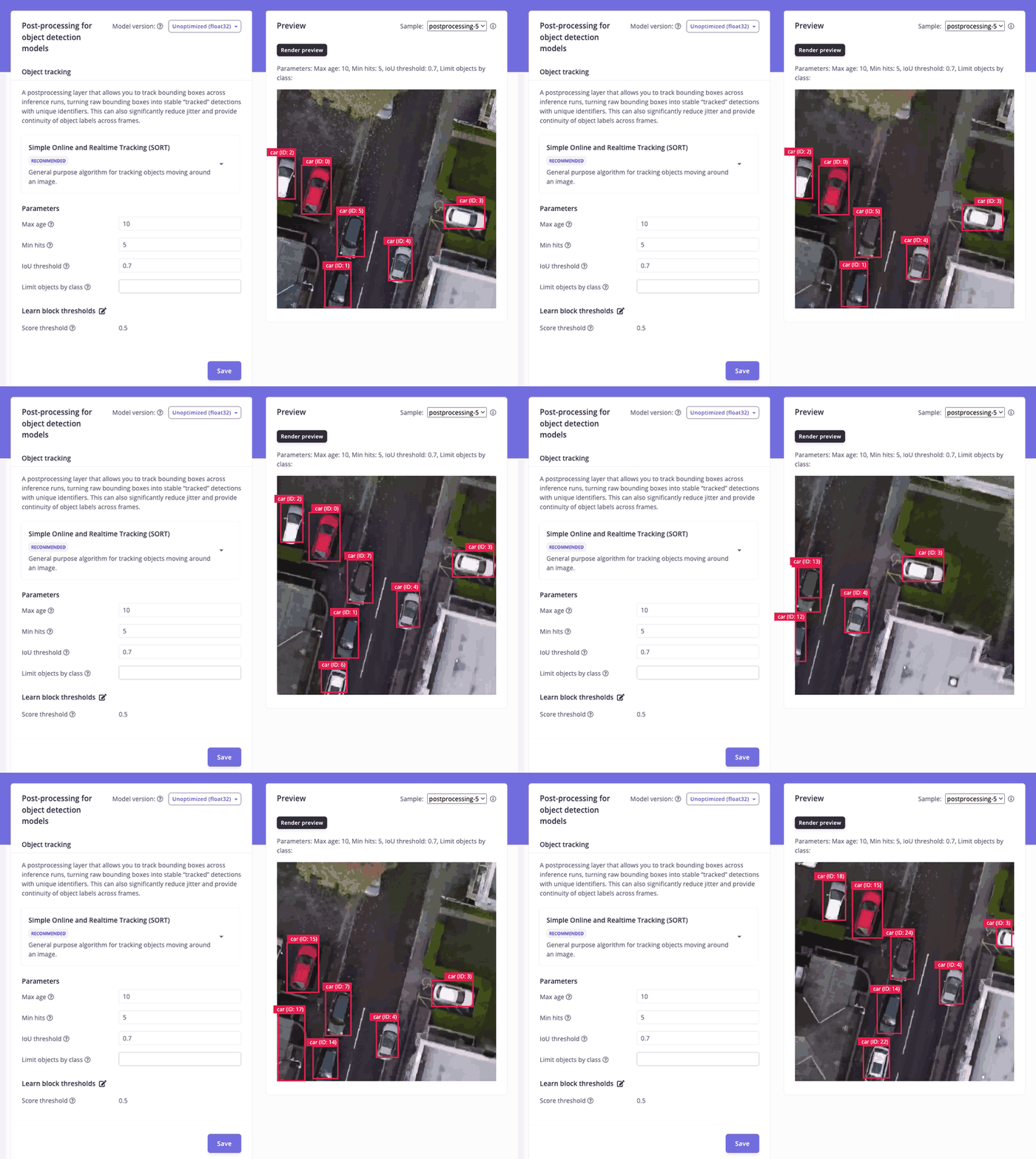
Object tracking overview
How object tracking works
An object detection model looks at every frame in isolation. Object tracking adds continuity: each frame, the tracker matches new detections to the objects it is already following. A matched object keeps its ID and its track is updated. An unmatched detection starts a new track. A track that goes unmatched for too long is closed.Choosing a tracking algorithm
Edge Impulse provides two tracking algorithms. Neither is better for every scene, so start from how your objects move:
If you’re not sure, upload a few videos from your deployment environment and render a preview with each algorithm. See tuning the tracker.
How SORT tracking worksSORT (Simple Online and Realtime Tracking) is a general-purpose tracking algorithm introduced by Bewley et al. in 2016. For each new frame, the tracker:
- Predicts where each tracked object should be, using a Kalman filter that estimates its position, size, and velocity.
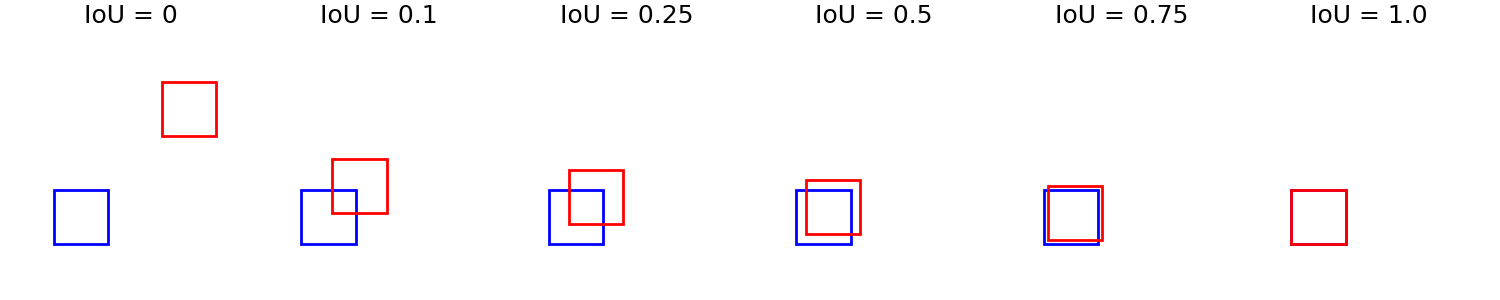
- Matches new detections to those predictions using bounding box overlap (IoU) and an optimal assignment step. Detections only match tracks with the same label.
- Updates matched tracks with the new detection, so each motion estimate keeps adapting as the object changes speed or direction.
- Starts a track for every unmatched detection and closes tracks that go unmatched for longer than Max age frames.
Configuring object tracking
Object tracking is available in any object detection project. You’ll find it under Post-processing in the left navigation bar.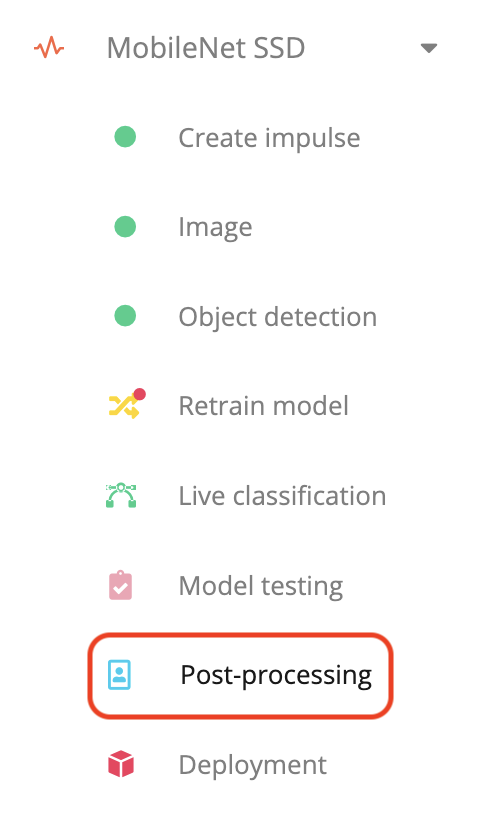
Post-processing in the navigation bar
Uploading videos
To configure object tracking, upload one or more videos of representative scenes, for example a video of your production line if you want to track products on a conveyor belt. These videos do not need labels. Frames are squashed before running inference. For the most representative results, crop your video to the aspect ratio of your impulse input. For example, if your model input is 320x320, crop your video to a square before uploading. To upload videos, go to Data acquisition > Post-processing and click the upload icon. Most common video formats are supported, up to 100 MB per file.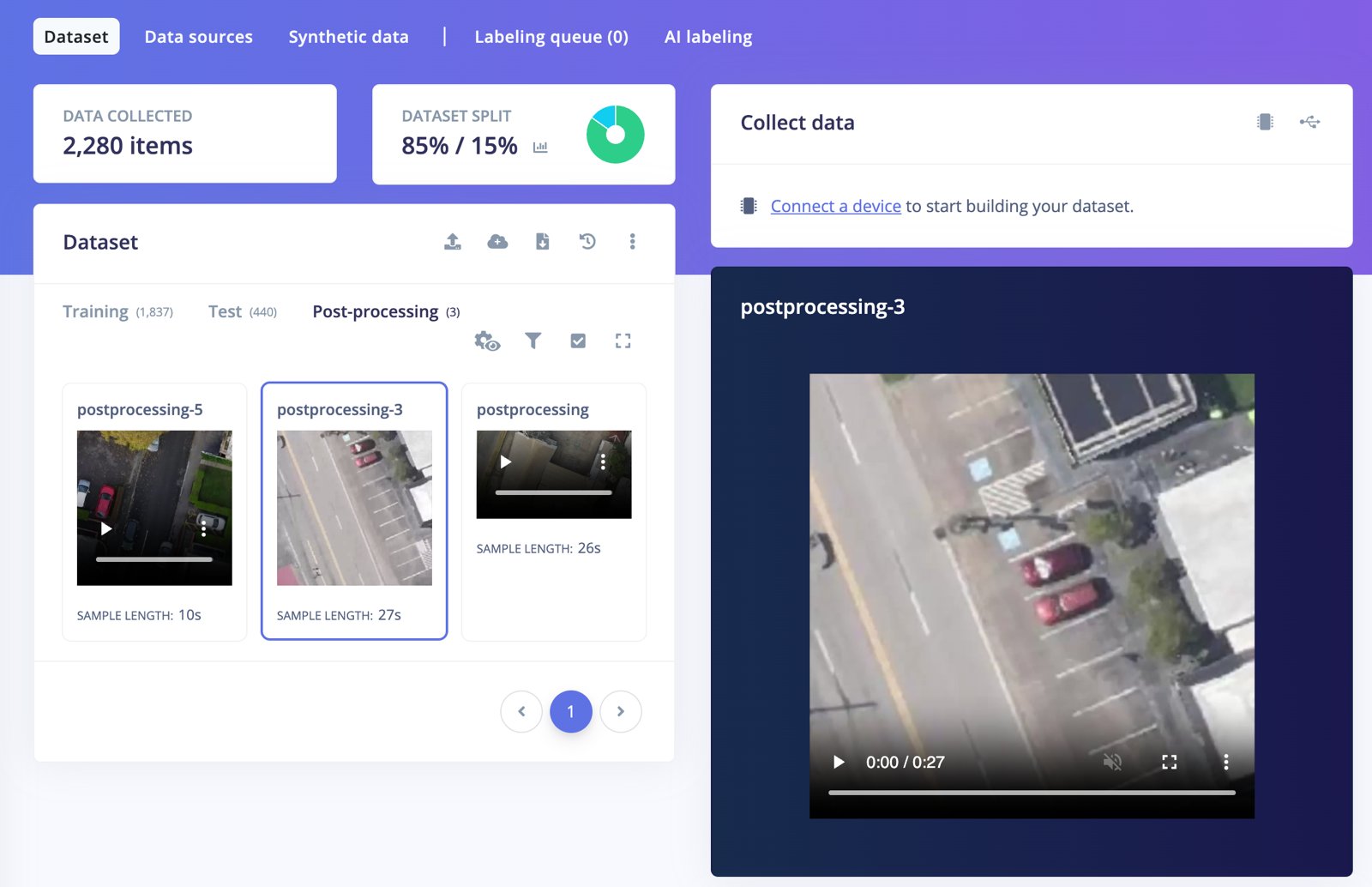
Tuning the tracker
Go to Post-processing in the left navigation bar. Under Object tracking, select an algorithm from the dropdown:- Simple Online and Realtime Tracking (SORT), marked as recommended in object detection projects.
- Linear Tracking.
- Disabled, to deploy without object tracking.
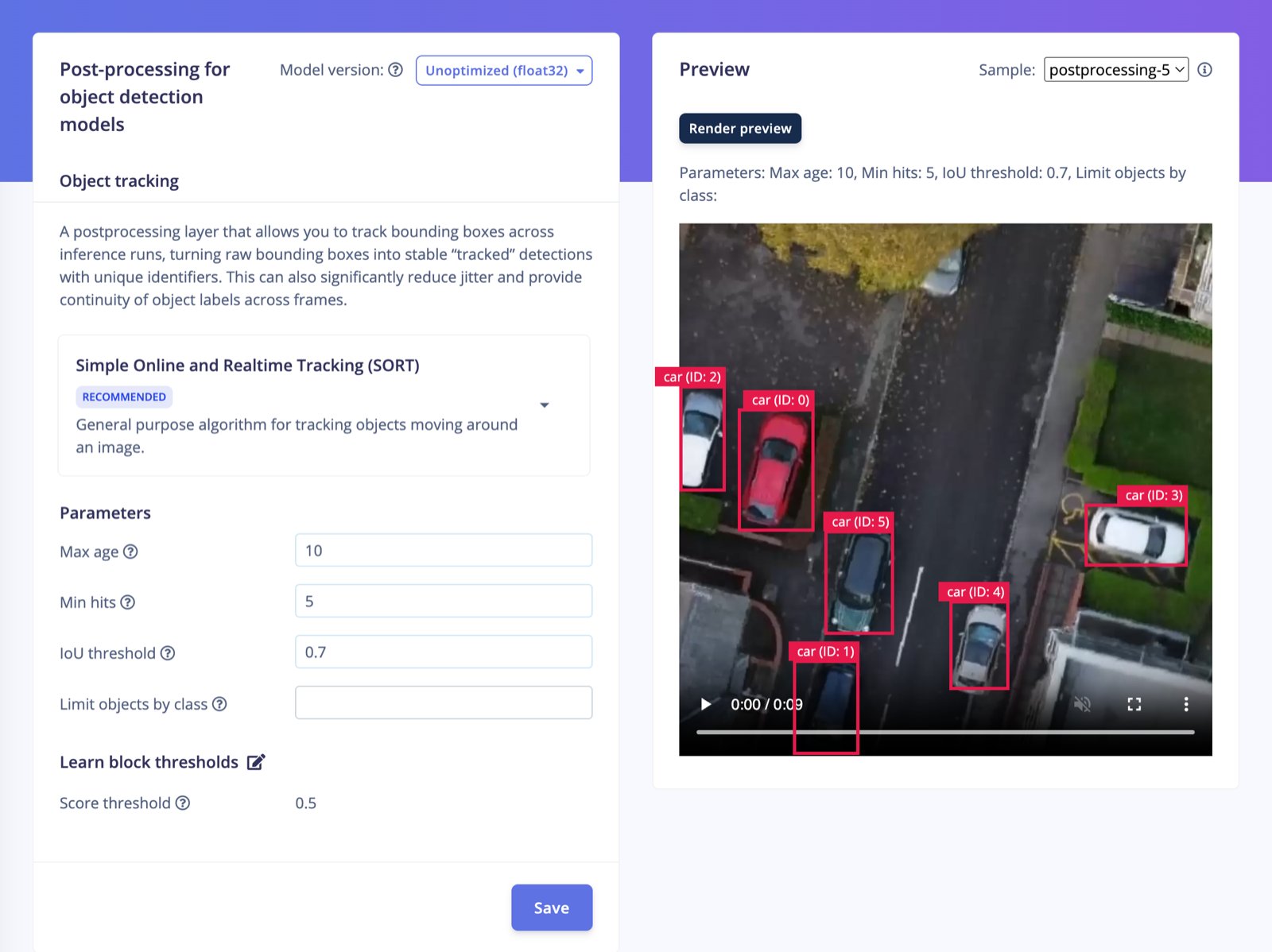
SORT tracking parameters
Linear tracking parameters
For bounding box models, both IoU threshold and Threshold compare bounding box overlap the same way:
Configuring object tracking with the API
You can also select the algorithm and set its parameters with the Set post-processing block config endpoint. Settype to sort-object-tracking or object-tracking to switch algorithms. Parameters are passed as strings, for example:
Deploying your model
Once object tracking is configured, every deployment that contains an object detection block includes the tracker automatically, including the Linux EIM, mobile, C++ library, and WebAssembly targets.Changing tracking parameters at runtime
You can change the tracking parameters of a deployed model without rebuilding it. The parameter names depend on the algorithm:Linux CLI
Runedge-impulse-linux-runner --model-file <model.eim>. Click the gear icon in the web UI (http://localhost:PORT) to change the tracking parameters.
To override the thresholds, start the runner with your parameters. e.g_._--thresholds 3.min_score=0.7,236.iou_threshold=0.1,236.max_age=5,236.min_hits=5
Mobile client
When you run your impulse in the Edge Impulse mobile client, click the gear icon to change the tracking parameters.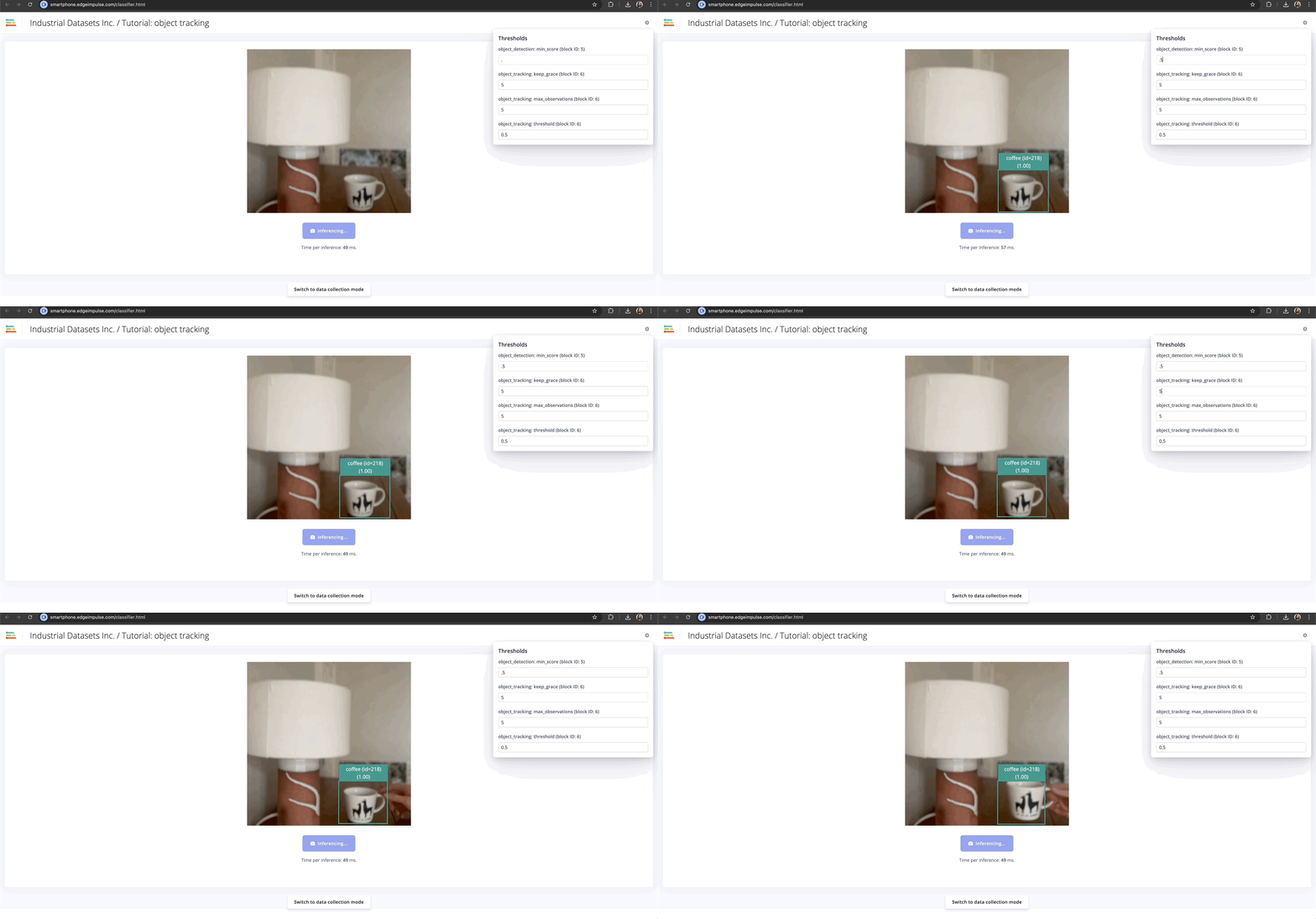
Node.js SDK
CallsetLearnBlockThreshold on the runner with the ID of the post-processing block and the parameters to change. The runner’s model information lists each block’s ID and current values under thresholds.
C++ library
The C++ library stores the tracking configuration inmodel-parameters/model_variables.h. With SORT tracking, it looks like this:
ei_object_tracking_config_t with keep_grace, max_observations, and threshold fields instead. To change a value at runtime, call set_threshold_postprocessing with the post-processing block, the parameter name, and the new value.
Comparing object tracking with standard object detection
To see the difference between raw and tracked bounding boxes, run a model with and without object tracking side by side: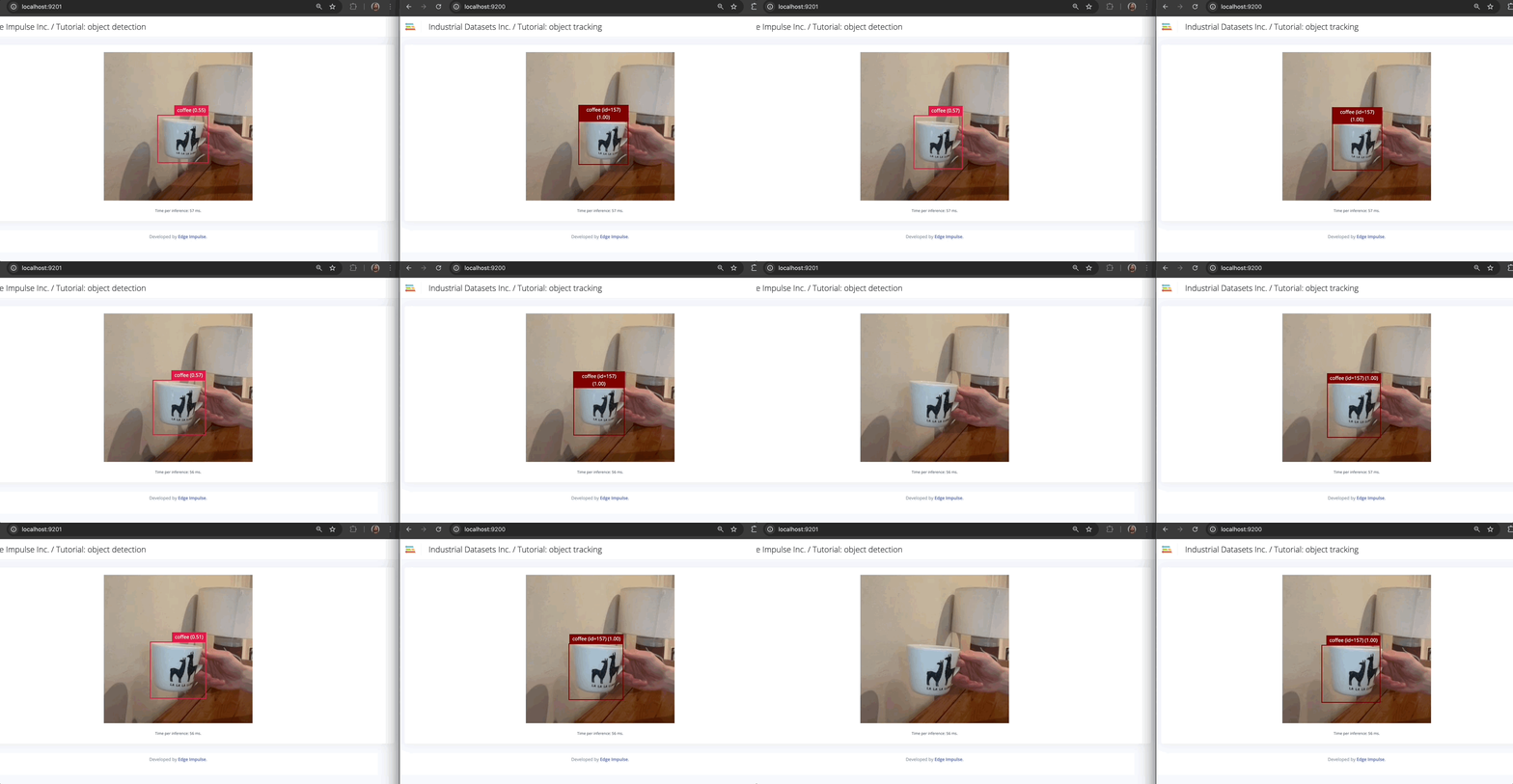
http://localhost:9200 and http://localhost:9201 in two browser windows. The bounding boxes are smoother and more persistent with object tracking enabled.
Reading tracked objects from the inference output
C++ library
WebAssembly
EIM files
When you read inference results from an EIM file, tracked objects are under theobject_tracking field.