

Viewing training graphs
On the learning block page, after training is complete, you can view the accuracy and loss graphs by clicking the graphs icon near the top right of the model performance overview pane. This will open a modal displaying the graphs for both training and validation data, allowing you to analyze the performance of your model over the training epochs.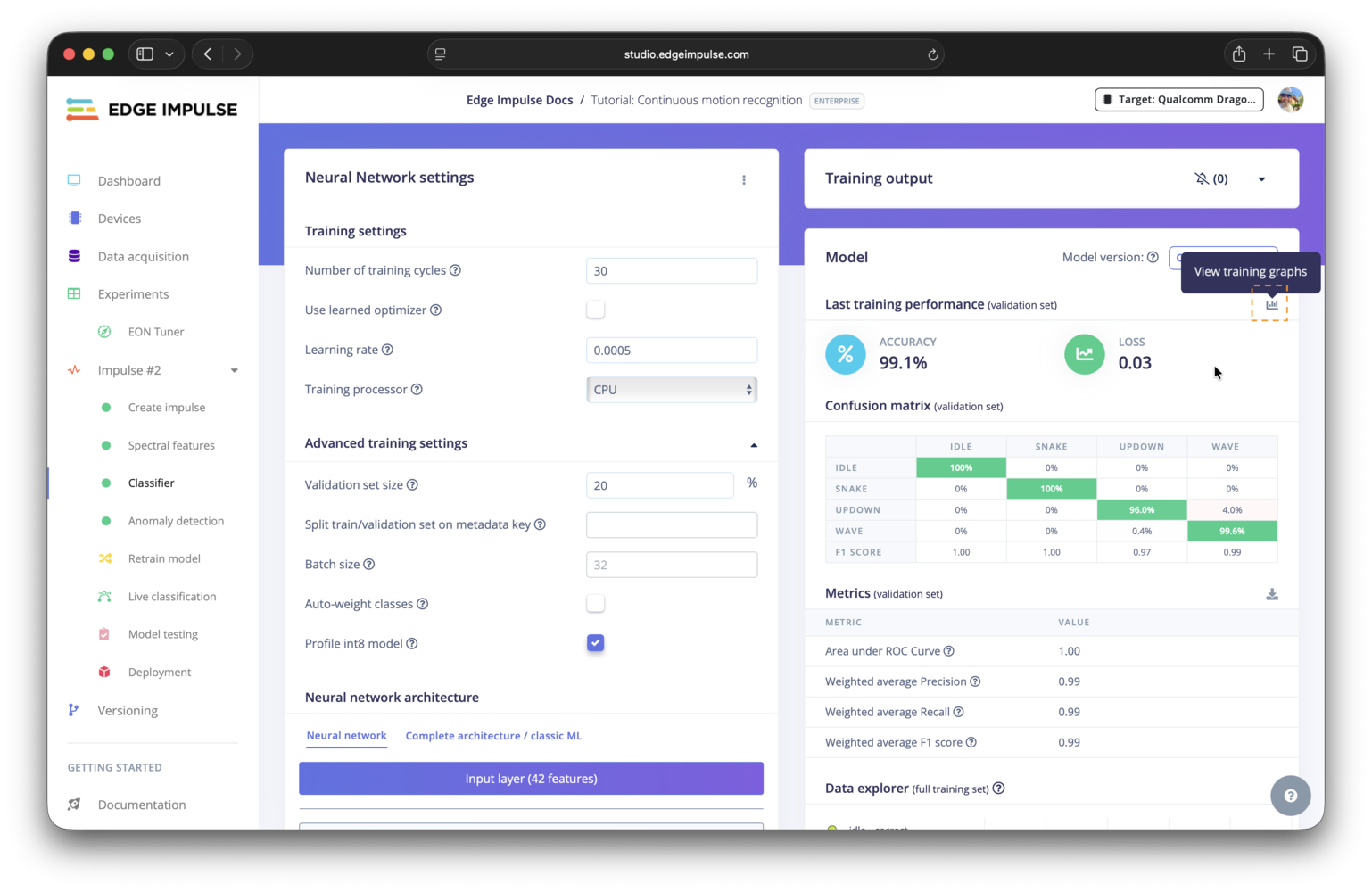
Icon to open training graphs modal
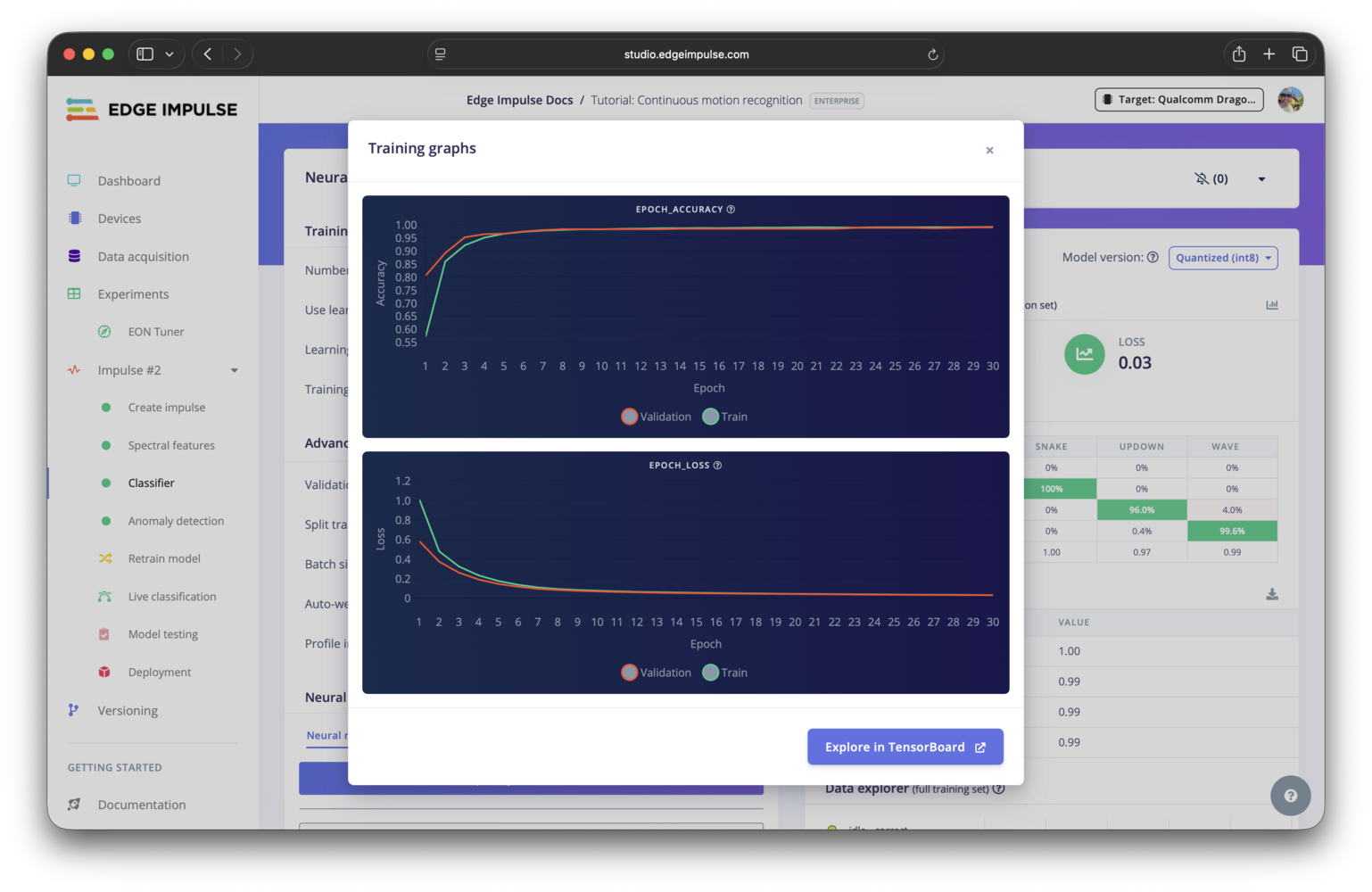
Accuracy and loss training graphs modal
Going deeper with TensorBoard
For a more detailed analysis of the model training process, you can use the TensorBoard integration. TensorBoard provides a suite of visualization tools to help you understand, debug, and optimize your model. To access TensorBoard for a single learning block, navigate to the learning block page, open the training graphs modal as described above, and click on theExplore in TensorBoard button at the bottom of the modal. This will launch a TensorBoard instance in a new tab, where you can explore various metrics, histograms, and other visualizations related to the training of your model.
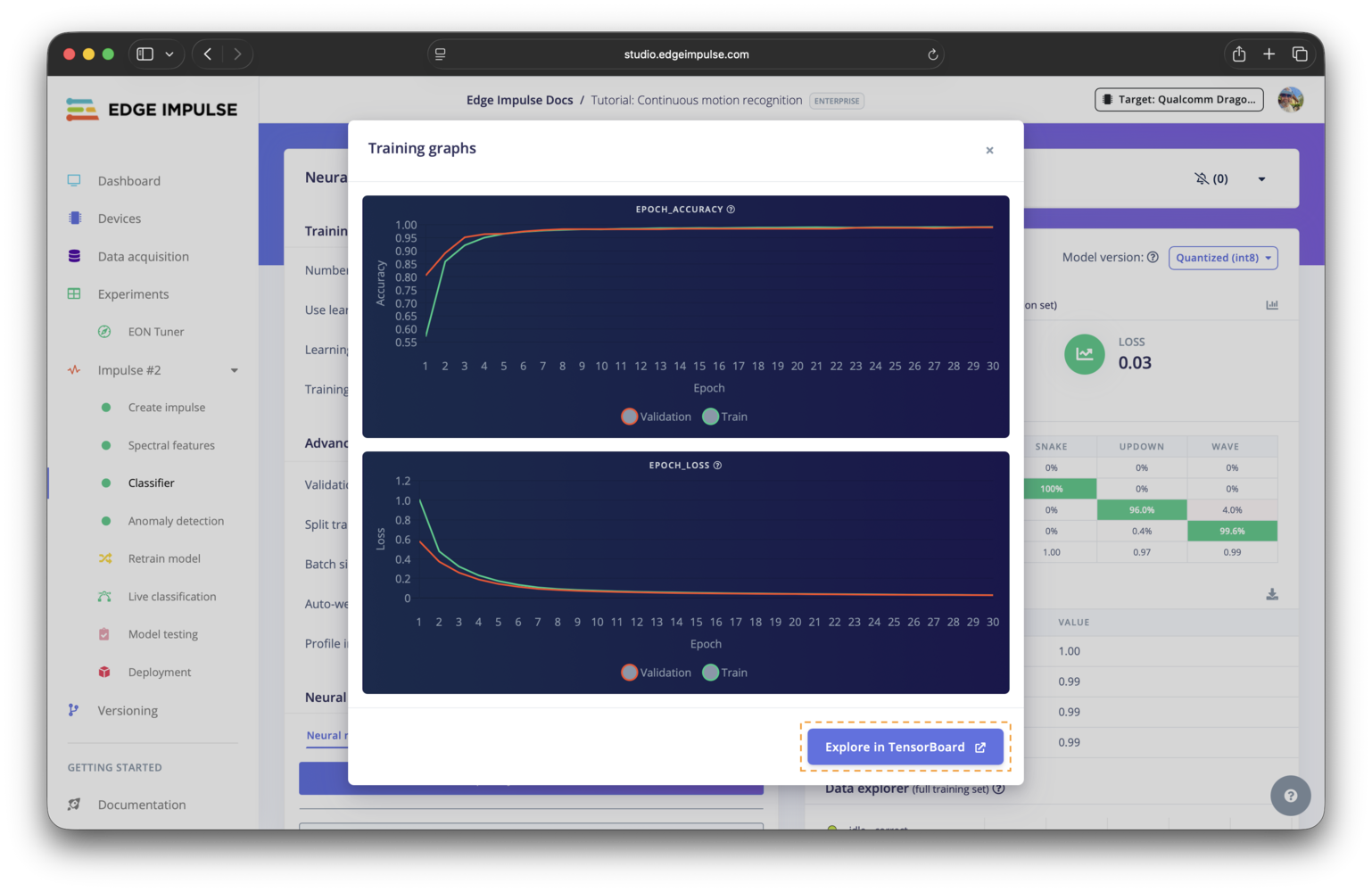
Button to launch TensorBoard instance from the training graphs modal
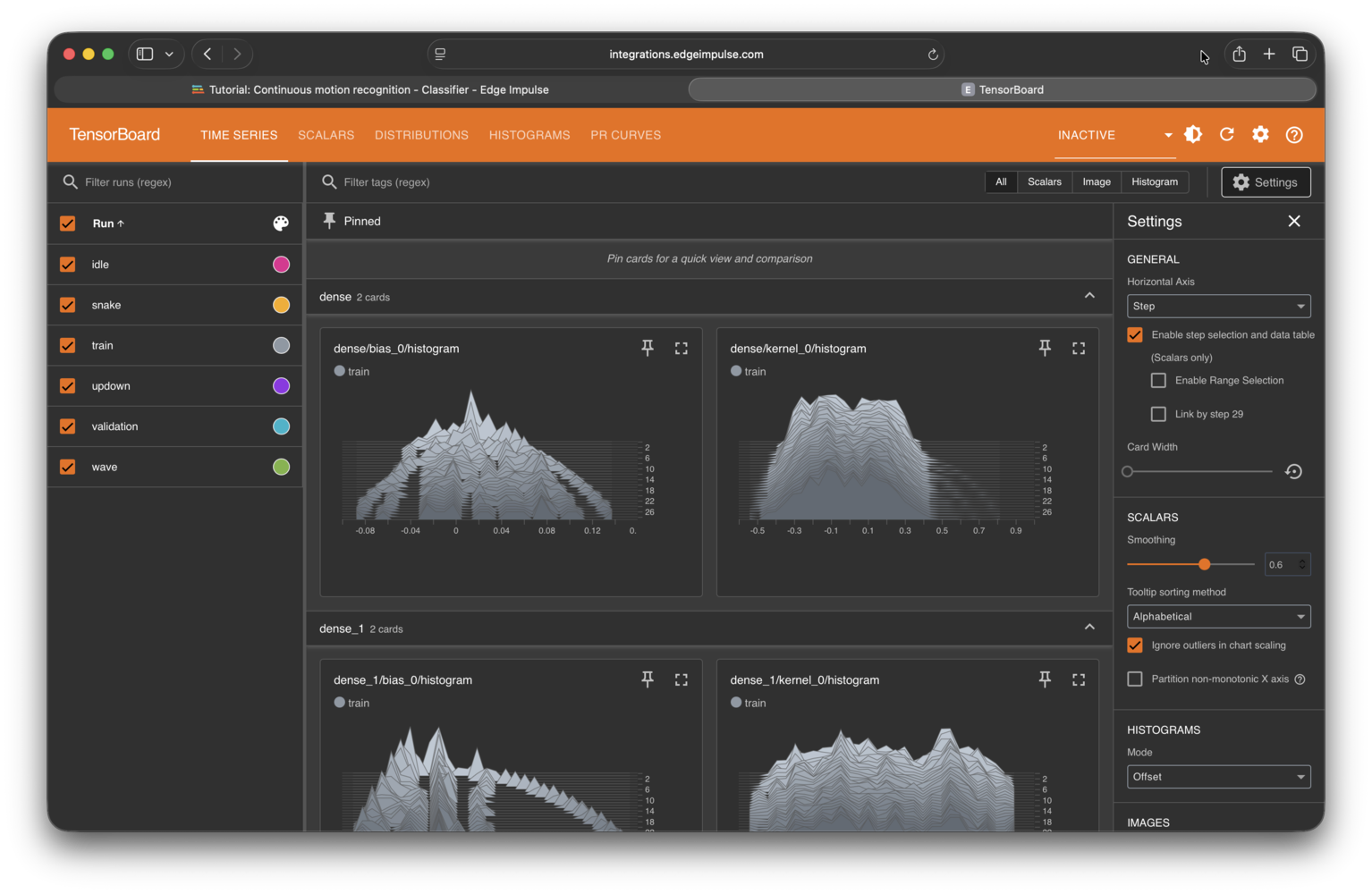
TensorBoard instance showing detailed training metrics
Viewing live visualizations
Rather than waiting until your model has been fully trained, you can view live visualizations of metrics by accessing TensorBoard during the training process. To do so, click the TensorBoard live visualizations link found at the top of the training log output.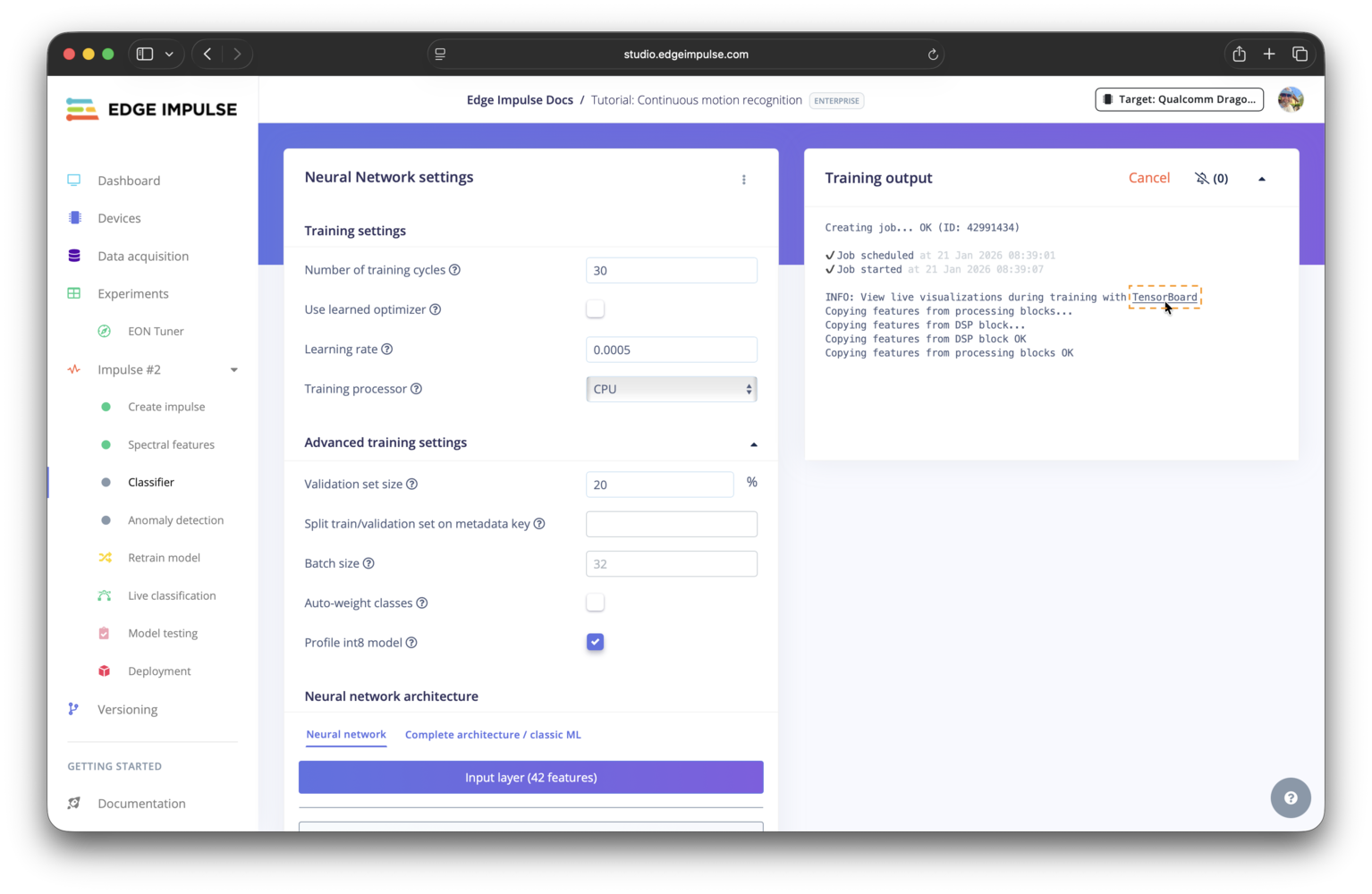
Link to access live TensorBoard visualizations during training
Exporting TensorBoard logs
You can export the TensorBoard logs for your learning block to analyze them locally or share them with others. The logs can be downloaded from your project dashboard, under the download block output section.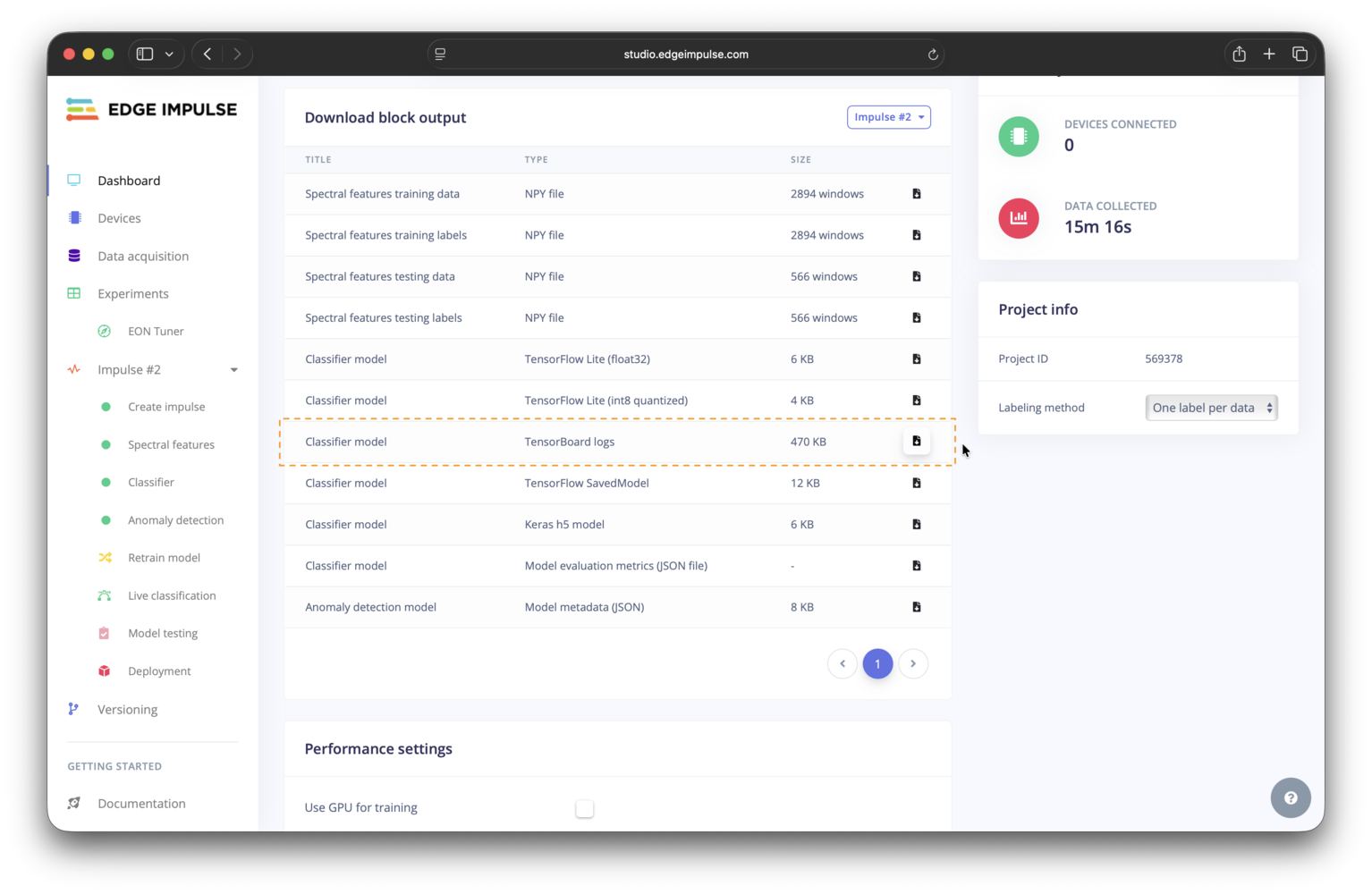
Location to download TensorBoard logs from project dashboard
Comparing multiple experiments
You can compare TensorBoard logs across multiple trained impulses from the experiments table. Select the impulses you want to compare, then clickCompare in TensorBoard in the mass-actions bar. Studio opens a new TensorBoard tab with each selected learning block loaded as a separate run. Note that only impulses with TensorBoard logs can be compared, up to a max of 10 impulses at once.
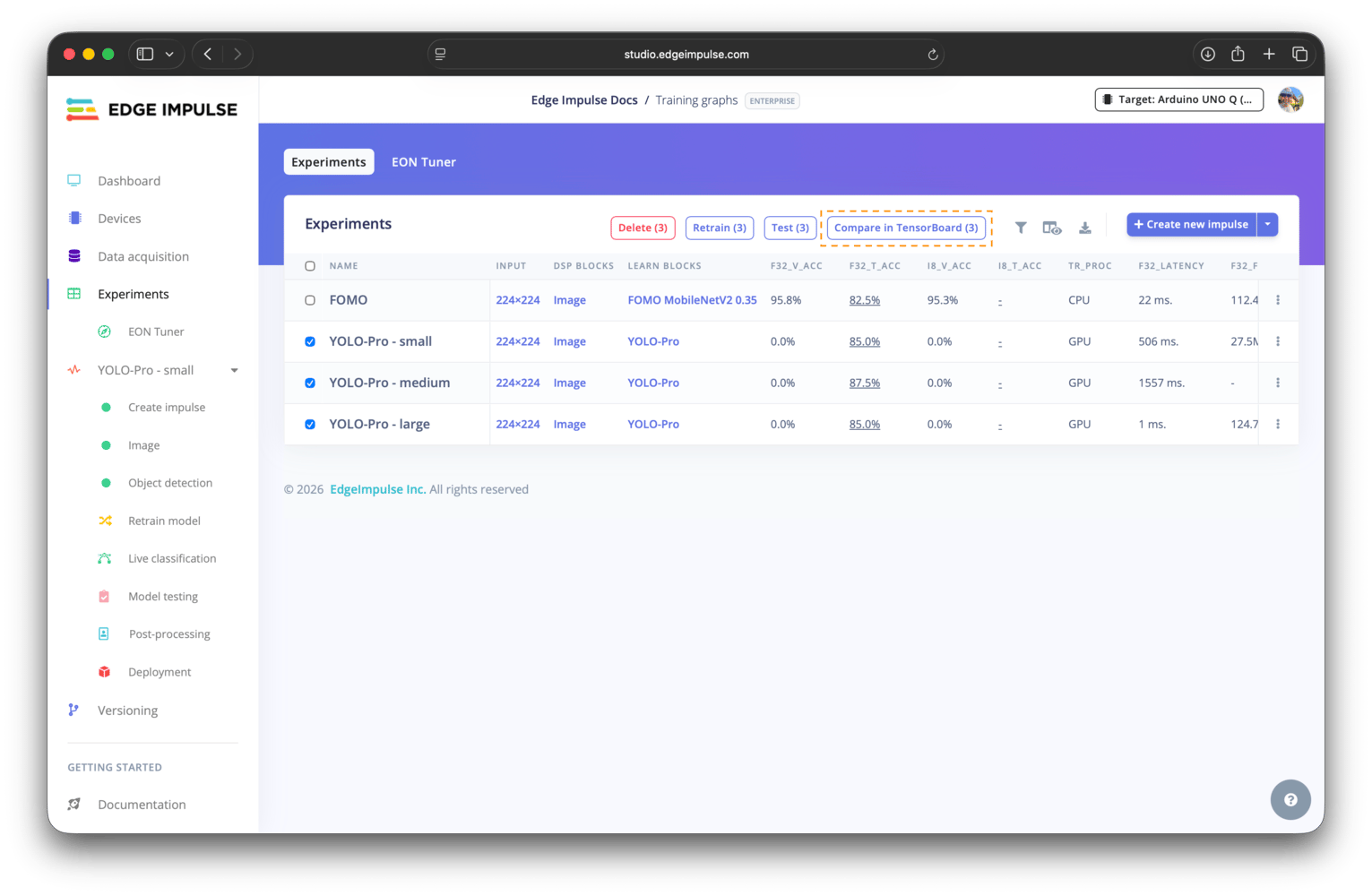
Compare in TensorBoard button
My Classifier/train. If one impulse contributes more than one learning block to the comparison, Studio appends the learning block ID to keep the labels distinct.
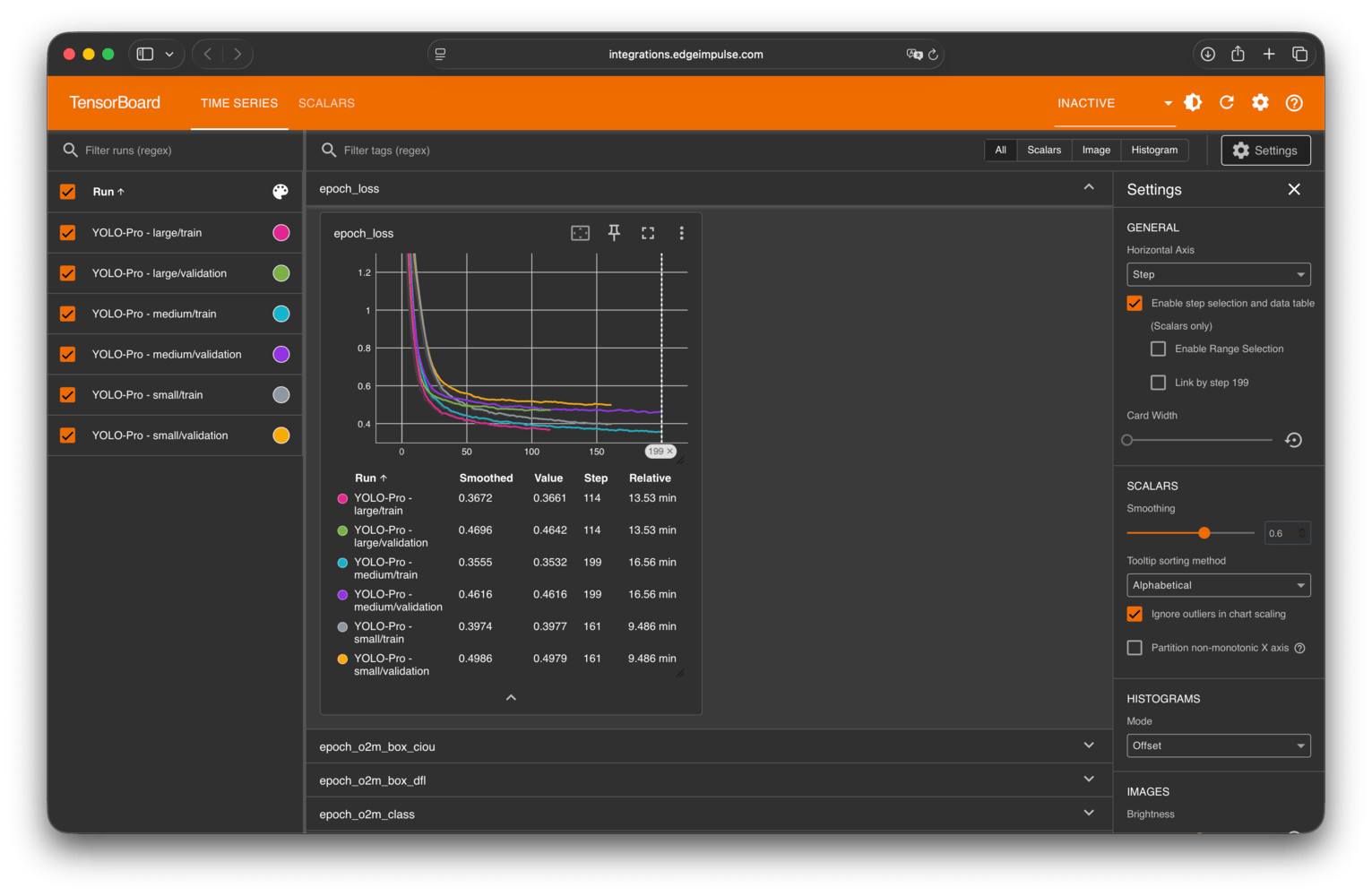
Comparing multiple impulses in TensorBoard
Adding custom training graphs
Only scalar graphs appear in training graphs modalAny graphs written to the TensorBoard log directory should appear within the TensorBoard instance. However, only the scalar graphs written to that directory are shown in the training graphs modal within Studio.
/home/tensorboard_logs.
This can be done by modifying built-in learning blocks that support expert mode or within your custom learning blocks. In either case, you will need to add a code snippet to use the TensorFlow summary file writer API endpoint. An example is provided below.
Troubleshooting
No common issues have been identified thus far. If you encounter an issue, please reach out on the forum or, if you are on the Enterprise plan, through your support channels.