> ## Documentation Index
> Fetch the complete documentation index at: https://docs.edgeimpulse.com/llms.txt
> Use this file to discover all available pages before exploring further.
# Run Edge Impulse Pick and Place with UNO Q Braccio
> Use Edge Impulse object detection, ROS 2, and an Arduino UNO Q to sort colored blocks with a TinkerKit Braccio arm.
# Run Edge Impulse Pick and Place with UNO Q Braccio
This tutorial uses the current Edge Impulse pick-and-place workflow from the [UNO Q Braccio repository](https://github.com/edgeimpulse/unoq-braccio). In the repo as it stands today, the Ubuntu or WSL host runs the camera stream client, the Edge Impulse runner command, and the pick-and-place executor. The Arduino UNO Q remains the arm endpoint that receives joint commands over the TCP bridge.
The UNO Q is the arm endpoint. ROS 2, camera access, Edge Impulse inference, and workflow logic run on the Ubuntu or WSL host. This keeps the microcontroller firmware focused on receiving arm commands while the host handles perception and decision-making.
 ## What you will build
You will stream camera frames into ROS 2, run Edge Impulse inference through the repo's `edge_impulse_vision` node, publish the selected label on `/edge_impulse/label`, and execute the matching pick-and-place sequence through the UNO Q TCP bridge.
```mermaid theme={"system"}
flowchart LR
STREAM["UNO Q MJPEG stream"] --> CAM["mjpeg_camera_node"]
CAM --> IMG["/braccio/camera/image_raw"]
IMG --> EI["edge_impulse_vision"]
EI --> DET["/edge_impulse/detection
JSON string"]
EI --> LABEL["/edge_impulse/label
String"]
LABEL --> EXEC["pick_place_executor"]
EXEC --> CMD["/braccio/joint_command"]
CMD --> TCP["tcp_bridge via remote.launch.py"]
TCP --> UNO["Arduino UNO Q + Braccio shield"]
```
## Prerequisites
* An Arduino UNO Q and a TinkerKit Braccio arm with an external 5 V servo power supply.
* Ubuntu 24.04 with ROS 2 Jazzy, or WSL 2 with the Braccio ROS 2 workspace available.
* A local clone of [unoq-braccio](https://github.com/edgeimpulse/unoq-braccio).
* A reachable camera stream for the current repo workflow, typically the UNO Q web or USB camera stream exposed as MJPEG.
* An Edge Impulse model runner command that accepts an image path and prints one JSON result line.
* Node.js and `npm` if you want to use the repository helper that installs the Edge Impulse Linux tooling.
Read [Run Edge Impulse Object Detection with ROS 2](./edgeimpulse-ros2-integration) for general Edge Impulse and ROS 2 background. The default UNO Q Braccio pick-and-place path uses a repo-native runner command, but the repository also ships an optional `edgeimpulse_ros` backend (see [Alternative: run inference with edgeimpulse\_ros](#alternative-run-inference-with-edgeimpulse_ros) below).
This tutorial enables physical arm motion. Check mechanical clearance, keep people out of the arm's range, and retain immediate access to servo power. Stock Braccio servos do not provide measured position, torque, current, or temperature feedback.
## 1. Prepare the UNO Q and arm
Flash and test the arm before using model output. For direct USB firmware flashing:
```bash theme={"system"}
arduino-cli lib install Braccio
arduino-cli core install arduino:zephyr
arduino-cli compile --fqbn arduino:zephyr:unoq firmware/unoq_braccio_firmware
arduino-cli upload -p /dev/ttyACM0 --fqbn arduino:zephyr:unoq firmware/unoq_braccio_firmware
```
For the network workflow used below, run the `app_lab/braccio_web_agent` or `app_lab/braccio_remote_agent` on the UNO Q. The host connects to the UNO Q TCP server on port `8765`.
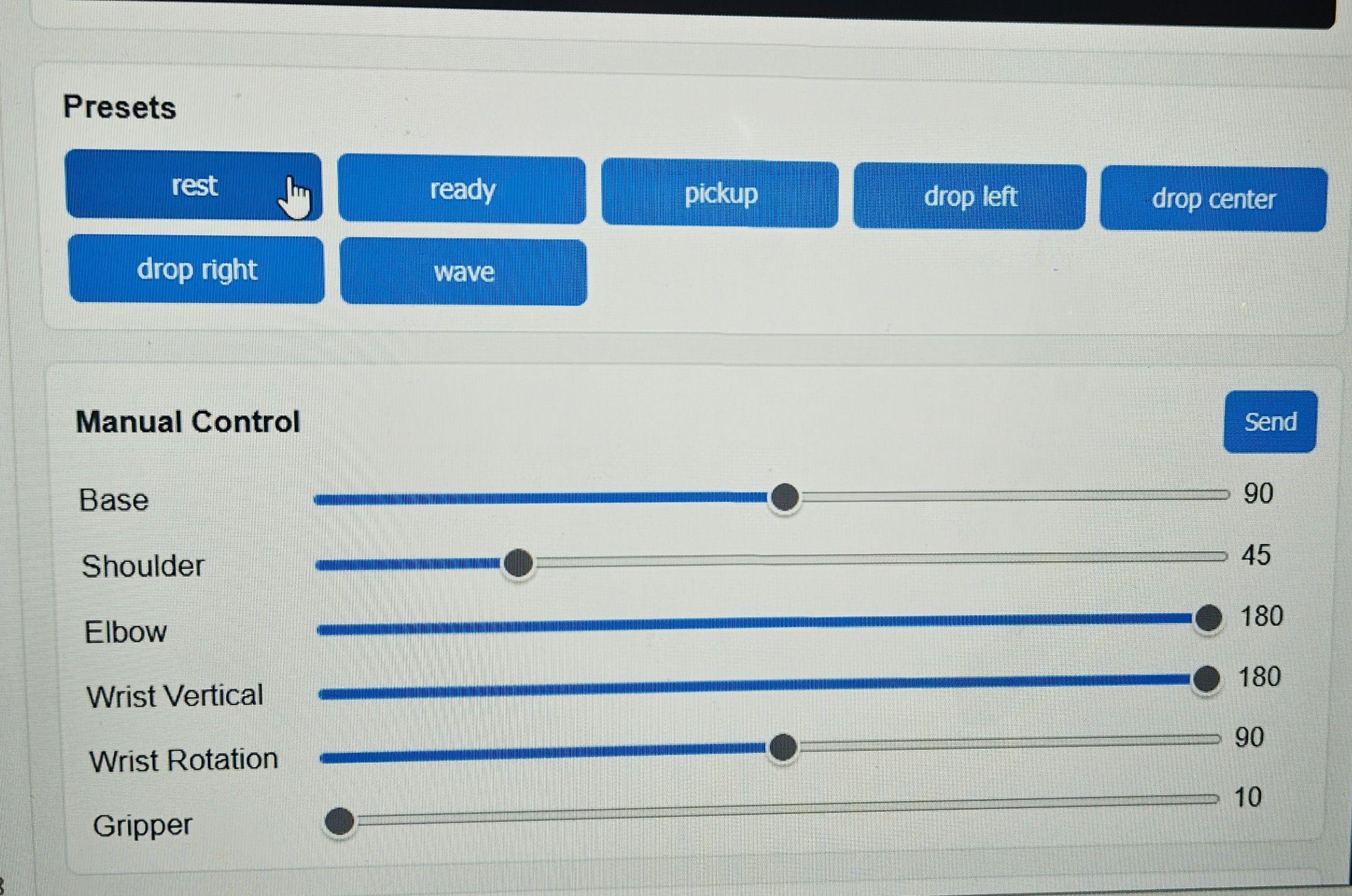
Before integrating vision, verify the arm can move safely through each named pose from the repository's dashboard or manual test commands.
## 2. Build the workspace and install the Edge Impulse tooling
Build the Braccio workspace first:
```bash theme={"system"}
cd ~/unoq-braccio/ros2_ws
source /opt/ros/jazzy/setup.bash
rosdep install --from-paths src --ignore-src -r -y
colcon build --symlink-install
source install/setup.bash
cd ..
```
If you want the helper that installs the Edge Impulse Linux SDK and CLI on the host, run the repository script:
```bash theme={"system"}
cd ~/unoq-braccio
bash scripts/setup_edge_impulse_linux.sh
source /opt/ros/jazzy/setup.bash
source ros2_ws/install/setup.bash
```
That helper checks for `npm`, installs `edge_impulse_linux` and `opencv-python`, and installs the Edge Impulse Linux CLI. It does not symlink `edgeimpulse_ros` into the workspace.
If you use Edge Impulse CLI or Linux `.eim` helpers, keep `EDGE_IMPULSE_API_KEY` in your shell environment and never commit it into scripts or repository files.
## 3. Match model labels to workflows
The default `edge_impulse/pick_place_workflows.yaml` supports these labels:
| Object-detection label | Default drop location |
| -------------------------------- | --------------------- |
| `Red Block` or `red_block` | Left |
| `Blue Block` or `blue_block` | Right |
| `Yellow Block` or `yellow_block` | Center |
Edit that YAML file before enabling live inference. It defines the named steps, joint poses, and waits for every item. The detector label must match a supported YAML item exactly.
The current flow publishes a label only when `edge_impulse_vision` sees a result above its `min_confidence` threshold. The `pick_place_executor` ignores new labels while a sequence is already running, so repeated detections do not interrupt an active motion sequence.
## 4. Test a sequence without vision
Start the remote bridge, then publish a label manually. This validates networking and arm poses before the camera can trigger motion.
```bash theme={"system"}
cd ~/unoq-braccio
source /opt/ros/jazzy/setup.bash
source ros2_ws/install/setup.bash
ros2 launch unoq_braccio_bringup remote.launch.py host:=192.168.1.64 port:=8765
```
In a second terminal, start the executor and send a test label:
```bash theme={"system"}
source ~/unoq-braccio/ros2_ws/install/setup.bash
ros2 run unoq_braccio_driver pick_place_executor --ros-args -p workflow_file:=edge_impulse/pick_place_workflows.yaml
```
In a third terminal, publish the test label:
```bash theme={"system"}
source ~/unoq-braccio/ros2_ws/install/setup.bash
ros2 topic pub --once /edge_impulse/label std_msgs/msg/String "{data: 'Red Block'}"
```
Confirm each pose is safe for the actual arm, table, and object position. Adjust the YAML before proceeding.
## 5. Launch the current pick-and-place workflow
Start the UNO Q TCP bridge in one terminal:
```bash theme={"system"}
cd ~/unoq-braccio
source /opt/ros/jazzy/setup.bash
source ros2_ws/install/setup.bash
ros2 launch unoq_braccio_bringup remote.launch.py host:=192.168.1.64 port:=8765
```
In a second terminal, start the camera stream client, the Edge Impulse vision node, and the workflow executor:
```bash theme={"system"}
cd ~/unoq-braccio
source /opt/ros/jazzy/setup.bash
source ros2_ws/install/setup.bash
ros2 launch unoq_braccio_bringup edge_impulse_pick_place.launch.py stream_url:=http://192.168.1.64:8080/stream runner_command:="python3 edge_impulse/runner_template.py --image {image}" workflow_file:=edge_impulse/pick_place_workflows.yaml
```
Replace `runner_template.py` with your actual Edge Impulse model runner when it is ready. If you use `app_lab/braccio_web_agent`, the same UNO Q endpoint can expose both the bridge on `8765` and the camera stream on `8080`.
## Alternative: run inference with `edgeimpulse_ros`
The runner-command path above is the repo default. If you prefer the maintained [`edgeimpulse_ros`](https://github.com/edgeimpulse/edgeimpulse-ros) package, the repository also ships `edge_impulse_ros_pick_place.launch.py`. It runs the `edgeimpulse_ros` detector on `/braccio/camera/image_raw` and a `detection_label_bridge` node that maps the detector's `vision_msgs/Detection2DArray` output to the same `/edge_impulse/label` string the executor already consumes, so the pick-and-place workflow is unchanged.
Clone and build `edgeimpulse_ros` into `ros2_ws` first, then start the arm bridge in one terminal:
```bash theme={"system"}
cd ~/unoq-braccio
source /opt/ros/jazzy/setup.bash
source ros2_ws/install/setup.bash
ros2 launch unoq_braccio_bringup remote.launch.py host:=192.168.1.64 port:=8765
```
In a second terminal, start the camera stream, the `edgeimpulse_ros` detector, the label bridge, and the executor:
```bash theme={"system"}
source ~/unoq-braccio/ros2_ws/install/setup.bash
ros2 launch unoq_braccio_bringup edge_impulse_ros_pick_place.launch.py \
stream_url:=http://192.168.1.64:8080/stream \
model_path:=/absolute/path/to/model.eim \
workflow_file:=edge_impulse/pick_place_workflows.yaml
```
The bridge publishes a label only when the top detection score clears `min_confidence` (default `0.65`), and reads detections from `detections_topic` (default `/edgeimpulse_detector/detections`). The `pick_place_executor`, workflow YAML, and `/edge_impulse/label` contract are identical to the runner-command path, so you can switch backends without touching the arm workflow.
## Monitor the decision path
Use three terminals to verify the inference output, selected labels, and arm commands independently:
```bash theme={"system"}
source ~/unoq-braccio/ros2_ws/install/setup.bash
ros2 topic echo /edge_impulse/detection
ros2 topic echo /edge_impulse/label
ros2 topic echo /braccio/joint_command
```
`/edge_impulse/detection` carries the raw detection result as a JSON string. `/edge_impulse/label` carries the selected label that the executor can map to a workflow. If the label is absent or does not match an item in `edge_impulse/pick_place_workflows.yaml`, no arm workflow is selected.
## Test on macOS with a ROS 2 container
You do not need a Linux machine to validate the build and the ROS 2 graph. On macOS, run the workspace inside a `ros:jazzy` Docker container. On Apple Silicon the image runs natively (arm64), so no emulation is required.
Docker Desktop on macOS cannot pass USB serial devices (`/dev/tty*`) into a container, so a directly wired arm is not reachable from the container. The Braccio path in this tutorial is network-based (the UNO Q web endpoint on port `8765` and the camera stream on port `8080`), so a container reaches real hardware over your LAN through those URLs. For pure wiring tests, inject a synthetic detection as shown below.
Start a container with the Braccio repository and `edgeimpulse_ros` mounted into the same workspace, building into `/tmp` so the host checkout stays clean:
```bash theme={"system"}
docker run -it --name braccio-test \
-v ~/git/ros2-docs-repos/unoq-braccio:/root/unoq-braccio \
-v ~/git/ros2-docs-repos/edgeimpulse-ros:/root/unoq-braccio/ros2_ws/src/edgeimpulse_ros \
-w /root/unoq-braccio/ros2_ws \
ros:jazzy bash
```
Inside the container, install the dependencies and build:
```bash theme={"system"}
apt update && apt install -y \
ros-jazzy-vision-msgs ros-jazzy-diagnostic-msgs \
python3-opencv python3-numpy portaudio19-dev python3-pip
pip install --break-system-packages edge_impulse_linux pyaudio requests
colcon build --symlink-install --build-base /tmp/build --install-base /tmp/install
source /tmp/install/setup.bash
```
Open more shells into the same container with `docker exec -it braccio-test bash`, then `source /tmp/install/setup.bash` in each. To exercise the `detection_label_bridge` without any hardware, run the bridge in one shell:
```bash theme={"system"}
ros2 run unoq_braccio_driver detection_label_bridge
```
Publish a synthetic detection in a second shell:
```bash theme={"system"}
ros2 topic pub --once /edgeimpulse_detector/detections vision_msgs/msg/Detection2DArray \
'{detections: [{results: [{hypothesis: {class_id: "red_block", score: 0.92}}], bbox: {center: {position: {x: 100.0, y: 80.0}}, size_x: 40.0, size_y: 40.0}}]}'
```
Confirm the outputs in a third shell:
```bash theme={"system"}
ros2 topic echo /edge_impulse/label # data: "red_block"
ros2 topic echo /edge_impulse/detection # {"label":"red_block","confidence":0.92,"bbox":{...}}
```
Re-publish with `score: 0.4` to confirm the bridge stays silent below its `min_confidence` (default `0.65`). To test the full chain, run `pick_place_executor` with a `workflow_file` and watch `/braccio/joint_command` while publishing labels.
## Troubleshooting
| Symptom | Resolution |
| ------------------------------------------- | --------------------------------------------------------------------------------------------------------------------------------------- |
| The camera stream does not open | Confirm the `stream_url` is reachable from the host and that no other process owns the camera stream. |
| `setup_edgeimpulse_ros_wsl.sh` is not found | Use the current repository helper: `scripts/setup_edge_impulse_linux.sh`. |
| The arm does not respond | Verify the UNO Q remote agent is running and reachable at the configured address on port `8765`; test a manual pose first. |
| Detection does not cause a move | Inspect `/edge_impulse/detection` and `/edge_impulse/label`. The class name must match a workflow YAML entry exactly. |
| The same object appears in every frame | Keep the executor gated while a sequence is active, raise `min_confidence`, or add an explicit operator-enable gate in the robot logic. |
## Next steps
* Retrain with images captured from the final camera position, lighting, and object distances.
* Replace fixed pickup poses with calibrated positions for your table layout.
* Add an explicit physical or ROS-level enable switch before operating unattended.
* Record inference timing and decision logs to confirm the system is responsive enough for the motion sequence.
## What you will build
You will stream camera frames into ROS 2, run Edge Impulse inference through the repo's `edge_impulse_vision` node, publish the selected label on `/edge_impulse/label`, and execute the matching pick-and-place sequence through the UNO Q TCP bridge.
```mermaid theme={"system"}
flowchart LR
STREAM["UNO Q MJPEG stream"] --> CAM["mjpeg_camera_node"]
CAM --> IMG["/braccio/camera/image_raw"]
IMG --> EI["edge_impulse_vision"]
EI --> DET["/edge_impulse/detection
JSON string"]
EI --> LABEL["/edge_impulse/label
String"]
LABEL --> EXEC["pick_place_executor"]
EXEC --> CMD["/braccio/joint_command"]
CMD --> TCP["tcp_bridge via remote.launch.py"]
TCP --> UNO["Arduino UNO Q + Braccio shield"]
```
## Prerequisites
* An Arduino UNO Q and a TinkerKit Braccio arm with an external 5 V servo power supply.
* Ubuntu 24.04 with ROS 2 Jazzy, or WSL 2 with the Braccio ROS 2 workspace available.
* A local clone of [unoq-braccio](https://github.com/edgeimpulse/unoq-braccio).
* A reachable camera stream for the current repo workflow, typically the UNO Q web or USB camera stream exposed as MJPEG.
* An Edge Impulse model runner command that accepts an image path and prints one JSON result line.
* Node.js and `npm` if you want to use the repository helper that installs the Edge Impulse Linux tooling.
Read [Run Edge Impulse Object Detection with ROS 2](./edgeimpulse-ros2-integration) for general Edge Impulse and ROS 2 background. The default UNO Q Braccio pick-and-place path uses a repo-native runner command, but the repository also ships an optional `edgeimpulse_ros` backend (see [Alternative: run inference with edgeimpulse\_ros](#alternative-run-inference-with-edgeimpulse_ros) below).
This tutorial enables physical arm motion. Check mechanical clearance, keep people out of the arm's range, and retain immediate access to servo power. Stock Braccio servos do not provide measured position, torque, current, or temperature feedback.
## 1. Prepare the UNO Q and arm
Flash and test the arm before using model output. For direct USB firmware flashing:
```bash theme={"system"}
arduino-cli lib install Braccio
arduino-cli core install arduino:zephyr
arduino-cli compile --fqbn arduino:zephyr:unoq firmware/unoq_braccio_firmware
arduino-cli upload -p /dev/ttyACM0 --fqbn arduino:zephyr:unoq firmware/unoq_braccio_firmware
```
For the network workflow used below, run the `app_lab/braccio_web_agent` or `app_lab/braccio_remote_agent` on the UNO Q. The host connects to the UNO Q TCP server on port `8765`.
Before integrating vision, verify the arm can move safely through each named pose from the repository's dashboard or manual test commands.
## 2. Build the workspace and install the Edge Impulse tooling
Build the Braccio workspace first:
```bash theme={"system"}
cd ~/unoq-braccio/ros2_ws
source /opt/ros/jazzy/setup.bash
rosdep install --from-paths src --ignore-src -r -y
colcon build --symlink-install
source install/setup.bash
cd ..
```
If you want the helper that installs the Edge Impulse Linux SDK and CLI on the host, run the repository script:
```bash theme={"system"}
cd ~/unoq-braccio
bash scripts/setup_edge_impulse_linux.sh
source /opt/ros/jazzy/setup.bash
source ros2_ws/install/setup.bash
```
That helper checks for `npm`, installs `edge_impulse_linux` and `opencv-python`, and installs the Edge Impulse Linux CLI. It does not symlink `edgeimpulse_ros` into the workspace.
If you use Edge Impulse CLI or Linux `.eim` helpers, keep `EDGE_IMPULSE_API_KEY` in your shell environment and never commit it into scripts or repository files.
## 3. Match model labels to workflows
The default `edge_impulse/pick_place_workflows.yaml` supports these labels:
| Object-detection label | Default drop location |
| -------------------------------- | --------------------- |
| `Red Block` or `red_block` | Left |
| `Blue Block` or `blue_block` | Right |
| `Yellow Block` or `yellow_block` | Center |
Edit that YAML file before enabling live inference. It defines the named steps, joint poses, and waits for every item. The detector label must match a supported YAML item exactly.
The current flow publishes a label only when `edge_impulse_vision` sees a result above its `min_confidence` threshold. The `pick_place_executor` ignores new labels while a sequence is already running, so repeated detections do not interrupt an active motion sequence.
## 4. Test a sequence without vision
Start the remote bridge, then publish a label manually. This validates networking and arm poses before the camera can trigger motion.
```bash theme={"system"}
cd ~/unoq-braccio
source /opt/ros/jazzy/setup.bash
source ros2_ws/install/setup.bash
ros2 launch unoq_braccio_bringup remote.launch.py host:=192.168.1.64 port:=8765
```
In a second terminal, start the executor and send a test label:
```bash theme={"system"}
source ~/unoq-braccio/ros2_ws/install/setup.bash
ros2 run unoq_braccio_driver pick_place_executor --ros-args -p workflow_file:=edge_impulse/pick_place_workflows.yaml
```
In a third terminal, publish the test label:
```bash theme={"system"}
source ~/unoq-braccio/ros2_ws/install/setup.bash
ros2 topic pub --once /edge_impulse/label std_msgs/msg/String "{data: 'Red Block'}"
```
Confirm each pose is safe for the actual arm, table, and object position. Adjust the YAML before proceeding.
## 5. Launch the current pick-and-place workflow
Start the UNO Q TCP bridge in one terminal:
```bash theme={"system"}
cd ~/unoq-braccio
source /opt/ros/jazzy/setup.bash
source ros2_ws/install/setup.bash
ros2 launch unoq_braccio_bringup remote.launch.py host:=192.168.1.64 port:=8765
```
In a second terminal, start the camera stream client, the Edge Impulse vision node, and the workflow executor:
```bash theme={"system"}
cd ~/unoq-braccio
source /opt/ros/jazzy/setup.bash
source ros2_ws/install/setup.bash
ros2 launch unoq_braccio_bringup edge_impulse_pick_place.launch.py stream_url:=http://192.168.1.64:8080/stream runner_command:="python3 edge_impulse/runner_template.py --image {image}" workflow_file:=edge_impulse/pick_place_workflows.yaml
```
Replace `runner_template.py` with your actual Edge Impulse model runner when it is ready. If you use `app_lab/braccio_web_agent`, the same UNO Q endpoint can expose both the bridge on `8765` and the camera stream on `8080`.
## Alternative: run inference with `edgeimpulse_ros`
The runner-command path above is the repo default. If you prefer the maintained [`edgeimpulse_ros`](https://github.com/edgeimpulse/edgeimpulse-ros) package, the repository also ships `edge_impulse_ros_pick_place.launch.py`. It runs the `edgeimpulse_ros` detector on `/braccio/camera/image_raw` and a `detection_label_bridge` node that maps the detector's `vision_msgs/Detection2DArray` output to the same `/edge_impulse/label` string the executor already consumes, so the pick-and-place workflow is unchanged.
Clone and build `edgeimpulse_ros` into `ros2_ws` first, then start the arm bridge in one terminal:
```bash theme={"system"}
cd ~/unoq-braccio
source /opt/ros/jazzy/setup.bash
source ros2_ws/install/setup.bash
ros2 launch unoq_braccio_bringup remote.launch.py host:=192.168.1.64 port:=8765
```
In a second terminal, start the camera stream, the `edgeimpulse_ros` detector, the label bridge, and the executor:
```bash theme={"system"}
source ~/unoq-braccio/ros2_ws/install/setup.bash
ros2 launch unoq_braccio_bringup edge_impulse_ros_pick_place.launch.py \
stream_url:=http://192.168.1.64:8080/stream \
model_path:=/absolute/path/to/model.eim \
workflow_file:=edge_impulse/pick_place_workflows.yaml
```
The bridge publishes a label only when the top detection score clears `min_confidence` (default `0.65`), and reads detections from `detections_topic` (default `/edgeimpulse_detector/detections`). The `pick_place_executor`, workflow YAML, and `/edge_impulse/label` contract are identical to the runner-command path, so you can switch backends without touching the arm workflow.
## Monitor the decision path
Use three terminals to verify the inference output, selected labels, and arm commands independently:
```bash theme={"system"}
source ~/unoq-braccio/ros2_ws/install/setup.bash
ros2 topic echo /edge_impulse/detection
ros2 topic echo /edge_impulse/label
ros2 topic echo /braccio/joint_command
```
`/edge_impulse/detection` carries the raw detection result as a JSON string. `/edge_impulse/label` carries the selected label that the executor can map to a workflow. If the label is absent or does not match an item in `edge_impulse/pick_place_workflows.yaml`, no arm workflow is selected.
## Test on macOS with a ROS 2 container
You do not need a Linux machine to validate the build and the ROS 2 graph. On macOS, run the workspace inside a `ros:jazzy` Docker container. On Apple Silicon the image runs natively (arm64), so no emulation is required.
Docker Desktop on macOS cannot pass USB serial devices (`/dev/tty*`) into a container, so a directly wired arm is not reachable from the container. The Braccio path in this tutorial is network-based (the UNO Q web endpoint on port `8765` and the camera stream on port `8080`), so a container reaches real hardware over your LAN through those URLs. For pure wiring tests, inject a synthetic detection as shown below.
Start a container with the Braccio repository and `edgeimpulse_ros` mounted into the same workspace, building into `/tmp` so the host checkout stays clean:
```bash theme={"system"}
docker run -it --name braccio-test \
-v ~/git/ros2-docs-repos/unoq-braccio:/root/unoq-braccio \
-v ~/git/ros2-docs-repos/edgeimpulse-ros:/root/unoq-braccio/ros2_ws/src/edgeimpulse_ros \
-w /root/unoq-braccio/ros2_ws \
ros:jazzy bash
```
Inside the container, install the dependencies and build:
```bash theme={"system"}
apt update && apt install -y \
ros-jazzy-vision-msgs ros-jazzy-diagnostic-msgs \
python3-opencv python3-numpy portaudio19-dev python3-pip
pip install --break-system-packages edge_impulse_linux pyaudio requests
colcon build --symlink-install --build-base /tmp/build --install-base /tmp/install
source /tmp/install/setup.bash
```
Open more shells into the same container with `docker exec -it braccio-test bash`, then `source /tmp/install/setup.bash` in each. To exercise the `detection_label_bridge` without any hardware, run the bridge in one shell:
```bash theme={"system"}
ros2 run unoq_braccio_driver detection_label_bridge
```
Publish a synthetic detection in a second shell:
```bash theme={"system"}
ros2 topic pub --once /edgeimpulse_detector/detections vision_msgs/msg/Detection2DArray \
'{detections: [{results: [{hypothesis: {class_id: "red_block", score: 0.92}}], bbox: {center: {position: {x: 100.0, y: 80.0}}, size_x: 40.0, size_y: 40.0}}]}'
```
Confirm the outputs in a third shell:
```bash theme={"system"}
ros2 topic echo /edge_impulse/label # data: "red_block"
ros2 topic echo /edge_impulse/detection # {"label":"red_block","confidence":0.92,"bbox":{...}}
```
Re-publish with `score: 0.4` to confirm the bridge stays silent below its `min_confidence` (default `0.65`). To test the full chain, run `pick_place_executor` with a `workflow_file` and watch `/braccio/joint_command` while publishing labels.
## Troubleshooting
| Symptom | Resolution |
| ------------------------------------------- | --------------------------------------------------------------------------------------------------------------------------------------- |
| The camera stream does not open | Confirm the `stream_url` is reachable from the host and that no other process owns the camera stream. |
| `setup_edgeimpulse_ros_wsl.sh` is not found | Use the current repository helper: `scripts/setup_edge_impulse_linux.sh`. |
| The arm does not respond | Verify the UNO Q remote agent is running and reachable at the configured address on port `8765`; test a manual pose first. |
| Detection does not cause a move | Inspect `/edge_impulse/detection` and `/edge_impulse/label`. The class name must match a workflow YAML entry exactly. |
| The same object appears in every frame | Keep the executor gated while a sequence is active, raise `min_confidence`, or add an explicit operator-enable gate in the robot logic. |
## Next steps
* Retrain with images captured from the final camera position, lighting, and object distances.
* Replace fixed pickup poses with calibrated positions for your table layout.
* Add an explicit physical or ROS-level enable switch before operating unattended.
* Record inference timing and decision logs to confirm the system is responsive enough for the motion sequence.