> ## Documentation Index
> Fetch the complete documentation index at: https://docs.edgeimpulse.com/llms.txt
> Use this file to discover all available pages before exploring further.
# Run on Qualcomm Device Cloud
> Run Edge Impulse inference on real Qualcomm hardware remotely using Qualcomm Device Cloud, without needing to purchase physical devices.
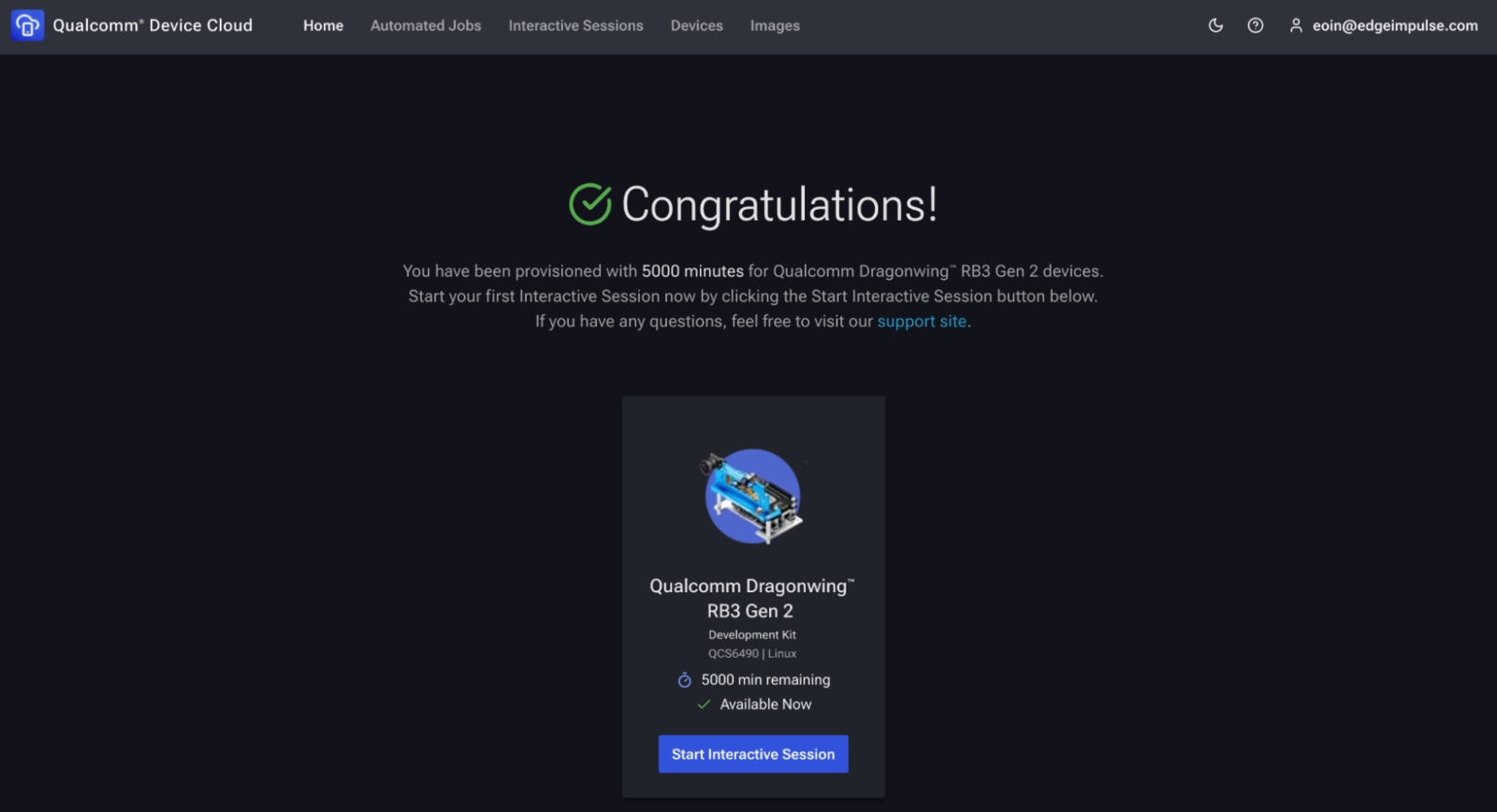
The [Qualcomm® Device Cloud](https://qdc.qualcomm.com/) lets you remotely access real devices, as an Edge Impulse user this means you can get started without any investment in physical hardware. Gain access to devices like the [Qualcomm Dragonwing™ RB3 Gen 2 Dev Kit](/hardware/boards/qualcomm-rb3-gen-2-dev-kit) to get started with AI on Qualcomm® hardware. Users get 5000 minutes of free device time, which is more than enough to run inference on a few static images, and do some initial development before you need to invest in hardware.
 In this guide, we will show you how to:
* Spin up a virtual **Dragonwing RB3 Gen 2** in **Qualcomm Device Cloud (QDC)**.
* Install the **Edge Impulse CLI** on the device.
* Connect the device to **Edge Impulse Studio**.
* Run AI inference on a **static test image**.
In this guide, we will show you how to:
* Spin up a virtual **Dragonwing RB3 Gen 2** in **Qualcomm Device Cloud (QDC)**.
* Install the **Edge Impulse CLI** on the device.
* Connect the device to **Edge Impulse Studio**.
* Run AI inference on a **static test image**.
 Spin up a **virtual Dragonwing RB3 Gen 2** in **Qualcomm Device Cloud (QDC)**, install the Edge Impulse CLI, and run AI inference on a **static test image**.
## Prerequisites
* **Qualcomm Device Cloud account** – [Sign up](https://qdc.qualcomm.com/signup) for free access to the Device Cloud.
* **Edge Impulse account** – [Sign up](https://studio.edgeimpulse.com/signup) if you don’t already have one.
## 1. Launch an interactive RB3 Gen 2 session
Click the **Devices** tab in the **Qualcomm Device Cloud** web UI, then select **Advanced on-device AI with Dragonwing™ RB3 Gen 2** You should see a suggestion to **Try Now**. If you don’t see this option, you may need to request access to the RB3 Gen 2 device type.
Spin up a **virtual Dragonwing RB3 Gen 2** in **Qualcomm Device Cloud (QDC)**, install the Edge Impulse CLI, and run AI inference on a **static test image**.
## Prerequisites
* **Qualcomm Device Cloud account** – [Sign up](https://qdc.qualcomm.com/signup) for free access to the Device Cloud.
* **Edge Impulse account** – [Sign up](https://studio.edgeimpulse.com/signup) if you don’t already have one.
## 1. Launch an interactive RB3 Gen 2 session
Click the **Devices** tab in the **Qualcomm Device Cloud** web UI, then select **Advanced on-device AI with Dragonwing™ RB3 Gen 2** You should see a suggestion to **Try Now**. If you don’t see this option, you may need to request access to the RB3 Gen 2 device type.
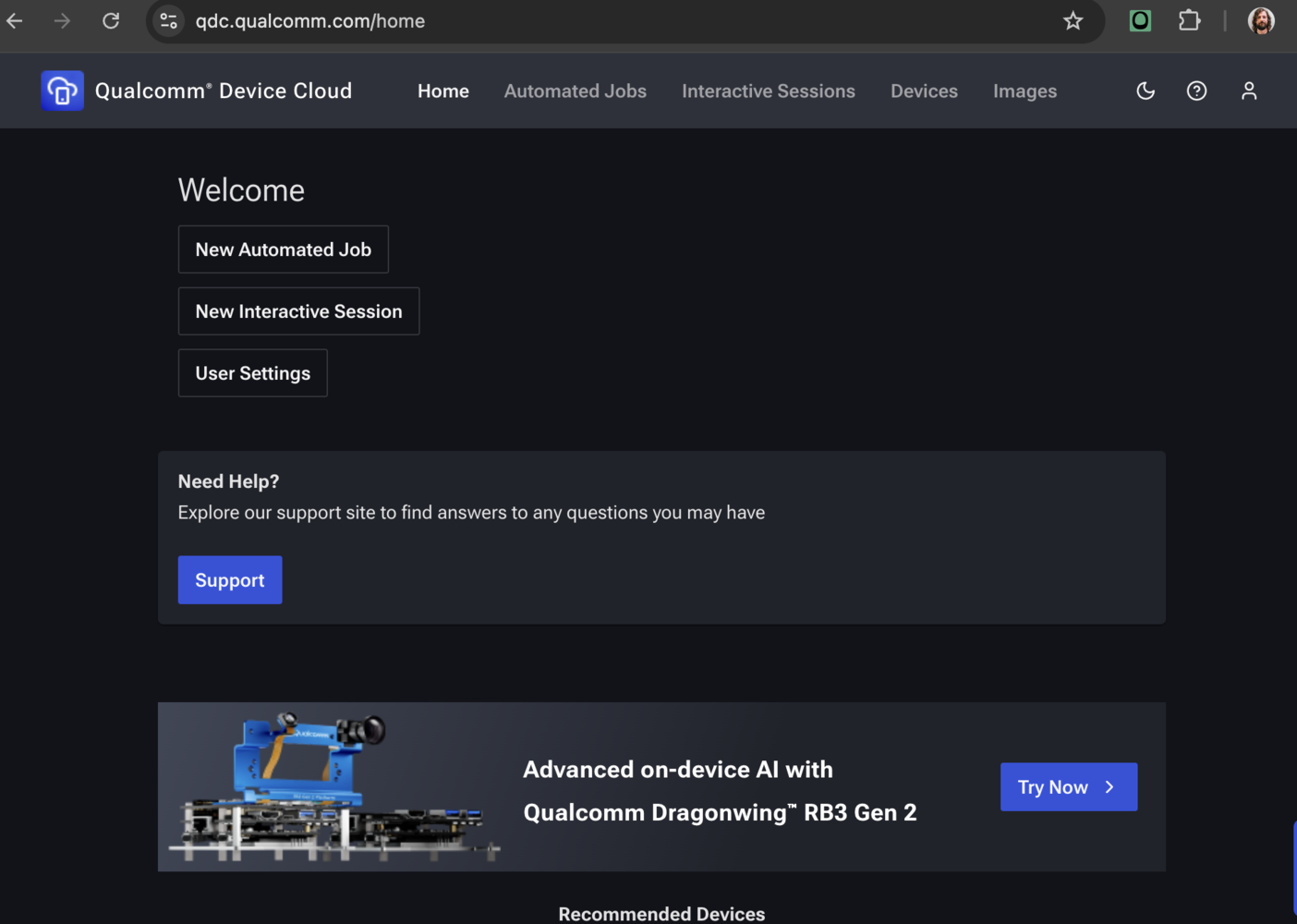 1. Log in to **QDC** > **Devices > IoT > RB3 Gen 2** > **Start Interactive Session**.
2. **Session mode**
* **SSH only** – headless shell (fastest).
* **Screen mirroring + SSH** – adds VNC if you need the GUI.
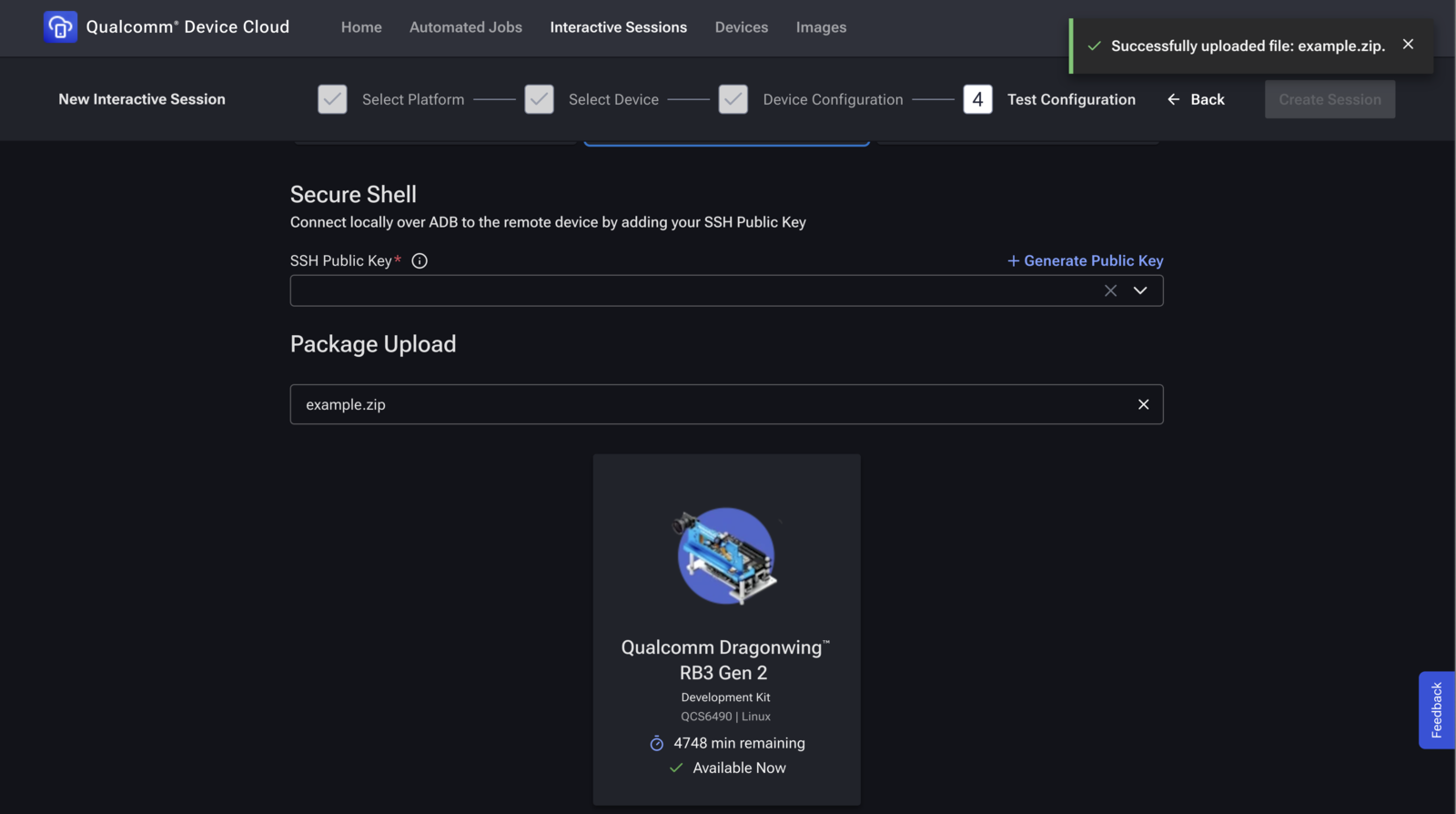
3. **Package upload** – This is where you can upload files to the board. Create a zip with your test image (e.g., `example.jpg`) and upload it here.
* If you skip this step, you can upload files later using the QDC web UI.
4. Click **Start**. QDC powers on the board and shows your SSH credentials.
The following steps will mirror the steps you would take on a physical [Dragonwing RB3 Gen 2 Dev Kit tutorial](/hardware/boards/qualcomm-rb3-gen-2-dev-kit).
## 2. Install the Edge Impulse CLI
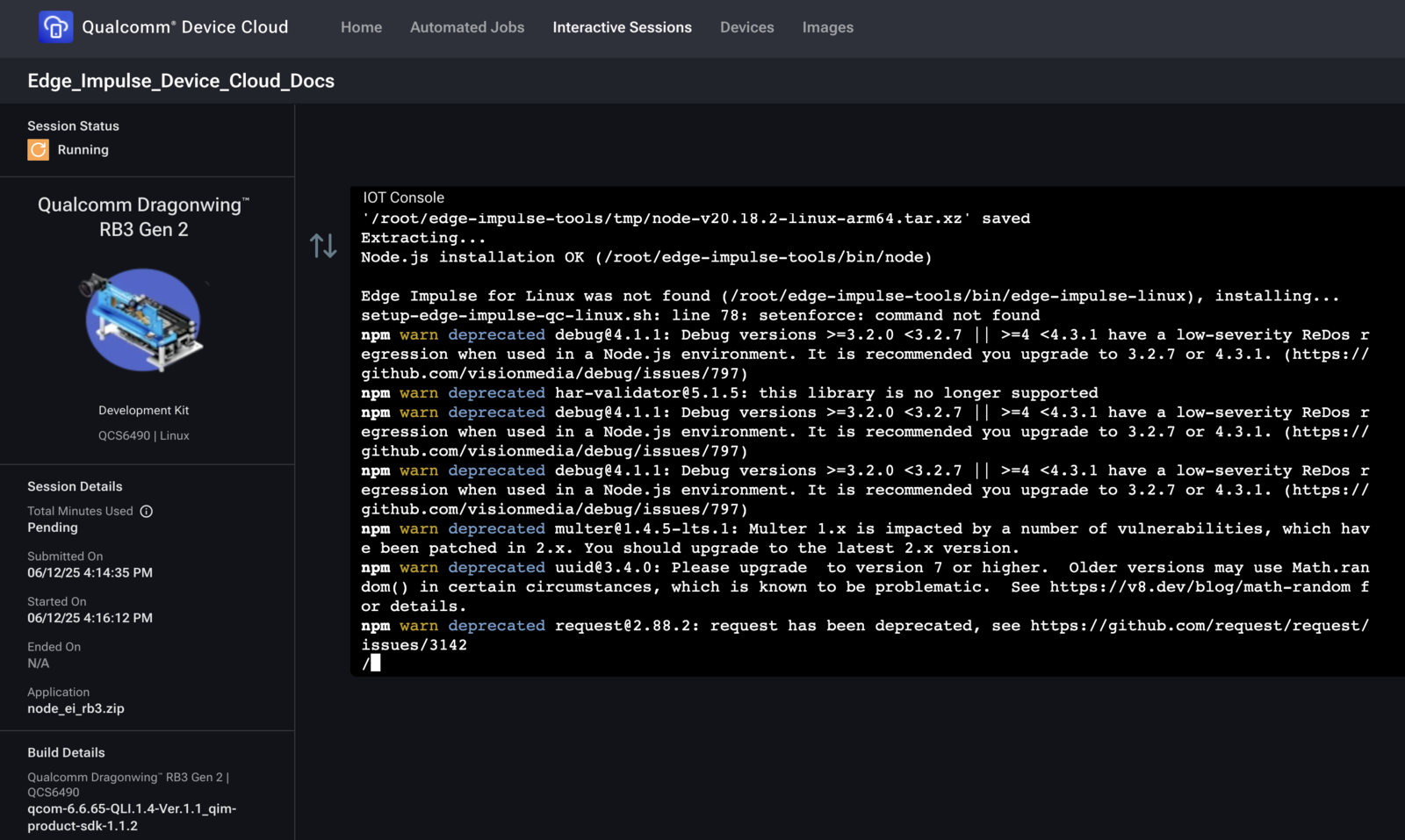
QDC images are minimal. We have prepared a script to install **Node.js** and the **Edge Impulse CLI** once per session:
```bash theme={"system"}
wget https://cdn.edgeimpulse.com/firmware/linux/setup-edge-impulse-qc-linux.sh
sh setup-edge-impulse-qc-linux.sh
```
1. Log in to **QDC** > **Devices > IoT > RB3 Gen 2** > **Start Interactive Session**.
2. **Session mode**
* **SSH only** – headless shell (fastest).
* **Screen mirroring + SSH** – adds VNC if you need the GUI.
3. **Package upload** – This is where you can upload files to the board. Create a zip with your test image (e.g., `example.jpg`) and upload it here.
* If you skip this step, you can upload files later using the QDC web UI.
4. Click **Start**. QDC powers on the board and shows your SSH credentials.
The following steps will mirror the steps you would take on a physical [Dragonwing RB3 Gen 2 Dev Kit tutorial](/hardware/boards/qualcomm-rb3-gen-2-dev-kit).
## 2. Install the Edge Impulse CLI
QDC images are minimal. We have prepared a script to install **Node.js** and the **Edge Impulse CLI** once per session:
```bash theme={"system"}
wget https://cdn.edgeimpulse.com/firmware/linux/setup-edge-impulse-qc-linux.sh
sh setup-edge-impulse-qc-linux.sh
```
 ## 3. Initialise the CLI environment
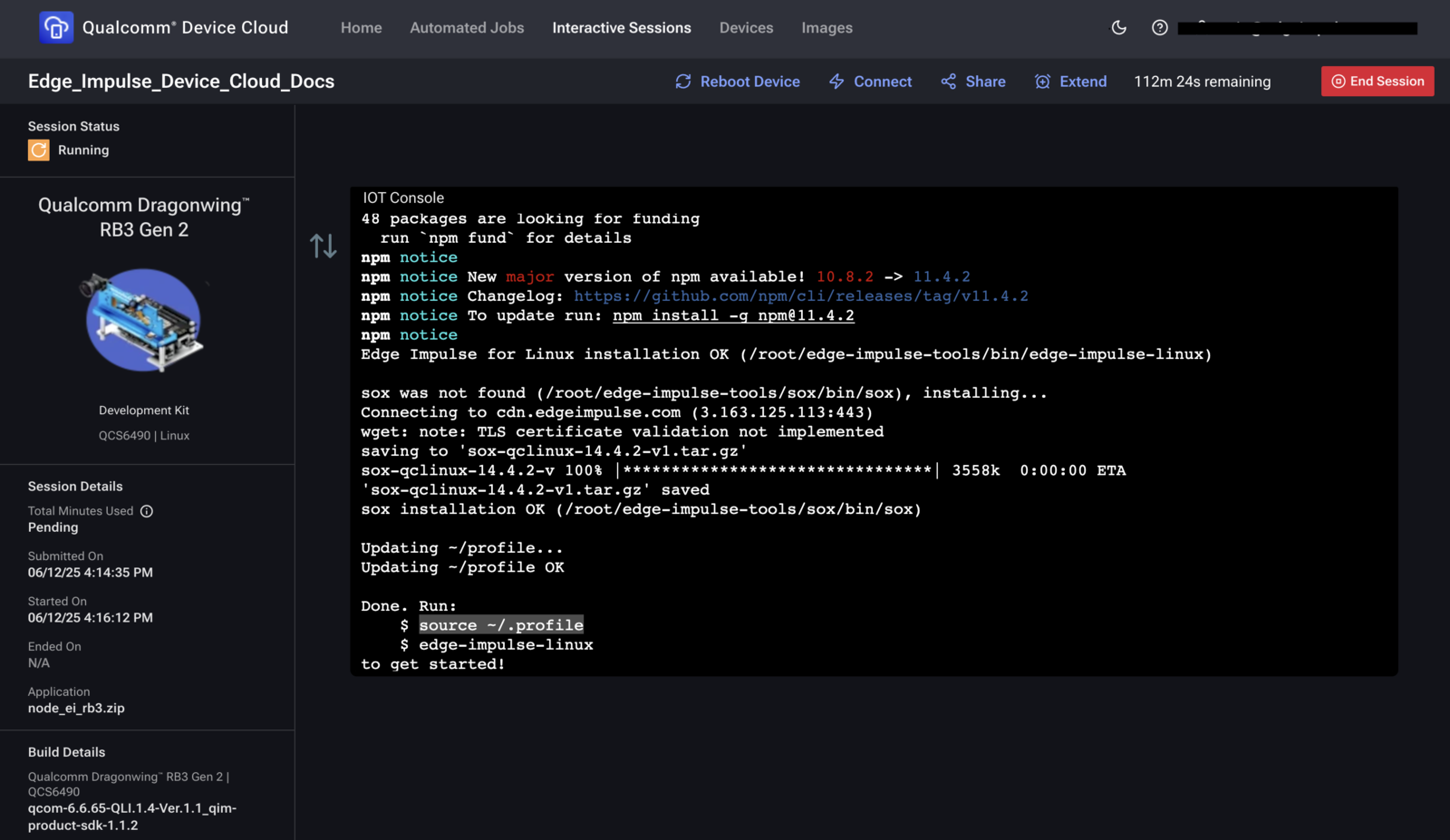
```bash theme={"system"}
source ~/.profile
edge-impulse-linux --version # verify installation
```
## 3. Initialise the CLI environment
```bash theme={"system"}
source ~/.profile
edge-impulse-linux --version # verify installation
```
 ## 4. Connect the board to Edge Impulse Studio
```bash theme={"system"}
edge-impulse-linux
```
1. Paste the one-time authentication key from **Studio > Devices > Connect**.
2. Select or create a project.
3. **Camera prompt:** Choose **None** – we will use a static image.
If you ever need to reset the configuration:
```bash theme={"system"}
edge-impulse-linux --clean
```
## 5. Run inference on a static image
### 5.1 Upload a test image
## 4. Connect the board to Edge Impulse Studio
```bash theme={"system"}
edge-impulse-linux
```
1. Paste the one-time authentication key from **Studio > Devices > Connect**.
2. Select or create a project.
3. **Camera prompt:** Choose **None** – we will use a static image.
If you ever need to reset the configuration:
```bash theme={"system"}
edge-impulse-linux --clean
```
## 5. Run inference on a static image
### 5.1 Upload a test image
 Use the **QDC web UI** to upload `example.jpg` (or any JPEG/PNG) to `/data/local/tmp` on the board, then move it to your home directory:
```bash theme={"system"}
mv /data/local/tmp/example.jpg ~/
```
### 5.2 Classify the image
```bash theme={"system"}
edge-impulse-linux-runner --disable-camera --image ~/example.jpg
```
The runner downloads your model, performs inference, and prints the predicted label(s) and confidence.
## Summary
You now have access to a virtual **RB3 Gen 2** in Qualcomm Device Cloud, installed the **Edge Impulse CLI**, connected the board to **Edge Impulse Studio**, and ran AI inference on a **static test image** without physical hardware on your desk.
## Next steps
## From virtual RB3 to QNN acceleration
The virtual **RB3 Gen 2** in Device Cloud is a perfect way to validate your Edge Impulse model before you move to a physical Snapdragon device and enable hardware acceleration.
In the companion tutorial, **[QNN Hardware Acceleration on Android](/tutorials/topics/android/qnn-acceleration)**, we take the same kind of object detection model and run it on a Snapdragon device with the **Qualcomm AI Engine Direct (QNN) TFLite delegate**.
On a Dragonwing RB3 Gen 2, we measured:
| Configuration | DSP (µs) | Inference (µs) | Speedup |
| ------------------------------ | -------- | -------------- | ------------------ |
| Baseline (TFLite CPU/DSP only) | 5,640 | 5,748 | 1.0× |
| With QNN delegate (HTP) | 3,748 | 527 | **\~10.9× faster** |
Once you’re happy with your model in Device Cloud, you can flash it to a physical RB3 (or other Snapdragon dev kit) and follow the QNN guide to unlock this extra performance on the Hexagon NPU.
Now you can explore more advanced scenarios, such as streaming live camera data or running inference on a physical RB3 Gen 2 board.
* [Running inference on a live camera stream](https://qdc.qualcomm.com/support/user-guide/rtsp-streaming)
* [Run inference on a physical RB3 Gen 2 board](/hardware/boards/qualcomm-rb3-gen-2-dev-kit)
Use the **QDC web UI** to upload `example.jpg` (or any JPEG/PNG) to `/data/local/tmp` on the board, then move it to your home directory:
```bash theme={"system"}
mv /data/local/tmp/example.jpg ~/
```
### 5.2 Classify the image
```bash theme={"system"}
edge-impulse-linux-runner --disable-camera --image ~/example.jpg
```
The runner downloads your model, performs inference, and prints the predicted label(s) and confidence.
## Summary
You now have access to a virtual **RB3 Gen 2** in Qualcomm Device Cloud, installed the **Edge Impulse CLI**, connected the board to **Edge Impulse Studio**, and ran AI inference on a **static test image** without physical hardware on your desk.
## Next steps
## From virtual RB3 to QNN acceleration
The virtual **RB3 Gen 2** in Device Cloud is a perfect way to validate your Edge Impulse model before you move to a physical Snapdragon device and enable hardware acceleration.
In the companion tutorial, **[QNN Hardware Acceleration on Android](/tutorials/topics/android/qnn-acceleration)**, we take the same kind of object detection model and run it on a Snapdragon device with the **Qualcomm AI Engine Direct (QNN) TFLite delegate**.
On a Dragonwing RB3 Gen 2, we measured:
| Configuration | DSP (µs) | Inference (µs) | Speedup |
| ------------------------------ | -------- | -------------- | ------------------ |
| Baseline (TFLite CPU/DSP only) | 5,640 | 5,748 | 1.0× |
| With QNN delegate (HTP) | 3,748 | 527 | **\~10.9× faster** |
Once you’re happy with your model in Device Cloud, you can flash it to a physical RB3 (or other Snapdragon dev kit) and follow the QNN guide to unlock this extra performance on the Hexagon NPU.
Now you can explore more advanced scenarios, such as streaming live camera data or running inference on a physical RB3 Gen 2 board.
* [Running inference on a live camera stream](https://qdc.qualcomm.com/support/user-guide/rtsp-streaming)
* [Run inference on a physical RB3 Gen 2 board](/hardware/boards/qualcomm-rb3-gen-2-dev-kit)