> ## Documentation Index
> Fetch the complete documentation index at: https://docs.edgeimpulse.com/llms.txt
> Use this file to discover all available pages before exploring further.
# Create an Edge Impulse skill
> Install an Agent Skill that gives AI coding agents persistent knowledge of the Edge Impulse Studio and Ingestion APIs.
AI coding agents can write scripts, automate data pipelines, trigger training jobs, and export deployments with the Edge Impulse Studio API. They can also:
* Upload and relabel training data without touching the UI
* Trigger and monitor training jobs from the command line
* Export deployment artifacts (C++ library, Arduino, TFLite, and others)
* Query project metadata, sample lists, and job status
* Write bulk automation scripts for repetitive tasks like relabelling or batch uploads
This tutorial walks you through installing a single [Agent Skill](https://agentskills.io/home) (`edge-impulse`) that any agent supporting the [Agent Skills specification](https://agentskills.io/specification) can load. The skill content is the same regardless of the agent; only the install path differs.
Ready to see it in action? The [Motion recognition using an agent](/tutorials/end-to-end/motion-recognition-using-agent) end-to-end tutorial walks you through a complete Edge Impulse project workflow — from data upload and model training/testing, to deployment onto a device — using only natural language commands.
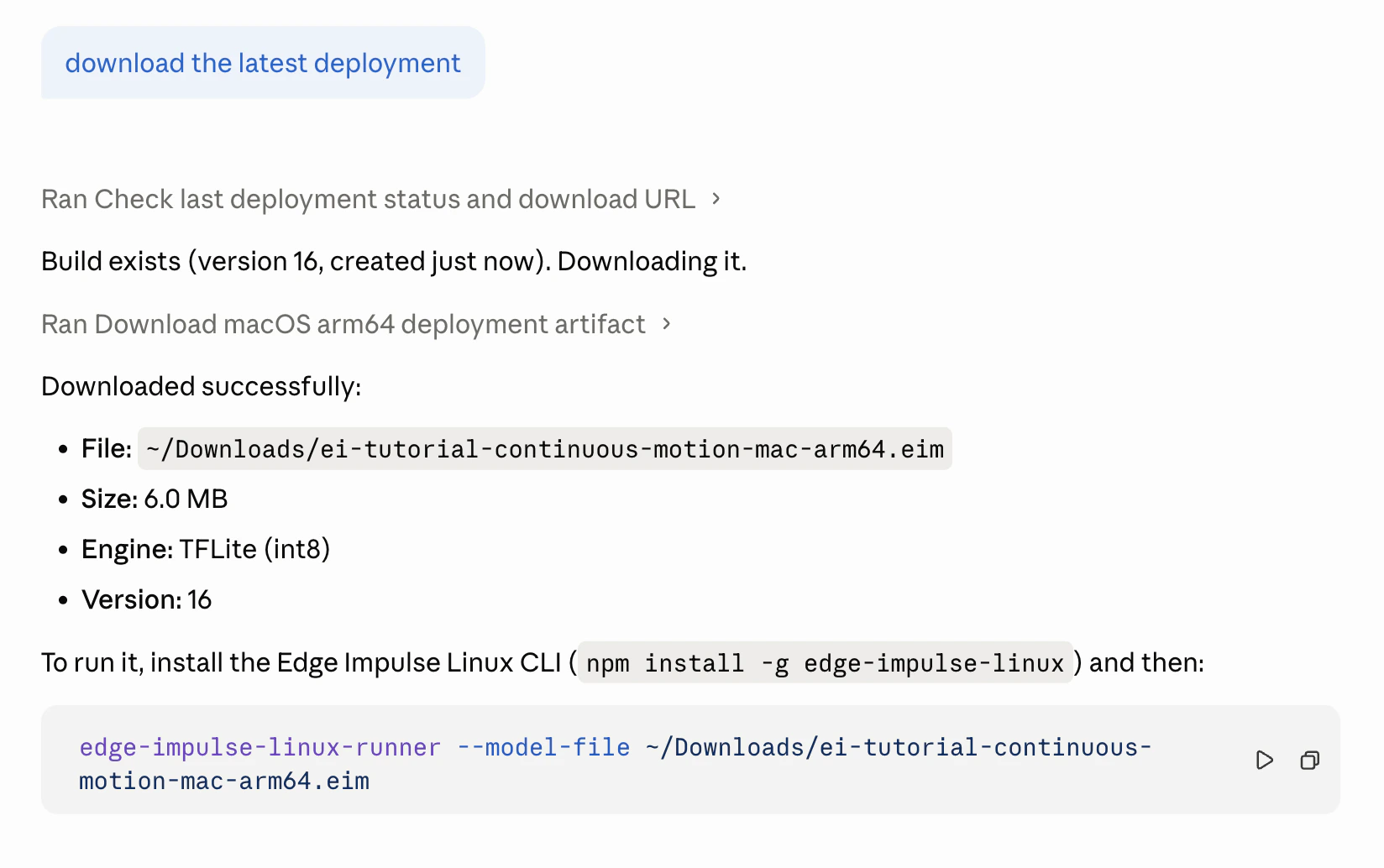 ## Create the skill file
An Agent Skill is a markdown file with required `name` and `description` fields in YAML frontmatter, followed by instructions the agent loads on demand. Copy the file below — you will save it to a different path depending on which agent you use.
````markdown SKILL.md expandable theme={"system"}
---
name: edge-impulse
description: Interact with an Edge Impulse project via the Studio and Ingestion APIs. Use when asked to upload data, list or relabel samples, trigger training, check job status, or export a deployment. Also use when the user asks anything about their Edge Impulse project.
---
Help the user interact with their Edge Impulse project using the Studio and Ingestion APIs.
## Preparation
Check for credentials in the environment before asking:
- `EI_API_KEY` — Edge Impulse API key (starts with `ei_`)
- `EI_PROJECT_ID` — numeric project ID
If either is missing, ask the user. They can find the API key in the project Dashboard under the **Keys** tab, and the project ID under **Project Info**.
## API reference
Base URL: https://studio.edgeimpulse.com/v1
Ingestion URL: https://ingestion.edgeimpulse.com
OpenAPI spec: https://studio.edgeimpulse.com/openapi.yml
Authentication header for all Studio API requests:
```text
x-api-key:
```
### Key endpoints
**Project**
```text
GET /api/{projectId} project info
GET /api/ list all user projects
```
**Samples**
```text
GET /api/{projectId}/raw-data list samples
GET /api/{projectId}/raw-data/{sampleId} get one sample
DELETE /api/{projectId}/raw-data/{sampleId} delete a sample
POST /api/{projectId}/raw-data/{sampleId}/rename relabel a sample
```
Use `?category=training|testing|anomaly`, `?limit`, `?offset`, and `?labels` when listing samples.
Relabel body: `{ "newLabel": "label" }`
**Data upload (Ingestion API)**
```text
POST /api/training/data upload training sample
POST /api/testing/data upload testing sample
POST /api/anomaly/data upload anomaly sample
```
Required headers: `x-api-key`, `x-label`, `x-file-name`.
Accepted bodies: Edge Impulse JSON, audio/WAV, image/JPEG, CSV.
Edge Impulse JSON format:
```json
{
"protected": { "ver": "v1", "alg": "none", "iat": 1735689600 },
"signature": "empty",
"payload": {
"device_name": "device",
"device_type": "TYPE",
"interval_ms": 10,
"sensors": [{ "name": "accX", "units": "m/s2" }],
"values": [[0.1], [0.2]]
}
}
```
**Devices**
```text
GET /api/{projectId}/devices
POST /api/{projectId}/device/{deviceId}/start-sampling
```
Start-sampling body: `{ "label": "...", "category": "training", "intervalMs": 10, "lengthMs": 5000, "sensor": "Inertial" }`
**Impulse**
```text
GET /api/{projectId}/impulse get current pipeline definition
POST /api/{projectId}/impulse update pipeline
```
**Training**
```text
POST /api/{projectId}/jobs/train/{versionId} start training job → returns jobId
GET /api/{projectId}/jobs list jobs
GET /api/{projectId}/jobs/{jobId}/status job status
GET /api/{projectId}/jobs/{jobId}/stdout/download job log (plain text, not JSON)
```
Jobs are async. Poll `/jobs/{jobId}/status` until `.job.finished` is true, then check `.job.finishedSuccessful`. On failure, fetch `/jobs/{jobId}/stdout/download` and show the relevant error lines. Users can also monitor progress at `https://studio.edgeimpulse.com/studio//jobs`.
**Deployment**
```text
GET /api/deployment/targets
POST /api/{projectId}/deploy start build — body: { "deployType": "zip"|"arduino"|"tflite"|"onnx"|... }
GET /api/{projectId}/deploy get artifact download URL
POST /api/{projectId}/jobs/build-ondevice-model
GET /api/{projectId}/deployment/history
GET /api/{projectId}/deployment/history/{deploymentVersion}/download
```
**Versions**
```text
GET /api/{projectId}/versions list snapshots
POST /api/{projectId}/versions create snapshot
```
**EON Tuner**
```text
POST /api/{projectId}/tuner/start start AutoML run
GET /api/{projectId}/tuner/runs list runs and results
```
**Testing**
```text
POST /api/{projectId}/jobs/classify classify a sample
GET /api/{projectId}/test-results model test results
```
**Organizations (Enterprise)**
```text
GET /api/organizations
GET /api/organizations/{orgId}/data/datasets
POST /api/organizations/{orgId}/data/upload
```
### Response shape
Every response has a `success` field:
```json
{ "success": true, ... }
{ "success": false, "error": "message" }
```
Always check `success` before reading other fields. Raise a clear error if `success` is false.
## Python skeleton
```python
import os, requests
API_KEY = os.environ.get("EI_API_KEY") or input("API key: ")
PROJECT_ID = int(os.environ.get("EI_PROJECT_ID") or input("Project ID: "))
STUDIO = "https://studio.edgeimpulse.com/v1/api"
INGEST = "https://ingestion.edgeimpulse.com/api"
s = requests.Session()
s.headers.update({"x-api-key": API_KEY, "Accept": "application/json"})
def get(path, **params):
r = s.get(f"{STUDIO}/{PROJECT_ID}{path}", params=params)
r.raise_for_status()
d = r.json()
if not d.get("success"):
raise RuntimeError(d.get("error", "unknown error"))
return d
def post(path, body=None, base=STUDIO):
r = s.post(f"{base}/{PROJECT_ID}{path}" if base == STUDIO else f"{base}{path}", json=body)
r.raise_for_status()
d = r.json()
if not d.get("success"):
raise RuntimeError(d.get("error", "unknown error"))
return d
```
## Instructions
1. Understand the task from the user's request.
2. Write Python using the skeleton above, or use curl/shell commands for one-off requests.
3. Run the code and show results clearly.
4. For long-running jobs: poll `GET /api/{projectId}/jobs/{jobId}/status` until `.job.finished` is true. If `.job.finishedSuccessful` is false, fetch `GET /api/{projectId}/jobs/{jobId}/stdout/download` (plain text, not JSON) and show the relevant error lines. Always inform the user they can also monitor progress at `https://studio.edgeimpulse.com/studio//jobs`.
5. For unknown endpoints, fetch https://studio.edgeimpulse.com/openapi.yml and find the right path.
````
The `edge-impulse` skill is one large skill covering the Edge Impulse Studio and Ingestion API surface. As your usage grows, consider [splitting it into more focused skills (or companion skills)](/tutorials/topics/ai-agents/create-a-companion-skill) such as `upload-ei-data`, `label-ei-data`, `train-ei-model`, and `deploy-impulse` so each one loads less context and triggers more precisely.
## Install the skill
Save the file above to one of the paths below. Skills can be installed globally (available across all projects) or per project. Refer to your agent's documentation if you use a tool not listed here.
| Agent | Global (all projects) | Per project |
| --------------------------------------------------------------------------------------------------------------------------------- | ------------------------------------------------------------------------------------- | -------------------------------------- |
| [Claude Code](https://code.claude.com/docs/en/skills) | `~/.claude/skills/edge-impulse/SKILL.md` | `.claude/skills/edge-impulse/SKILL.md` |
| [OpenAI Codex](https://developers.openai.com/codex/skills) | `~/.agents/skills/edge-impulse/SKILL.md` | `.agents/skills/edge-impulse/SKILL.md` |
| [GitHub Copilot](https://docs.github.com/en/copilot/how-tos/copilot-on-github/customize-copilot/customize-cloud-agent/add-skills) | `~/.copilot/skills/edge-impulse/SKILL.md` or `~/.agents/skills/edge-impulse/SKILL.md` | `.github/skills/edge-impulse/SKILL.md` |
| [Antigravity (previously Gemini CLI)](https://antigravity.google/docs/skills) | `~/.gemini/skills/edge-impulse/SKILL.md` | `.agents/skills/edge-impulse/SKILL.md` |
## Use the skill
Ask your agent to work with your Edge Impulse project. The agent loads the skill automatically when your prompt matches, or you can invoke it explicitly with `/edge-impulse`:
/edge-impulse list all training samples labeled "unknown" and delete them
/edge-impulse upload every .wav file in ./data as testing samples with label "noise"
/edge-impulse start a training job and wait for it to finish, then show accuracy
/edge-impulse export a C++ library deployment and save it to ./build
To see a selection of example prompts, take a look at our [Prompt library](/tutorials/topics/ai-agents/prompt-library).
## Create the skill file
An Agent Skill is a markdown file with required `name` and `description` fields in YAML frontmatter, followed by instructions the agent loads on demand. Copy the file below — you will save it to a different path depending on which agent you use.
````markdown SKILL.md expandable theme={"system"}
---
name: edge-impulse
description: Interact with an Edge Impulse project via the Studio and Ingestion APIs. Use when asked to upload data, list or relabel samples, trigger training, check job status, or export a deployment. Also use when the user asks anything about their Edge Impulse project.
---
Help the user interact with their Edge Impulse project using the Studio and Ingestion APIs.
## Preparation
Check for credentials in the environment before asking:
- `EI_API_KEY` — Edge Impulse API key (starts with `ei_`)
- `EI_PROJECT_ID` — numeric project ID
If either is missing, ask the user. They can find the API key in the project Dashboard under the **Keys** tab, and the project ID under **Project Info**.
## API reference
Base URL: https://studio.edgeimpulse.com/v1
Ingestion URL: https://ingestion.edgeimpulse.com
OpenAPI spec: https://studio.edgeimpulse.com/openapi.yml
Authentication header for all Studio API requests:
```text
x-api-key:
```
### Key endpoints
**Project**
```text
GET /api/{projectId} project info
GET /api/ list all user projects
```
**Samples**
```text
GET /api/{projectId}/raw-data list samples
GET /api/{projectId}/raw-data/{sampleId} get one sample
DELETE /api/{projectId}/raw-data/{sampleId} delete a sample
POST /api/{projectId}/raw-data/{sampleId}/rename relabel a sample
```
Use `?category=training|testing|anomaly`, `?limit`, `?offset`, and `?labels` when listing samples.
Relabel body: `{ "newLabel": "label" }`
**Data upload (Ingestion API)**
```text
POST /api/training/data upload training sample
POST /api/testing/data upload testing sample
POST /api/anomaly/data upload anomaly sample
```
Required headers: `x-api-key`, `x-label`, `x-file-name`.
Accepted bodies: Edge Impulse JSON, audio/WAV, image/JPEG, CSV.
Edge Impulse JSON format:
```json
{
"protected": { "ver": "v1", "alg": "none", "iat": 1735689600 },
"signature": "empty",
"payload": {
"device_name": "device",
"device_type": "TYPE",
"interval_ms": 10,
"sensors": [{ "name": "accX", "units": "m/s2" }],
"values": [[0.1], [0.2]]
}
}
```
**Devices**
```text
GET /api/{projectId}/devices
POST /api/{projectId}/device/{deviceId}/start-sampling
```
Start-sampling body: `{ "label": "...", "category": "training", "intervalMs": 10, "lengthMs": 5000, "sensor": "Inertial" }`
**Impulse**
```text
GET /api/{projectId}/impulse get current pipeline definition
POST /api/{projectId}/impulse update pipeline
```
**Training**
```text
POST /api/{projectId}/jobs/train/{versionId} start training job → returns jobId
GET /api/{projectId}/jobs list jobs
GET /api/{projectId}/jobs/{jobId}/status job status
GET /api/{projectId}/jobs/{jobId}/stdout/download job log (plain text, not JSON)
```
Jobs are async. Poll `/jobs/{jobId}/status` until `.job.finished` is true, then check `.job.finishedSuccessful`. On failure, fetch `/jobs/{jobId}/stdout/download` and show the relevant error lines. Users can also monitor progress at `https://studio.edgeimpulse.com/studio//jobs`.
**Deployment**
```text
GET /api/deployment/targets
POST /api/{projectId}/deploy start build — body: { "deployType": "zip"|"arduino"|"tflite"|"onnx"|... }
GET /api/{projectId}/deploy get artifact download URL
POST /api/{projectId}/jobs/build-ondevice-model
GET /api/{projectId}/deployment/history
GET /api/{projectId}/deployment/history/{deploymentVersion}/download
```
**Versions**
```text
GET /api/{projectId}/versions list snapshots
POST /api/{projectId}/versions create snapshot
```
**EON Tuner**
```text
POST /api/{projectId}/tuner/start start AutoML run
GET /api/{projectId}/tuner/runs list runs and results
```
**Testing**
```text
POST /api/{projectId}/jobs/classify classify a sample
GET /api/{projectId}/test-results model test results
```
**Organizations (Enterprise)**
```text
GET /api/organizations
GET /api/organizations/{orgId}/data/datasets
POST /api/organizations/{orgId}/data/upload
```
### Response shape
Every response has a `success` field:
```json
{ "success": true, ... }
{ "success": false, "error": "message" }
```
Always check `success` before reading other fields. Raise a clear error if `success` is false.
## Python skeleton
```python
import os, requests
API_KEY = os.environ.get("EI_API_KEY") or input("API key: ")
PROJECT_ID = int(os.environ.get("EI_PROJECT_ID") or input("Project ID: "))
STUDIO = "https://studio.edgeimpulse.com/v1/api"
INGEST = "https://ingestion.edgeimpulse.com/api"
s = requests.Session()
s.headers.update({"x-api-key": API_KEY, "Accept": "application/json"})
def get(path, **params):
r = s.get(f"{STUDIO}/{PROJECT_ID}{path}", params=params)
r.raise_for_status()
d = r.json()
if not d.get("success"):
raise RuntimeError(d.get("error", "unknown error"))
return d
def post(path, body=None, base=STUDIO):
r = s.post(f"{base}/{PROJECT_ID}{path}" if base == STUDIO else f"{base}{path}", json=body)
r.raise_for_status()
d = r.json()
if not d.get("success"):
raise RuntimeError(d.get("error", "unknown error"))
return d
```
## Instructions
1. Understand the task from the user's request.
2. Write Python using the skeleton above, or use curl/shell commands for one-off requests.
3. Run the code and show results clearly.
4. For long-running jobs: poll `GET /api/{projectId}/jobs/{jobId}/status` until `.job.finished` is true. If `.job.finishedSuccessful` is false, fetch `GET /api/{projectId}/jobs/{jobId}/stdout/download` (plain text, not JSON) and show the relevant error lines. Always inform the user they can also monitor progress at `https://studio.edgeimpulse.com/studio//jobs`.
5. For unknown endpoints, fetch https://studio.edgeimpulse.com/openapi.yml and find the right path.
````
The `edge-impulse` skill is one large skill covering the Edge Impulse Studio and Ingestion API surface. As your usage grows, consider [splitting it into more focused skills (or companion skills)](/tutorials/topics/ai-agents/create-a-companion-skill) such as `upload-ei-data`, `label-ei-data`, `train-ei-model`, and `deploy-impulse` so each one loads less context and triggers more precisely.
## Install the skill
Save the file above to one of the paths below. Skills can be installed globally (available across all projects) or per project. Refer to your agent's documentation if you use a tool not listed here.
| Agent | Global (all projects) | Per project |
| --------------------------------------------------------------------------------------------------------------------------------- | ------------------------------------------------------------------------------------- | -------------------------------------- |
| [Claude Code](https://code.claude.com/docs/en/skills) | `~/.claude/skills/edge-impulse/SKILL.md` | `.claude/skills/edge-impulse/SKILL.md` |
| [OpenAI Codex](https://developers.openai.com/codex/skills) | `~/.agents/skills/edge-impulse/SKILL.md` | `.agents/skills/edge-impulse/SKILL.md` |
| [GitHub Copilot](https://docs.github.com/en/copilot/how-tos/copilot-on-github/customize-copilot/customize-cloud-agent/add-skills) | `~/.copilot/skills/edge-impulse/SKILL.md` or `~/.agents/skills/edge-impulse/SKILL.md` | `.github/skills/edge-impulse/SKILL.md` |
| [Antigravity (previously Gemini CLI)](https://antigravity.google/docs/skills) | `~/.gemini/skills/edge-impulse/SKILL.md` | `.agents/skills/edge-impulse/SKILL.md` |
## Use the skill
Ask your agent to work with your Edge Impulse project. The agent loads the skill automatically when your prompt matches, or you can invoke it explicitly with `/edge-impulse`:
/edge-impulse list all training samples labeled "unknown" and delete them
/edge-impulse upload every .wav file in ./data as testing samples with label "noise"
/edge-impulse start a training job and wait for it to finish, then show accuracy
/edge-impulse export a C++ library deployment and save it to ./build
To see a selection of example prompts, take a look at our [Prompt library](/tutorials/topics/ai-agents/prompt-library).
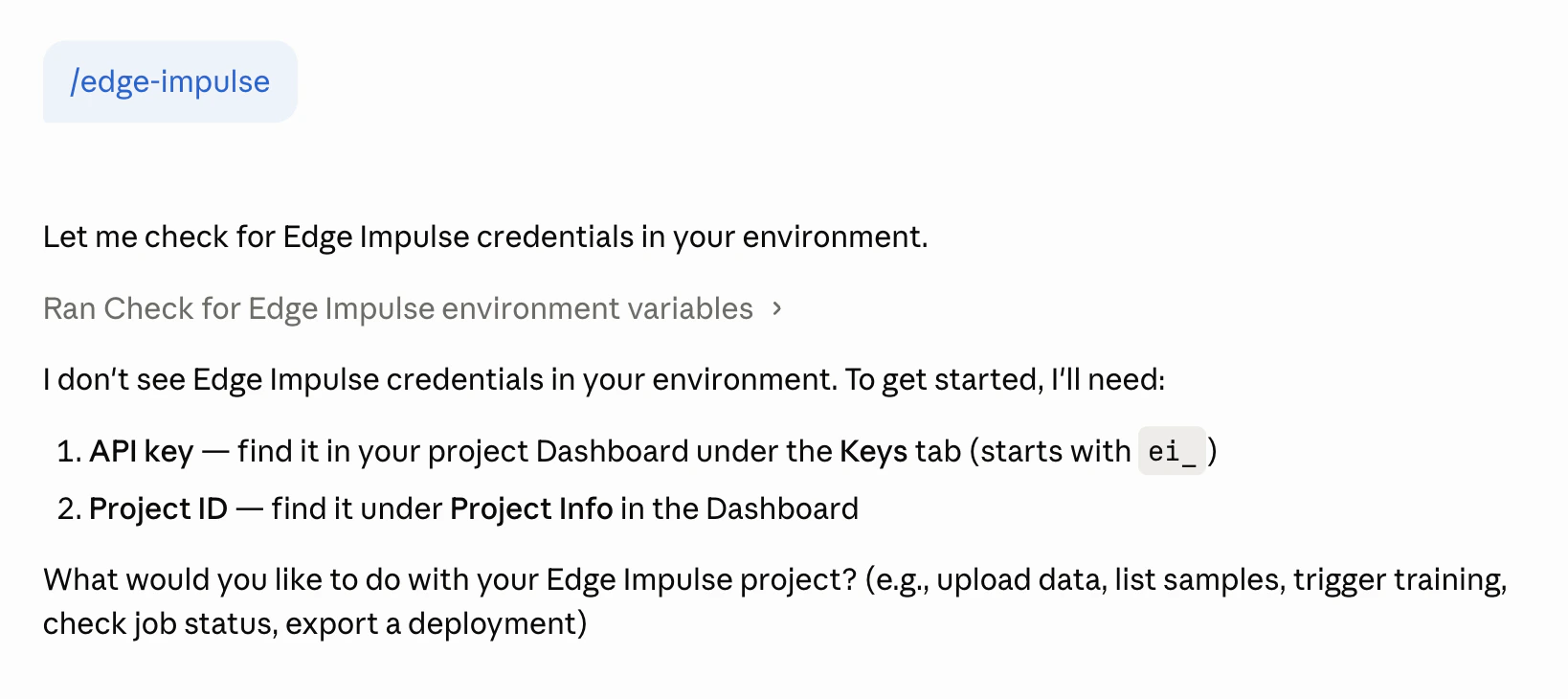 ### Set your credentials
Set environment variables so your agent never needs to ask for credentials:
```bash theme={"system"}
export EI_API_KEY="ei_..."
export EI_PROJECT_ID="12345"
```
Find your [API key](/studio/projects/dashboard/api-keys) under **Dashboard → Keys** and your [project ID](/studio/projects/dashboard#6-project-info) under **Project Info** in Edge Impulse Studio.
### Set your credentials
Set environment variables so your agent never needs to ask for credentials:
```bash theme={"system"}
export EI_API_KEY="ei_..."
export EI_PROJECT_ID="12345"
```
Find your [API key](/studio/projects/dashboard/api-keys) under **Dashboard → Keys** and your [project ID](/studio/projects/dashboard#6-project-info) under **Project Info** in Edge Impulse Studio.
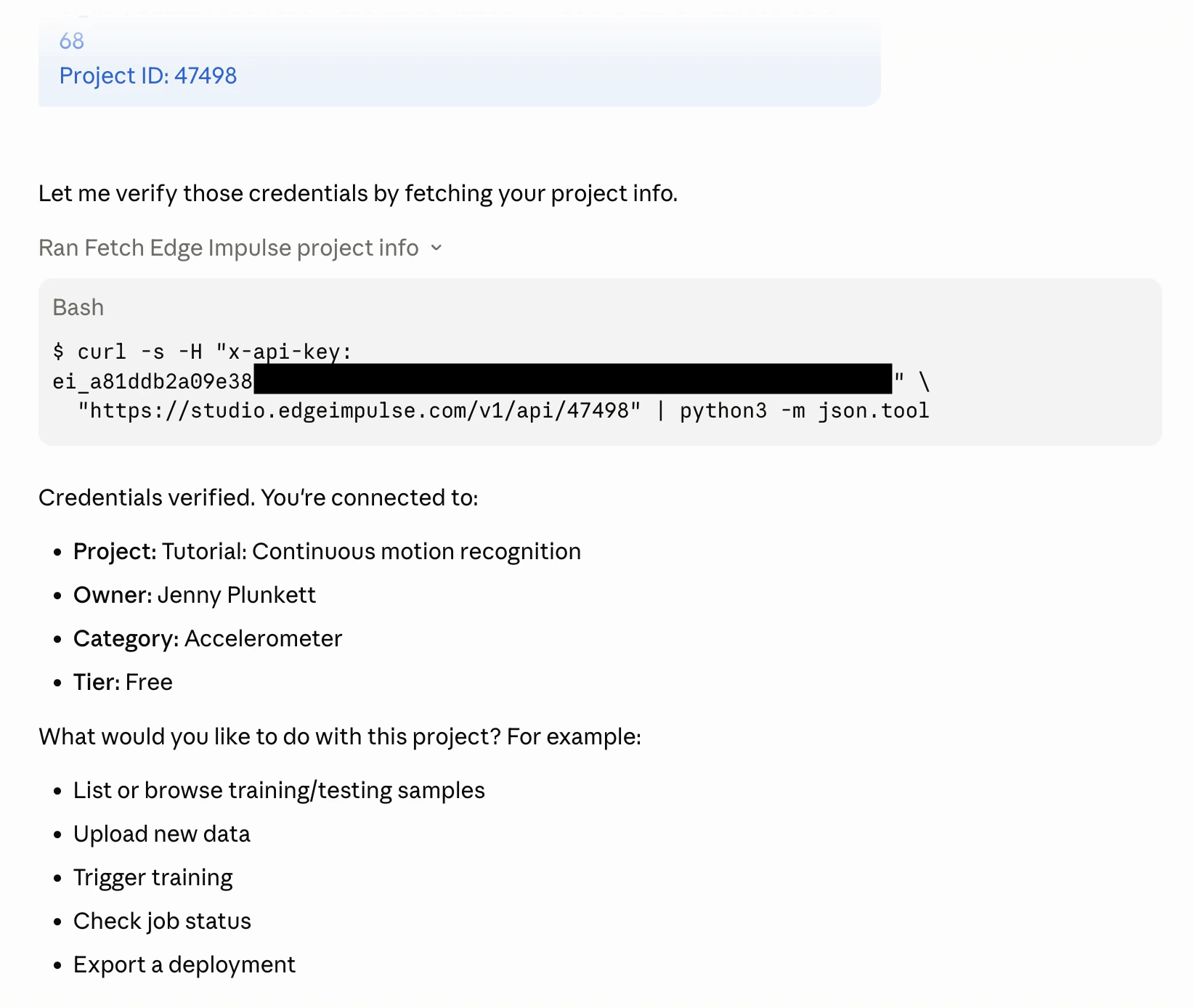 ## Optimize the skill for your workflow
If you find yourself making the same API calls repeatedly — listing samples, checking job status, fetching project info — ask the agent to add those patterns directly to the skill file so it can handle them faster next time:
Read \~/.claude/skills/edge-impulse/SKILL.md and add a section at the bottom with a ready-made Python snippet for listing all training samples grouped by label, since I use this at the start of every session.
Look at my last few Edge Impulse prompts and update \~/.claude/skills/edge-impulse/SKILL.md with any patterns I use frequently that aren't already covered.
The skill file is just markdown — anything you add becomes part of the agent's persistent context for every future session.
[Keep `SKILL.md` under 500 lines.](https://code.claude.com/docs/en/skills#add-supporting-files) Move detailed reference material — long endpoint tables, full request/response examples, language-specific snippets — into separate files in the skill directory (such as `reference.md` or `examples.md`) and link to them from `SKILL.md`. Supporting files load only when the agent decides it needs them, so the main skill stays focused and cheap to load.
## Tips
* **Ask for error handling.** The Edge Impulse API returns `{ "success": false, "error": "..." }` on failure. Ask the agent to check this field in every response.
* **Reference the OpenAPI spec for edge cases.** For endpoints not covered by the skill, direct the agent to `https://studio.edgeimpulse.com/openapi.yml` for the full schema.
## Next steps
* Follow the [end-to-end Motion recognition tutorial](/tutorials/end-to-end/motion-recognition-using-agent) to take a project from data collection through deployment using only natural language commands
* [Create a companion skill](/tutorials/topics/ai-agents/create-a-companion-skill) for your target hardware so the agent can write application code alongside the API calls
* Browse the [prompt library](/tutorials/topics/ai-agents/prompt-library) for ready-to-use prompts covering every stage of an Edge Impulse project
* Browse [Studio API endpoints](/apis/studio) for the full endpoint reference
## Optimize the skill for your workflow
If you find yourself making the same API calls repeatedly — listing samples, checking job status, fetching project info — ask the agent to add those patterns directly to the skill file so it can handle them faster next time:
Read \~/.claude/skills/edge-impulse/SKILL.md and add a section at the bottom with a ready-made Python snippet for listing all training samples grouped by label, since I use this at the start of every session.
Look at my last few Edge Impulse prompts and update \~/.claude/skills/edge-impulse/SKILL.md with any patterns I use frequently that aren't already covered.
The skill file is just markdown — anything you add becomes part of the agent's persistent context for every future session.
[Keep `SKILL.md` under 500 lines.](https://code.claude.com/docs/en/skills#add-supporting-files) Move detailed reference material — long endpoint tables, full request/response examples, language-specific snippets — into separate files in the skill directory (such as `reference.md` or `examples.md`) and link to them from `SKILL.md`. Supporting files load only when the agent decides it needs them, so the main skill stays focused and cheap to load.
## Tips
* **Ask for error handling.** The Edge Impulse API returns `{ "success": false, "error": "..." }` on failure. Ask the agent to check this field in every response.
* **Reference the OpenAPI spec for edge cases.** For endpoints not covered by the skill, direct the agent to `https://studio.edgeimpulse.com/openapi.yml` for the full schema.
## Next steps
* Follow the [end-to-end Motion recognition tutorial](/tutorials/end-to-end/motion-recognition-using-agent) to take a project from data collection through deployment using only natural language commands
* [Create a companion skill](/tutorials/topics/ai-agents/create-a-companion-skill) for your target hardware so the agent can write application code alongside the API calls
* Browse the [prompt library](/tutorials/topics/ai-agents/prompt-library) for ready-to-use prompts covering every stage of an Edge Impulse project
* Browse [Studio API endpoints](/apis/studio) for the full endpoint reference