> ## Documentation Index
> Fetch the complete documentation index at: https://docs.edgeimpulse.com/llms.txt
> Use this file to discover all available pages before exploring further.
# Ingest structured label data
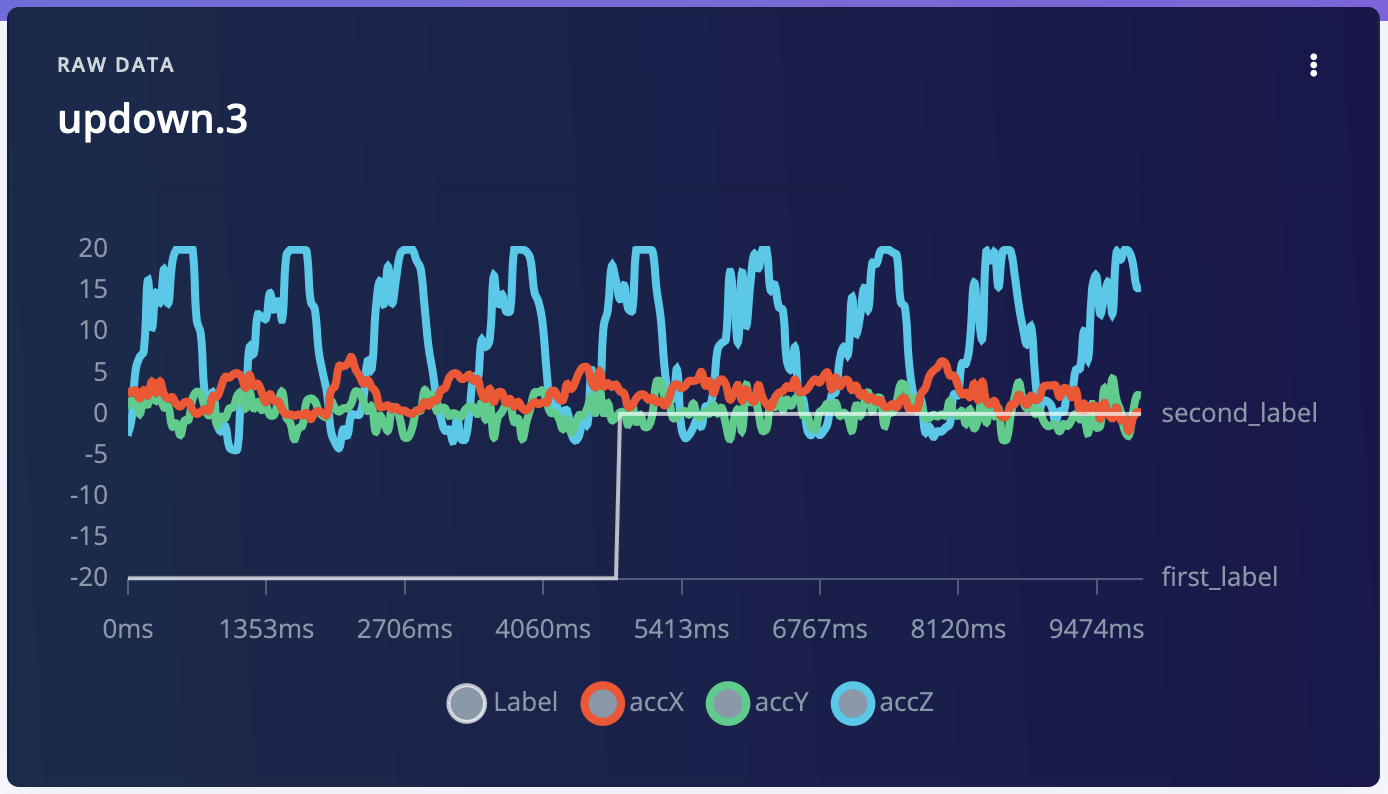
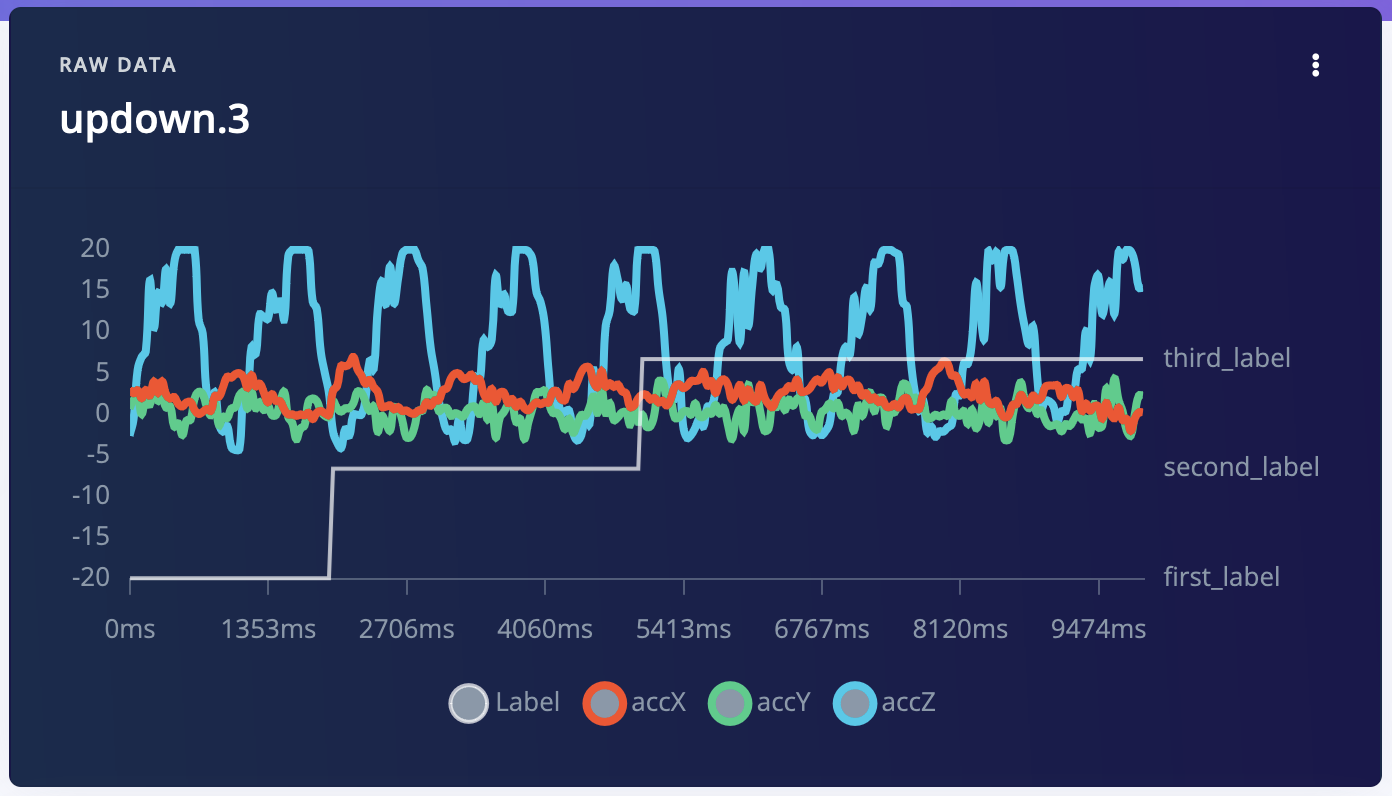
This guide provides a quick walk-through on how to upload and update time-series data with multiple labels using the Edge Impulse API.
## Getting Started
### Prerequisites
* **API Key** - Obtain from your project settings on Edge Impulse.
* **Example Github repository** - Clone the following repository, it contains the scripts and the example files:
```bash theme={"system"}
git clone git@github.com:edgeimpulse/example-multi-label-ingestion-via-api.git
```
### Setup Your Environment
Export your API key to use in the upload scripts:
```bash theme={"system"}
export EI_PROJECT_API_KEY='your_api_key_here'
```
## Prepare Your Data
* **Data File:** JSON formatted time-series data. See the [Data acquisition format specification](/tools/specifications/data-acquisition/json-cbor)
* **`structured_labels.labels` File:** JSON with structured labels. See [Edge Impulse structured labels](/tools/specifications/data-annotation/ei-structured-labels) for more info.
## Upload Data
Use the `upload.sh` script to send your data and labels to Edge Impulse:
```bash theme={"system"}
#!/bin/bash
if [[ -z "$EI_PROJECT_API_KEY" ]]; then
echo "Missing EI_PROJECT_API_KEY env variable"
exit 1
fi
curl -X POST \
-H "x-api-key: $EI_PROJECT_API_KEY" \
-H "Content-Type: multipart/form-data" \
-F "data=@updown.3.json" \
-F "data=@structured_labels.labels" \
https://ingestion.edgeimpulse.com/api/training/files
```
 ## Update Existing Samples
To update a sample, run `update-sample.sh` with the required project and sample IDs:
```bash theme={"system"}
sh update-sample.sh --project-id --sample-id
```
## Update Existing Samples
To update a sample, run `update-sample.sh` with the required project and sample IDs:
```bash theme={"system"}
sh update-sample.sh --project-id --sample-id
```
 :rocket:
We hope this tutorial has helped you to understand how to ingest multi-label data samples to your Edge Impulse project. If you have any questions, please reach out to us on our [forum](https://forum.edgeimpulse.com).
:rocket:
We hope this tutorial has helped you to understand how to ingest multi-label data samples to your Edge Impulse project. If you have any questions, please reach out to us on our [forum](https://forum.edgeimpulse.com).