> ## Documentation Index
> Fetch the complete documentation index at: https://docs.edgeimpulse.com/llms.txt
> Use this file to discover all available pages before exploring further.
# syntheticAIdata Vision Datasets
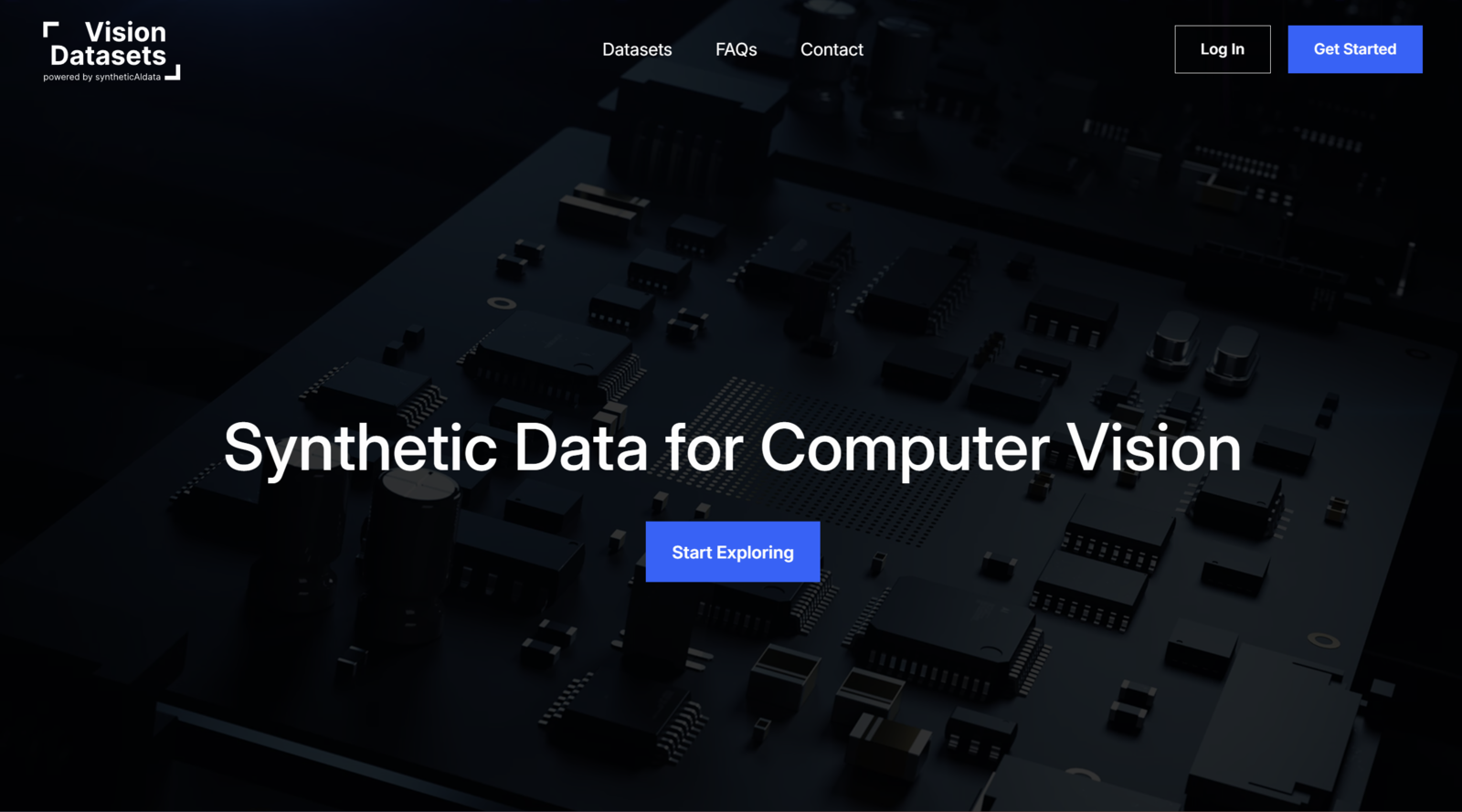
**[Vision Datasets](https://visiondatasets.com)** is a platform by **[syntheticAIdata](https://visiondatasets.com)** that offers curated, high-quality
computer vision datasets. These datasets consist of synthetic images designed to
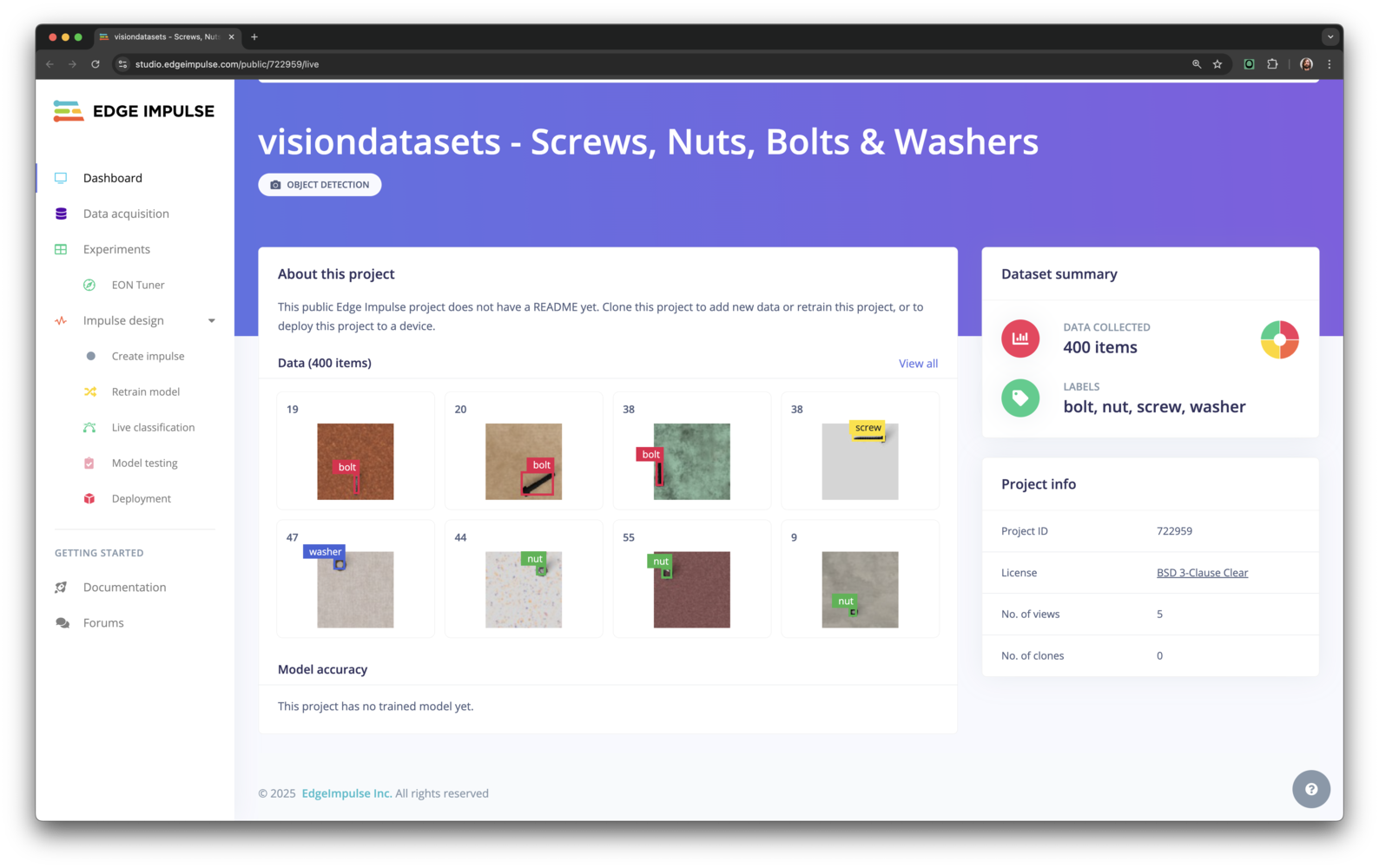
provide diverse and comprehensive training data. By following this guide, you will learn how to create and upload a dataset from Vision Datasets to Edge Impulse, just like this [Screws Nuts Bolts and Washers dataset](https://studio.edgeimpulse.com/public/722959/live) that is available in Edge Impulse Studio.:
 ## Getting started with syntheticAIdata
This guide explains how to import image datasets from Vision Datasets into Edge
Impulse for training, testing, and deployment of computer vision models. This
integration simplifies your workflow by eliminating the need for manual data
collection or preprocessing.
## Getting started with syntheticAIdata
This guide explains how to import image datasets from Vision Datasets into Edge
Impulse for training, testing, and deployment of computer vision models. This
integration simplifies your workflow by eliminating the need for manual data
collection or preprocessing.
 ## Prerequisites
* An [Edge Impulse](https://studio.edgeimpulse.com) account with a project created.
* A [Vision Datasets](https://visiondatasets.com) account (free to sign up).
## Select and upload a dataset to Edge Impulse
To get started with Vision Datasets and Edge Impulse integration, follow these steps:
1. Log in to the Vision Datasets dashboard.
## Prerequisites
* An [Edge Impulse](https://studio.edgeimpulse.com) account with a project created.
* A [Vision Datasets](https://visiondatasets.com) account (free to sign up).
## Select and upload a dataset to Edge Impulse
To get started with Vision Datasets and Edge Impulse integration, follow these steps:
1. Log in to the Vision Datasets dashboard.
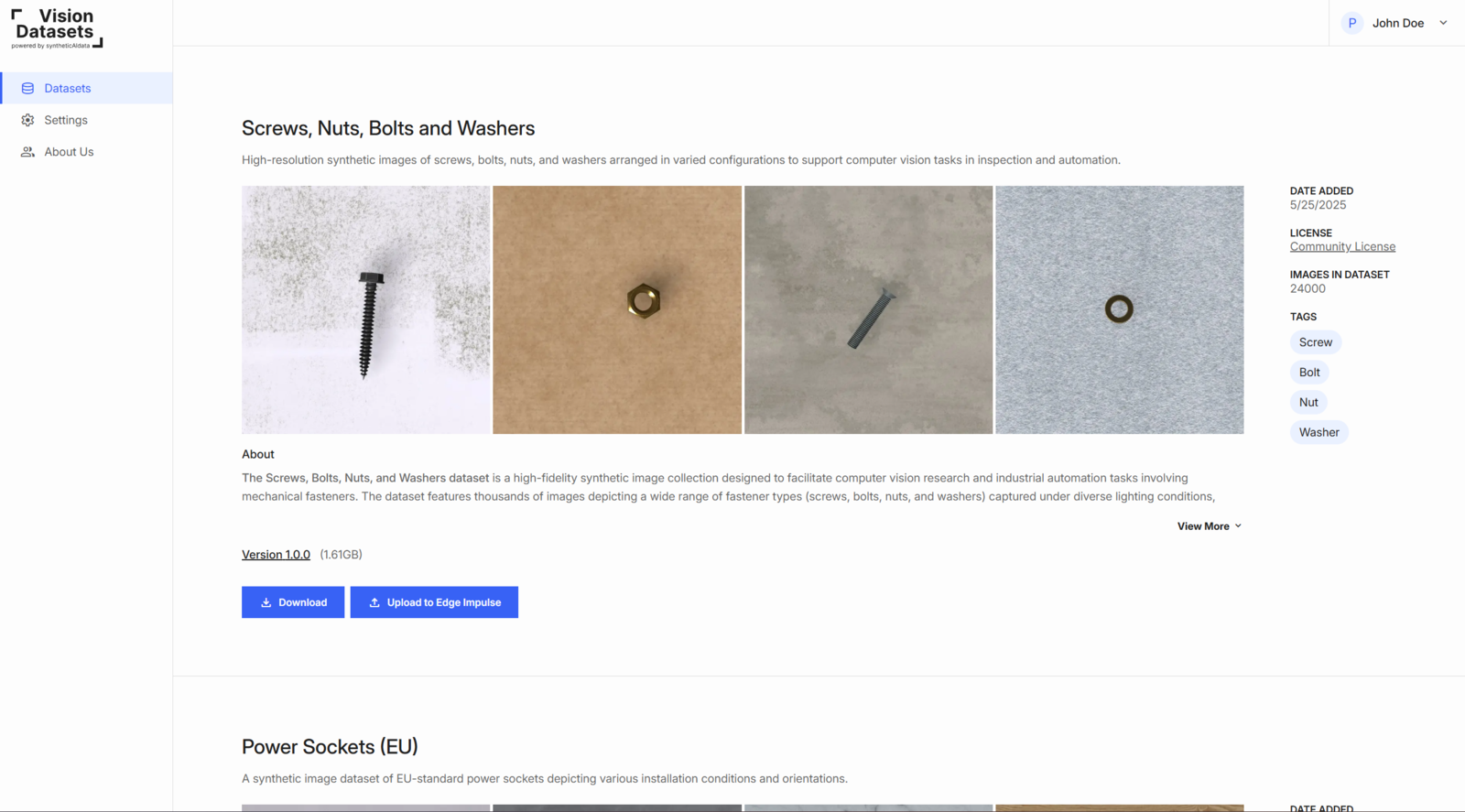 2. Browse or search for a relevant dataset.
* Each dataset card shows:
* Description, preview images, image count, file size, classes, version, license
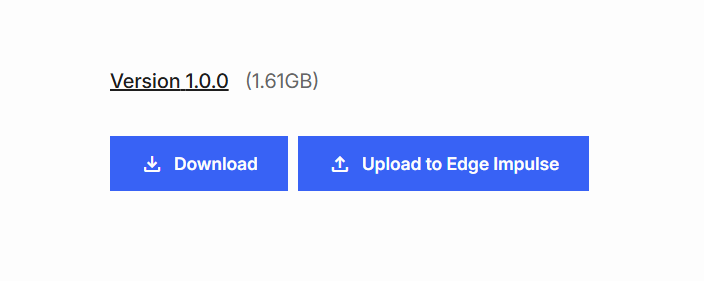
3. Click **Upload to Edge Impulse** on your chosen dataset.
2. Browse or search for a relevant dataset.
* Each dataset card shows:
* Description, preview images, image count, file size, classes, version, license
3. Click **Upload to Edge Impulse** on your chosen dataset.
 4. In the popup, provide:
* **Edge Impulse API Key**
* Find it in your Edge Impulse project:
`Dashboard` → `Keys` → `API Keys`
* **Image volume** (number of images to upload)
* **Image resolution** (e.g., 96×96, 320×320, 512×512)
* **Classes to include** (select one or more)
4. In the popup, provide:
* **Edge Impulse API Key**
* Find it in your Edge Impulse project:
`Dashboard` → `Keys` → `API Keys`
* **Image volume** (number of images to upload)
* **Image resolution** (e.g., 96×96, 320×320, 512×512)
* **Classes to include** (select one or more)
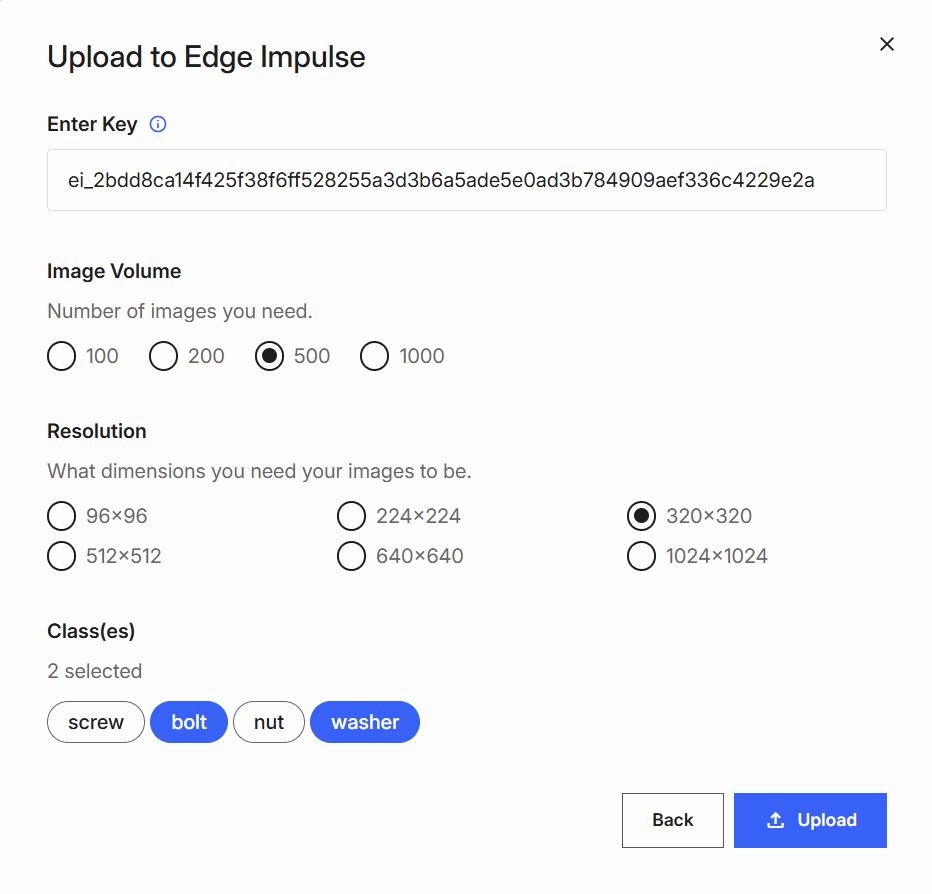 Example: Selecting 500 images and 2 classes uploads 1,000 images (500 per class).\*
5. Click **Upload** to start the transfer.
6. After upload, you’ll see a success confirmation.
Example: Selecting 500 images and 2 classes uploads 1,000 images (500 per class).\*
5. Click **Upload** to start the transfer.
6. After upload, you’ll see a success confirmation.
 All data appears under **Data Acquisition** in Edge Impulse, pre-labeled and ready to use.
You can also use **Download** to export the dataset locally for inspection.
## Review and verify data in Edge Impulse
1. Go to [Edge Impulse Studio](https://studio.edgeimpulse.com) and open your project.
2. Navigate to **Data Acquisition**.
3. Review your uploaded images:
* Correct labels (per selected class)
* Selected resolution
* Training/testing split
4. Use filters or search to explore specific classes or subsets.
5. Click any image to preview.
All data appears under **Data Acquisition** in Edge Impulse, pre-labeled and ready to use.
You can also use **Download** to export the dataset locally for inspection.
## Review and verify data in Edge Impulse
1. Go to [Edge Impulse Studio](https://studio.edgeimpulse.com) and open your project.
2. Navigate to **Data Acquisition**.
3. Review your uploaded images:
* Correct labels (per selected class)
* Selected resolution
* Training/testing split
4. Use filters or search to explore specific classes or subsets.
5. Click any image to preview.
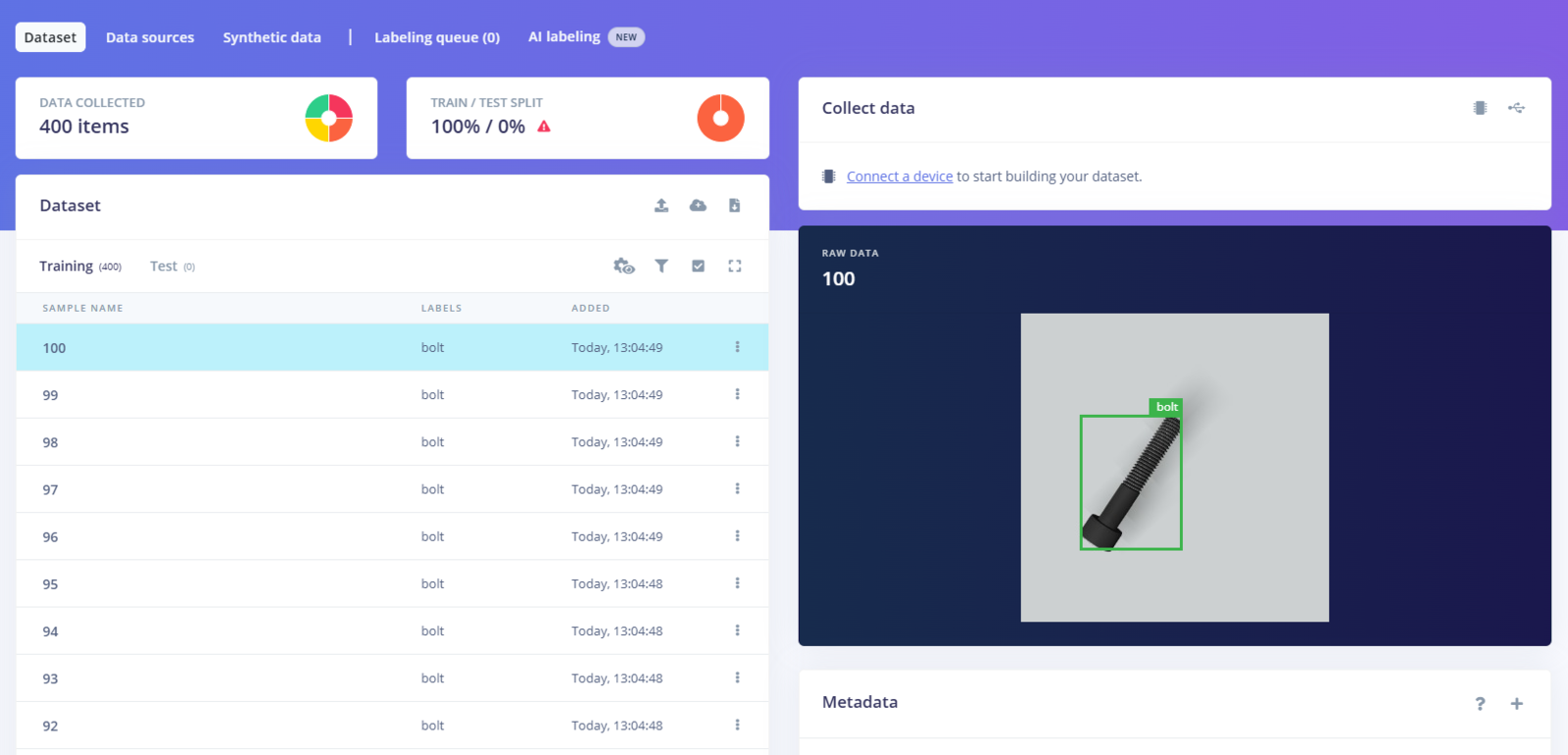 Verifying your data ensures high-quality inputs for your pipeline.
To rebalance or modify your dataset, repeat the upload or manually add/remove data.
You can repeat uploads with different classes, resolutions, or volumes anytime from Vision Datasets.
## Summary
By combining the breadth of **Vision Datasets** with the edge-deployment power of **Edge Impulse**, you can go from zero images to a fully-trained, device-ready model in record time. Try the integration yourself and let us know what you build!
Head over to **[visiondatasets.com](https://visiondatasets.com)**, grab a free sample, and start building computer-vision models faster than ever.
## Next steps: building a machine learning model
With everything set up you can now build your first machine learning model with these tutorials:
* [Keyword spotting](/tutorials/end-to-end/keyword-spotting)
* [Sound recognition](/tutorials/end-to-end/sound-recognition)
* [Image classification](/tutorials/end-to-end/image-classification/)
* [Detect objects with bounding boxes](/tutorials/end-to-end/object-detection-bounding-boxes)
* [Detect objects with centroids (FOMO)](/tutorials/end-to-end/object-detection-centroids)
### Troubleshooting
If you encounter issues during the registration or upload process, here are some common troubleshooting steps:
**Unable to Register or Receive Confirmation Email**
* Check spam/junk folders.
* Ensure your email is correct.
* Resend the code or use a different email if needed.
**Edge Impulse API Key Not Accepted**
* Use an API key from your Edge Impulse project (`Dashboard` → `Keys` → `API Keys`).
* Remove extra spaces/characters.
* Generate a new API key if needed.
**Data Not Labeled in Edge Impulse Studio**
* In Edge Impulse Studio, go to **Dashboard**.
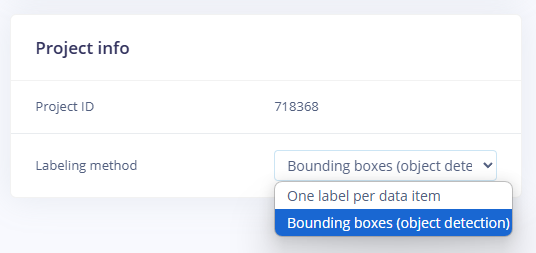
* On the **Project info** card, set **Labeling method** to *Bounding boxes (object detection)* for correct labeling and display.
Verifying your data ensures high-quality inputs for your pipeline.
To rebalance or modify your dataset, repeat the upload or manually add/remove data.
You can repeat uploads with different classes, resolutions, or volumes anytime from Vision Datasets.
## Summary
By combining the breadth of **Vision Datasets** with the edge-deployment power of **Edge Impulse**, you can go from zero images to a fully-trained, device-ready model in record time. Try the integration yourself and let us know what you build!
Head over to **[visiondatasets.com](https://visiondatasets.com)**, grab a free sample, and start building computer-vision models faster than ever.
## Next steps: building a machine learning model
With everything set up you can now build your first machine learning model with these tutorials:
* [Keyword spotting](/tutorials/end-to-end/keyword-spotting)
* [Sound recognition](/tutorials/end-to-end/sound-recognition)
* [Image classification](/tutorials/end-to-end/image-classification/)
* [Detect objects with bounding boxes](/tutorials/end-to-end/object-detection-bounding-boxes)
* [Detect objects with centroids (FOMO)](/tutorials/end-to-end/object-detection-centroids)
### Troubleshooting
If you encounter issues during the registration or upload process, here are some common troubleshooting steps:
**Unable to Register or Receive Confirmation Email**
* Check spam/junk folders.
* Ensure your email is correct.
* Resend the code or use a different email if needed.
**Edge Impulse API Key Not Accepted**
* Use an API key from your Edge Impulse project (`Dashboard` → `Keys` → `API Keys`).
* Remove extra spaces/characters.
* Generate a new API key if needed.
**Data Not Labeled in Edge Impulse Studio**
* In Edge Impulse Studio, go to **Dashboard**.
* On the **Project info** card, set **Labeling method** to *Bounding boxes (object detection)* for correct labeling and display.