> ## Documentation Index
> Fetch the complete documentation index at: https://docs.edgeimpulse.com/llms.txt
> Use this file to discover all available pages before exploring further.
# AngleNorm: consistent image angles with Qwen Image Edit
> Normalize project images to consistent camera angles with AngleNorm synthetic data blocks and the Hugging Face Space.
**[AngleNorm](https://huggingface.co/spaces/eoinedge/AngleNorm)** uses the **[Qwen Image Edit](https://huggingface.co/Qwen/Qwen-Image-Edit-2509)** multi-angle model to re-render images from new camera angles. It helps turn inconsistent real-world captures into a visually consistent dataset, such as a cube dataset normalized to a camera-aligned 45-degree viewpoint. You can use it in two ways:
* A public **Hugging Face Space** you can use interactively or call as an API (great for robotic-arm capture rigs).
* An **Edge Impulse custom synthetic data block** that normalizes images already in your project to a single, consistent angle. The source is public at **[github.com/edgeimpulse/AngleNorm](https://github.com/edgeimpulse/AngleNorm)**.
 This integration is part of the broader **[Edge Impulse on Hugging Face](https://huggingface.co/edgeimpulse)** landing page, which collects impulses running in WebAssembly (WASM) alongside dataset generators like this one.
## Why normalize camera angles?
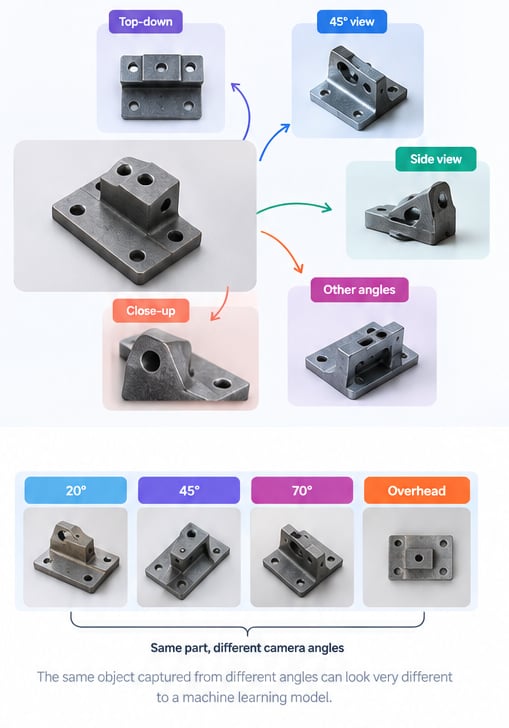
When you collect training images by hand with phones, webcams, a robotic-arm camera, or different operators, the same object shows up at wildly different viewpoints. That variation is often *noise*, not *signal*: for a fixed inspection station you really want every sample from the same canonical angle so the model learns the object (for example, cube faces), not the camera pose.
AngleNorm uses Qwen Image Edit to re-photograph each object from a chosen viewpoint. You can:
* **Normalize** an existing dataset to one consistent angle (the Edge Impulse block).
* **Expand** one capture into many viewpoints to bootstrap perception before you have real data (the Space's `grab_viewpoints` API).
Use this data-engineering step before training to normalize viewpoints, reduce capture bias, and align your dataset with the production camera geometry.
## From Hugging Face to edge devices
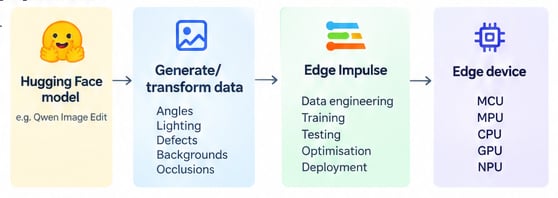
AngleNorm is one part of an edge AI workflow. You can use a Hugging Face model to generate or transform data, prepare and train your model in Edge Impulse, then deploy it to the target device.
This integration is part of the broader **[Edge Impulse on Hugging Face](https://huggingface.co/edgeimpulse)** landing page, which collects impulses running in WebAssembly (WASM) alongside dataset generators like this one.
## Why normalize camera angles?
When you collect training images by hand with phones, webcams, a robotic-arm camera, or different operators, the same object shows up at wildly different viewpoints. That variation is often *noise*, not *signal*: for a fixed inspection station you really want every sample from the same canonical angle so the model learns the object (for example, cube faces), not the camera pose.
AngleNorm uses Qwen Image Edit to re-photograph each object from a chosen viewpoint. You can:
* **Normalize** an existing dataset to one consistent angle (the Edge Impulse block).
* **Expand** one capture into many viewpoints to bootstrap perception before you have real data (the Space's `grab_viewpoints` API).
Use this data-engineering step before training to normalize viewpoints, reduce capture bias, and align your dataset with the production camera geometry.
## From Hugging Face to edge devices
AngleNorm is one part of an edge AI workflow. You can use a Hugging Face model to generate or transform data, prepare and train your model in Edge Impulse, then deploy it to the target device.
 AngleNorm runs the real Qwen Image Edit model on Hugging Face **ZeroGPU**, so neither the Space nor the Edge Impulse block needs a local GPU. The model stack is `Qwen/Qwen-Image-Edit-2509` with the `linoyts/Qwen-Image-Edit-Rapid-AIO` transformer and the `dx8152/Qwen-Edit-2509-Multiple-angles` LoRA.
The [AngleNorm block](https://github.com/edgeimpulse/AngleNorm) is a [custom synthetic data block](/studio/organizations/custom-blocks/custom-synthetic-data-blocks) running in `standalone` mode. For every image already in your project it lists the sample, downloads it, sends it to the AngleNorm Space for the target angle, and uploads the re-rendered copy back through the Ingestion API so it previews on the **Synthetic data** tab.
```mermaid theme={"system"}
flowchart LR
A[Existing project images] -->|Studio API
AngleNorm runs the real Qwen Image Edit model on Hugging Face **ZeroGPU**, so neither the Space nor the Edge Impulse block needs a local GPU. The model stack is `Qwen/Qwen-Image-Edit-2509` with the `linoyts/Qwen-Image-Edit-Rapid-AIO` transformer and the `dx8152/Qwen-Edit-2509-Multiple-angles` LoRA.
The [AngleNorm block](https://github.com/edgeimpulse/AngleNorm) is a [custom synthetic data block](/studio/organizations/custom-blocks/custom-synthetic-data-blocks) running in `standalone` mode. For every image already in your project it lists the sample, downloads it, sends it to the AngleNorm Space for the target angle, and uploads the re-rendered copy back through the Ingestion API so it previews on the **Synthetic data** tab.
```mermaid theme={"system"}
flowchart LR
A[Existing project images] -->|Studio API
list + download| B(AngleNorm block)
B -->|source image + angle| C[AngleNorm Space
Qwen Image Edit · ZeroGPU]
C -->|re-rendered image| B
B -->|Ingestion API
x-synthetic-data-job-id| D[Synthetic data tab]
D --> E[Data acquisition]
```
Your original samples are never modified. Normalized copies are added with a `generated_by=anglenorm` metadata tag and a `label.angle_..png` filename, so they are easy to find or remove later.
## Prerequisites
* An [Edge Impulse](https://studio.edgeimpulse.com) account. Custom synthetic data blocks are an **Enterprise** feature. [Start a free trial](https://edgeimpulse.com/pricing) if needed.
* A project with some **images** already uploaded (the block normalizes what is there. See [Object detection](/tutorials/end-to-end/object-detection-bounding-boxes) or [Image classification](/tutorials/end-to-end/image-classification) to get started).
* The [Edge Impulse CLI](/tools/clis/edge-impulse-cli/installation) installed (`edge-impulse-blocks`).
* [Docker](https://docs.docker.com/get-docker/) installed if you want to test the block locally.
* Optional: a [Hugging Face account](https://huggingface.co/join) and token. It is only needed if you [duplicate the Space](https://huggingface.co/spaces/eoinedge/AngleNorm?duplicate=true) and make your copy private.
## Part 1: Try AngleNorm in the Space
Before wiring it into Edge Impulse, get a feel for the model in the [Space](https://huggingface.co/spaces/eoinedge/AngleNorm).
### Quick cubes example
If you are following the same setup as the blog post, use a conveyor-belt cubes workflow:
1. Capture a handful of cube photos from mixed viewpoints.
2. In AngleNorm, choose a **45°** target (for example `rotate_left_45`) to match your robotic-arm camera.
3. Generate normalized views and confirm the cube orientation is consistent.
4. Upload to Edge Impulse and train with the cleaner 45°-normalized set.
This gives you a direct before-and-after comparison of mixed camera angles and normalized 45-degree cube images.
1. Open the **🤖 Grab viewpoints** tab.
2. Upload one source image.
3. Pick one or more **angles** (top-down, bird's-eye, rotations, close-up, …).
4. Click **Grab viewpoints** and review the gallery.
1. Open the **Build dataset** tab.
2. Add one or more **classes** with a label and source images.
3. Choose the angles and augmentations, then click **Build dataset**.
4. Optionally push the result to a Hugging Face dataset repository, upload it to your Edge Impulse project, or download the ZIP file.
A capture rig (or any script) can pull a series of viewpoints per object using the [`gradio_client`](https://www.gradio.app/guides/getting-started-with-the-python-client):
```python theme={"system"}
from gradio_client import Client, handle_file
client = Client("eoinedge/AngleNorm") # add hf_token=... for a private Space
views = client.predict(
handle_file("cube.jpg"),
["rotate_left_45", "top_down", "birds_eye", "close_up"],
1234, # seed
512, # image size (longest side)
"", # HF token for the Space's serverless backend (unused on ZeroGPU)
api_name="/grab_viewpoints",
)
# `views` is a list of generated viewpoint images the arm can save into a dataset.
```
## Part 2: Add the synthetic data block to Edge Impulse
### 1. Get the block source
```bash theme={"system"}
git clone https://github.com/edgeimpulse/AngleNorm.git
cd AngleNorm
```
The repository contains everything the block needs:
| File | Purpose |
| ------------------ | ----------------------------------------------------------------- |
| `transform.py` | Lists, downloads, re-renders, and re-uploads your images. |
| `parameters.json` | Declares the block type (`synthetic-data`) and its UI parameters. |
| `Dockerfile` | `python:3.11-slim` image with Pillow's runtime libs. |
| `requirements.txt` | `gradio_client`, `requests`, `pillow`. |
### 2. Review the parameters
The block exposes these options on the Synthetic data tab (from `parameters.json`):
| Parameter | Description |
| ---------------------- | --------------------------------------------------------------------------------------------------------------------------------------------------------------------------------------------- |
| **Angle preset** | Target angle every source image is re-rendered to: `top_down`, `birds_eye`, `worms_eye`, `rotate_left_45/90`, `rotate_right_45/90`, `close_up`, `wide_angle`, `move_left/right/forward/down`. |
| **AngleNorm Space** | Hugging Face Space id running the model (default `eoinedge/AngleNorm`). |
| **Hugging Face token** | Secret. Only needed if you point the block at a **private** Space copy. |
| **Output image size** | Longest side of the normalized image, in pixels (default `512`). |
| **Source category** | Which existing images to normalize: `training`, `testing`, or `all`. |
| **Upload to category** | Where results go: `same` as source, `split` 80/20, `training`, or `testing`. |
| **Only these labels** | Optional comma-separated label filter (blank = all). |
| **Max images** | Cap the number of images processed (`0` = no limit). |
| **Seed** | Generation seed for reproducible renders. |
Edge Impulse automatically passes `--synthetic-data-job-id` to the block. `transform.py` forwards it as the `x-synthetic-data-job-id` header on every upload, which is what makes the generated samples preview live on the Synthetic data tab.
### 3. (Optional) Test the block locally
Synthetic data blocks are **not** supported by `edge-impulse-blocks runner`, so build and run the container directly. Use a project that already has a few images and pass the values Edge Impulse would normally inject:
Set the environment variables in your shell instead of pasting keys into commands or source control. Find your keys in **Dashboard → Keys** in Edge Impulse Studio.
```bash theme={"system"}
docker build -t anglenorm-synthetic .
docker run --rm \
-e EI_PROJECT_ID="$EI_PROJECT_ID" \
-e EI_PROJECT_API_KEY="$EI_PROJECT_API_KEY" \
-e EI_API_ENDPOINT="https://studio.edgeimpulse.com/v1" \
-e EI_INGESTION_HOST="edgeimpulse.com" \
anglenorm-synthetic \
--synthetic-data-job-id 0 \
--angle rotate_left_45 --source-category training --upload-category training \
--max-samples 3
```
You should see three of your training images (for example, cube samples) re-rendered at 45° and uploaded back to the project.
### 4. Push the block to Edge Impulse
From the repository folder, initialize and push:
```bash theme={"system"}
edge-impulse-blocks init # when prompted, choose: Synthetic data block
edge-impulse-blocks push
```
The Hugging Face token is exposed as a secret parameter and can be left blank for the public Space.
### 5. Run it from the Synthetic data tab
1. Open your project and go to **Data acquisition → Synthetic data**.
2. Select the **AngleNorm** block.
3. Choose your **Angle preset** (for example, `rotate_left_45` to match a downward-angled robotic arm), the **Source** and **Upload** categories, and optionally a **label filter** or **Max images** while you test.
4. Click **Generate data** and watch the previews appear.
Screenshot placeholder: add a capture of an active Synthetic data run (with live previews).
### 6. Verify the normalized data
Go to **Data acquisition** and filter for the new samples (their filenames start with `label.angle_.`). Confirm the angle is consistent and the labels carried over, then retrain your impulse on the cleaner, consistent dataset.
Screenshot placeholder: add a capture of the normalized samples in Data acquisition.
## Tips and best practices
* **Start small.** Use **Max images** and a **label filter** to validate the look on a handful of samples before running the whole dataset.
* **Keep originals as a fallback.** The block never edits your source samples, so you can compare models trained on raw and normalized data.
* **Pick one canonical angle per project.** Match the production camera geometry first. If your arm camera sits at \~45° over a conveyor belt, normalize to `rotate_left_45`/`rotate_right_45`; use `top_down` when the real camera is truly overhead.
* **Validate against reality.** Synthetic viewpoints are a great bootstrap, but confirm with real captures from your device's own camera before deploying.
* **Mind the licenses.** AngleNorm is `CC BY 4.0`; verify your use of the underlying Qwen models complies with their licenses.
## Troubleshooting
**"This endpoint requires a project API Key"**
The Studio read endpoints reject organization keys. The block uses `EI_PROJECT_API_KEY` for both reading and ingestion. Make sure a project key is set.
**No images processed**
Check that the **Source category** actually contains images, and that your **label filter** matches existing labels. The block only sees `image` data.
**Space is slow or busy**
ZeroGPU is shared. Re-run, lower the **Output image size**, or [duplicate the Space](https://huggingface.co/spaces/eoinedge/AngleNorm?duplicate=true) onto your own hardware and point the **AngleNorm Space** parameter at your copy.
**Private Space copy**
If you duplicated the Space and made it private, paste a Hugging Face token into the block's **Hugging Face token** secret so it can authenticate.
## Next steps
With a consistent dataset, build and deploy a model:
* [Image classification](/tutorials/end-to-end/image-classification)
* [Detect objects with bounding boxes](/tutorials/end-to-end/object-detection-bounding-boxes)
* [Detect objects with centroids (FOMO)](/tutorials/end-to-end/object-detection-centroids)
* [Custom synthetic data blocks](/studio/organizations/custom-blocks/custom-synthetic-data-blocks): build your own generator
## Additional resources
* [AngleNorm block source](https://github.com/edgeimpulse/AngleNorm)
* [AngleNorm Hugging Face Space](https://huggingface.co/spaces/eoinedge/AngleNorm)
* [Edge Impulse on Hugging Face](https://huggingface.co/edgeimpulse)
* [Synthetic data](/studio/projects/data-acquisition/synthetic-data)
* [Ingestion API](/apis/ingestion)
## Explore more on Hugging Face
Explore the [Edge Impulse organization on Hugging Face](https://huggingface.co/edgeimpulse) for more examples, models, datasets, and Spaces.