> ## Documentation Index
> Fetch the complete documentation index at: https://docs.edgeimpulse.com/llms.txt
> Use this file to discover all available pages before exploring further.
# Arduino Machine Learning Tools
Arduino and Edge Impulse have partnered to bring machine learning tools to all Arduino Cloud users with a branded and integrated experience.
The video below contains an example of the full workflow to train a keyword spotting and to run the model on the Arduino Nano 33 BLE Sense using Arduino ML Tools solution:
### SSO (Single Sign On)
**Arduino Pro users**
Arduino Pro users will benefit a 60-min per job limit instead of the default 20-min per job limit.
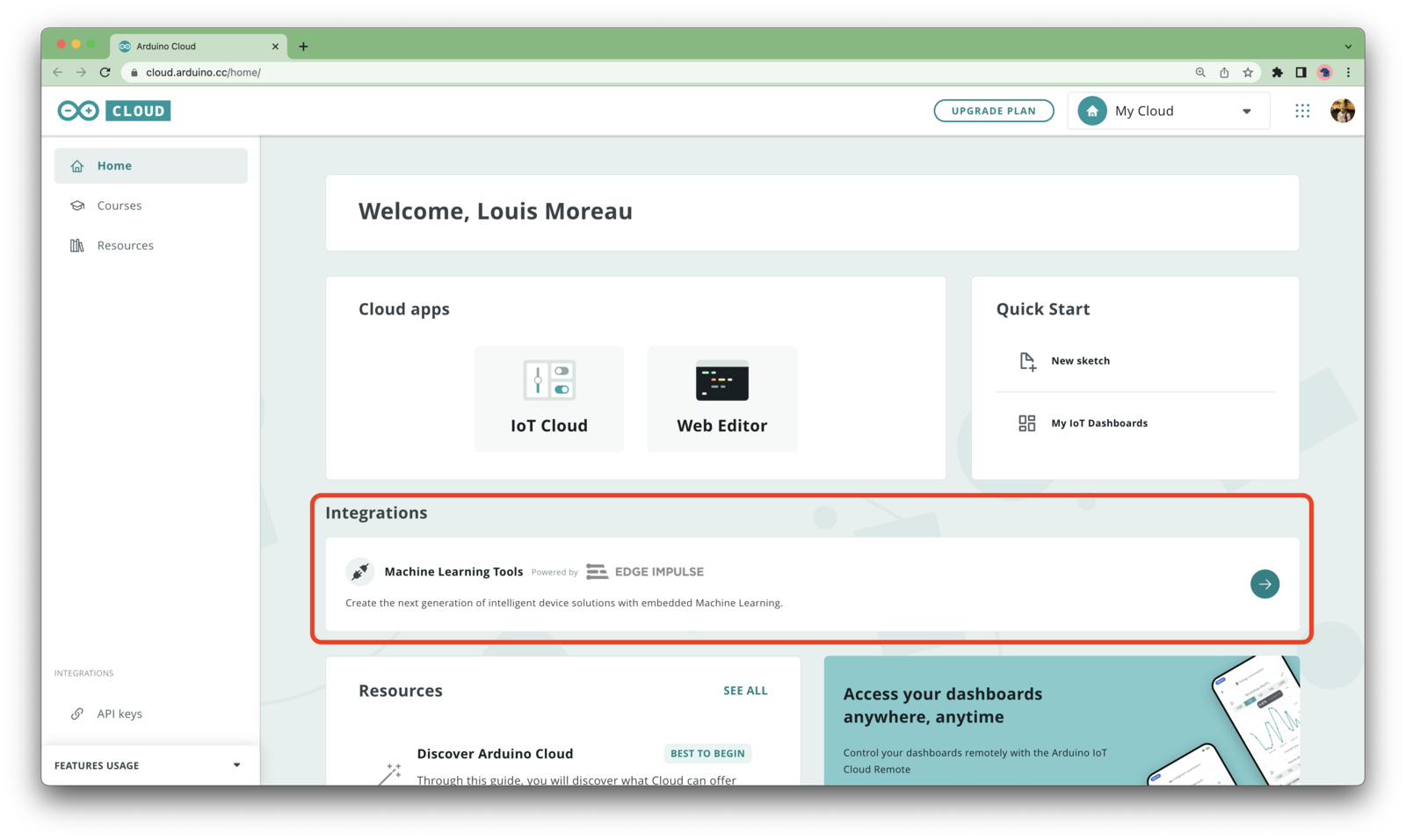
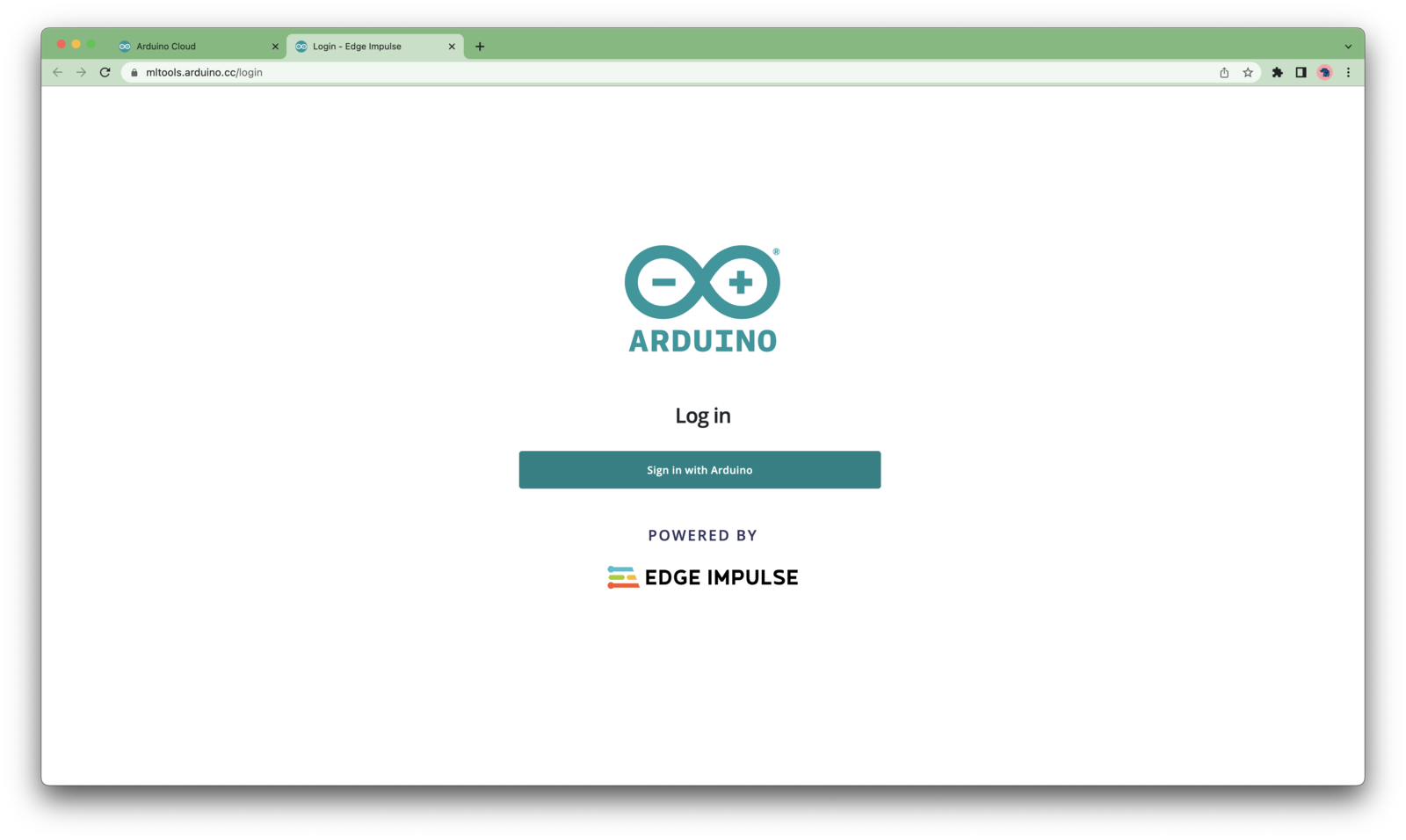
You can log in the ML Tools platform using your Arduino Cloud credentials. To access the Arduino Machine Learning Tools platform, either go to [cloud.arduino.cc](https://cloud.arduino.cc/home/) or [mltools.arduino.cc](https://mltools.arduino.cc).
 ### Create and build a machine learning project
To create a new project, click on your profile picture in the upper right corner and select **+ Create new project**.
### Create and build a machine learning project
To create a new project, click on your profile picture in the upper right corner and select **+ Create new project**.
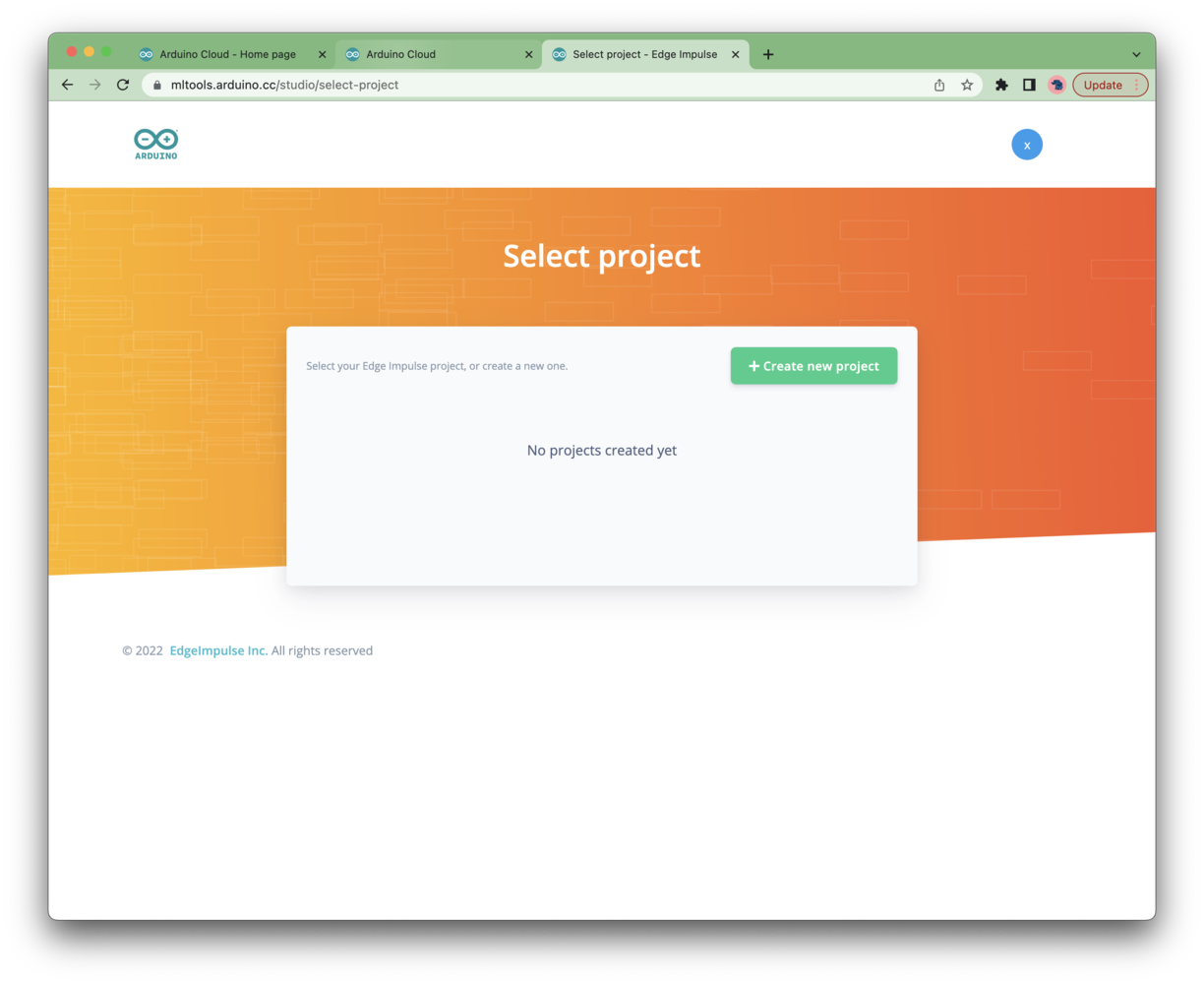 Once you create a project, select the project type you want to build using the helper. You will then arrive on your project's **Dashboard**:
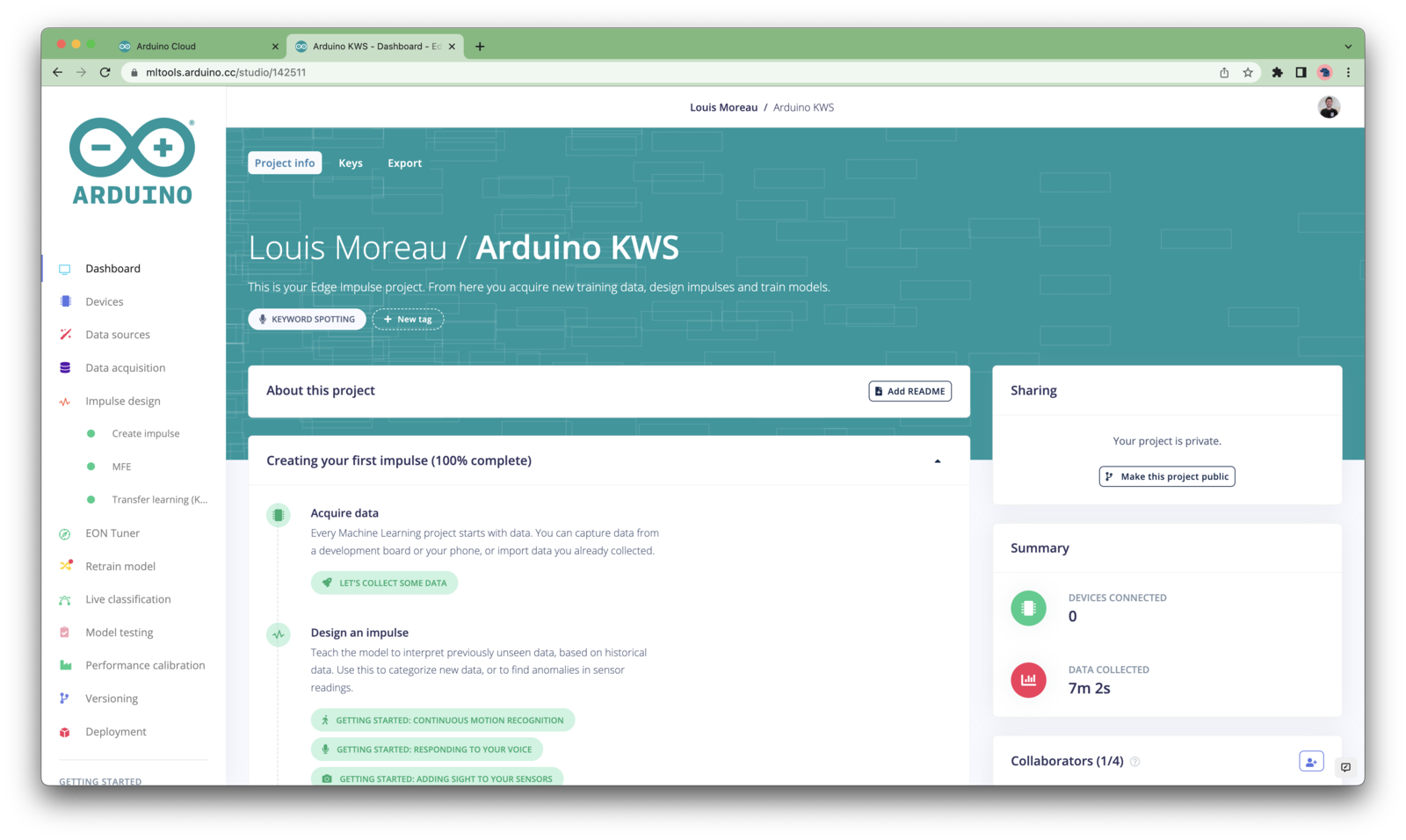 You can also select which board you are using on the **Project Info** card, in the bottom-right corner.
The following boards are supported in Arduino ML Tools:
* [Arduino Nano 33 BLE Sense](/hardware/boards/arduino-nano-33-ble-sense)
* [Arduino Nicla Vision](/hardware/boards/arduino-nicla-vision)
* [Arduino Portenta H7 + Vision Shield](/hardware/boards/arduino-portenta-h7)
* [Arduino Nicla Sense ME](/hardware/boards/arduino-nicla-sense-me)\*
\**(only using the ingestion sketch and arduino library deployment, latency calculations may not be available)*
With everything set up you can now build your first machine learning model with these tutorials:
* [Keyword spotting](/tutorials/end-to-end/keyword-spotting)
* [Sound recognition](/tutorials/end-to-end/sound-recognition)
* [Image classification](/tutorials/end-to-end/image-classification/)
* [object detection](/tutorials/end-to-end/object-detection-bounding-boxes).
* [Object detection with centroids (FOMO)](/tutorials/end-to-end/object-detection-centroids)
Looking to connect different sensors? The [Data forwarder](/tools/clis/edge-impulse-cli/data-forwarder) lets you easily send data from any sensor into Edge Impulse.
### Deployment
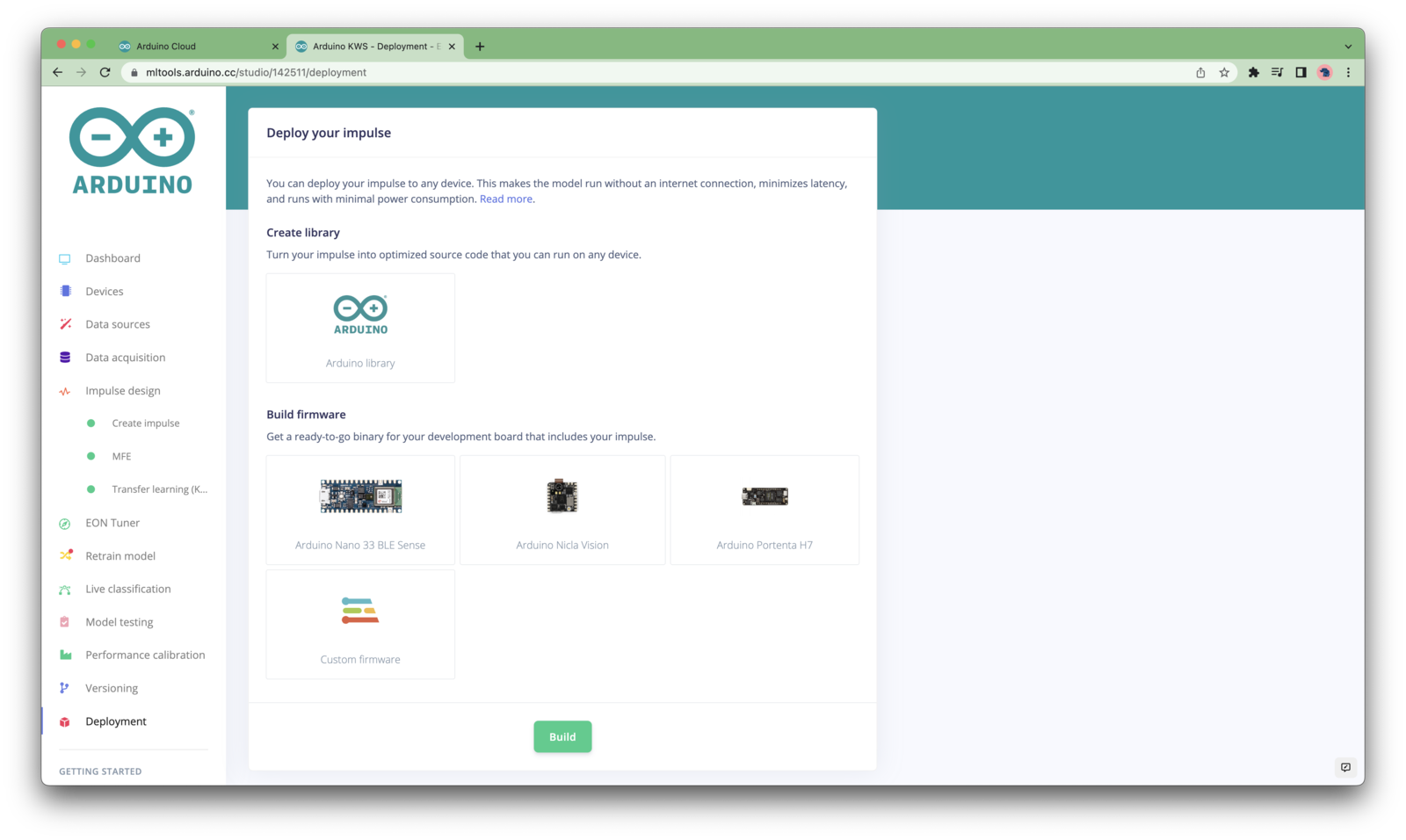
Once your project is ready, you can either download an [Arduino library](/hardware/deployments/run-arduino-2-0) or a [ready-to-use firmware](/hardware/deployments/run-ei-fw)
You can also select which board you are using on the **Project Info** card, in the bottom-right corner.
The following boards are supported in Arduino ML Tools:
* [Arduino Nano 33 BLE Sense](/hardware/boards/arduino-nano-33-ble-sense)
* [Arduino Nicla Vision](/hardware/boards/arduino-nicla-vision)
* [Arduino Portenta H7 + Vision Shield](/hardware/boards/arduino-portenta-h7)
* [Arduino Nicla Sense ME](/hardware/boards/arduino-nicla-sense-me)\*
\**(only using the ingestion sketch and arduino library deployment, latency calculations may not be available)*
With everything set up you can now build your first machine learning model with these tutorials:
* [Keyword spotting](/tutorials/end-to-end/keyword-spotting)
* [Sound recognition](/tutorials/end-to-end/sound-recognition)
* [Image classification](/tutorials/end-to-end/image-classification/)
* [object detection](/tutorials/end-to-end/object-detection-bounding-boxes).
* [Object detection with centroids (FOMO)](/tutorials/end-to-end/object-detection-centroids)
Looking to connect different sensors? The [Data forwarder](/tools/clis/edge-impulse-cli/data-forwarder) lets you easily send data from any sensor into Edge Impulse.
### Deployment
Once your project is ready, you can either download an [Arduino library](/hardware/deployments/run-arduino-2-0) or a [ready-to-use firmware](/hardware/deployments/run-ei-fw)
 ### Share your project
Once you are happy with the results, please share your project publicly and let everyone knows about it:
### Share your project
Once you are happy with the results, please share your project publicly and let everyone knows about it:
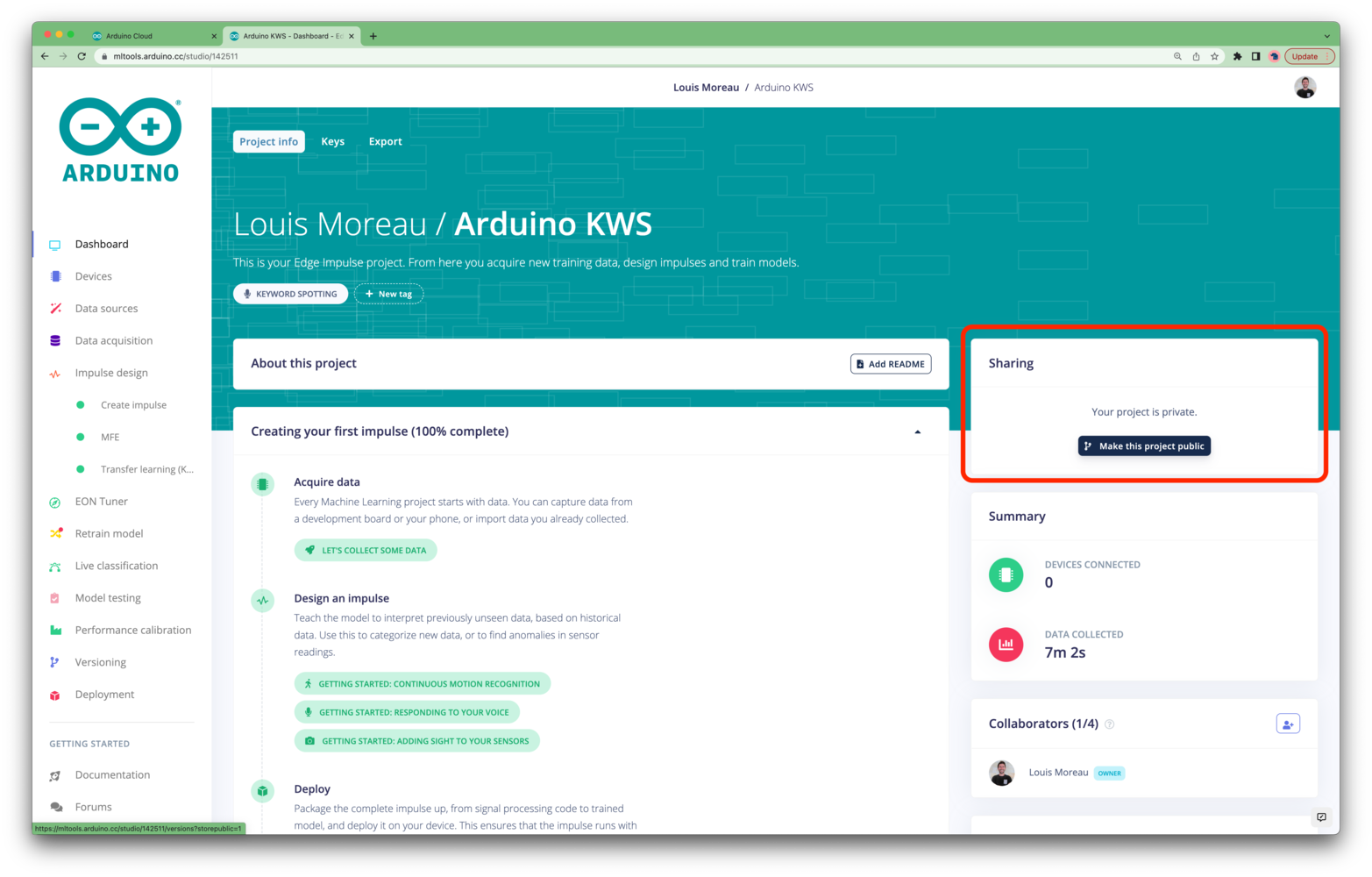 Here is an example of the public project made after from the video at the top of this page: [Arduino KWS public project](https://mltools.arduino.cc/public/142511/latest).
### Use the Edge Impulse CLI
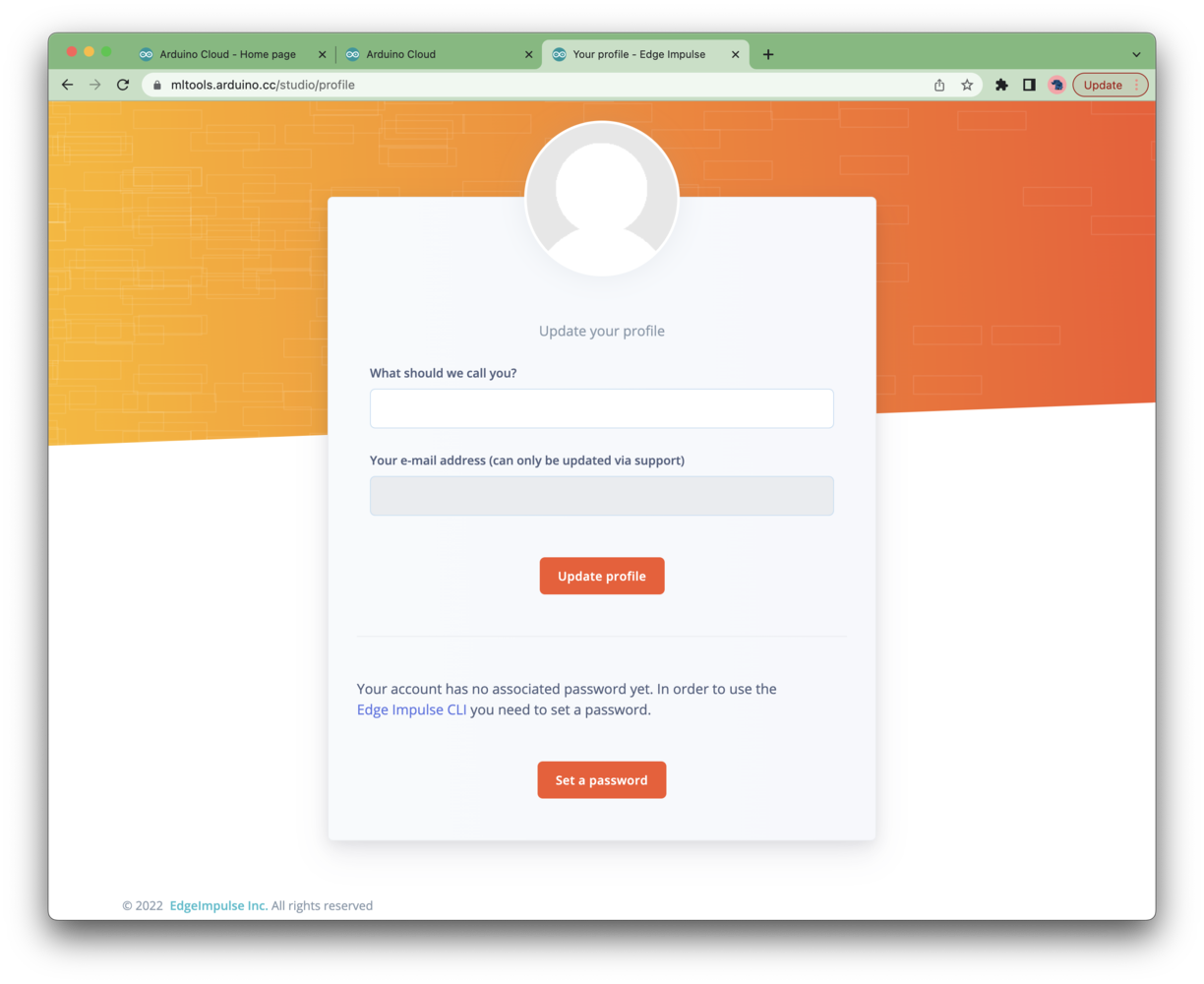
By default, no password is set for your user profile as you have logged using Arduino Cloud SSO. If you want to use [Edge Impulse CLI](/tools/clis/edge-impulse-cli), you need to set a password. To do so, click on **Your profile** from the upper-right corner menu:
Here is an example of the public project made after from the video at the top of this page: [Arduino KWS public project](https://mltools.arduino.cc/public/142511/latest).
### Use the Edge Impulse CLI
By default, no password is set for your user profile as you have logged using Arduino Cloud SSO. If you want to use [Edge Impulse CLI](/tools/clis/edge-impulse-cli), you need to set a password. To do so, click on **Your profile** from the upper-right corner menu: