> ## Documentation Index
> Fetch the complete documentation index at: https://docs.edgeimpulse.com/llms.txt
> Use this file to discover all available pages before exploring further.
# Avnet RASynBoard - motion recognition
> Recognize gestures with a neural network on the Avnet RASynBoard (Renesas RA6 + Syntiant NDP 120) using Edge Impulse.
export const CardOpenStudioTutorial = ({href}) =>
Skip the setup: clone a ready-to-use Edge Impulse project with the dataset, impulse, and trained model.
;
**Keyword spotting**
This tutorial is for the Avnet RASynBoard hardware only [Avnet RASynBoard (Renesas RA6 and Syntiant NDP 120)](/hardware/boards/avnet-rasynboard). For other development boards, you can follow the standard [Continuous Motion Recognition](/tutorials/end-to-end/motion-recognition) tutorial
In this tutorial, you'll use machine learning to build a gesture recognition system that runs on the RASynBoard. This is a hard task to solve using rule-based programming, as people don't perform gestures in the exact same way every time. But machine learning can handle these variations with ease. You'll learn how to collect high-frequency data from an IMU, build a neural network classifier, and how to deploy your model back to a device. At the end of this tutorial, you'll have a firm understanding of applying machine learning on RASynBoard using Edge Impulse.
## 1. Prerequisites
For this tutorial you'll need the:
* [Avnet RASynBoard (Renesas RA6 and Syntiant NDP 120)](/hardware/boards/avnet-rasynboard)
* An SD Card to perform IMU data acquisition
Follow the steps to connect your development board to Edge Impulse.
If your device is connected under Devices in the studio you can proceed:
 **Device compatibility**
Edge Impulse can ingest data from any device - including embedded devices that you already have in production. See the documentation for the [Ingestion API](/apis/ingestion) for more information.
## 2. Collecting your first data
With your device connected, we can collect some data. In the studio go to the **Data acquisition** tab. This is the place where all your raw data is stored, and - if your device is connected to the remote management API - where you can start sampling new data.
Under **Record new data**, select your device, set the label to `updown`, the sample length to `5000`, the sensor to `Inertial` and the frequency to `200Hz`. This indicates that you want to record data for 2 seconds, and label the recorded data as `updown`. You can later edit these labels if needed. You may increase the sample length to 10 seconds or more to collect more data in one session.
**Device compatibility**
Edge Impulse can ingest data from any device - including embedded devices that you already have in production. See the documentation for the [Ingestion API](/apis/ingestion) for more information.
## 2. Collecting your first data
With your device connected, we can collect some data. In the studio go to the **Data acquisition** tab. This is the place where all your raw data is stored, and - if your device is connected to the remote management API - where you can start sampling new data.
Under **Record new data**, select your device, set the label to `updown`, the sample length to `5000`, the sensor to `Inertial` and the frequency to `200Hz`. This indicates that you want to record data for 2 seconds, and label the recorded data as `updown`. You can later edit these labels if needed. You may increase the sample length to 10 seconds or more to collect more data in one session.
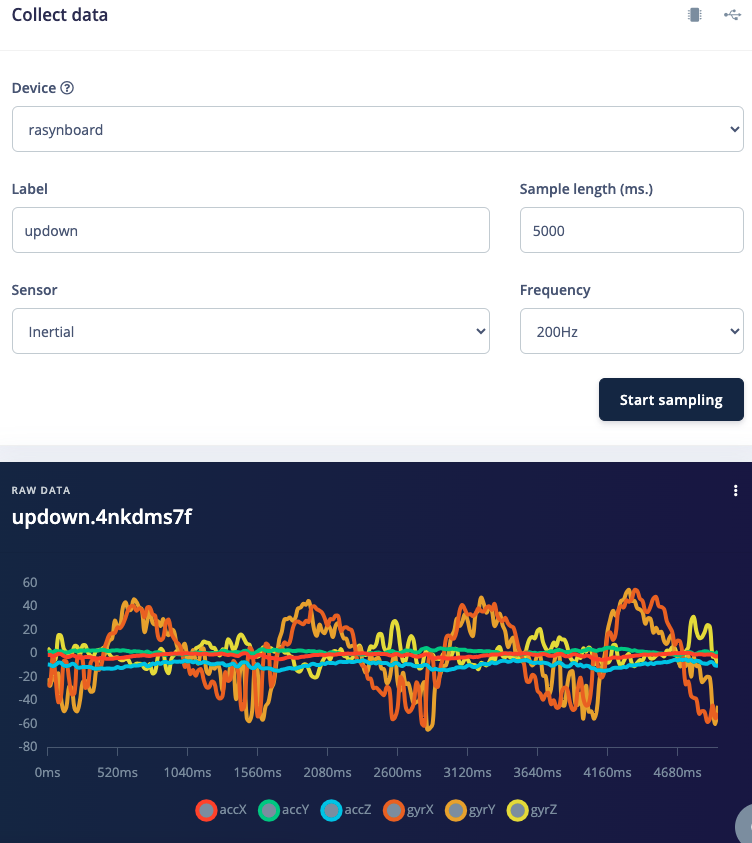 After you click **Start sampling** move your device in an Up/Down motion. Within a few seconds the device should complete sampling and upload the file back to Edge Impulse. You see a new line appear under 'Collected data' in the studio. When you click it you now see the raw data graphed out.
You may also follow [Avnet's videos for Using RASynBoard with Edge Impulse Data Ingestion](https://github.com/Avnet/RASynBoard-Out-of-Box-Demo/blob/rasynboard_v2_tiny/docs/RASynEdgeImpulseDataIngestion.md)
**Continuous movement**
It's important to do continuous movements as we'll later slice up the data in smaller windows. Make sure also to perform variations on the motions. E.g. do both slow and fast movements and vary the orientation of the board. You'll never know how your user will use the device.
Machine learning works best with lots of data, so a single sample won't cut it. Now is the time to start building your own dataset. For example, use the following classes, and record around 3 minutes of data per class:
* idle - just sitting on your desk while you're working.
* snake - moving the device over your desk as a snake.
* wave - waving the device from left to right.
* updown - moving the device up and down.
* Z\_Openset - random movements that are not circular
**Negative Class**
The Syntiant NDP chips require a negative class on which no predictions will occur, in our example this is the Z\_Openset class. Make sure the negative lass name is last in alphabetical order.
## 3. Designing an impulse
With the training set in place you can design an impulse. An impulse takes the raw data, slices it up in smaller windows, uses signal processing blocks to extract features, and then uses a learning block to classify new data. Signal processing blocks always return the same values for the same input and are used to make raw data easier to process, while learning blocks learn from past experiences.
For this tutorial we'll use the 'IMU Syntiant' signal processing block. This block rescales raw data to 8 bits values to match the NDP chip input requirements. Then we'll use a 'Neural Network' learning block, that takes these generated features and learns to distinguish between our different classes (circular or not).
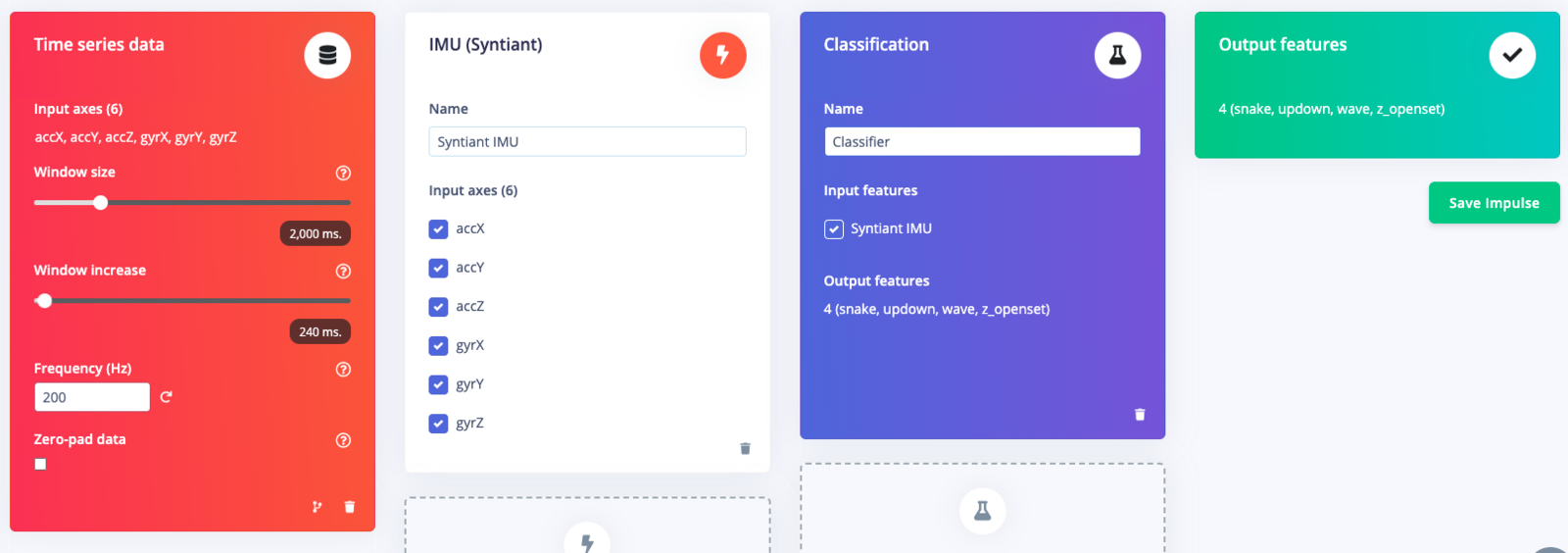
In the studio go to **Create impulse**, set the window size to `2000` (you can click on the `2000 ms.` text to enter an exact value), the window increase to `240`, the frequency to '200' and add the 'IMU Syntiant' and 'Classification (Keras)' blocks. Then click **Save impulse**.
After you click **Start sampling** move your device in an Up/Down motion. Within a few seconds the device should complete sampling and upload the file back to Edge Impulse. You see a new line appear under 'Collected data' in the studio. When you click it you now see the raw data graphed out.
You may also follow [Avnet's videos for Using RASynBoard with Edge Impulse Data Ingestion](https://github.com/Avnet/RASynBoard-Out-of-Box-Demo/blob/rasynboard_v2_tiny/docs/RASynEdgeImpulseDataIngestion.md)
**Continuous movement**
It's important to do continuous movements as we'll later slice up the data in smaller windows. Make sure also to perform variations on the motions. E.g. do both slow and fast movements and vary the orientation of the board. You'll never know how your user will use the device.
Machine learning works best with lots of data, so a single sample won't cut it. Now is the time to start building your own dataset. For example, use the following classes, and record around 3 minutes of data per class:
* idle - just sitting on your desk while you're working.
* snake - moving the device over your desk as a snake.
* wave - waving the device from left to right.
* updown - moving the device up and down.
* Z\_Openset - random movements that are not circular
**Negative Class**
The Syntiant NDP chips require a negative class on which no predictions will occur, in our example this is the Z\_Openset class. Make sure the negative lass name is last in alphabetical order.
## 3. Designing an impulse
With the training set in place you can design an impulse. An impulse takes the raw data, slices it up in smaller windows, uses signal processing blocks to extract features, and then uses a learning block to classify new data. Signal processing blocks always return the same values for the same input and are used to make raw data easier to process, while learning blocks learn from past experiences.
For this tutorial we'll use the 'IMU Syntiant' signal processing block. This block rescales raw data to 8 bits values to match the NDP chip input requirements. Then we'll use a 'Neural Network' learning block, that takes these generated features and learns to distinguish between our different classes (circular or not).
In the studio go to **Create impulse**, set the window size to `2000` (you can click on the `2000 ms.` text to enter an exact value), the window increase to `240`, the frequency to '200' and add the 'IMU Syntiant' and 'Classification (Keras)' blocks. Then click **Save impulse**.
 ### Configuring the IMU Syntiant block
To configure your signal processing block, click **Syntiant IMU** in the menu on the left. This will show you the raw data on top of the screen (you can select other files via the drop down menu), and the processed features on the right.
The `Scale 16 bits to 8 bits (Raw)` converts your raw data to 8 bits and normalize it to the range \[-1, 1].
Click **Save parameters**. This will send you to the 'Feature generation' screen.
Click **Generate features** to start the process.
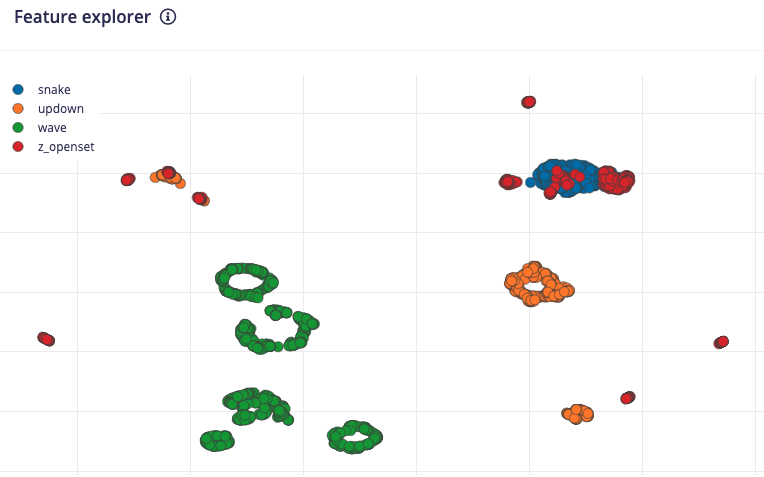
Afterwards the 'Feature explorer' will load. This is a plot of all the extracted features against all the generated windows. You can use this graph to compare your complete data set. A good rule of thumb is that if you can visually separate the data on a number of axes, then the machine learning model will be able to do so as well.
### Configuring the IMU Syntiant block
To configure your signal processing block, click **Syntiant IMU** in the menu on the left. This will show you the raw data on top of the screen (you can select other files via the drop down menu), and the processed features on the right.
The `Scale 16 bits to 8 bits (Raw)` converts your raw data to 8 bits and normalize it to the range \[-1, 1].
Click **Save parameters**. This will send you to the 'Feature generation' screen.
Click **Generate features** to start the process.
Afterwards the 'Feature explorer' will load. This is a plot of all the extracted features against all the generated windows. You can use this graph to compare your complete data set. A good rule of thumb is that if you can visually separate the data on a number of axes, then the machine learning model will be able to do so as well.
 ### Configuring the neural network
With all data processed it's time to start training a neural network. Neural networks are algorithms, modeled loosely after the human brain, that can learn to recognize patterns that appear in their training data. The network that we're training here will take the processing block features as an input, and try to map this to the classes — 'updown', 'wave', 'snake', 'idle', or 'z\_openset'.
Click on **NN Classifier** in the left hand menu. You'll see the following page:
### Configuring the neural network
With all data processed it's time to start training a neural network. Neural networks are algorithms, modeled loosely after the human brain, that can learn to recognize patterns that appear in their training data. The network that we're training here will take the processing block features as an input, and try to map this to the classes — 'updown', 'wave', 'snake', 'idle', or 'z\_openset'.
Click on **NN Classifier** in the left hand menu. You'll see the following page:
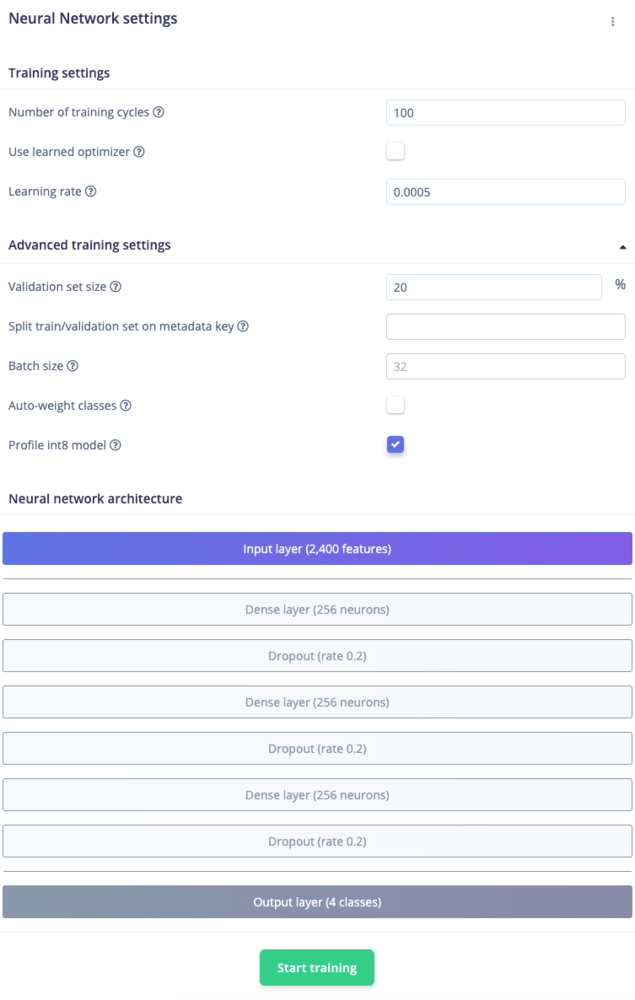 With everything in place, click **Start training**. When it's complete, you'll see the *Last training performance* panel appear at the bottom of the page:
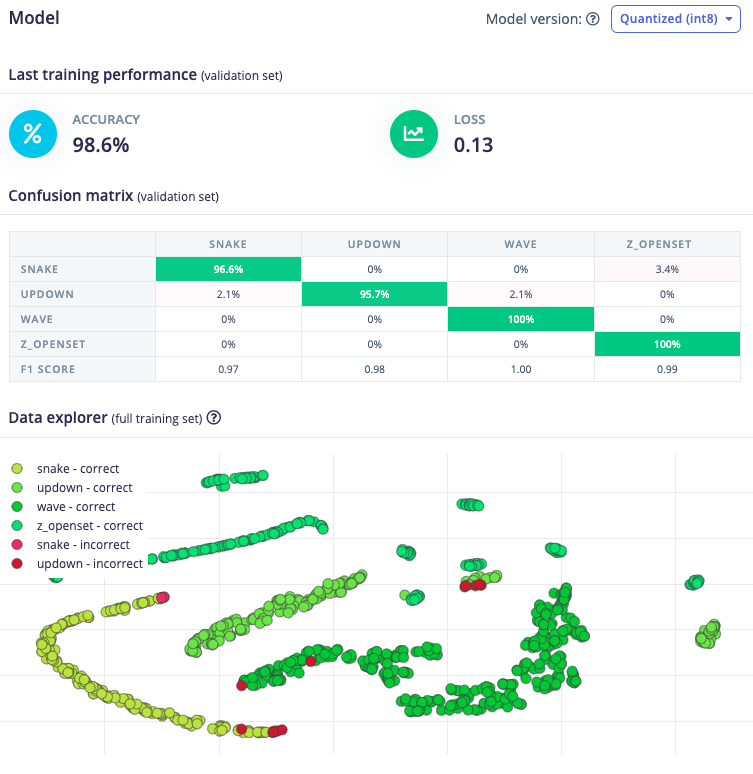 Congratulations, you've trained a neural network with Edge Impulse and ready to deploy on Syntiant hardware! But what do all these numbers mean?
At the start of training, 20% of the training data is set aside for *validation*. This means that instead of being used to train the model, it is used to evaluate how the model is performing. The *Last training performance* panel displays the results of this validation, providing some vital information about your model and how well it is working. Bear in mind that your exact numbers may differ from the ones in this tutorial.
On the left hand side of the panel, *Accuracy* refers to the percentage of windows of audio that were correctly classified. The higher number the better, although an accuracy approaching 100% is unlikely, and is often a sign that your model has *overfit* the training data. You will find out whether this is true in the next stage, during model testing. For many applications, an accuracy above 85% can be considered very good.
The *Confusion matrix* is a table showing the balance of correctly versus incorrectly classified windows. To understand it, compare the values in each row. For example, in the above screenshot, 96.6% of the *snake* motion samples were classified correctly.
## 4. Classifying new data
From the statistics in the previous step we know that the model works against our training data, but how well would the network perform on new data? Click on **Live classification** in the menu to find out. Your device should (just like in step 2) show as online under 'Classify new data'. Set the 'Sample length' to \`2000, click **Start sampling** and start doing movements. Afterward, you'll get a full report on what the network thought that you did.
Congratulations, you've trained a neural network with Edge Impulse and ready to deploy on Syntiant hardware! But what do all these numbers mean?
At the start of training, 20% of the training data is set aside for *validation*. This means that instead of being used to train the model, it is used to evaluate how the model is performing. The *Last training performance* panel displays the results of this validation, providing some vital information about your model and how well it is working. Bear in mind that your exact numbers may differ from the ones in this tutorial.
On the left hand side of the panel, *Accuracy* refers to the percentage of windows of audio that were correctly classified. The higher number the better, although an accuracy approaching 100% is unlikely, and is often a sign that your model has *overfit* the training data. You will find out whether this is true in the next stage, during model testing. For many applications, an accuracy above 85% can be considered very good.
The *Confusion matrix* is a table showing the balance of correctly versus incorrectly classified windows. To understand it, compare the values in each row. For example, in the above screenshot, 96.6% of the *snake* motion samples were classified correctly.
## 4. Classifying new data
From the statistics in the previous step we know that the model works against our training data, but how well would the network perform on new data? Click on **Live classification** in the menu to find out. Your device should (just like in step 2) show as online under 'Classify new data'. Set the 'Sample length' to \`2000, click **Start sampling** and start doing movements. Afterward, you'll get a full report on what the network thought that you did.
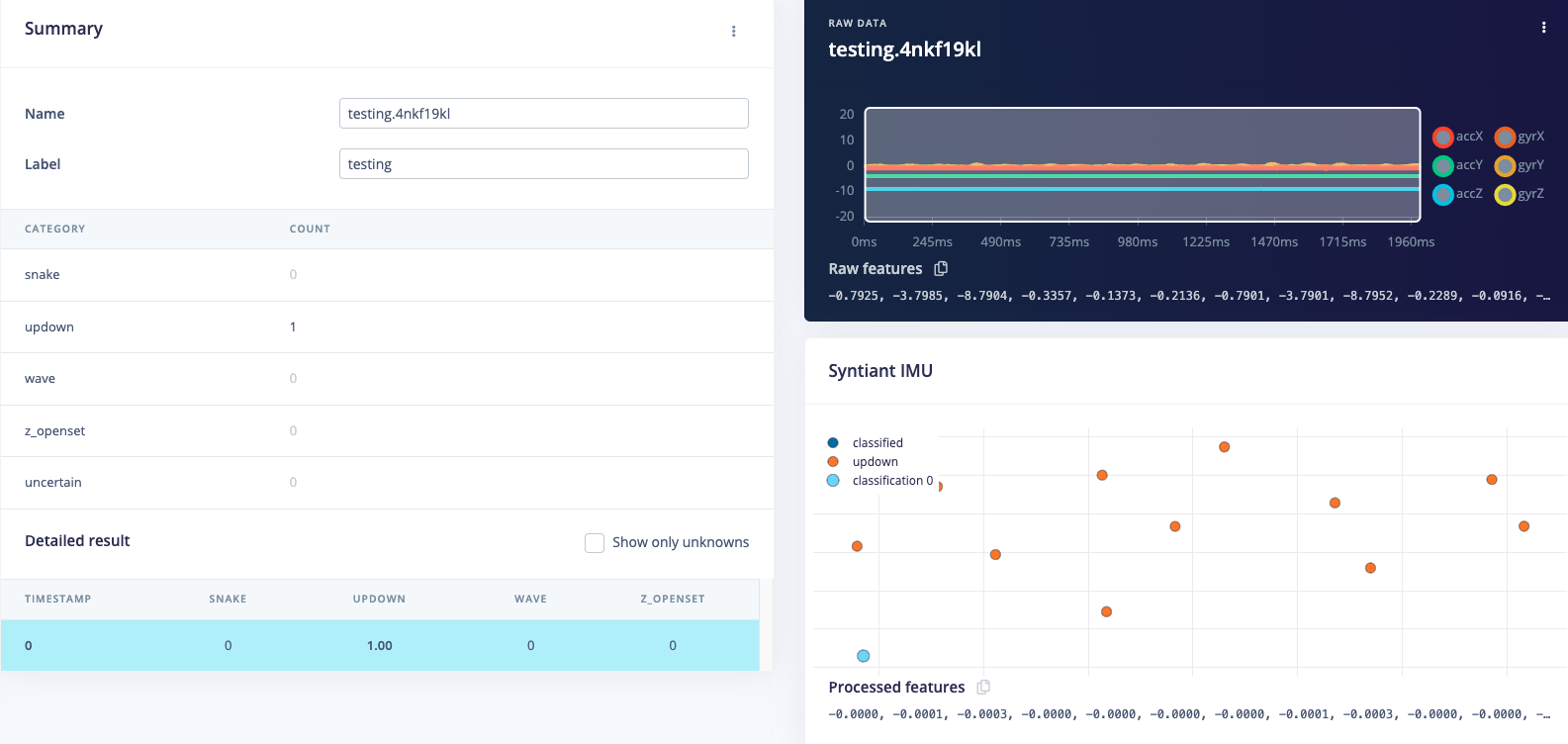 If the network performed well, great! But what if it performed poorly? There could be a variety of reasons, but the most common ones are:
1. There is not enough data. Neural networks need to learn patterns in data sets, and the more data the better.
2. The data does not look like other data the network has seen before. This is common when someone uses the device in a way that you didn't add to the test set. You can add the current file to the test set by clicking `⋮`, then selecting **Move to training set**. Make sure to update the label under 'Data acquisition' before training.
3. The model has not been trained enough. Up the number of epochs to `50` or '100' and see if performance increases (the classified file is stored, and you can load it through 'Classify existing validation sample').
As you see there is still a lot of trial and error when building neural networks, but we hope the visualizations help a lot. You can also run the network against the complete validation set through 'Model validation'. Think of the model validation page as a set of unit tests for your model!
With a working model in place, we can look at places where our current impulse performs poorly.
### 5. Deploying to your device
With the impulse designed, trained and verified you can deploy this model back to your device. This makes the model run without an internet connection, minimizes latency, and runs with minimum power consumption.
To export your model, click on **Deployment** in the menu. Then under 'Build firmware' select the RASynBoard development board,
The final step before building the firmware is to configure the *posterior handler parameters* of the Syntiant chip.
**Pre-configured posterior parameters**
For the public (clonable) project, we've already pre-configured the posterior parameters so you can just go to the 'Build' output step.
If the network performed well, great! But what if it performed poorly? There could be a variety of reasons, but the most common ones are:
1. There is not enough data. Neural networks need to learn patterns in data sets, and the more data the better.
2. The data does not look like other data the network has seen before. This is common when someone uses the device in a way that you didn't add to the test set. You can add the current file to the test set by clicking `⋮`, then selecting **Move to training set**. Make sure to update the label under 'Data acquisition' before training.
3. The model has not been trained enough. Up the number of epochs to `50` or '100' and see if performance increases (the classified file is stored, and you can load it through 'Classify existing validation sample').
As you see there is still a lot of trial and error when building neural networks, but we hope the visualizations help a lot. You can also run the network against the complete validation set through 'Model validation'. Think of the model validation page as a set of unit tests for your model!
With a working model in place, we can look at places where our current impulse performs poorly.
### 5. Deploying to your device
With the impulse designed, trained and verified you can deploy this model back to your device. This makes the model run without an internet connection, minimizes latency, and runs with minimum power consumption.
To export your model, click on **Deployment** in the menu. Then under 'Build firmware' select the RASynBoard development board,
The final step before building the firmware is to configure the *posterior handler parameters* of the Syntiant chip.
**Pre-configured posterior parameters**
For the public (clonable) project, we've already pre-configured the posterior parameters so you can just go to the 'Build' output step.
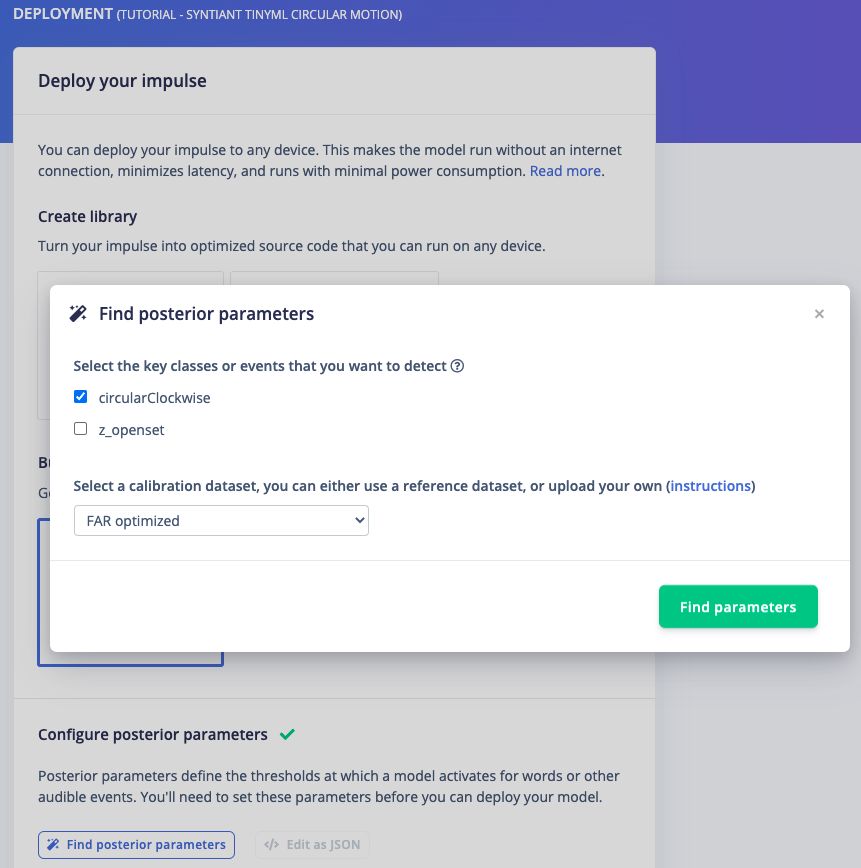 Those parameters are used to tune the precision and recall of the neural network activations, to minimize False Rejection Rate and False Activation Rate. You can manually edit those parameters in JSON format or use the *Find posterior parameters* to search for the best values:
* Select the classes you want to detect and make sure to uncheck the last class (Z\_Openset in our example)
* Select a calibration method: no calibration
## 6. Flashing the device
Once optimized parameters have been found, you can click **Build**. This will build a package that will run on your development board. After building is completed you'll get prompted to download a zipfile. Save this on your computer. A pop-up video will show how the download process works.
After unzipping the downloaded file, run the appropriate flashing script for your platform (Linux, Mac, or Win 10+) to flash the board with the model and associated firmware.
### Running the model on the device
We can connect to the board's newly flashed firmware over serial. Open a terminal and run:
```
$ edge-impulse-run-impulse
```
**Serial daemon**
If the device is connected via the Edge Impulse serial daemon, you'll need to stop the daemon first. Only one application can connect to the development board at a time.
This will sample data from the sensor, run the signal processing code, and then classify the data:
```
Predictions:
idle: 0.00004
snake: 0.00012
updown: 0.00009
wave: 0.99976
z_openset: 0
```
Victory! You've now built your first on-device machine learning model.
Those parameters are used to tune the precision and recall of the neural network activations, to minimize False Rejection Rate and False Activation Rate. You can manually edit those parameters in JSON format or use the *Find posterior parameters* to search for the best values:
* Select the classes you want to detect and make sure to uncheck the last class (Z\_Openset in our example)
* Select a calibration method: no calibration
## 6. Flashing the device
Once optimized parameters have been found, you can click **Build**. This will build a package that will run on your development board. After building is completed you'll get prompted to download a zipfile. Save this on your computer. A pop-up video will show how the download process works.
After unzipping the downloaded file, run the appropriate flashing script for your platform (Linux, Mac, or Win 10+) to flash the board with the model and associated firmware.
### Running the model on the device
We can connect to the board's newly flashed firmware over serial. Open a terminal and run:
```
$ edge-impulse-run-impulse
```
**Serial daemon**
If the device is connected via the Edge Impulse serial daemon, you'll need to stop the daemon first. Only one application can connect to the development board at a time.
This will sample data from the sensor, run the signal processing code, and then classify the data:
```
Predictions:
idle: 0.00004
snake: 0.00012
updown: 0.00009
wave: 0.99976
z_openset: 0
```
Victory! You've now built your first on-device machine learning model.
 ## 7. Conclusion
We can't wait to see what you'll build! 🚀
## 7. Conclusion
We can't wait to see what you'll build! 🚀