> ## Documentation Index
> Fetch the complete documentation index at: https://docs.edgeimpulse.com/llms.txt
> Use this file to discover all available pages before exploring further.
# HR/HRV estimation
> Extract heart rate and heart rate variability (HRV) features from PPG data to power health-monitoring applications at the edge.
export const CardOpenStudioTutorial = ({href}) =>
Skip the setup: clone a ready-to-use Edge Impulse project with the dataset, impulse, and trained model.
;
In this tutorial, you'll learn how to set up the **HR/HRV Features** block within Edge Impulse Studio to process your physiological data and extract meaningful heart rate (HR) and heart rate variability (HRV) features. These features can be leveraged in various downstream machine learning tasks, such as activity classification, stress detection, and health monitoring. We will extend this section over time with more examples.
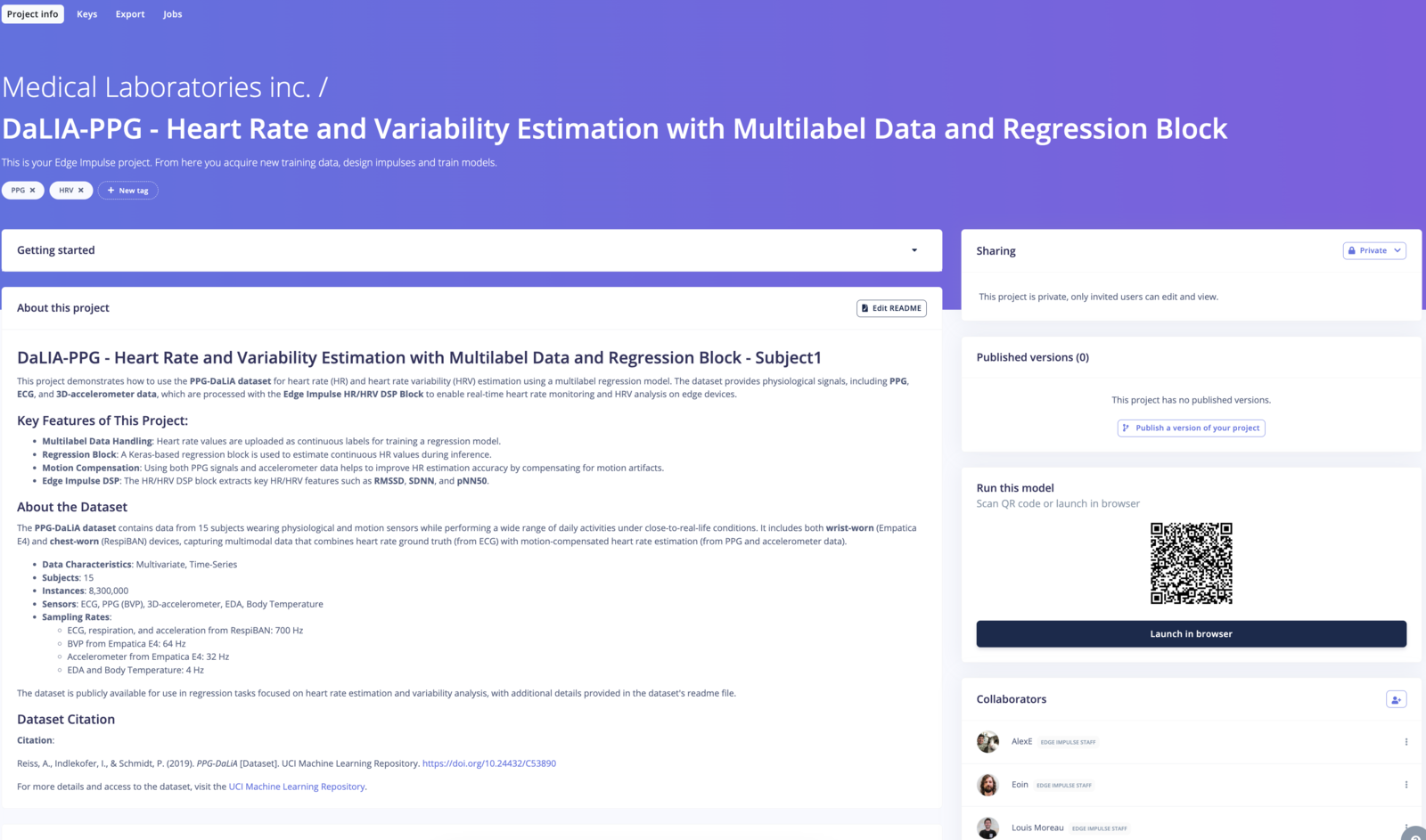
For this guide, we will be using a subset of the publicly available PPG-DaLiA dataset, which contains data collected from 15 subjects during daily activities. This dataset includes physiological signals such as photoplethysmography (PPG), accelerometer data, and heart rate ground truth, allowing us to explore how the HR/HRV Features block can be applied to real-world data.
You can download the DaLIA-PPG dataset or clone the project S1\_E4 from the links below:
 **Evaluation available for everyone, deployment only available to Enterprise plan**
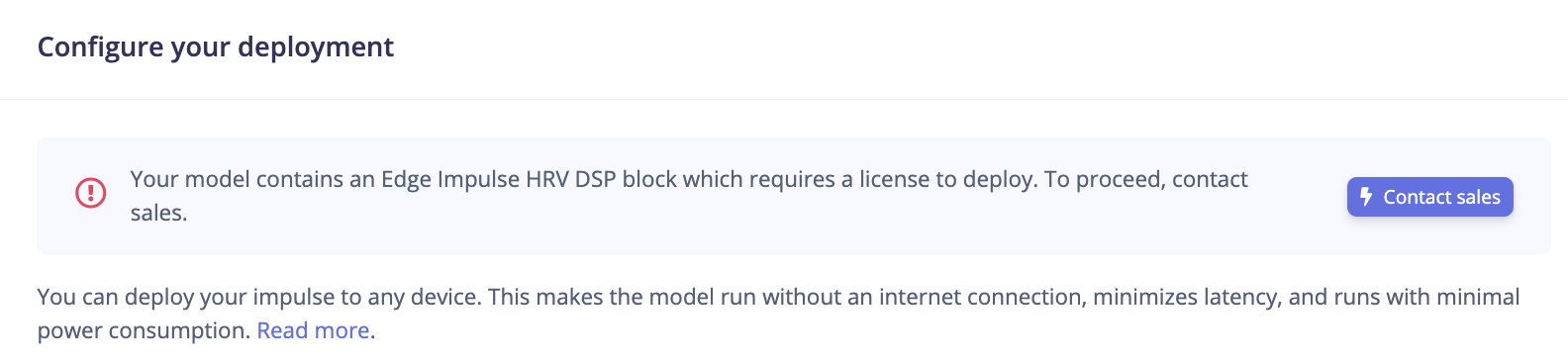
All users (developer and enterprise) can extract HR/HRV features using this processing block for testing purposes. However, **the deployment option is only available for Enterprise users**. Contact your Solution Engineer to enable it.
## Understanding HR and HRV
### **Heart Rate (HR)**
Heart Rate refers to the number of times your heart beats per minute (BPM). It's a straightforward metric that indicates your cardiac activity and is influenced by factors like physical activity, stress, and overall health.
### **Heart Rate Variability (HRV)**
**Evaluation available for everyone, deployment only available to Enterprise plan**
All users (developer and enterprise) can extract HR/HRV features using this processing block for testing purposes. However, **the deployment option is only available for Enterprise users**. Contact your Solution Engineer to enable it.
## Understanding HR and HRV
### **Heart Rate (HR)**
Heart Rate refers to the number of times your heart beats per minute (BPM). It's a straightforward metric that indicates your cardiac activity and is influenced by factors like physical activity, stress, and overall health.
### **Heart Rate Variability (HRV)**
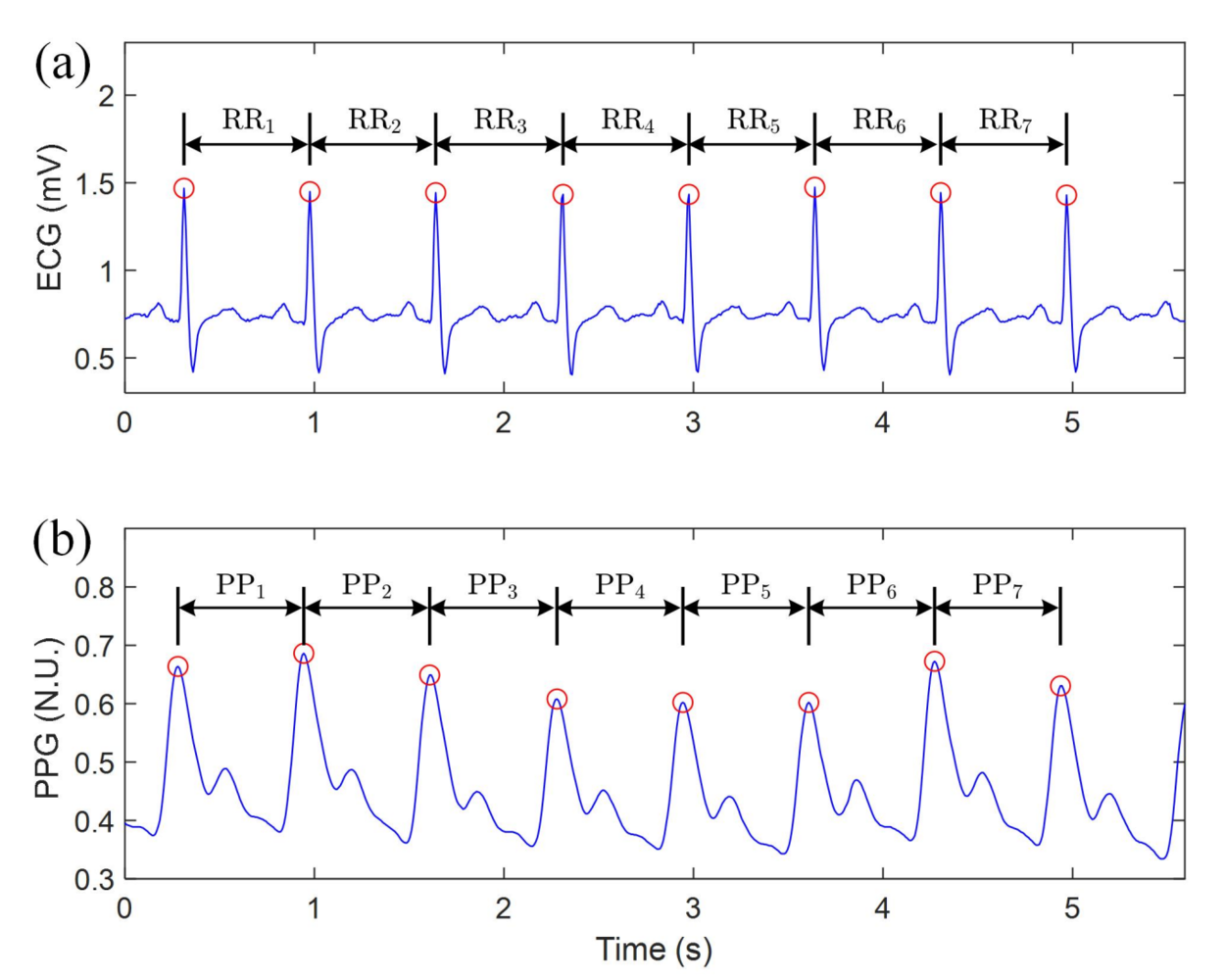 Heart Rate Variability measures the variation in time intervals between successive heartbeats, known as **interbeat intervals (IBIs)**. HRV provides deeper insights into the autonomic nervous system's regulation of the heart, reflecting your body's ability to adapt to stress, recover, and maintain homeostasis.
**Key HRV Metrics:**
* **RMSSD (Root Mean Square of Successive Differences)**: Reflects short-term HRV and parasympathetic activity.
* **SDNN (Standard Deviation of NN intervals)**: Indicates overall HRV.
* **pNN50**: Percentage of intervals differing by more than 50 ms, another measure of parasympathetic activity.
Understanding both HR and HRV can provide a comprehensive view of an individual's cardiovascular and autonomic health.
## Prerequisites
* **Physiological Data**: You can download a subset of PPG-DaLIA the DaLIA-PPG dataset S1\_E4:
## Step-by-Step Guide
### Step 1: Prepare or Collect Your Time-Series Data
Ensure your CSV file is structured with the following columns:
* **Time**: The timestamp for each data point.
* **X, Y, Z**: Accelerometer data for motion artifact compensation (optional).
* **ECG/PPG**: The PPG or ECG signal for heart rate estimation.
* **HR**: Heart rate value, if available (should be uploaded as a multi-label sample for regression).
* **Label**: The activity label (optional but useful for classification tasks).
**HR Calculation**:
Avoid uploading data in short snippets. HR calculation relies on history and feedback to accumulate a continuous stream for better calculation and smoothing. Upload long, contiguous data for the most accurate results.
Developer plan users need to use single label and should keep the length to 2 seconds for the best accuracy.
You can download a subset of the PPG-DaLIA dataset S1\_E4:
[Download CSV](https://cdn.edgeimpulse.com/datasets/HRV/ppg_dalia_subject1_acc_ppg_activity_temp.csv)
```csv theme={"system"}
Time,acc_x,acc_y,acc_z,ppg,eda,temp,hr,activity,activity_label,Subject
2018-06-29 08:44:52.000000,-27,1,58,-0.0,0.0,32.15,76.0,NO_ACTIVITY,NO_ACTIVITY,Subject_1
2018-06-29 08:44:52.031250,-27,2,59,-0.0,0.0,32.15,76.0,NO_ACTIVITY,NO_ACTIVITY,Subject_1
2018-06-29 08:44:52.062500,-27,1,59,-0.0,0.0,32.15,76.0,NO_ACTIVITY,NO_ACTIVITY,Subject_1
2018-06-29 08:44:52.093750,-27,1,58,-0.0,0.0,32.15,76.0,NO_ACTIVITY,NO_ACTIVITY,Subject_1
2018-06-29 08:44:52.125000,-27,1,59,-0.0,0.0,32.15,76.0,NO_ACTIVITY,NO_ACTIVITY,Subject_1
2018-06-29 08:44:52.156250,-27,1,59,0.0,0.832765,32.15,76.0,NO_ACTIVITY,NO_ACTIVITY,Subject_1
2018-06-29 08:44:52.187500,-27,1,59,0.01,0.832765,32.15,76.0,NO_ACTIVITY,NO_ACTIVITY,Subject_1
2018-06-29 08:44:52.218750,-27,1,58,-0.03,0.832765,32.15,76.0,NO_ACTIVITY,NO_ACTIVITY,Subject_1
2018-06-29 08:44:52.250000,-27,1,58,-0.05,0.832765,32.15,76.0,NO_ACTIVITY,NO_ACTIVITY,Subject_1
2018-06-29 08:44:52.281250,-27,1,59,0.13,0.832765,32.15,76.0,NO_ACTIVITY,NO_ACTIVITY,Subject_1
2018-06-29 08:44:52.312500,-27,1,59,0.66,0.832765,32.15,76.0,NO_ACTIVITY,NO_ACTIVITY,Subject_1
2018-06-29 08:44:52.343750,-27,1,59,1.37,0.832765,32.15,76.0,NO_ACTIVITY,NO_ACTIVITY,Subject_1
2018-06-29 08:44:52.375000,-27,1,59,2.06,0.832765,32.15,76.0,NO_ACTIVITY,NO_ACTIVITY,Subject_1
2018-06-29 08:44:52.406250,-27,1,59,2.79,1.180231,32.15,76.0,NO_ACTIVITY,NO_ACTIVITY,Subject_1
2018-06-29 08:44:52.437500,-27,1,58,3.8,1.180231,32.15,76.0,NO_ACTIVITY,NO_ACTIVITY,Subject_1
2018-06-29 08:44:52.468750,-27,1,59,5.06,1.180231,32.15,76.0,NO_ACTIVITY,NO_ACTIVITY,Subject_1
2018-06-29 08:44:52.500000,-27,1,58,6.2,1.180231,32.15,76.0,NO_ACTIVITY,NO_ACTIVITY,Subject_1
2018-06-29 08:44:52.531250,-27,1,59,7.15,1.180231,32.15,76.0,NO_ACTIVITY,NO_ACTIVITY,Subject_1
2018-06-29 08:44:52.562500,-27,1,59,8.31,1.180231,32.15,76.0,NO_ACTIVITY,NO_ACTIVITY,Subject_1
2018-06-29 08:44:52.593750,-27,1,59,10.09,1.180231,32.15,76.0,NO_ACTIVITY,NO_ACTIVITY,Subject_1
2018-06-29 08:44:52.625000,-27,1,59,11.88,1.180231,32.15,76.0,NO_ACTIVITY,NO_ACTIVITY,Subject_1
2018-06-29 08:44:52.656250,-27,2,59,13.14,1.618462,32.15,76.0,NO_ACTIVITY,NO_ACTIVITY,Subject_1
2018-06-29 08:44:52.687500,-27,1,59,14.65,1.618462,32.15,76.0,NO_ACTIVITY,NO_ACTIVITY,Subject_1
2018-06-29 08:44:52.718750,-27,1,59,17.91,1.618462,32.15,76.0,NO_ACTIVITY,NO_ACTIVITY,Subject_1
2018-06-29 08:44:52.750000,-27,1,58,22.9,1.618462,32.15,76.0,NO_ACTIVITY,NO_ACTIVITY,Subject_1
2018-06-29 08:44:52.781250,-27,1,59,27.58,1.618462,32.15,76.0,NO_ACTIVITY,NO_ACTIVITY,Subject_1
...
Download the CSV here
```
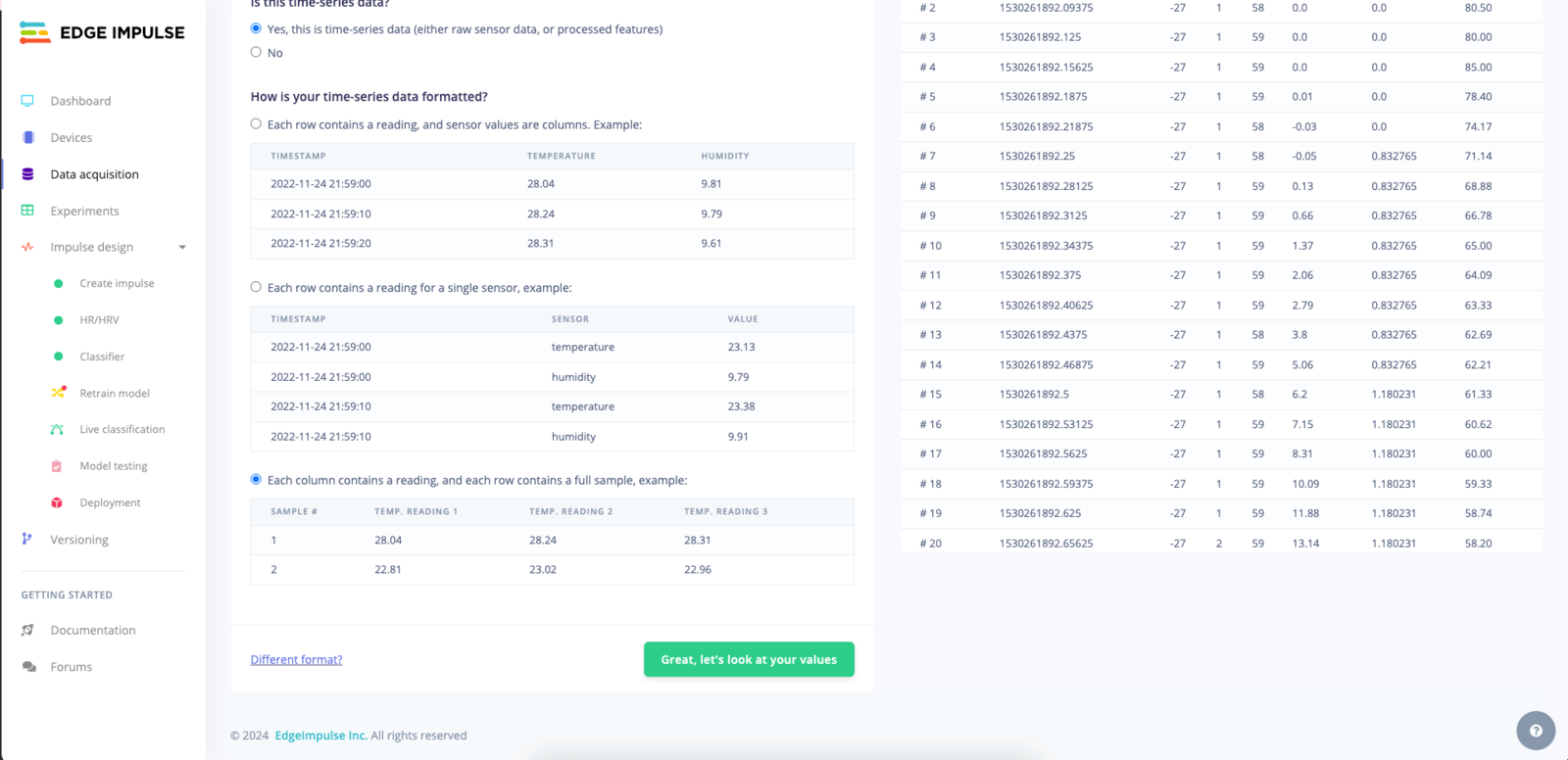
### Step 2: Upload Data to Edge Impulse
1. Log into your Edge Impulse Studio.
2. Navigate to **Data Acquisition** in the left-hand panel.
3. Click **Upload Data** and select your CSV file for each subject.
4. Ensure that the data is correctly parsed, and assign appropriate labels for heartrate applicable (e.g., 100, 90, etc.).
Heart Rate Variability measures the variation in time intervals between successive heartbeats, known as **interbeat intervals (IBIs)**. HRV provides deeper insights into the autonomic nervous system's regulation of the heart, reflecting your body's ability to adapt to stress, recover, and maintain homeostasis.
**Key HRV Metrics:**
* **RMSSD (Root Mean Square of Successive Differences)**: Reflects short-term HRV and parasympathetic activity.
* **SDNN (Standard Deviation of NN intervals)**: Indicates overall HRV.
* **pNN50**: Percentage of intervals differing by more than 50 ms, another measure of parasympathetic activity.
Understanding both HR and HRV can provide a comprehensive view of an individual's cardiovascular and autonomic health.
## Prerequisites
* **Physiological Data**: You can download a subset of PPG-DaLIA the DaLIA-PPG dataset S1\_E4:
## Step-by-Step Guide
### Step 1: Prepare or Collect Your Time-Series Data
Ensure your CSV file is structured with the following columns:
* **Time**: The timestamp for each data point.
* **X, Y, Z**: Accelerometer data for motion artifact compensation (optional).
* **ECG/PPG**: The PPG or ECG signal for heart rate estimation.
* **HR**: Heart rate value, if available (should be uploaded as a multi-label sample for regression).
* **Label**: The activity label (optional but useful for classification tasks).
**HR Calculation**:
Avoid uploading data in short snippets. HR calculation relies on history and feedback to accumulate a continuous stream for better calculation and smoothing. Upload long, contiguous data for the most accurate results.
Developer plan users need to use single label and should keep the length to 2 seconds for the best accuracy.
You can download a subset of the PPG-DaLIA dataset S1\_E4:
[Download CSV](https://cdn.edgeimpulse.com/datasets/HRV/ppg_dalia_subject1_acc_ppg_activity_temp.csv)
```csv theme={"system"}
Time,acc_x,acc_y,acc_z,ppg,eda,temp,hr,activity,activity_label,Subject
2018-06-29 08:44:52.000000,-27,1,58,-0.0,0.0,32.15,76.0,NO_ACTIVITY,NO_ACTIVITY,Subject_1
2018-06-29 08:44:52.031250,-27,2,59,-0.0,0.0,32.15,76.0,NO_ACTIVITY,NO_ACTIVITY,Subject_1
2018-06-29 08:44:52.062500,-27,1,59,-0.0,0.0,32.15,76.0,NO_ACTIVITY,NO_ACTIVITY,Subject_1
2018-06-29 08:44:52.093750,-27,1,58,-0.0,0.0,32.15,76.0,NO_ACTIVITY,NO_ACTIVITY,Subject_1
2018-06-29 08:44:52.125000,-27,1,59,-0.0,0.0,32.15,76.0,NO_ACTIVITY,NO_ACTIVITY,Subject_1
2018-06-29 08:44:52.156250,-27,1,59,0.0,0.832765,32.15,76.0,NO_ACTIVITY,NO_ACTIVITY,Subject_1
2018-06-29 08:44:52.187500,-27,1,59,0.01,0.832765,32.15,76.0,NO_ACTIVITY,NO_ACTIVITY,Subject_1
2018-06-29 08:44:52.218750,-27,1,58,-0.03,0.832765,32.15,76.0,NO_ACTIVITY,NO_ACTIVITY,Subject_1
2018-06-29 08:44:52.250000,-27,1,58,-0.05,0.832765,32.15,76.0,NO_ACTIVITY,NO_ACTIVITY,Subject_1
2018-06-29 08:44:52.281250,-27,1,59,0.13,0.832765,32.15,76.0,NO_ACTIVITY,NO_ACTIVITY,Subject_1
2018-06-29 08:44:52.312500,-27,1,59,0.66,0.832765,32.15,76.0,NO_ACTIVITY,NO_ACTIVITY,Subject_1
2018-06-29 08:44:52.343750,-27,1,59,1.37,0.832765,32.15,76.0,NO_ACTIVITY,NO_ACTIVITY,Subject_1
2018-06-29 08:44:52.375000,-27,1,59,2.06,0.832765,32.15,76.0,NO_ACTIVITY,NO_ACTIVITY,Subject_1
2018-06-29 08:44:52.406250,-27,1,59,2.79,1.180231,32.15,76.0,NO_ACTIVITY,NO_ACTIVITY,Subject_1
2018-06-29 08:44:52.437500,-27,1,58,3.8,1.180231,32.15,76.0,NO_ACTIVITY,NO_ACTIVITY,Subject_1
2018-06-29 08:44:52.468750,-27,1,59,5.06,1.180231,32.15,76.0,NO_ACTIVITY,NO_ACTIVITY,Subject_1
2018-06-29 08:44:52.500000,-27,1,58,6.2,1.180231,32.15,76.0,NO_ACTIVITY,NO_ACTIVITY,Subject_1
2018-06-29 08:44:52.531250,-27,1,59,7.15,1.180231,32.15,76.0,NO_ACTIVITY,NO_ACTIVITY,Subject_1
2018-06-29 08:44:52.562500,-27,1,59,8.31,1.180231,32.15,76.0,NO_ACTIVITY,NO_ACTIVITY,Subject_1
2018-06-29 08:44:52.593750,-27,1,59,10.09,1.180231,32.15,76.0,NO_ACTIVITY,NO_ACTIVITY,Subject_1
2018-06-29 08:44:52.625000,-27,1,59,11.88,1.180231,32.15,76.0,NO_ACTIVITY,NO_ACTIVITY,Subject_1
2018-06-29 08:44:52.656250,-27,2,59,13.14,1.618462,32.15,76.0,NO_ACTIVITY,NO_ACTIVITY,Subject_1
2018-06-29 08:44:52.687500,-27,1,59,14.65,1.618462,32.15,76.0,NO_ACTIVITY,NO_ACTIVITY,Subject_1
2018-06-29 08:44:52.718750,-27,1,59,17.91,1.618462,32.15,76.0,NO_ACTIVITY,NO_ACTIVITY,Subject_1
2018-06-29 08:44:52.750000,-27,1,58,22.9,1.618462,32.15,76.0,NO_ACTIVITY,NO_ACTIVITY,Subject_1
2018-06-29 08:44:52.781250,-27,1,59,27.58,1.618462,32.15,76.0,NO_ACTIVITY,NO_ACTIVITY,Subject_1
...
Download the CSV here
```
### Step 2: Upload Data to Edge Impulse
1. Log into your Edge Impulse Studio.
2. Navigate to **Data Acquisition** in the left-hand panel.
3. Click **Upload Data** and select your CSV file for each subject.
4. Ensure that the data is correctly parsed, and assign appropriate labels for heartrate applicable (e.g., 100, 90, etc.).
 ### Step 3: Create an Impulse for HR/HRV Processing
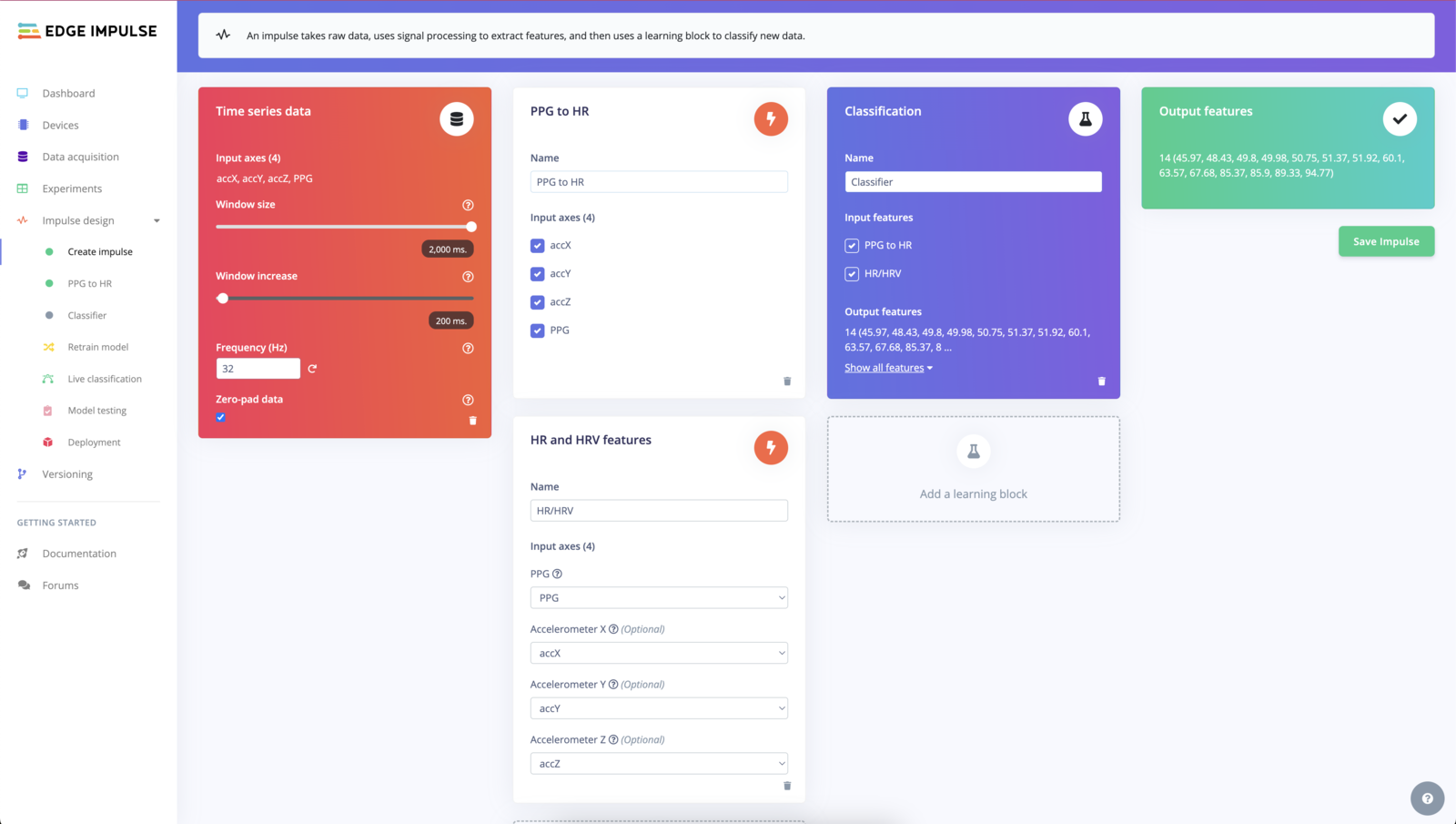
1. Go to **Impulse Design** > **Create Impulse**.
2. Add a **HR and HRV Features** block:
* **Input Axes**: Select accX, accY, accZ, PPG (if using accelerometer data for motion artifact correction).
* Set **Window Size** to 2000 ms.
* Set **Frequency (Hz)** to 25 Hz (tolerance +/- 1 Hz) or 50 Hz (tolerance +/- 3 Hz).
### Step 3: Create an Impulse for HR/HRV Processing
1. Go to **Impulse Design** > **Create Impulse**.
2. Add a **HR and HRV Features** block:
* **Input Axes**: Select accX, accY, accZ, PPG (if using accelerometer data for motion artifact correction).
* Set **Window Size** to 2000 ms.
* Set **Frequency (Hz)** to 25 Hz (tolerance +/- 1 Hz) or 50 Hz (tolerance +/- 3 Hz).
 ### Step 4: Add the HR/HRV Block
1. Under **Impulse Design**, add the **HR/HRV Features** block.
* **Input Axes**: Select your PPG signal for HR estimation.
* **HR Window Size**: Set the window size for heart rate computation (e.g., 9 seconds, and no shorter than 2 seconds).
* **HRV Settings**: Enable all HRV features to see RMSSD and other params.
### Step 4: Add the HR/HRV Block
1. Under **Impulse Design**, add the **HR/HRV Features** block.
* **Input Axes**: Select your PPG signal for HR estimation.
* **HR Window Size**: Set the window size for heart rate computation (e.g., 9 seconds, and no shorter than 2 seconds).
* **HRV Settings**: Enable all HRV features to see RMSSD and other params.
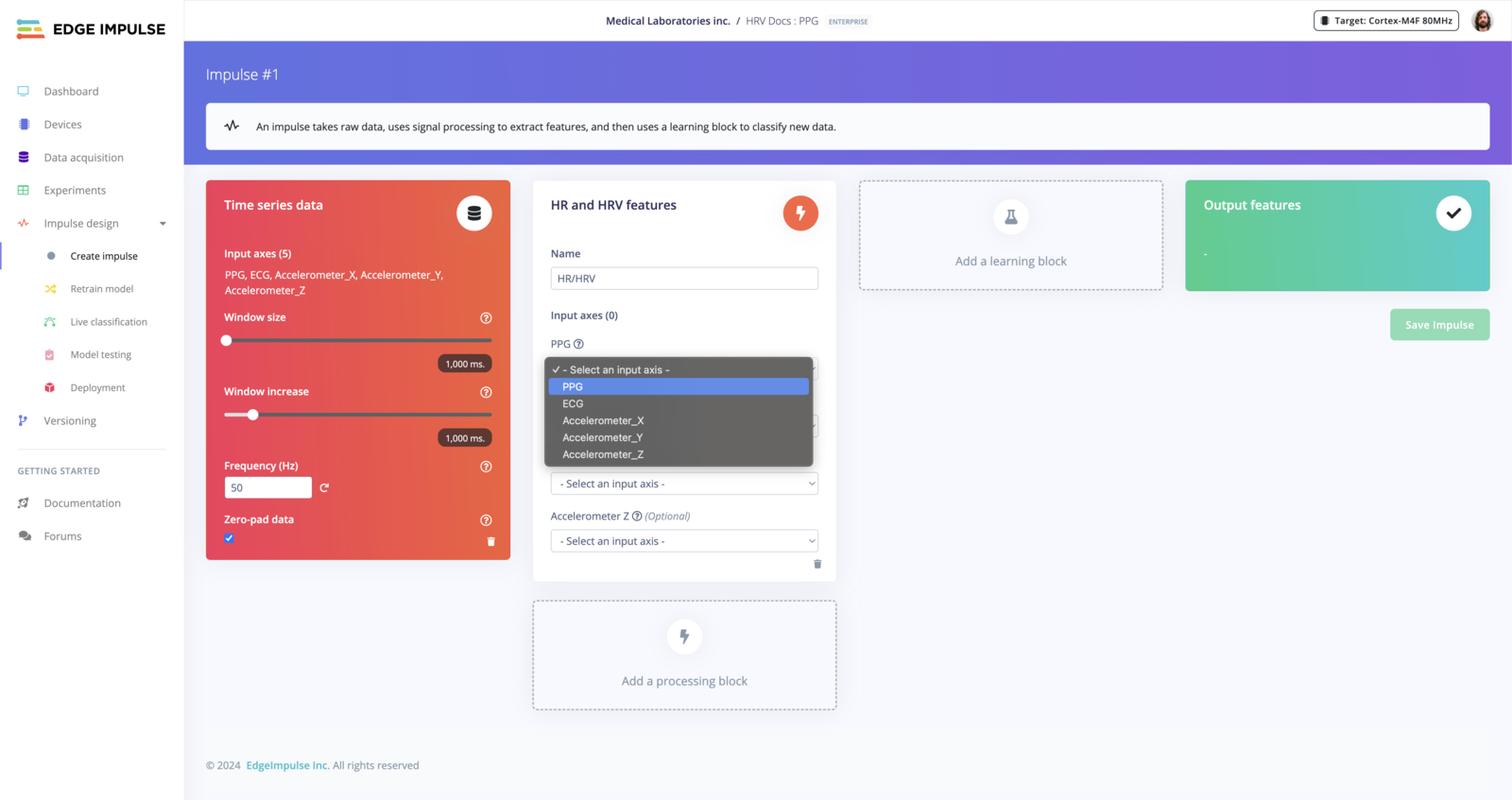 * **Input Axes**: Select your ECG signal for HR estimation.
* **HR Window Size**: Set the window size for heart rate computation (e.g., 10 seconds and upwards of 90 seconds for best accuracy).
* **HRV Settings**: Enable HRV features such as RMSSD or time-series statistics.
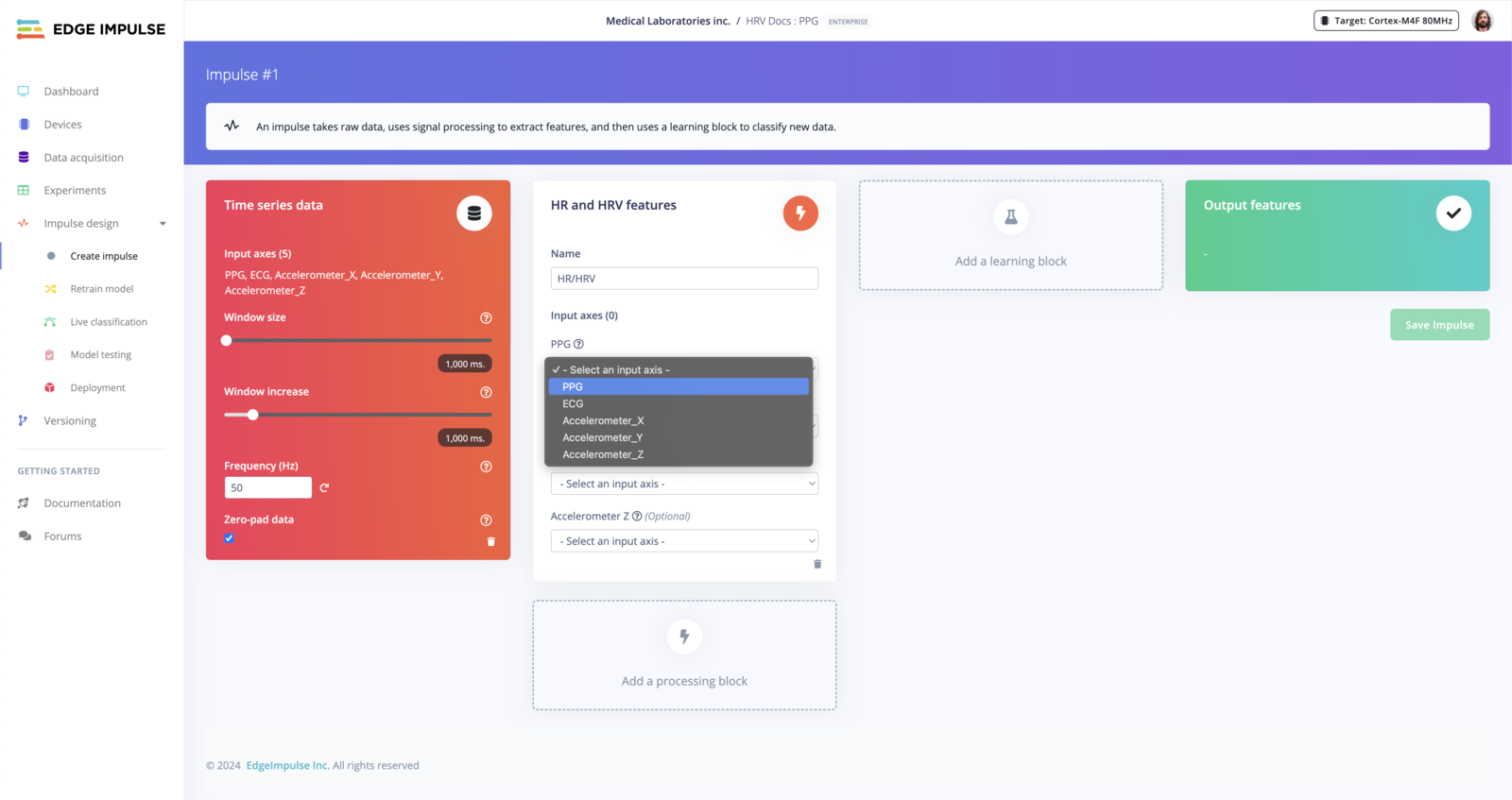
* **Input Axes**: Select your ECG signal for HR estimation.
* **HR Window Size**: Set the window size for heart rate computation (e.g., 10 seconds and upwards of 90 seconds for best accuracy).
* **HRV Settings**: Enable HRV features such as RMSSD or time-series statistics.
 * **Input Axes**: Select your PPG signal for HR estimation.
* **Accelerometer X, Y, Z**: Include these axes to filter motion artifacts.
* **HR Window Size**: Set the window size for heart rate computation (e.g., 10 seconds).
* **HRV Settings**: Enable HRV features such as RMSSD or time-series statistics.
* **Input Axes**: Select your PPG signal for HR estimation.
* **Accelerometer X, Y, Z**: Include these axes to filter motion artifacts.
* **HR Window Size**: Set the window size for heart rate computation (e.g., 10 seconds).
* **HRV Settings**: Enable HRV features such as RMSSD or time-series statistics.
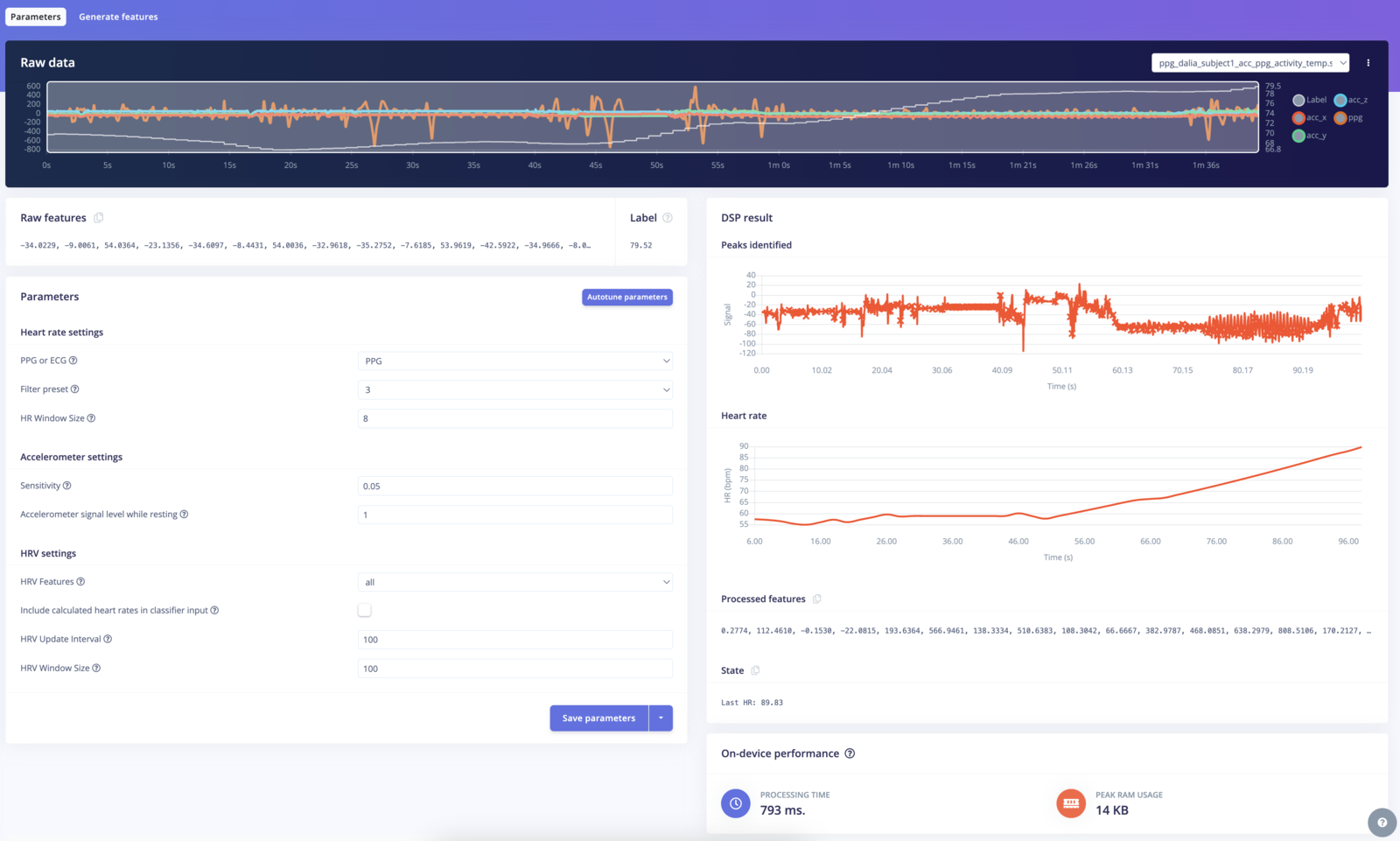
 ### Step 5: Generate Features
1. Click on **Generate Features** from the top menu.
2. Review the feature generation output to ensure that the raw signals are correctly processed.
3. Edge Impulse will generate the features for both heart rate and HRV over the specified window size.
### Step 5: Generate Features
1. Click on **Generate Features** from the top menu.
2. Review the feature generation output to ensure that the raw signals are correctly processed.
3. Edge Impulse will generate the features for both heart rate and HRV over the specified window size.
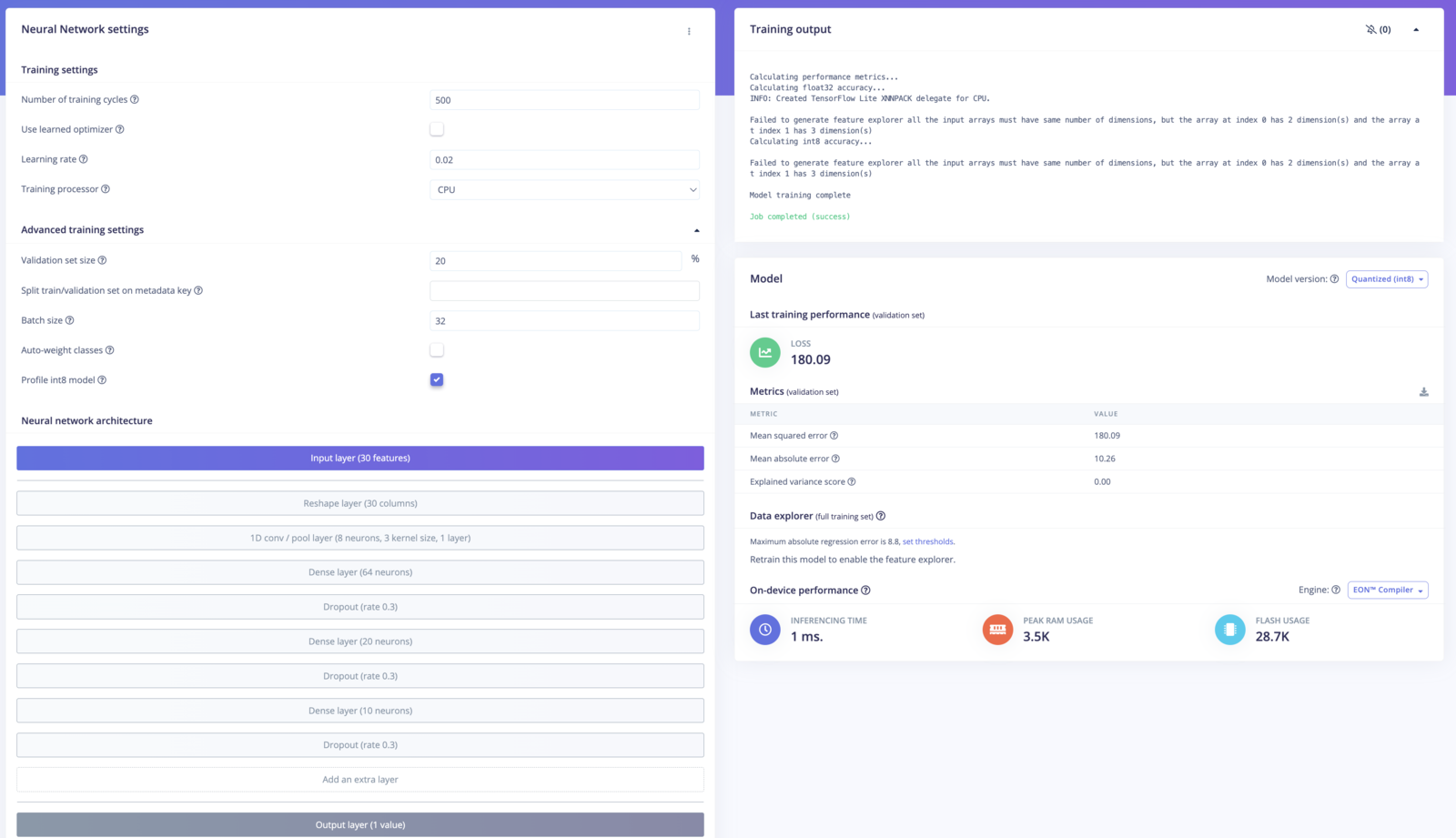
 ### Step 6: Configure the Regression Block
1. Add a **Learning Block** such as a **Regression** if you wish to estimate HR
2. Ensure that **HR/HRV** is selected as the input feature.
3. Train the model using your labeled data to predict different heart rate.
### Step 7: Test and Validate the Model
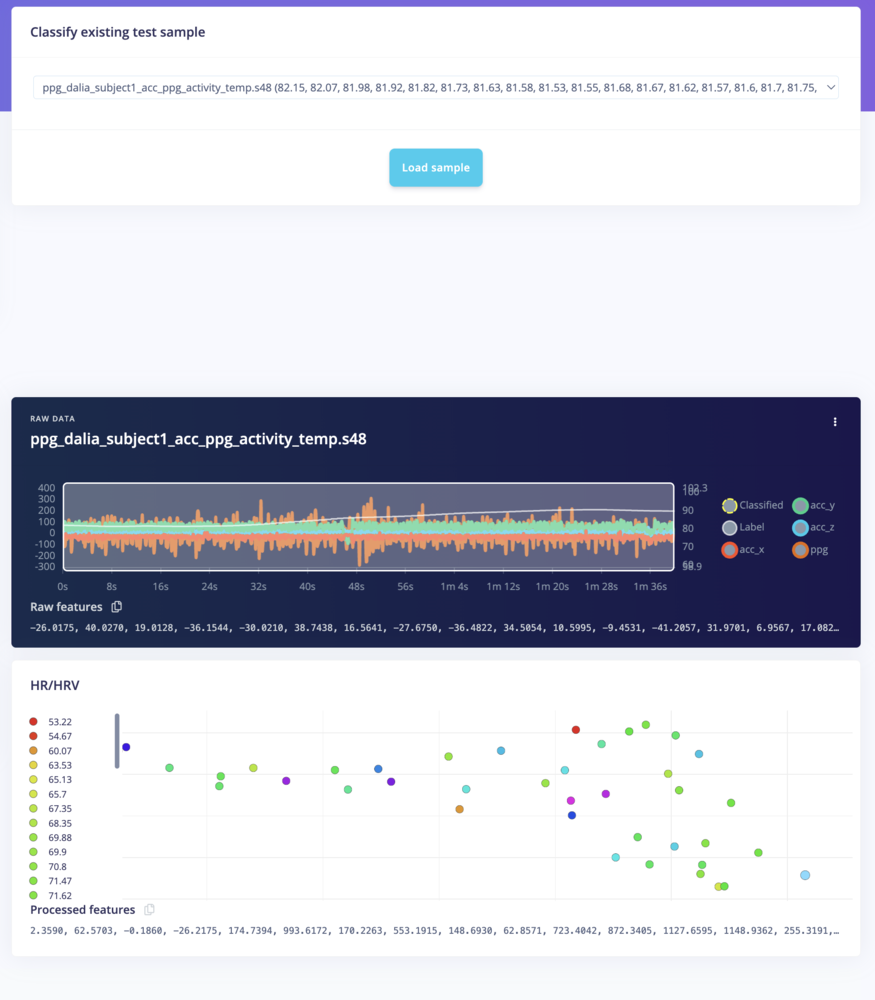
1. After training, use **Model Testing** to evaluate the performance of your HR/HRV feature extraction and heart rate prediction model.
2. Upload test data to ensure that the heart rate is correctly estimated and any HRV features are extracted as expected.
### Step 6: Configure the Regression Block
1. Add a **Learning Block** such as a **Regression** if you wish to estimate HR
2. Ensure that **HR/HRV** is selected as the input feature.
3. Train the model using your labeled data to predict different heart rate.
### Step 7: Test and Validate the Model
1. After training, use **Model Testing** to evaluate the performance of your HR/HRV feature extraction and heart rate prediction model.
2. Upload test data to ensure that the heart rate is correctly estimated and any HRV features are extracted as expected.
 ### Step 8: Deploy the Model (Enterprise Only)
For enterprise users, you can deploy the model to your target device and start collecting real-time heart rate and HRV data. When the model is trained and validated, you can deploy it to your target device or C++ binary for real-time heart rate and HRV monitoring.
Deployment will look as follows:
### Step 8: Deploy the Model (Enterprise Only)
For enterprise users, you can deploy the model to your target device and start collecting real-time heart rate and HRV data. When the model is trained and validated, you can deploy it to your target device or C++ binary for real-time heart rate and HRV monitoring.
Deployment will look as follows:
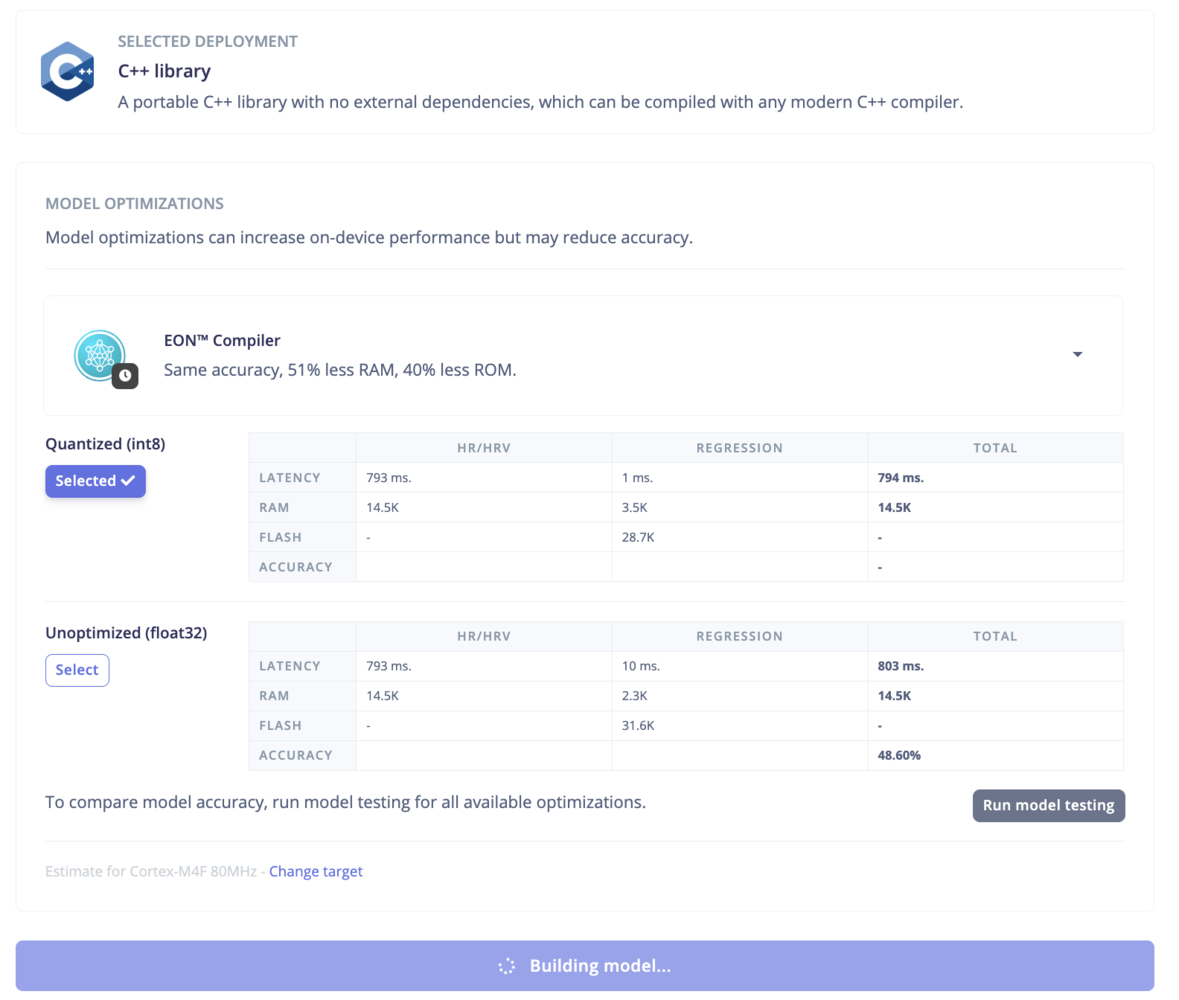 To include heart rate extraction alongside your classifier results, define the following macro in your deployment:
```cpp theme={"system"}
#if EI_DSP_ENABLE_RUNTIME_HR == 1
ei_impulse_result_hr_t hr_calcs;
#endif
```
This macro will enable the HR/HRV Features block to calculate heart rate and HRV features in real-time.
```cpp theme={"system"}
typedef struct {
float heart_rate; // The calculated heart rate in beats per minute (BPM)
} ei_impulse_result_hr_t;
```
Read on in the [HR/HRV Features block documentation for more deployment details](/studio/projects/processing-blocks/blocks/hr-hrv) or speak with your enterprise support team for more guidance.
For Developer plan users, the deployment option is not available, contact our sales team if you want to upgrade to an [Enterprise plan](https://edgeimpulse.com/pricing):
To include heart rate extraction alongside your classifier results, define the following macro in your deployment:
```cpp theme={"system"}
#if EI_DSP_ENABLE_RUNTIME_HR == 1
ei_impulse_result_hr_t hr_calcs;
#endif
```
This macro will enable the HR/HRV Features block to calculate heart rate and HRV features in real-time.
```cpp theme={"system"}
typedef struct {
float heart_rate; // The calculated heart rate in beats per minute (BPM)
} ei_impulse_result_hr_t;
```
Read on in the [HR/HRV Features block documentation for more deployment details](/studio/projects/processing-blocks/blocks/hr-hrv) or speak with your enterprise support team for more guidance.
For Developer plan users, the deployment option is not available, contact our sales team if you want to upgrade to an [Enterprise plan](https://edgeimpulse.com/pricing):
 ## Conclusion
By following this tutorial, you've successfully set up the HR/HRV Features block in Edge Impulse Studio, extracted meaningful cardiovascular features, and optionally trained a machine learning model. This foundation enables you to build robust, real-time heart rate and HRV monitoring solutions for applications like health monitoring, stress detection, and fitness tracking.
## Additional Resources
* **Edge Impulse Documentation**: [HR/HRV Features](/studio/projects/processing-blocks/blocks/hr-hrv)
If you have any questions or need further assistance, feel free to reach out on the [Edge Impulse Forum](https://forum.edgeimpulse.com) or consult the documentation.
## Conclusion
By following this tutorial, you've successfully set up the HR/HRV Features block in Edge Impulse Studio, extracted meaningful cardiovascular features, and optionally trained a machine learning model. This foundation enables you to build robust, real-time heart rate and HRV monitoring solutions for applications like health monitoring, stress detection, and fitness tracking.
## Additional Resources
* **Edge Impulse Documentation**: [HR/HRV Features](/studio/projects/processing-blocks/blocks/hr-hrv)
If you have any questions or need further assistance, feel free to reach out on the [Edge Impulse Forum](https://forum.edgeimpulse.com) or consult the documentation.