> ## Documentation Index
> Fetch the complete documentation index at: https://docs.edgeimpulse.com/llms.txt
> Use this file to discover all available pages before exploring further.
# Installation
**Important:** Edge Impulse requires Node.js version 16 or later. For the best experience, we recommend using Node.js 22 (the current LTS version with active support). Using older versions may lead to installation issues or runtime errors. Please ensure you have the correct version installed before proceeding with the setup.
1. Create an [Edge Impulse account](https://studio.edgeimpulse.com/signup).
2. Install [Python 3](https://www.python.org) on your host computer.
3. Install [Node.js](https://nodejs.org/en/) v16.x+ or above on your host computer.
Alternatively, run the following commands:
```
curl -sL https://deb.nodesource.com/setup_22.x | sudo -E bash -
sudo apt-get install -y nodejs
node -v
```
The last command should return the node version, v16 or above.
Let's verify the node installation directory:
```
npm config get prefix
```
If it returns */usr/local/*, run the following commands to change npm's default directory:
```
mkdir ~/.npm-global
npm config set prefix '~/.npm-global'
echo 'export PATH=~/.npm-global/bin:$PATH' >> ~/.profile
```
On MacOS you might be using zsh as default, so you will want to update the correct profile
```
mkdir ~/.npm-global
npm config set prefix '~/.npm-global'
echo 'export PATH=~/.npm-global/bin:$PATH' >> ~/.zprofile
```
4. Install the CLI tools via:
```
npm install -g edge-impulse-cli
```
You should now have the tools available in your PATH.
It is highly recommended to use the Command Prompt (CMD) vs Powershell when installing and using the Edge Impulse CLI on Windows.
During installation you may get an error about needing Visual Studio Build Tools. This is needed for some parts of the Edge Impulse CLI. Please follow the error links to get the correct version from Microsoft.
1. Create an [Edge Impulse account](https://studio.edgeimpulse.com/signup).
2. Install [Python 3](https://www.python.org) on your host computer.
3. Install [Node.js](https://nodejs.org/en/) version 16 or later. For the best experience, we recommend using Node.js 22 (the current LTS version with active support).
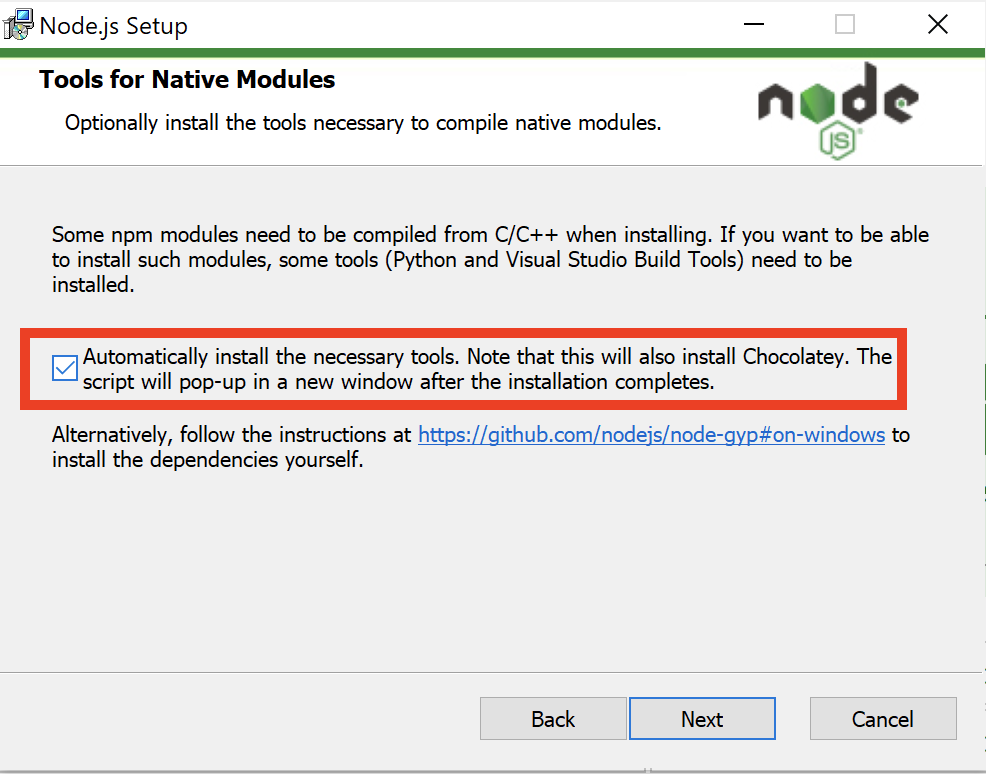
* For Windows users, install the **Additional Node.js tools** (called **Tools for Native Modules** on newer versions) when prompted.
4. Install the CLI tools via:
```
npm install -g edge-impulse-cli --force
```
You should now have the tools available in your PATH.
Windows Subsystem for Linux (WSL) allows you to run a Linux environment directly on Windows. This is particularly useful for developers who want to use Linux-based tools and workflows on a Windows machine.
To install the Edge Impulse CLI using WSL, follow these steps:
1. Create an [Edge Impulse account](https://studio.edgeimpulse.com/signup).
2. Install [WSL](https://docs.microsoft.com/en-us/windows/wsl/install) on your Windows machine.
To install WSL, open PowerShell as an Administrator and run:
```sh theme={"system"}
wsl --install
```
You can find full instructions on how to install WSL [here](https://docs.microsoft.com/en-us/windows/wsl/install).
Once complete you can then enable WSL by running the following command in PowerShell as an Administrator:
```sh theme={"system"}
wsl
```
Then follow the linux installation instructions in the tab above from within your WSL shell.
***
## Troubleshooting
### General
This error occurs when you have upgraded Node.js since installing the Edge Impulse CLI. Re-install the CLI via:
```
npm uninstall -g edge-impulse-cli
npm install -g edge-impulse-cli
```
This will rebuild the dependencies.
### macOS
This is indication that the `node_modules` is not owned by you, but rather by root. This is probably not what you want. To fix this, run:
```
sudo chown -R $USER /usr/local/lib/node_modules
```
This can happen even though you have Xcode CLT installed if you've updated macOS since your install. Follow [this guide](https://medium.com/flawless-app-stories/gyp-no-xcode-or-clt-version-detected-macos-catalina-anansewaa-38b536389e8d) to reinstall Xcode CLT.
If you see this error message and you're behind a proxy you will need to set your proxy settings via:
```
HTTPS_PROXY=... edge-impulse-daemon
```
### Linux
Try to set the npm user to root and re-run the installation command. You can do this via:
```
npm config set user root
```
Manually delete the Edge Impulse directory from `node_modules` and reinstall:
```
cd ~/.npm-global/lib/node_modules
rm -rf edge-impulse-cli
npm install -g edge-impulse-cli
```
If you see this error message and you're behind a proxy you will need to set your proxy settings via:
```
HTTPS_PROXY=... edge-impulse-daemon
```
### Windows
If you receive an error such as:
```
gyp ERR! stack Error: Can’t find Python executable “C:\Users\vale.windows-build-tools\python27\python.exe”, you can set the PYTHON env variable.
```
You're running an older version of `node-gyp` (a way to build binary packages). Upgrade via:
```
npm install node-gyp@latest -g
```
This error indicates an issue occurred when installing the edge-impulse-cli for the first time or you have not selected to install the addition tools when installing NodeJS (not selected by default).
Remove NodeJS and install it again selecting the option:
 Re-install the CLI via
```
npm uninstall -g edge-impulse-cli
npm install -g edge-impulse-cli
```
If you see this error message and you're behind a proxy you will need to set your proxy settings via:
```
set HTTPS_PROXY=...
edge-impulse-daemon
```
If you receive an error as such:
```
npm error gyp http fetch GET https://nodejs.org/download/release/v24.2.0/node-v24.2.0-headers.tar.gz attempt 1 failed with SELF_SIGNED_CERT_IN_CHAIN
npm error gyp WARN install got an error, rolling back install
npm error gyp ERR! configure error
npm error gyp ERR! stack FetchError: request to https://nodejs.org/download/release/v24.2.0/node-v24.2.0-headers.tar.gz failed, reason: self-signed certificate in certificate chain
```
It might indicates some restrictions due to your IT policies. Try installing the CLI using the [WSL](/tools/clis/edge-impulse-cli/installation#installation---windows-subsystem-for-linux-wsl) method.
WSL provides an isolated environment that can be configured independently of your main Windows setup. In some cases, network and SSL/TLS configurations can be more easily managed or bypassed in a Linux environment.
If you receive the following error: `The tools version "2.0" is unrecognized. Available tools versions are "4.0"`, launch a new command window as administrator and run:
```
npm install --global --production windows-build-tools
npm config set msvs_version 2015 --global
```
Re-install the CLI via
```
npm uninstall -g edge-impulse-cli
npm install -g edge-impulse-cli
```
If you see this error message and you're behind a proxy you will need to set your proxy settings via:
```
set HTTPS_PROXY=...
edge-impulse-daemon
```
If you receive an error as such:
```
npm error gyp http fetch GET https://nodejs.org/download/release/v24.2.0/node-v24.2.0-headers.tar.gz attempt 1 failed with SELF_SIGNED_CERT_IN_CHAIN
npm error gyp WARN install got an error, rolling back install
npm error gyp ERR! configure error
npm error gyp ERR! stack FetchError: request to https://nodejs.org/download/release/v24.2.0/node-v24.2.0-headers.tar.gz failed, reason: self-signed certificate in certificate chain
```
It might indicates some restrictions due to your IT policies. Try installing the CLI using the [WSL](/tools/clis/edge-impulse-cli/installation#installation---windows-subsystem-for-linux-wsl) method.
WSL provides an isolated environment that can be configured independently of your main Windows setup. In some cases, network and SSL/TLS configurations can be more easily managed or bypassed in a Linux environment.
If you receive the following error: `The tools version "2.0" is unrecognized. Available tools versions are "4.0"`, launch a new command window as administrator and run:
```
npm install --global --production windows-build-tools
npm config set msvs_version 2015 --global
```