> ## Documentation Index
> Fetch the complete documentation index at: https://docs.edgeimpulse.com/llms.txt
> Use this file to discover all available pages before exploring further.
# Dataset versions
When you make changes to your dataset on the [Data acquisition](/studio/projects/data-acquisition) page in Studio, Edge Impulse automatically detects these changes and creates an immutable snapshot of your dataset, stored as a version. This allows you to track changes to your dataset over time, restore previous versions if needed, and increase model reproducibility.
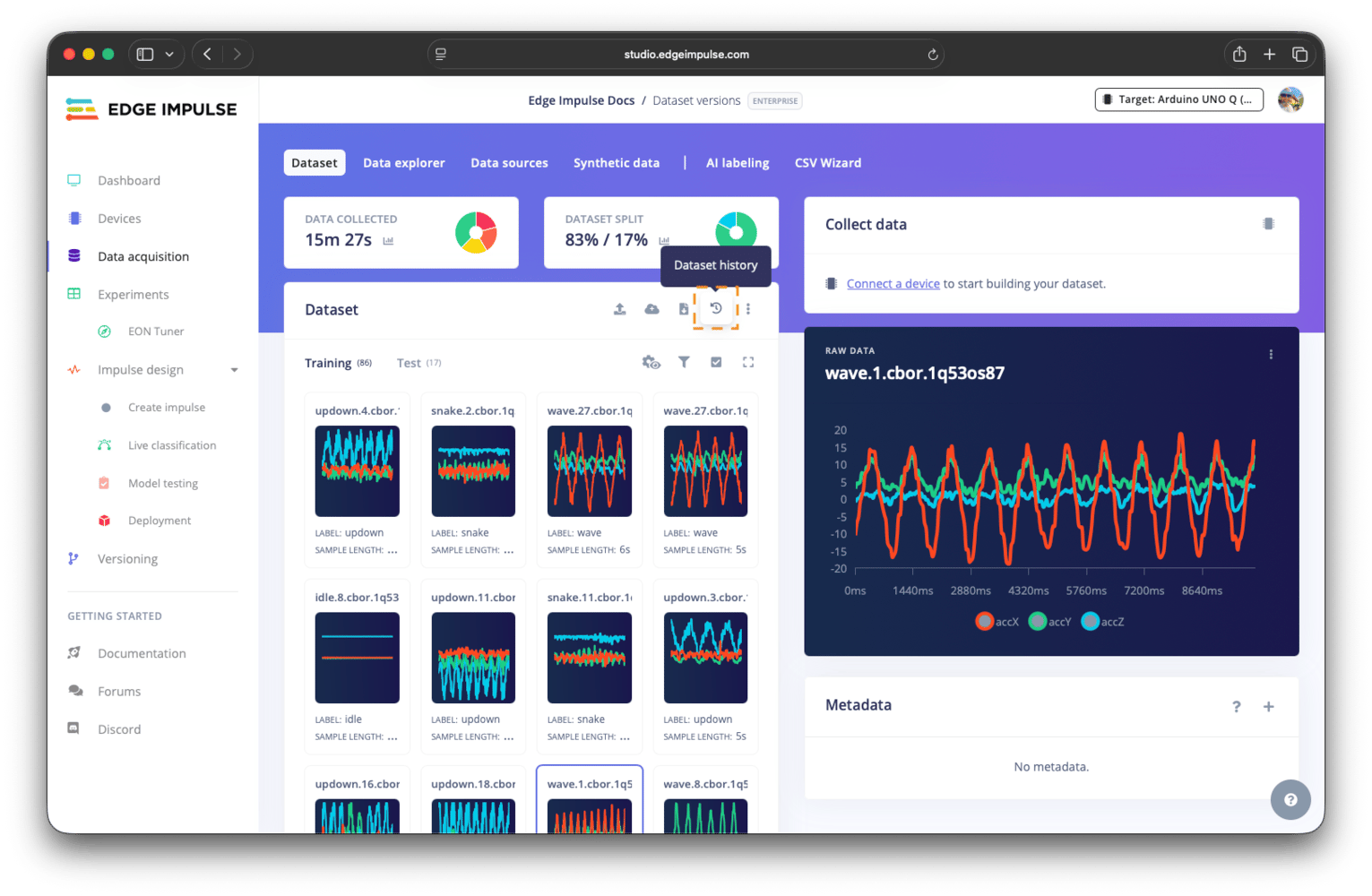
 To access the dataset version history, go to your project and navigate to the data acquisition page. On the dataset tab, click the dataset history icon in the top right of the dataset pane.
 ## Dataset history
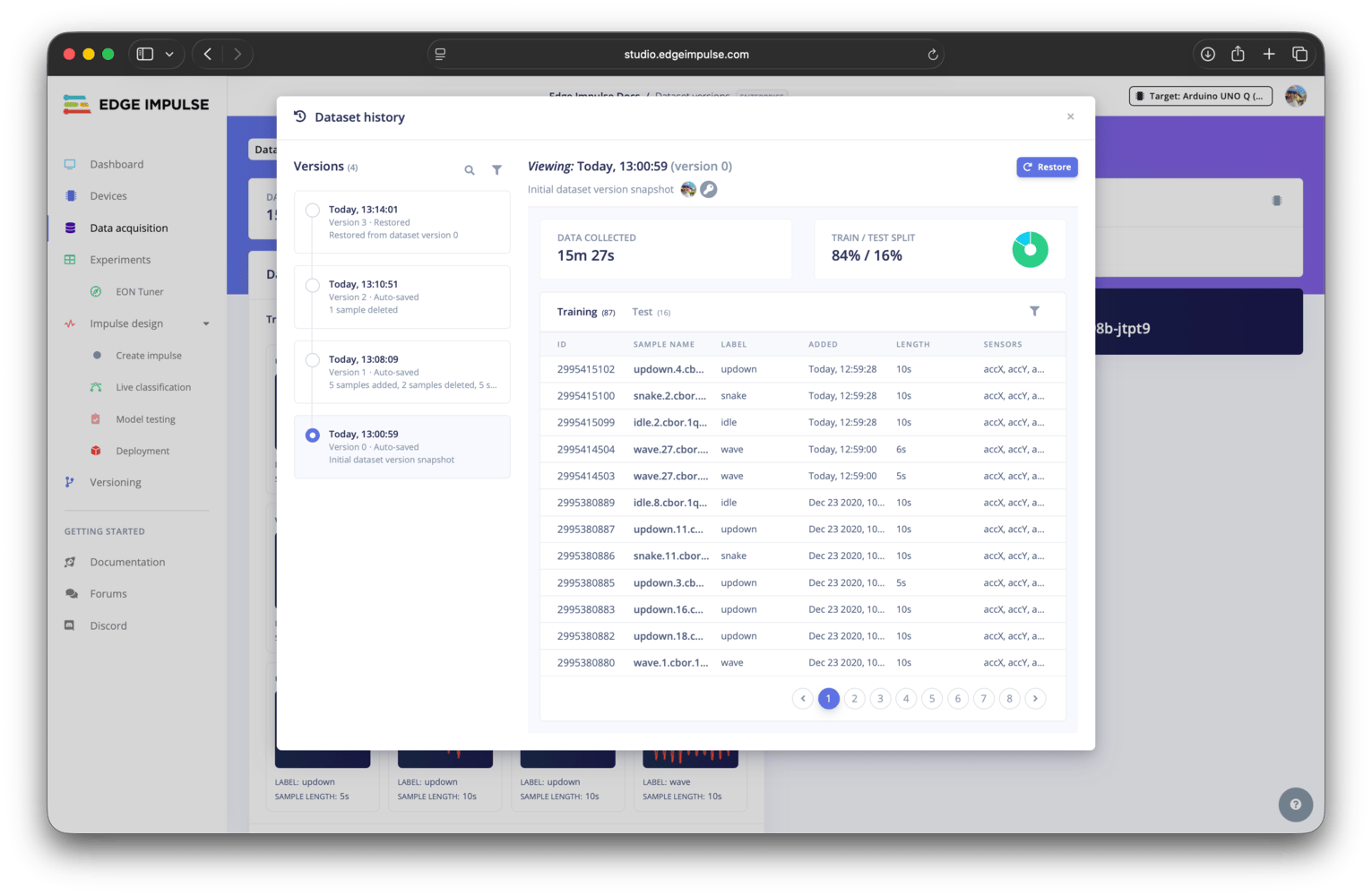
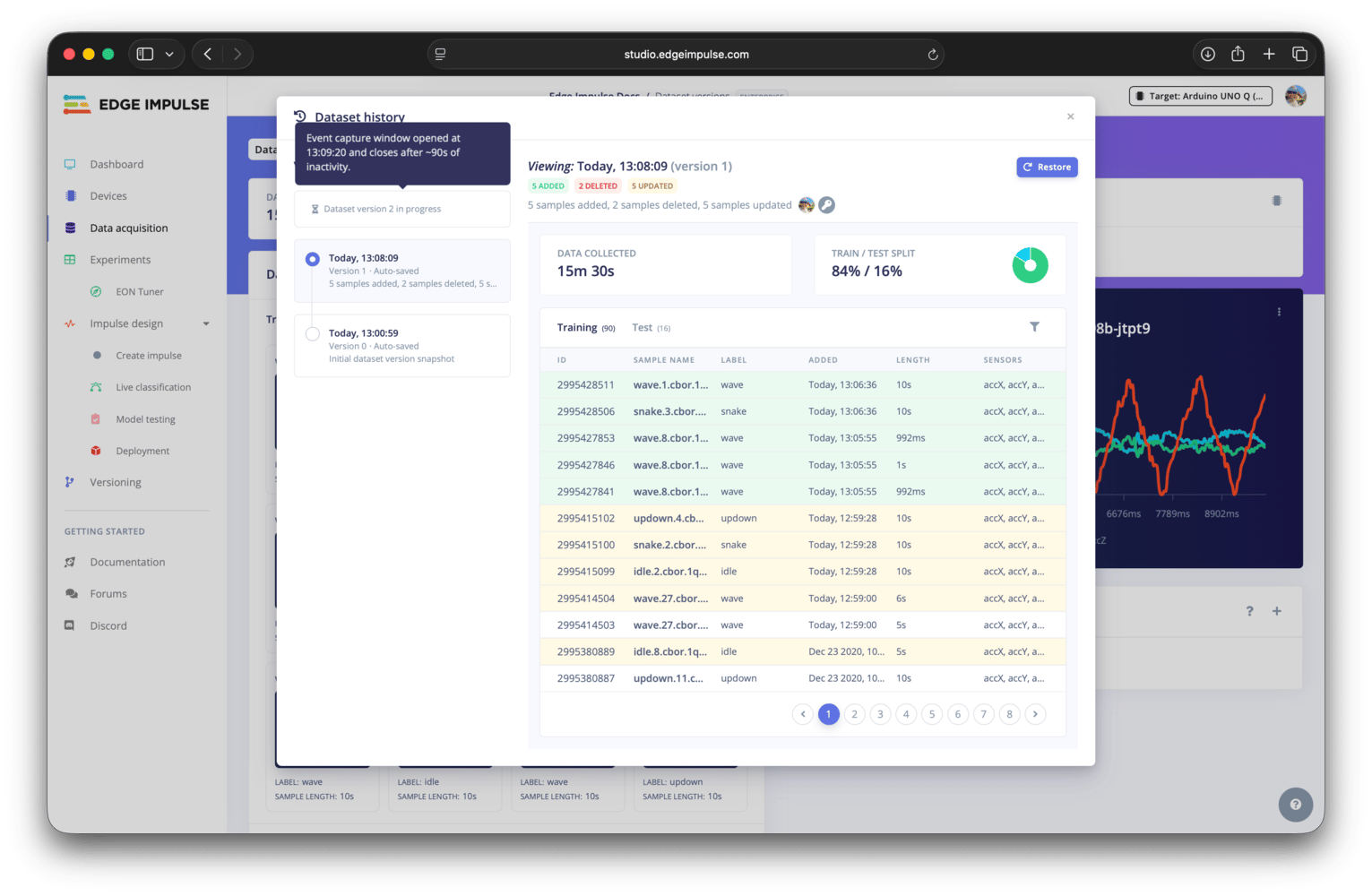
In the dataset history modal, you will find three sections: a versions timeline, an overview of the selected version, and a list of data samples for the selected version.
## Dataset history
In the dataset history modal, you will find three sections: a versions timeline, an overview of the selected version, and a list of data samples for the selected version.
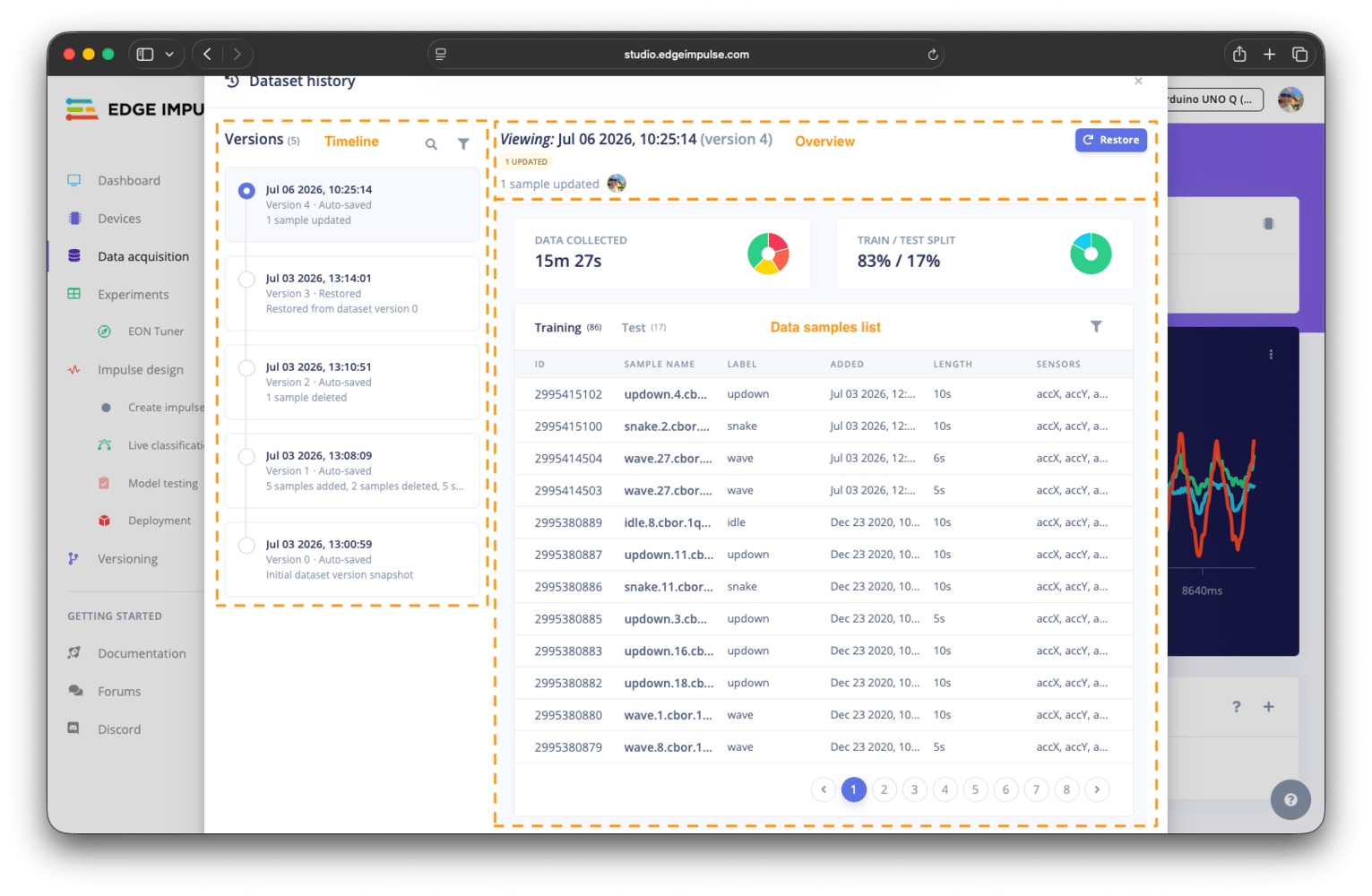 In these sections, you can view information related to each version of your dataset, including the version number, how the version was created, the date and time the version was created, the actor(s) who made the changes, and what changes were made to which data samples.
### Versions timeline
The stored versions are shown on the left hand side of the dataset history modal as a linear timeline, with the most recent version at the top. You can click on any version to view the overview and list of data samples, including the changes made, for that version.
The version timeline can be searched by version number and description (summary of the changes made) or filtered by how the version was created (e.g. auto-saved or restored).
### Version overview
The overview of the selected version is shown at the top on the right hand side of the dataset history modal. The information shown includes when the dataset was created, its version number, the dataset description (summary of the changes), coloured badges indicating the changes for quick reference, and the actor(s) involved with the changes.
The potential actors involved in the changes correlate to the authorization method used to make the changes: the user (JWT authorization), the Edge Impulse API (API key authorization), or a third party application (OAuth authorization). The user is represented by their profile picture, the Edge Impulse API is represented by a key icon, and an authorized third party application is represented by the logo for the application or, if the app has no logo, a cube icon.
### Version data samples list
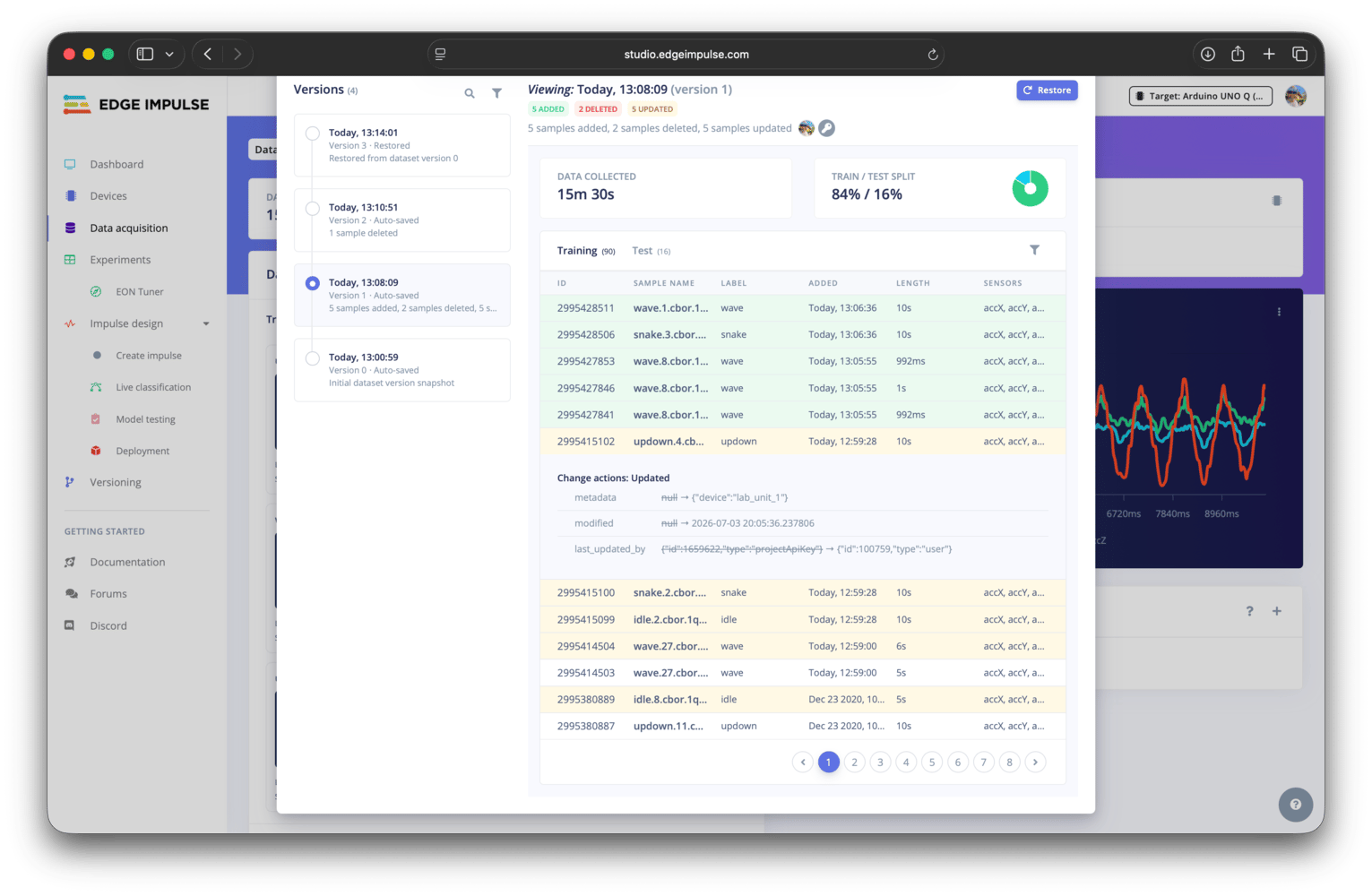
Below the dataset version overview are the data samples for the selected version. The data samples are shown in a list view, similar to the list view on the dataset tab of the data acquisition page. Data samples that have been added, deleted or modified are highlighted by the respective colour for that action. Click any data sample to see additional details for that sample.
## Tracked changes
New samples being added, existing samples being deleted, existing samples being updated, or samples moving between training, validation, test, or post-processing sets are all events tracked and recorded in the dataset version history. Updates to existing samples can include changes to the sample's label, metadata, or the sample itself, such as through cropping time-series / audio samples.
If a time-series / audio sample is split into multiple samples, the original sample will be shown as deleted, and each of the new samples will be shown as added.
In these sections, you can view information related to each version of your dataset, including the version number, how the version was created, the date and time the version was created, the actor(s) who made the changes, and what changes were made to which data samples.
### Versions timeline
The stored versions are shown on the left hand side of the dataset history modal as a linear timeline, with the most recent version at the top. You can click on any version to view the overview and list of data samples, including the changes made, for that version.
The version timeline can be searched by version number and description (summary of the changes made) or filtered by how the version was created (e.g. auto-saved or restored).
### Version overview
The overview of the selected version is shown at the top on the right hand side of the dataset history modal. The information shown includes when the dataset was created, its version number, the dataset description (summary of the changes), coloured badges indicating the changes for quick reference, and the actor(s) involved with the changes.
The potential actors involved in the changes correlate to the authorization method used to make the changes: the user (JWT authorization), the Edge Impulse API (API key authorization), or a third party application (OAuth authorization). The user is represented by their profile picture, the Edge Impulse API is represented by a key icon, and an authorized third party application is represented by the logo for the application or, if the app has no logo, a cube icon.
### Version data samples list
Below the dataset version overview are the data samples for the selected version. The data samples are shown in a list view, similar to the list view on the dataset tab of the data acquisition page. Data samples that have been added, deleted or modified are highlighted by the respective colour for that action. Click any data sample to see additional details for that sample.
## Tracked changes
New samples being added, existing samples being deleted, existing samples being updated, or samples moving between training, validation, test, or post-processing sets are all events tracked and recorded in the dataset version history. Updates to existing samples can include changes to the sample's label, metadata, or the sample itself, such as through cropping time-series / audio samples.
If a time-series / audio sample is split into multiple samples, the original sample will be shown as deleted, and each of the new samples will be shown as added.
 ## Creating a version
When you make changes to your dataset, Edge Impulse will automatically create a new version of your dataset. The tracked changes are triggered by the first modification to the dataset and tracking continues until there has been a period of no changes made to the dataset. After this period of inactivity, the version is finalized and added to the version timeline. A new version will be created when the next change is made to the dataset.
## Creating a version
When you make changes to your dataset, Edge Impulse will automatically create a new version of your dataset. The tracked changes are triggered by the first modification to the dataset and tracking continues until there has been a period of no changes made to the dataset. After this period of inactivity, the version is finalized and added to the version timeline. A new version will be created when the next change is made to the dataset.
 ## Restoring a version
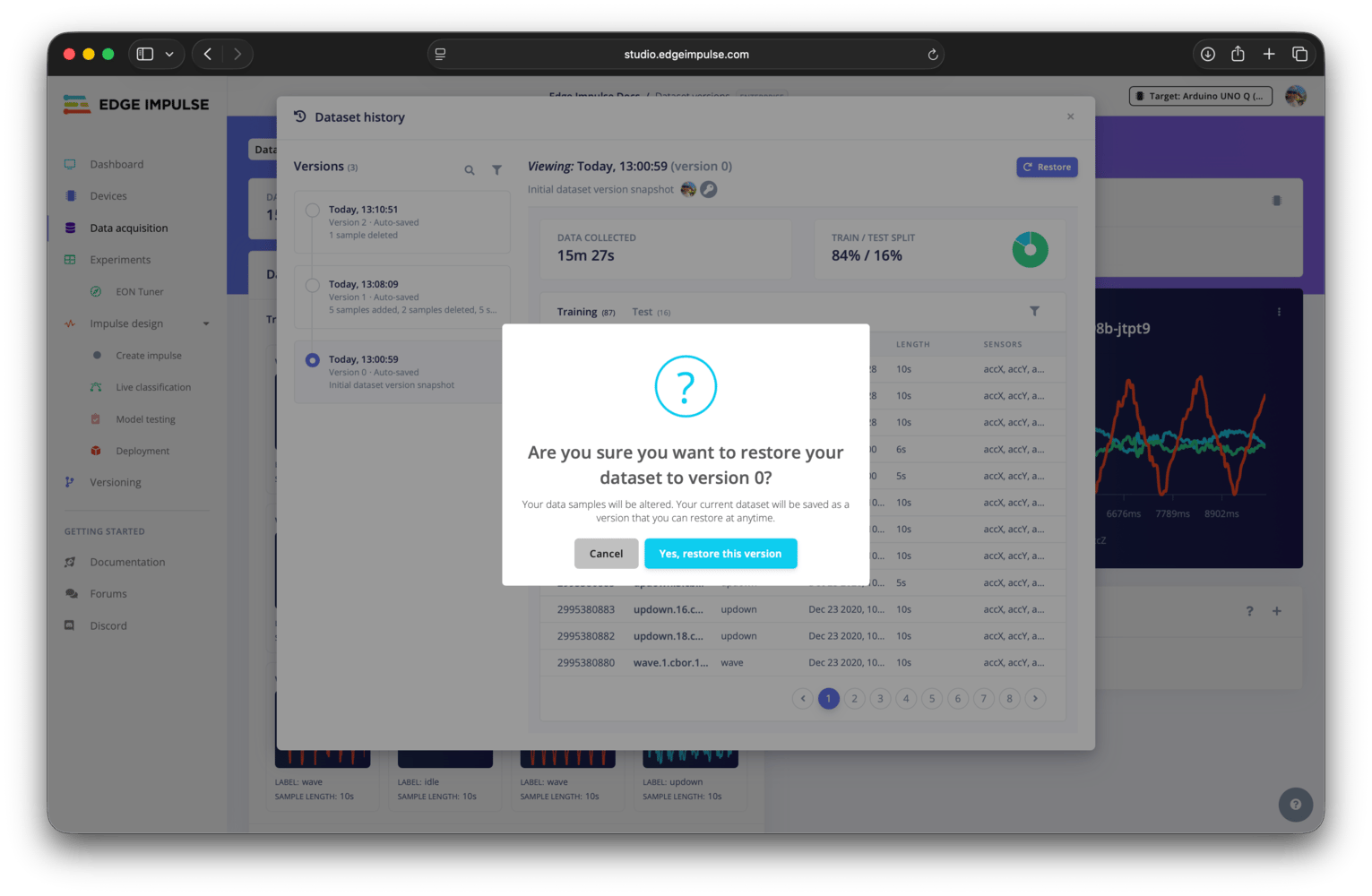
You can restore a previous version of your dataset by selecting that version and then clicking the restore button at the top right of the history modal. This will create a new version of your dataset with the changes from the selected version applied to it. The restored version will be marked as "restored" next to the version number in the version timeline.
## Restoring a version
You can restore a previous version of your dataset by selecting that version and then clicking the restore button at the top right of the history modal. This will create a new version of your dataset with the changes from the selected version applied to it. The restored version will be marked as "restored" next to the version number in the version timeline.
 ## Additional resources
* [Data acquisition](/studio/projects/data-acquisition)
* [Dataset](/studio/projects/data-acquisition/dataset)
## Additional resources
* [Data acquisition](/studio/projects/data-acquisition)
* [Dataset](/studio/projects/data-acquisition/dataset)