> ## Documentation Index
> Fetch the complete documentation index at: https://docs.edgeimpulse.com/llms.txt
> Use this file to discover all available pages before exploring further.
# Uploader
You can upload your existing data samples and datasets to your project directly through the Edge Impulse Studio uploader.
The uploader signs local files and uploads them to the [Ingestion API](/apis/ingestion). This is useful to upload existing data samples and entire datasets, or to migrate data between Edge Impulse projects. The uploader supports the same file types supported by the Ingestion API. See the list of [supported file types](/apis/ingestion#supported-file-types).
Data can be uploaded as unlabelled or labelled in accordance with one of the supported data annotation formats, mainly the Edge Impulse [labels](/tools/specifications/data-annotation/ei-labels) format, the Edge Impulse [structured labels](/tools/specifications/data-annotation/ei-structured-labels) format, and various [object detection](/tools/specifications/data-annotation/object-detection) formats.
**Additional file types or annotation formats**
If none of these above choices are suitable for your project, you can also have a look at [custom transformation blocks](/studio/organizations/custom-blocks/custom-transformation-blocks) to parse your data samples to create a dataset supported by Edge Impulse.
**Edge Impulse Datasets**
Need inspiration? Check out our [Edge Impulse datasets collection](/datasets) that contains publicly available datasets collected, generated or curated by Edge Impulse or its partners.
These datasets highlight specific use cases, helping you understand the types of data commonly encountered in projects like object detection, audio classification, and visual anomaly detection.
## Upload data
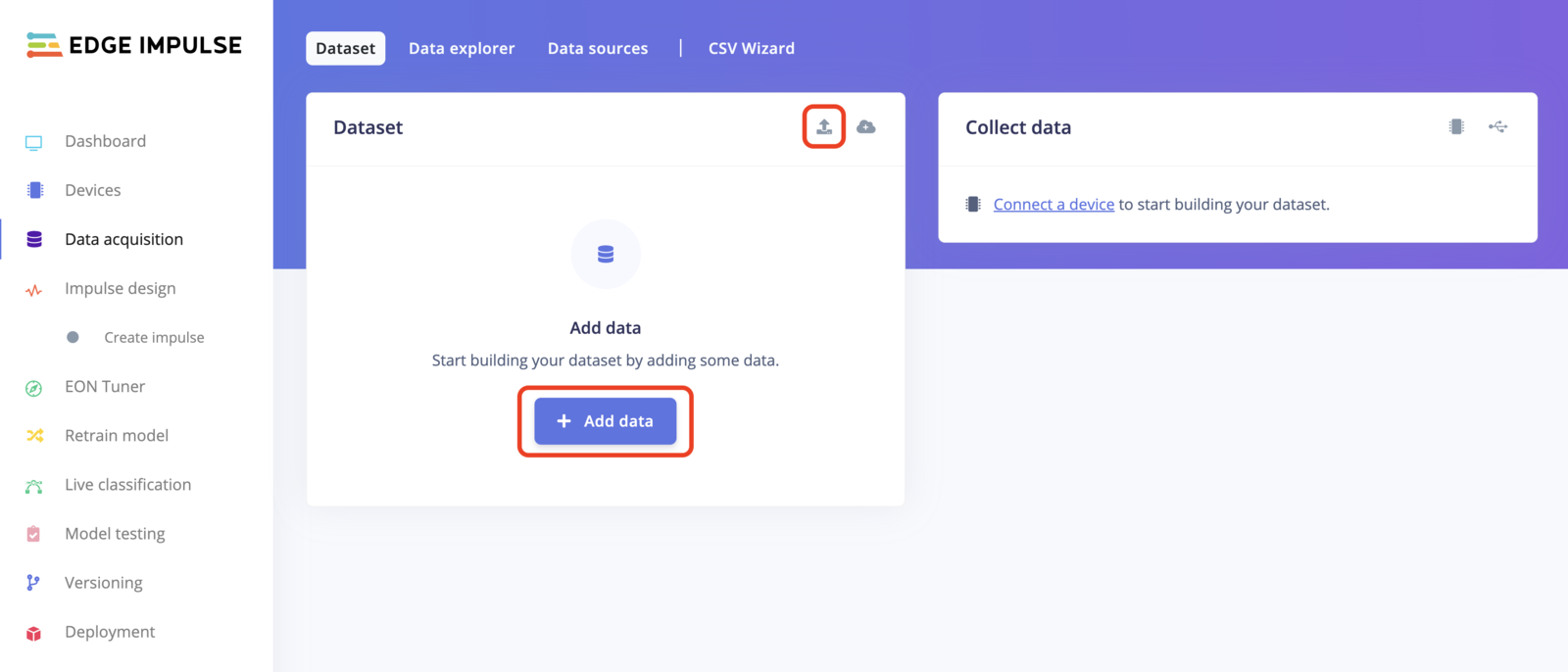
To upload data using the uploader, go to the **Data acquisition** page and click on the uploader button as shown in the image below:
 **Bounding boxes?**
If you have existing bounding boxes for your images dataset, make sure your project's labeling method is set to **Bounding Boxes (object detection)**. You can change this parameter in your project's [dashboard](/studio/projects/dashboard#6-project-info).
Then you need to upload any label files with your images. Select both your images and the labels file when uploading to apply the labels. The uploader will try to automatically detect the right format.
**Bounding boxes?**
If you have existing bounding boxes for your images dataset, make sure your project's labeling method is set to **Bounding Boxes (object detection)**. You can change this parameter in your project's [dashboard](/studio/projects/dashboard#6-project-info).
Then you need to upload any label files with your images. Select both your images and the labels file when uploading to apply the labels. The uploader will try to automatically detect the right format.
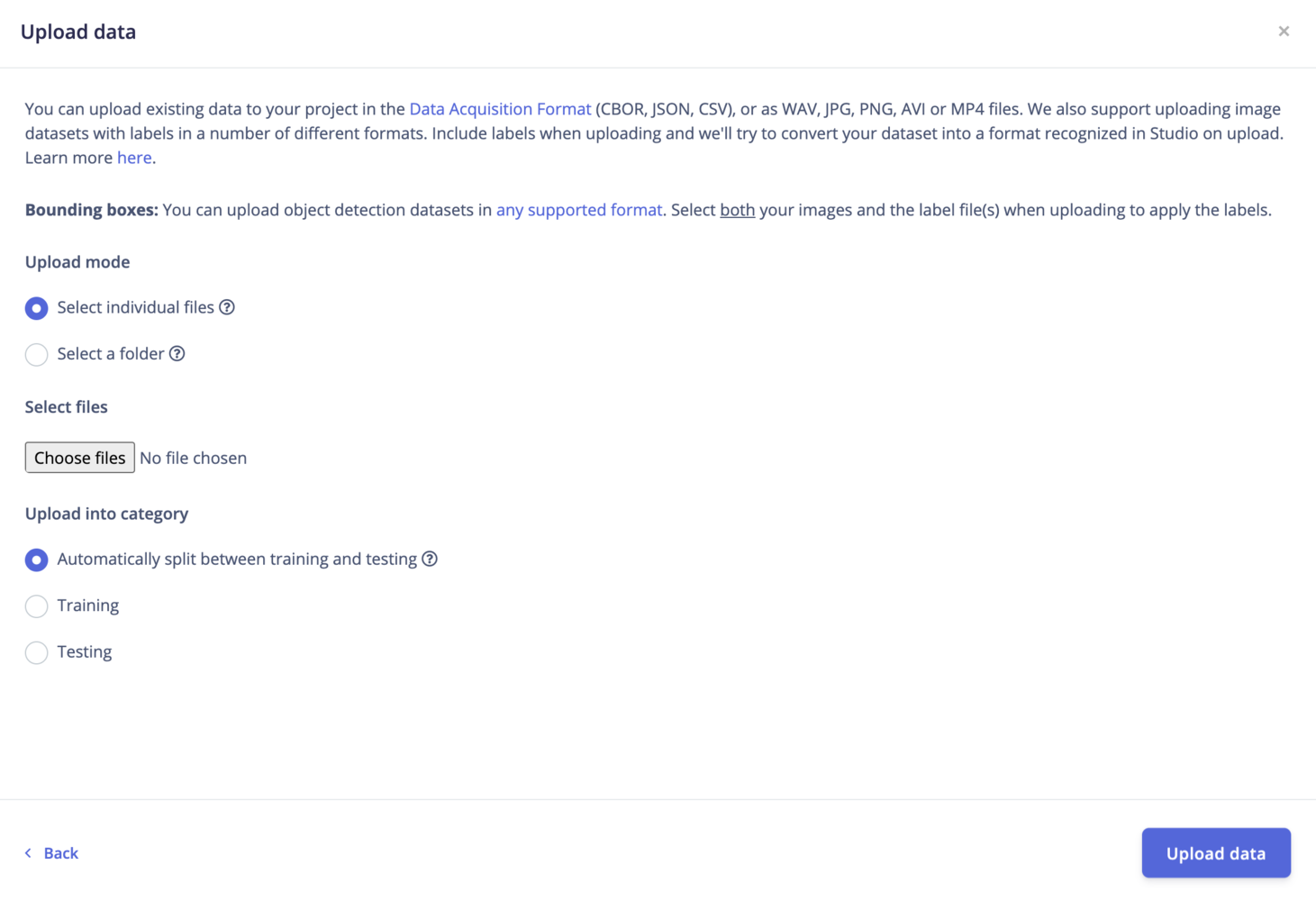 ### Upload mode
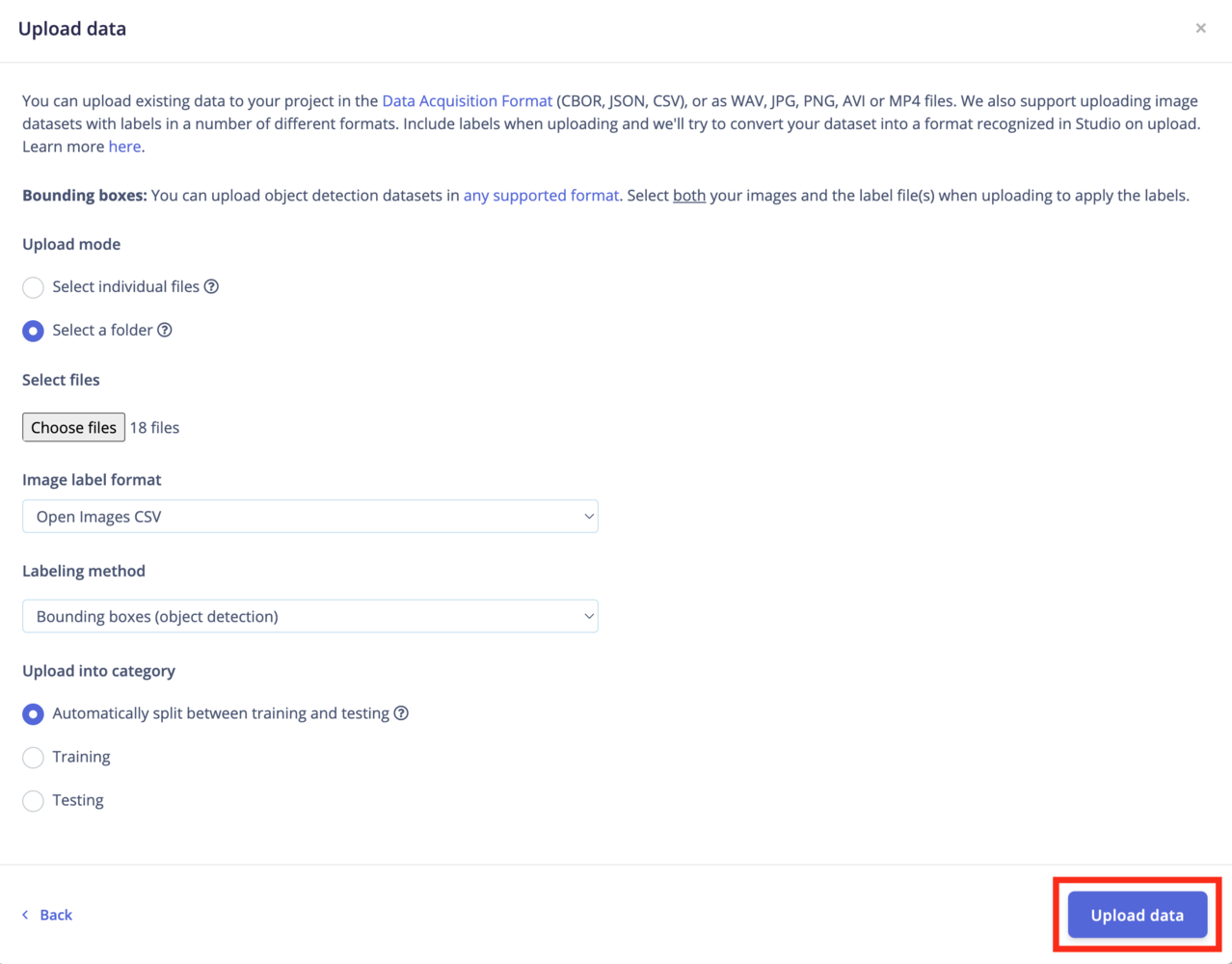
**Select individual files**: This option let you select multiple individual files within a single folder. If you want to upload images with bounding boxes, make sure to also select the label files.
**Select a folder**: This option let you select one folder, including all the subfolders.
### Upload into a category
Select which category you want to upload your dataset into. Options can be `training`, `testing` or perform an 80/20 split between your data samples.
If needed, you can always perform a split later from your project's [dashboard](/studio/projects/dashboard#10-danger-zone).
### Label your data
When a labeling method is not provided, the labels are automatically inferred from the filename through the following regex: `^[a-zA-Z0-9\s-_]+`. For example: idle.01 will yield the label `idle`.
Thus, if you want to use labels (string values) containing float values (e.g. "0.01", "5.02", etc...), automatic labeling won't work.
To bypass this limitation, you can make an `info.labels` JSON file containing your dataset files' info. We also support adding metadata to your samples.
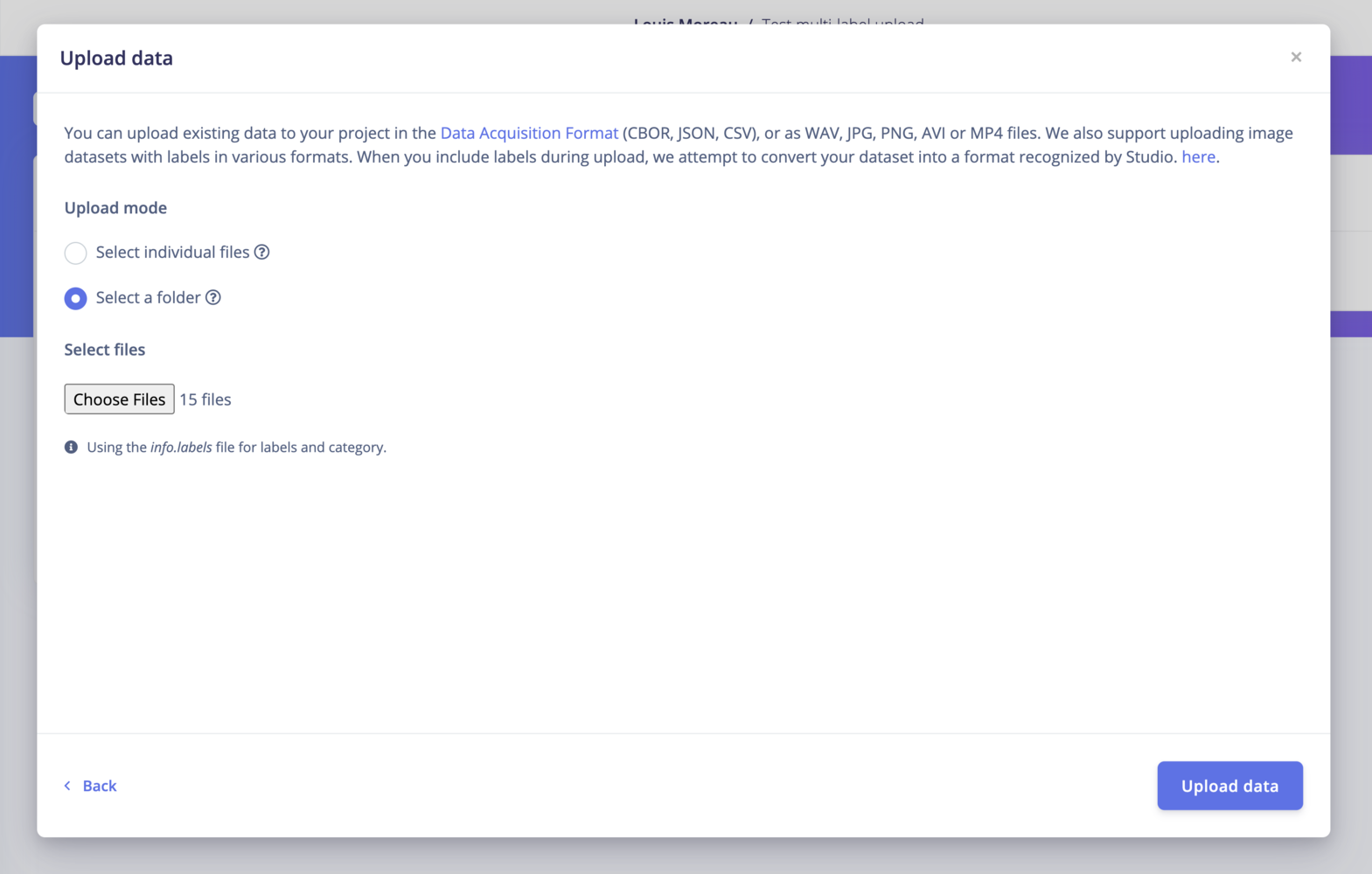
The Studio uploader will automatically detect the `info.labels` file:
### Upload mode
**Select individual files**: This option let you select multiple individual files within a single folder. If you want to upload images with bounding boxes, make sure to also select the label files.
**Select a folder**: This option let you select one folder, including all the subfolders.
### Upload into a category
Select which category you want to upload your dataset into. Options can be `training`, `testing` or perform an 80/20 split between your data samples.
If needed, you can always perform a split later from your project's [dashboard](/studio/projects/dashboard#10-danger-zone).
### Label your data
When a labeling method is not provided, the labels are automatically inferred from the filename through the following regex: `^[a-zA-Z0-9\s-_]+`. For example: idle.01 will yield the label `idle`.
Thus, if you want to use labels (string values) containing float values (e.g. "0.01", "5.02", etc...), automatic labeling won't work.
To bypass this limitation, you can make an `info.labels` JSON file containing your dataset files' info. We also support adding metadata to your samples.
The Studio uploader will automatically detect the `info.labels` file:
 Want to try it yourself? You can export any dataset from Edge Impulse [public projects](https://edgeimpulse.com/projects) once you have cloned it, then upload this data to your own project.
#### Image dataset annotation formats
Image datasets can be found in a range of different formats. Different formats have different directory structures, and require annotations (or labels) to follow a particular structure. We support uploading data in many different formats in the Edge Impulse Studio.
Want to try it yourself? You can export any dataset from Edge Impulse [public projects](https://edgeimpulse.com/projects) once you have cloned it, then upload this data to your own project.
#### Image dataset annotation formats
Image datasets can be found in a range of different formats. Different formats have different directory structures, and require annotations (or labels) to follow a particular structure. We support uploading data in many different formats in the Edge Impulse Studio.
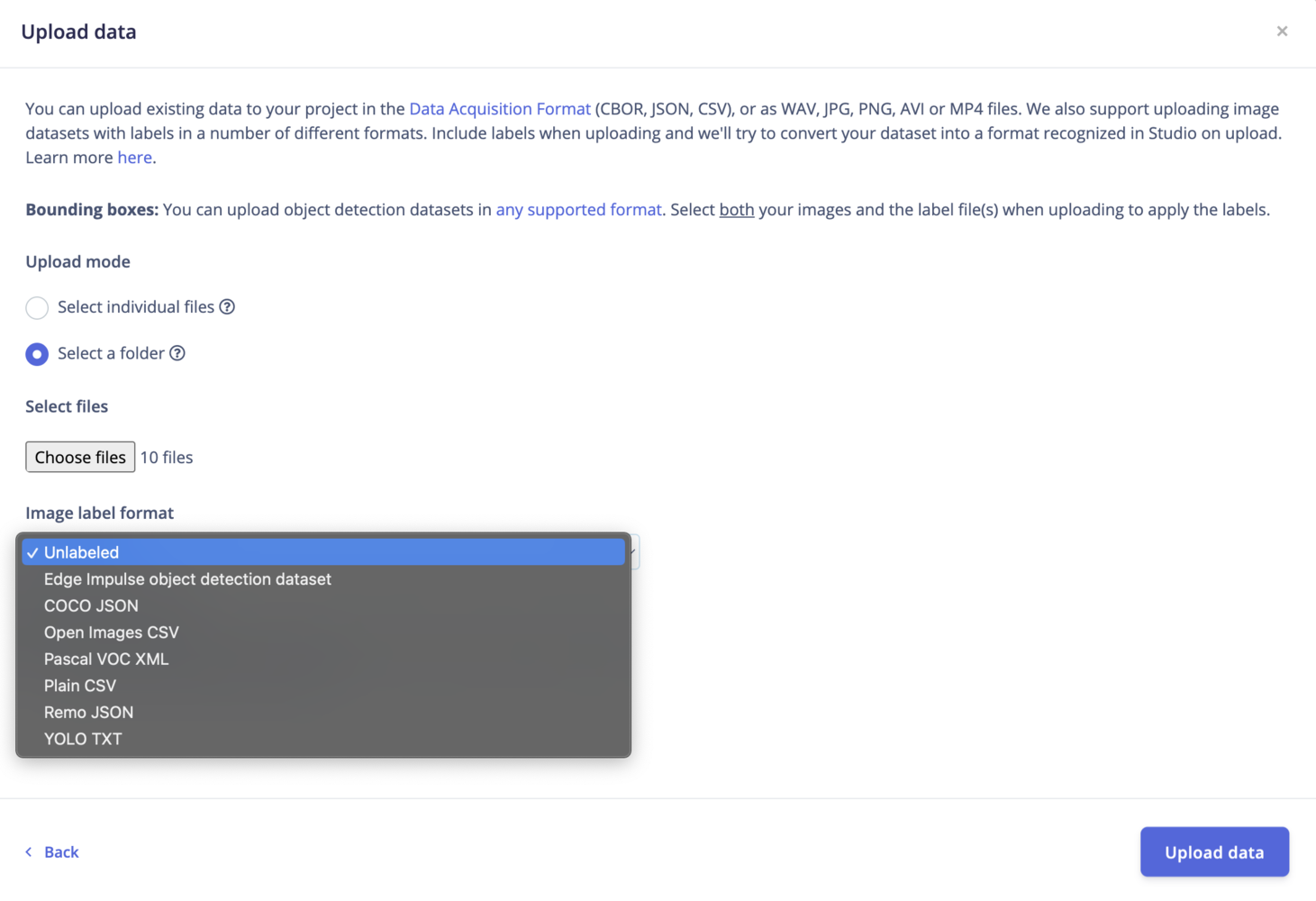 Image datasets usually consist of image files, and one (or many) annotation files, which provide labels for the images. Image datasets may have annotations that consist of:
* A single-label: each image has a single label
* Bounding boxes: used for object detection; images contain 'objects' to be detected, given as a list of labeled 'bounding boxes'
When you upload an image dataset, we try to automatically detect the format of that data (in some cases, we cannot detect it and you will need to manually select it).
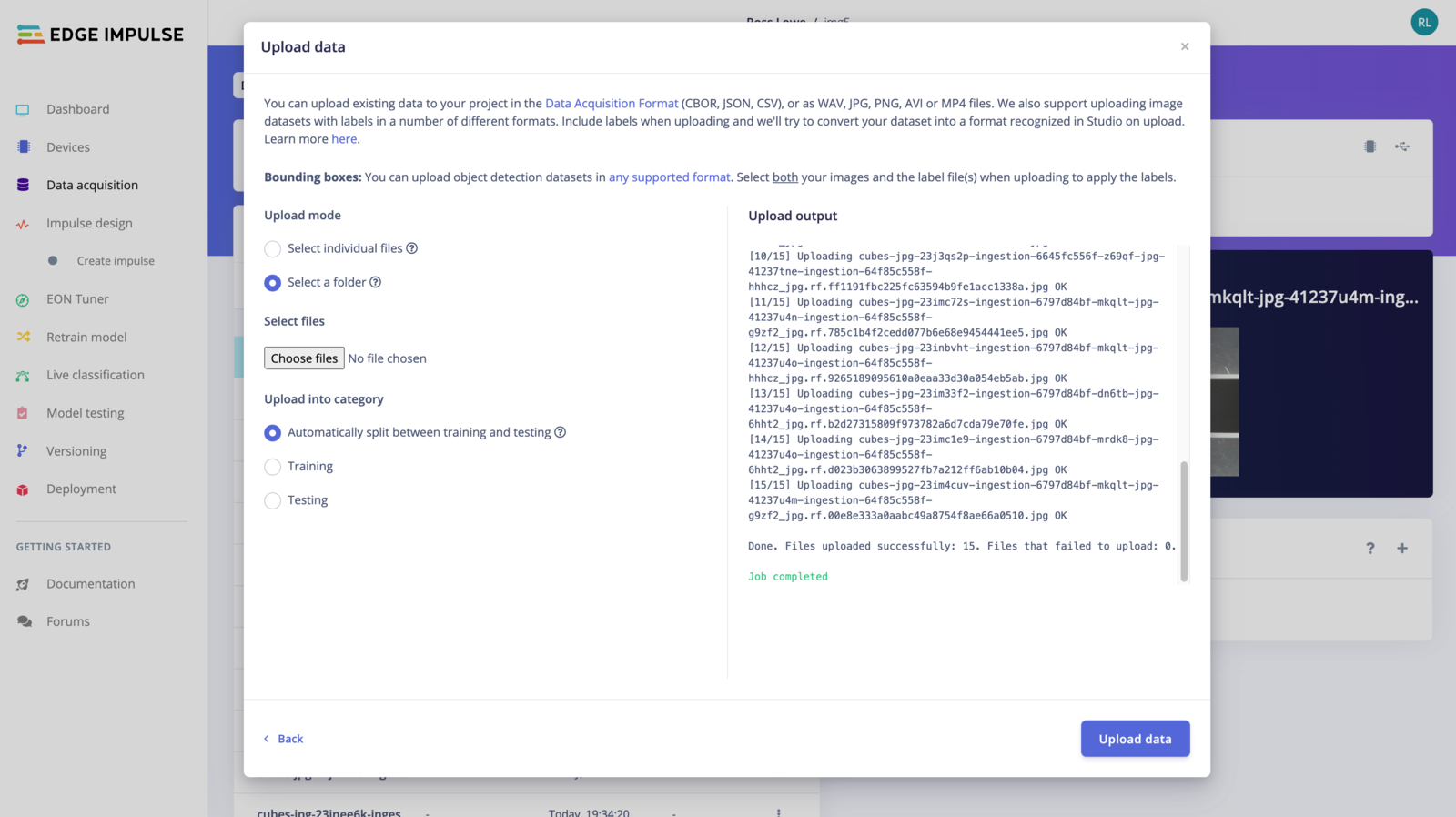
Once the format of your dataset has been selected, click on **Upload data** and let the Uploader parse your dataset:
Image datasets usually consist of image files, and one (or many) annotation files, which provide labels for the images. Image datasets may have annotations that consist of:
* A single-label: each image has a single label
* Bounding boxes: used for object detection; images contain 'objects' to be detected, given as a list of labeled 'bounding boxes'
When you upload an image dataset, we try to automatically detect the format of that data (in some cases, we cannot detect it and you will need to manually select it).
Once the format of your dataset has been selected, click on **Upload data** and let the Uploader parse your dataset:
 ## Additional resources
* [Ingestion API](/apis/ingestion)
* [Edge Impulse labels format](/tools/specifications/data-annotation/ei-labels)
* [Edge Impulse structured labels format](/tools/specifications/data-annotation/ei-structured-labels)
* [Object detection label formats](/tools/specifications/data-annotation/object-detection)
## Additional resources
* [Ingestion API](/apis/ingestion)
* [Edge Impulse labels format](/tools/specifications/data-annotation/ei-labels)
* [Edge Impulse structured labels format](/tools/specifications/data-annotation/ei-structured-labels)
* [Object detection label formats](/tools/specifications/data-annotation/object-detection)