> ## Documentation Index
> Fetch the complete documentation index at: https://docs.edgeimpulse.com/llms.txt
> Use this file to discover all available pages before exploring further.
# Define dataset split
Advanced control over your dataset splits is provided through the **Define dataset split** functionality. This includes specifying split percentages for your training, validation, and test sets, stratifying your data by labels and/or metadata, and grouping your data by metadata values to prevent data leakage.
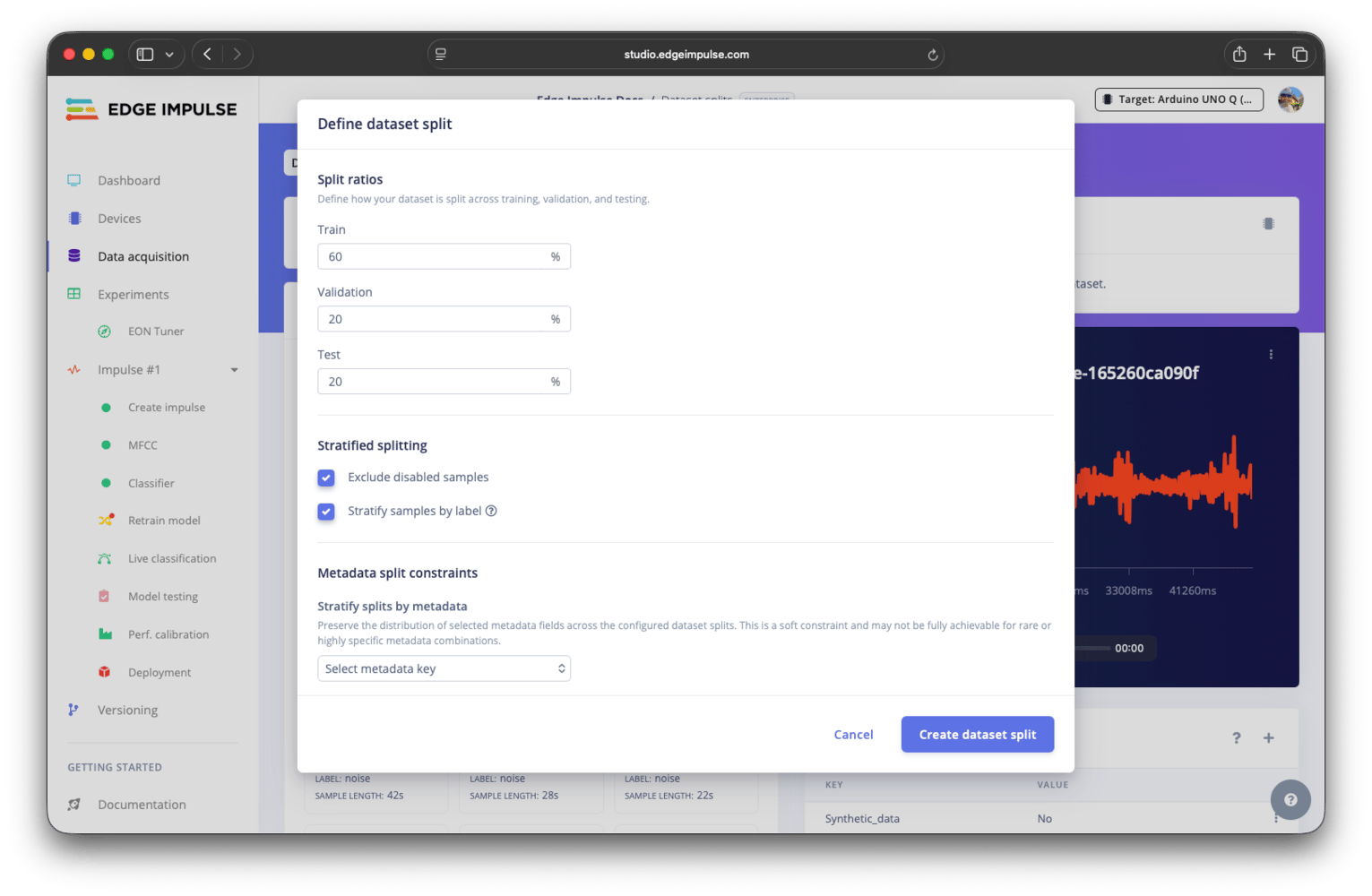 To access the dataset split functionality, go to your project and navigate to the data acquisition page. On the dataset tab, click the **⋮** in the top right of the dataset pane, and then click on **Define dataset split** menu item.
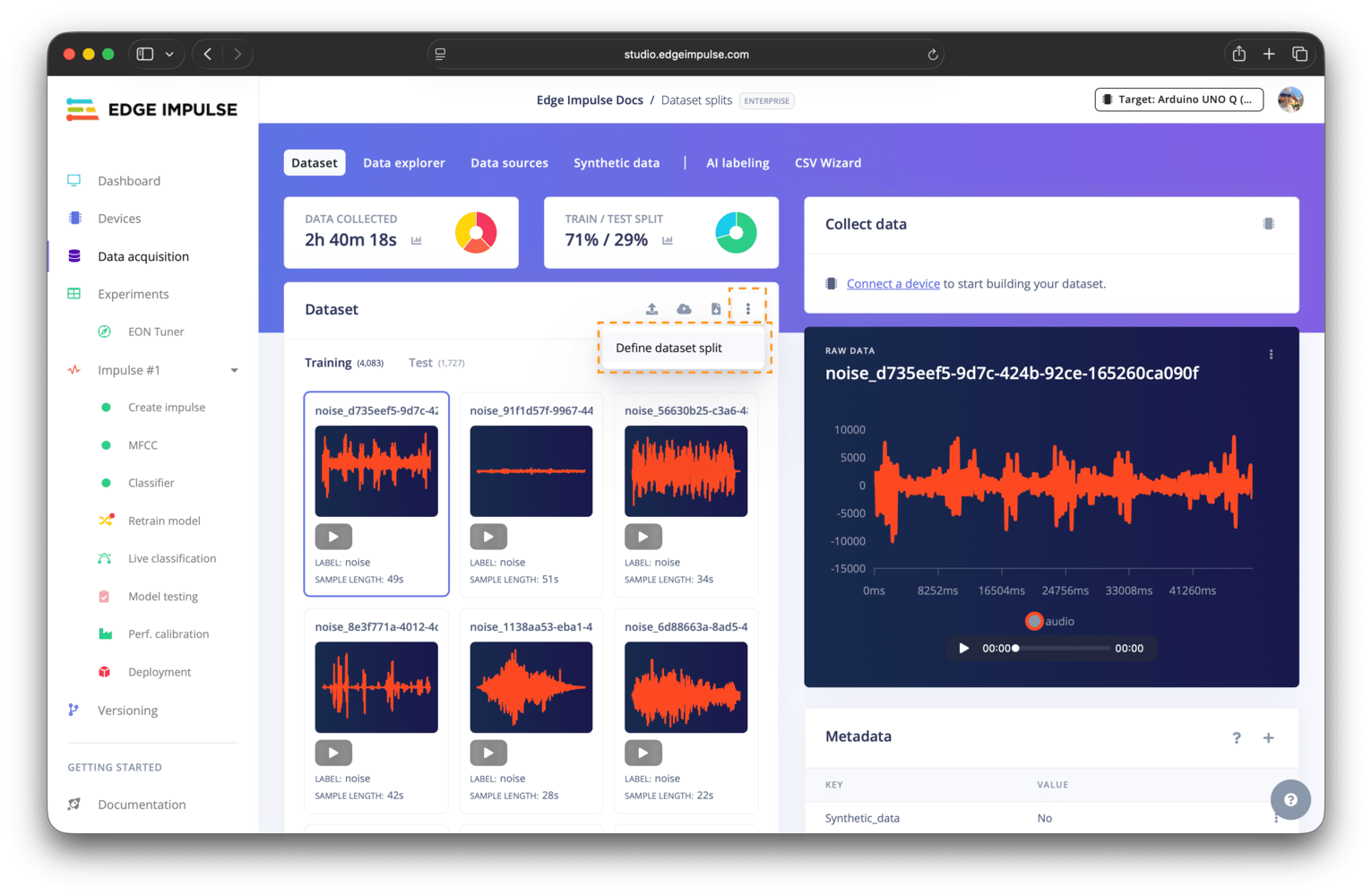 ## Split ratios
**Validation set only available when explicit validation set setting is enabled**
The validation set option is only available when the explicit validation set [advanced setting](/studio/projects/data-acquisition/dataset/advanced-settings) is enabled. If this setting is disabled, no separate validation set option will be shown.
Split ratios define the percentage of data assigned to each split (training, validation, and test). These values are a percentage of the total dataset, and must sum to 100%.
These are target ratios. Other constraints, such as grouping by metadata, may cause the final result to deviate from them.
## Stratified splitting
Stratified splitting attempts to preserve the label distribution across splits. Each split will contain similar proportions of each label, as much as possible.
This is useful when labels are imbalanced and you want each dataset split to reflect the overall distribution. Disabled samples can optionally be excluded.
Stratification is best-effort and may not be achievable for labels with few data samples.
## Metadata split constraints
Metadata-based constraints give you more control over how samples are distributed between splits. These operate alongside label stratification and may interact with it.
There are two types of constraints: stratify by metadata (a soft constraint) and group by metadata (a hard constraint).
### Stratify splits by metadata
Stratifying the splits by metadata attempts to preserve the distribution of selected metadata keys across splits, similar to label stratification. For example, if you stratify by a `device_type` key, each split will aim to contain a similar proportion of samples from each device value.
This applies in addition to label stratification and is a best-effort only; it may not hold for highly specific combinations of labels and metadata.
### Group samples by metadata
Grouping by metadata ensures that all samples sharing the same metadata value for a specific key are placed in the same split. For example, keeping all samples from a single subject, device, or session together. This is commonly used to prevent data leakage.
This is a hard constraint. Entire groups are assigned together, even if this causes imbalance or overrides stratification behaviour.
## Data preview
Click the `Preview dataset split` button to simulate the split before applying it. This helps you validate that your constraints produce the expected outcomes.
There are three graph views available, each with a corresponding table: overall, assignment, and stratification.
### Overall view
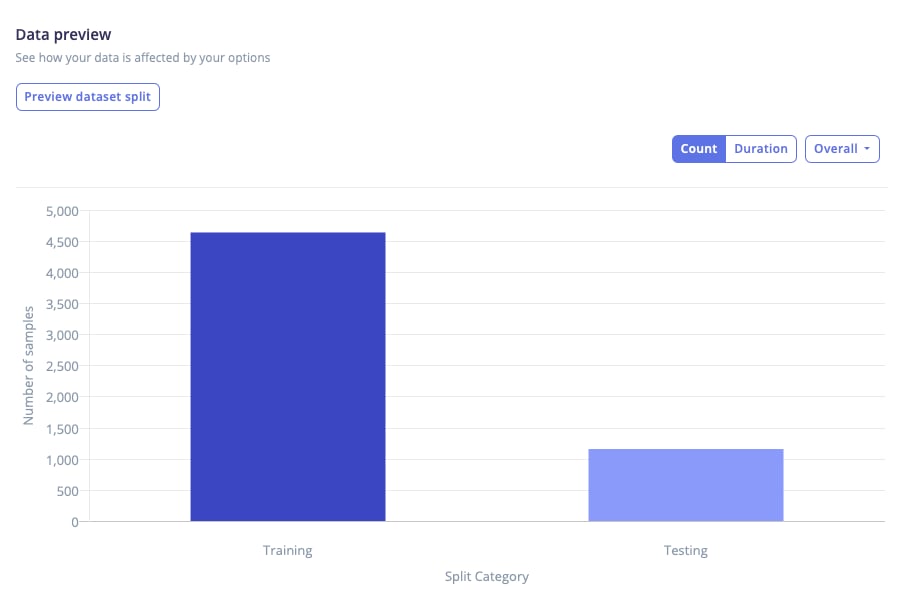
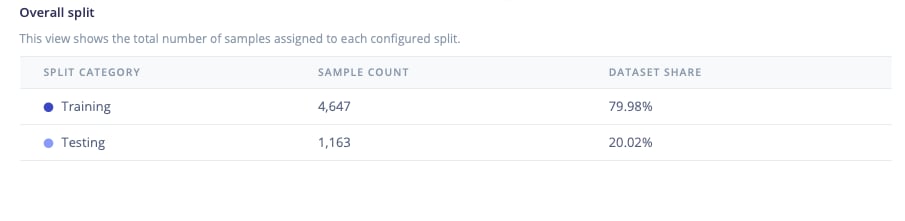
The overall view shows the final distribution of samples across splits. It is the simplest summary of the result, helps confirm that the splits roughly match the intended ratios, and that no split is unexpectedly small or empty.
## Split ratios
**Validation set only available when explicit validation set setting is enabled**
The validation set option is only available when the explicit validation set [advanced setting](/studio/projects/data-acquisition/dataset/advanced-settings) is enabled. If this setting is disabled, no separate validation set option will be shown.
Split ratios define the percentage of data assigned to each split (training, validation, and test). These values are a percentage of the total dataset, and must sum to 100%.
These are target ratios. Other constraints, such as grouping by metadata, may cause the final result to deviate from them.
## Stratified splitting
Stratified splitting attempts to preserve the label distribution across splits. Each split will contain similar proportions of each label, as much as possible.
This is useful when labels are imbalanced and you want each dataset split to reflect the overall distribution. Disabled samples can optionally be excluded.
Stratification is best-effort and may not be achievable for labels with few data samples.
## Metadata split constraints
Metadata-based constraints give you more control over how samples are distributed between splits. These operate alongside label stratification and may interact with it.
There are two types of constraints: stratify by metadata (a soft constraint) and group by metadata (a hard constraint).
### Stratify splits by metadata
Stratifying the splits by metadata attempts to preserve the distribution of selected metadata keys across splits, similar to label stratification. For example, if you stratify by a `device_type` key, each split will aim to contain a similar proportion of samples from each device value.
This applies in addition to label stratification and is a best-effort only; it may not hold for highly specific combinations of labels and metadata.
### Group samples by metadata
Grouping by metadata ensures that all samples sharing the same metadata value for a specific key are placed in the same split. For example, keeping all samples from a single subject, device, or session together. This is commonly used to prevent data leakage.
This is a hard constraint. Entire groups are assigned together, even if this causes imbalance or overrides stratification behaviour.
## Data preview
Click the `Preview dataset split` button to simulate the split before applying it. This helps you validate that your constraints produce the expected outcomes.
There are three graph views available, each with a corresponding table: overall, assignment, and stratification.
### Overall view
The overall view shows the final distribution of samples across splits. It is the simplest summary of the result, helps confirm that the splits roughly match the intended ratios, and that no split is unexpectedly small or empty.
 ### Assignment view
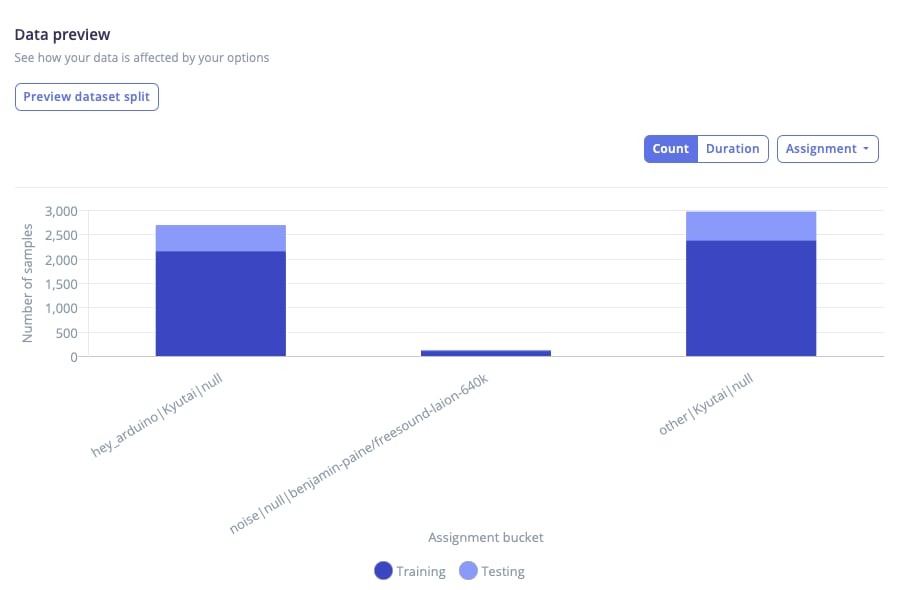
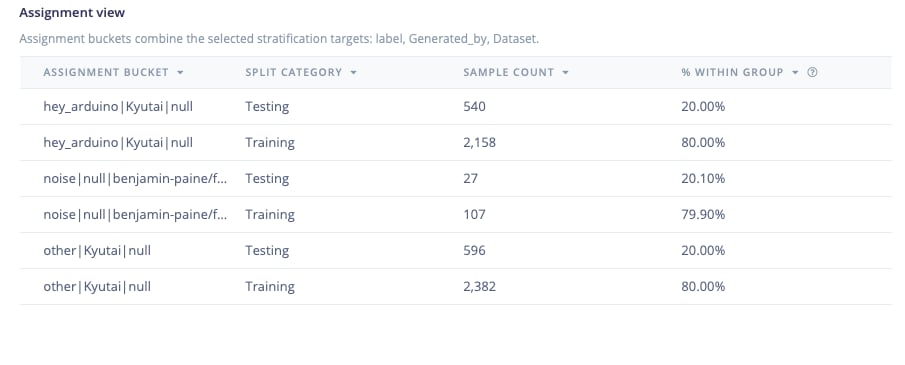
The assignment view shows how samples are grouped into buckets and assigned to splits.
A bucket represents the unit of assignment. When stratifying by metadata, buckets contain the values of the selected targets, for example `hey_arduino|device_a|session_2`.
When grouping is enabled, buckets correspond to those grouping constraints. Because grouped buckets must stay together, they appear as 100% assigned to a single split.
### Assignment view
The assignment view shows how samples are grouped into buckets and assigned to splits.
A bucket represents the unit of assignment. When stratifying by metadata, buckets contain the values of the selected targets, for example `hey_arduino|device_a|session_2`.
When grouping is enabled, buckets correspond to those grouping constraints. Because grouped buckets must stay together, they appear as 100% assigned to a single split.
 ### Stratification view
**Only available when stratification is enabled**
The stratification view is only available when stratification by label or metadata is enabled. If stratification is disabled, this view will not appear in the dropdown selector for the different graph views.
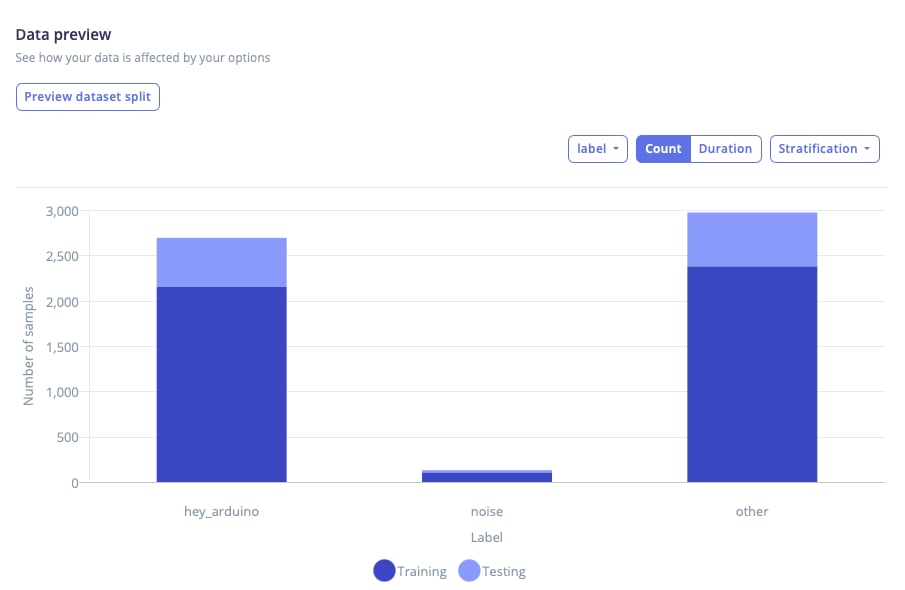
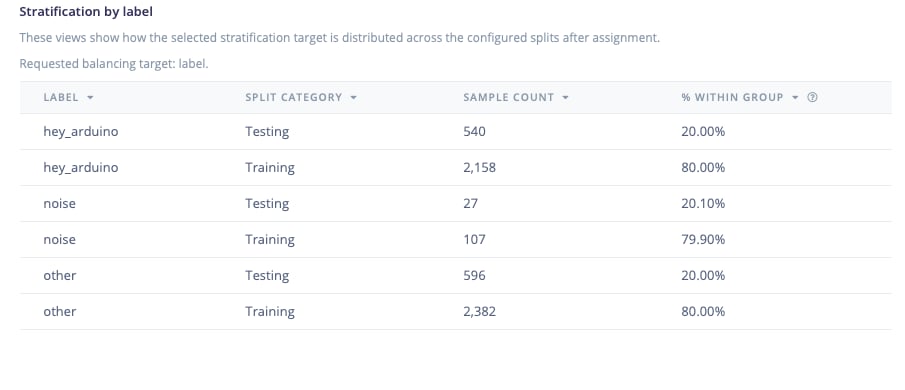
The stratification view evaluates how well balance targets were achieved.
It looks at one balancing target at a time, such as a label or metadata key, and shows how its values are distributed across splits. This makes it easier to spot imbalance, especially when grouping constraints are applied.
Use the dropdown at the top of the graph to switch between stratification per label or a specific metadata key. This dropdown appears only when the stratification view is selected.
### Stratification view
**Only available when stratification is enabled**
The stratification view is only available when stratification by label or metadata is enabled. If stratification is disabled, this view will not appear in the dropdown selector for the different graph views.
The stratification view evaluates how well balance targets were achieved.
It looks at one balancing target at a time, such as a label or metadata key, and shows how its values are distributed across splits. This makes it easier to spot imbalance, especially when grouping constraints are applied.
Use the dropdown at the top of the graph to switch between stratification per label or a specific metadata key. This dropdown appears only when the stratification view is selected.
 ## Create dataset split
Click `Create dataset split` to apply the configuration. This immediately reassigns samples between splits, enforcing grouping constraints and applying stratification where possible.
## Additional resources
* [Data acquisition](/studio/projects/data-acquisition)
* [Dataset](/studio/projects/data-acquisition/dataset)
* [Metadata](/studio/projects/data-acquisition/dataset/metadata)
## Create dataset split
Click `Create dataset split` to apply the configuration. This immediately reassigns samples between splits, enforcing grouping constraints and applying stratification where possible.
## Additional resources
* [Data acquisition](/studio/projects/data-acquisition)
* [Dataset](/studio/projects/data-acquisition/dataset)
* [Metadata](/studio/projects/data-acquisition/dataset/metadata)