> ## Documentation Index
> Fetch the complete documentation index at: https://docs.edgeimpulse.com/llms.txt
> Use this file to discover all available pages before exploring further.
# Advanced dataset settings
The **Advanced settings** found on the dataset tab provide additional configuration options for you to control and customize the data used in your project. The sections that follow are an overview of the advanced settings available.
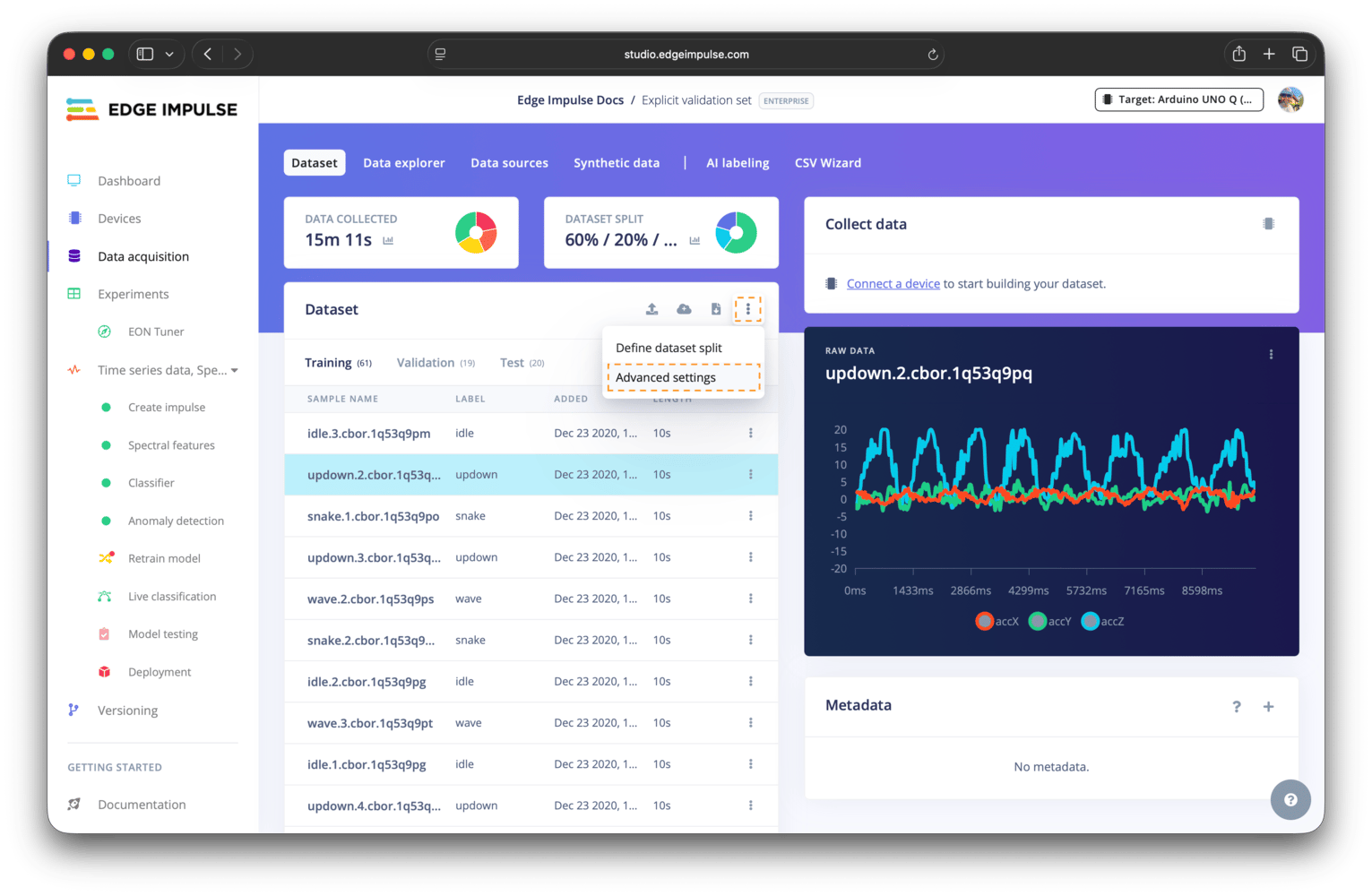
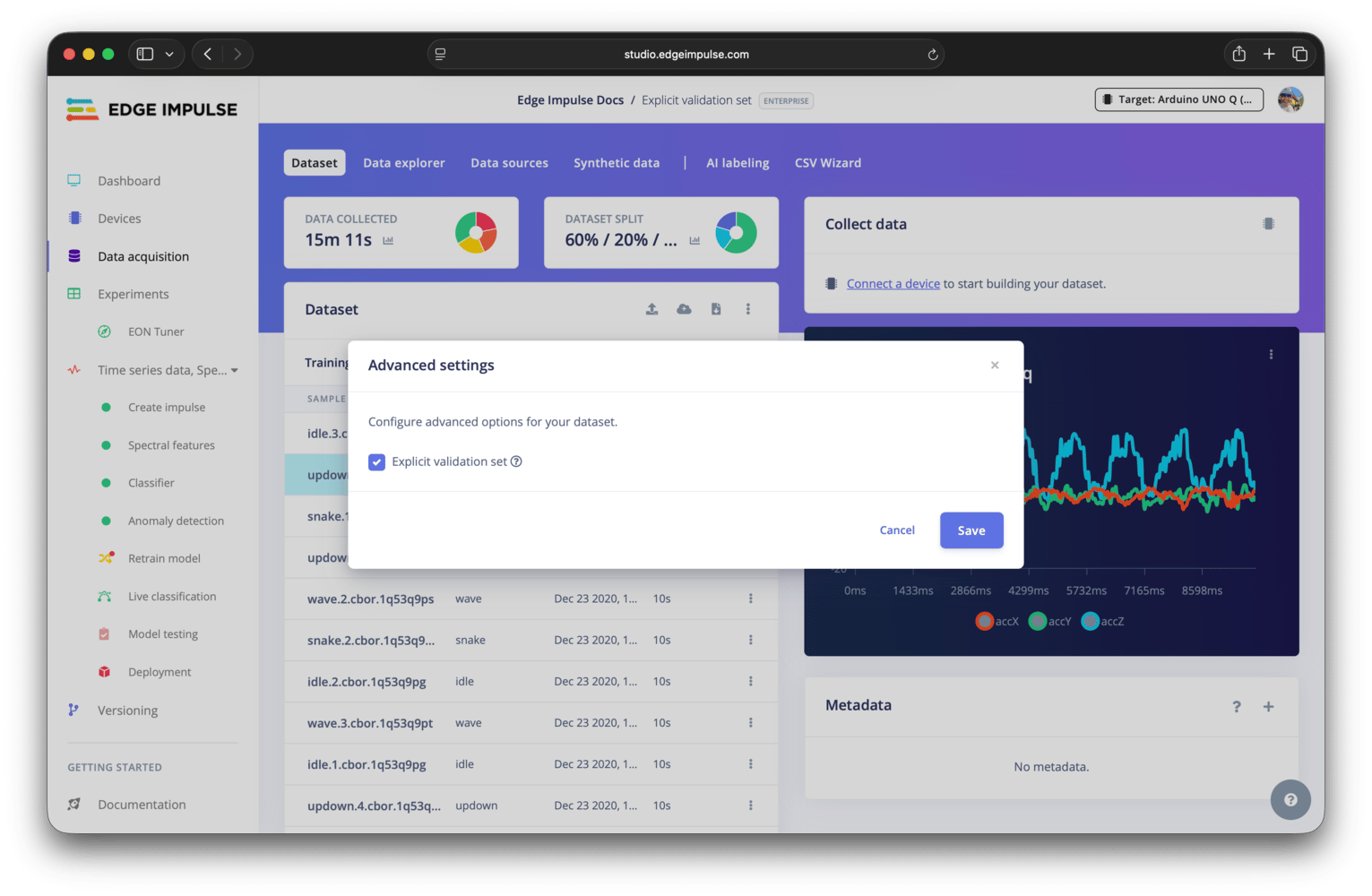 To access the advanced settings, go to your project and navigate to the data acquisition page. On the dataset tab, click the **⋮** in the top right of the dataset pane, and then click on **Advanced settings** menu item. This will open a modal with the settings available.
 ## Explicit validation set
By default, Edge Impulse automatically splits your training data into the training and validation sets. Enabling the explicit validation set setting allows you to specify the percentage of data to use for your validation set, explore what samples are contained in the set, and move samples to/from the validation set from/to your training or test sets.
## Explicit validation set
By default, Edge Impulse automatically splits your training data into the training and validation sets. Enabling the explicit validation set setting allows you to specify the percentage of data to use for your validation set, explore what samples are contained in the set, and move samples to/from the validation set from/to your training or test sets.
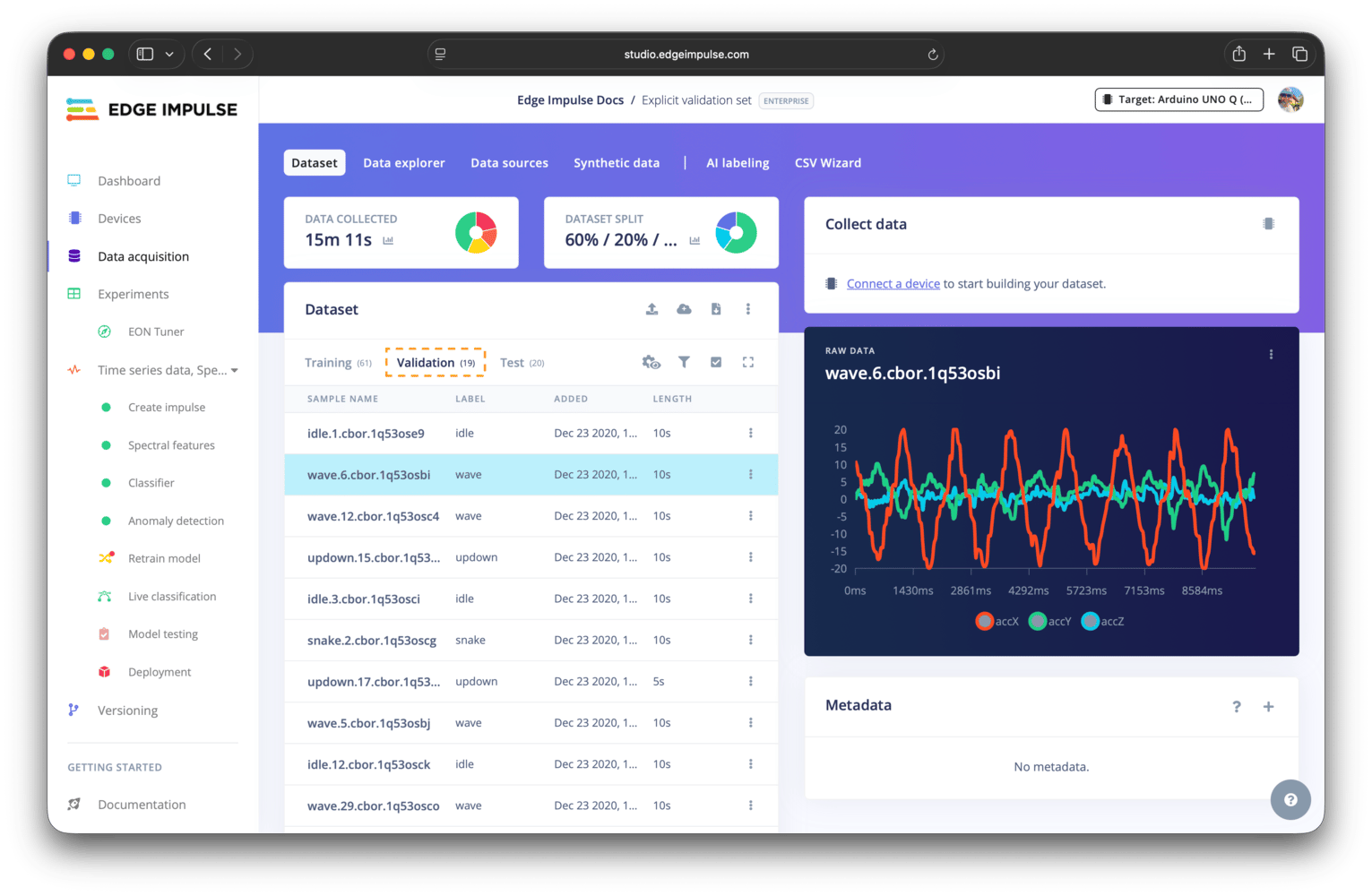 This gives you more control over the data used for the validation set, such as ensuring it contains specific samples or has a certain distribution. It also allows you to have a fixed validation set that does not change as you add new data to your training set.
After enabling the explicit validation set setting, a field will appear in the [Define dataset split](/studio/projects/data-acquisition/dataset/splits) modal to specify the percentage of data to use for the validation set.
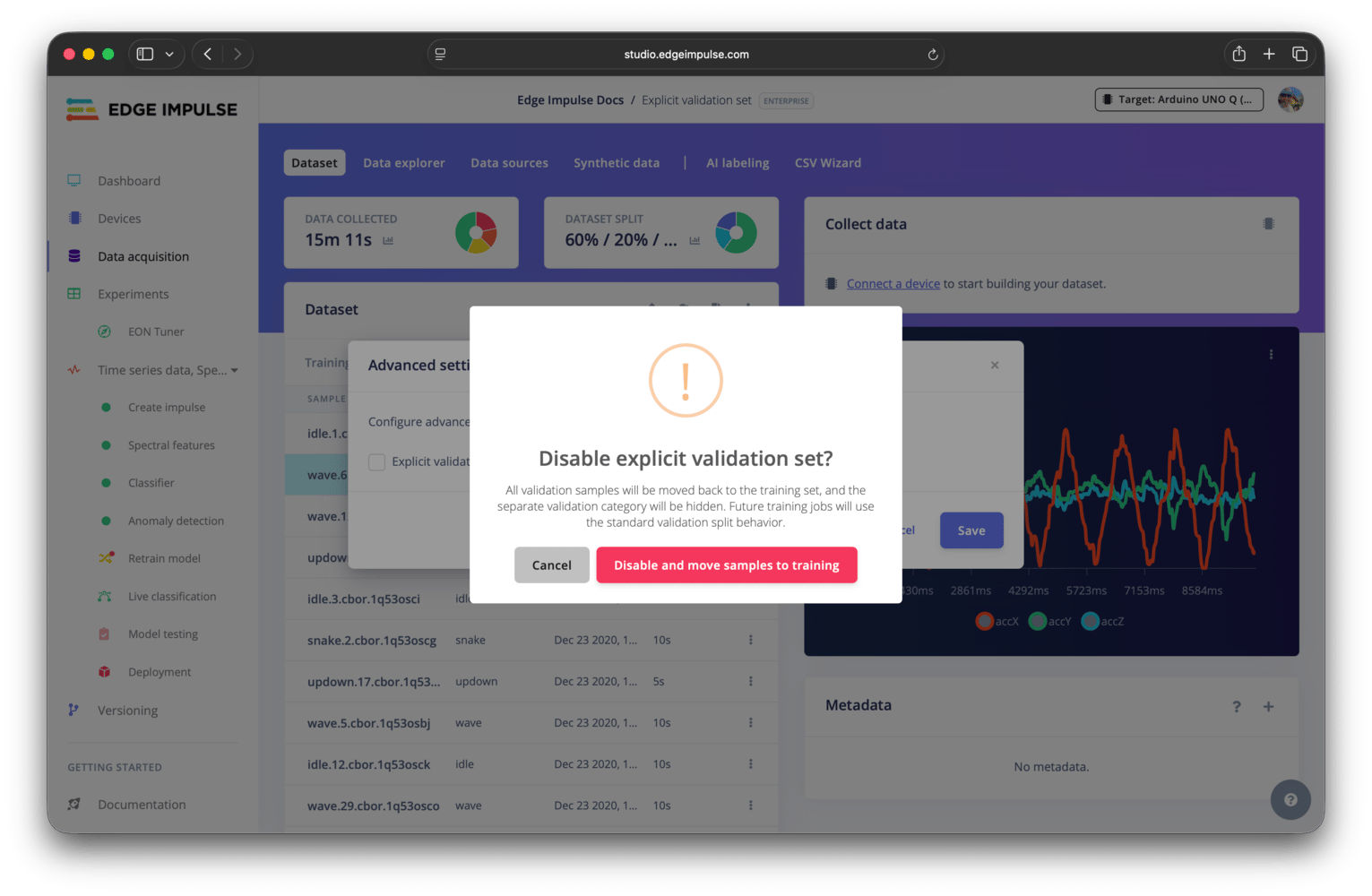
If you subsequently disable the explicit validation set setting, any samples in your validation set will be moved back to your training set and the validation split percentage field will be removed from the define dataset split modal. Future training jobs will use the standard validation split behaviour.
This gives you more control over the data used for the validation set, such as ensuring it contains specific samples or has a certain distribution. It also allows you to have a fixed validation set that does not change as you add new data to your training set.
After enabling the explicit validation set setting, a field will appear in the [Define dataset split](/studio/projects/data-acquisition/dataset/splits) modal to specify the percentage of data to use for the validation set.
If you subsequently disable the explicit validation set setting, any samples in your validation set will be moved back to your training set and the validation split percentage field will be removed from the define dataset split modal. Future training jobs will use the standard validation split behaviour.
 ## Additional resources
* [Data acquisition](/studio/projects/data-acquisition)
* [Dataset](/studio/projects/data-acquisition/dataset)
* [Define dataset split](/studio/projects/data-acquisition/dataset/splits)
## Additional resources
* [Data acquisition](/studio/projects/data-acquisition)
* [Dataset](/studio/projects/data-acquisition/dataset)
* [Define dataset split](/studio/projects/data-acquisition/dataset/splits)