> ## Documentation Index
> Fetch the complete documentation index at: https://docs.edgeimpulse.com/llms.txt
> Use this file to discover all available pages before exploring further.
# AI labeling
The AI labeling feature is an extensible way of integrating existing AI models into your workflow and using them to automatically label your datasets. This can be achieved through leveraging ready-made blocks provided by Edge Impulse or developing custom ones to meet your specific needs. Whether you’re labeling images, bounding boxes, or audio samples, these AI labeling blocks are sure to save you time and improve your consistency.
## AI labeling actions
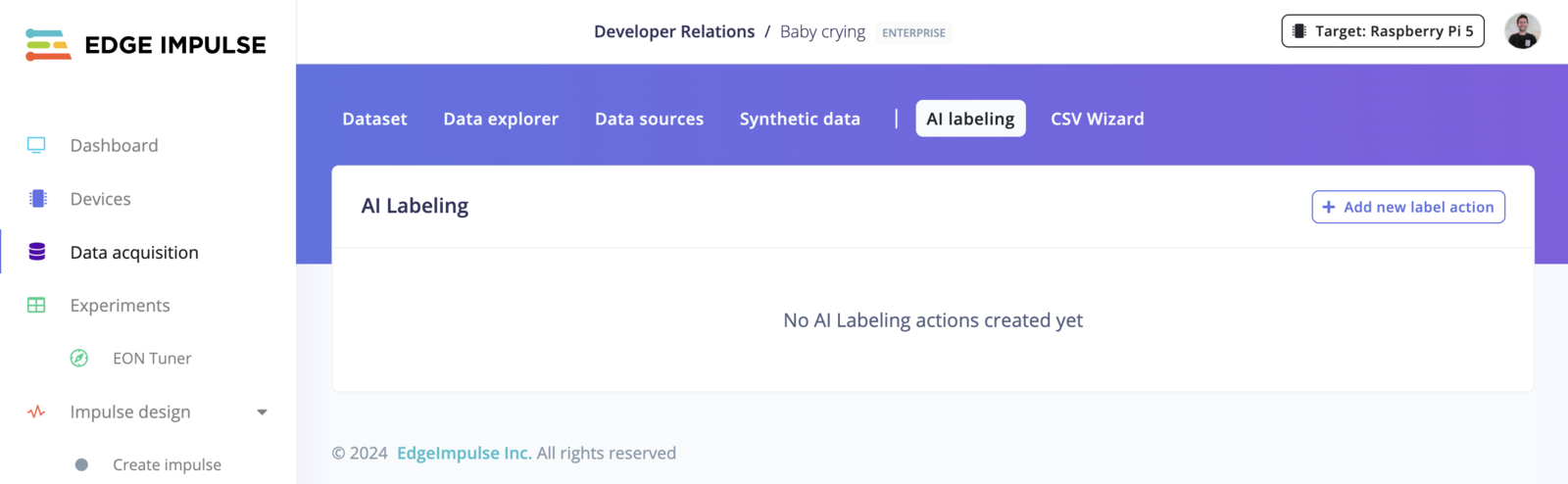
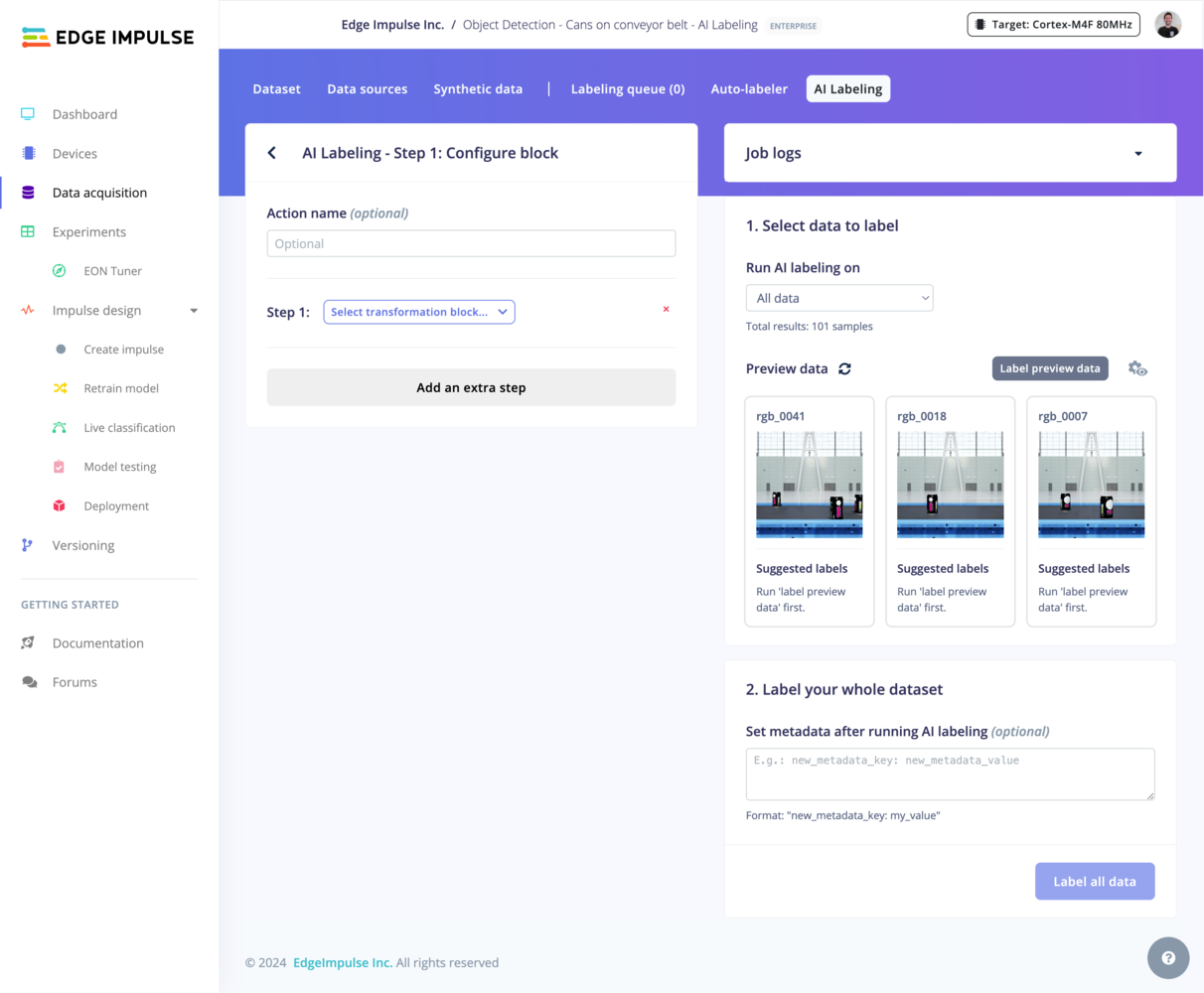
To exit an AI labeling action configuration and return to the overview page, you can click on the **\<** button found to the left of the block configuration title (AI Labeling - Step 1) or click the AI labeling tab.
You can create multiple AI labeling actions that contain one or more AI labeling blocks, each with different prompts, parameters and filters. From the AI labeling actions overview page you can add new actions, delete existing ones, access their configurations, or run them directly.
 ## AI labeling blocks
There are several AI labeling blocks that have been developed by Edge Impulse and are available for your use. These are listed below with links to their associated code in public GitHub repositories:
* [Bounding Box Labeling with OWL-ViT](https://github.com/edgeimpulse/ai-labeling-zero-shot-object-detector-owl-vit)
* [Bounding Box Re-Labeling with GPT-4o](https://github.com/edgeimpulse/ai-labeling-bounding-box-relabeling-gpt4o)
* [Bounding Box Validation with GPT-4o](https://github.com/edgeimpulse/ai-labeling-bounding-box-validation-gpt4o)
* [Image Labeling with GPT-4o](https://github.com/edgeimpulse//ai-labeling-images-gpt4o)
* [Image Labeling with Pretrained Models](https://github.com/edgeimpulse/ai-labeling-using-existing-ei-project)
* [Audio Labeling with AudioSet](https://github.com/edgeimpulse/ai-labeling-audio-spectrogram-transformer)
If you have a suggestion for an AI labeling block that you would like to see Edge Impulse develop, please let us know in our [forum](https://forum.edgeimpulse.com).
### Custom AI labeling blocks
If none of the blocks from Edge Impulse fit your needs, you can modify them or develop from scratch to create a custom AI labeling block. This allows you to integrate your own models or prompts for unique project requirements. See the [Custom AI labeling blocks](/studio/organizations/custom-blocks/custom-ai-labeling-blocks) page for more information.
## Configuration
To begin, proceed to the **Data acquisition** view and ensure you have data samples in the **Dataset** tab. Then, continue to the **AI labeling** tab.
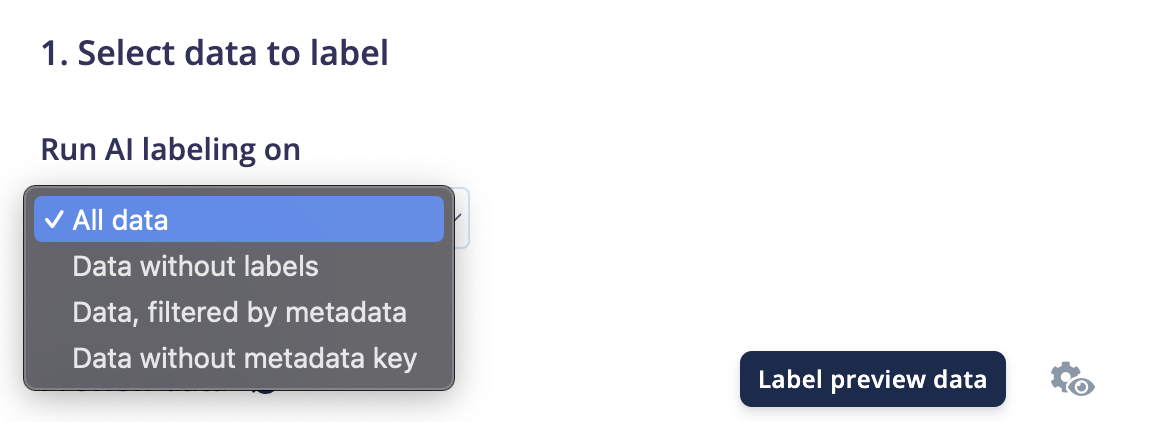
Click on an existing AI labeling action to enter the configuration view for that action. If you do not yet have an AI labeling action, you can create one using the `+ Add new label action` button.
## AI labeling blocks
There are several AI labeling blocks that have been developed by Edge Impulse and are available for your use. These are listed below with links to their associated code in public GitHub repositories:
* [Bounding Box Labeling with OWL-ViT](https://github.com/edgeimpulse/ai-labeling-zero-shot-object-detector-owl-vit)
* [Bounding Box Re-Labeling with GPT-4o](https://github.com/edgeimpulse/ai-labeling-bounding-box-relabeling-gpt4o)
* [Bounding Box Validation with GPT-4o](https://github.com/edgeimpulse/ai-labeling-bounding-box-validation-gpt4o)
* [Image Labeling with GPT-4o](https://github.com/edgeimpulse//ai-labeling-images-gpt4o)
* [Image Labeling with Pretrained Models](https://github.com/edgeimpulse/ai-labeling-using-existing-ei-project)
* [Audio Labeling with AudioSet](https://github.com/edgeimpulse/ai-labeling-audio-spectrogram-transformer)
If you have a suggestion for an AI labeling block that you would like to see Edge Impulse develop, please let us know in our [forum](https://forum.edgeimpulse.com).
### Custom AI labeling blocks
If none of the blocks from Edge Impulse fit your needs, you can modify them or develop from scratch to create a custom AI labeling block. This allows you to integrate your own models or prompts for unique project requirements. See the [Custom AI labeling blocks](/studio/organizations/custom-blocks/custom-ai-labeling-blocks) page for more information.
## Configuration
To begin, proceed to the **Data acquisition** view and ensure you have data samples in the **Dataset** tab. Then, continue to the **AI labeling** tab.
Click on an existing AI labeling action to enter the configuration view for that action. If you do not yet have an AI labeling action, you can create one using the `+ Add new label action` button.
 ### Select an AI labeling block
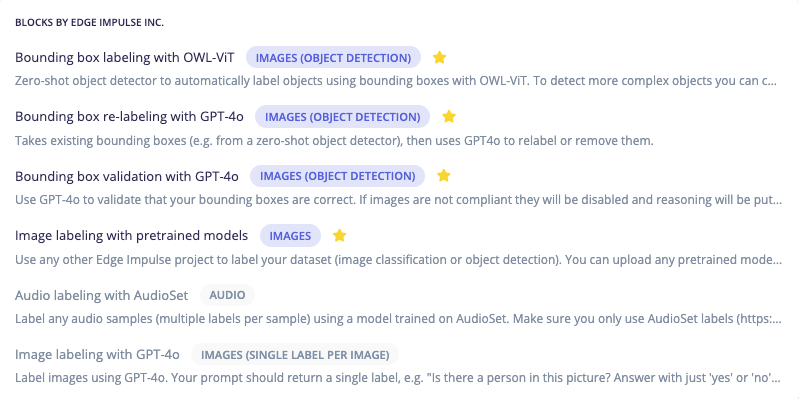
The first step is to select an AI labeling block that you would like to use. By default, blocks that are not compatible with your data modality or labeling objective are greyed out. Once you have selected an AI labeling block, the parameters specific to that block are presented.
### Select an AI labeling block
The first step is to select an AI labeling block that you would like to use. By default, blocks that are not compatible with your data modality or labeling objective are greyed out. Once you have selected an AI labeling block, the parameters specific to that block are presented.
 Some blocks require an API key to interact with other providers, such as OpenAI, Google Gemini or Hugging Face. You can set your API key directly in the AI labeling block configuration panel the first time you use the block. The key you enter will be stored in *Secrets*. Once created, the key value will no longer be visible anywhere in the platform.
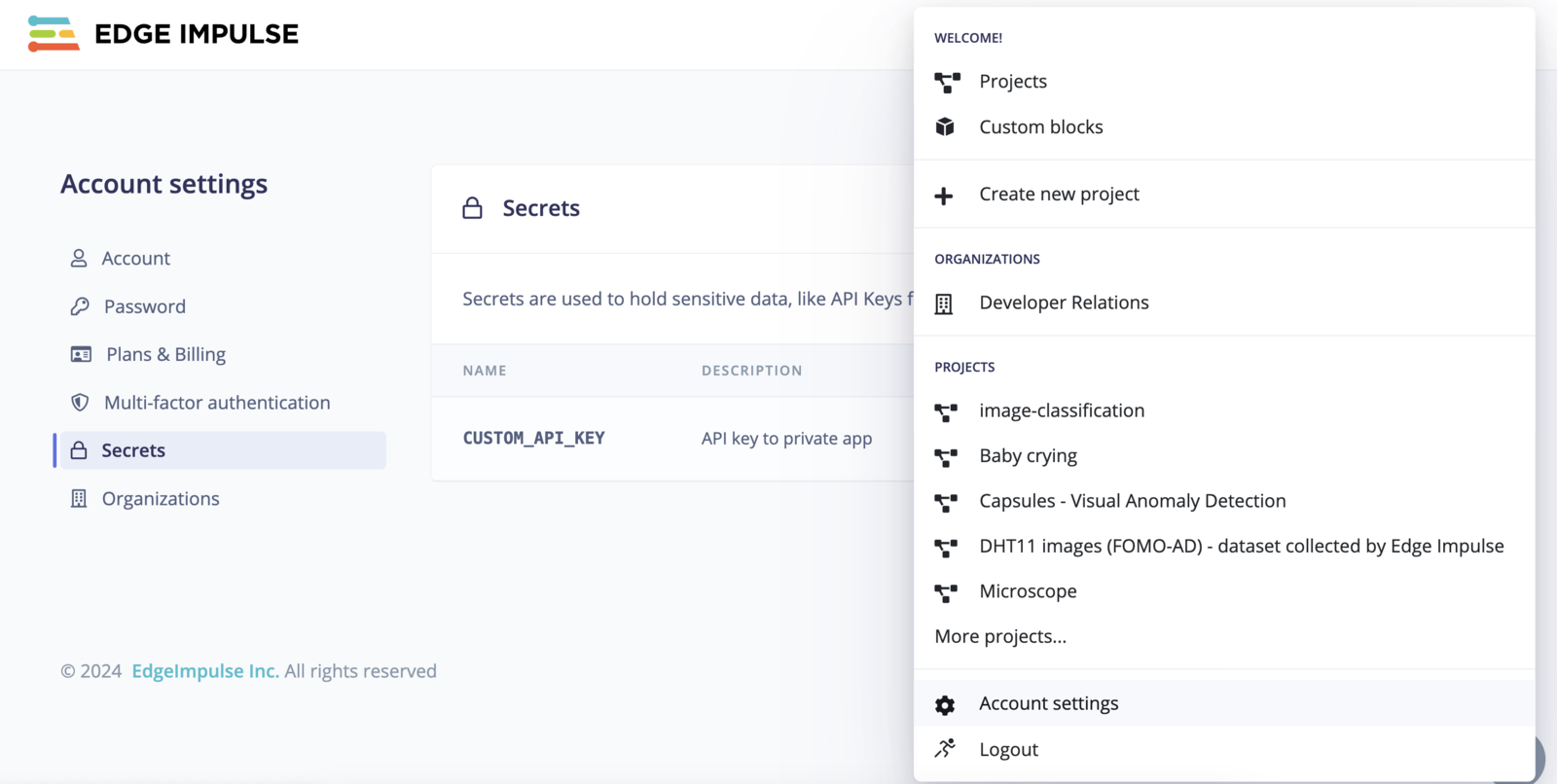
To manage your secrets if you are an Enterprise customer, go to your organization and select the **Secrets** menu item. If you are not an Enterprise customer, secrets can be accessed through the settings in your developer profile. Click on your avatar and go to your **Account settings -> Secrets**:
Some blocks require an API key to interact with other providers, such as OpenAI, Google Gemini or Hugging Face. You can set your API key directly in the AI labeling block configuration panel the first time you use the block. The key you enter will be stored in *Secrets*. Once created, the key value will no longer be visible anywhere in the platform.
To manage your secrets if you are an Enterprise customer, go to your organization and select the **Secrets** menu item. If you are not an Enterprise customer, secrets can be accessed through the settings in your developer profile. Click on your avatar and go to your **Account settings -> Secrets**:
 ### Add multiple AI labeling blocks
You can chain several AI labeling blocks together to create an AI labeling action with multiple steps. For example, you can first use a zero-shot object detector to automatically detect high-level objects within an image then follow this with a step to re-label the bounding boxes with more precise labels or remove them entirely.
To add multiple AI labeling blocks, click on the button at the bottom of the block configuration panel to add an extra step.
### Filter which data to label
Select which data items in your dataset you want to label. You can use the [metadata](/studio/projects/data-acquisition/dataset/metadata) attached to your data samples to define your own labeling strategy.
### Add multiple AI labeling blocks
You can chain several AI labeling blocks together to create an AI labeling action with multiple steps. For example, you can first use a zero-shot object detector to automatically detect high-level objects within an image then follow this with a step to re-label the bounding boxes with more precise labels or remove them entirely.
To add multiple AI labeling blocks, click on the button at the bottom of the block configuration panel to add an extra step.
### Filter which data to label
Select which data items in your dataset you want to label. You can use the [metadata](/studio/projects/data-acquisition/dataset/metadata) attached to your data samples to define your own labeling strategy.
 ### Preview
**Tip:** If you want to change the number of data samples or the number of columns shown in the preview, click on the view settings icon. Changing the number of columns can be useful for object detection use cases where your objects are small and you want to see larger images.
### Preview
**Tip:** If you want to change the number of data samples or the number of columns shown in the preview, click on the view settings icon. Changing the number of columns can be useful for object detection use cases where your objects are small and you want to see larger images.
 Before running the AI labeling action on your entire dataset, we recommend to preview the label results on a small subset of your dataset. This will help you to validate your prompt and parameters so that you can iterate faster.
When clicking on the `Label preview data` button, the changes are *staged* but not directly applied.
### Set metadata (optional)
You can add metadata such as `ai-labeled: true`, `labeling-source: GPT-4o` or `labeled-on: Nov 2024` that will be set after running the AI labeling action. This is particularly useful if you plan to add more data samples over time and need to filter out your already-labeled samples.
### Run the labeling process
Once you are satisfied with your configuration, click on the `Label all data` button. This will run the AI labeling action and apply the labeling updates to your dataset.
## Examples
### Bounding box labeling with OWL-ViT
A zero-shot object detector that uses OWL-ViT to label objects with bounding boxes. For complex objects, pair with "Bounding box re-labeling with GPT-4o" to refine labels.
Before running the AI labeling action on your entire dataset, we recommend to preview the label results on a small subset of your dataset. This will help you to validate your prompt and parameters so that you can iterate faster.
When clicking on the `Label preview data` button, the changes are *staged* but not directly applied.
### Set metadata (optional)
You can add metadata such as `ai-labeled: true`, `labeling-source: GPT-4o` or `labeled-on: Nov 2024` that will be set after running the AI labeling action. This is particularly useful if you plan to add more data samples over time and need to filter out your already-labeled samples.
### Run the labeling process
Once you are satisfied with your configuration, click on the `Label all data` button. This will run the AI labeling action and apply the labeling updates to your dataset.
## Examples
### Bounding box labeling with OWL-ViT
A zero-shot object detector that uses OWL-ViT to label objects with bounding boxes. For complex objects, pair with "Bounding box re-labeling with GPT-4o" to refine labels.
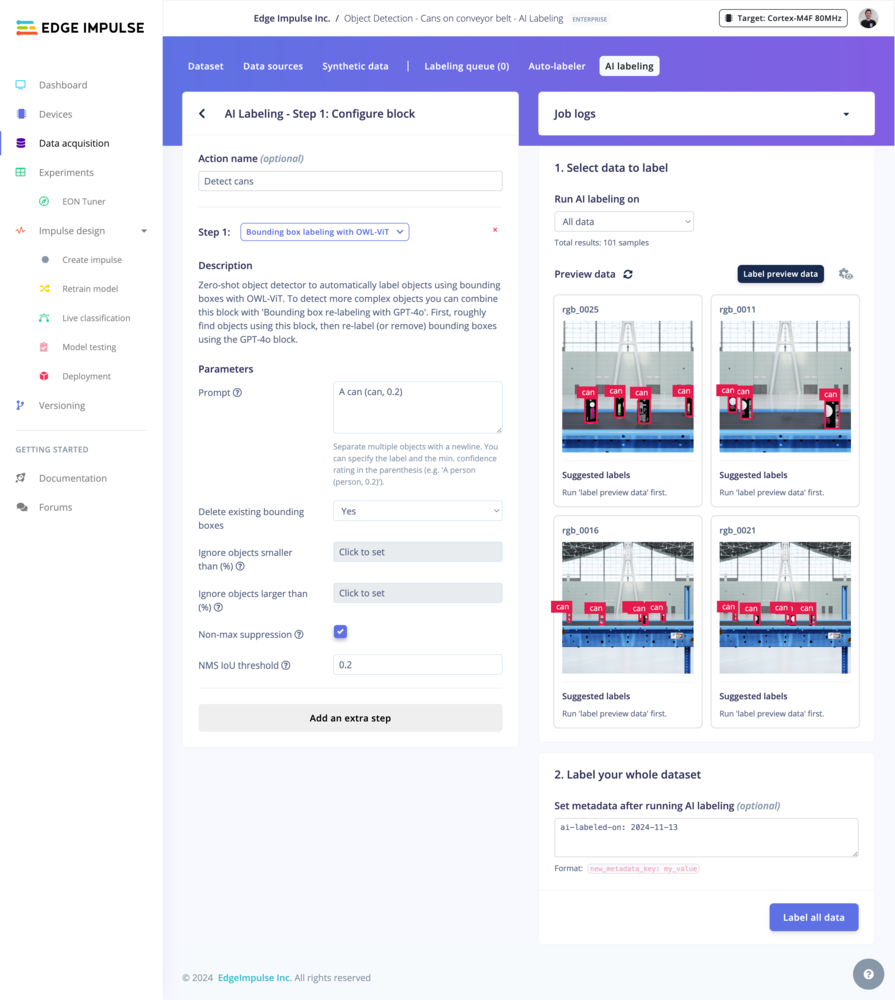 ### Bounding box labeling with Google Gemini
A zero-shot object detector that uses Google Gemini to label objects with bounding boxes. For complex objects, pair with "Bounding box re-labeling with GPT-4o" to refine labels.
Here is a list of available models that you can use with this AI labeling block:
| Model | Tag |
| ----------------------------- | ------------------------------------- |
| Gemini 2.5 Pro | `gemini-2.5-pro` |
| Gemini 2.5 Flash | `gemini-2.5-flash` |
| Gemini 2.5 Flash-Lite Preview | `gemini-2.5-flash-lite-preview-06-17` |
| Gemini 2.0 Flash | `gemini-2.0-flash` |
| Gemini 2.0 Flash-Lite | `gemini-2.0-flash-lite` |
| Gemini 1.5 Flash | `gemini-1.5-flash` |
| Gemini 1.5 Flash-8B | `gemini-1.5-flash-8b` |
| Gemini 1.5 Pro | `gemini-1.5-pro` |
### Bounding box labeling with Google Gemini
A zero-shot object detector that uses Google Gemini to label objects with bounding boxes. For complex objects, pair with "Bounding box re-labeling with GPT-4o" to refine labels.
Here is a list of available models that you can use with this AI labeling block:
| Model | Tag |
| ----------------------------- | ------------------------------------- |
| Gemini 2.5 Pro | `gemini-2.5-pro` |
| Gemini 2.5 Flash | `gemini-2.5-flash` |
| Gemini 2.5 Flash-Lite Preview | `gemini-2.5-flash-lite-preview-06-17` |
| Gemini 2.0 Flash | `gemini-2.0-flash` |
| Gemini 2.0 Flash-Lite | `gemini-2.0-flash-lite` |
| Gemini 1.5 Flash | `gemini-1.5-flash` |
| Gemini 1.5 Flash-8B | `gemini-1.5-flash-8b` |
| Gemini 1.5 Pro | `gemini-1.5-pro` |
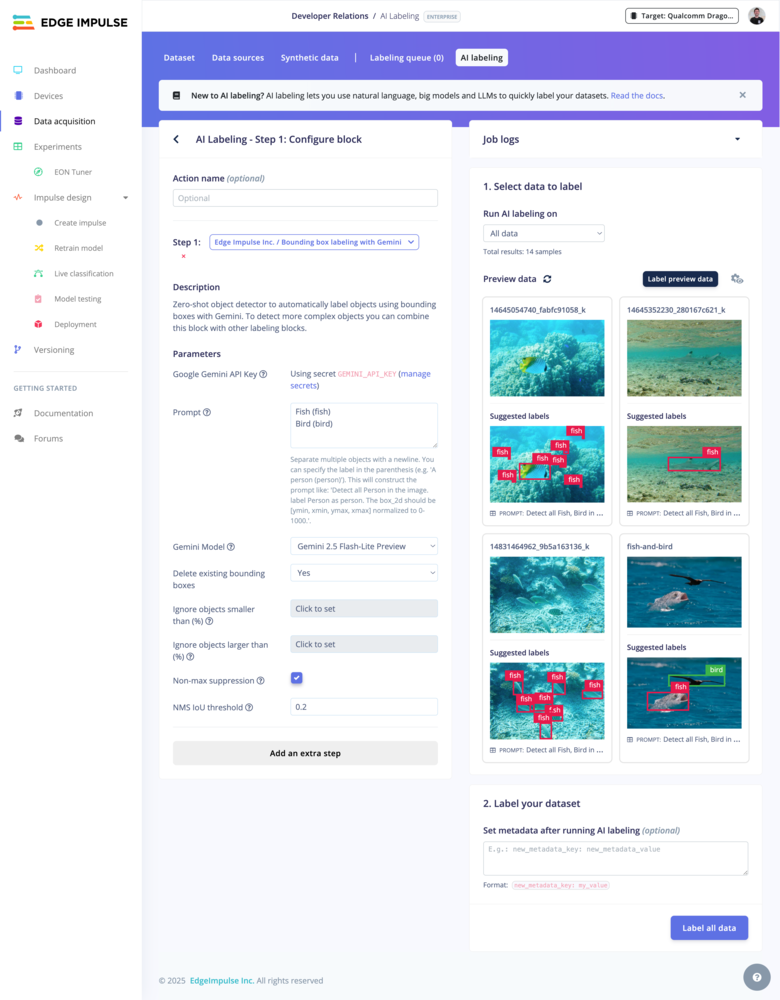 ### Bounding box re-labeling with GPT-4o
**OpenAI API key needed**
Take existing bounding boxes (e.g. from a zero-shot object detector) and use GPT-4o to re-label or remove them as needed. This can be configured as a two step process in a single AI labeling action.
### Bounding box re-labeling with GPT-4o
**OpenAI API key needed**
Take existing bounding boxes (e.g. from a zero-shot object detector) and use GPT-4o to re-label or remove them as needed. This can be configured as a two step process in a single AI labeling action.
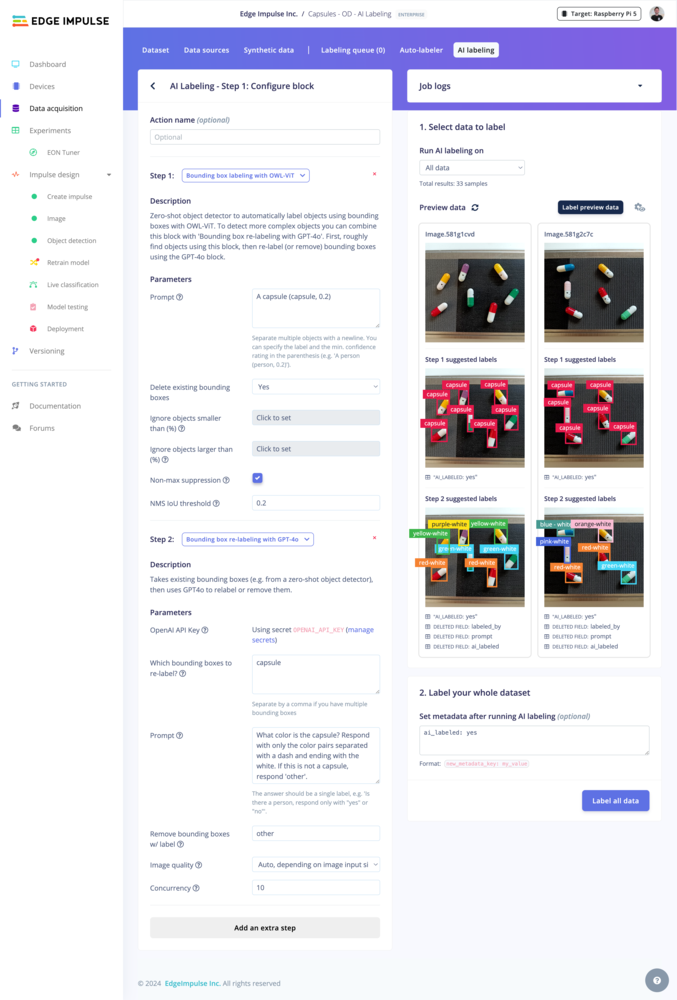 ### Bounding box validation with GPT-4o
**OpenAI API key needed**
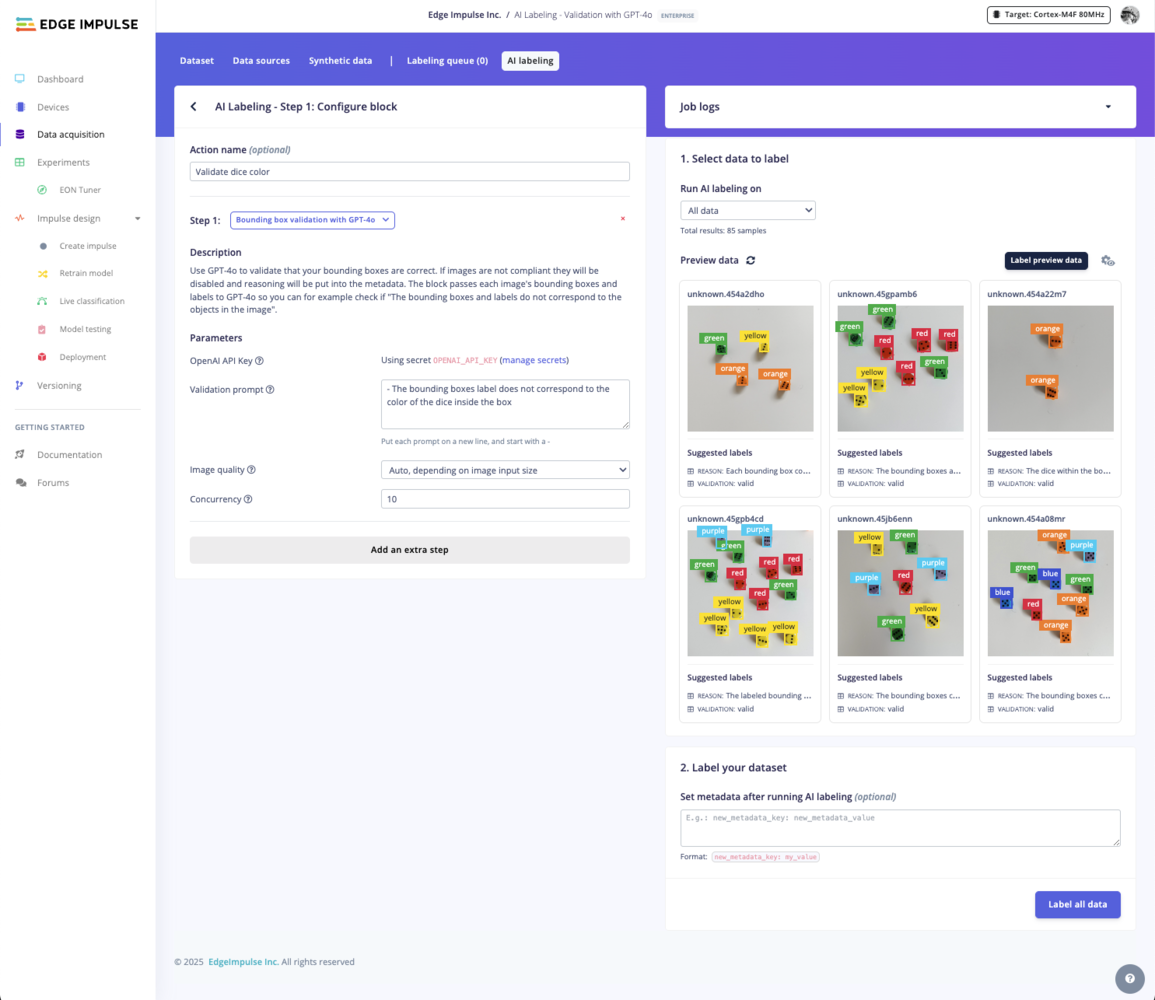
Validate existing bounding boxes against provided prompts using GPT-4o and disable non-compliant images. For example, check if the label for a bounding box corresponds to the object within it, if objects are blurry, and more.
### Bounding box validation with GPT-4o
**OpenAI API key needed**
Validate existing bounding boxes against provided prompts using GPT-4o and disable non-compliant images. For example, check if the label for a bounding box corresponds to the object within it, if objects are blurry, and more.
 ### Image labeling with GPT-4o
**OpenAI API key needed**
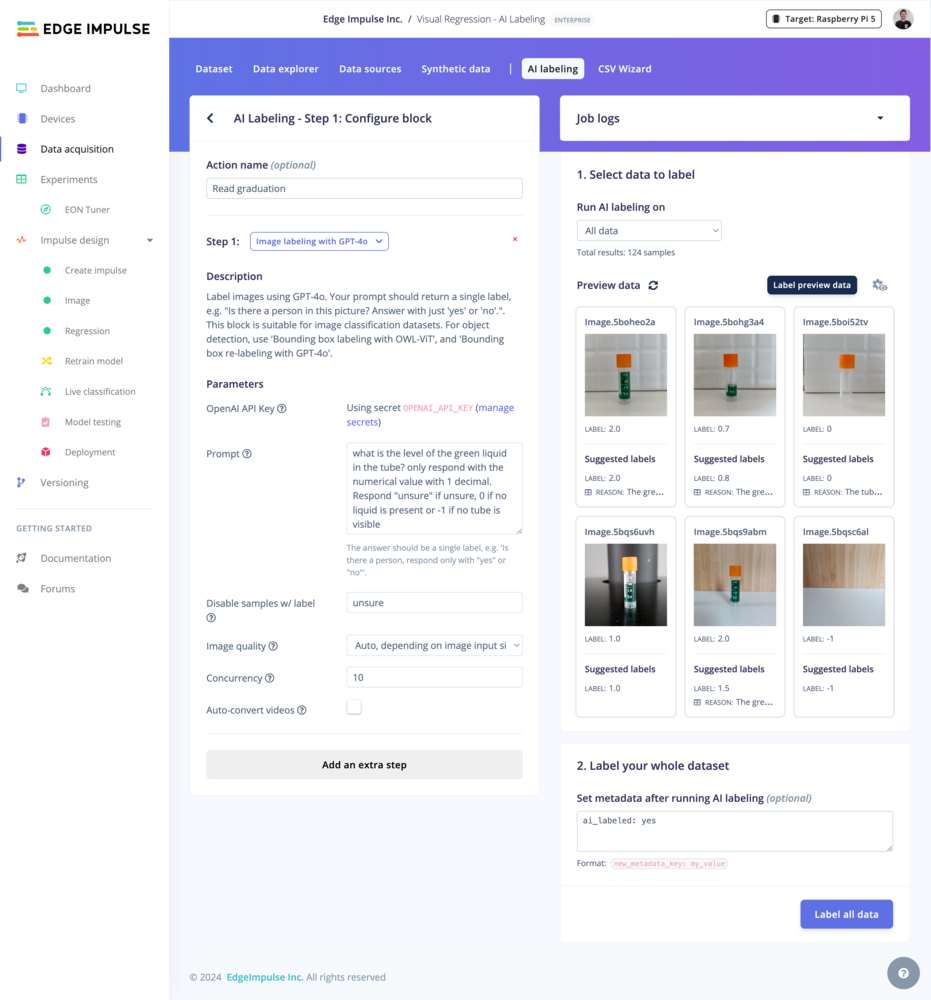
Use GPT-4o to apply a single label to images. Customize prompts to return a single label, for example “Is there a person in this picture? Answer with 'yes' or 'no'.”
### Image labeling with GPT-4o
**OpenAI API key needed**
Use GPT-4o to apply a single label to images. Customize prompts to return a single label, for example “Is there a person in this picture? Answer with 'yes' or 'no'.”
 ### Image labeling with pretrained models
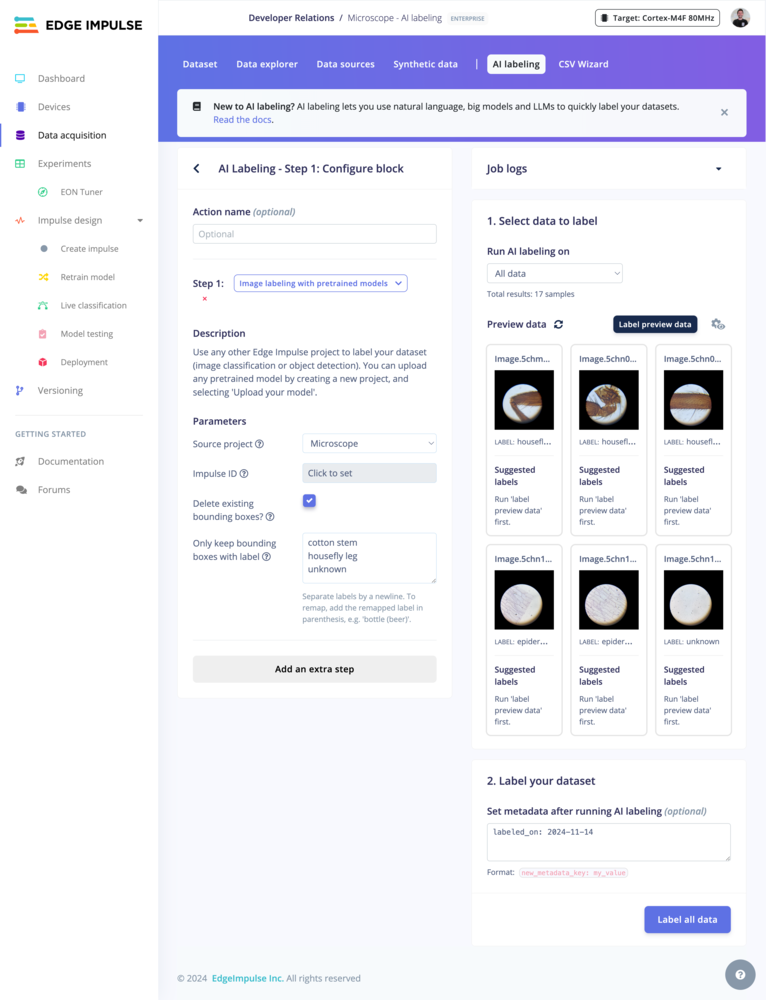
Use a model from an existing Edge Impulse project to label images (classification or object detection).
You can also upload your pretrained models to Edge Impulse using the [BYOM (Bring Your Own Model) feature](/studio/projects/dashboard/byom).
### Image labeling with pretrained models
Use a model from an existing Edge Impulse project to label images (classification or object detection).
You can also upload your pretrained models to Edge Impulse using the [BYOM (Bring Your Own Model) feature](/studio/projects/dashboard/byom).
 ### Audio labeling with AudioSet
**Hugging Face API key needed**
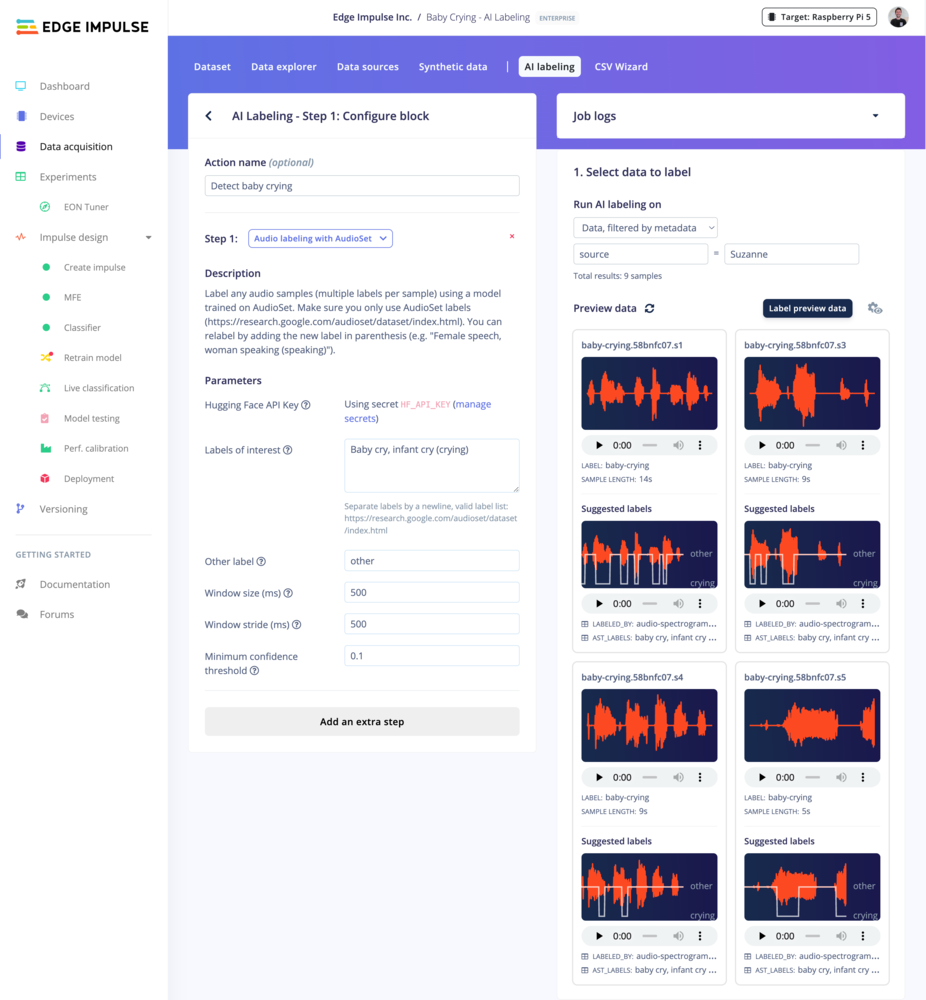
Label audio samples with multiple labels per sample using an Audio Spectrogram Transformer (AST) model trained on AudioSet. Use only AudioSet labels (see [AudioSet Dataset](https://research.google.com/audioset/dataset/index.html) for reference).
### Audio labeling with AudioSet
**Hugging Face API key needed**
Label audio samples with multiple labels per sample using an Audio Spectrogram Transformer (AST) model trained on AudioSet. Use only AudioSet labels (see [AudioSet Dataset](https://research.google.com/audioset/dataset/index.html) for reference).
 ## Troubleshooting
No common issues have been identified thus far. If you encounter an issue, please reach out on the [forum](https://forum.edgeimpulse.com) or, if you are an Enterprise customer, to your Solutions engineer.
## Troubleshooting
No common issues have been identified thus far. If you encounter an issue, please reach out on the [forum](https://forum.edgeimpulse.com) or, if you are an Enterprise customer, to your Solutions engineer.