> ## Documentation Index
> Fetch the complete documentation index at: https://docs.edgeimpulse.com/llms.txt
> Use this file to discover all available pages before exploring further.
# Users
**Only available on the Enterprise plan**
This feature is only available on the Enterprise plan. Review our [plans and pricing](https://edgeimpulse.com/pricing) or sign up for our free [expert-led trial](https://edgeimpulse.com/expert-led-trial) today.
Within an [organization](/studio/organizations/dashboard) you can work on one or more projects with multiple people. These can be colleagues, outside researchers, or even members of the community. They will only get access to the specific data in the project, and not to any of the raw data in your organizational datasets.
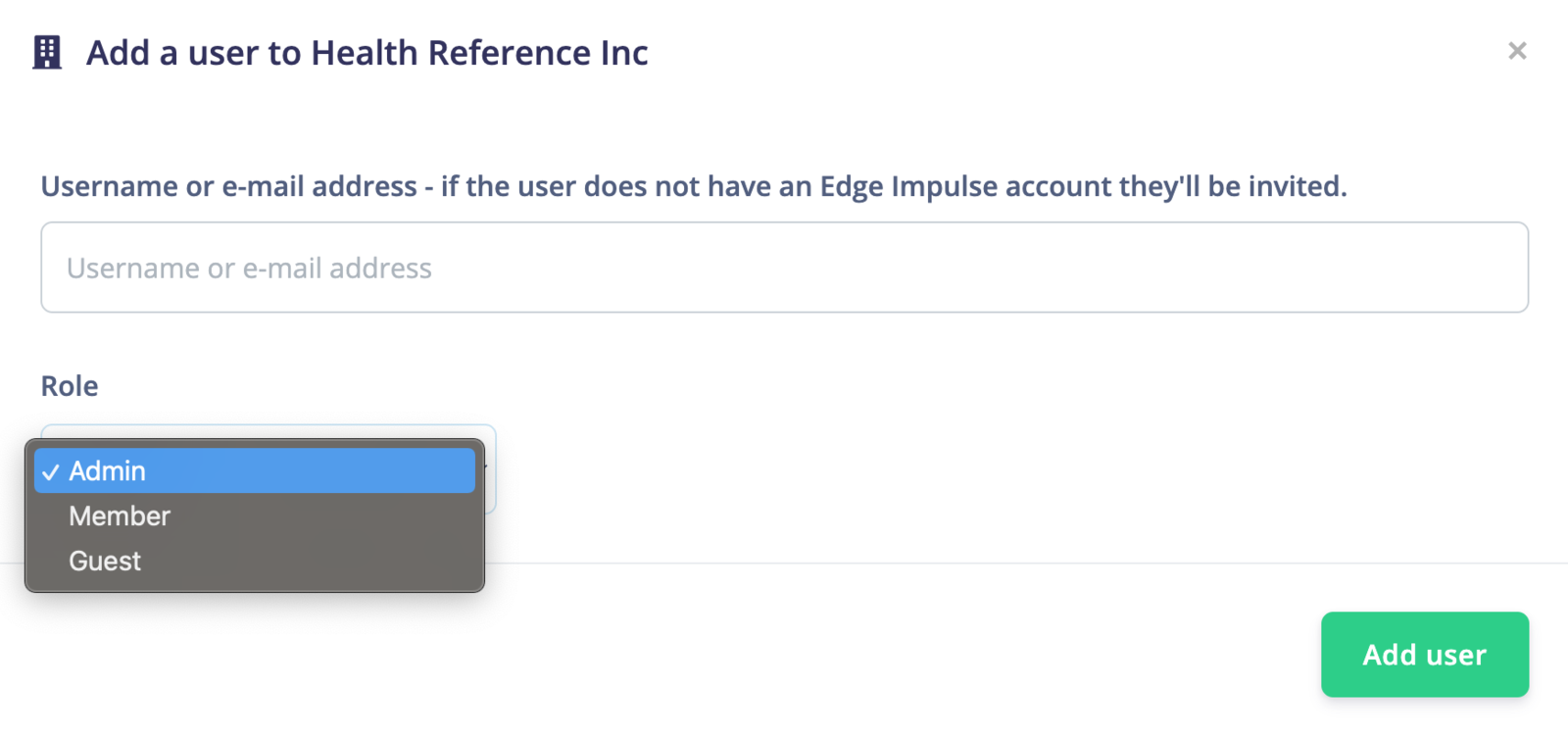
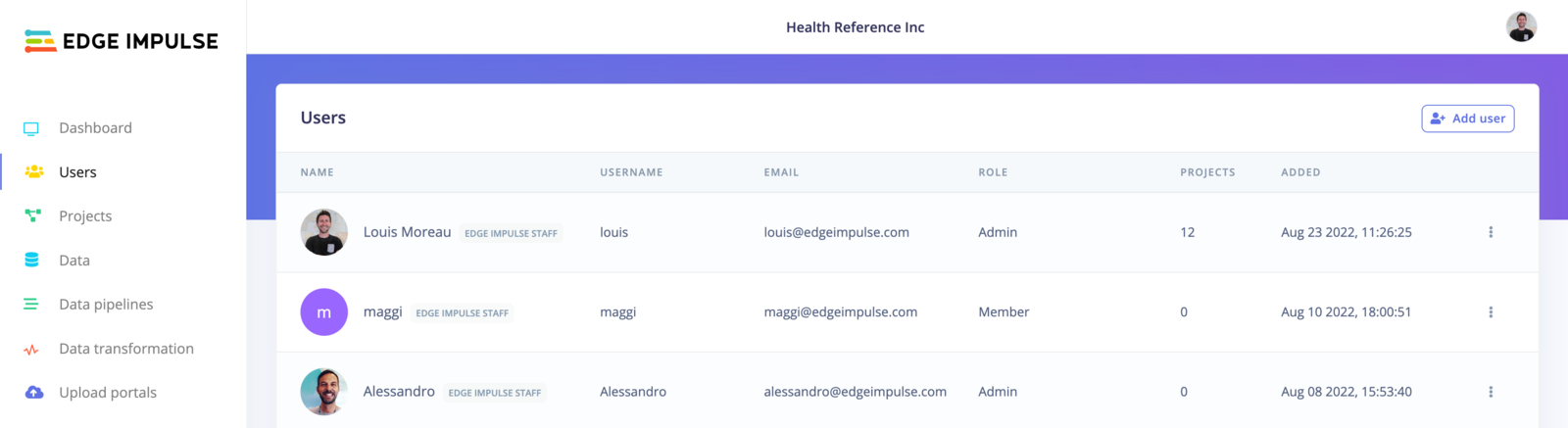 To invite a user in an organization, click on the "**Add user** button, enter the email address and select the role:
 ## Organization Users vs Project Users
It is important to note that there are two types of users in Edge Impulse: **Project Users** and **Organization Users**.
**Organization Users**, typically holding roles like Admin, are responsible for the overarching management and customization of organizational elements, including datasets, storage buckets, and white label attributes. These users also encompass the capabilities of Project Users.
Conversely, **Project Users**, often in roles such as Member or Guest, are limited to specific project involvement, focusing on collaboration and contributions at the project level, without access to broader organizational management functions. They are granted access only to certain project data to maintain the security of raw data in organizational datasets.
## Organization User Roles
For a more granular look at the capabilities of each role, see the table below:
### Admin
Admins have full rights on the organization, overseeing organizational and white label functionalities, including dataset management and storage bucket updates. They also have all the rights of a Project Member.
* **Full Rights on the Organization**
* Project User rights
* Manage organization datasets
* Update and add storage buckets
* Verify bucket connectivity
* Customize white label (where applicable) attributes like themes and information
* API access for organization and white label management
### Member
Members have full access on the datasets, custom blocks but cannot join a project without being invited.
* **Broad Access, with Restrictions on Project Joining**
* Project User rights
* Full access to datasets and custom blocks
* Can collaborate on projects, but only by invitation
* Can access metrics via API
### Guest
Guests have restricted access, limited to selected datasets within the projects they are associated with.
* **Limited Access to Selected Datasets**
* Project User rights
* Access to selected datasets within the project they are invited to
* Cannot access raw data in organizational datasets
* Cannot access metrics via API
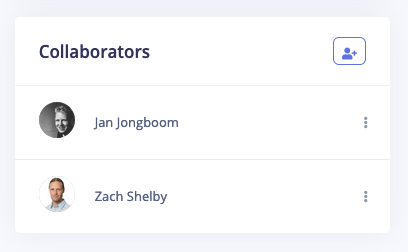
To give someone access to a project only, go to your [project's dashboard](/studio/projects/dashboard), and find the "Collaborators" widget. Click the '+' icon, and type the username or e-mail address of the other user.
## Organization Users vs Project Users
It is important to note that there are two types of users in Edge Impulse: **Project Users** and **Organization Users**.
**Organization Users**, typically holding roles like Admin, are responsible for the overarching management and customization of organizational elements, including datasets, storage buckets, and white label attributes. These users also encompass the capabilities of Project Users.
Conversely, **Project Users**, often in roles such as Member or Guest, are limited to specific project involvement, focusing on collaboration and contributions at the project level, without access to broader organizational management functions. They are granted access only to certain project data to maintain the security of raw data in organizational datasets.
## Organization User Roles
For a more granular look at the capabilities of each role, see the table below:
### Admin
Admins have full rights on the organization, overseeing organizational and white label functionalities, including dataset management and storage bucket updates. They also have all the rights of a Project Member.
* **Full Rights on the Organization**
* Project User rights
* Manage organization datasets
* Update and add storage buckets
* Verify bucket connectivity
* Customize white label (where applicable) attributes like themes and information
* API access for organization and white label management
### Member
Members have full access on the datasets, custom blocks but cannot join a project without being invited.
* **Broad Access, with Restrictions on Project Joining**
* Project User rights
* Full access to datasets and custom blocks
* Can collaborate on projects, but only by invitation
* Can access metrics via API
### Guest
Guests have restricted access, limited to selected datasets within the projects they are associated with.
* **Limited Access to Selected Datasets**
* Project User rights
* Access to selected datasets within the project they are invited to
* Cannot access raw data in organizational datasets
* Cannot access metrics via API
To give someone access to a project only, go to your [project's dashboard](/studio/projects/dashboard), and find the "Collaborators" widget. Click the '+' icon, and type the username or e-mail address of the other user.