> ## Documentation Index
> Fetch the complete documentation index at: https://docs.edgeimpulse.com/llms.txt
> Use this file to discover all available pages before exploring further.
# Cloud data storage
Edge Impulse makes it easy to access data that you have stored in the cloud by offering integrations with several storage providers and the flexibility to connect a storage solution to an [organization](/studio/organizations/dashboard) or directly to a project.
## Connecting to storage
There are two locations within Edge Impulse where you can connect to cloud storage, from within an organization or within a project. These options are described below. For details related to the specific storage provider integration options available, please see the [Storage provider integrations](/studio/organizations/data/cloud-data-storage#storage-provider-integrations) section of this document.
### Organization data bucket
**Only available on the Enterprise plan**
This feature is only available on the Enterprise plan. Review our [plans and pricing](https://edgeimpulse.com/pricing) or sign up for our free [expert-led trial](https://edgeimpulse.com/expert-led-trial) today.
Cloud storage can be connected to an organization. By connecting your data to an organization, you are offered the flexibility to pre-process your datasets through the use of [transformation blocks](/studio/organizations/custom-blocks/custom-transformation-blocks) and to feed your datasets into multiple projects.
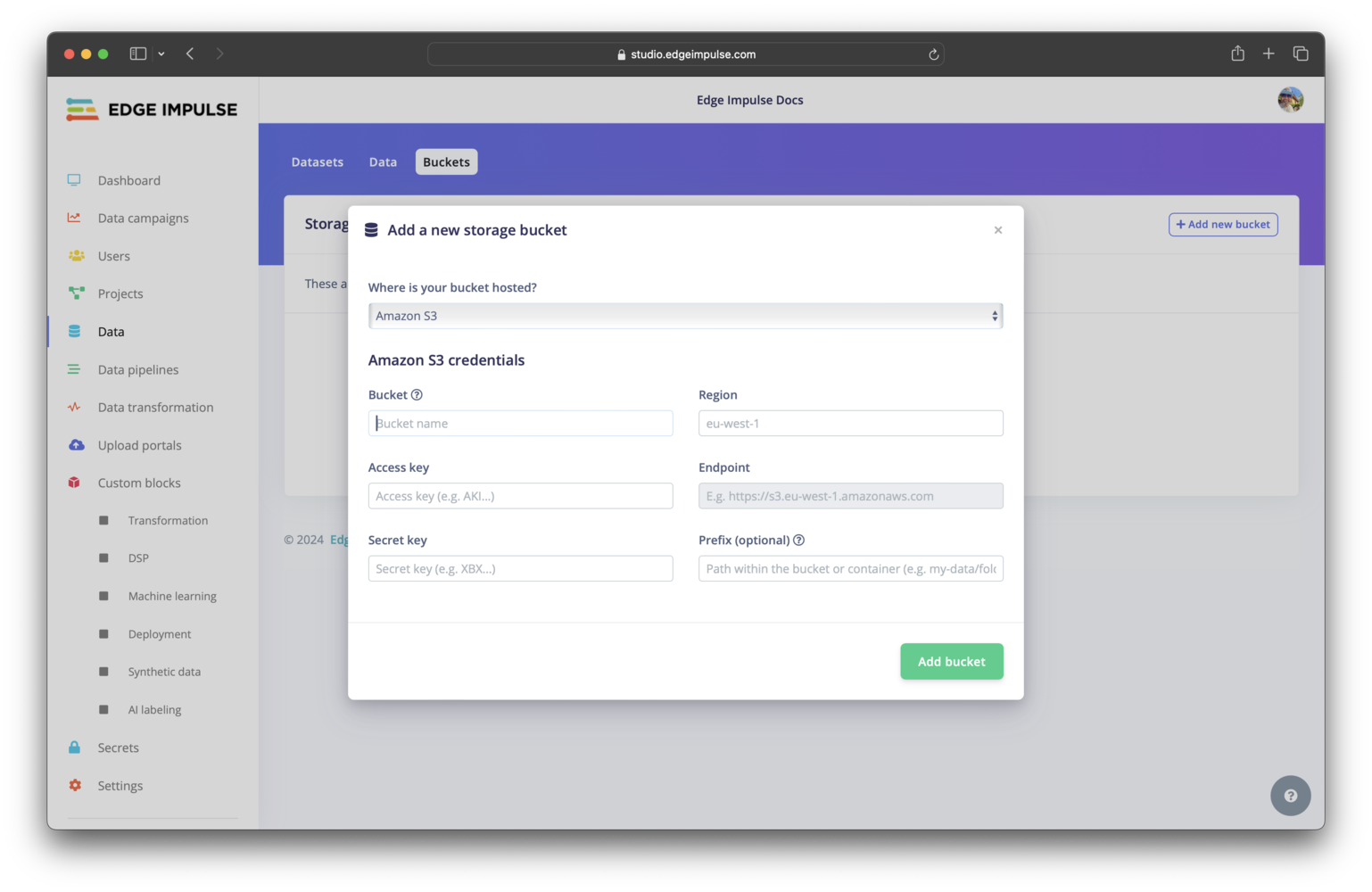
To connect, access your organization, select **Data** in the left sidebar menu, select the **Buckets** tab at the top of the page, then click the `+ Add new bucket` button. Follow the instructions in the modal window that pops up.
 ### Project data source
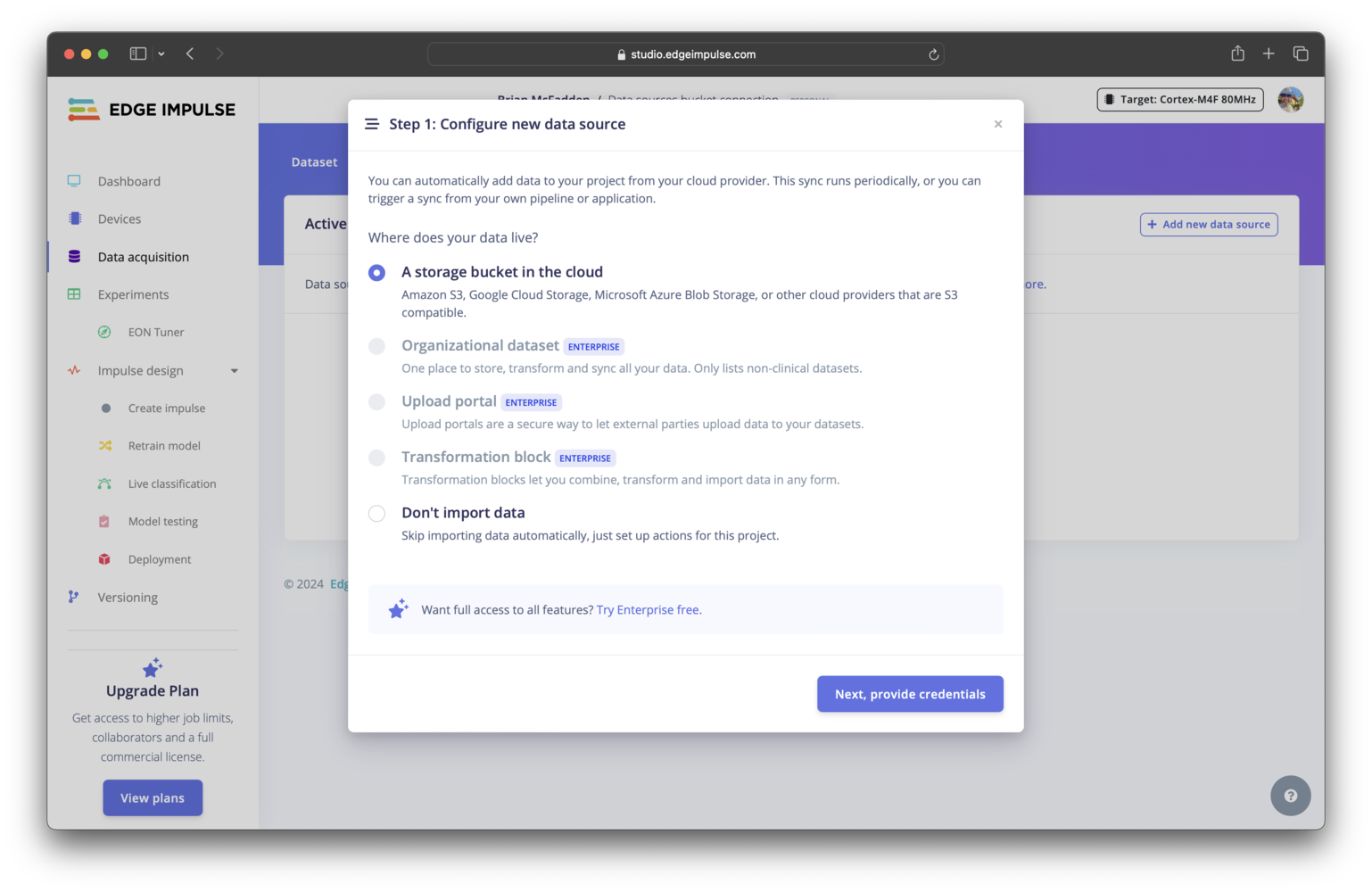
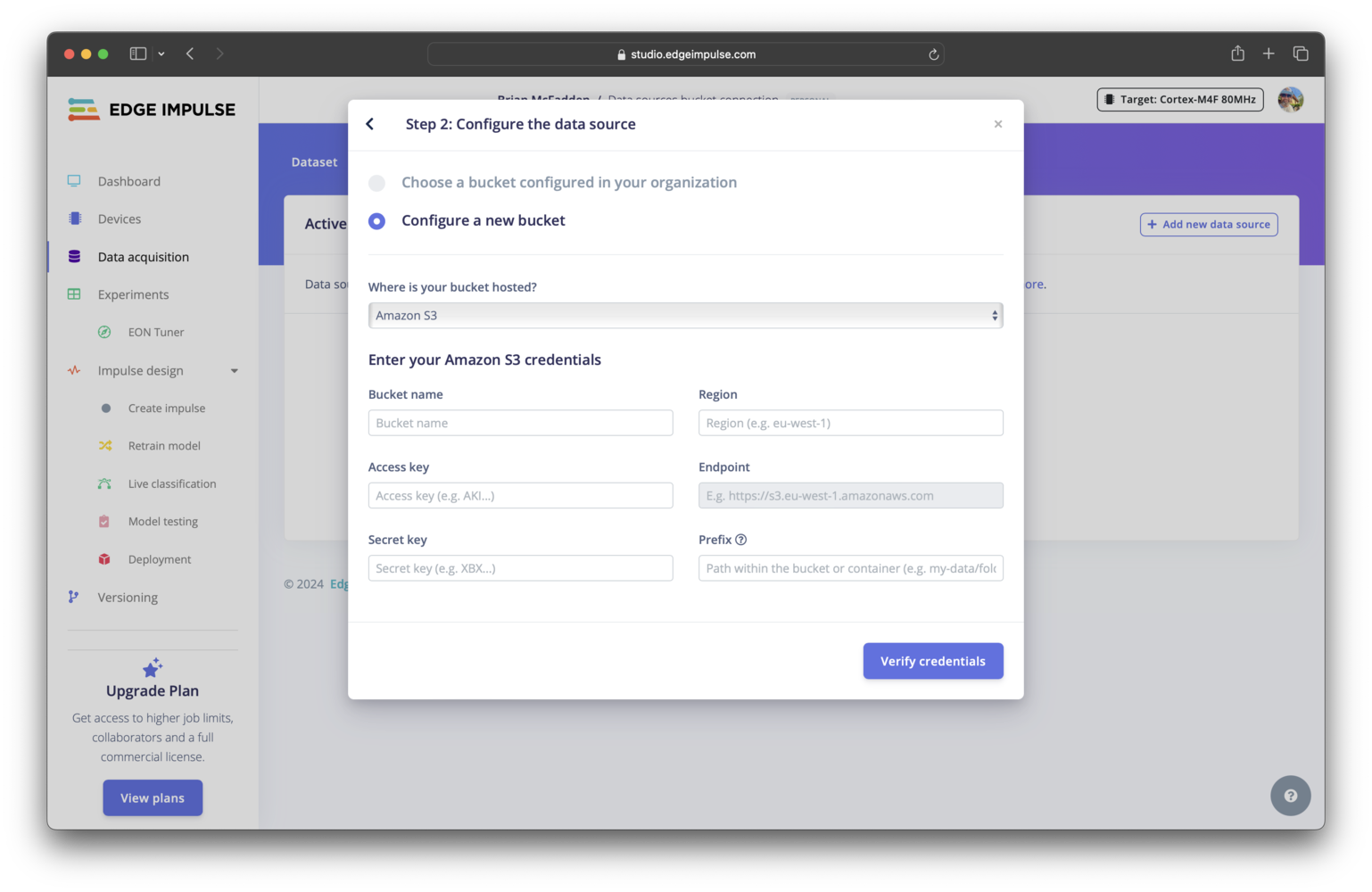
Cloud storage can be connected directly to a project. To connect, access your project, select **Data acquisition** in the left sidebar menu, select the **Data sources** tab at the top of the page, then click the `+ Add new data source`. Follow the instructions in the modal window that pops up.
Note that some options in the modal will be greyed out if your project is not on the Enterprise plan.
### Project data source
Cloud storage can be connected directly to a project. To connect, access your project, select **Data acquisition** in the left sidebar menu, select the **Data sources** tab at the top of the page, then click the `+ Add new data source`. Follow the instructions in the modal window that pops up.
Note that some options in the modal will be greyed out if your project is not on the Enterprise plan.
 ## Storage provider integrations
Edge Impulse allows you to integrate with several cloud storage options. These include:
* [Amazon S3 buckets](/studio/organizations/data/cloud-data-storage#amazon-s3-bucket)
* [Google Cloud Storage buckets](/studio/organizations/data/cloud-data-storage#google-cloud-storage-bucket)
* [Microsoft Azure Blob Storage blob containers](/studio/organizations/data/cloud-data-storage#microsoft-azure-blob-storage-blob-container)
* [Other (S3-compatible) buckets](/studio/organizations/data/cloud-data-storage#other-s3-compatible-buckets)
### Amazon S3 bucket
To connect to an Amazon S3 bucket, you will need to provide:
* The bucket name
* The bucket region
* An access key
* A secret key
* A path prefix (optional)
If the credentials provided do not have access to the root of the bucket, the prefix is used to specify the path for which the credentials are valid.
Only long-term credentials from AWS IAM users are supported; temporary credentials provided to AWS SSO users are not supported.
## Storage provider integrations
Edge Impulse allows you to integrate with several cloud storage options. These include:
* [Amazon S3 buckets](/studio/organizations/data/cloud-data-storage#amazon-s3-bucket)
* [Google Cloud Storage buckets](/studio/organizations/data/cloud-data-storage#google-cloud-storage-bucket)
* [Microsoft Azure Blob Storage blob containers](/studio/organizations/data/cloud-data-storage#microsoft-azure-blob-storage-blob-container)
* [Other (S3-compatible) buckets](/studio/organizations/data/cloud-data-storage#other-s3-compatible-buckets)
### Amazon S3 bucket
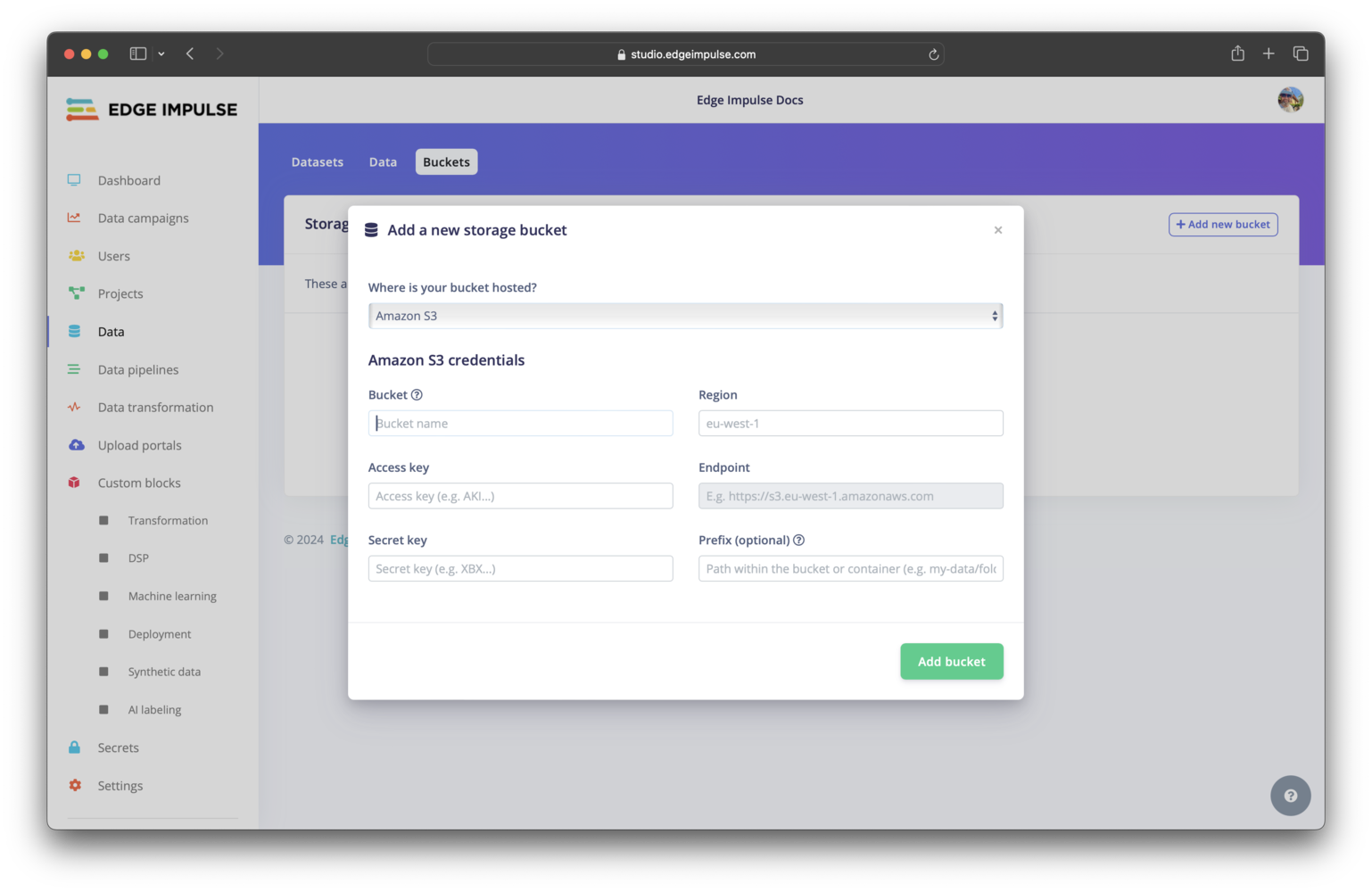
To connect to an Amazon S3 bucket, you will need to provide:
* The bucket name
* The bucket region
* An access key
* A secret key
* A path prefix (optional)
If the credentials provided do not have access to the root of the bucket, the prefix is used to specify the path for which the credentials are valid.
Only long-term credentials from AWS IAM users are supported; temporary credentials provided to AWS SSO users are not supported.
 #### CORS policy
For Amazon S3 buckets, you will also need to enable CORS headers for the bucket. You can do this in the S3 console by going to your bucket, going to the permissions tab, and then adding the policy defined below to the cross-origin resource sharing section.
CORS policy (console):
```json theme={"system"}
[
{
"AllowedOrigins": ["https://studio.edgeimpulse.com"],
"AllowedMethods": ["PUT", "POST"],
"AllowedHeaders": ["*"],
"ExposeHeaders": []
}
]
```
Alternatively, you can save the below CORS policy as a `cors.json` file (note there are some differences in the structure compared to the JSON above) and add it to your bucket using the AWS S3 CLI.
CORS policy (CLI):
```json theme={"system"}
{
"CORSRules": [
{
"AllowedOrigins": ["https://studio.edgeimpulse.com"],
"AllowedMethods": ["PUT", "POST"],
"AllowedHeaders": ["*"],
"ExposeHeaders": []
}
]
}
```
```bash theme={"system"}
aws s3api put-bucket-cors --bucket --cors-configuration file://cors.json
```
### Google Cloud Storage bucket
To connect to a Google Cloud Storage bucket, you will need to provide:
* The bucket name
* The bucket region
* An access key
* A secret key
* A path prefix (optional)
If the credentials provided do not have access to the root of the bucket, the prefix is used to specify the path for which the credentials are valid.
#### CORS policy
For Amazon S3 buckets, you will also need to enable CORS headers for the bucket. You can do this in the S3 console by going to your bucket, going to the permissions tab, and then adding the policy defined below to the cross-origin resource sharing section.
CORS policy (console):
```json theme={"system"}
[
{
"AllowedOrigins": ["https://studio.edgeimpulse.com"],
"AllowedMethods": ["PUT", "POST"],
"AllowedHeaders": ["*"],
"ExposeHeaders": []
}
]
```
Alternatively, you can save the below CORS policy as a `cors.json` file (note there are some differences in the structure compared to the JSON above) and add it to your bucket using the AWS S3 CLI.
CORS policy (CLI):
```json theme={"system"}
{
"CORSRules": [
{
"AllowedOrigins": ["https://studio.edgeimpulse.com"],
"AllowedMethods": ["PUT", "POST"],
"AllowedHeaders": ["*"],
"ExposeHeaders": []
}
]
}
```
```bash theme={"system"}
aws s3api put-bucket-cors --bucket --cors-configuration file://cors.json
```
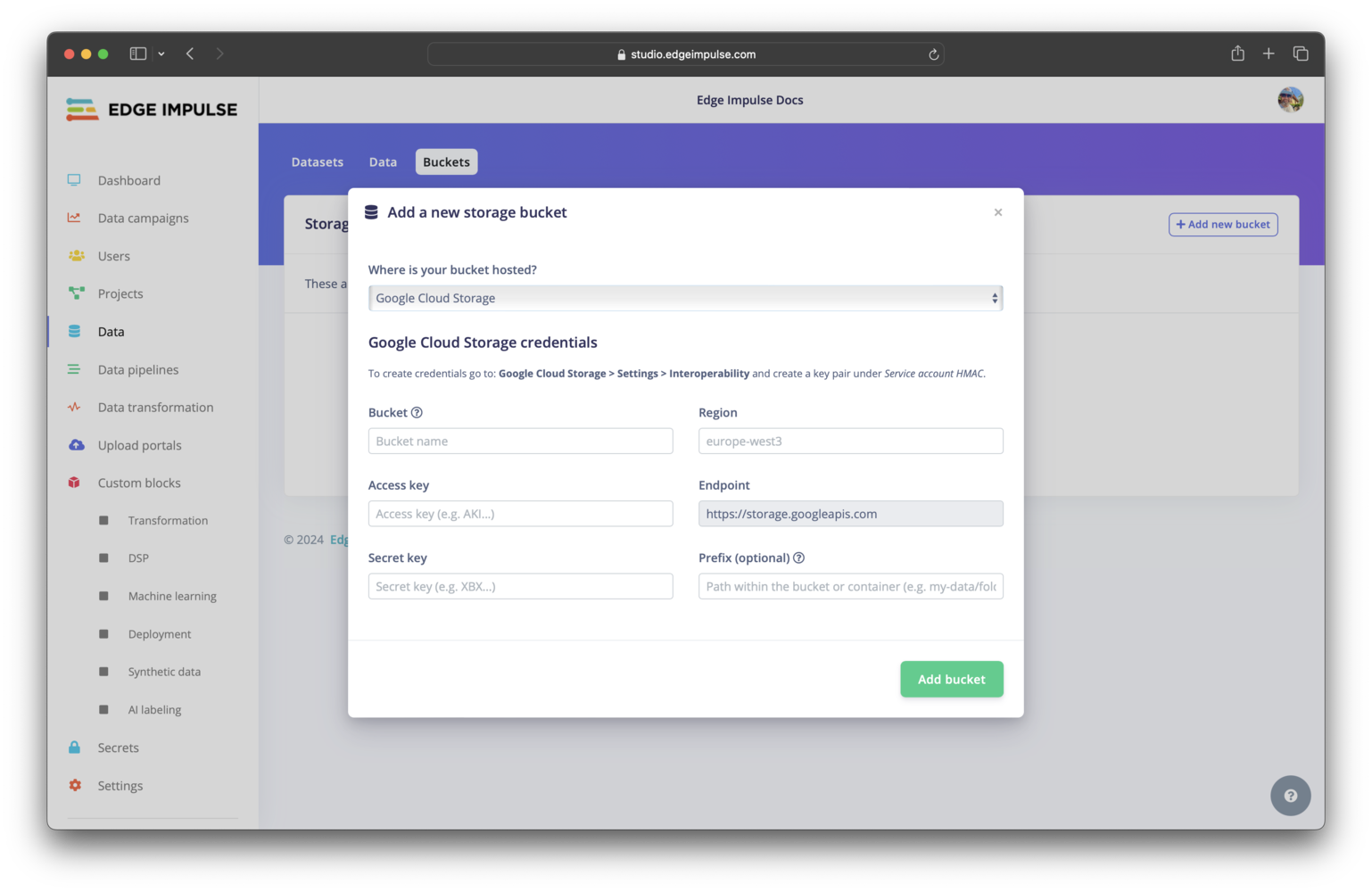
### Google Cloud Storage bucket
To connect to a Google Cloud Storage bucket, you will need to provide:
* The bucket name
* The bucket region
* An access key
* A secret key
* A path prefix (optional)
If the credentials provided do not have access to the root of the bucket, the prefix is used to specify the path for which the credentials are valid.
 #### CORS policy
For Google Cloud Storage buckets, you will also need to enable CORS headers for the bucket. You cannot manage CORS policies using the Google Cloud console; you must use the gcloud CLI instead.
CORS policy:
```json theme={"system"}
[
{
"origin": ["https://studio.edgeimpulse.com"],
"method": ["PUT", "POST"],
"responseHeader": ["*"],
"maxAgeSeconds": 31536000
}
]
```
Save the above CORS policy as a `cors.json` file and add it to your bucket with the gcloud CLI using the following command:
```bash theme={"system"}
gcloud storage buckets update gs:// --cors-file=cors.json
```
gsutil is not the recommended CLI tool for Cloud Storage. You may have used this tool before, however, Google now recommends using gcloud storage commands in the Google Cloud CLI instead.
### Microsoft Azure Blob Storage blob container
To connect to a Microsoft Azure Blob Storage blob container, you will need to provide:
* The blob container name
* The storage account name
* A secret key
* A path prefix (optional)
If the credentials provided do not have access to the root of the blob container, the prefix is used to specify the path for which the credentials are valid.
#### CORS policy
For Google Cloud Storage buckets, you will also need to enable CORS headers for the bucket. You cannot manage CORS policies using the Google Cloud console; you must use the gcloud CLI instead.
CORS policy:
```json theme={"system"}
[
{
"origin": ["https://studio.edgeimpulse.com"],
"method": ["PUT", "POST"],
"responseHeader": ["*"],
"maxAgeSeconds": 31536000
}
]
```
Save the above CORS policy as a `cors.json` file and add it to your bucket with the gcloud CLI using the following command:
```bash theme={"system"}
gcloud storage buckets update gs:// --cors-file=cors.json
```
gsutil is not the recommended CLI tool for Cloud Storage. You may have used this tool before, however, Google now recommends using gcloud storage commands in the Google Cloud CLI instead.
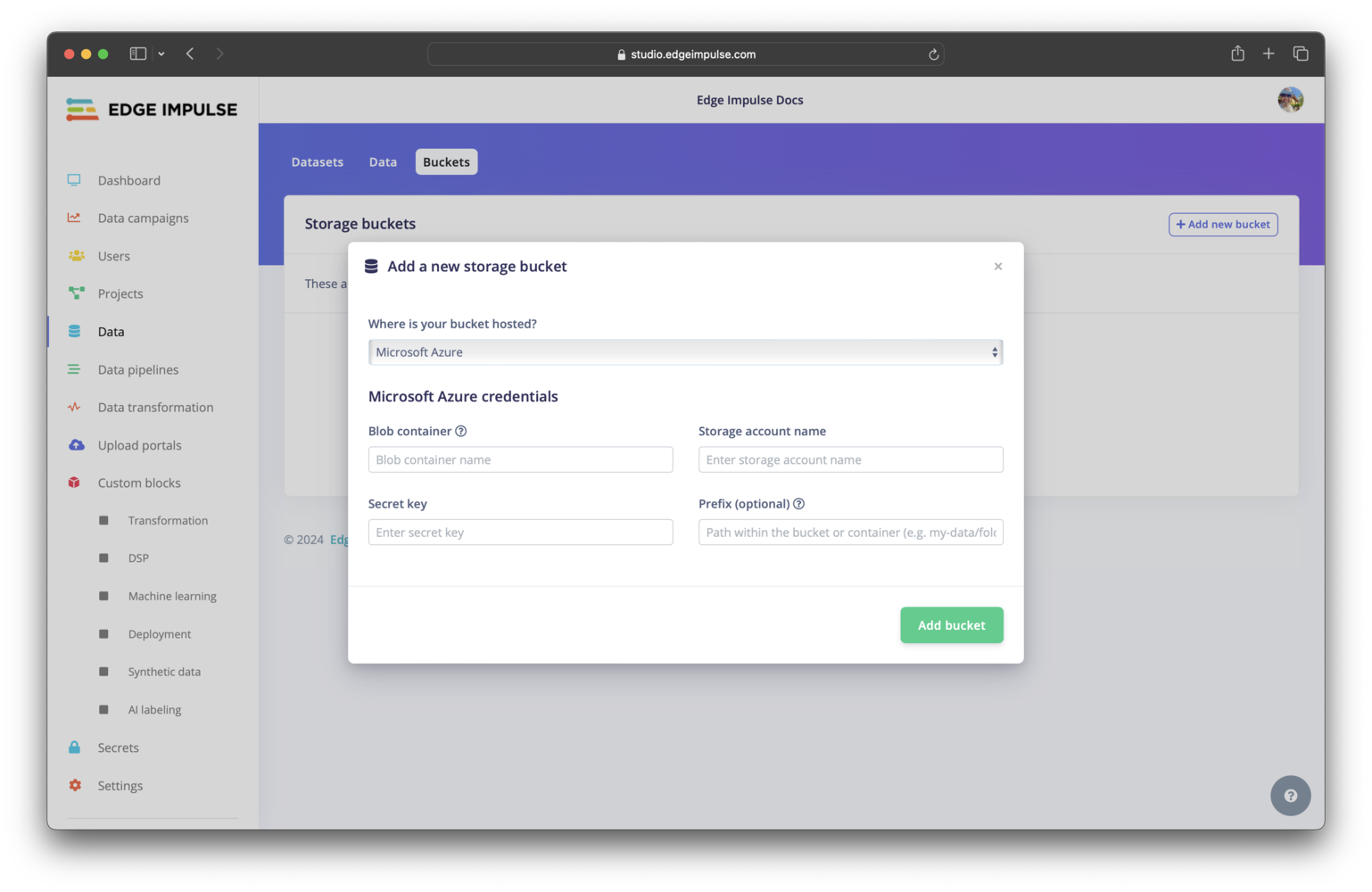
### Microsoft Azure Blob Storage blob container
To connect to a Microsoft Azure Blob Storage blob container, you will need to provide:
* The blob container name
* The storage account name
* A secret key
* A path prefix (optional)
If the credentials provided do not have access to the root of the blob container, the prefix is used to specify the path for which the credentials are valid.
 #### CORS policy
A CORS policy is not required with Microsoft Azure Blob Storage.
### Other (S3-compatible) buckets
To connect to another (S3-compatible) type of bucket, you will need to provide:
* The bucket name
* The bucket region
* The bucket endpoint
* An access key
* A secret key
* A path prefix (optional)
If the credentials provided do not have access to the root of the bucket, the prefix is used to specify the path for which the credentials are valid.
#### CORS policy
A CORS policy is not required with Microsoft Azure Blob Storage.
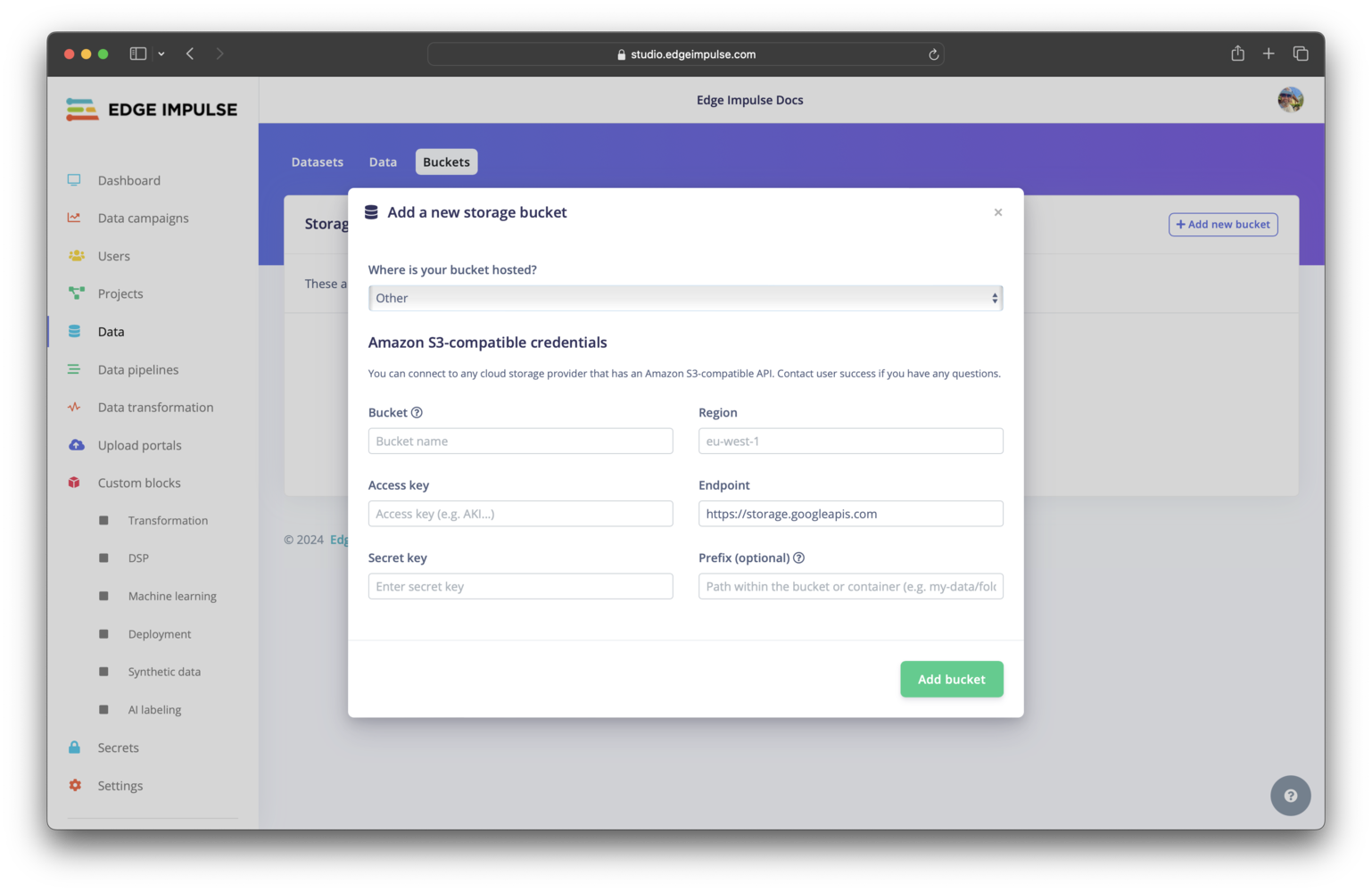
### Other (S3-compatible) buckets
To connect to another (S3-compatible) type of bucket, you will need to provide:
* The bucket name
* The bucket region
* The bucket endpoint
* An access key
* A secret key
* A path prefix (optional)
If the credentials provided do not have access to the root of the bucket, the prefix is used to specify the path for which the credentials are valid.
 #### CORS policy
For other (S3-compatible) buckets, you will also need to enable CORS headers for the bucket. Please refer to your provider documentation for instructions on how to do so.
The items that you will need to set are the following:
* Origin: `["https://studio.edgeimpulse.com"]`
* Method: `["PUT", "POST"]`
* Header: `["*"]`
## Permissions required
For cloud storage integration to work as expected, Edge Impulse needs to be provided with credentials that allow read, write, and delete operations. Please refer to your storage provider documentation for specifics.
## Verifying the connection
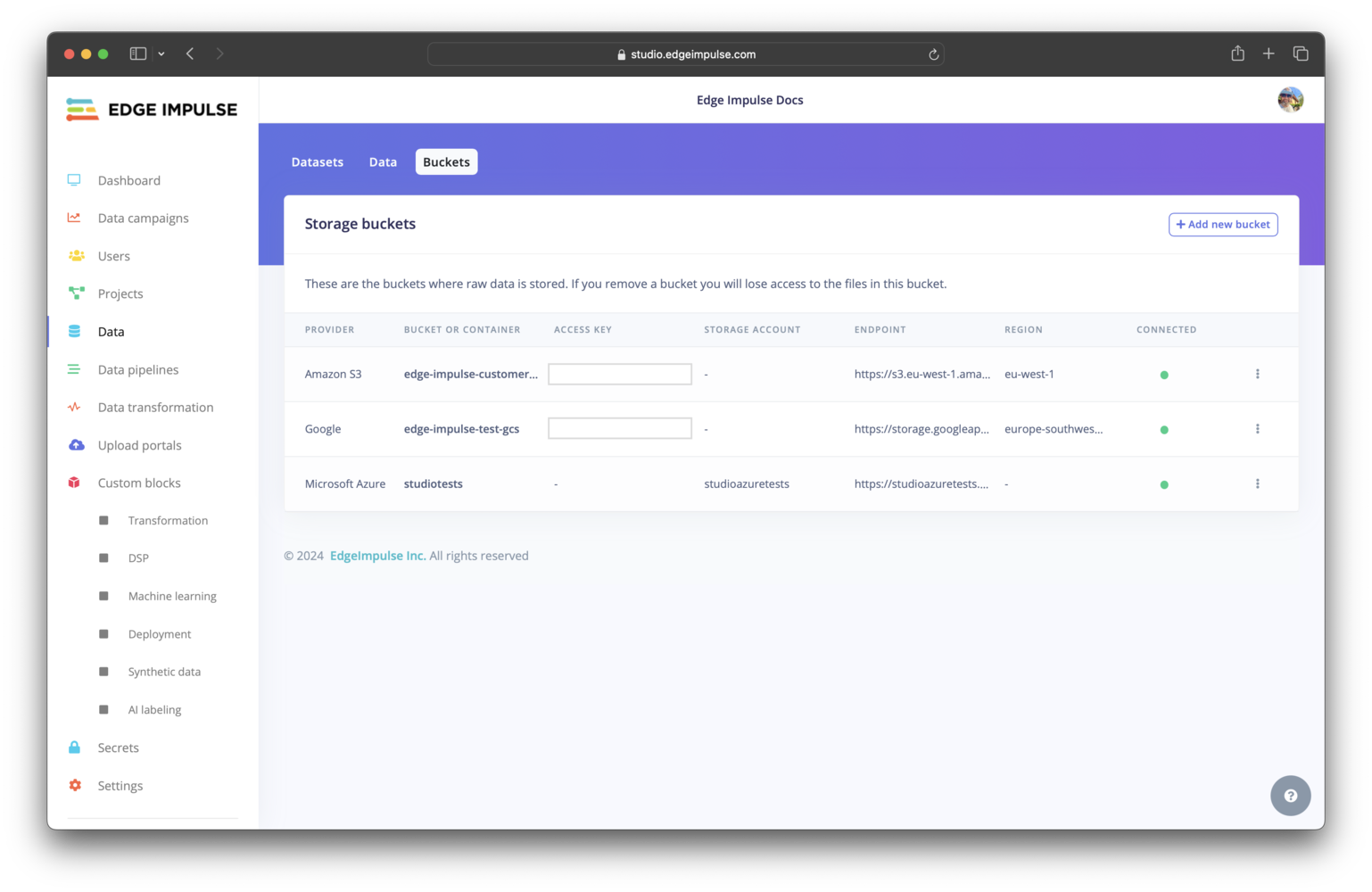
In order to verify the connection to the cloud storage provider, Edge Impulse will write an `.ei-portal-check` file that will be subsequently deleted. Once a bucket is successfully connected to your organization, a green dot will appear in the connected column on the buckets overview page.
#### CORS policy
For other (S3-compatible) buckets, you will also need to enable CORS headers for the bucket. Please refer to your provider documentation for instructions on how to do so.
The items that you will need to set are the following:
* Origin: `["https://studio.edgeimpulse.com"]`
* Method: `["PUT", "POST"]`
* Header: `["*"]`
## Permissions required
For cloud storage integration to work as expected, Edge Impulse needs to be provided with credentials that allow read, write, and delete operations. Please refer to your storage provider documentation for specifics.
## Verifying the connection
In order to verify the connection to the cloud storage provider, Edge Impulse will write an `.ei-portal-check` file that will be subsequently deleted. Once a bucket is successfully connected to your organization, a green dot will appear in the connected column on the buckets overview page.
 ## Troubleshooting
No common issues have been identified thus far. If you encounter an issue, please reach out on the [forum](https://forum.edgeimpulse.com) or, if you are on the Enterprise plan, through your support channels.
## Additional resources
* [Organization data](/studio/organizations/data)
* [Data sources](/studio/projects/data-acquisition/data-sources)
* [What is Amazon S3?](https://docs.aws.amazon.com/AmazonS3/latest/userguide/Welcome.html)
* [Product overview of Google Cloud Storage](https://cloud.google.com/storage/docs/introduction)
* [Introduction to Azure Blob Storage](https://learn.microsoft.com/en-us/azure/storage/blobs/storage-blobs-introduction)
## Troubleshooting
No common issues have been identified thus far. If you encounter an issue, please reach out on the [forum](https://forum.edgeimpulse.com) or, if you are on the Enterprise plan, through your support channels.
## Additional resources
* [Organization data](/studio/organizations/data)
* [Data sources](/studio/projects/data-acquisition/data-sources)
* [What is Amazon S3?](https://docs.aws.amazon.com/AmazonS3/latest/userguide/Welcome.html)
* [Product overview of Google Cloud Storage](https://cloud.google.com/storage/docs/introduction)
* [Introduction to Azure Blob Storage](https://learn.microsoft.com/en-us/azure/storage/blobs/storage-blobs-introduction)