> ## Documentation Index
> Fetch the complete documentation index at: https://docs.edgeimpulse.com/llms.txt
> Use this file to discover all available pages before exploring further.
# Data
**Only available on the Enterprise plan**
This feature is only available on the Enterprise plan. Review our [plans and pricing](https://edgeimpulse.com/pricing) or sign up for our free [expert-led trial](https://edgeimpulse.com/expert-led-trial) today.
Since the creation of Edge Impulse, we have been helping customers to deal with complex data pipelines, complex data transformation methods and complex clinical validation studies.
In most cases, before even thinking about machine learning algorithms, researchers need to build quality datasets from real-world data. These data come from various devices (prototype devices being developed vs clinical/industrial-grade reference devices), have different formats (excel sheets, images, csv, json, etc...), and be stored in various places (researchers' computers, Dropbox folders, Google Drive, S3 buckets, etc...).
Dealing with such complex data infrastructure is time-consuming and expensive to develop and maintain. With the organizational data, we want to give you tools to centralize, validate and transform datasets so they can be easily imported into your projects to train your machine learning models.
**Health reference design**
We have built a [**health reference design**](/knowledge/guides/reference-designs/health-reference-design) that describes an end-to-end ML workflow for building a wearable health product using Edge Impulse.
In this reference resign, we want to help you understand how to create a full clinical data pipeline by using a public dataset from the [PPG-DaLiA](https://archive.ics.uci.edu/dataset/495/ppg+dalia)
repository. This tutorial will guide you through the following steps:
* [Synchronizing clinical data with a bucket](/knowledge/guides/reference-designs/health-reference-design/synchronizing-clinical-data)
* [Validating clinical data](/knowledge/guides/reference-designs/health-reference-design/validating-clinical-data)
* [Querying clinical data](/knowledge/guides/reference-designs/health-reference-design/querying-clinical-data)
* [Transforming clinical data](/knowledge/guides/reference-designs/health-reference-design/transforming-clinical-data)
* [Building data pipelines](/studio/organizations/data-pipelines)
## Buckets
Before we get started, you must link your organization with one or more storage buckets. Further details about how to integrate with cloud storage providers can be found in the [Cloud data storage](/studio/organizations/data/cloud-data-storage) document.
## Datasets
Two types of dataset structures can be used - **Generic datasets (default)** and **Clinical datasets**.
There is no required format for data files. You can upload data in a wide range of formats, whether it's CSV, Parquet, or a proprietary data format.
However, to import data items to an Edge Impulse project, you will need to use the right format as our studio ingestion API only supports these formats:
* JPG, PNG images
* MP4, AVI video files
* WAV audio files
* JSON/CBOR files in the Edge Impulse [data acquisition format](/tools/specifications/data-acquisition/json-cbor)
* CSV files
**Tip: You can use** [**transformation blocks**](/studio/organizations/custom-blocks/custom-transformation-blocks) **to convert your data**
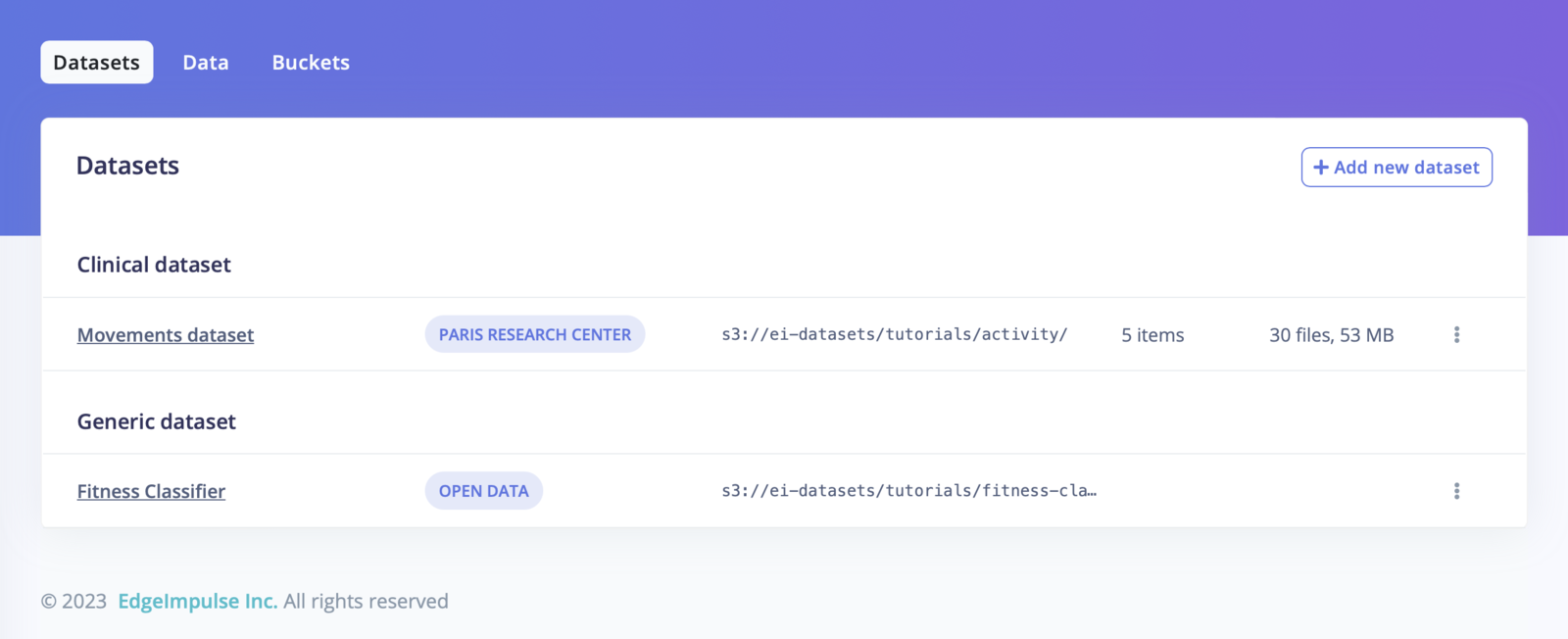 The **default dataset structure** is a file-based one, no matter the directory structure:
For example:
```
images/
├── testing/
│ ├── 1.jpg
│ ├── 2.jpg
│ ├── 3.jpg
│ ...
│ └── 200.jpg
└── training/
├── 1.jpg
├── 2.jpg
├── 3.jpg
...
└── 800.jpg
```
or:
```
keywords/
├── french-accent/
│ ├── hello.wav
│ ├── yes.wav
│ ├── no.wav
├── greek-accent/
│ ├── hello.wav
│ ├── yes.wav
│ ├── no.wav
└── unlabeled/
├── 1.wav
├── 2.wav
├── 3.wav
...
└── 20.wav
```
*Note that you will be able to associate the labels of your data items from the file name or the directory name when importing your data in a project.*
The **clinical datasets structure** in Edge Impulse has three layers:
1. The dataset, a larger set of data items, grouped together.
2. Data item, an item with metadata and files attached.
3. Data file, the actual files.
See the [health reference design](/knowledge/guides/reference-designs/health-reference-design) tutorial for a deeper explanation.
### Create a new dataset
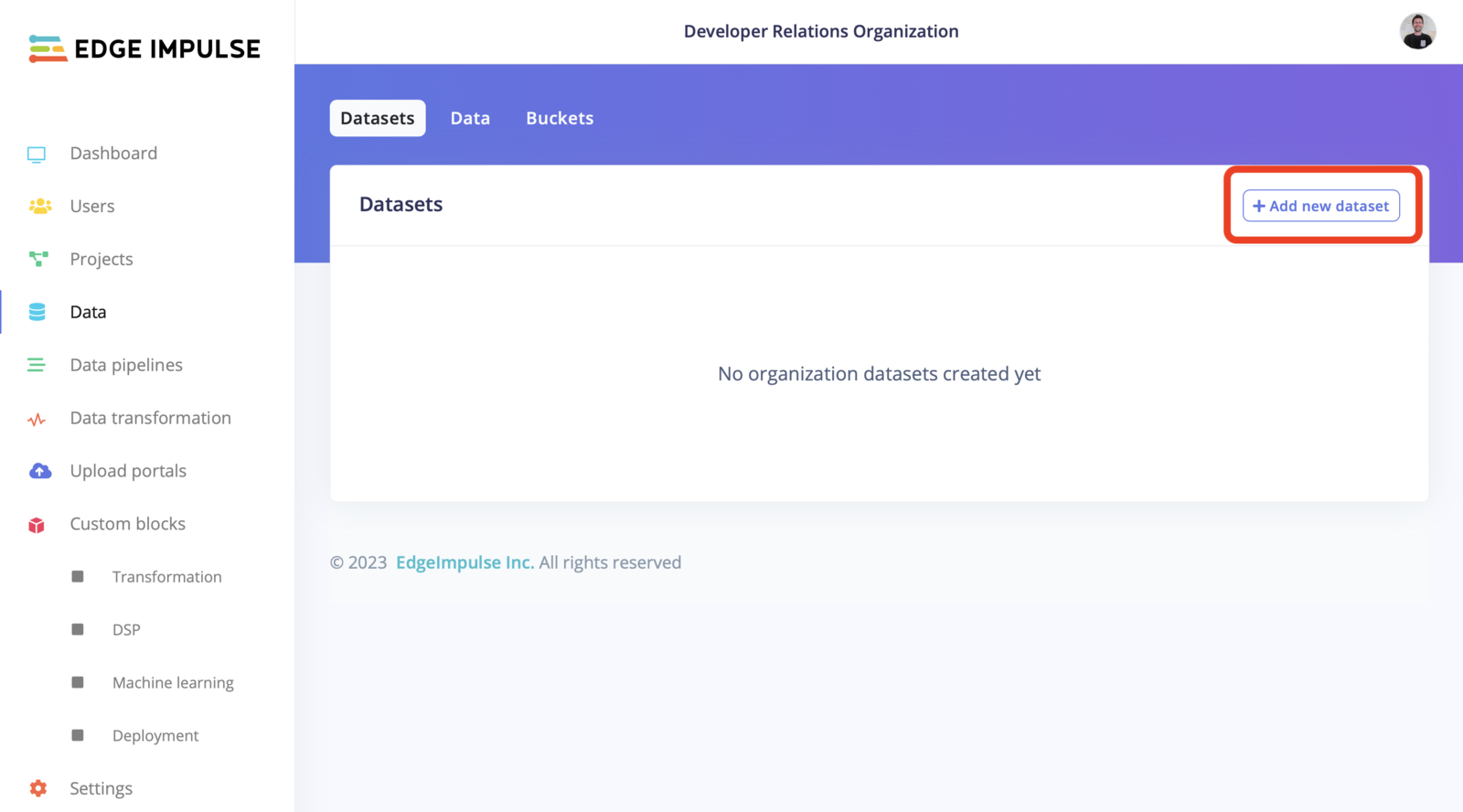
Once you successfully linked your storage bucket to your organization, head to the **Datasets** tab and click on **+ Add new dataset**:
The **default dataset structure** is a file-based one, no matter the directory structure:
For example:
```
images/
├── testing/
│ ├── 1.jpg
│ ├── 2.jpg
│ ├── 3.jpg
│ ...
│ └── 200.jpg
└── training/
├── 1.jpg
├── 2.jpg
├── 3.jpg
...
└── 800.jpg
```
or:
```
keywords/
├── french-accent/
│ ├── hello.wav
│ ├── yes.wav
│ ├── no.wav
├── greek-accent/
│ ├── hello.wav
│ ├── yes.wav
│ ├── no.wav
└── unlabeled/
├── 1.wav
├── 2.wav
├── 3.wav
...
└── 20.wav
```
*Note that you will be able to associate the labels of your data items from the file name or the directory name when importing your data in a project.*
The **clinical datasets structure** in Edge Impulse has three layers:
1. The dataset, a larger set of data items, grouped together.
2. Data item, an item with metadata and files attached.
3. Data file, the actual files.
See the [health reference design](/knowledge/guides/reference-designs/health-reference-design) tutorial for a deeper explanation.
### Create a new dataset
Once you successfully linked your storage bucket to your organization, head to the **Datasets** tab and click on **+ Add new dataset**:
 Fill out the following form:
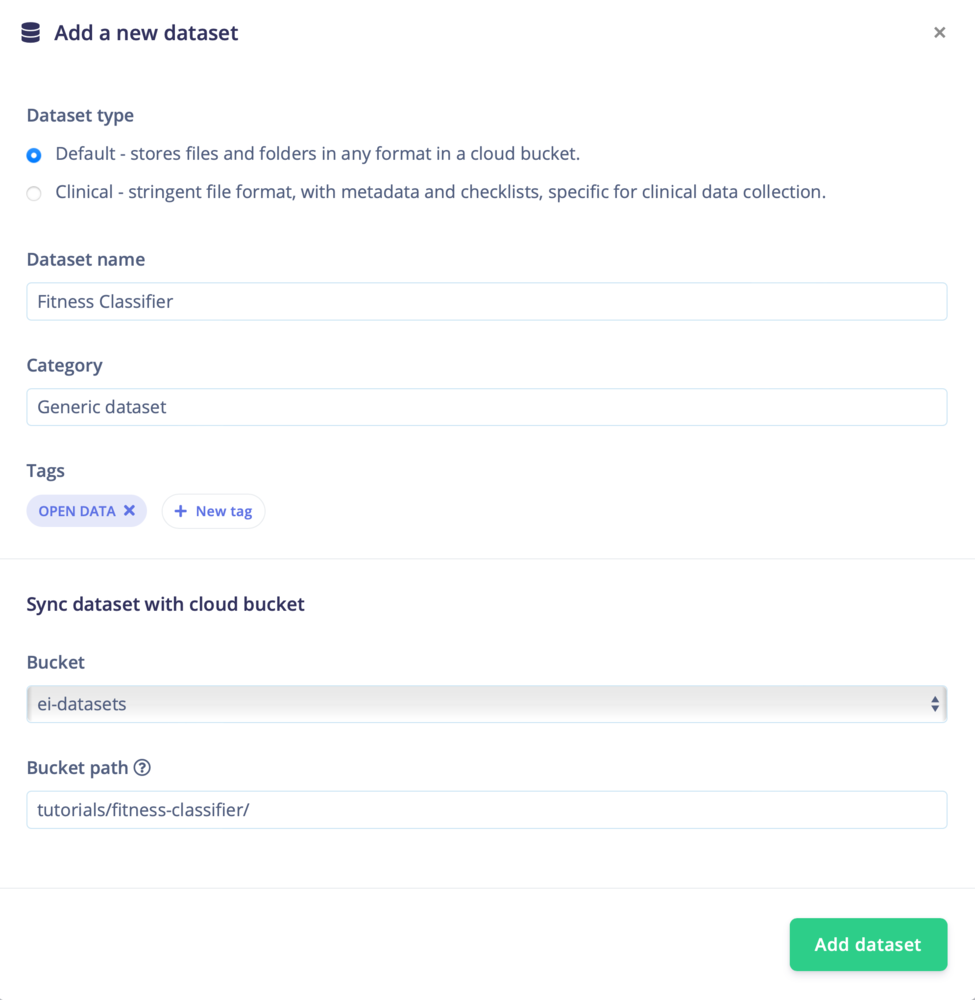 Click on **Create dataset**
## Data
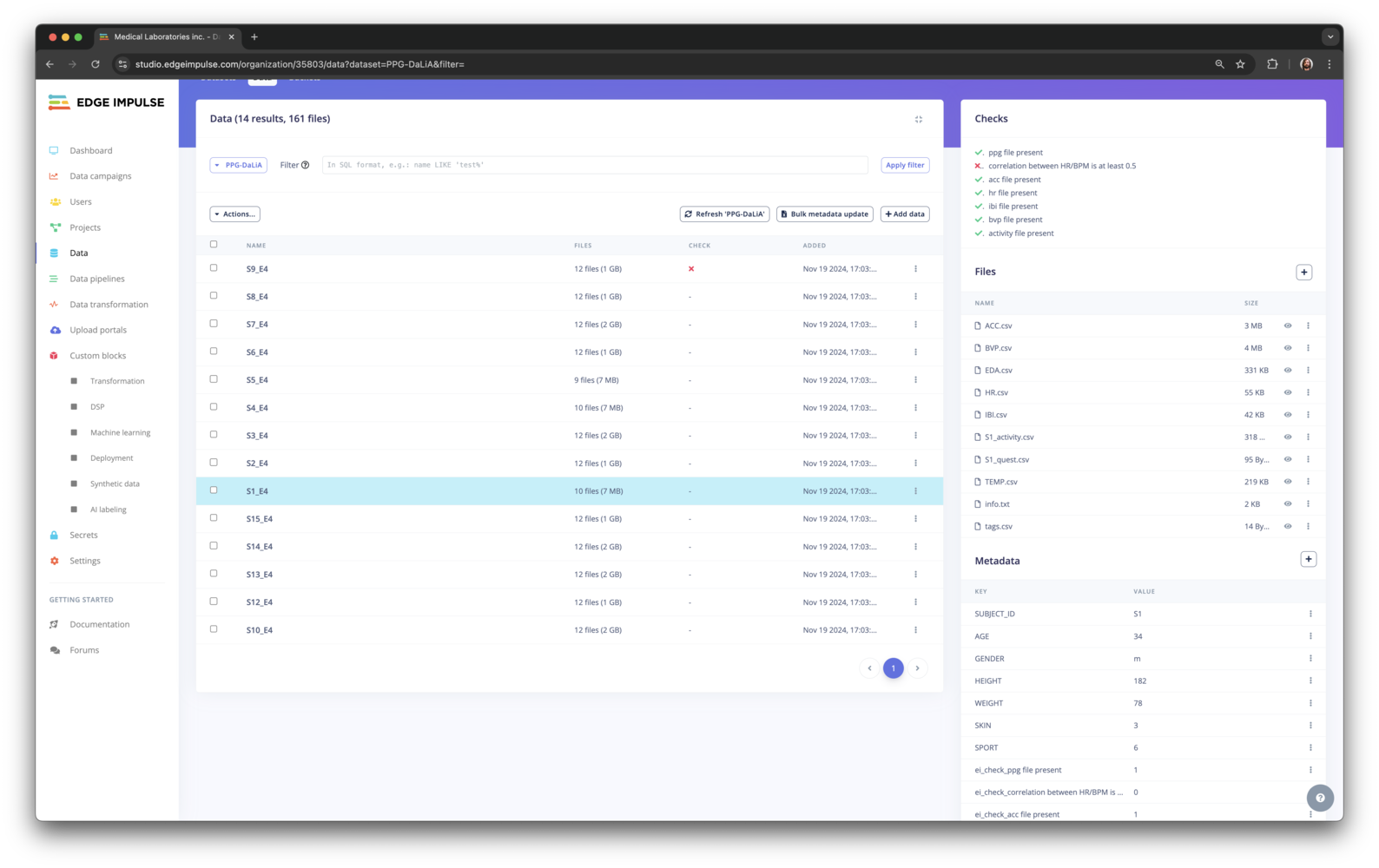
With your datasets imported, you can now navigate into your dataset, create folders, [query your dataset](/knowledge/guides/reference-designs/health-reference-design/querying-clinical-data), add data items and import your data to an Edge Impulse project.
#### Default view
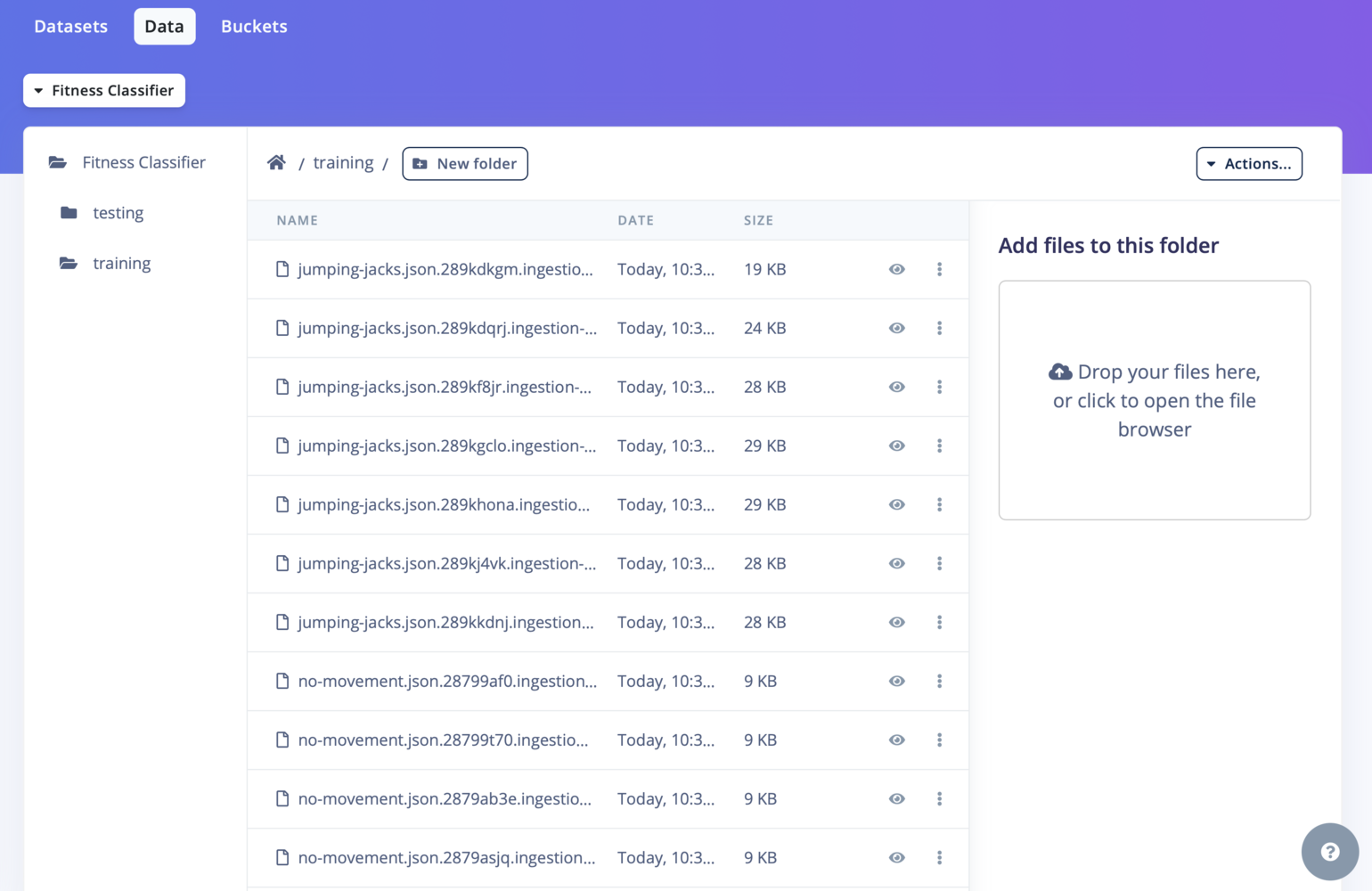
The default view lets you navigate in your bucket following the directory structure. You can easily add data using the "**+ New folder**" button. To add new data, use the right panel - drag and drop your files and folders and it will automatically upload them to your bucket.
Click on **Create dataset**
## Data
With your datasets imported, you can now navigate into your dataset, create folders, [query your dataset](/knowledge/guides/reference-designs/health-reference-design/querying-clinical-data), add data items and import your data to an Edge Impulse project.
#### Default view
The default view lets you navigate in your bucket following the directory structure. You can easily add data using the "**+ New folder**" button. To add new data, use the right panel - drag and drop your files and folders and it will automatically upload them to your bucket.
 #### Clinical view
The clinical view is slightly different, see [synchronizing clinical data with a bucket](/knowledge/guides/reference-designs/health-reference-design/synchronizing-clinical-data) for more information. This view lets you easily [query your clinical dataset](/knowledge/guides/reference-designs/health-reference-design/querying-clinical-data) but to import data, you will need to set up an [upload portal](/studio/organizations/upload-portals) or upload them directly to your bucket.
*Tip: You can add two distinct datasets in Edge Impulse that point to the same bucket path, one generic and one clinical. This way you can leverage both the easy upload and the ability to query your datasets.*
#### Clinical view
The clinical view is slightly different, see [synchronizing clinical data with a bucket](/knowledge/guides/reference-designs/health-reference-design/synchronizing-clinical-data) for more information. This view lets you easily [query your clinical dataset](/knowledge/guides/reference-designs/health-reference-design/querying-clinical-data) but to import data, you will need to set up an [upload portal](/studio/organizations/upload-portals) or upload them directly to your bucket.
*Tip: You can add two distinct datasets in Edge Impulse that point to the same bucket path, one generic and one clinical. This way you can leverage both the easy upload and the ability to query your datasets.*
 ### Adding data to your project
Go to the **Actions...->Import data into a project**, select the project you wish to import to and click **Next, Configure how to label this data**:
### Adding data to your project
Go to the **Actions...->Import data into a project**, select the project you wish to import to and click **Next, Configure how to label this data**:
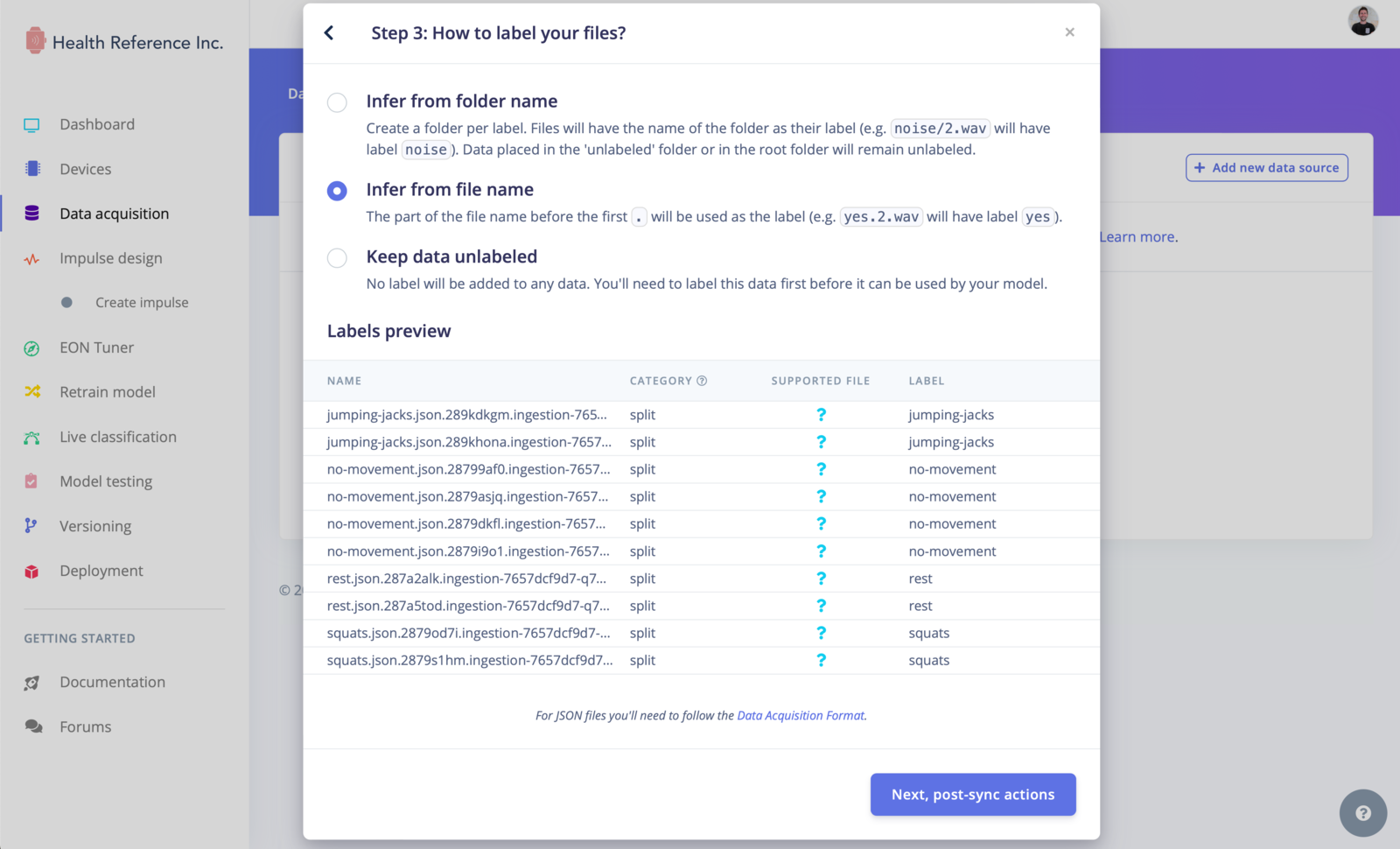 This will import the data into the project and optionally create a new label for each file in the dataset. This labeling step helps you keep track of different classes or categories within your data.
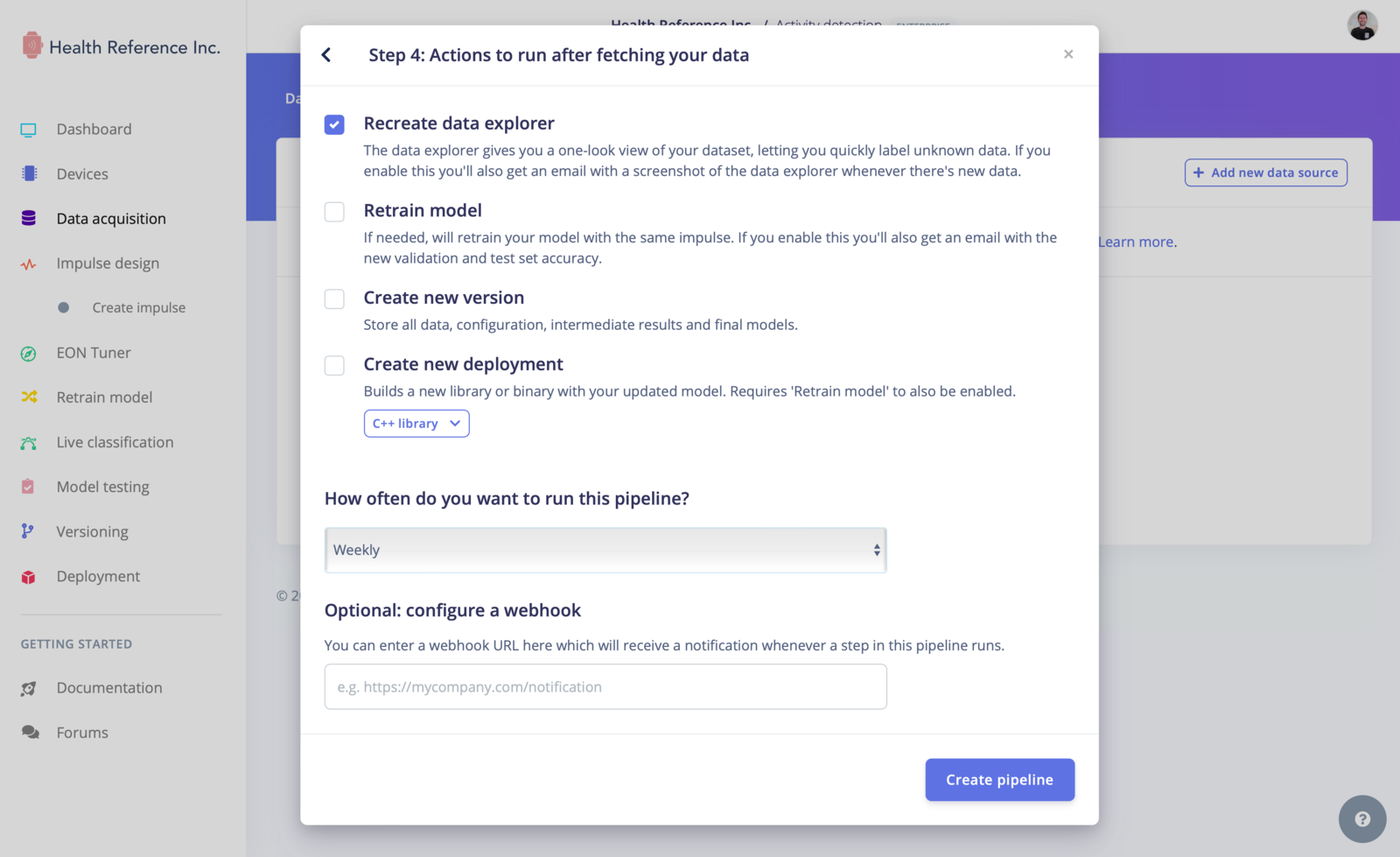
After importing the data into the project, in the **Next, post-sync actions** step, you can configure a [data pipeline](/studio/projects/data-acquisition/data-sources) to automatically retrieve and trigger actions in your project:
This will import the data into the project and optionally create a new label for each file in the dataset. This labeling step helps you keep track of different classes or categories within your data.
After importing the data into the project, in the **Next, post-sync actions** step, you can configure a [data pipeline](/studio/projects/data-acquisition/data-sources) to automatically retrieve and trigger actions in your project:
 ### Previewing Data
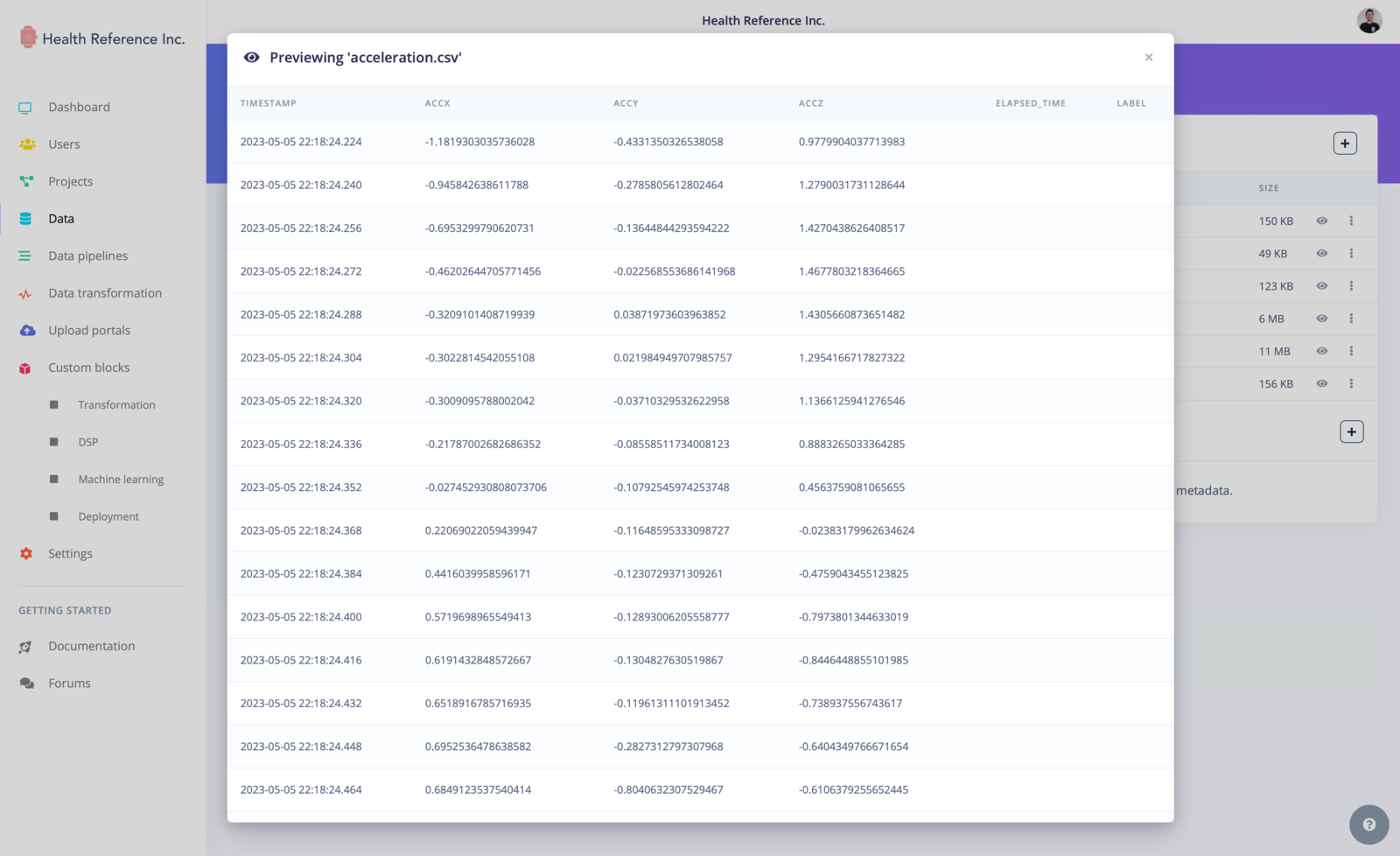
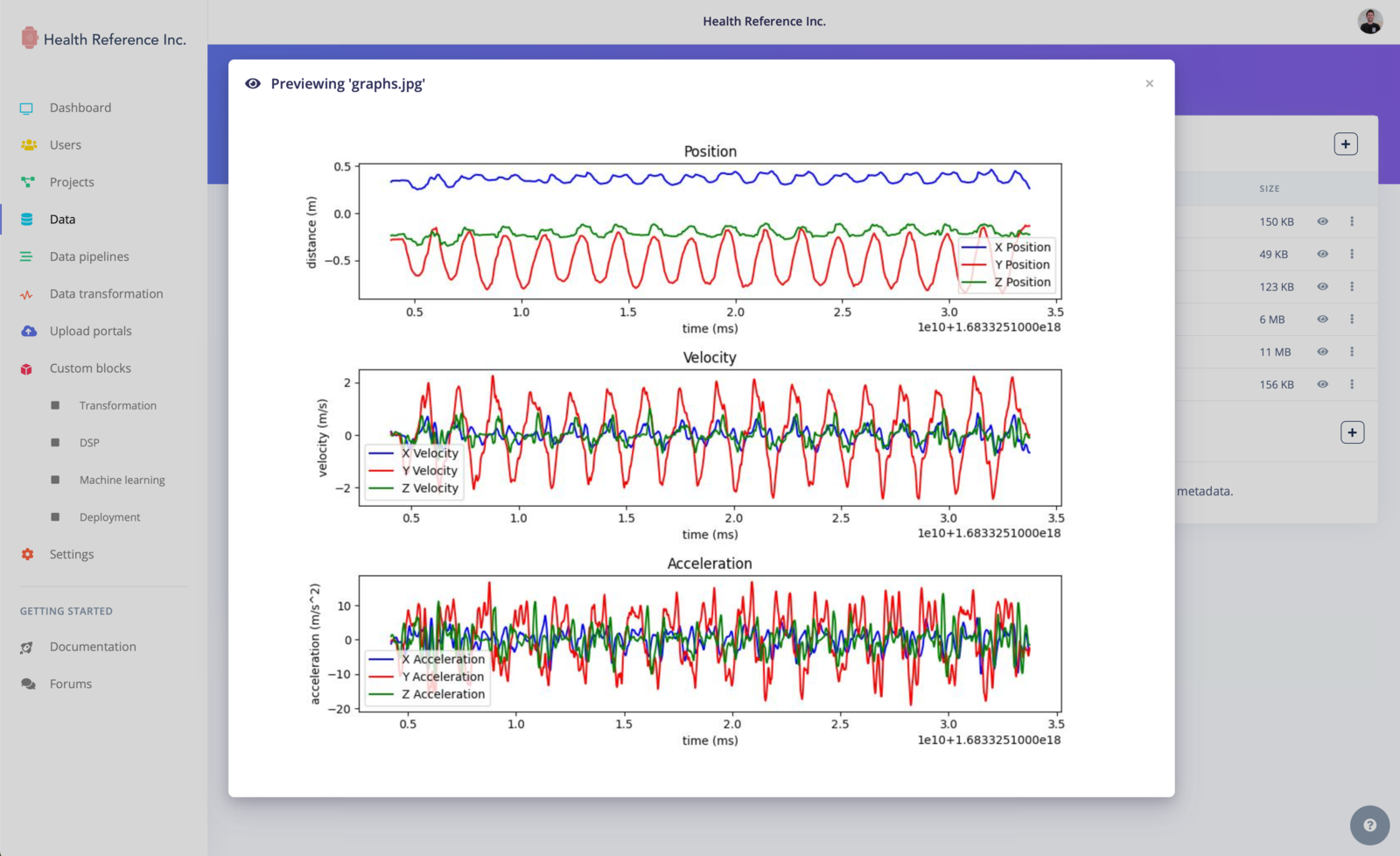
We also have added a data preview feature, allowing you to visualize certain types of data directly within the organization data tab.
Supported data types include tables (CSV/Parquet), images, PDFs, audio files (WAV/MP3), and text files (TXT/JSON). This feature gives you a quick overview of your data and helps ensure its integrity and correctness.
### Previewing Data
We also have added a data preview feature, allowing you to visualize certain types of data directly within the organization data tab.
Supported data types include tables (CSV/Parquet), images, PDFs, audio files (WAV/MP3), and text files (TXT/JSON). This feature gives you a quick overview of your data and helps ensure its integrity and correctness.
 ## Recap
If you need to get data into your organization, you can now do this in a few simple steps. To go further and use advanced features, query your datasets or transform your dataset, please have a look at the [health reference design tutorial](/knowledge/guides/reference-designs/health-reference-design) :rocket:
Any questions, or interested in the enterprise version of Edge Impulse? [Contact us](https://edgeimpulse.com/contact) for more information.
## Recap
If you need to get data into your organization, you can now do this in a few simple steps. To go further and use advanced features, query your datasets or transform your dataset, please have a look at the [health reference design tutorial](/knowledge/guides/reference-designs/health-reference-design) :rocket:
Any questions, or interested in the enterprise version of Edge Impulse? [Contact us](https://edgeimpulse.com/contact) for more information.