> ## Documentation Index
> Fetch the complete documentation index at: https://docs.edgeimpulse.com/llms.txt
> Use this file to discover all available pages before exploring further.
# Data transformation
**Only available on the Enterprise plan**
This feature is only available on the Enterprise plan. Review our [plans and pricing](https://edgeimpulse.com/pricing) or sign up for our free [expert-led trial](https://edgeimpulse.com/expert-led-trial) today.
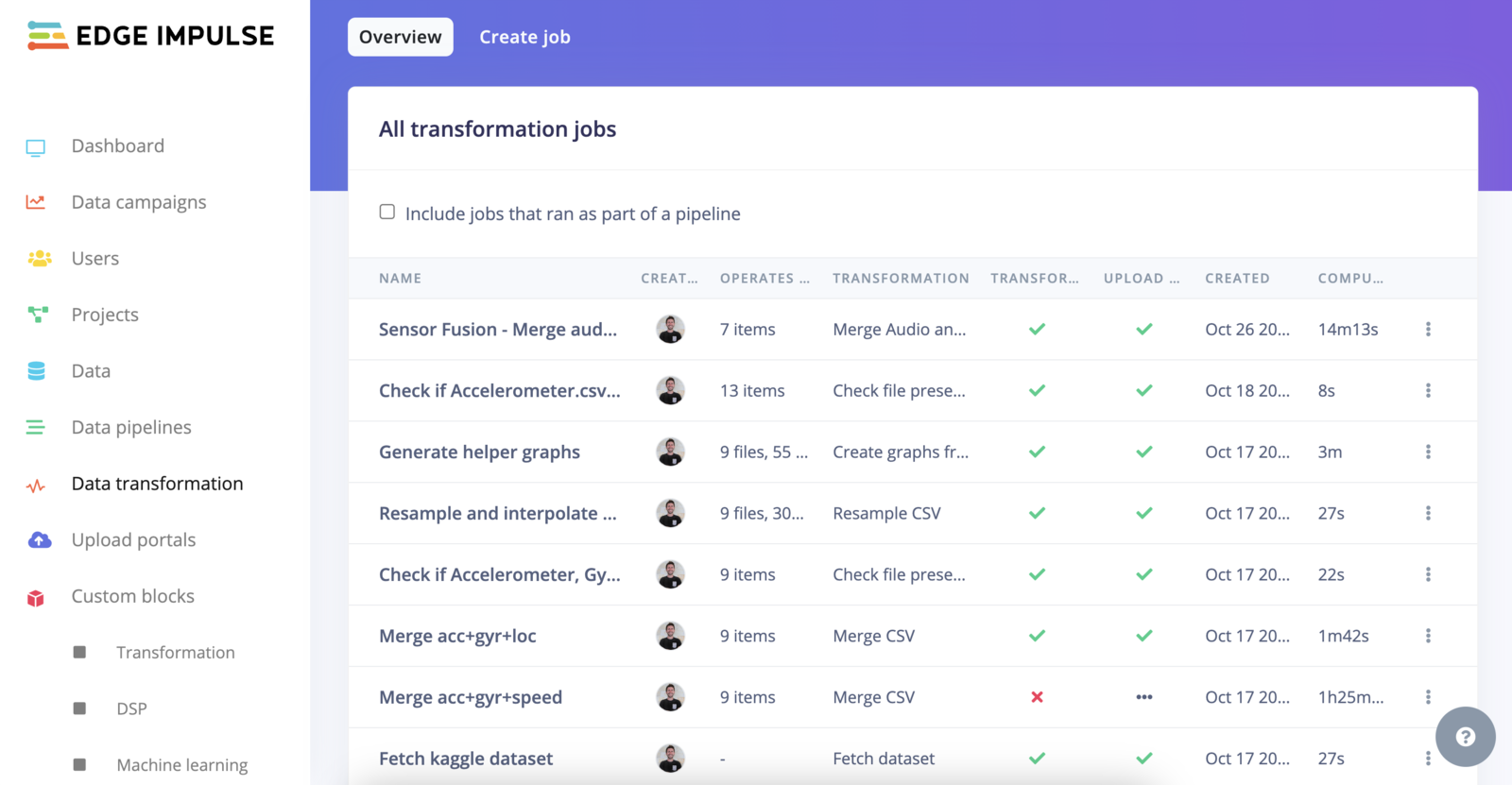
Data transformation or transformation jobs refer to processes that apply specific transformations to the data within an Edge Impulse organizational dataset. These jobs are executed using [transformation blocks](/studio/organizations/transformation-blocks), which are essentially scripts packaged in Docker containers. They perform a variety of tasks on the data, enabling more advanced and customized dataset transformation and manipulation.
The transformation jobs can be chained together in [Data pipelines](/studio/organizations/data-pipelines) to automate your workflows.
### Overview
 ### Transformation jobs
#### Create a transformation job
You have several options to create a transformation job:
* From the **Data transformation** page by selecting the **Create job** tab.
* From the **Custom blocks**->**Transformation** page by selecting the "**⋮**" action button and selecting **Run job**.
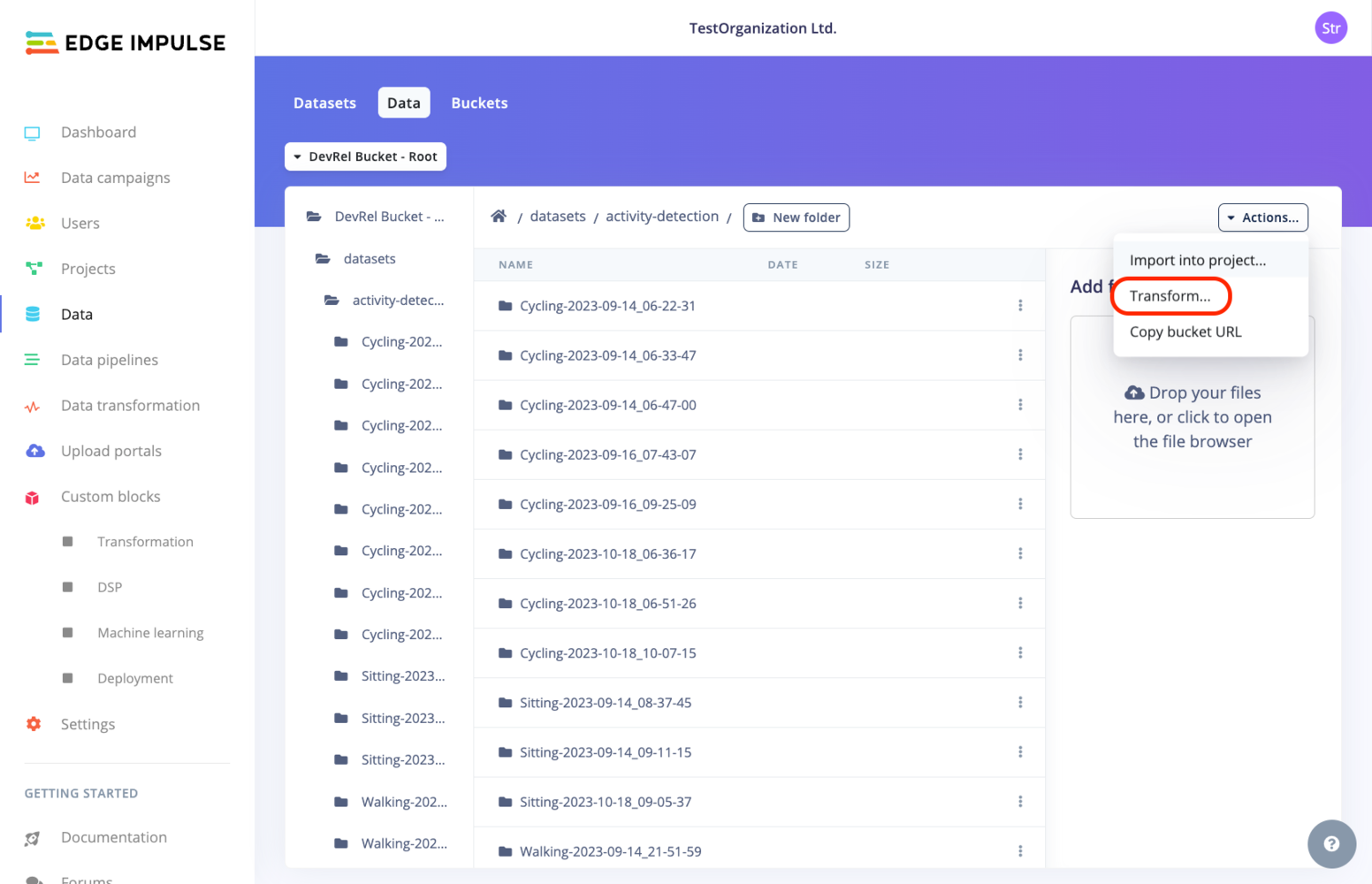
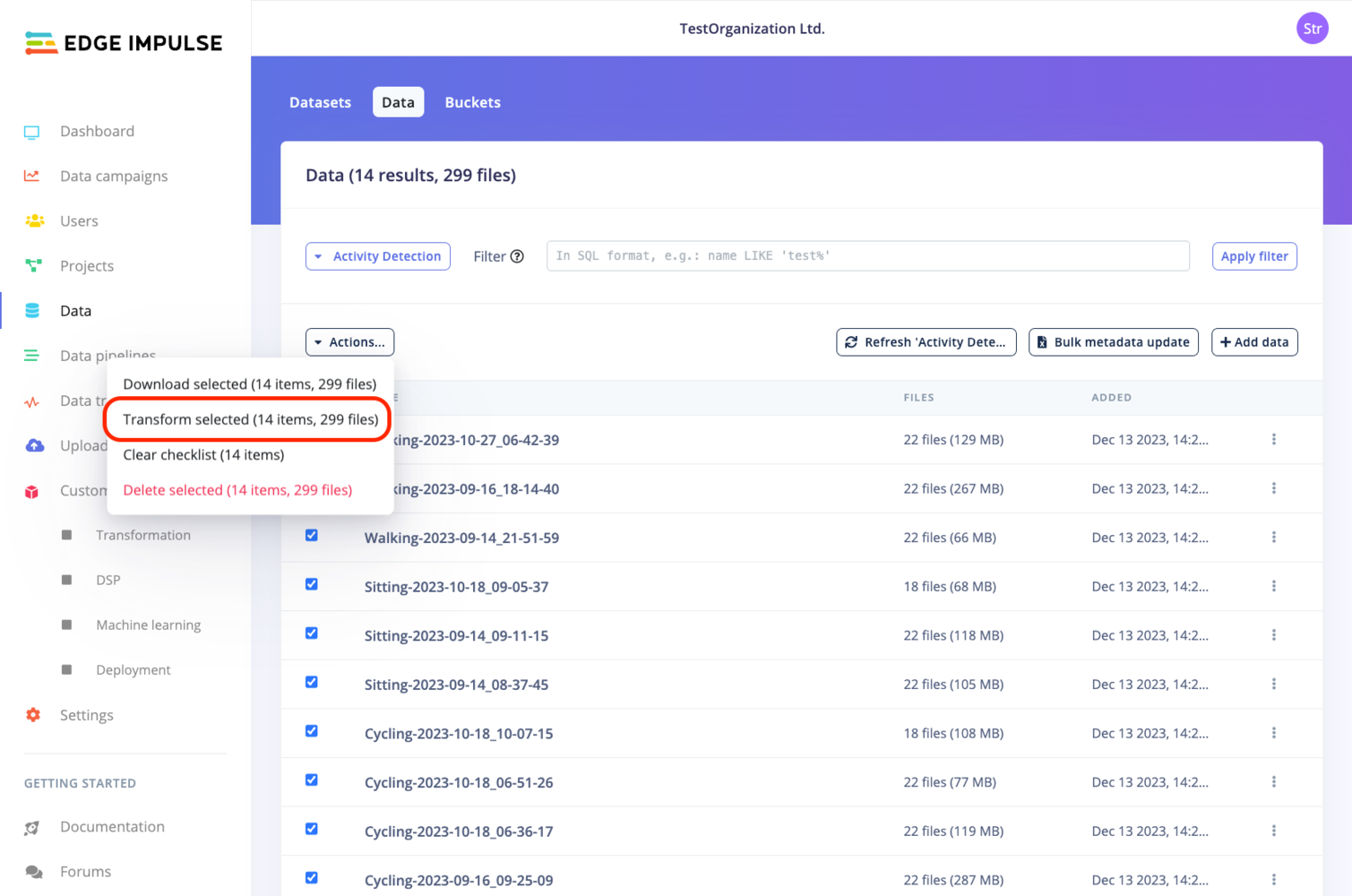
* From the **Data** page:
Depending on whether you are on a *Default* dataset or a *Clinical* dataset, the view will vary:
### Transformation jobs
#### Create a transformation job
You have several options to create a transformation job:
* From the **Data transformation** page by selecting the **Create job** tab.
* From the **Custom blocks**->**Transformation** page by selecting the "**⋮**" action button and selecting **Run job**.
* From the **Data** page:
Depending on whether you are on a *Default* dataset or a *Clinical* dataset, the view will vary:
 #### Run a transformation job
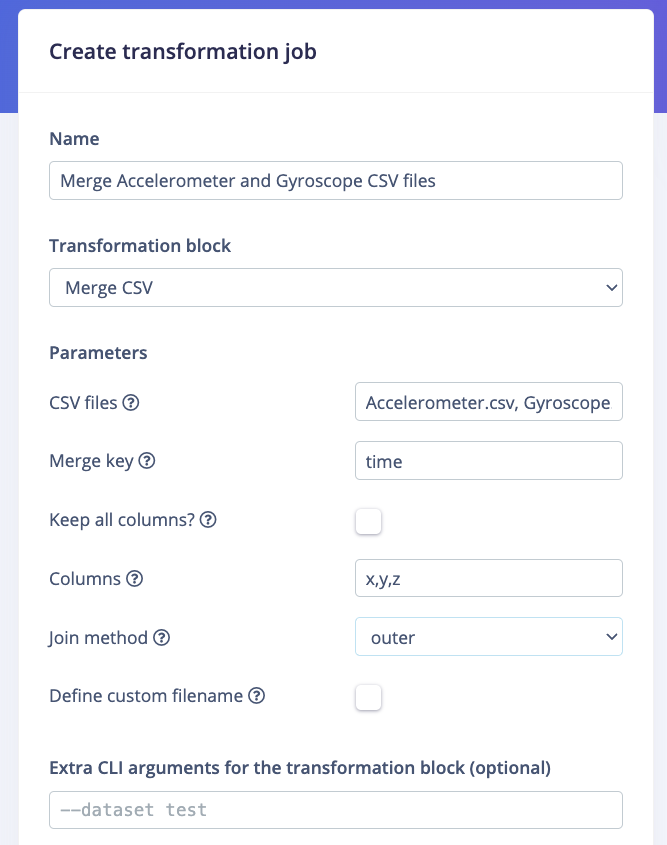
Again, depending on whether you are on a *Default* dataset or a *Clinical* dataset, the view will vary. The common options are the **Name** of the transformation job, the **Transformation block** used for the job.
If your Transformation block has additional [custom parameters](/tools/specifications/files/parameters-json), the input fields will be displayed below in a **Parameters** section. For example:
#### Run a transformation job
Again, depending on whether you are on a *Default* dataset or a *Clinical* dataset, the view will vary. The common options are the **Name** of the transformation job, the **Transformation block** used for the job.
If your Transformation block has additional [custom parameters](/tools/specifications/files/parameters-json), the input fields will be displayed below in a **Parameters** section. For example:
 **Dataset type options:**
#### Default vs. Clinical datasets
**Clinical Datasets**: Operate on "data items" with a strict file structure. Transformation is specified using SQL-like syntax.
**Default Datasets**: Resemble a typical file system with flexible structure. You can specify data for transformation using wildcards.
For more information about the two dataset types, see the dedicated [Data](/studio/organizations/data) page.
**Dataset type options:**
#### Default vs. Clinical datasets
**Clinical Datasets**: Operate on "data items" with a strict file structure. Transformation is specified using SQL-like syntax.
**Default Datasets**: Resemble a typical file system with flexible structure. You can specify data for transformation using wildcards.
For more information about the two dataset types, see the dedicated [Data](/studio/organizations/data) page.
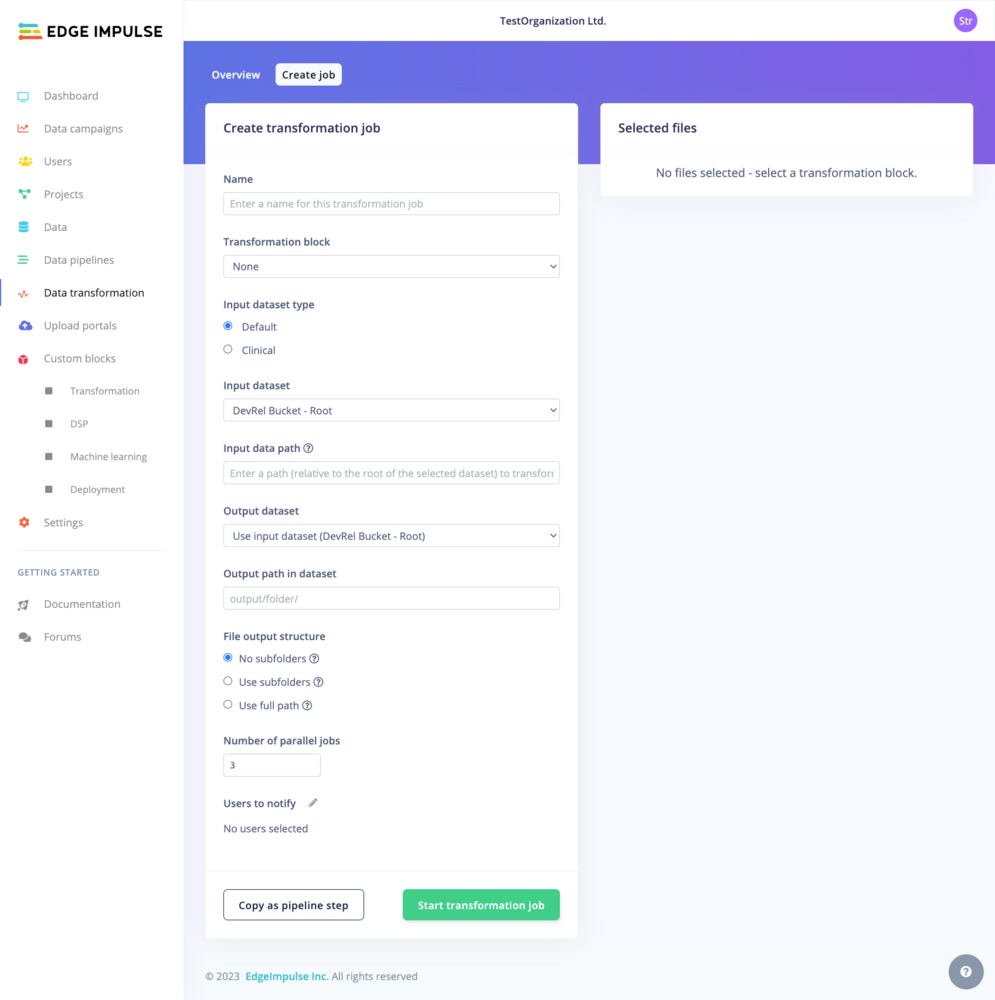 **Input**
After selecting your **Input dataset**, you can filter which files or directory you want to transform.
In default dataset formats, we use wildcard filters (in a similar format to wildcards in git). This enable you to specify patterns that match multiple files or directories within your dataset:
* **Asterisk ( \* )**: Represents any number of characters (including zero characters) in a filename or directory name. It is commonly used to match files of a certain type or files whose names follow a pattern.
Example: `/folder/*.png` matches all PNG files in the `/folder` directory.
Example: `/data/*/results.csv` matches any results.csv file in a subdirectory under `/data`.
* **Double Asterisk ( \*\* )**: Used to match any number of directories, including nested ones. This is particularly useful when the structure of directories is complex or not uniformly organized.
Example: `/data/**/experiment-*` matches all files or directories starting with `experiment-` in any subdirectory under `/data`.
**Output**
When you work with default datasets in Edge Impulse, you have the flexibility to define how the output from your transformation jobs is structured. There are three main rules to choose from:
1. **No Subfolders**: This rule places all transformed files directly into your specified output directory, without creating any subfolders. For example, if you transform `.txt` files in `/data` and choose `/output` as your output directory, all transformed files will be saved directly in `/output`.
2. **Subfolder per Input Item**: Here, a new subfolder is created in the output directory for each input file or folder. This keeps the output from each item organized and separate. For instance, if your input includes folders like `/data/2020`, `/data/2021`, and `/data/2022`, and you apply this rule with `/transformed` as your output directory, you will get subfolders like `/transformed/2020`, `/transformed/2021`, and `/transformed/2022`, each containing the transformed data from the corresponding input year.
3. **Use Full Path**: This rule mirrors the entire input path when creating new sub-folders in the output directory. It's especially useful for maintaining a clear trace of where each piece of output data originated, which is important in complex directory structures. For example, if you're transforming files in `/project/data/experiments`, and you choose `/results` as your output directory, the output will follow the full input path, resulting in transformed data being stored in `/results/project/data/experiments`.
*Note: For the transformation blocks operating on files when selecting the Subfolder or Full Path option, we will use the file name without extension to create the base folder. e.g. `/activity-detection/Accelerometer.csv` will be uploaded to `/activity-detection-output/Accelerometer/`.*
**Input**
After selecting your **Input dataset**, you can filter which files or directory you want to transform.
In default dataset formats, we use wildcard filters (in a similar format to wildcards in git). This enable you to specify patterns that match multiple files or directories within your dataset:
* **Asterisk ( \* )**: Represents any number of characters (including zero characters) in a filename or directory name. It is commonly used to match files of a certain type or files whose names follow a pattern.
Example: `/folder/*.png` matches all PNG files in the `/folder` directory.
Example: `/data/*/results.csv` matches any results.csv file in a subdirectory under `/data`.
* **Double Asterisk ( \*\* )**: Used to match any number of directories, including nested ones. This is particularly useful when the structure of directories is complex or not uniformly organized.
Example: `/data/**/experiment-*` matches all files or directories starting with `experiment-` in any subdirectory under `/data`.
**Output**
When you work with default datasets in Edge Impulse, you have the flexibility to define how the output from your transformation jobs is structured. There are three main rules to choose from:
1. **No Subfolders**: This rule places all transformed files directly into your specified output directory, without creating any subfolders. For example, if you transform `.txt` files in `/data` and choose `/output` as your output directory, all transformed files will be saved directly in `/output`.
2. **Subfolder per Input Item**: Here, a new subfolder is created in the output directory for each input file or folder. This keeps the output from each item organized and separate. For instance, if your input includes folders like `/data/2020`, `/data/2021`, and `/data/2022`, and you apply this rule with `/transformed` as your output directory, you will get subfolders like `/transformed/2020`, `/transformed/2021`, and `/transformed/2022`, each containing the transformed data from the corresponding input year.
3. **Use Full Path**: This rule mirrors the entire input path when creating new sub-folders in the output directory. It's especially useful for maintaining a clear trace of where each piece of output data originated, which is important in complex directory structures. For example, if you're transforming files in `/project/data/experiments`, and you choose `/results` as your output directory, the output will follow the full input path, resulting in transformed data being stored in `/results/project/data/experiments`.
*Note: For the transformation blocks operating on files when selecting the Subfolder or Full Path option, we will use the file name without extension to create the base folder. e.g. `/activity-detection/Accelerometer.csv` will be uploaded to `/activity-detection-output/Accelerometer/`.*
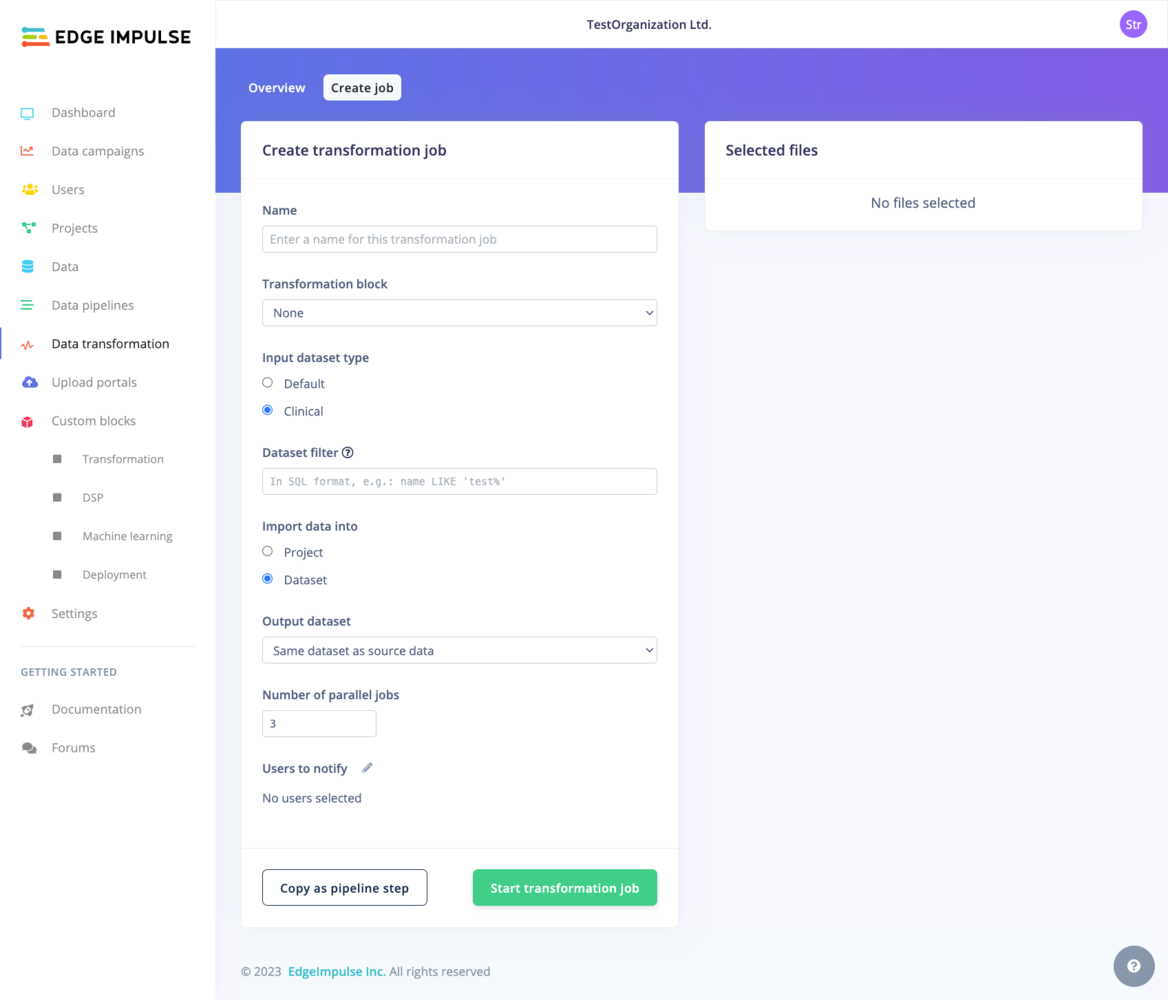 **Input**
When running transformation jobs using the Clinical dataset option, you can query your input files or folders in all your clinical datasets. We use a different filtering mechanism for the Clinical datasets.
**Filters**
You can use a language which is very similar to SQL ([documentation](https://github.com/agershun/alasql/wiki/Sql)). See more on how to [query your data](/knowledge/guides/reference-designs/health-reference-design/querying-clinical-data) on the dedicated documentation page. For example you can use filters like the following:
* `dataset = 'Activity Detection (Clinical view)' AND file_name like 'Accelero%'`
* `dataset = 'Activity Detection (Clinical view)' AND metadata->ei_check = 1`
**Import into project**
**Input**
When running transformation jobs using the Clinical dataset option, you can query your input files or folders in all your clinical datasets. We use a different filtering mechanism for the Clinical datasets.
**Filters**
You can use a language which is very similar to SQL ([documentation](https://github.com/agershun/alasql/wiki/Sql)). See more on how to [query your data](/knowledge/guides/reference-designs/health-reference-design/querying-clinical-data) on the dedicated documentation page. For example you can use filters like the following:
* `dataset = 'Activity Detection (Clinical view)' AND file_name like 'Accelero%'`
* `dataset = 'Activity Detection (Clinical view)' AND metadata->ei_check = 1`
**Import into project**
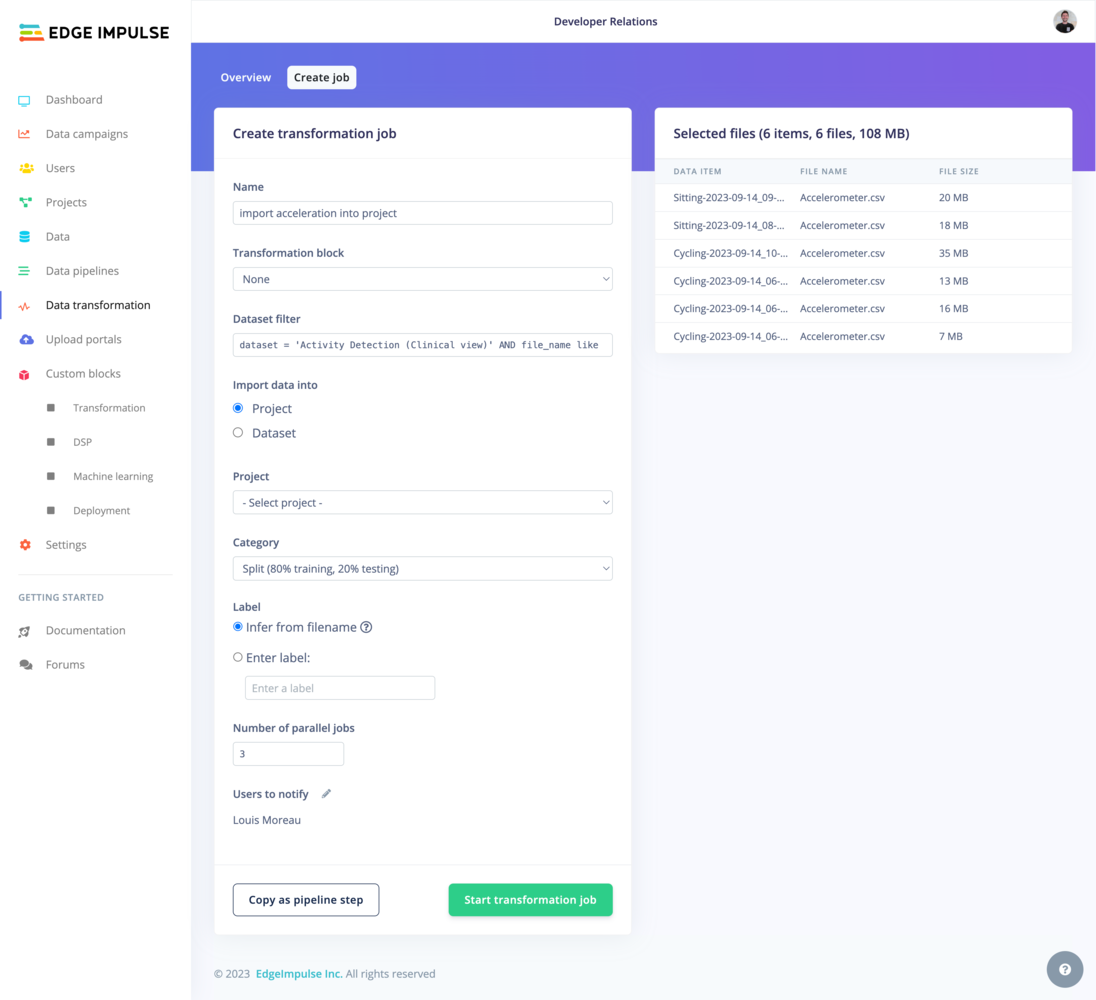 **Import into dataset**
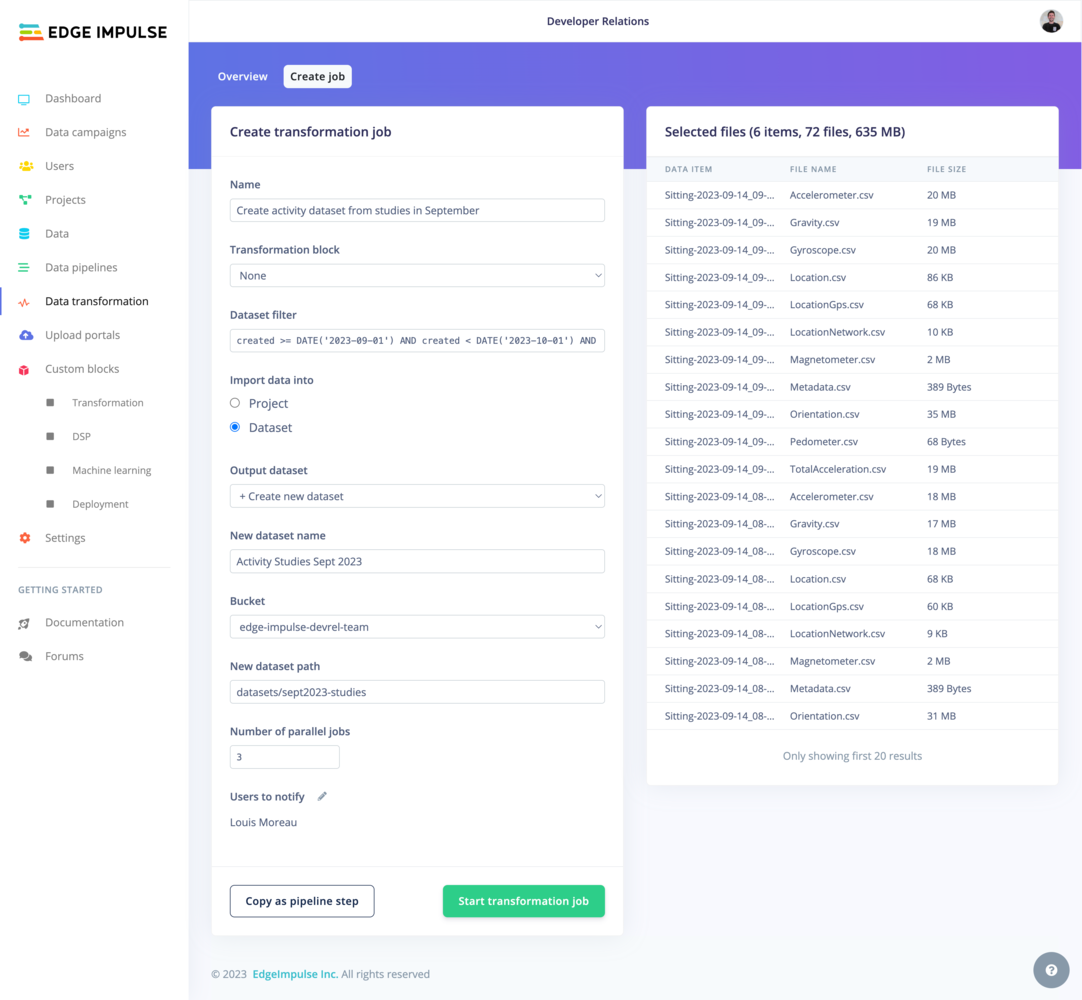 **Number of parallel jobs**
For transformation jobs operating on **Data items (directory)** or on **Files**, you can edit the number of parallel jobs to run simultaneously
**Users to notify**
Finally, you can select users you want to notify over email when this job finishes.
**Number of parallel jobs**
For transformation jobs operating on **Data items (directory)** or on **Files**, you can edit the number of parallel jobs to run simultaneously
**Users to notify**
Finally, you can select users you want to notify over email when this job finishes.