> ## Documentation Index
> Fetch the complete documentation index at: https://docs.edgeimpulse.com/llms.txt
> Use this file to discover all available pages before exploring further.
# Data pipelines
**Only available on the Enterprise plan**
This feature is only available on the Enterprise plan. Review our [plans and pricing](https://edgeimpulse.com/pricing) or sign up for our free [expert-led trial](https://edgeimpulse.com/expert-led-trial) today.
Data pipelines allow you to stack several transformation blocks similar to the [Data sources pipelines](/studio/projects/data-acquisition/data-sources). They can be used in a standalone mode (just execute several transformation jobs in a pipeline), to feed a dataset or to feed a project.
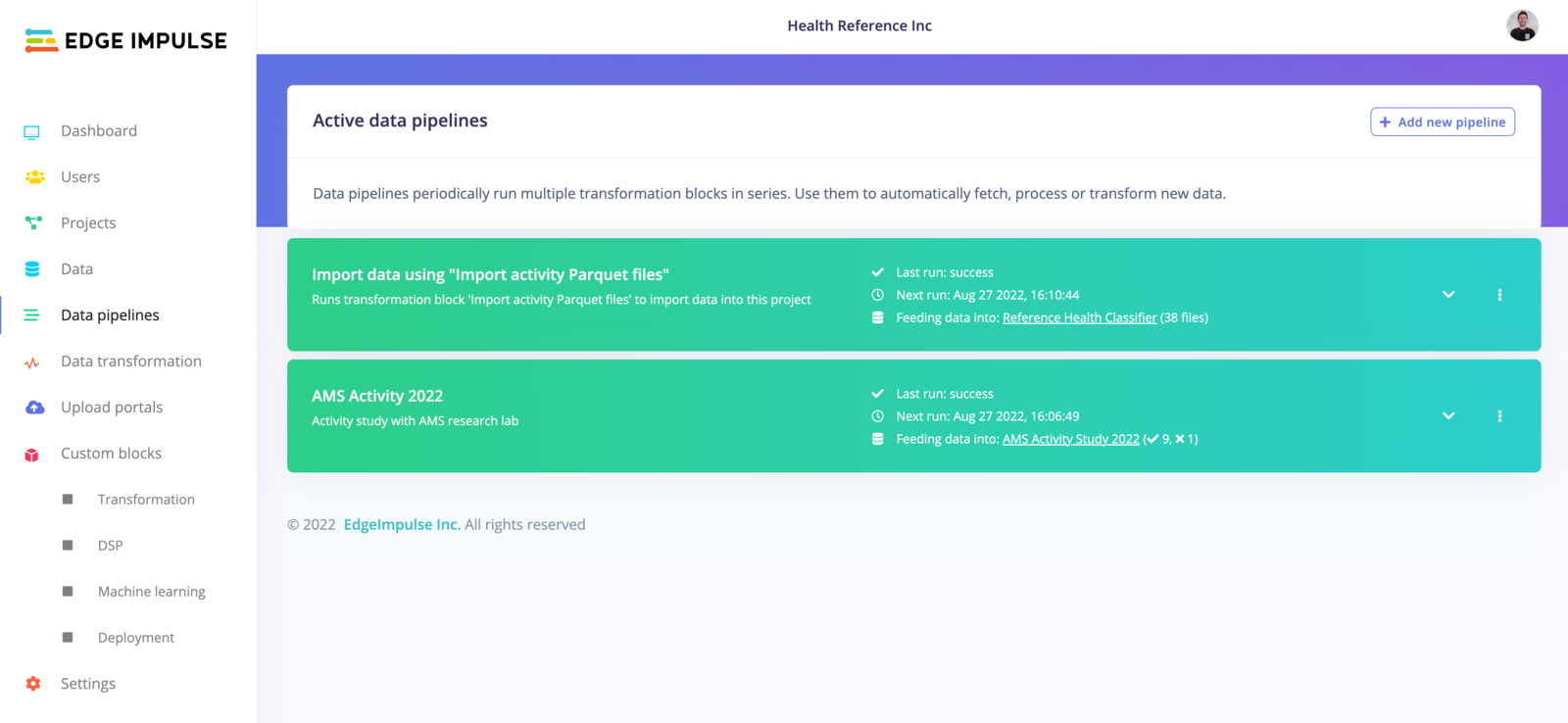 The examples in the screenshots below shows how to create and use a pipeline to create the 'AMS Activity 2022' dataset.
## Create a pipeline
To create a new pipeline, click on '**+Add a new pipeline**:
The examples in the screenshots below shows how to create and use a pipeline to create the 'AMS Activity 2022' dataset.
## Create a pipeline
To create a new pipeline, click on '**+Add a new pipeline**:
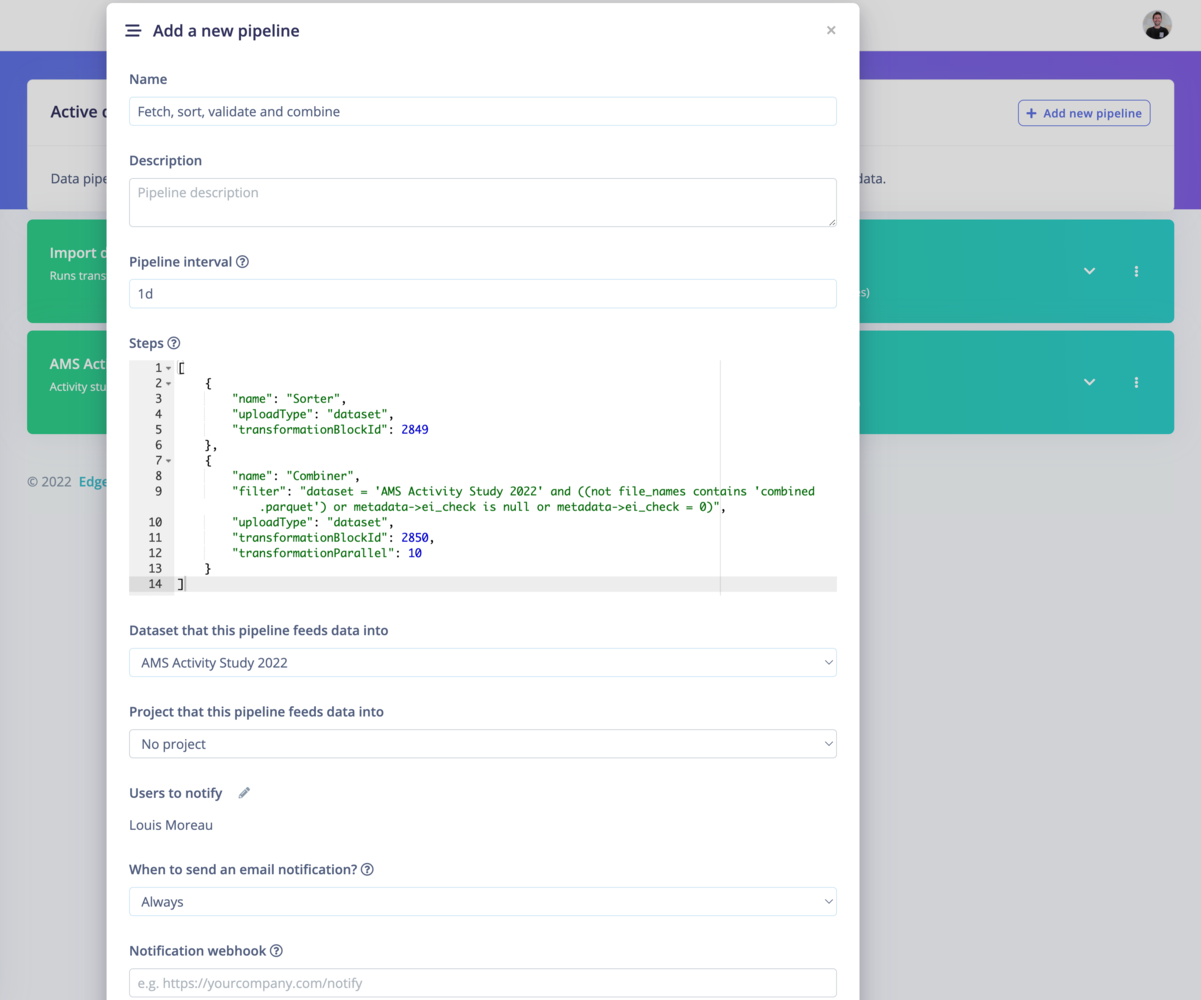 ### Get the steps from your transformation blocks
In your organization workspace, go to **Custom blocks -> Transformation** and select **Run job** on the job you want to add.
### Get the steps from your transformation blocks
In your organization workspace, go to **Custom blocks -> Transformation** and select **Run job** on the job you want to add.
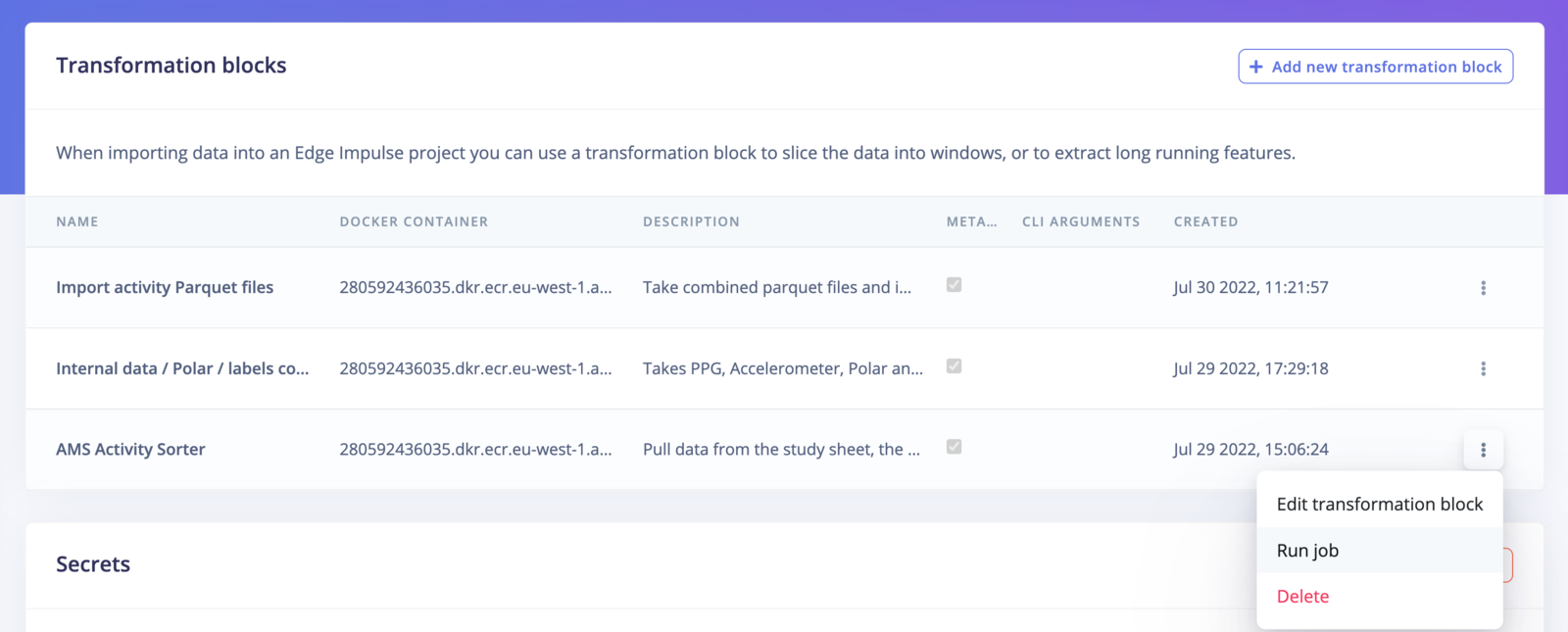 Select **Copy as pipeline step** and paste it to the configuration json file.
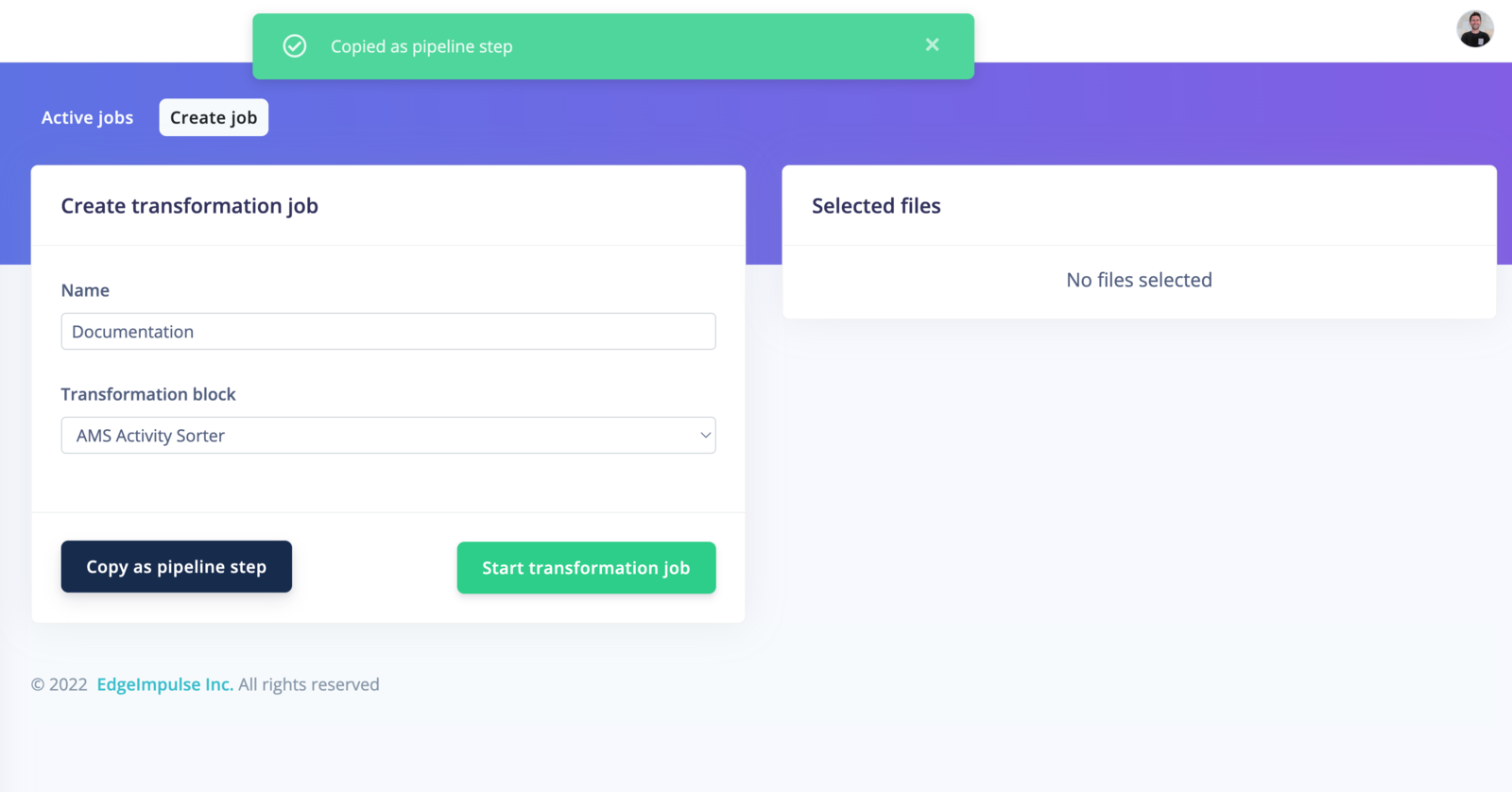 You can then paste the copied step directly to the respected field.
Below, you have an option to feed the data to either a **organisation dataset** or an **Edge Impulse project**
### Schedule and notify
By default, your pipeline will run every day. To schedule your pipeline jobs, click on the `⋮` button and select **Edit pipeline**.
You can then paste the copied step directly to the respected field.
Below, you have an option to feed the data to either a **organisation dataset** or an **Edge Impulse project**
### Schedule and notify
By default, your pipeline will run every day. To schedule your pipeline jobs, click on the `⋮` button and select **Edit pipeline**.
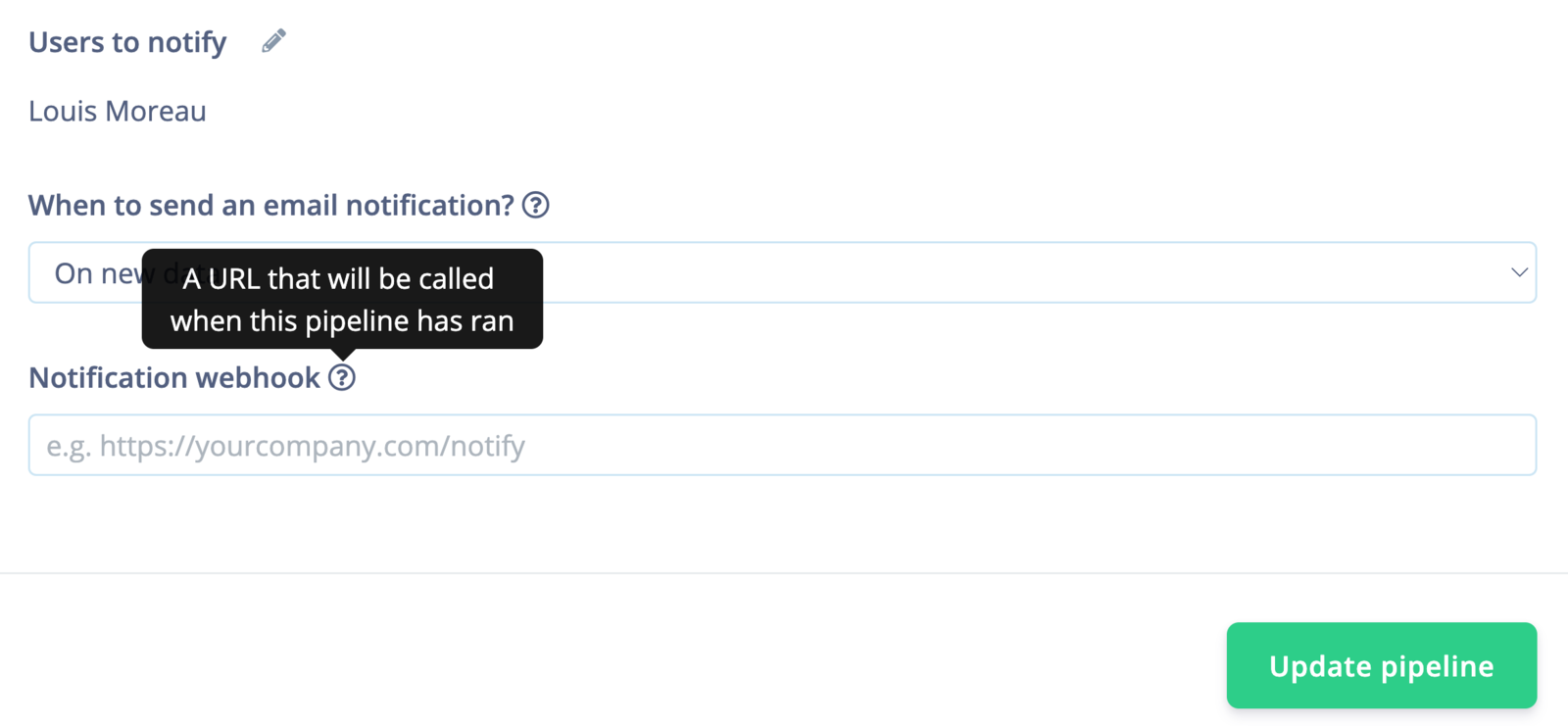
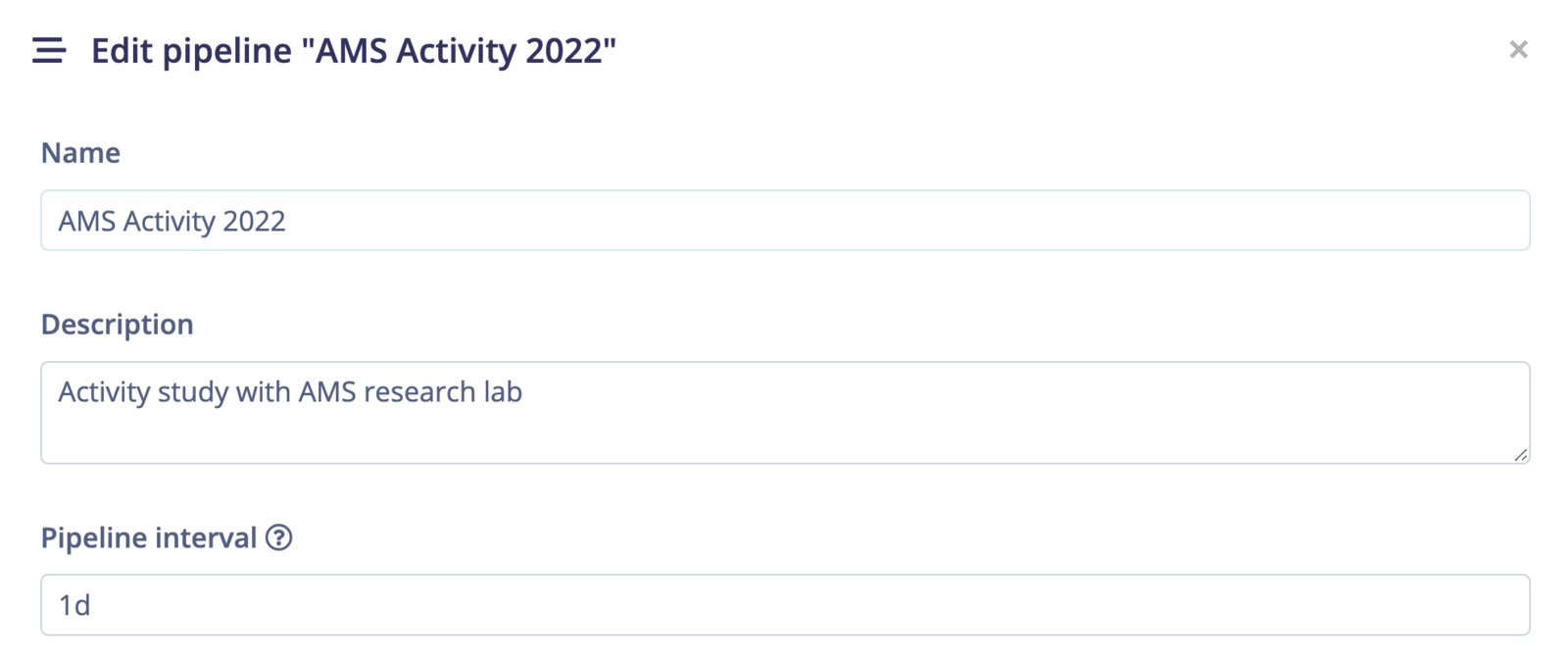 Once the pipeline has successfully finished, it can send an email to the **Users to notify**.
## Run the pipeline
Once your pipeline is set, you can run it directly from the UI, from external sources or by scheduling the task.
### Run the pipeline from the UI
To run your pipeline from Edge Impulse studio, click on the `⋮` button and select **Run pipeline now**.
### Run the pipeline from code
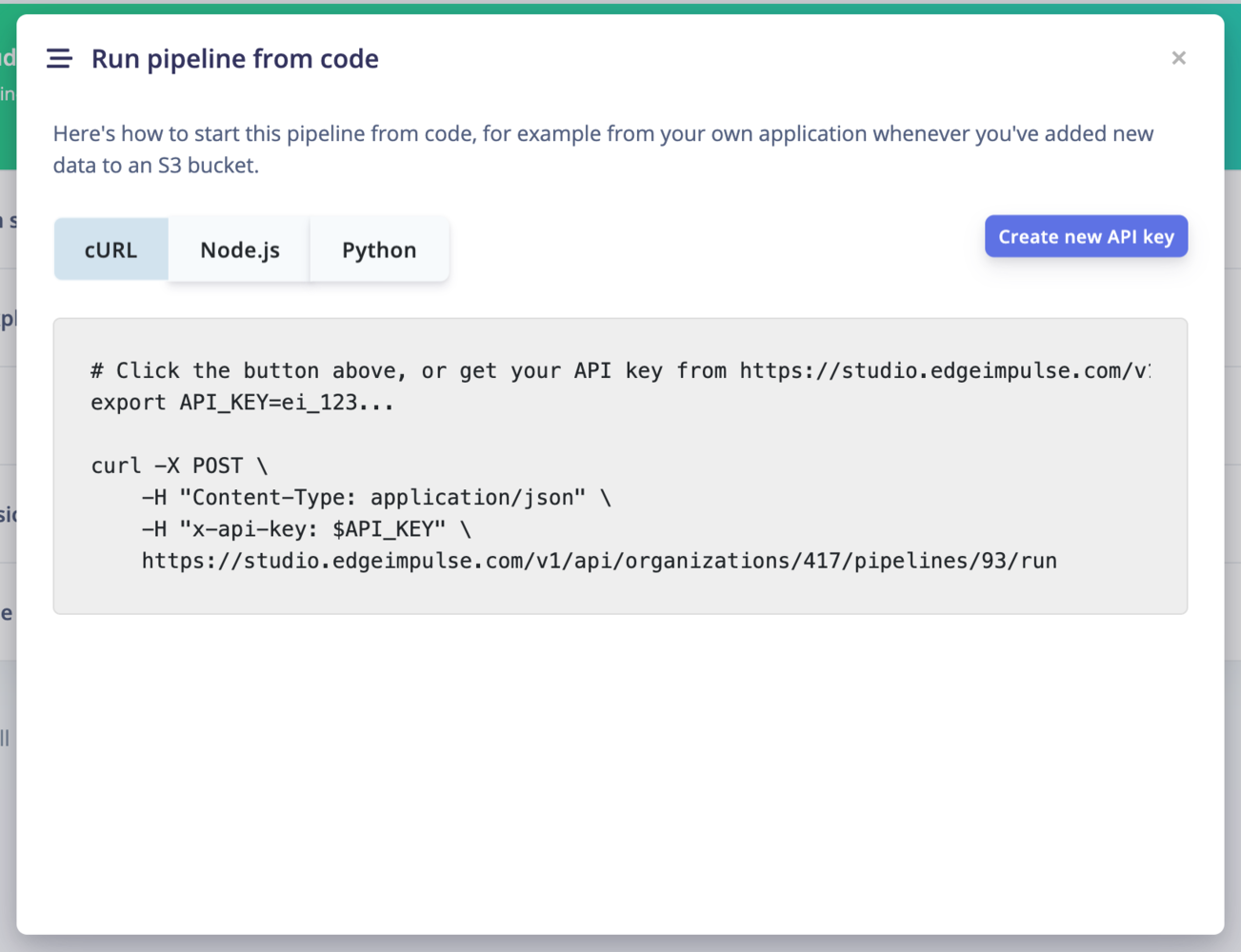
To run your pipeline from Edge Impulse studio, click on the `⋮` button and select **Run pipeline from code**. This will display an overlay with `curl`, `Node.js` and `Python` code samples.
You will need to create an **API key** to run the pipeline from code.
Once the pipeline has successfully finished, it can send an email to the **Users to notify**.
## Run the pipeline
Once your pipeline is set, you can run it directly from the UI, from external sources or by scheduling the task.
### Run the pipeline from the UI
To run your pipeline from Edge Impulse studio, click on the `⋮` button and select **Run pipeline now**.
### Run the pipeline from code
To run your pipeline from Edge Impulse studio, click on the `⋮` button and select **Run pipeline from code**. This will display an overlay with `curl`, `Node.js` and `Python` code samples.
You will need to create an **API key** to run the pipeline from code.
 ### Webhooks
You can also create a **webhook** to call a URL when the pipeline has run. It will run a POST request containing the following information:
```
{
"organizationId":XX,
"pipelineId":XX,
"pipelineName":"Fetch, sort, validate and combine",
"projectId":XXXXX,
"success":true,
"newItems":0,
"newChecklistOK":0,
"newChecklistFail":0
}
```
### Webhooks
You can also create a **webhook** to call a URL when the pipeline has run. It will run a POST request containing the following information:
```
{
"organizationId":XX,
"pipelineId":XX,
"pipelineName":"Fetch, sort, validate and combine",
"projectId":XXXXX,
"success":true,
"newItems":0,
"newChecklistOK":0,
"newChecklistFail":0
}
```