> ## Documentation Index
> Fetch the complete documentation index at: https://docs.edgeimpulse.com/llms.txt
> Use this file to discover all available pages before exploring further.
# Custom synthetic data blocks
**Only available on the Enterprise plan**
This feature is only available on the Enterprise plan. Review our [plans and pricing](https://edgeimpulse.com/pricing) or sign up for our free [expert-led trial](https://edgeimpulse.com/expert-led-trial) today.
Custom synthetic data blocks are a way to extend the [synthetic data](/studio/projects/data-acquisition/synthetic-data) feature within Edge Impulse. If none of the blocks created by Edge Impulse that are built into the platform fit your needs, you can modify them or develop from scratch to create a custom synthetic data block. This allows you to integrate your own data generation techniques for unique project requirements.
Ready to dive in and start building? Jump to the [examples](/studio/organizations/custom-blocks/custom-synthetic-data-blocks#examples)!
## Block structure
Synthetic data blocks are an extension of transformation blocks operating in `standalone` mode and, as such, follow the same structure without being able to pass a directory or file directly to your scripts. Please see the [custom blocks](/studio/organizations/custom-blocks) overview page for more details.
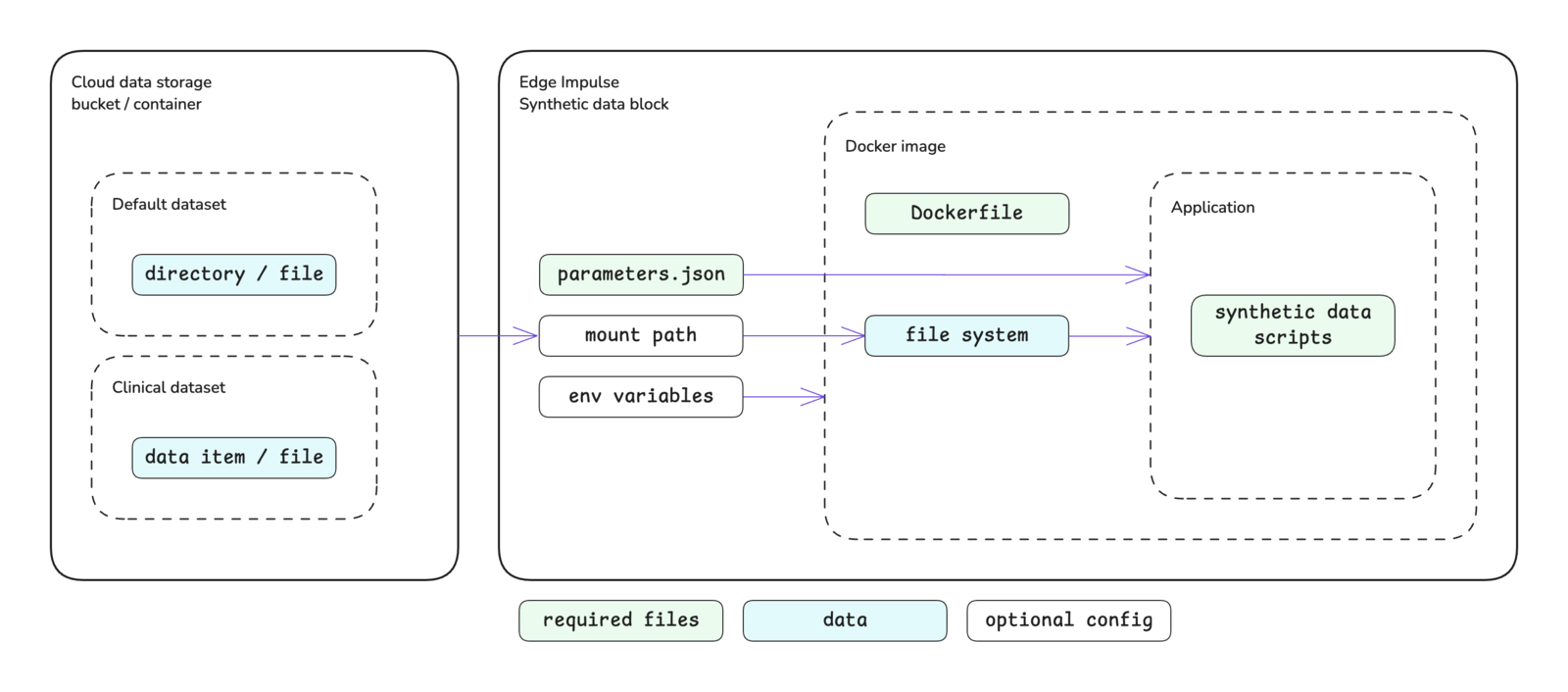 ## Block interface
The sections below define the required and optional inputs and the expected outputs for custom synthetic data blocks.
### Inputs
Synthetic data blocks have access to environment variables, command line arguments, and mounted storage buckets.
#### Environment variables
The following environment variables are accessible inside of synthetic data blocks. Environment variable values are always stored as strings.
| Variable | Passed | Description |
| -------------------- | ------ | --------------------------------------------------------------- |
| `EI_API_ENDPOINT` | Always | The API base URL: `https://studio.edgeimpulse.com/v1` |
| `EI_API_KEY` | Always | The organization API key with member privileges: `ei_2f7f54...` |
| `EI_INGESTION_HOST` | Always | The host for the Ingestion API: `edgeimpulse.com` |
| `EI_ORGANIZATION_ID` | Always | The ID of the organization that the block belongs to: `123456` |
| `EI_PROJECT_ID` | Always | The ID of the project: `123456` |
| `EI_PROJECT_API_KEY` | Always | The project API key: `ei_2a1b0e...` |
You can also define your own environment variables to pass to your custom block using the `requiredEnvVariables` property in the `parameters.json` file. You will then be prompted for the associated values for these properties when pushing the block to Edge Impulse using the CLI. Alternatively, these values can be added (or changed) by editing the block in Studio.
#### Command line arguments
The parameter items defined in your `parameters.json` file will be passed as command line arguments to the script you defined in your Dockerfile as the `ENTRYPOINT` for the Docker image. Please refer to the [parameters.json](/tools/specifications/files/parameters-json) documentation for further details about creating this file, parameter options available, and examples.
In addition to the items defined by you, specific arguments will be automatically passed to your synthetic data block.
Synthetic data blocks are an extension of transformation blocks operating in `standalone` mode, the arguments that are automatically passed to transformation blocks in this mode are also automatically passed to synthetic data blocks. Please refer to the [custom transformation blocks](/studio/organizations/custom-blocks/custom-transformation-blocks) documentation for further details on those parameters.
Along with the transformation block arguments, the following synthetic data specific arguments are passed as well.
| Argument | Passed | Description |
| ---------------------------------- | ------ | ------------------------------------------------------------------------------------------------------------------------------------------------------------------------- |
| `--synthetic-data-job-id ` | Always | Provides the job ID as an integer. The job ID must be passed as the `x-synthetic-data-job-id` header value when uploading data to Edge Impulse through the Ingestion API. |
Additional CLI arguments can also be specified using the CLI arguments field when editing the block in Studio.
#### Mounted storage buckets
One or more [cloud data storage](/studio/organizations/data/cloud-data-storage) buckets can be mounted inside of your block. If storage buckets exist in your organization, you will be prompted to mount the bucket(s) when initializing the block with the Edge Impulse CLI. The default mount point will be:
```bash theme={"system"}
/mnt/s3fs/
```
The mount point can be changed by editing the block in Studio after pushing.
### Outputs
There are no *required* outputs from synthetic data blocks. In general, however, the pattern is that the data generated is uploaded to Edge Impulse using the data [Ingestion API](/apis/ingestion).
#### Setting the Ingestion API request header
When uploading synthetic data to Edge Impulse using the Ingestion API, you will need to include the the `x-synthetic-data-job-id` header in your request. The value for this header is the job ID provided to your block through the `--synthetic-data-job-id ` argument.
This header is required to show a preview of the generated samples on the Synthetic data tab on the Data acquisition page in Studio when the samples are being created.
An example header is provided below.
```python theme={"system"}
upload_headers = {
"x-api-key": api_key,
"x-file-name": new_filename,
"x-label": sample_data["sample"]["label"],
"x-metadata": json.dumps(metadata),
"Content-Type": "application/json",
"x-synthetic-data-job-id": str(args.synthetic_data_job_id) if args.synthetic_data_job_id else None,
}
```
## Initializing the block
When you are finished developing your block locally, you will want to initialize it. The procedure to initialize your block is described in the [custom blocks](/studio/organizations/custom-blocks) overview page. Please refer to that documentation for details.
## Testing the block locally
**Synthetic data blocks are not supported by the** `edge-impulse-blocks runner` **CLI tool**
Synthetic data blocks are not supported by the blocks runner in the Edge Impulse CLI. To test you custom synthetic data block, you will need to build the Docker image and run the container directly. You will need to pass any environment variables or command line arguments required by your script to the container when you run it.
```bash theme={"system"}
docker build -t custom-synthetic-data-block .
docker run --rm -e EI_PROJECT_API_KEY='ei_...' -e CUSTOM_ENV_VAR='' custom-synthetic-data-block --synthetic-data-job-id 123456789 --custom-param-one foo --custom-param-two bar
```
## Pushing the block to Edge Impulse
When you have initialized and finished testing your block locally, you will want to push it to Edge Impulse. The procedure to push your block to Edge Impulse is described in the [custom blocks](/studio/organizations/custom-blocks) overview page. Please refer to that documentation for details.
## Using the block in a project
After you have pushed your block to Edge Impulse, it can be used in the same way as any other built-in block.
## Examples
Edge Impulse has developed several synthetic data blocks, some of which are built into the platform. The code for these blocks can be found in public repositories under the [Edge Impulse GitHub account](https://github.com/edgeimpulse). The repository names typically follow the convention of `example-transform-`. As such, they can be found by going to the Edge Impulse account and searching the repositories for `example-transform`.
Note that when using the above search term you will come across transformation blocks as well. Please read the repository description to identify if it is for a synthetic data block or a transformation block.
Below are direct links to a some examples:
* [Image generation with DALL-E 3](https://github.com/edgeimpulse/example-transform-Dall-E-images)
* [Keyword generation with Whisper](https://github.com/edgeimpulse/example-transform-whisper-keywords)
* [Composite image generation](https://github.com/edgeimpulse/example-transform-image-composites)
## Troubleshooting
No common issues have been identified thus far. If you encounter an issue, please reach out on the [forum](https://forum.edgeimpulse.com) or, if you are on the Enterprise plan, through your support channels.
## Additional resources
* [Custom blocks](/studio/organizations/custom-blocks)
* [Synthetic data](/studio/projects/data-acquisition/synthetic-data)
* [Ingestion API](/apis/ingestion)
* [edge-impulse-blocks](/tools/clis/edge-impulse-cli/blocks)
* [parameters.json](/tools/specifications/files/parameters-json)
## Block interface
The sections below define the required and optional inputs and the expected outputs for custom synthetic data blocks.
### Inputs
Synthetic data blocks have access to environment variables, command line arguments, and mounted storage buckets.
#### Environment variables
The following environment variables are accessible inside of synthetic data blocks. Environment variable values are always stored as strings.
| Variable | Passed | Description |
| -------------------- | ------ | --------------------------------------------------------------- |
| `EI_API_ENDPOINT` | Always | The API base URL: `https://studio.edgeimpulse.com/v1` |
| `EI_API_KEY` | Always | The organization API key with member privileges: `ei_2f7f54...` |
| `EI_INGESTION_HOST` | Always | The host for the Ingestion API: `edgeimpulse.com` |
| `EI_ORGANIZATION_ID` | Always | The ID of the organization that the block belongs to: `123456` |
| `EI_PROJECT_ID` | Always | The ID of the project: `123456` |
| `EI_PROJECT_API_KEY` | Always | The project API key: `ei_2a1b0e...` |
You can also define your own environment variables to pass to your custom block using the `requiredEnvVariables` property in the `parameters.json` file. You will then be prompted for the associated values for these properties when pushing the block to Edge Impulse using the CLI. Alternatively, these values can be added (or changed) by editing the block in Studio.
#### Command line arguments
The parameter items defined in your `parameters.json` file will be passed as command line arguments to the script you defined in your Dockerfile as the `ENTRYPOINT` for the Docker image. Please refer to the [parameters.json](/tools/specifications/files/parameters-json) documentation for further details about creating this file, parameter options available, and examples.
In addition to the items defined by you, specific arguments will be automatically passed to your synthetic data block.
Synthetic data blocks are an extension of transformation blocks operating in `standalone` mode, the arguments that are automatically passed to transformation blocks in this mode are also automatically passed to synthetic data blocks. Please refer to the [custom transformation blocks](/studio/organizations/custom-blocks/custom-transformation-blocks) documentation for further details on those parameters.
Along with the transformation block arguments, the following synthetic data specific arguments are passed as well.
| Argument | Passed | Description |
| ---------------------------------- | ------ | ------------------------------------------------------------------------------------------------------------------------------------------------------------------------- |
| `--synthetic-data-job-id ` | Always | Provides the job ID as an integer. The job ID must be passed as the `x-synthetic-data-job-id` header value when uploading data to Edge Impulse through the Ingestion API. |
Additional CLI arguments can also be specified using the CLI arguments field when editing the block in Studio.
#### Mounted storage buckets
One or more [cloud data storage](/studio/organizations/data/cloud-data-storage) buckets can be mounted inside of your block. If storage buckets exist in your organization, you will be prompted to mount the bucket(s) when initializing the block with the Edge Impulse CLI. The default mount point will be:
```bash theme={"system"}
/mnt/s3fs/
```
The mount point can be changed by editing the block in Studio after pushing.
### Outputs
There are no *required* outputs from synthetic data blocks. In general, however, the pattern is that the data generated is uploaded to Edge Impulse using the data [Ingestion API](/apis/ingestion).
#### Setting the Ingestion API request header
When uploading synthetic data to Edge Impulse using the Ingestion API, you will need to include the the `x-synthetic-data-job-id` header in your request. The value for this header is the job ID provided to your block through the `--synthetic-data-job-id ` argument.
This header is required to show a preview of the generated samples on the Synthetic data tab on the Data acquisition page in Studio when the samples are being created.
An example header is provided below.
```python theme={"system"}
upload_headers = {
"x-api-key": api_key,
"x-file-name": new_filename,
"x-label": sample_data["sample"]["label"],
"x-metadata": json.dumps(metadata),
"Content-Type": "application/json",
"x-synthetic-data-job-id": str(args.synthetic_data_job_id) if args.synthetic_data_job_id else None,
}
```
## Initializing the block
When you are finished developing your block locally, you will want to initialize it. The procedure to initialize your block is described in the [custom blocks](/studio/organizations/custom-blocks) overview page. Please refer to that documentation for details.
## Testing the block locally
**Synthetic data blocks are not supported by the** `edge-impulse-blocks runner` **CLI tool**
Synthetic data blocks are not supported by the blocks runner in the Edge Impulse CLI. To test you custom synthetic data block, you will need to build the Docker image and run the container directly. You will need to pass any environment variables or command line arguments required by your script to the container when you run it.
```bash theme={"system"}
docker build -t custom-synthetic-data-block .
docker run --rm -e EI_PROJECT_API_KEY='ei_...' -e CUSTOM_ENV_VAR='' custom-synthetic-data-block --synthetic-data-job-id 123456789 --custom-param-one foo --custom-param-two bar
```
## Pushing the block to Edge Impulse
When you have initialized and finished testing your block locally, you will want to push it to Edge Impulse. The procedure to push your block to Edge Impulse is described in the [custom blocks](/studio/organizations/custom-blocks) overview page. Please refer to that documentation for details.
## Using the block in a project
After you have pushed your block to Edge Impulse, it can be used in the same way as any other built-in block.
## Examples
Edge Impulse has developed several synthetic data blocks, some of which are built into the platform. The code for these blocks can be found in public repositories under the [Edge Impulse GitHub account](https://github.com/edgeimpulse). The repository names typically follow the convention of `example-transform-`. As such, they can be found by going to the Edge Impulse account and searching the repositories for `example-transform`.
Note that when using the above search term you will come across transformation blocks as well. Please read the repository description to identify if it is for a synthetic data block or a transformation block.
Below are direct links to a some examples:
* [Image generation with DALL-E 3](https://github.com/edgeimpulse/example-transform-Dall-E-images)
* [Keyword generation with Whisper](https://github.com/edgeimpulse/example-transform-whisper-keywords)
* [Composite image generation](https://github.com/edgeimpulse/example-transform-image-composites)
## Troubleshooting
No common issues have been identified thus far. If you encounter an issue, please reach out on the [forum](https://forum.edgeimpulse.com) or, if you are on the Enterprise plan, through your support channels.
## Additional resources
* [Custom blocks](/studio/organizations/custom-blocks)
* [Synthetic data](/studio/projects/data-acquisition/synthetic-data)
* [Ingestion API](/apis/ingestion)
* [edge-impulse-blocks](/tools/clis/edge-impulse-cli/blocks)
* [parameters.json](/tools/specifications/files/parameters-json)