> ## Documentation Index
> Fetch the complete documentation index at: https://docs.edgeimpulse.com/llms.txt
> Use this file to discover all available pages before exploring further.
# Account settings
> Manage your Edge Impulse account profile, password, plan, multi-factor authentication, secrets, and organization access.
Your **Account settings** are where you manage everything tied to your personal Edge Impulse account, independent of any individual [project](/studio/projects/dashboard) or [organization](/studio/organizations/dashboard). You can reach this page at any time from [studio.edgeimpulse.com/studio/user-settings/account-info](https://studio.edgeimpulse.com/studio/user-settings/account-info), or by clicking your profile photo in the top right corner of the Studio and selecting **Account settings**.
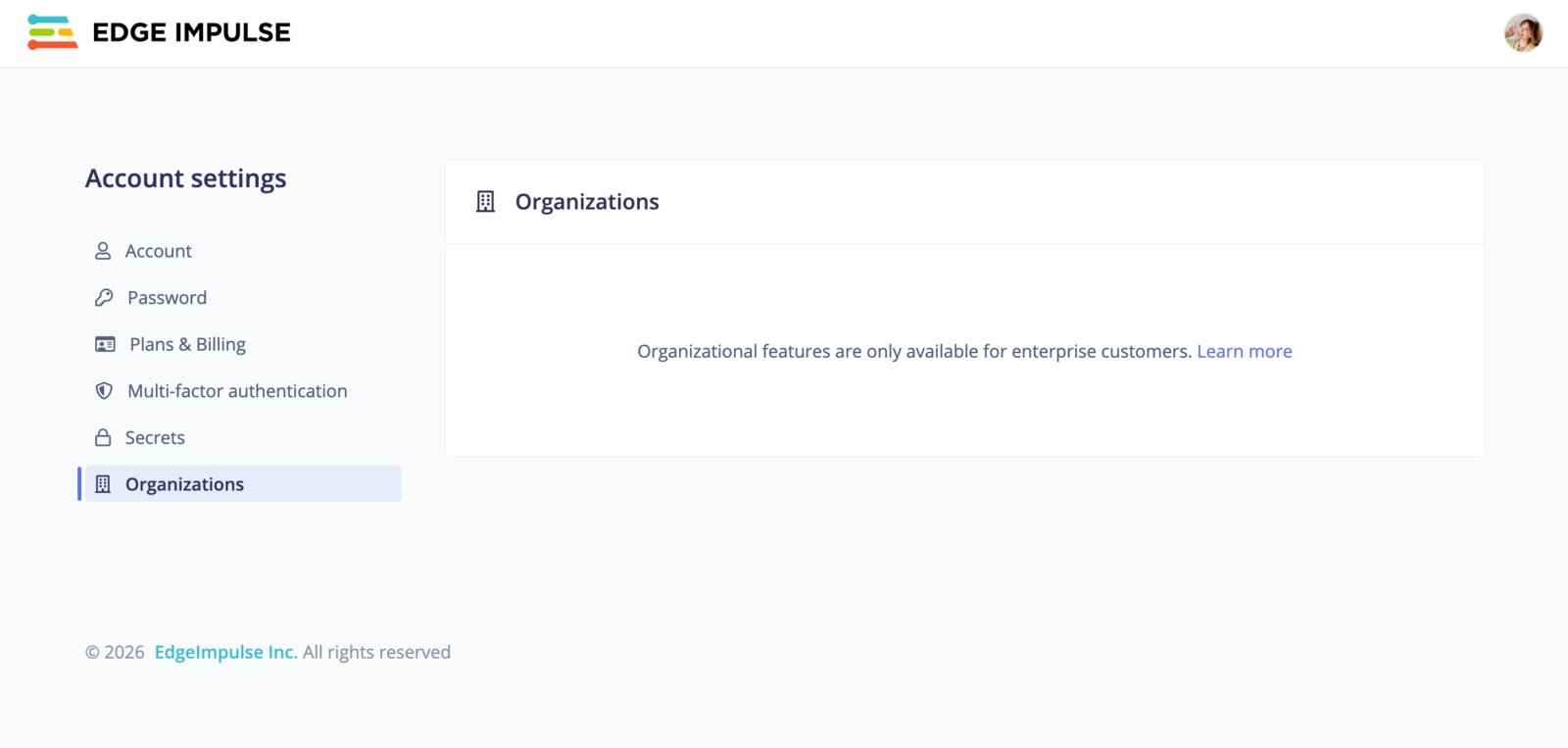
The settings are organized into tabs in the left-hand menu: **Account**, **Password**, **Plans & Billing**, **Multi-factor authentication**, **Secrets**, and **Organizations**.
## Account
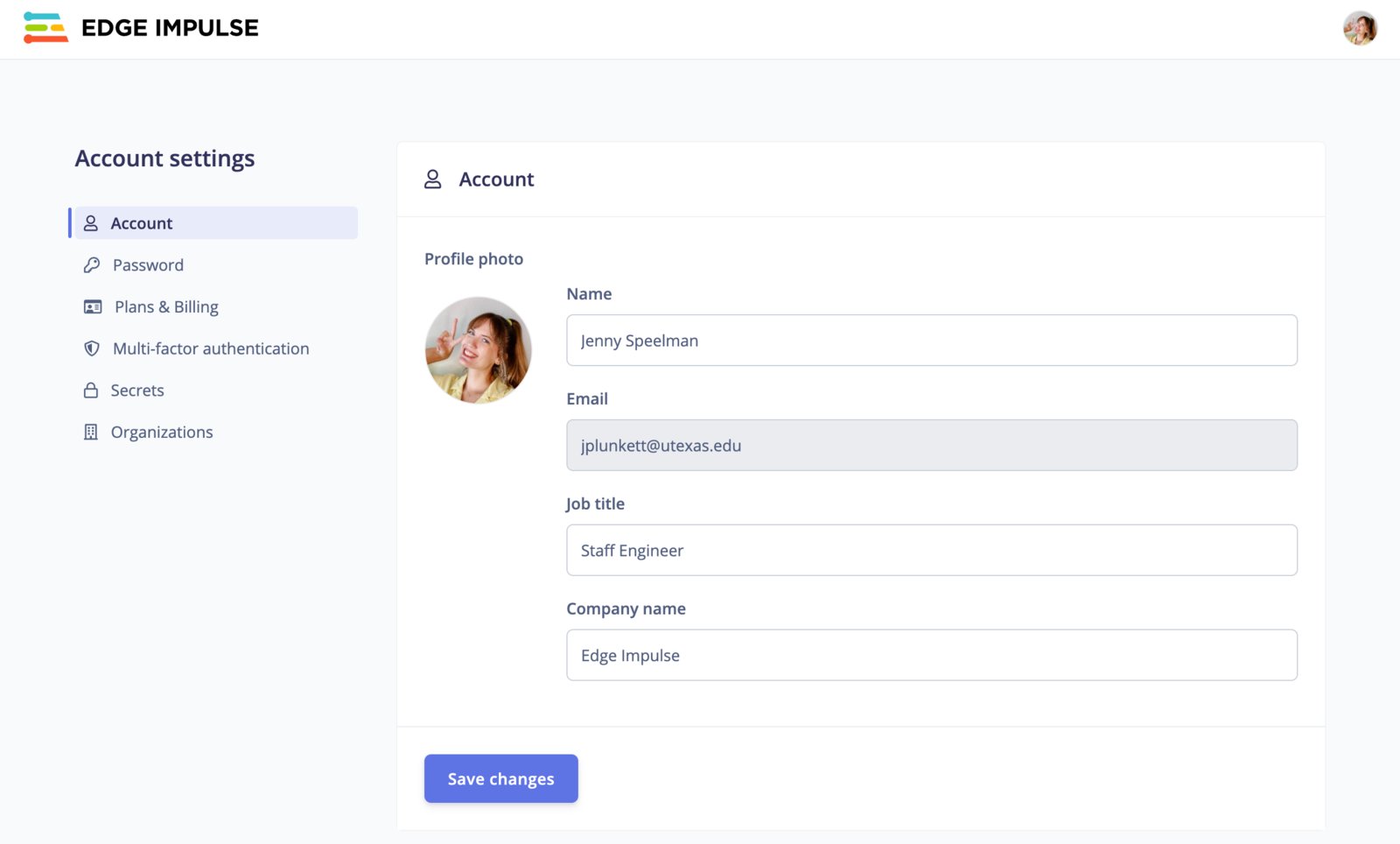
The **Account** tab holds your profile information. You can update your profile photo, name, job title, and company name, then click **Save changes** to apply them. Your email address is shown here but cannot be edited directly.
 ### Administrative zone
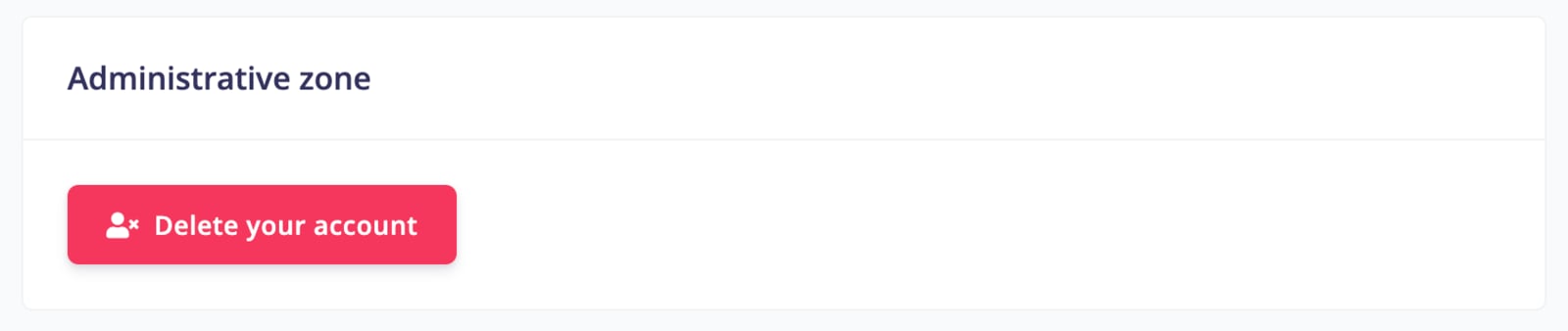
At the bottom of the **Account** tab you will find the **Administrative zone**, which contains the **Delete your account** button.
### Administrative zone
At the bottom of the **Account** tab you will find the **Administrative zone**, which contains the **Delete your account** button.
 Deleting your account is permanent and cannot be undone. If your account is the only admin user for an organization, you will need to delete the entire organization or nominate a new admin user before deleting your account. See [How can I delete my Edge Impulse account?](/knowledge/faq) for more details.
## Password
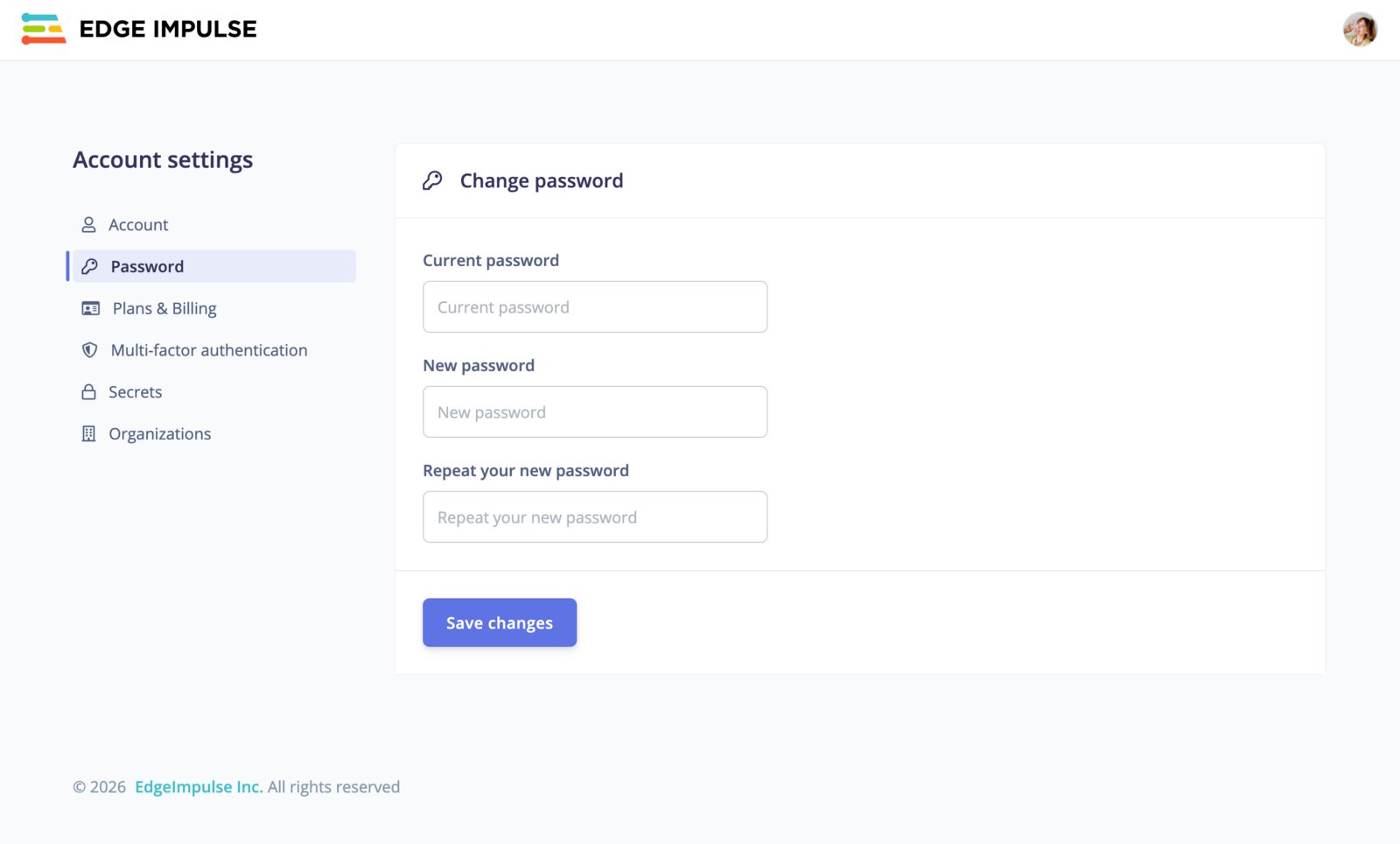
The **Password** tab lets you change your account password. Enter your current password, then your new password twice, and click **Save changes**.
Deleting your account is permanent and cannot be undone. If your account is the only admin user for an organization, you will need to delete the entire organization or nominate a new admin user before deleting your account. See [How can I delete my Edge Impulse account?](/knowledge/faq) for more details.
## Password
The **Password** tab lets you change your account password. Enter your current password, then your new password twice, and click **Save changes**.
 ## Plans & Billing
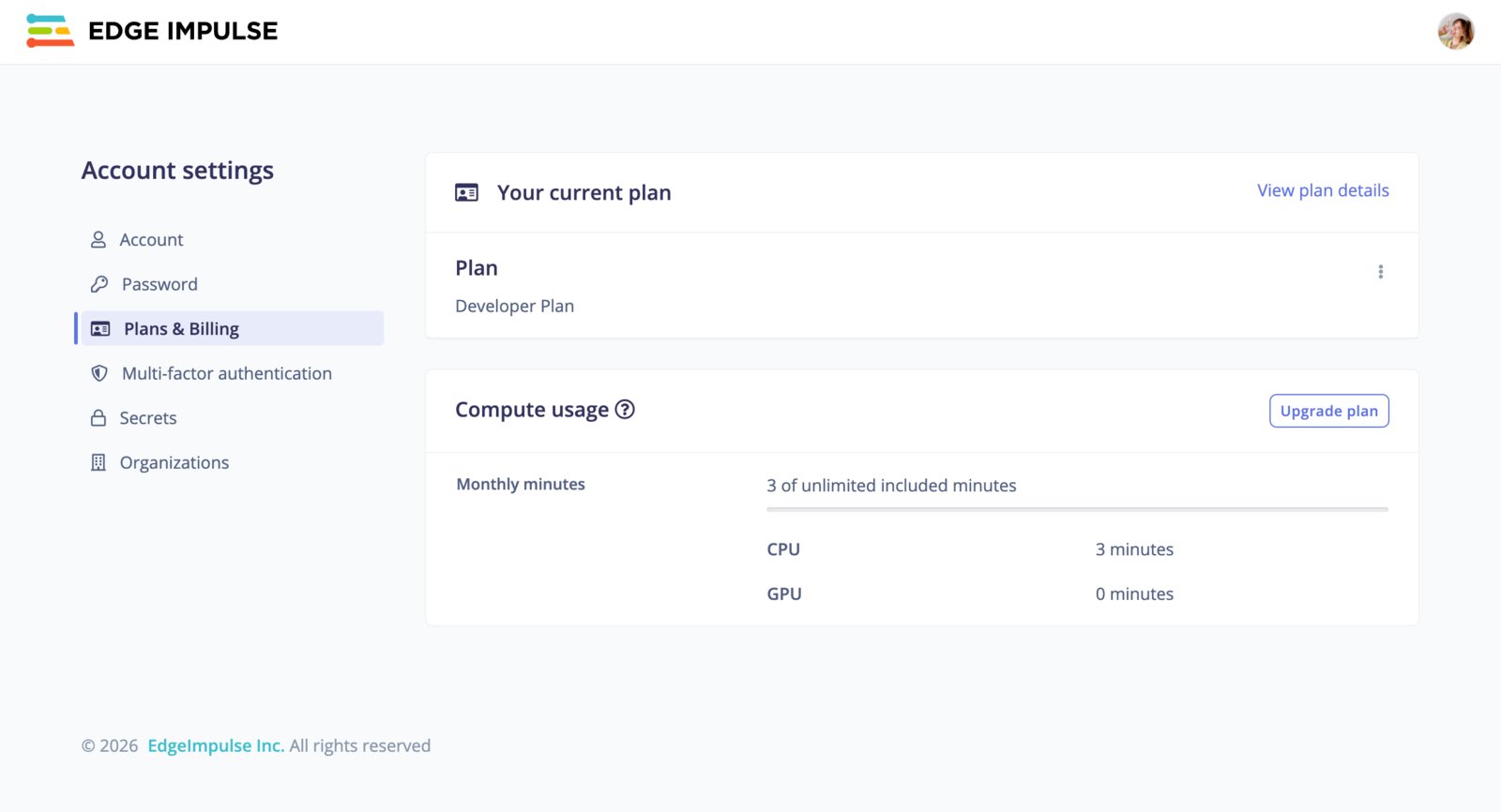
The **Plans & Billing** tab shows your current plan and your compute usage for the month, broken down by CPU and GPU minutes. Use **View plan details** to review what your plan includes, or **Upgrade plan** to move to a higher tier. For a full comparison of available plans, see our [pricing page](https://edgeimpulse.com/pricing).
## Plans & Billing
The **Plans & Billing** tab shows your current plan and your compute usage for the month, broken down by CPU and GPU minutes. Use **View plan details** to review what your plan includes, or **Upgrade plan** to move to a higher tier. For a full comparison of available plans, see our [pricing page](https://edgeimpulse.com/pricing).
 ## Multi-factor authentication
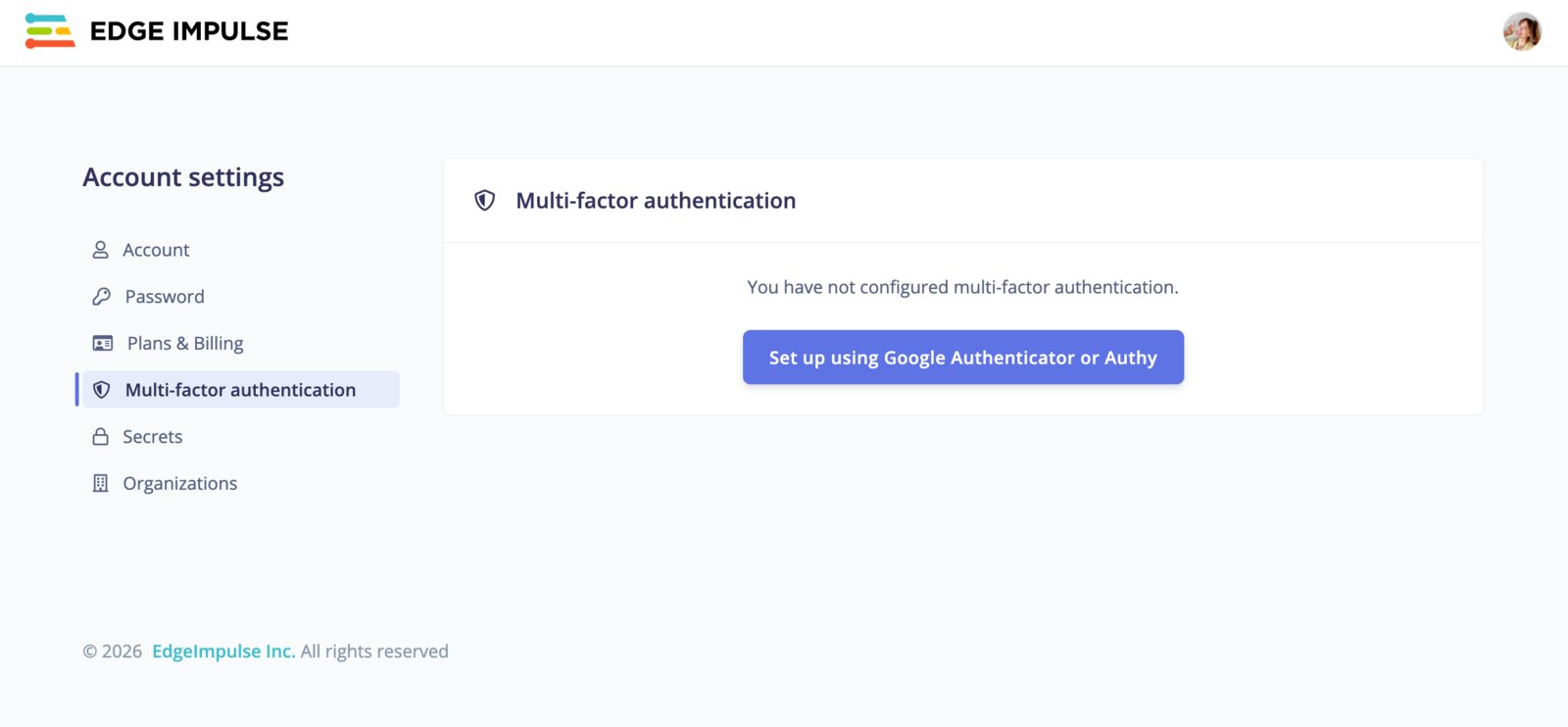
The **Multi-factor authentication** (MFA) tab lets you add an extra layer of security to your account. Click **Set up using Google Authenticator or Authy** and follow the prompts to register an authenticator app. Once configured, you will be asked for a one-time code from your authenticator app each time you sign in.
## Multi-factor authentication
The **Multi-factor authentication** (MFA) tab lets you add an extra layer of security to your account. Click **Set up using Google Authenticator or Authy** and follow the prompts to register an authenticator app. Once configured, you will be asked for a one-time code from your authenticator app each time you sign in.
 ## Secrets
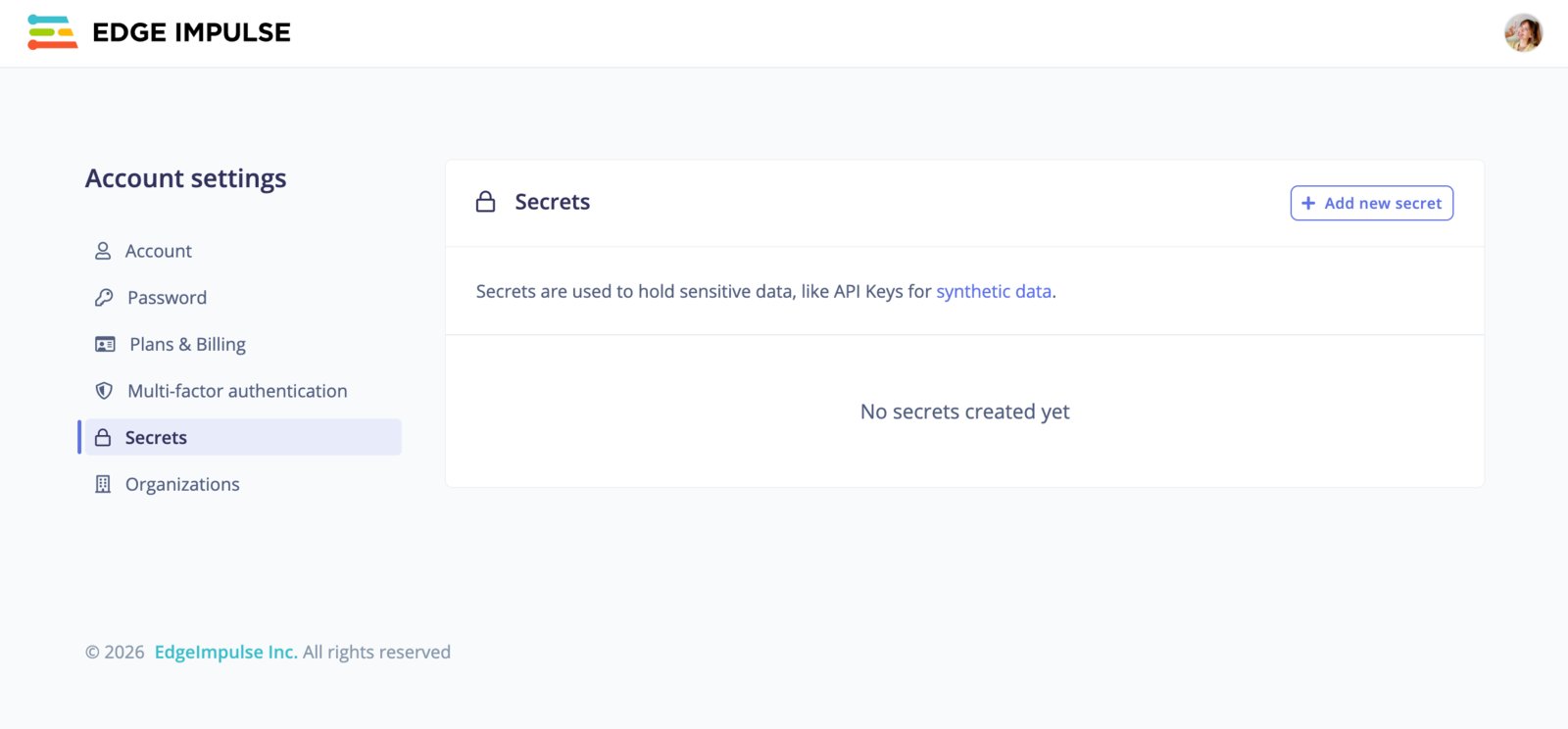
The **Secrets** tab is used to hold sensitive data, like API keys for [synthetic data](/studio/projects/data-acquisition/synthetic-data) generation. Click **Add new secret** to create one. Secrets are stored securely and can be referenced from your projects without exposing the underlying values.
## Secrets
The **Secrets** tab is used to hold sensitive data, like API keys for [synthetic data](/studio/projects/data-acquisition/synthetic-data) generation. Click **Add new secret** to create one. Secrets are stored securely and can be referenced from your projects without exposing the underlying values.
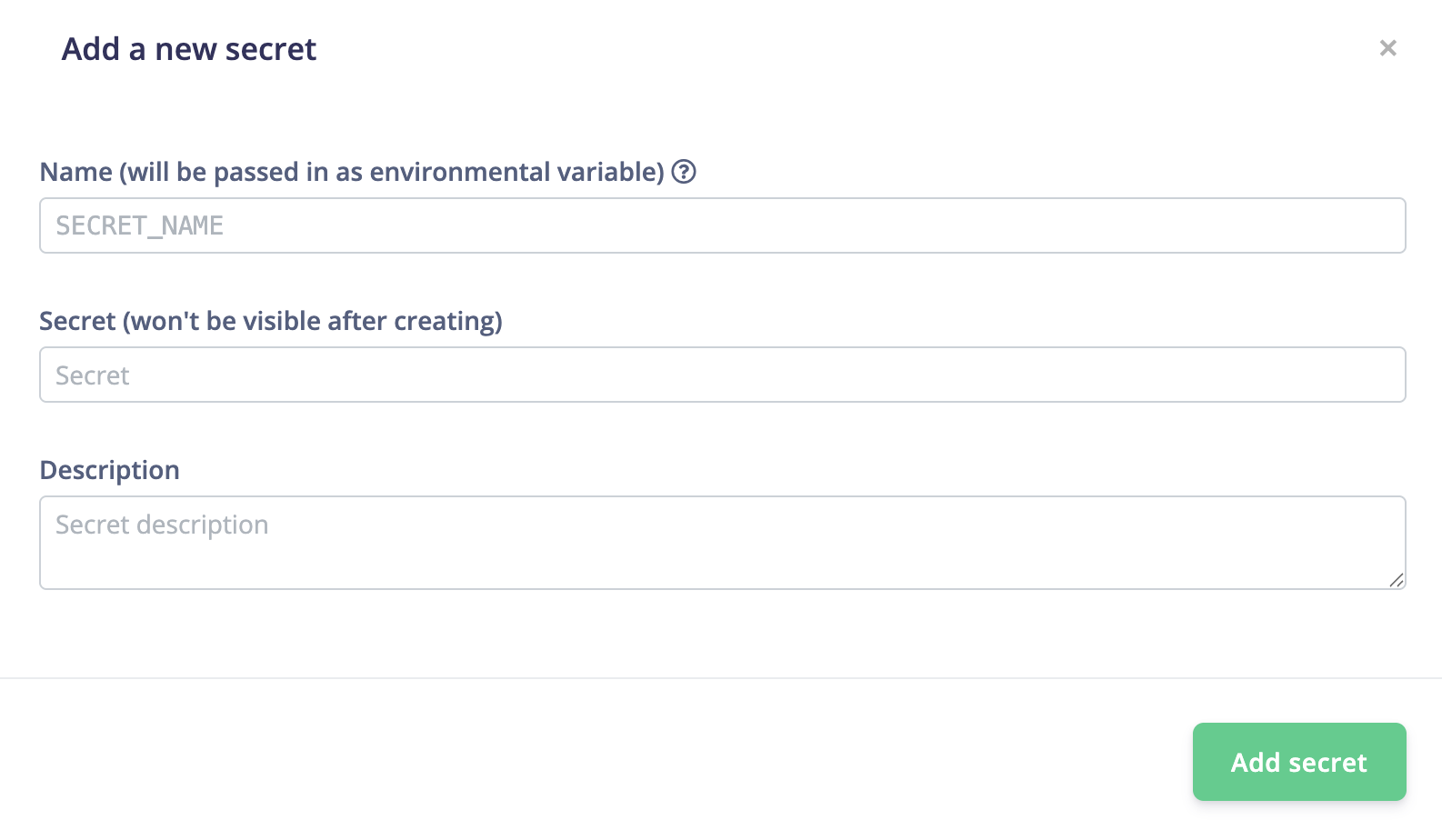
 To create a secret, click **Add new secret** and provide:
* **Name**: the identifier for your secret. It is passed in as an environmental variable, so use a name like `SECRET_NAME`.
* **Secret**: the sensitive value itself. This won't be visible after creating, so store a copy elsewhere if you need it.
* **Description**: an optional note describing what the secret is for.
Click **Add secret** to save it.
To create a secret, click **Add new secret** and provide:
* **Name**: the identifier for your secret. It is passed in as an environmental variable, so use a name like `SECRET_NAME`.
* **Secret**: the sensitive value itself. This won't be visible after creating, so store a copy elsewhere if you need it.
* **Description**: an optional note describing what the secret is for.
Click **Add secret** to save it.
 ## Organizations
The **Organizations** tab lists the organizations you belong to. Organizational features are only available for enterprise customers. To learn more about what organizations offer, see [Organizations](/studio/organizations/dashboard).
## Organizations
The **Organizations** tab lists the organizations you belong to. Organizational features are only available for enterprise customers. To learn more about what organizations offer, see [Organizations](/studio/organizations/dashboard).