> ## Documentation Index
> Fetch the complete documentation index at: https://docs.edgeimpulse.com/llms.txt
> Use this file to discover all available pages before exploring further.
# Porting a Gesture Recognition Project from the SiLabs Thunderboard Sense 2 to xG24
Created By: Mithun Das
Public Project (to Clone): [https://studio.edgeimpulse.com/public/147925/latest](https://studio.edgeimpulse.com/public/147925/latest)
 ## Intro
In this project I am not going to explore or research a new TinyML use-case, rather I'll focus on how we can reuse or extend Edge Impulse Public projects for a different microcontroller.
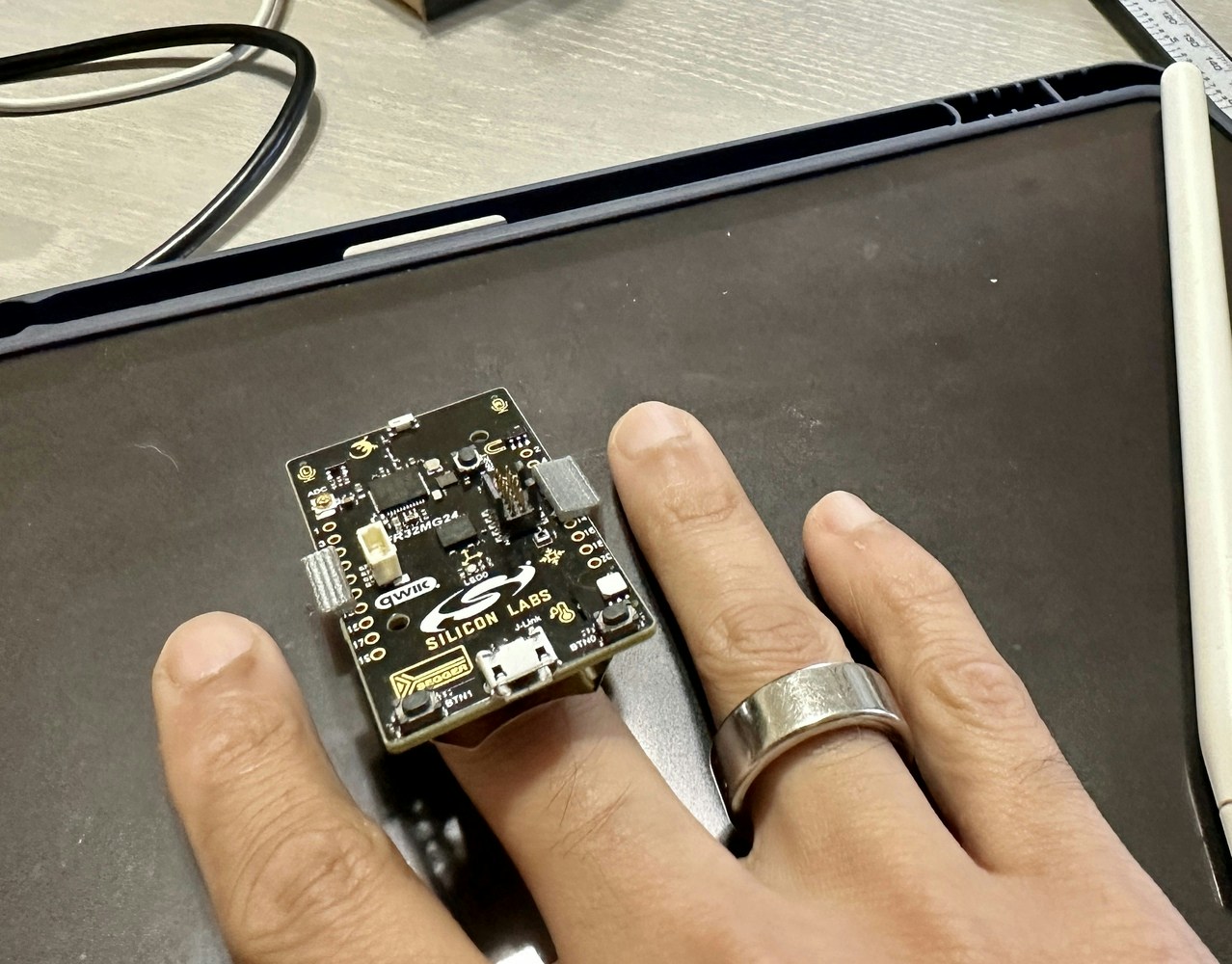
[Manivannan Sivan](https://www.hackster.io/manivannan) had created a project [Gesture Recognition for Patient Communication](/projects/expert-network/gesture-recognition-patient-communication-silabs-thunderboard-sense-2) which is a wearable device running a tinyML model to recognize gesture patterns and send a signal to a mobile application via BLE. Check out his work for more information.
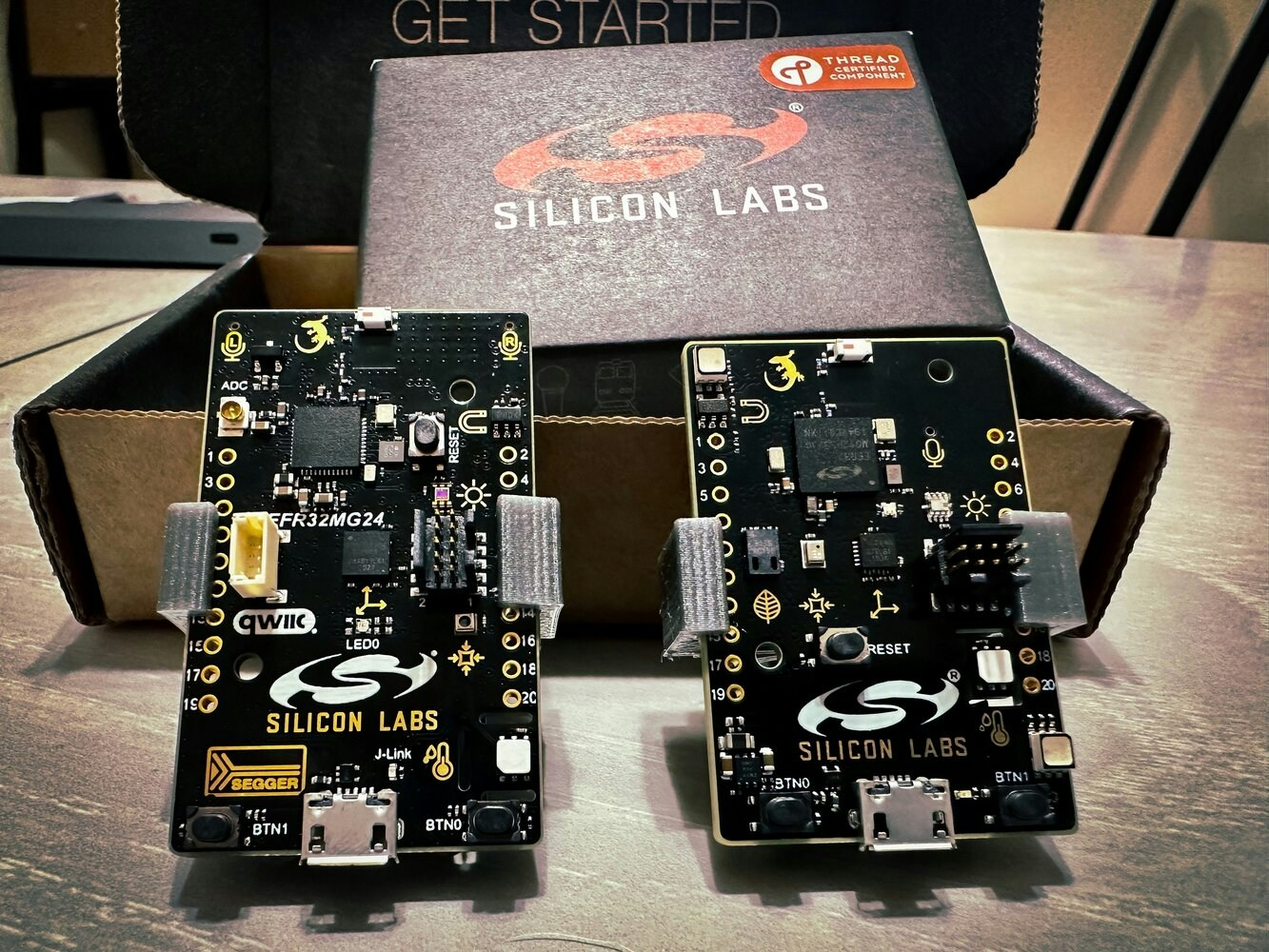
In this project, I am going to walk you through how you can clone his Public Edge Impulse project, deploy to a SiLabs Thunderboard Sense 2 first, test it out, and then build and deploy to the newer SiLabs xG24 device instead.
## Intro
In this project I am not going to explore or research a new TinyML use-case, rather I'll focus on how we can reuse or extend Edge Impulse Public projects for a different microcontroller.
[Manivannan Sivan](https://www.hackster.io/manivannan) had created a project [Gesture Recognition for Patient Communication](/projects/expert-network/gesture-recognition-patient-communication-silabs-thunderboard-sense-2) which is a wearable device running a tinyML model to recognize gesture patterns and send a signal to a mobile application via BLE. Check out his work for more information.
In this project, I am going to walk you through how you can clone his Public Edge Impulse project, deploy to a SiLabs Thunderboard Sense 2 first, test it out, and then build and deploy to the newer SiLabs xG24 device instead.
 ## Installing Dependencies
Before you proceed further, there are few other software packages you need to install.
* Edge Impulse CLI - Follow [this link](/tools/clis/edge-impulse-cli/installation) to install necessary tooling to interact with the Edge Impulse Studio.
* Simplicity Studio 5 - Follow [this link](https://www.silabs.com/developers/simplicity-studio) to install the IDE
* Simplicity Commander - Follow [this link](https://community.silabs.com/s/article/simplicity-commander?language=en_US) to install the software. This will be required to flash firmware to the xG24 board.
* LightBlue - This is a mobile application. Install from either Apple Store or Android / Google Play. This will be required to connect the board wirelessly over Bluetooth.
## Clone And Build
If you don't have an Edge Impulse account, signup for free and log into [Edge Impulse](https://studio.edgeimpulse.com/). Then visit the below [Public Project](/studio/projects/dashboard#1-showcasing-your-public-projects-with-markdown-readmes) to get started.
[https://studio.edgeimpulse.com/public/147925/latest](https://studio.edgeimpulse.com/public/147925/latest)
Click on the "Clone" button at top-right corner of the page.
## Installing Dependencies
Before you proceed further, there are few other software packages you need to install.
* Edge Impulse CLI - Follow [this link](/tools/clis/edge-impulse-cli/installation) to install necessary tooling to interact with the Edge Impulse Studio.
* Simplicity Studio 5 - Follow [this link](https://www.silabs.com/developers/simplicity-studio) to install the IDE
* Simplicity Commander - Follow [this link](https://community.silabs.com/s/article/simplicity-commander?language=en_US) to install the software. This will be required to flash firmware to the xG24 board.
* LightBlue - This is a mobile application. Install from either Apple Store or Android / Google Play. This will be required to connect the board wirelessly over Bluetooth.
## Clone And Build
If you don't have an Edge Impulse account, signup for free and log into [Edge Impulse](https://studio.edgeimpulse.com/). Then visit the below [Public Project](/studio/projects/dashboard#1-showcasing-your-public-projects-with-markdown-readmes) to get started.
[https://studio.edgeimpulse.com/public/147925/latest](https://studio.edgeimpulse.com/public/147925/latest)
Click on the "Clone" button at top-right corner of the page.
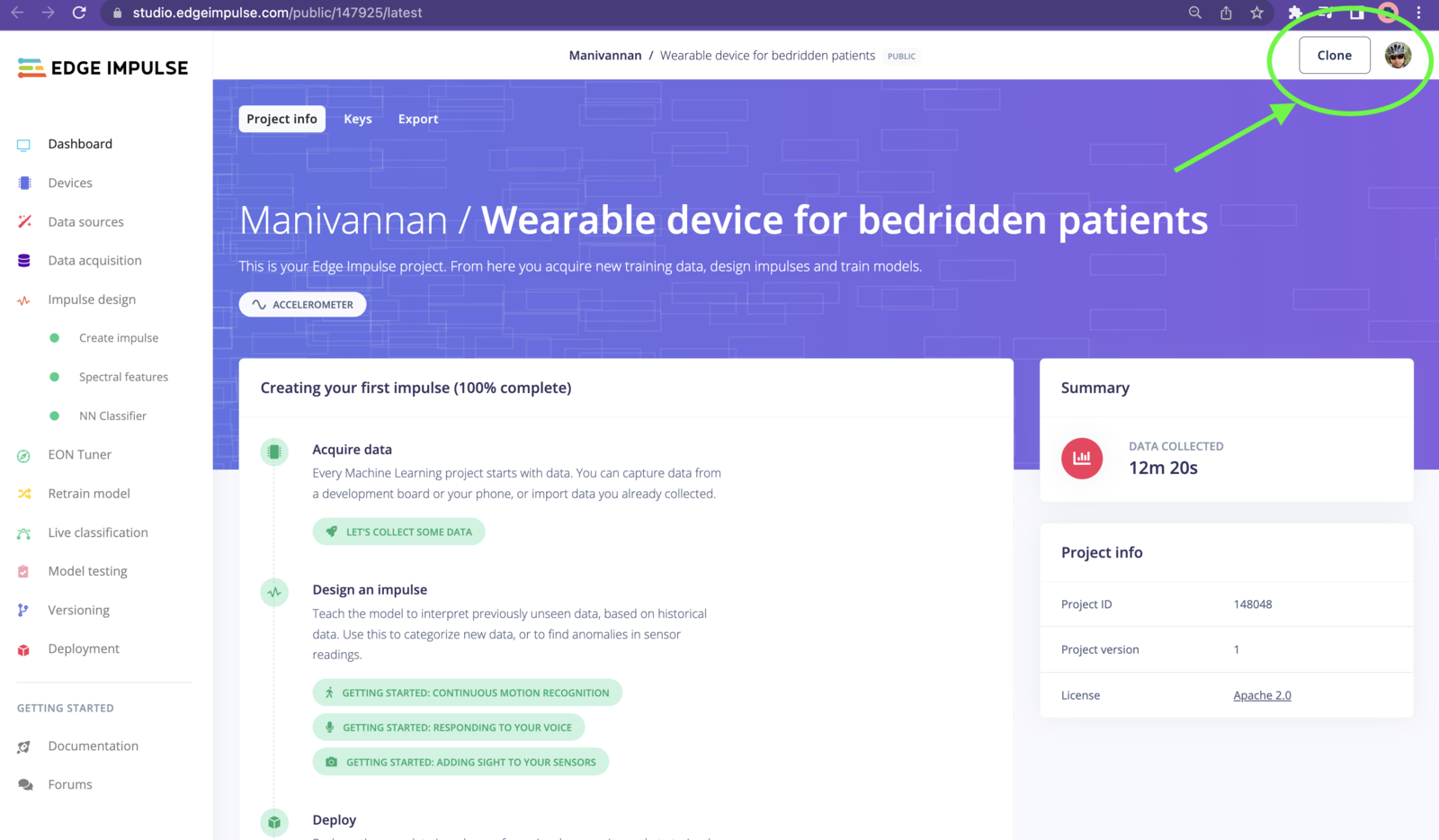 That will bring you to the below popup modal. Enter a name for your project, and click on the "Clone project" button.
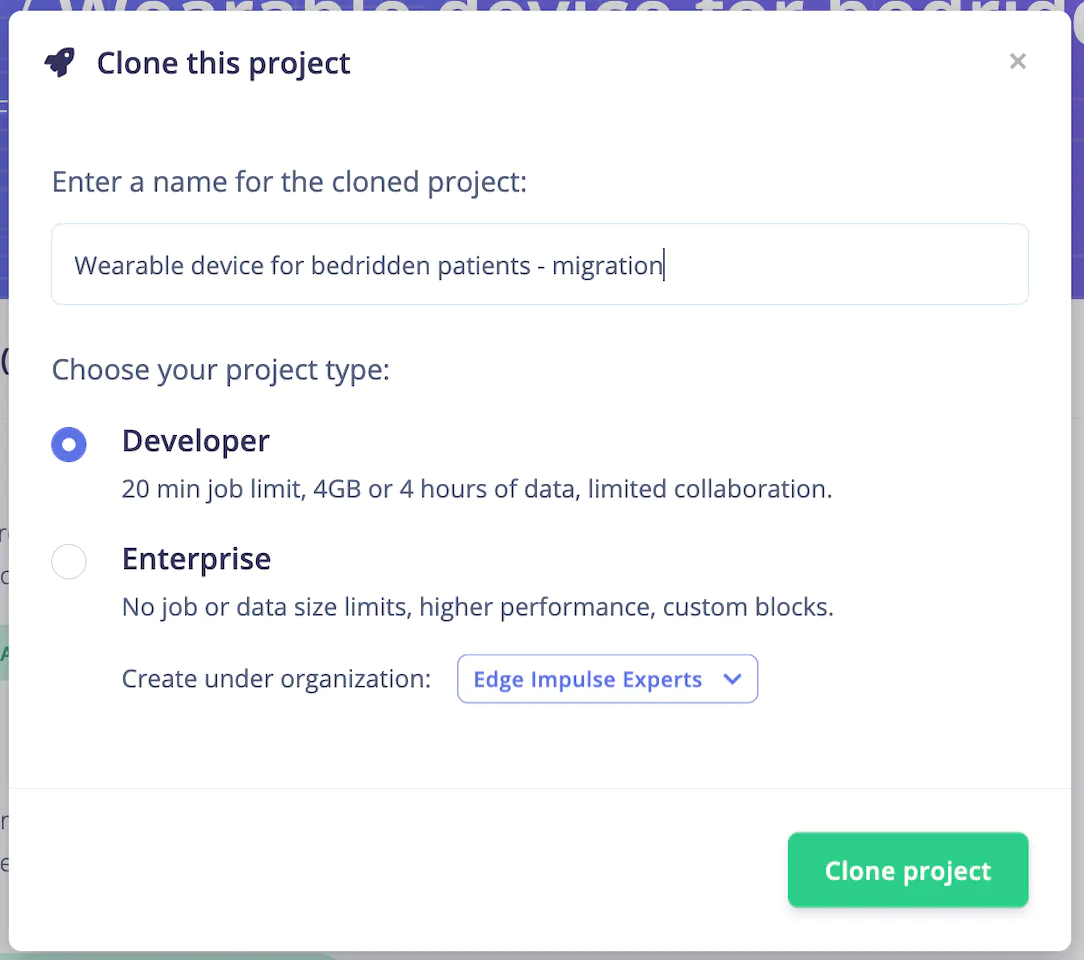 The project will be duplicated from Mani, into your own Edge Impulse Studio. You can verify by looking at the project name you entered earlier. Now if you navigate to "Create impulse" from the left menu, you will see how the model was created originally.
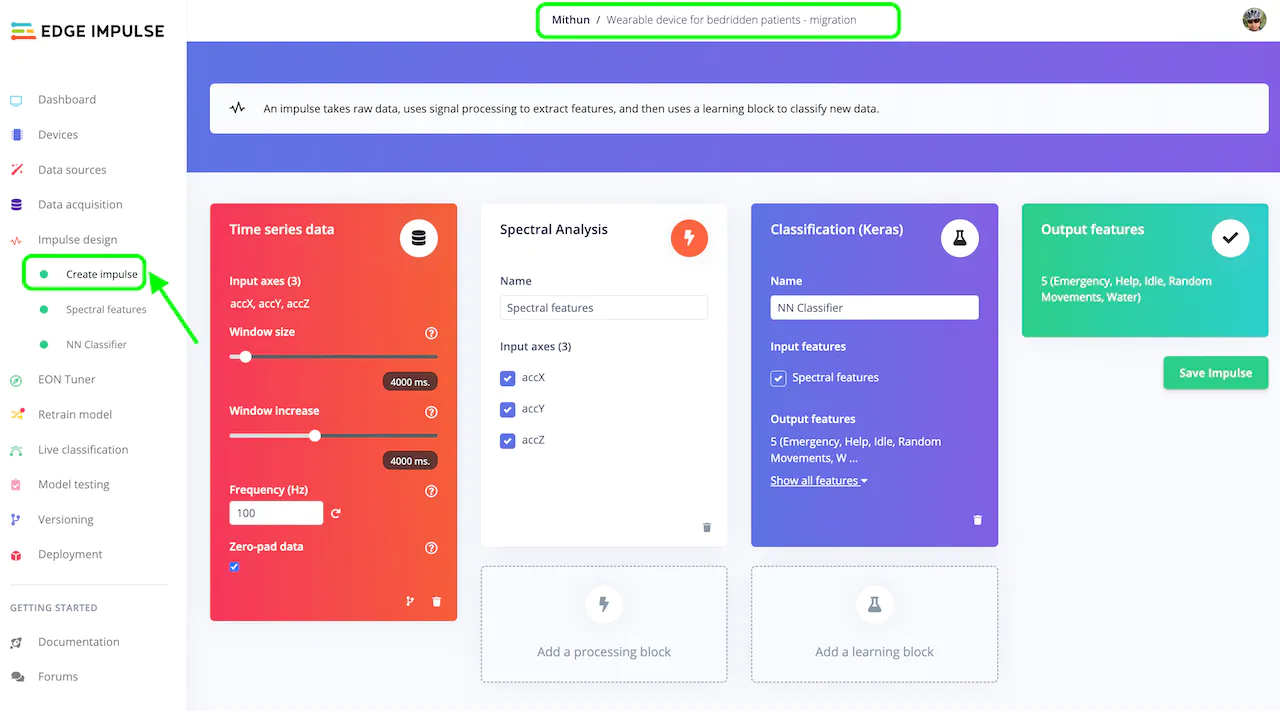 As you can see, the model was created based on 3-axis accelerometer data. The Window size was set as 4s and window increase was set to 4s as well, which ensures there is no overlap. That means if the input data is of 20s, there will be 5 samples from that data. Spectral Analysis was selected as Digital Signal Processing and Keras was selected for the Learning block.
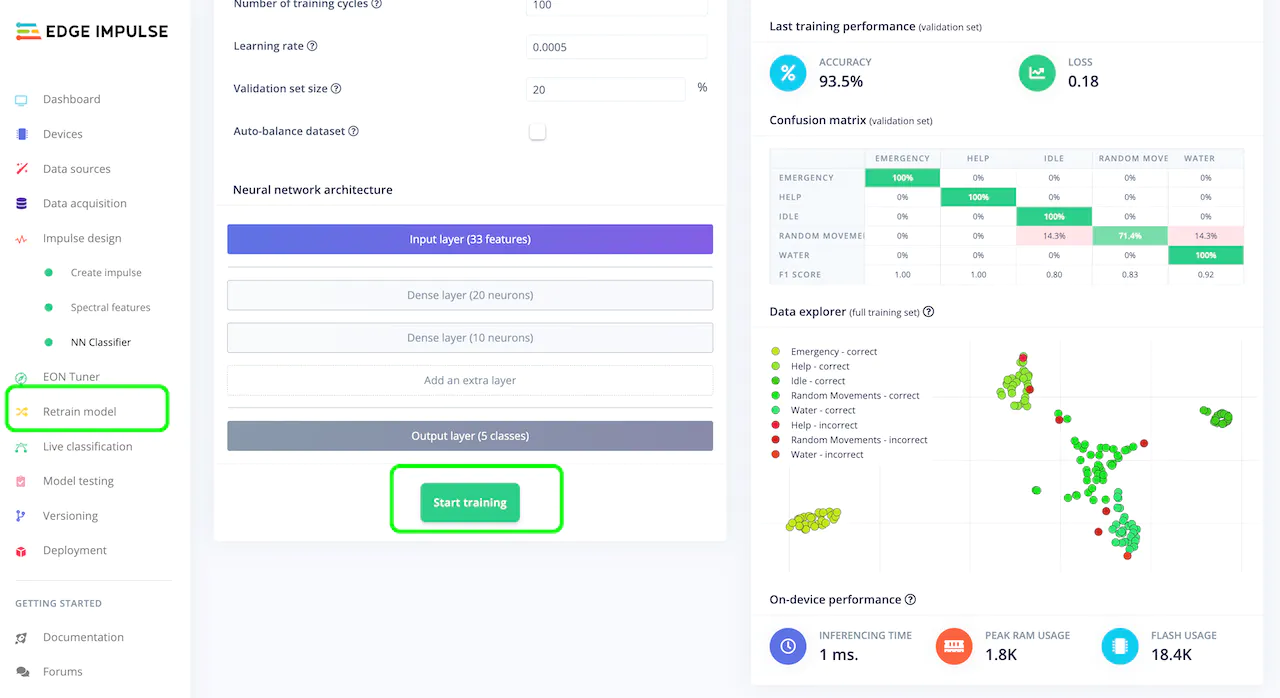 Next, navigate to "Retrain model" from the left menu and click on "Start training". Alternatively, you can also collect more data and train the model with your own gesture movement, or add additional gestures.
If you are going to add new data, you can follow this [Thunderboard Sense 2 documentation](/hardware/boards/silabs-thunderboard-sense-2) to connect your board to the Edge Impulse Studio and capture data. Once you are done with collecting additional data, you will need to retrain the model of course.
## Deploy And Test
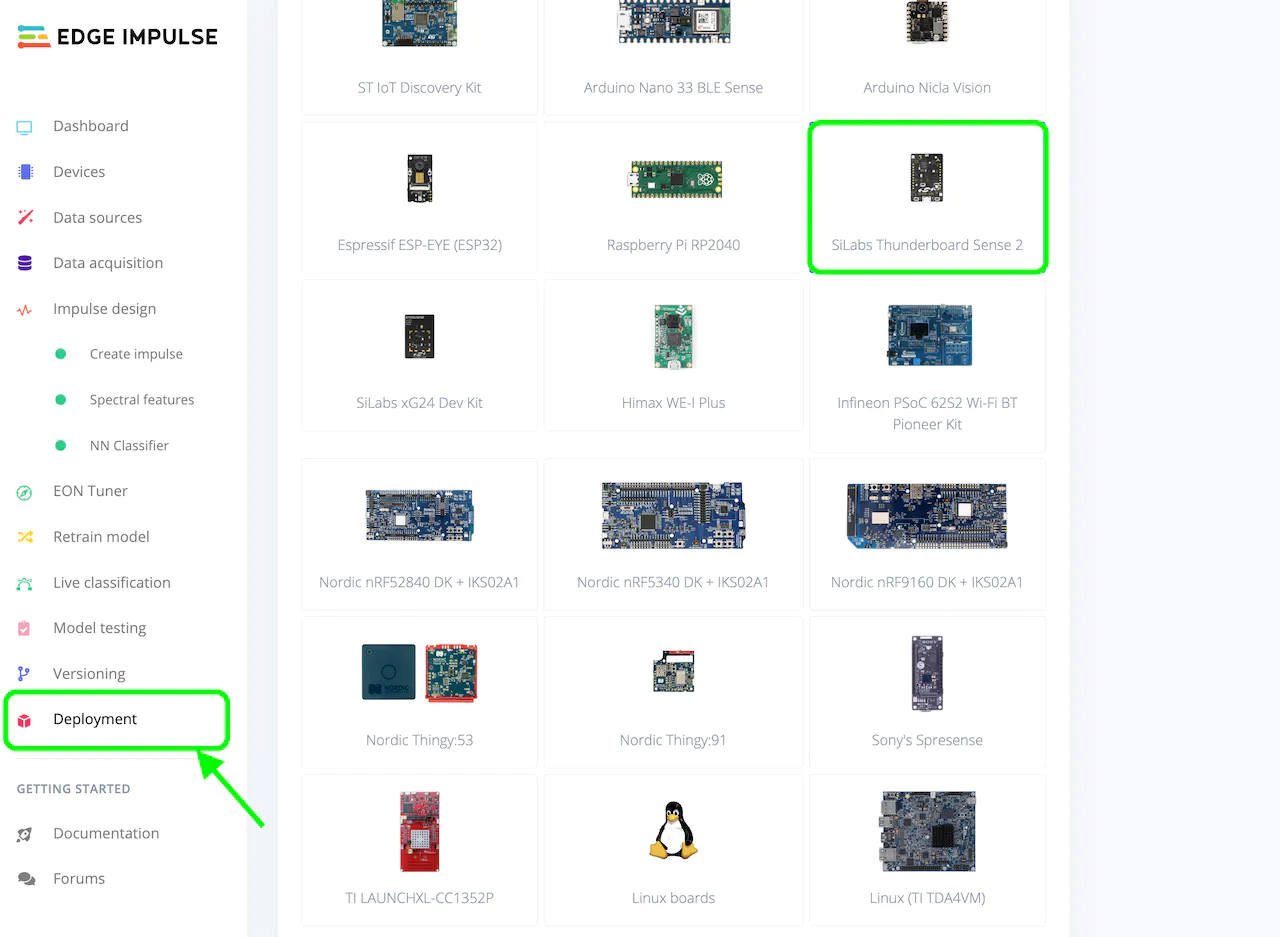
When you are done retraining, navigate to the "Deployment" page from the left menu, select "SiLabs Thunderboard Sense 2" under "Build firmware", then click on the "Build" button, which will build your model and download a `.bin` file used to flash to the board.
Next, navigate to "Retrain model" from the left menu and click on "Start training". Alternatively, you can also collect more data and train the model with your own gesture movement, or add additional gestures.
If you are going to add new data, you can follow this [Thunderboard Sense 2 documentation](/hardware/boards/silabs-thunderboard-sense-2) to connect your board to the Edge Impulse Studio and capture data. Once you are done with collecting additional data, you will need to retrain the model of course.
## Deploy And Test
When you are done retraining, navigate to the "Deployment" page from the left menu, select "SiLabs Thunderboard Sense 2" under "Build firmware", then click on the "Build" button, which will build your model and download a `.bin` file used to flash to the board.
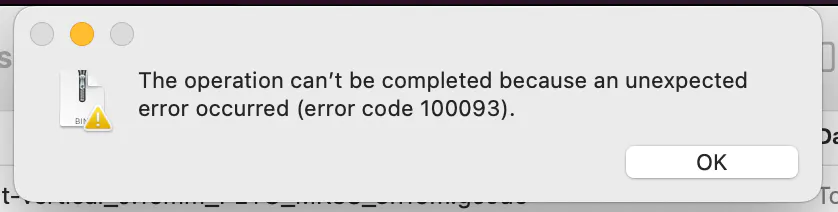
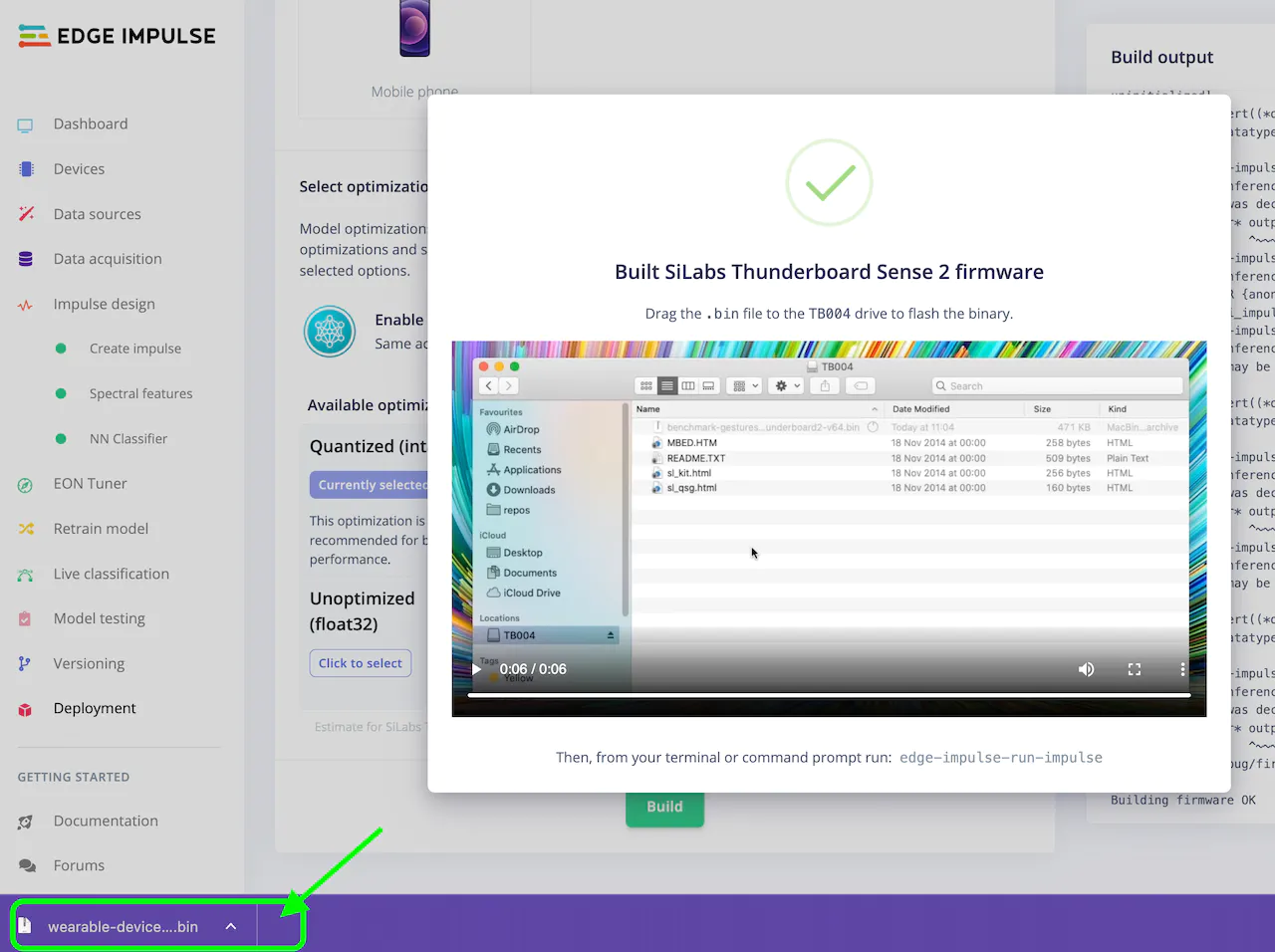 If not already connected, go ahead and connect the Thunderboard Sense 2 to your computer via a USB cable. You should see a drive named `TB004` appear. Drag and drop the `.bin` file downloaded in the previous step to the drive. If you see any errors like below, you'll need to use "Simplicity Studio 5" to flash the application, instead.
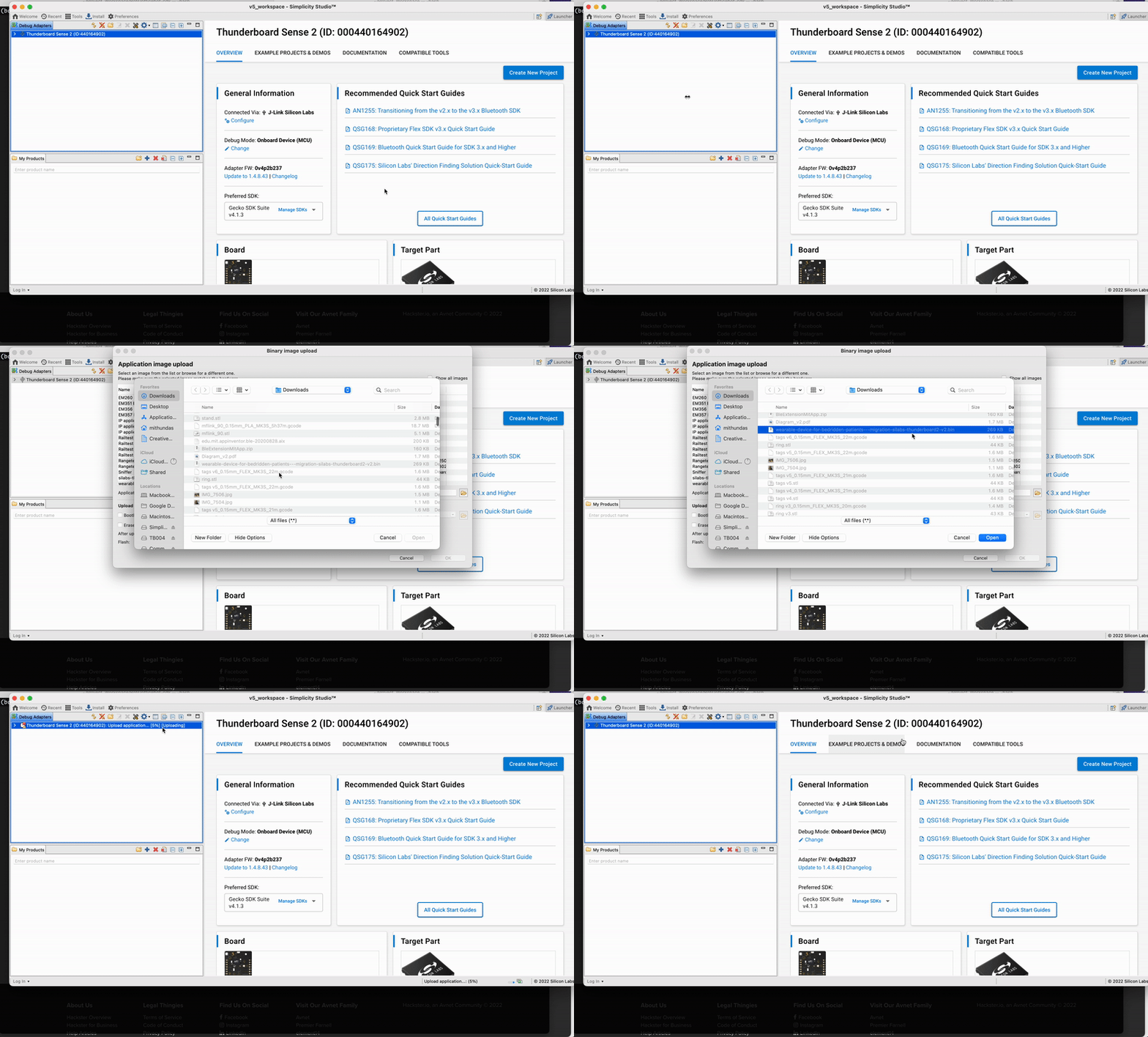 The LEDs on the Thunderboard will flash, indicating the firmware has been updated on the board. Open the LightBlue app, and scan for devices. You should see a device named "Edge Impulse", go ahead and connect to that. Then tap on the "0x2A56" characteristic, then "Listen for notifications". Change the format from "Hex" to "UTF-8 String".
Then, back on the computer, open a Terminal and run the below command, which will start inferencing on the board.
```
edge-impulse-run-impulse
```
Alternatively, you can write a boolean `1` to the characteristic to start the inference on the board. Checkout the .gif for how to do it on an xG24:
The LEDs on the Thunderboard will flash, indicating the firmware has been updated on the board. Open the LightBlue app, and scan for devices. You should see a device named "Edge Impulse", go ahead and connect to that. Then tap on the "0x2A56" characteristic, then "Listen for notifications". Change the format from "Hex" to "UTF-8 String".
Then, back on the computer, open a Terminal and run the below command, which will start inferencing on the board.
```
edge-impulse-run-impulse
```
Alternatively, you can write a boolean `1` to the characteristic to start the inference on the board. Checkout the .gif for how to do it on an xG24:
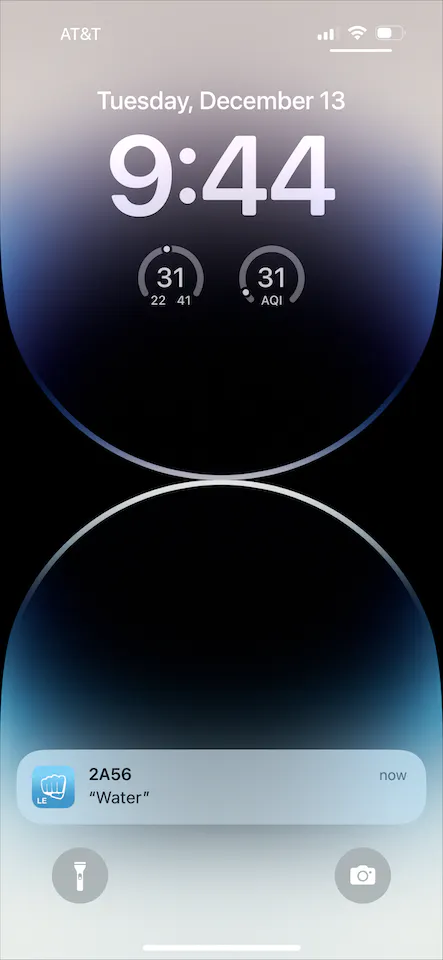
 To test if the model is working accurately, move your finger to recreate the gesture pattern that you (or Manivannan!) trained, and you should see a notification on your phone.
 At this point, you have learned how to clone a Public Edge Impulse project, capture more data, and deploy to a Thunderboard Sense 2 directly.
## Deploy To the xG24 Dev Kit
Now, we will explore how we can deploy the same model to the newer Silabs xG24 hardware instead. Keep in mind that there are some upgrades and differences between the Thunderboard Sense 2 and the xG24, and the not all of the sensors themselves are identical (some are though). For this project specifically, the original work done by Manivannan recorded data from the Thunderboard's IMU, but the xG24 has a 6-axis IMU. So, we should recollect new data to take advantage of this and ensure our data is applicable. If your use-case is simple enough that new data won't data won't be needed, the sensor you are using is identical between the boards, or that your data collection and model creation steps built a model that is still reliable you might be able to skip this.
If your data is indeed simple enough, you can deploy the model straight to an xG24 without making any changes to the model itself. You only need to revisit the "Deployment" tab in the Edge Impulse Studio, select "SiLabs xG24 Dev Kit" under Build firmware, and Build. For the sake of demonstration we will give it a try in this project, though as mentioned the upgrade from 3-axis to 6-axis data really should be investigated, but the sensor itself is identical between the boards so our data should still be valid. We'll give it a try.
At this point, you have learned how to clone a Public Edge Impulse project, capture more data, and deploy to a Thunderboard Sense 2 directly.
## Deploy To the xG24 Dev Kit
Now, we will explore how we can deploy the same model to the newer Silabs xG24 hardware instead. Keep in mind that there are some upgrades and differences between the Thunderboard Sense 2 and the xG24, and the not all of the sensors themselves are identical (some are though). For this project specifically, the original work done by Manivannan recorded data from the Thunderboard's IMU, but the xG24 has a 6-axis IMU. So, we should recollect new data to take advantage of this and ensure our data is applicable. If your use-case is simple enough that new data won't data won't be needed, the sensor you are using is identical between the boards, or that your data collection and model creation steps built a model that is still reliable you might be able to skip this.
If your data is indeed simple enough, you can deploy the model straight to an xG24 without making any changes to the model itself. You only need to revisit the "Deployment" tab in the Edge Impulse Studio, select "SiLabs xG24 Dev Kit" under Build firmware, and Build. For the sake of demonstration we will give it a try in this project, though as mentioned the upgrade from 3-axis to 6-axis data really should be investigated, but the sensor itself is identical between the boards so our data should still be valid. We'll give it a try.
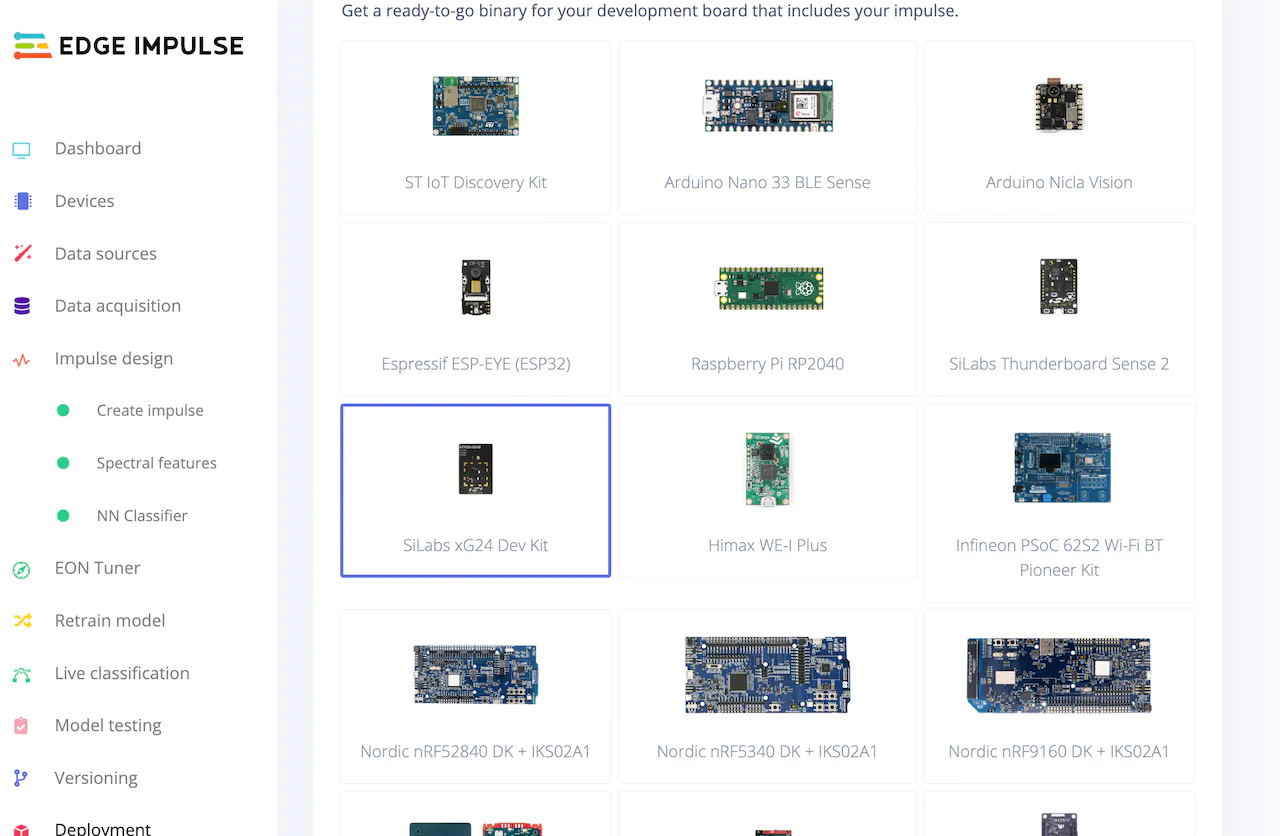 This will download a .zip file containing a `.hex` file and instructions.
 Now you can use Simplicity Studio 5 to flash the `.hex` file to the xG24 as shown before, or use Simplicity Commander. You can read more about Commander [here](/hardware/boards/silabs-xg24-devkit).
Once the flashing is done, again use the LightBlue app to connect to your board, and test gestures once again as you did for the Thunderboard Sense 2.
Now you can use Simplicity Studio 5 to flash the `.hex` file to the xG24 as shown before, or use Simplicity Commander. You can read more about Commander [here](/hardware/boards/silabs-xg24-devkit).
Once the flashing is done, again use the LightBlue app to connect to your board, and test gestures once again as you did for the Thunderboard Sense 2.
 Once deployed, your same gestures should be recognized and inferencing is performed on the xG24 in the same manner as the Thunderboard Sense 2, with no additional model training or dataset manipulation needed! This makes upgrading existing projects from the Thunderboard to the xG24 extremely simple when the data and sensor output are comparable and you confirm the sensor is the same part number. Again, you'll need to cross check the datasheets, but you may find you can take a Thunderboard Sense 2 project and deploy it directly to the xG24.
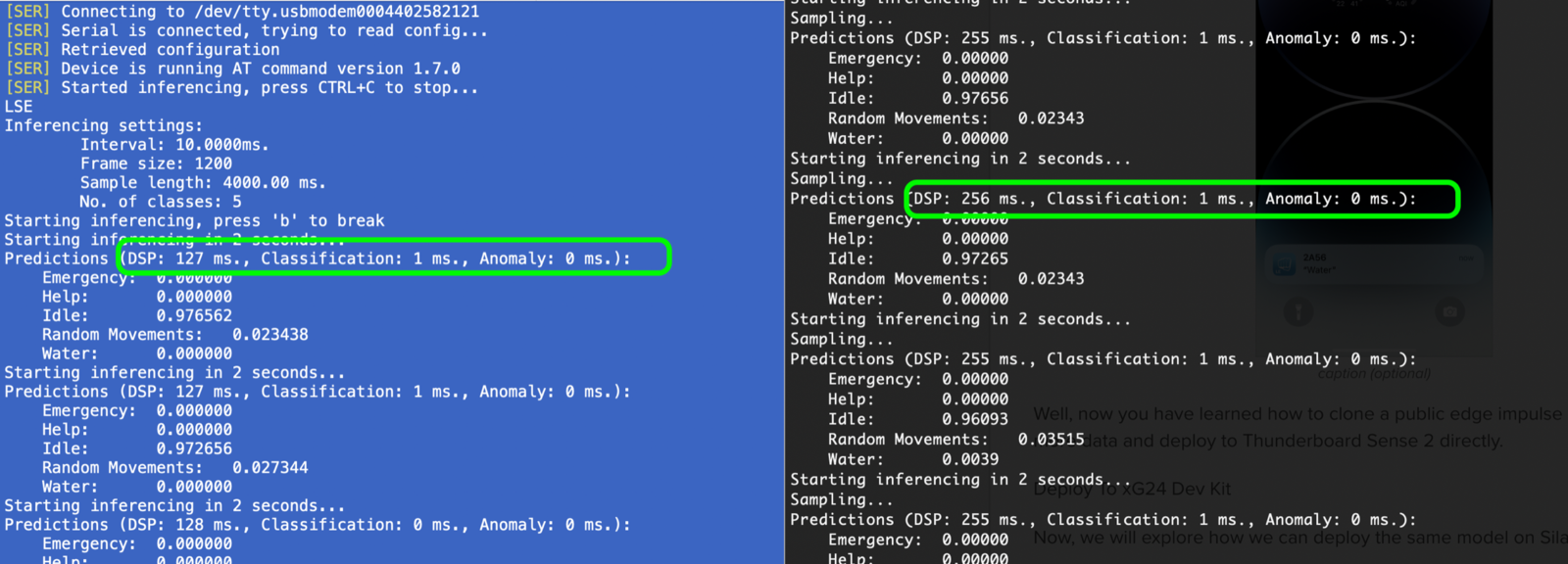
One final note is that in this project, the xG24 is roughly twice as fast as the Thunderboard Sense 2 running the same model:
Once deployed, your same gestures should be recognized and inferencing is performed on the xG24 in the same manner as the Thunderboard Sense 2, with no additional model training or dataset manipulation needed! This makes upgrading existing projects from the Thunderboard to the xG24 extremely simple when the data and sensor output are comparable and you confirm the sensor is the same part number. Again, you'll need to cross check the datasheets, but you may find you can take a Thunderboard Sense 2 project and deploy it directly to the xG24.
One final note is that in this project, the xG24 is roughly twice as fast as the Thunderboard Sense 2 running the same model:
 Hopefully this makes upgrading your SiLabs projects easier!