> ## Documentation Index
> Fetch the complete documentation index at: https://docs.edgeimpulse.com/llms.txt
> Use this file to discover all available pages before exploring further.
# Offline SLMs for Edge AI Development — Part 3: Agentic Coding with llama.cpp and OpenCode
> Set up an offline agentic coding environment on a Raspberry Pi, Thundercomm Rubik Pi 3, or NVIDIA Jetson using OpenCode, llama.cpp, and two fine-tuned Qwen2.5-Coder GGUF models — one for Edge Impulse workflows and one for Arduino code generation.
Created By: Eoin Jordan
GitHub Repo: [https://github.com/eoinjordan/arduino-edgeai-opencode-starter](https://github.com/eoinjordan/arduino-edgeai-opencode-starter)
Hugging Face models:
* [eoinedge/edgeai-docs-qwen2.5-coder-0.5b-lora](https://huggingface.co/eoinedge/edgeai-docs-qwen2.5-coder-0.5b-lora) — Edge Impulse docs and API
* [eoinedge/arduino-qwen0.5-lora](https://huggingface.co/eoinedge/arduino-qwen0.5-lora) — Arduino sketches and libraries
## Introduction
The earlier guides in this series showed how to load a Qwen1.5 LoRA adapter in Python and query it directly, with or without a FAISS retrieval index. Both approaches are good for scripted question-answering, but they are not a coding assistant — you cannot ask them to read a file, suggest an edit, or build a sketch.
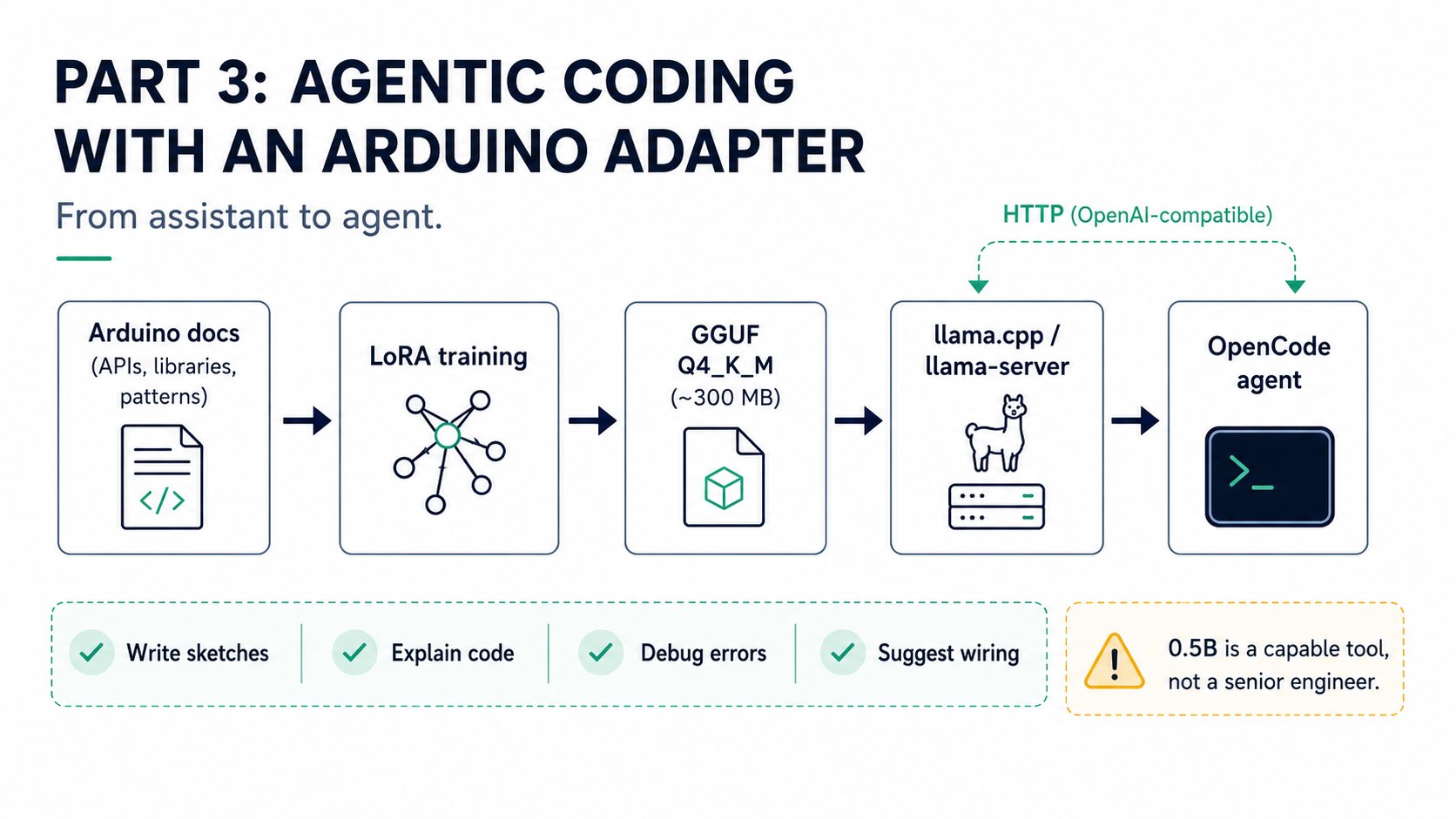
This guide sets up [OpenCode](https://opencode.ai), an offline terminal-based AI coding assistant, backed by two fine-tuned `Qwen2.5-Coder-0.5B` models served by `llama-server`. No API keys, no cloud calls, no internet connection required at runtime. Everything runs on the same hardware covered in the previous guides:
* **Raspberry Pi 4 / Pi 5** — CPU inference, \~5–15 tok/s on Pi 5
* **NVIDIA Jetson Orin / QCS6490 devices** — GPU inference via cuBLAS, \~30–80 tok/s
The two models are quantized to Q4\_K\_M GGUF format (\~398 MB each), which means they load and run comfortably on a Pi 5 with 8 GB RAM or a Jetson Orin without a CUDA memory shortage.
| Model | HuggingFace | What it knows |
| -------------------------- | ---------------------------------------------- | ------------------------------------------------------------------ |
| `qwen-edgeai-q4_k_m.gguf` | `eoinedge/edgeai-docs-qwen2.5-coder-0.5b-lora` | Edge Impulse Studio, DSP blocks, SDK, REST API, deployment targets |
| `qwen-arduino-q4_k_m.gguf` | `eoinedge/arduino-qwen0.5-lora` | Arduino C/C++, UNO R4 WiFi, Nano 33 BLE Sense, library APIs |
This guide uses GGUF models served by `llama-server` — a different runtime from the Python `transformers` + PEFT approach in the earlier tutorials. The GGUF approach is generally faster for interactive use and does not require PyTorch.
 ## How it works
```
Student prompt
│
▼
OpenCode (TUI)
│ reads opencode/opencode.json
▼
llama-server (localhost:8081/v1)
│ CPU (Pi) or CUDA GPU (Jetson) — fine-tuned Qwen model
▼
Response streamed back to OpenCode
```
`llama-server` exposes an OpenAI-compatible `/v1/chat/completions` endpoint. `opencode.json` points OpenCode at that local endpoint using the `@ai-sdk/openai-compatible` provider. The two agents defined in `.opencode/agents/` (`edgeai.md` and `arduino.md`) each carry a different system prompt that focuses the model on its specialist domain — switch agents when you switch models.
## Prerequisites
* A Raspberry Pi 4 / Pi 5, a Thundercomm Rubik Pi 3, or an NVIDIA Jetson Orin (Nano, NX, AGX) running 64-bit Linux
* \~1 GB free disk space for both GGUF models plus the `llama.cpp` build artefacts
* `git`, `cmake`, `build-essential`, and `wget` (the quickstart script installs these)
* Node.js 18+ and `npm` for OpenCode (the quickstart script checks and installs if missing)
* For Jetson GPU inference: CUDA toolkit installed at `/usr/local/cuda`
## Quickstart
Clone the repo and run the one-shot setup script:
```bash theme={"system"}
git clone https://github.com/eoinjordan/arduino-edgeai-opencode-starter.git
cd arduino-edgeai-opencode-starter
chmod +x scripts/*.sh
bash scripts/quickstart.sh
```
The script auto-detects your platform and runs four steps:
| Step | What happens |
| ---- | ---------------------------------------------------------------------------------------------------------- |
| 1 | Installs build tools (`cmake`, `git`, `wget`) via `apt-get` or Homebrew |
| 2 | Clones and builds `llama.cpp` from source with `DLLAMA_BUILD_SERVER=ON`; enables `DGGML_CUDA=ON` on Jetson |
| 3 | Downloads `qwen-edgeai-q4_k_m.gguf` and `qwen-arduino-q4_k_m.gguf` to `~/` |
| 4 | Installs `opencode-ai` globally via `npm` |
You can force a platform instead of relying on auto-detection:
```bash theme={"system"}
bash scripts/quickstart.sh pi # Raspberry Pi — CPU only
bash scripts/quickstart.sh jetson # Jetson — CUDA build (sm_87)
bash scripts/quickstart.sh cpu # Generic Linux / macOS CPU
```
For Jetson targets other than Orin (sm\_87), override the CUDA architecture before running the script:
```bash theme={"system"}
CUDA_ARCH=72 bash scripts/quickstart.sh jetson # Xavier = sm_72
```
If `llama-server` is already installed (for example via `brew install llama.cpp` on macOS), the build step is skipped automatically. The quickstart script checks `PATH` and common install locations before starting the build.
## Step 1 — Start the model server
Pick the model that matches the task you are about to work on. Only one model runs at a time; the server starts on port 8081.
```bash theme={"system"}
# For Edge Impulse / Edge AI questions and code:
./scripts/start-server.sh edgeai
# For Arduino sketch generation and debugging:
./scripts/start-server.sh arduino
```
Leave this terminal open. The server logs each incoming request to stdout.
`start-server.sh` applies platform-specific settings automatically:
| Platform | GPU layers | Threads |
| ------------------- | ---------- | ------------------------------------------------- |
| Jetson / CUDA | 99 (all) | 4 (ARM cores; GPU handles inference) |
| Raspberry Pi | 0 | Min(nproc, 4) — capped to reduce thermal throttle |
| macOS / generic CPU | 0 | All logical cores |
You can override both settings with environment variables if needed:
```bash theme={"system"}
LLAMA_N_GPU_LAYERS=32 LLAMA_THREADS=6 ./scripts/start-server.sh edgeai
```
The server configuration passed to `llama-server`:
```
--ctx-size 4096 # context window
--n-predict 512 # maximum output tokens per response
--host 127.0.0.1 # bind to loopback only
--port 8081
```
## Step 2 — Open OpenCode
In a second terminal, navigate to the `opencode/` directory and start OpenCode:
```bash theme={"system"}
cd opencode && opencode
```
## How it works
```
Student prompt
│
▼
OpenCode (TUI)
│ reads opencode/opencode.json
▼
llama-server (localhost:8081/v1)
│ CPU (Pi) or CUDA GPU (Jetson) — fine-tuned Qwen model
▼
Response streamed back to OpenCode
```
`llama-server` exposes an OpenAI-compatible `/v1/chat/completions` endpoint. `opencode.json` points OpenCode at that local endpoint using the `@ai-sdk/openai-compatible` provider. The two agents defined in `.opencode/agents/` (`edgeai.md` and `arduino.md`) each carry a different system prompt that focuses the model on its specialist domain — switch agents when you switch models.
## Prerequisites
* A Raspberry Pi 4 / Pi 5, a Thundercomm Rubik Pi 3, or an NVIDIA Jetson Orin (Nano, NX, AGX) running 64-bit Linux
* \~1 GB free disk space for both GGUF models plus the `llama.cpp` build artefacts
* `git`, `cmake`, `build-essential`, and `wget` (the quickstart script installs these)
* Node.js 18+ and `npm` for OpenCode (the quickstart script checks and installs if missing)
* For Jetson GPU inference: CUDA toolkit installed at `/usr/local/cuda`
## Quickstart
Clone the repo and run the one-shot setup script:
```bash theme={"system"}
git clone https://github.com/eoinjordan/arduino-edgeai-opencode-starter.git
cd arduino-edgeai-opencode-starter
chmod +x scripts/*.sh
bash scripts/quickstart.sh
```
The script auto-detects your platform and runs four steps:
| Step | What happens |
| ---- | ---------------------------------------------------------------------------------------------------------- |
| 1 | Installs build tools (`cmake`, `git`, `wget`) via `apt-get` or Homebrew |
| 2 | Clones and builds `llama.cpp` from source with `DLLAMA_BUILD_SERVER=ON`; enables `DGGML_CUDA=ON` on Jetson |
| 3 | Downloads `qwen-edgeai-q4_k_m.gguf` and `qwen-arduino-q4_k_m.gguf` to `~/` |
| 4 | Installs `opencode-ai` globally via `npm` |
You can force a platform instead of relying on auto-detection:
```bash theme={"system"}
bash scripts/quickstart.sh pi # Raspberry Pi — CPU only
bash scripts/quickstart.sh jetson # Jetson — CUDA build (sm_87)
bash scripts/quickstart.sh cpu # Generic Linux / macOS CPU
```
For Jetson targets other than Orin (sm\_87), override the CUDA architecture before running the script:
```bash theme={"system"}
CUDA_ARCH=72 bash scripts/quickstart.sh jetson # Xavier = sm_72
```
If `llama-server` is already installed (for example via `brew install llama.cpp` on macOS), the build step is skipped automatically. The quickstart script checks `PATH` and common install locations before starting the build.
## Step 1 — Start the model server
Pick the model that matches the task you are about to work on. Only one model runs at a time; the server starts on port 8081.
```bash theme={"system"}
# For Edge Impulse / Edge AI questions and code:
./scripts/start-server.sh edgeai
# For Arduino sketch generation and debugging:
./scripts/start-server.sh arduino
```
Leave this terminal open. The server logs each incoming request to stdout.
`start-server.sh` applies platform-specific settings automatically:
| Platform | GPU layers | Threads |
| ------------------- | ---------- | ------------------------------------------------- |
| Jetson / CUDA | 99 (all) | 4 (ARM cores; GPU handles inference) |
| Raspberry Pi | 0 | Min(nproc, 4) — capped to reduce thermal throttle |
| macOS / generic CPU | 0 | All logical cores |
You can override both settings with environment variables if needed:
```bash theme={"system"}
LLAMA_N_GPU_LAYERS=32 LLAMA_THREADS=6 ./scripts/start-server.sh edgeai
```
The server configuration passed to `llama-server`:
```
--ctx-size 4096 # context window
--n-predict 512 # maximum output tokens per response
--host 127.0.0.1 # bind to loopback only
--port 8081
```
## Step 2 — Open OpenCode
In a second terminal, navigate to the `opencode/` directory and start OpenCode:
```bash theme={"system"}
cd opencode && opencode
```
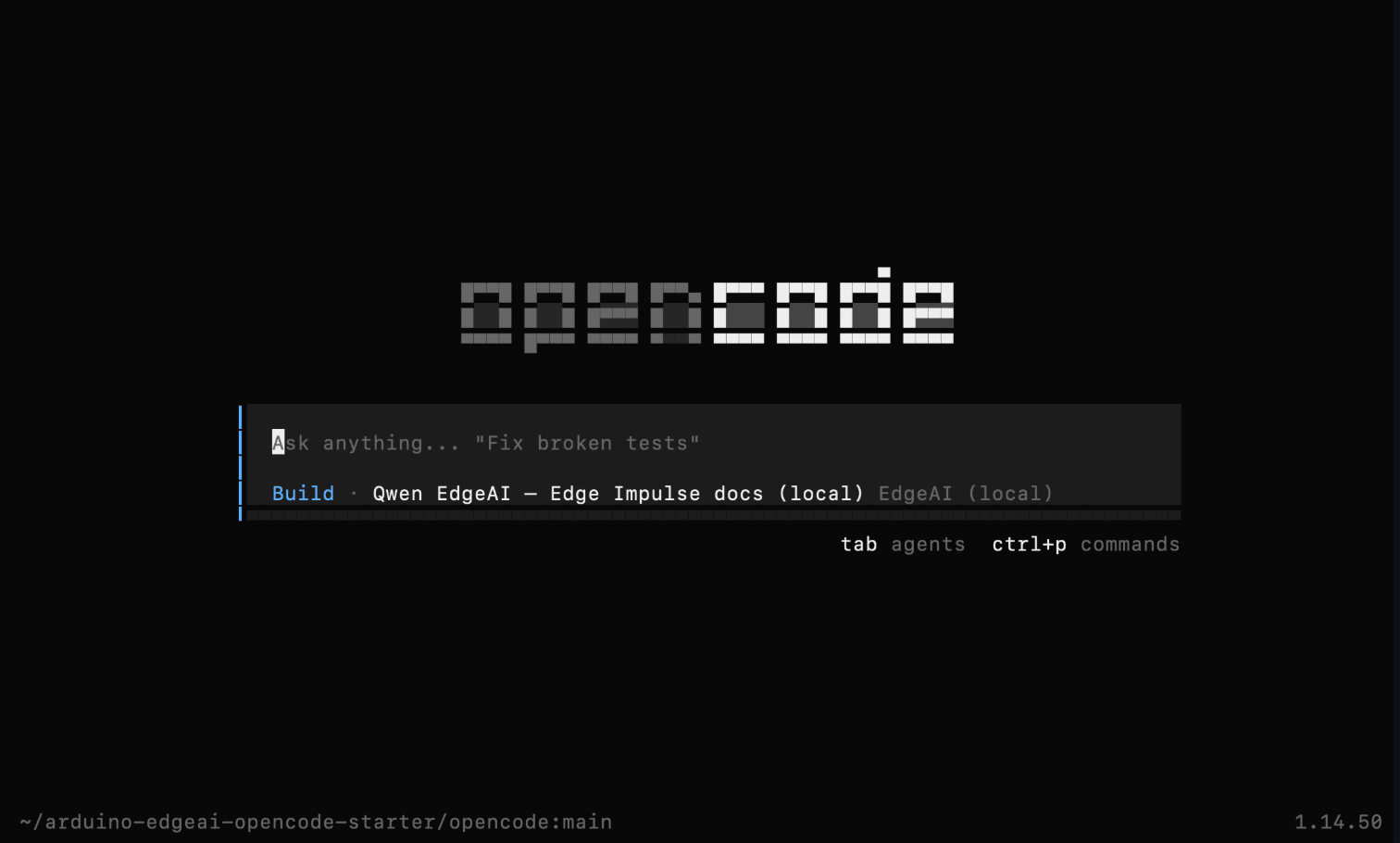 OpenCode reads `opencode/opencode.json` from the current directory on startup. This file declares both local model providers and sets `edgeai/qwen-edgeai` as the default:
```json theme={"system"}
{
"$schema": "https://opencode.ai/config.json",
"model": "edgeai/qwen-edgeai",
"provider": {
"edgeai": {
"npm": "@ai-sdk/openai-compatible",
"name": "EdgeAI (local)",
"options": {
"baseURL": "http://127.0.0.1:8081/v1",
"apiKey": "local"
},
"models": {
"qwen-edgeai": {
"name": "Qwen EdgeAI — Edge Impulse docs (local)",
"limit": { "context": 4096, "output": 512 }
}
}
},
"arduino": {
"npm": "@ai-sdk/openai-compatible",
"name": "Arduino (local)",
"options": {
"baseURL": "http://127.0.0.1:8081/v1",
"apiKey": "local"
},
"models": {
"qwen-arduino": {
"name": "Qwen Arduino — code generation (local)",
"limit": { "context": 4096, "output": 512 }
}
}
}
}
}
```
Both providers point at the same `127.0.0.1:8081` — switching the model in OpenCode selects which configured profile to use, but you must also restart `start-server.sh` with the matching argument to load the correct GGUF.
## Step 3 — Select an agent
Inside OpenCode, press `/` and type `agent` to open the agent picker. Two agents are available:
| Agent | System prompt focus |
| --------- | ------------------------------------------------------------------------------------------------------------------------------------- |
| `edgeai` | Edge Impulse Studio workflow, DSP blocks, SDK methods, REST API, deployment targets (Nano 33 BLE Sense, Pi, Jetson) |
| `arduino` | Arduino C/C++, `setup()` / `loop()` structure, UNO R4 WiFi, Arduino Cloud / App Studio, `run_classifier()` for Edge Impulse libraries |
Switch agent and model server together:
```bash theme={"system"}
# Terminal 1 — restart for Arduino work:
./scripts/start-server.sh arduino
# Terminal 2 — inside OpenCode, press / → agent → arduino
```
Example prompts for each agent:
**edgeai agent:**
* `How do I export a trained Edge Impulse model as a C++ library?`
* `Walk me through the full project workflow from data collection to deployment`
* `How do I call the Edge Impulse REST API to start a training job?`
**arduino agent:**
* `Read my sketch and add a blinking LED on pin 13`
* `Write a sketch for UNO R4 WiFi that reads an accelerometer and prints to Serial`
* `Validate the project then build it for arduino:renesas_uno:unor4wifi`
## Arduino IDE integration with arduino-mcp (optional)
`arduino-mcp` is an MCP server that gives OpenCode tools to read, write, validate, and build Arduino sketches directly in Arduino IDE 2.0 format. When it is connected, the `arduino` agent can act on your sketch rather than only describe what to change.
**1. Install and start arduino-mcp:**
```bash theme={"system"}
npm install -g arduino-claude-mcp
arduino-claude-mcp # starts REST server on port 3080
```
On a Pi UNO Q, run it in Docker instead:
```bash theme={"system"}
docker run --rm --network host \
-e ARDUINO_FQBN=arduino:renesas_uno:unor4wifi \
-v ~/Arduino:/workspace \
eoinedge/arduino-mcp:latest
```
**2. Add it to the OpenCode MCP config** — create `opencode/mcp.json`:
```json theme={"system"}
{
"mcpServers": {
"arduino-mcp": {
"command": "node",
"args": ["/absolute/path/to/arduino-mcp/build/mcp.js"]
}
}
}
```
**3. Use MCP tools inside the arduino agent:**
With `arduino-mcp` connected, the agent can call tools directly instead of suggesting changes for you to copy-paste:
| Prompt | MCP tool |
| --------------------------------------- | ------------------------------------------------------- |
| "Read my sketch and add a blinking LED" | `read_source` → edits → `write_source` |
| "Validate my sketch" | `validate` |
| "Build for UNO R4 WiFi" | `build` (requires `arduino-cli` and `ARDUINO_FQBN` set) |
`build` requires `arduino-cli` to be installed and the `ARDUINO_FQBN` environment variable to be set to your target board. On Pi UNO Q setups running the `pi-openclaw-mcp-stack`, validate and build are also available via the REST gateway on port 3000.
## Switching models inside OpenCode
Type `/models` inside OpenCode to see the configured models and switch between them:
```
edgeai/qwen-edgeai — Qwen EdgeAI (local)
arduino/qwen-arduino — Qwen Arduino (local)
```
Remember to have `start-server.sh` running with the matching argument — OpenCode talks to whatever model `llama-server` has loaded, regardless of which provider profile is selected in `opencode.json`.
## Best practices
* Switch both the server and the agent at the same time to keep the model and system prompt aligned.
* On a Pi 4 with 4 GB RAM, only one model server should run at a time. Kill the previous server before starting the other.
* Keep prompts focused. The 0.5B models are fast but have a 4096-token context window. For multi-file projects or long code generation tasks, break the work into smaller steps.
* For complex multi-step reasoning (e.g. a full Edge Impulse project from scratch), consider running a 3B+ GGUF model instead. Swap the GGUF path in `start-server.sh` and update the `limit.context` value in `opencode.json` accordingly.
* Validate generated Arduino code in the Serial Monitor or with `arduino-cli compile` before flashing to hardware.
OpenCode reads `opencode/opencode.json` from the current directory on startup. This file declares both local model providers and sets `edgeai/qwen-edgeai` as the default:
```json theme={"system"}
{
"$schema": "https://opencode.ai/config.json",
"model": "edgeai/qwen-edgeai",
"provider": {
"edgeai": {
"npm": "@ai-sdk/openai-compatible",
"name": "EdgeAI (local)",
"options": {
"baseURL": "http://127.0.0.1:8081/v1",
"apiKey": "local"
},
"models": {
"qwen-edgeai": {
"name": "Qwen EdgeAI — Edge Impulse docs (local)",
"limit": { "context": 4096, "output": 512 }
}
}
},
"arduino": {
"npm": "@ai-sdk/openai-compatible",
"name": "Arduino (local)",
"options": {
"baseURL": "http://127.0.0.1:8081/v1",
"apiKey": "local"
},
"models": {
"qwen-arduino": {
"name": "Qwen Arduino — code generation (local)",
"limit": { "context": 4096, "output": 512 }
}
}
}
}
}
```
Both providers point at the same `127.0.0.1:8081` — switching the model in OpenCode selects which configured profile to use, but you must also restart `start-server.sh` with the matching argument to load the correct GGUF.
## Step 3 — Select an agent
Inside OpenCode, press `/` and type `agent` to open the agent picker. Two agents are available:
| Agent | System prompt focus |
| --------- | ------------------------------------------------------------------------------------------------------------------------------------- |
| `edgeai` | Edge Impulse Studio workflow, DSP blocks, SDK methods, REST API, deployment targets (Nano 33 BLE Sense, Pi, Jetson) |
| `arduino` | Arduino C/C++, `setup()` / `loop()` structure, UNO R4 WiFi, Arduino Cloud / App Studio, `run_classifier()` for Edge Impulse libraries |
Switch agent and model server together:
```bash theme={"system"}
# Terminal 1 — restart for Arduino work:
./scripts/start-server.sh arduino
# Terminal 2 — inside OpenCode, press / → agent → arduino
```
Example prompts for each agent:
**edgeai agent:**
* `How do I export a trained Edge Impulse model as a C++ library?`
* `Walk me through the full project workflow from data collection to deployment`
* `How do I call the Edge Impulse REST API to start a training job?`
**arduino agent:**
* `Read my sketch and add a blinking LED on pin 13`
* `Write a sketch for UNO R4 WiFi that reads an accelerometer and prints to Serial`
* `Validate the project then build it for arduino:renesas_uno:unor4wifi`
## Arduino IDE integration with arduino-mcp (optional)
`arduino-mcp` is an MCP server that gives OpenCode tools to read, write, validate, and build Arduino sketches directly in Arduino IDE 2.0 format. When it is connected, the `arduino` agent can act on your sketch rather than only describe what to change.
**1. Install and start arduino-mcp:**
```bash theme={"system"}
npm install -g arduino-claude-mcp
arduino-claude-mcp # starts REST server on port 3080
```
On a Pi UNO Q, run it in Docker instead:
```bash theme={"system"}
docker run --rm --network host \
-e ARDUINO_FQBN=arduino:renesas_uno:unor4wifi \
-v ~/Arduino:/workspace \
eoinedge/arduino-mcp:latest
```
**2. Add it to the OpenCode MCP config** — create `opencode/mcp.json`:
```json theme={"system"}
{
"mcpServers": {
"arduino-mcp": {
"command": "node",
"args": ["/absolute/path/to/arduino-mcp/build/mcp.js"]
}
}
}
```
**3. Use MCP tools inside the arduino agent:**
With `arduino-mcp` connected, the agent can call tools directly instead of suggesting changes for you to copy-paste:
| Prompt | MCP tool |
| --------------------------------------- | ------------------------------------------------------- |
| "Read my sketch and add a blinking LED" | `read_source` → edits → `write_source` |
| "Validate my sketch" | `validate` |
| "Build for UNO R4 WiFi" | `build` (requires `arduino-cli` and `ARDUINO_FQBN` set) |
`build` requires `arduino-cli` to be installed and the `ARDUINO_FQBN` environment variable to be set to your target board. On Pi UNO Q setups running the `pi-openclaw-mcp-stack`, validate and build are also available via the REST gateway on port 3000.
## Switching models inside OpenCode
Type `/models` inside OpenCode to see the configured models and switch between them:
```
edgeai/qwen-edgeai — Qwen EdgeAI (local)
arduino/qwen-arduino — Qwen Arduino (local)
```
Remember to have `start-server.sh` running with the matching argument — OpenCode talks to whatever model `llama-server` has loaded, regardless of which provider profile is selected in `opencode.json`.
## Best practices
* Switch both the server and the agent at the same time to keep the model and system prompt aligned.
* On a Pi 4 with 4 GB RAM, only one model server should run at a time. Kill the previous server before starting the other.
* Keep prompts focused. The 0.5B models are fast but have a 4096-token context window. For multi-file projects or long code generation tasks, break the work into smaller steps.
* For complex multi-step reasoning (e.g. a full Edge Impulse project from scratch), consider running a 3B+ GGUF model instead. Swap the GGUF path in `start-server.sh` and update the `limit.context` value in `opencode.json` accordingly.
* Validate generated Arduino code in the Serial Monitor or with `arduino-cli compile` before flashing to hardware.
 ## Related
* [Offline SLMs for Edge AI Development — Part 1: Direct Inference with a Qwen LoRA Adapter](/projects/expert-network/integrating-slms-on-linux) — Python transformers approach for direct adapter inference
* [Offline SLMs for Edge AI Development — Part 2: Retrieval-Augmented Generation with FAISS](/projects/expert-network/rag-docs-assistant-faiss-qwen) — adding retrieval-augmented generation to ground answers in live docs
* Related repos: [pi-openclaw-mcp-stack](https://github.com/eoinjordan/pi-openclaw-mcp-stack) · [arduino-mcp](https://github.com/eoinjordan/arduino-mcp)
## Reference
* GitHub: [`eoinjordan/arduino-edgeai-opencode-starter`](https://github.com/eoinjordan/arduino-edgeai-opencode-starter)
* EdgeAI model: [`eoinedge/edgeai-docs-qwen2.5-coder-0.5b-lora`](https://huggingface.co/eoinedge/edgeai-docs-qwen2.5-coder-0.5b-lora)
* Arduino model: [`eoinedge/arduino-qwen0.5-lora`](https://huggingface.co/eoinedge/arduino-qwen0.5-lora)
* Base model: `Qwen/Qwen2.5-Coder-0.5B-Instruct` (both adapters)
* Quantization: Q4\_K\_M GGUF via `llama.cpp`
* Hardware guides: [Thundercomm Rubik Pi 3](/hardware/boards/thundercomm-rubikpi3) · [Raspberry Pi 5](/hardware/boards/raspberry-pi-5) · [Qualcomm RB3 Gen 2](/hardware/boards/qualcomm-rb3-gen-2-dev-kit) · [NVIDIA Jetson Orin](/hardware/boards/nvidia-jetson)
## Related
* [Offline SLMs for Edge AI Development — Part 1: Direct Inference with a Qwen LoRA Adapter](/projects/expert-network/integrating-slms-on-linux) — Python transformers approach for direct adapter inference
* [Offline SLMs for Edge AI Development — Part 2: Retrieval-Augmented Generation with FAISS](/projects/expert-network/rag-docs-assistant-faiss-qwen) — adding retrieval-augmented generation to ground answers in live docs
* Related repos: [pi-openclaw-mcp-stack](https://github.com/eoinjordan/pi-openclaw-mcp-stack) · [arduino-mcp](https://github.com/eoinjordan/arduino-mcp)
## Reference
* GitHub: [`eoinjordan/arduino-edgeai-opencode-starter`](https://github.com/eoinjordan/arduino-edgeai-opencode-starter)
* EdgeAI model: [`eoinedge/edgeai-docs-qwen2.5-coder-0.5b-lora`](https://huggingface.co/eoinedge/edgeai-docs-qwen2.5-coder-0.5b-lora)
* Arduino model: [`eoinedge/arduino-qwen0.5-lora`](https://huggingface.co/eoinedge/arduino-qwen0.5-lora)
* Base model: `Qwen/Qwen2.5-Coder-0.5B-Instruct` (both adapters)
* Quantization: Q4\_K\_M GGUF via `llama.cpp`
* Hardware guides: [Thundercomm Rubik Pi 3](/hardware/boards/thundercomm-rubikpi3) · [Raspberry Pi 5](/hardware/boards/raspberry-pi-5) · [Qualcomm RB3 Gen 2](/hardware/boards/qualcomm-rb3-gen-2-dev-kit) · [NVIDIA Jetson Orin](/hardware/boards/nvidia-jetson)