> ## Documentation Index
> Fetch the complete documentation index at: https://docs.edgeimpulse.com/llms.txt
> Use this file to discover all available pages before exploring further.
# Validating clinical data
**Only available on the Enterprise plan**
This feature is only available on the Enterprise plan. Review our [plans and pricing](https://edgeimpulse.com/pricing) or sign up for our free [expert-led trial](https://edgeimpulse.com/expert-led-trial) today.
## Using Checklists
You can optionally show a check mark in the list of data items, and show a check list for data items. This can be used to quickly view which data items are complete (if you need to capture data from multiple sources) or whether items are in the right format.
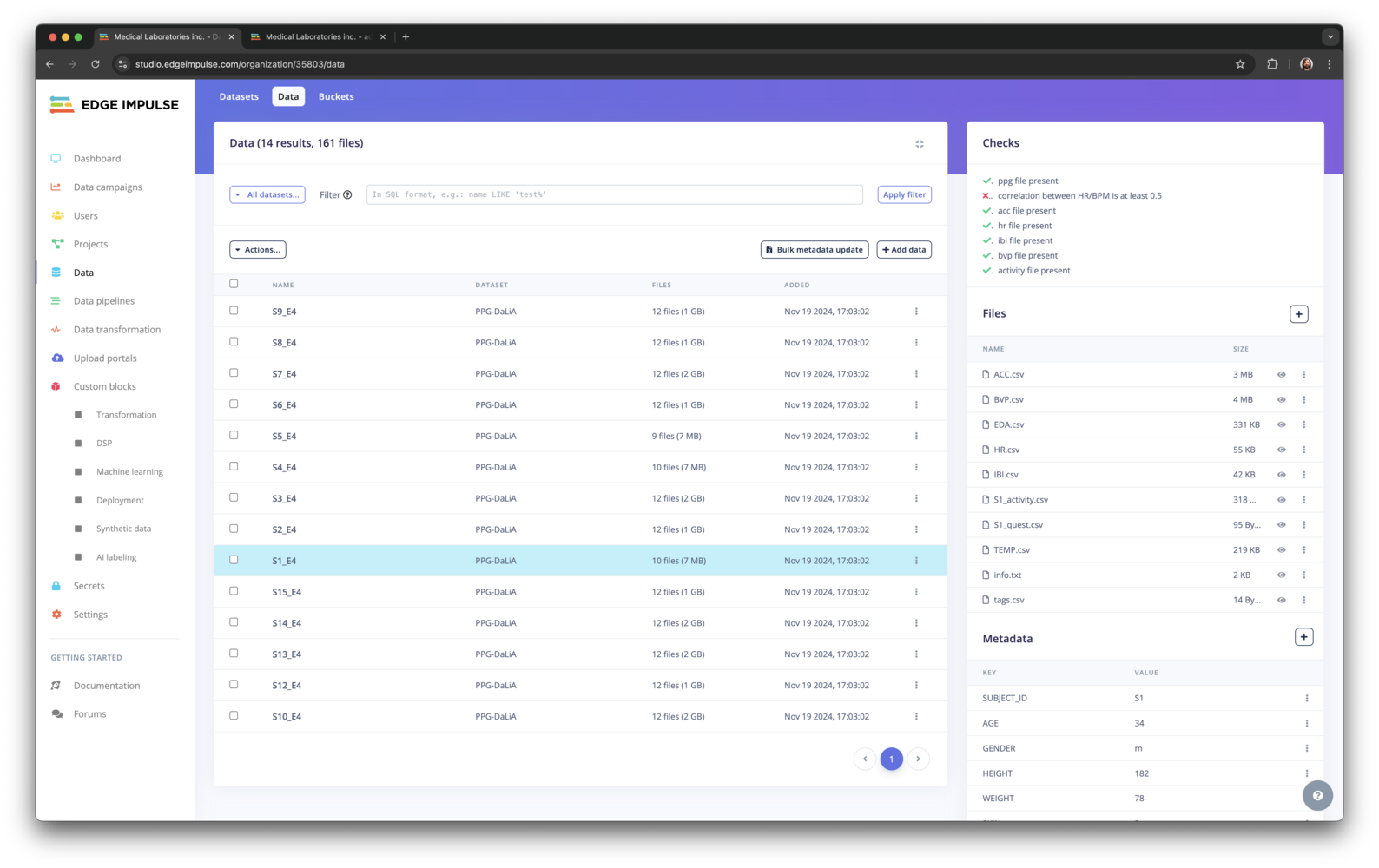 Checklists look trivial, but are actually very powerful as they give quick insights in dataset issues. Missing these issues until after the study is done can be very expensive.
Checklists are written to `ei-metadata.json` and are automatically being picked up by the UI.
Checklists are driven by the metadata for a data item. Set the `ei_check` metadata item to `0` or `1` to show a check mark in the list. To show an item in the checklist, set an `ei_check_KEYNAME` metadata item to `0` or `1`.
To query for items with or without a check mark, use a filter in the form of:
```
metadata->ei_check = 1
```
To make it easy to create these lists on the fly you can set these metadata items directly from a [transformation block](/studio/organizations/custom-blocks/custom-transformation-blocks)
## Example
For the reference design described and used in the previous pages, the combiner takes in a data item, and writes out:
1. A checklist, e.g.:
* ✔ - PPG file present
* ✔ - Accelerometer file present
* ✘ - Correlation between HR/PPG HR is at least 0.5
2. If the checklist is OK, a `combined.parquet` file.
3. A `hr.png` file with the correlation between HR found from PPG, and HR from the reference device. This is useful for two reasons:
* If the correlation is too low we're looking at the wrong file, or data is missing.
* Verify if the PPG => HR algorithm actually works.
Checklists look trivial, but are actually very powerful as they give quick insights in dataset issues. Missing these issues until after the study is done can be very expensive.
Checklists are written to `ei-metadata.json` and are automatically being picked up by the UI.
Checklists are driven by the metadata for a data item. Set the `ei_check` metadata item to `0` or `1` to show a check mark in the list. To show an item in the checklist, set an `ei_check_KEYNAME` metadata item to `0` or `1`.
To query for items with or without a check mark, use a filter in the form of:
```
metadata->ei_check = 1
```
To make it easy to create these lists on the fly you can set these metadata items directly from a [transformation block](/studio/organizations/custom-blocks/custom-transformation-blocks)
## Example
For the reference design described and used in the previous pages, the combiner takes in a data item, and writes out:
1. A checklist, e.g.:
* ✔ - PPG file present
* ✔ - Accelerometer file present
* ✘ - Correlation between HR/PPG HR is at least 0.5
2. If the checklist is OK, a `combined.parquet` file.
3. A `hr.png` file with the correlation between HR found from PPG, and HR from the reference device. This is useful for two reasons:
* If the correlation is too low we're looking at the wrong file, or data is missing.
* Verify if the PPG => HR algorithm actually works.
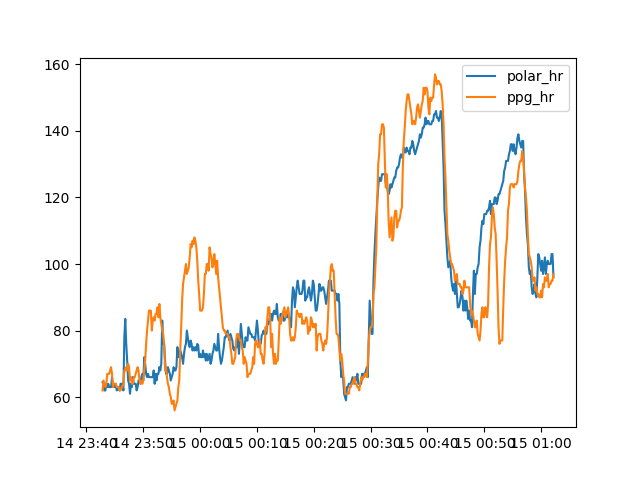 This makes it easy to quickly see if the data is in the right format, and if the data is complete. If the checklist is not OK, the data item is not used in the training set.