> ## Documentation Index
> Fetch the complete documentation index at: https://docs.edgeimpulse.com/llms.txt
> Use this file to discover all available pages before exploring further.
# OnLogic ML100G
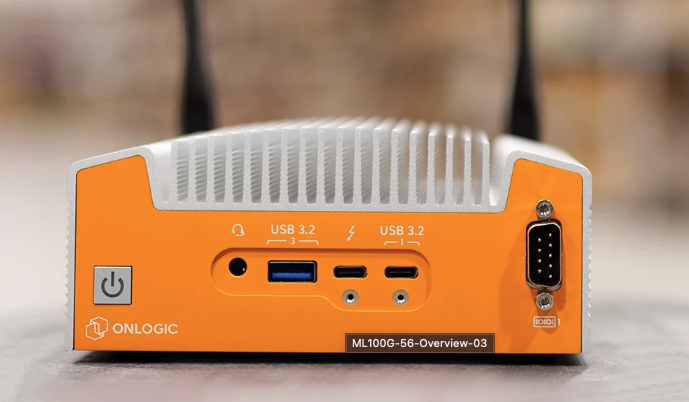
The OnLogic ML100G is a fanless Intel Core industrial NUC that is suitable for industrial applications:
 ##### ADVANCED COMPUTING ANYWHERE YOU NEED IT
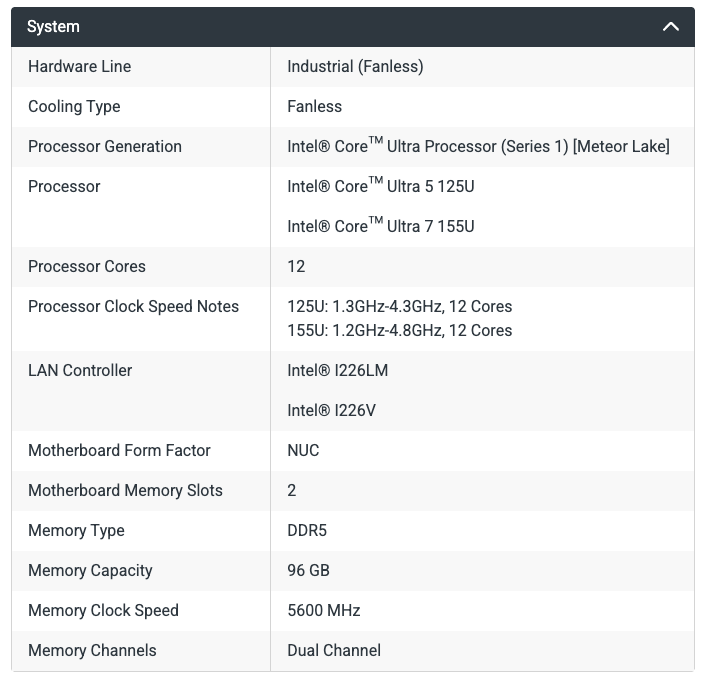
The ML100G-56 is powered by Intel® Core Ultra processors (formerly known as Meteor Lake), and integrated Intel® Arc™ graphics. An onboard Neural Processing Unit (NPU) makes the system ideal for demanding applications such as AI inferencing, machine learning, and real-time data processing. The ML100G-56 also gives you the power to tackle the most complex challenges with up to 96 GB of DDR5 5600 memory.
##### ENGINEERED FOR THE EDGE
Solid-state industrial components and the removal of moving parts significantly extend the lifespan of the ML100G-56. Our Hardshell™ Fanless Technology is optimized for reliable passive cooling and helps protect the system from dust and other airborne debris. Power input of 12 to 24 VDC, an operating temperature range of 0-50°C, an ultra-compact footprint, and a variety of mounting options mean you can install the ML100G-56 wherever you need it.
##### CONNECT SEAMLESSLY
The ML100G-56 industrial NUC is equipped with an array of I/O ports, including USB 4/Thunderbolt™ 4, HDMI, and 2.5GbE LAN to provide seamless connectivity to a wide range of peripherals, sensors, displays, and networks. The system can also be configured with an optional RS-232/422/485 COM port to help it interface with legacy equipment or sensors and an onboard M.2 can be used to add a dedicated Hailo AI accelerator.
##### ADVANCED COMPUTING ANYWHERE YOU NEED IT
The ML100G-56 is powered by Intel® Core Ultra processors (formerly known as Meteor Lake), and integrated Intel® Arc™ graphics. An onboard Neural Processing Unit (NPU) makes the system ideal for demanding applications such as AI inferencing, machine learning, and real-time data processing. The ML100G-56 also gives you the power to tackle the most complex challenges with up to 96 GB of DDR5 5600 memory.
##### ENGINEERED FOR THE EDGE
Solid-state industrial components and the removal of moving parts significantly extend the lifespan of the ML100G-56. Our Hardshell™ Fanless Technology is optimized for reliable passive cooling and helps protect the system from dust and other airborne debris. Power input of 12 to 24 VDC, an operating temperature range of 0-50°C, an ultra-compact footprint, and a variety of mounting options mean you can install the ML100G-56 wherever you need it.
##### CONNECT SEAMLESSLY
The ML100G-56 industrial NUC is equipped with an array of I/O ports, including USB 4/Thunderbolt™ 4, HDMI, and 2.5GbE LAN to provide seamless connectivity to a wide range of peripherals, sensors, displays, and networks. The system can also be configured with an optional RS-232/422/485 COM port to help it interface with legacy equipment or sensors and an onboard M.2 can be used to add a dedicated Hailo AI accelerator.
 **Instruction set architectures**
If you are not sure about your instruction set architectures, use:
```
$ uname -m
x86_64
```
### Installing dependencies
To set this device up in Edge Impulse, run the following commands:
**Ubuntu/Debian:**
```
sudo apt install -y curl
curl -sL https://deb.nodesource.com/setup_20.x | sudo bash -
sudo apt install -y gcc g++ make build-essential nodejs sox gstreamer1.0-tools gstreamer1.0-plugins-good gstreamer1.0-plugins-base gstreamer1.0-plugins-base-apps
sudo npm install edge-impulse-linux -g --unsafe-perm
```
**Important:** Edge Impulse requires Node.js version 20.x or later. Using older versions may lead to installation issues or runtime errors. Please ensure you have the correct version installed before proceeding with the setup.
### Connecting to Edge Impulse
With all software set up, connect your camera or microphone to your operating system (see 'Next steps' further on this page if you want to connect a different sensor), and run:
```
edge-impulse-linux
```
This will start a wizard which will ask you to log in, and choose an Edge Impulse project. If you want to switch projects run the command with `--clean`.
#### Verifying that your device is connected
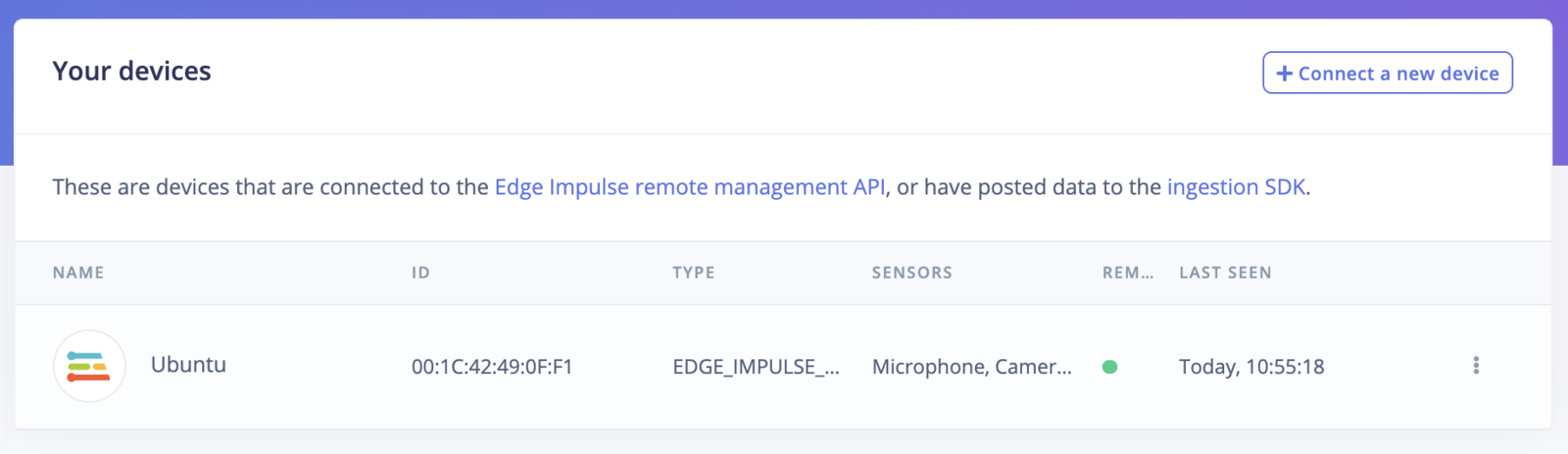
That's all! Your machine is now connected to Edge Impulse. To verify this, go to [your Edge Impulse project](https://studio.edgeimpulse.com/studio/profile/projects), and click **Devices**. The device will be listed here.
**Instruction set architectures**
If you are not sure about your instruction set architectures, use:
```
$ uname -m
x86_64
```
### Installing dependencies
To set this device up in Edge Impulse, run the following commands:
**Ubuntu/Debian:**
```
sudo apt install -y curl
curl -sL https://deb.nodesource.com/setup_20.x | sudo bash -
sudo apt install -y gcc g++ make build-essential nodejs sox gstreamer1.0-tools gstreamer1.0-plugins-good gstreamer1.0-plugins-base gstreamer1.0-plugins-base-apps
sudo npm install edge-impulse-linux -g --unsafe-perm
```
**Important:** Edge Impulse requires Node.js version 20.x or later. Using older versions may lead to installation issues or runtime errors. Please ensure you have the correct version installed before proceeding with the setup.
### Connecting to Edge Impulse
With all software set up, connect your camera or microphone to your operating system (see 'Next steps' further on this page if you want to connect a different sensor), and run:
```
edge-impulse-linux
```
This will start a wizard which will ask you to log in, and choose an Edge Impulse project. If you want to switch projects run the command with `--clean`.
#### Verifying that your device is connected
That's all! Your machine is now connected to Edge Impulse. To verify this, go to [your Edge Impulse project](https://studio.edgeimpulse.com/studio/profile/projects), and click **Devices**. The device will be listed here.
 ### Next steps: building a machine learning model
With everything set up you can now build your first machine learning model with these tutorials:
* [Keyword spotting](/tutorials/end-to-end/keyword-spotting)
* [Sound recognition](/tutorials/end-to-end/sound-recognition)
* [Image classification](/tutorials/end-to-end/image-classification)
* [object detection](/tutorials/end-to-end/object-detection-bounding-boxes)
* [Object detection with centroids (FOMO)](/tutorials/end-to-end/object-detection-centroids) Looking to connect different sensors? Our [Linux SDK](/tools/libraries/sdks/inference/linux) lets you easily send data from any sensor and any programming language (with examples in Node.js, Python, Go and C++) into Edge Impulse.
### Deploying back to device
To run your impulse locally run on your OnLogic ML100G:
```
edge-impulse-linux-runner
```
This will automatically compile your model with full hardware acceleration, download the model to your local machine, and then start classifying. Our [Linux SDK](/tools/libraries/sdks/inference/linux) has examples on how to integrate the model with your favourite programming language.
#### Image model?
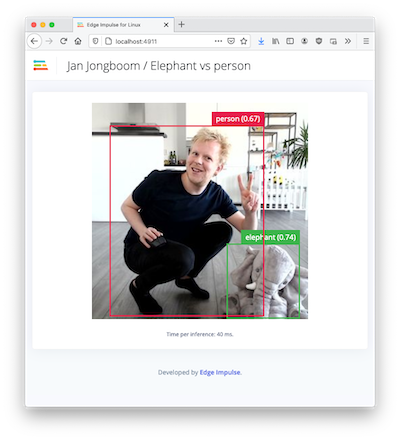
If you have an image model then you can get a peek of what your device sees by being on the same network as your device, and finding the 'Want to see a feed of the camera and live classification in your browser' message in the console. Open the URL in a browser and both the camera feed and the classification are shown:
### Next steps: building a machine learning model
With everything set up you can now build your first machine learning model with these tutorials:
* [Keyword spotting](/tutorials/end-to-end/keyword-spotting)
* [Sound recognition](/tutorials/end-to-end/sound-recognition)
* [Image classification](/tutorials/end-to-end/image-classification)
* [object detection](/tutorials/end-to-end/object-detection-bounding-boxes)
* [Object detection with centroids (FOMO)](/tutorials/end-to-end/object-detection-centroids) Looking to connect different sensors? Our [Linux SDK](/tools/libraries/sdks/inference/linux) lets you easily send data from any sensor and any programming language (with examples in Node.js, Python, Go and C++) into Edge Impulse.
### Deploying back to device
To run your impulse locally run on your OnLogic ML100G:
```
edge-impulse-linux-runner
```
This will automatically compile your model with full hardware acceleration, download the model to your local machine, and then start classifying. Our [Linux SDK](/tools/libraries/sdks/inference/linux) has examples on how to integrate the model with your favourite programming language.
#### Image model?
If you have an image model then you can get a peek of what your device sees by being on the same network as your device, and finding the 'Want to see a feed of the camera and live classification in your browser' message in the console. Open the URL in a browser and both the camera feed and the classification are shown: