> ## Documentation Index
> Fetch the complete documentation index at: https://docs.edgeimpulse.com/llms.txt
> Use this file to discover all available pages before exploring further.
# OnLogic FR101
The Factor 101 is a power-efficient, compact industrial computer built on the 8-core Qualcomm QCS6490. Designed for data gateway and light machine vision applications, it features an integrated NPU for accelerated AI, 10 GbE LAN for high-speed transfer, and long lifecycle components.
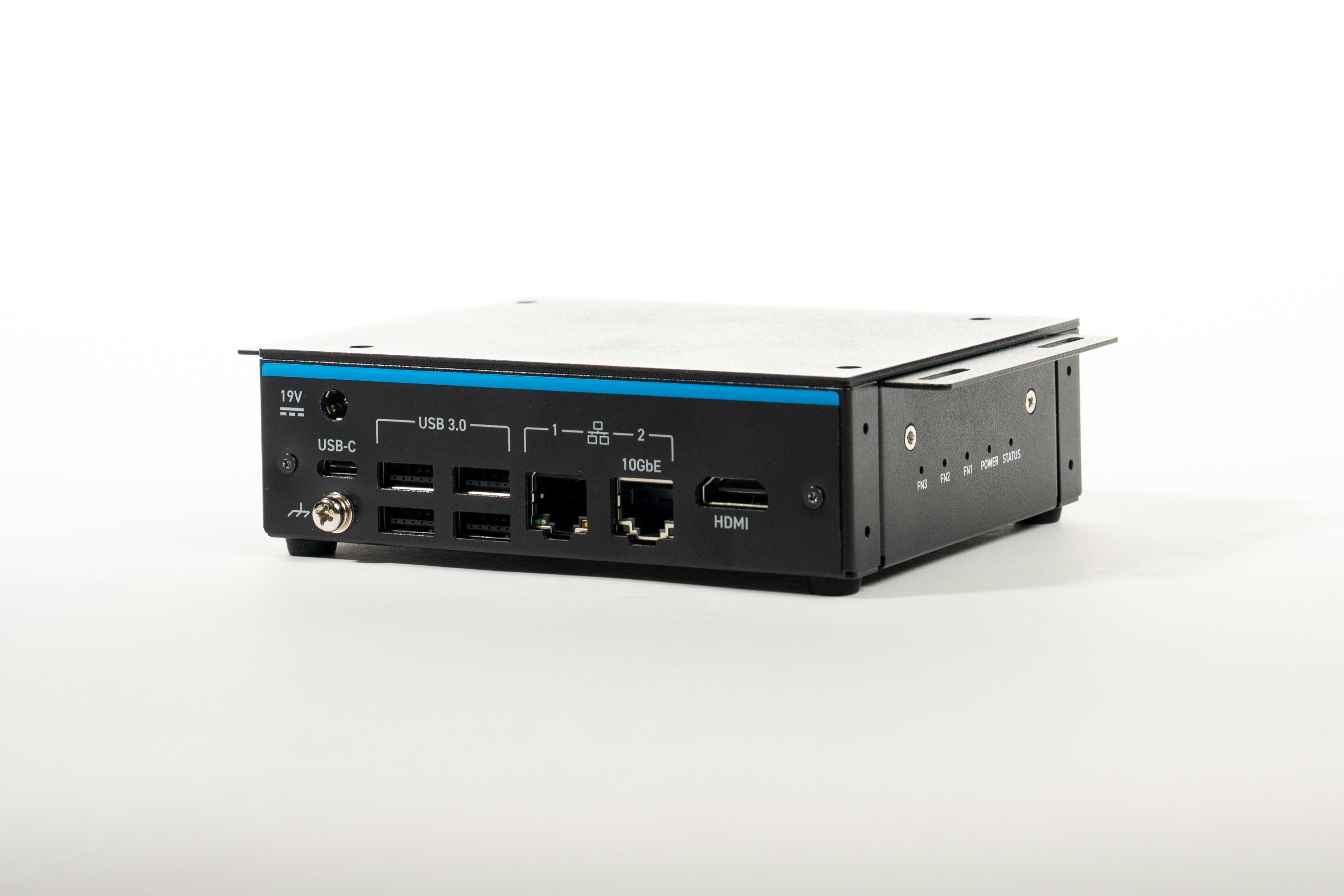 Built for reliability, the FR101 uses a fanless design to prevent particle ingress and maximize uptime. The power-efficient 5W thermal design power eliminates the need for active cooling, enabling an ultra-small form factor. With a 0 to 50°C range and a 15-year lifecycle, it ensures long-term scalability. Physical I/O includes 5x USB 3.0, HDMI, and 8 channel digital I/O for direct machine control and sensor integration.
## Setting up your FR101
### 1. Installing Dependencies
Install version 2.26.0.240828 of the QAIRT SDK. Set the `LD_LIBRARY_PATH` and `ADSP_LIBRARY_PATH` environment variables to find the dependencies needed for qnn accelerated inference.
```shell theme={"system"}
$ export LD_LIBRARY_PATH=/path/to/v2.26.0.250828/qairt/2.26.0.250828/lib/aarch64-ubuntu-gcc9.4
$ export ADSP_LIBRARY_PATH=/path/to/v2.26.0.250828/qairt/2.26.0.250828/lib/hexagon-v68/unsigned
```
Install the Edge Impulse Linux CLI:
```shell theme={"system"}
$ wget https://cdn.edgeimpulse.com/firmware/linux/setup-edge-impulse-qc-linux.sh
$ sh setup-edge-impulse-qc-linux.sh
```
> To ensure that your SDK install is ready for accelerated inference, run the `qnn-platform-validator` binary in the `bin/aarch64-ubuntu-gcc9.4/` directory with arguments `--backend all --testBackend`.
### 2. Connecting to Edge Impulse
After setting up the inference dependencies, start the edge impulse linux runner.
```
edge-impulse-linux-runner
```
To rerun the edge impulse login wizard to select a different project, use the --clean argument.
### 3. Verifying that your device is connected
That’s all! Your device is now connected to Edge Impulse. To verify this, go to your Edge Impulse project, and click Devices. The device will be listed here.
## Next steps: building a machine learning model
With everything set up you can now build your first machine learning model with these tutorials:
* [Responding to your voice](/tutorials/end-to-end/keyword-spotting)
* [Recognize sounds from audio](/tutorials/end-to-end/sound-recognition)
* [Adding sight to your sensors](/tutorials/end-to-end/image-classification)
* [Object detection](/tutorials/end-to-end/object-detection-bounding-boxes)
* [Visual anomaly detection with FOMO-AD](/studio/projects/learning-blocks/blocks/visual-anomaly-detection-fomo-ad)
Looking to connect different sensors? Our Linux SDK lets you easily send data from any sensor and any programming language (with examples in Node.js, Python, Go and C++) into Edge Impulse.
## Profiling your models
To profile your models for the FR101:
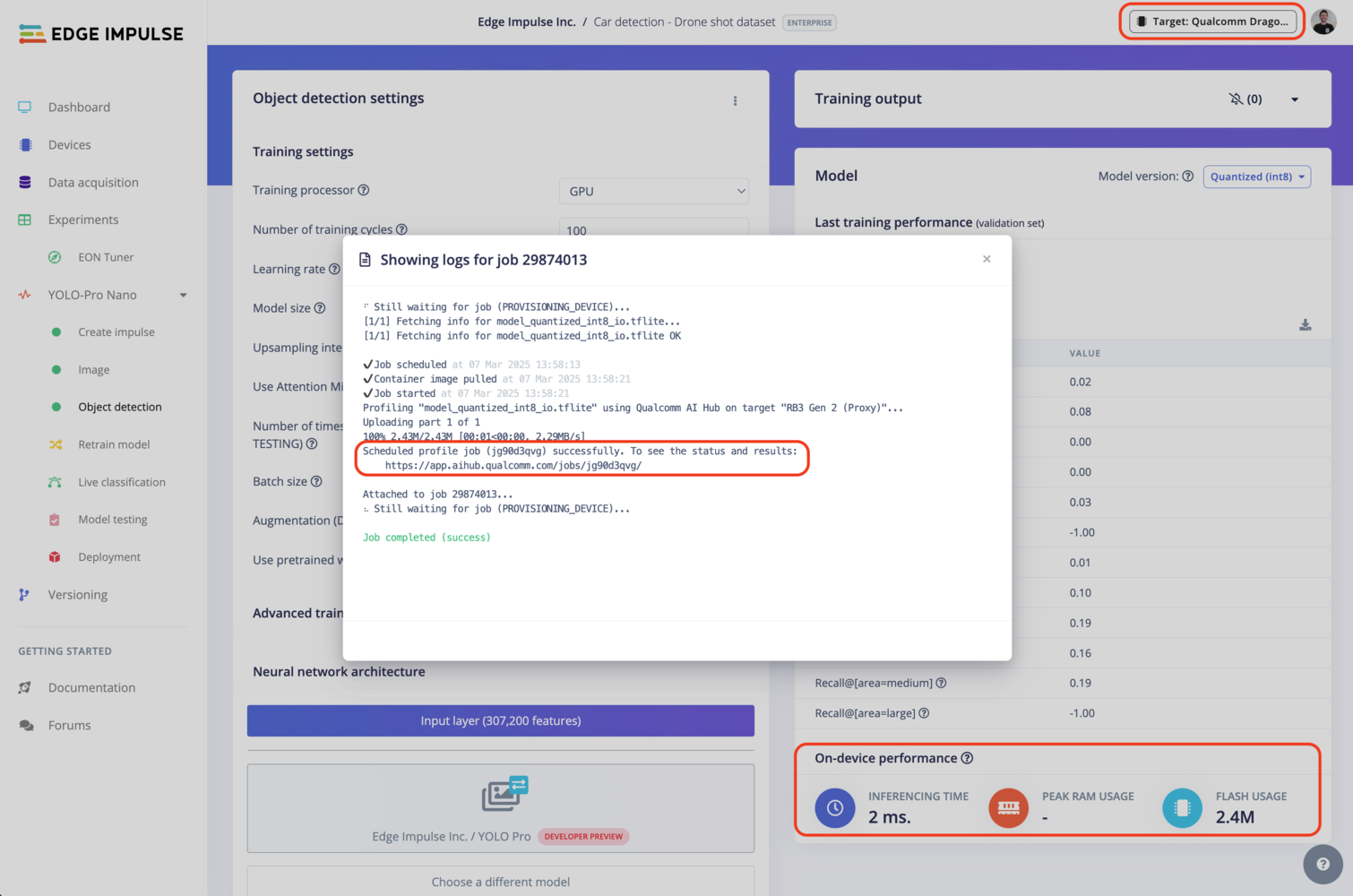
* Make sure to select the Qualcomm Dragonwing™ RB3 Gen 2 Development Kit as your target device. You can change the target at the top of the page near your user's logo.
* Head to your [Learning block](/studio/projects/learning-blocks) page in Edge Impulse Studio.
* Click on the **Calculate performance** button.
To provide the on-device performance, we use [Qualcomm® AI Hub](https://aihub.qualcomm.com/) in the background (see the image below) which run the compiled model on a physical device to gather metrics such as the mapping of model layers to compute units, inference latency, and peak memory usage. See more on Qualcomm® AI Hub [documentation](https://app.aihub.qualcomm.com/docs/) page.
Built for reliability, the FR101 uses a fanless design to prevent particle ingress and maximize uptime. The power-efficient 5W thermal design power eliminates the need for active cooling, enabling an ultra-small form factor. With a 0 to 50°C range and a 15-year lifecycle, it ensures long-term scalability. Physical I/O includes 5x USB 3.0, HDMI, and 8 channel digital I/O for direct machine control and sensor integration.
## Setting up your FR101
### 1. Installing Dependencies
Install version 2.26.0.240828 of the QAIRT SDK. Set the `LD_LIBRARY_PATH` and `ADSP_LIBRARY_PATH` environment variables to find the dependencies needed for qnn accelerated inference.
```shell theme={"system"}
$ export LD_LIBRARY_PATH=/path/to/v2.26.0.250828/qairt/2.26.0.250828/lib/aarch64-ubuntu-gcc9.4
$ export ADSP_LIBRARY_PATH=/path/to/v2.26.0.250828/qairt/2.26.0.250828/lib/hexagon-v68/unsigned
```
Install the Edge Impulse Linux CLI:
```shell theme={"system"}
$ wget https://cdn.edgeimpulse.com/firmware/linux/setup-edge-impulse-qc-linux.sh
$ sh setup-edge-impulse-qc-linux.sh
```
> To ensure that your SDK install is ready for accelerated inference, run the `qnn-platform-validator` binary in the `bin/aarch64-ubuntu-gcc9.4/` directory with arguments `--backend all --testBackend`.
### 2. Connecting to Edge Impulse
After setting up the inference dependencies, start the edge impulse linux runner.
```
edge-impulse-linux-runner
```
To rerun the edge impulse login wizard to select a different project, use the --clean argument.
### 3. Verifying that your device is connected
That’s all! Your device is now connected to Edge Impulse. To verify this, go to your Edge Impulse project, and click Devices. The device will be listed here.
## Next steps: building a machine learning model
With everything set up you can now build your first machine learning model with these tutorials:
* [Responding to your voice](/tutorials/end-to-end/keyword-spotting)
* [Recognize sounds from audio](/tutorials/end-to-end/sound-recognition)
* [Adding sight to your sensors](/tutorials/end-to-end/image-classification)
* [Object detection](/tutorials/end-to-end/object-detection-bounding-boxes)
* [Visual anomaly detection with FOMO-AD](/studio/projects/learning-blocks/blocks/visual-anomaly-detection-fomo-ad)
Looking to connect different sensors? Our Linux SDK lets you easily send data from any sensor and any programming language (with examples in Node.js, Python, Go and C++) into Edge Impulse.
## Profiling your models
To profile your models for the FR101:
* Make sure to select the Qualcomm Dragonwing™ RB3 Gen 2 Development Kit as your target device. You can change the target at the top of the page near your user's logo.
* Head to your [Learning block](/studio/projects/learning-blocks) page in Edge Impulse Studio.
* Click on the **Calculate performance** button.
To provide the on-device performance, we use [Qualcomm® AI Hub](https://aihub.qualcomm.com/) in the background (see the image below) which run the compiled model on a physical device to gather metrics such as the mapping of model layers to compute units, inference latency, and peak memory usage. See more on Qualcomm® AI Hub [documentation](https://app.aihub.qualcomm.com/docs/) page.
 ## Deploying back to device
### Using the Edge Impulse Linux CLI
To run your Impulse locally on the FR101, open a terminal and run:
```bash theme={"system"}
$ edge-impulse-linux-runner
```
This will automatically compile your model with full hardware acceleration, download the model to your FR101, and then start classifying (use `--clean` to switch projects).
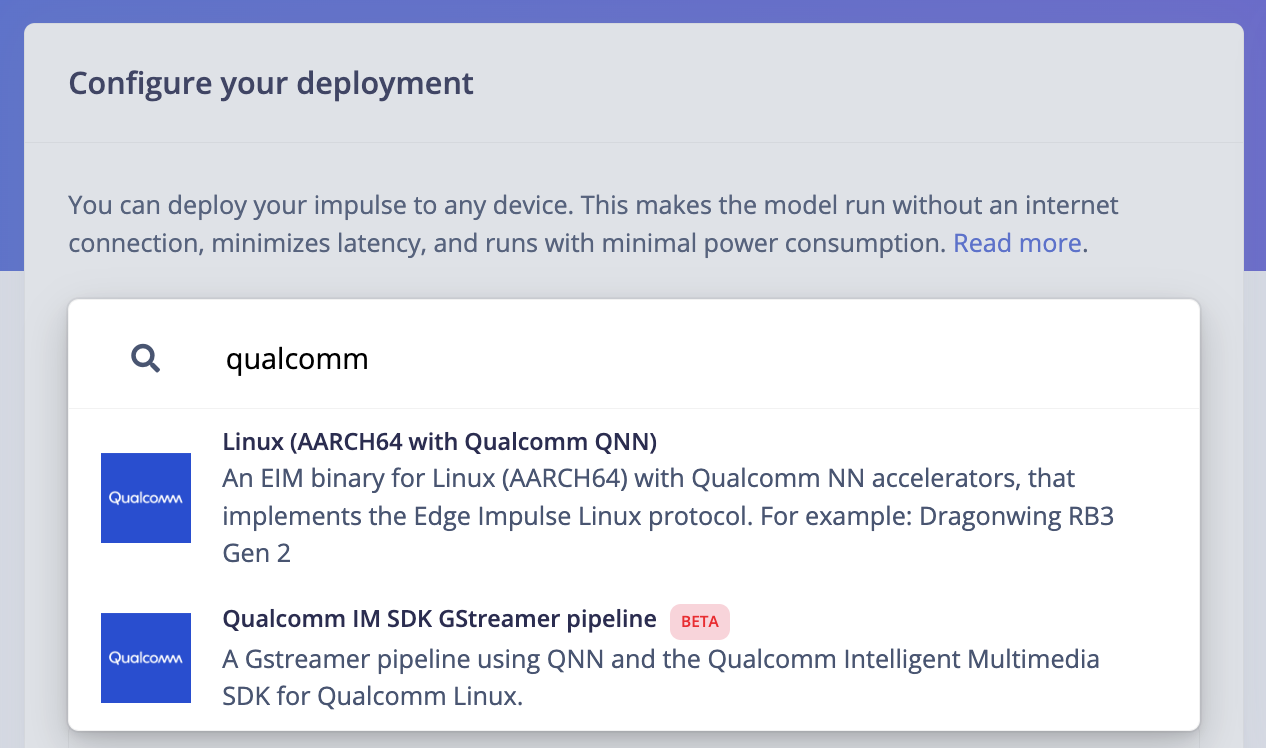
Alternatively, you can select the **Linux (AARCH64 with Qualcomm QNN)** option in the **Deployment** page.
## Deploying back to device
### Using the Edge Impulse Linux CLI
To run your Impulse locally on the FR101, open a terminal and run:
```bash theme={"system"}
$ edge-impulse-linux-runner
```
This will automatically compile your model with full hardware acceleration, download the model to your FR101, and then start classifying (use `--clean` to switch projects).
Alternatively, you can select the **Linux (AARCH64 with Qualcomm QNN)** option in the **Deployment** page.
 This will download an `.eim` model that you can run on your board with the following command:
```bash theme={"system"}
edge-impulse-linux-runner --model-file downloaded-model.eim
```
### Using the Edge Impulse Linux Inferencing SDKs
Our [Linux SDK](/tools/libraries/sdks/inference/linux) has examples on how to integrate the `.eim` model with your favourite programming language.
You can download either the quantized version and the float32 versions but Qualcomm NN accelerator only supports quantized models. If you select the float32 version, the model will run on CPU.
### Using the IM SDK GStreamer option
When selecting this option, you will obtain a `.zip` folder. We provide instructions in the `README.md` file included in the compressed folder.
See more information on [Qualcomm IM SDK GStreamer pipeline](/hardware/deployments/run-qualcomm-im-sdk-gstreamer).
### Image model?
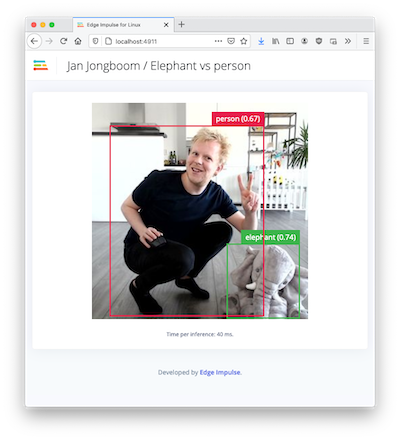
If you have an image model then you can get a peek of what your device sees by being on the same network as your device, and finding the 'Want to see a feed of the camera and live classification in your browser' message in the console. Open the URL in a browser and both the camera feed and the classification are shown:
This will download an `.eim` model that you can run on your board with the following command:
```bash theme={"system"}
edge-impulse-linux-runner --model-file downloaded-model.eim
```
### Using the Edge Impulse Linux Inferencing SDKs
Our [Linux SDK](/tools/libraries/sdks/inference/linux) has examples on how to integrate the `.eim` model with your favourite programming language.
You can download either the quantized version and the float32 versions but Qualcomm NN accelerator only supports quantized models. If you select the float32 version, the model will run on CPU.
### Using the IM SDK GStreamer option
When selecting this option, you will obtain a `.zip` folder. We provide instructions in the `README.md` file included in the compressed folder.
See more information on [Qualcomm IM SDK GStreamer pipeline](/hardware/deployments/run-qualcomm-im-sdk-gstreamer).
### Image model?
If you have an image model then you can get a peek of what your device sees by being on the same network as your device, and finding the 'Want to see a feed of the camera and live classification in your browser' message in the console. Open the URL in a browser and both the camera feed and the classification are shown: